How to Order Email Hosting(SmarterMail)?
Step(1) – Login to your Z.com Account, https://cloud.z.com/mm/signin/
အဆင့်(၁) - Z.com Account သို့ Login ဝင်ရောက်ပါ။
If you don’t have Z.com Account, you must register, at https://cloud.z.com/mm/signup/
အကောင့်စာရင်းသွင်းထားခြင်းမရှိပါက Z.com Account ပထမဦးစွာ register ပြုလုပ်ပါ။
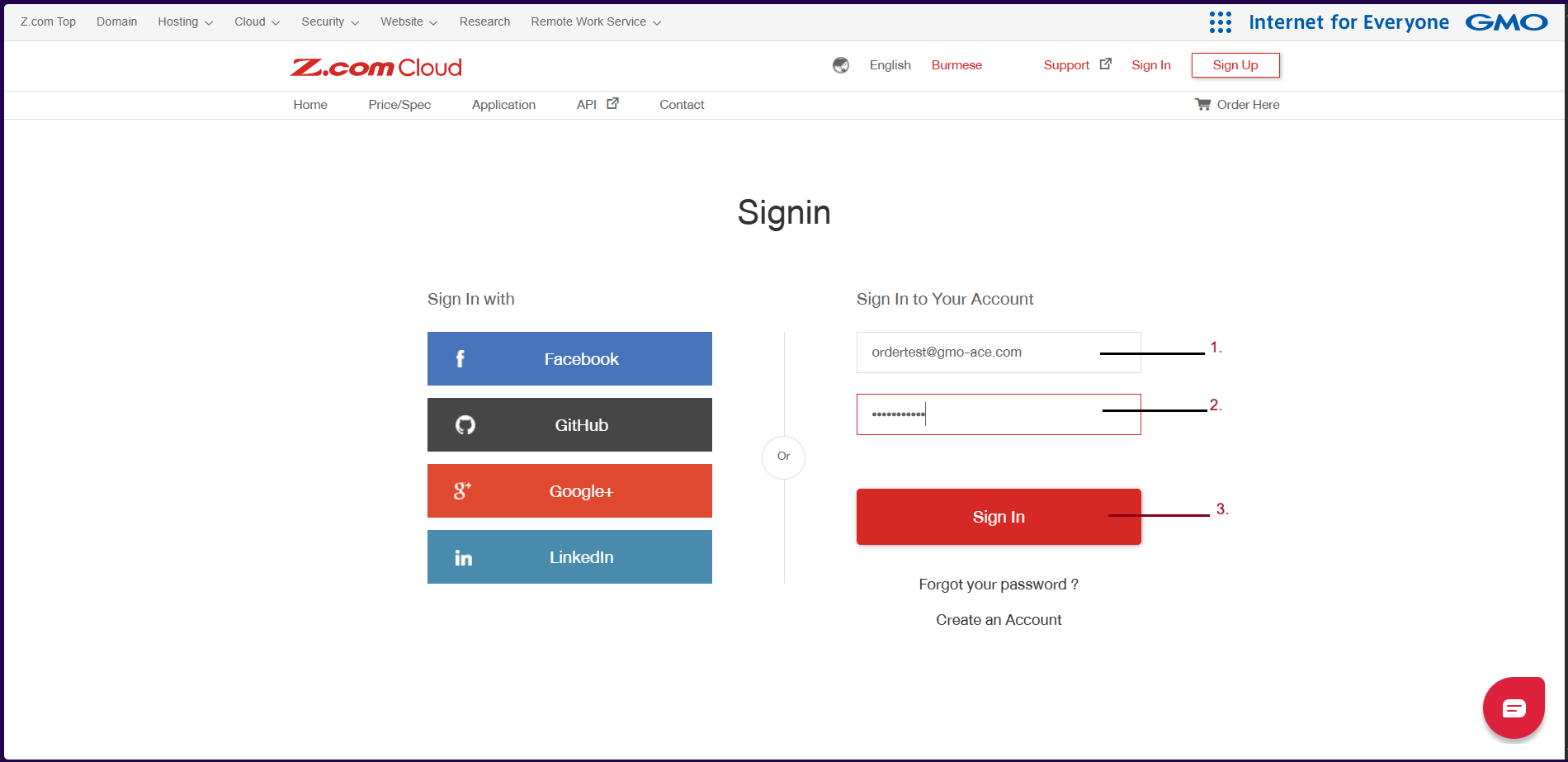
Step(2) – After Login your Z.com Account, you choose “Email Hosting” Menu
အဆင့်(၂) - အကောင့်ထဲသို့ ဝင်ရောက်ပြီးနောက် Email Hosting သို့ထပ်ဝင်ပါ။
Click “Email Hosting” and click “+Server” as follows
မေးလ်ဆာဗာ အသစ်မှာယူရန် + Server အားနှိပ်ပါ။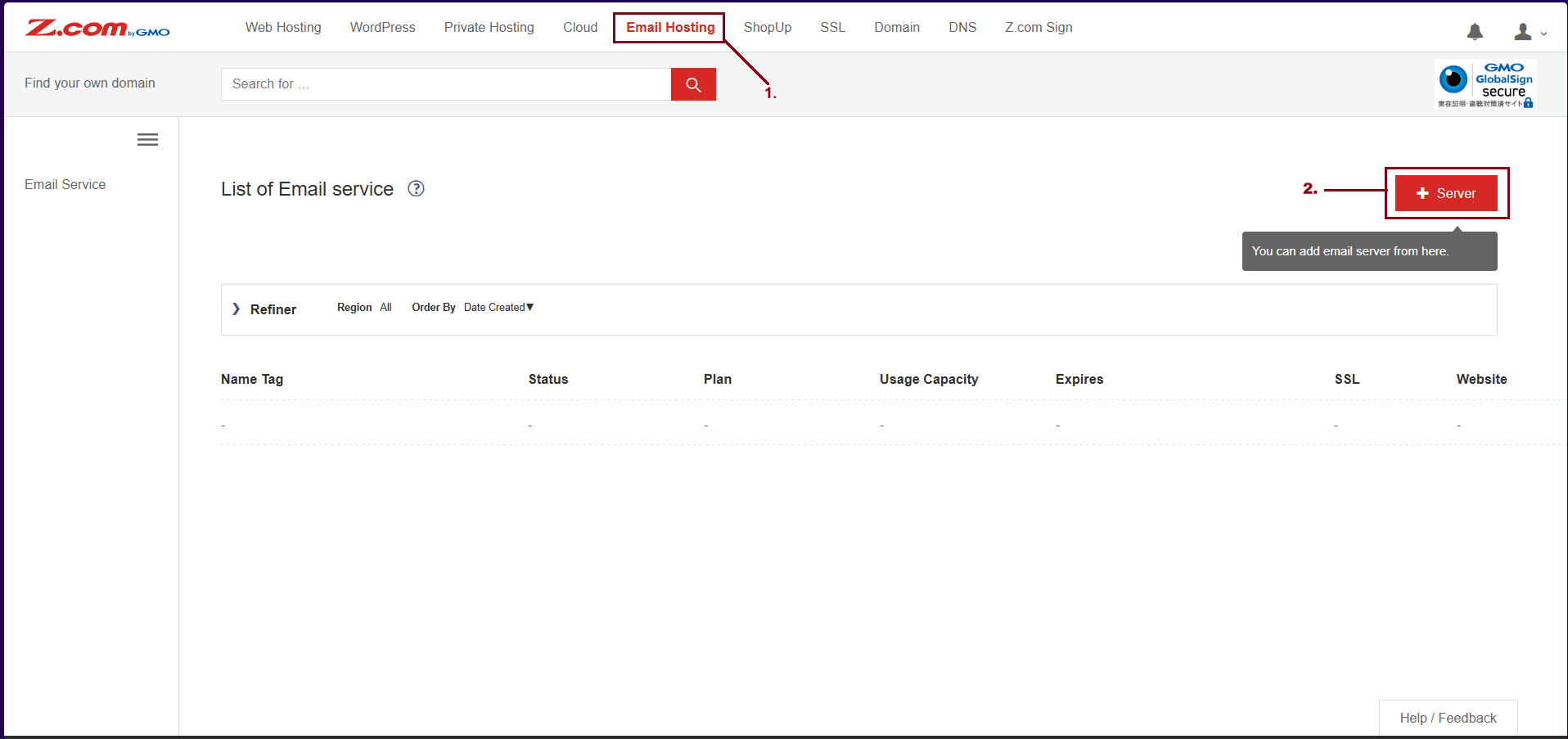
Step(3) – You can choose a plan that you want to order
အဆင့်(၃) - ဝယ်ယူလိုသော package အားရွေးချယ်ပါ။
Choose the Domain Name Type
ဒိုမိန်းအမျိုးအစားအား ရွေးချယ်ပါ။
- Register New Domain: If you want to use a new domain, please choose.
- ဒိုမိန်းအသစ် ရယူရန် Register New Domain ကိုရွေးချယ်ပါ။
- Use Existing Domain: If you had a domain already, please choose.
- မှတ်ပုံတင်ပြီးသား ဒိုမိန်းဖြင့် အသုံးပြုရန် Use Existing Domain အားရွေးချယ်ပါ။
- Use Sub Domain (netdesignhost.com): You don’t want to add the domain in the order process. please choose “Use Sub Domain”. After that, you can add the domain manually.
- မေးလ်ဆာဗာ၏ subdomain ဖြင့်အသုံးပြုရန်သာ။
Plan
- Please choose the Plan that you want to order
- အသုံးပြုလိုသော Storage နှင့် Email Server အမျိုးအစားအား ရွေးချယ်ပါ။
Contract Period: 1Year to 3Years
၁နှစ်မှ ၃နှစ်ထိ ရွေးချယ် ဝယ်ယူနိုင်ပါတယ်။
And click "Buy Now!"
ပြီးနောက် "Buy Now!" အားနှိပ်၍ Order တင်နိုင်ပါတယ်။
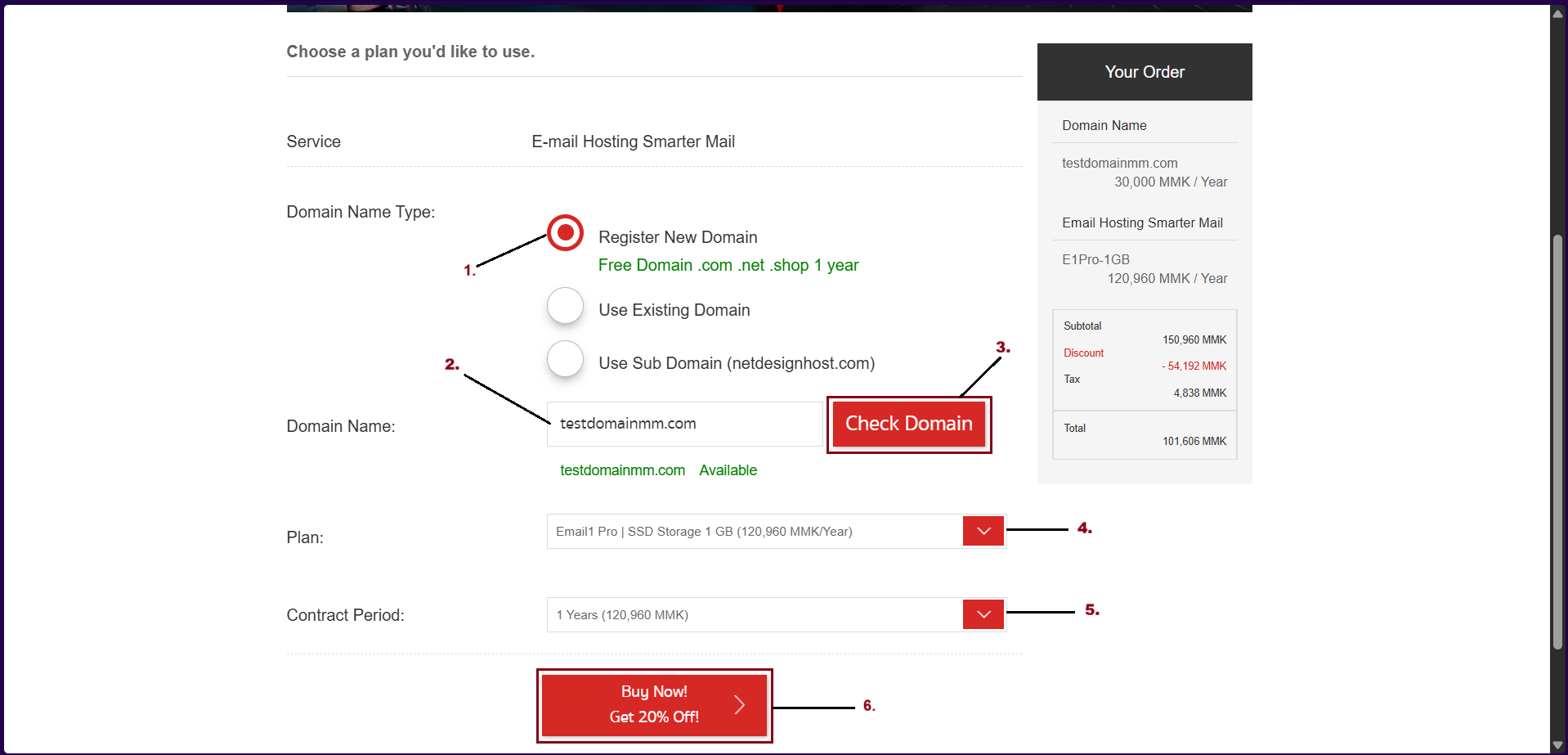
ယခုပုံသည် Domain အသစ်ဖြင့် မှာယူနည်းဖြစ်ပါတယ်။
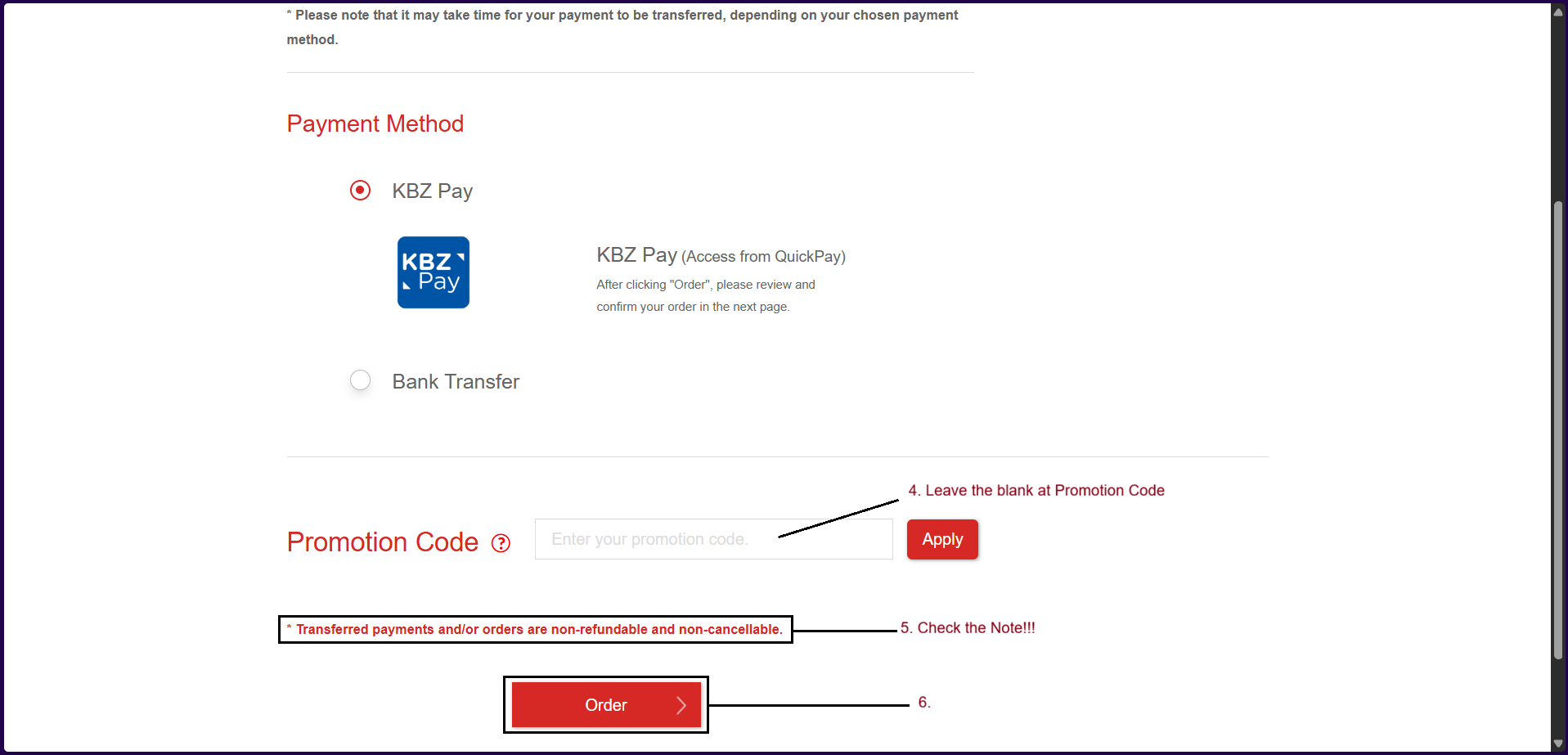
Step(4) – Choose Payment Method
အဆင့်(၄) - ငွေပေးချေခြင်း။
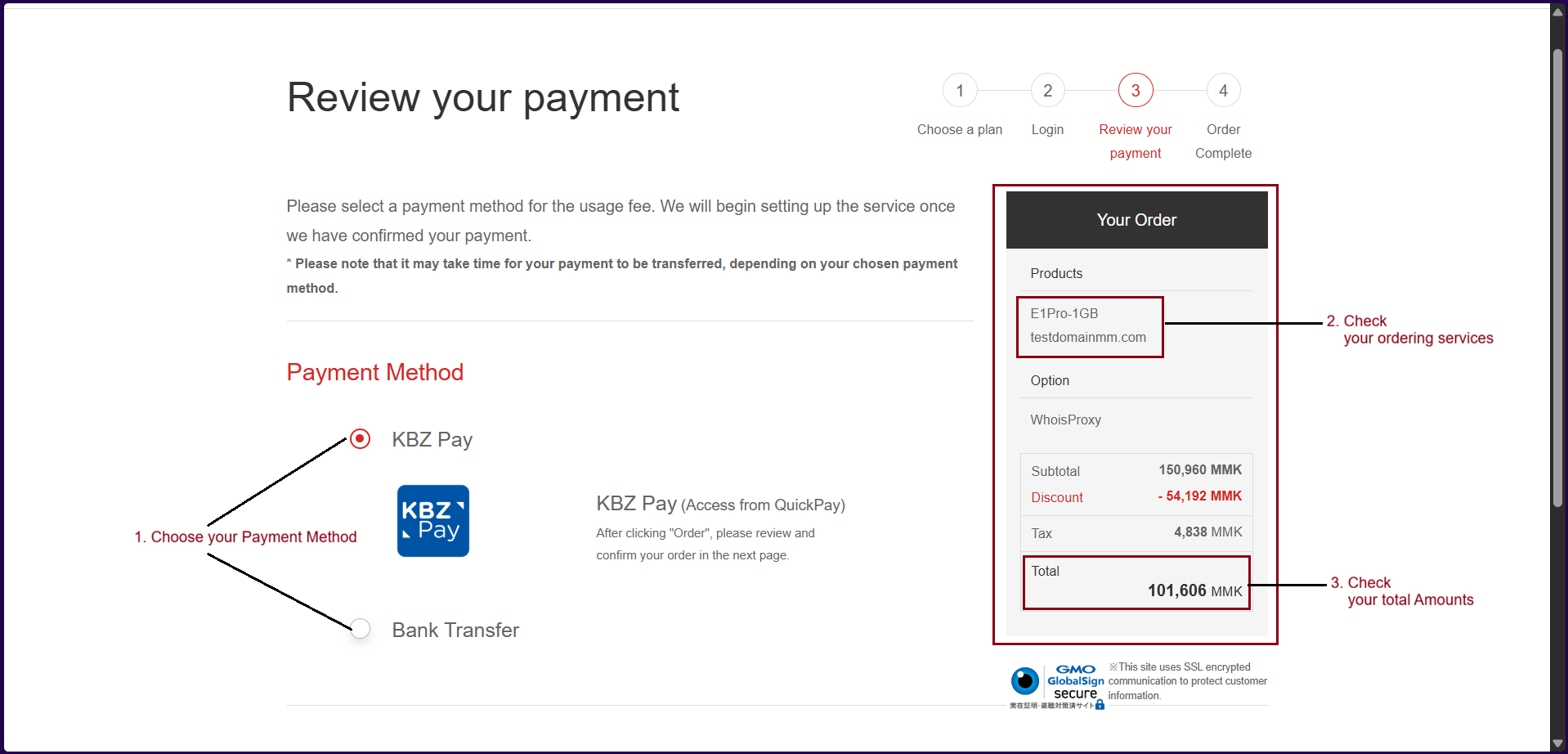
1. You can choose the Payment method as follows-
- KBZ Pay
- Bank Transfer
2. Check your ordering services (For example: Domain Name and Email Server Type)
3. Check your total Amounts
And then, click "Order".
ငွေချေးခြင်းနည်းလမ်းတစ်ခု အားရွေးချယ်ပြီး လူကြီးမင်းတို့မှာယူထားသော ဒိုမိန်းနှင့်မေးလ်ဆာဗာအမျိုးအစား မှန်ကန်ရန် စစ်ဆေးပေးပါ။
ပြီးနောက် ငွေပမာဏအားထပ်မံစစ်ဆေး၍ "Order" အားနှိပ်ပါ။
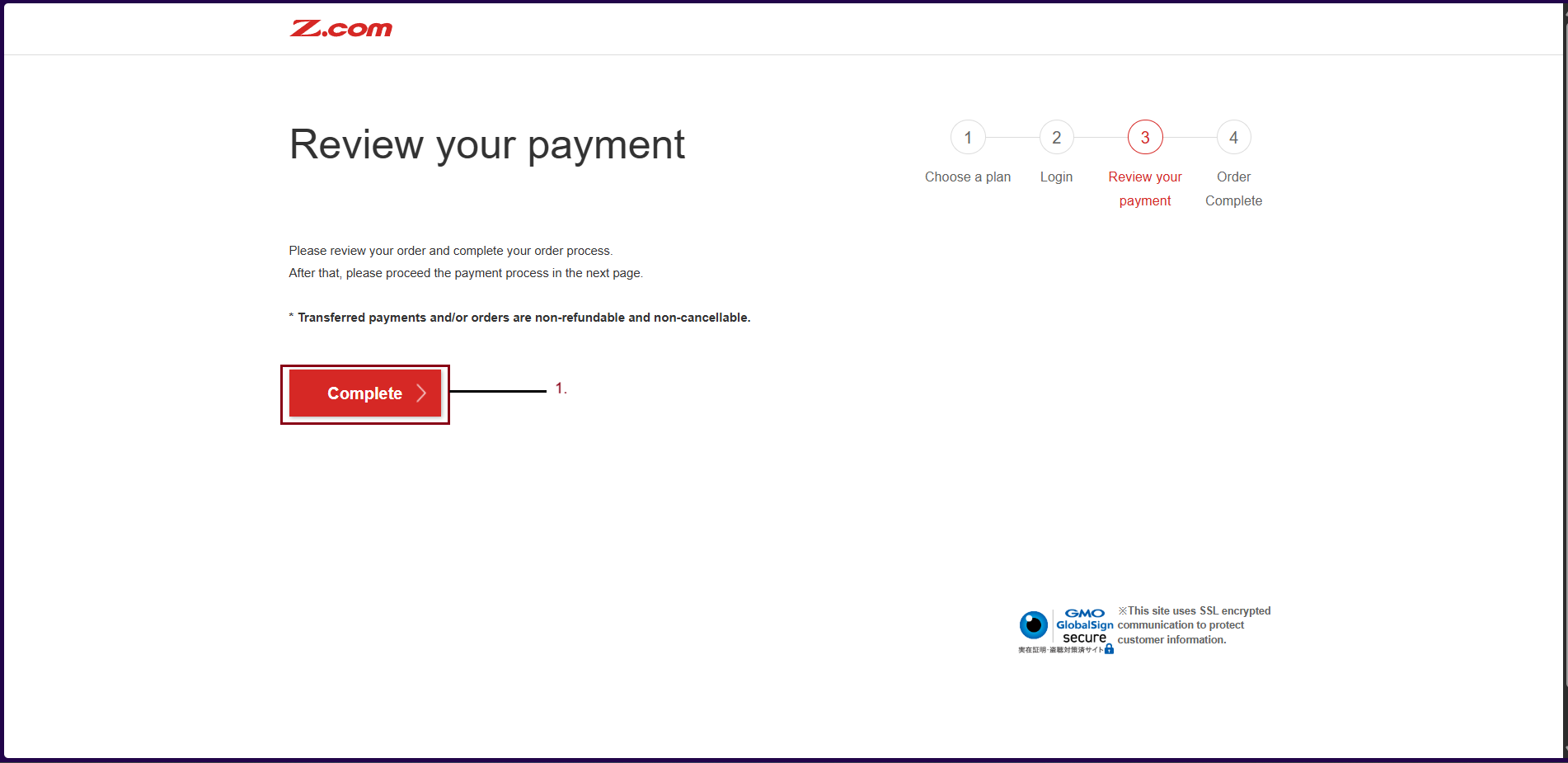
Then Click "Complete".
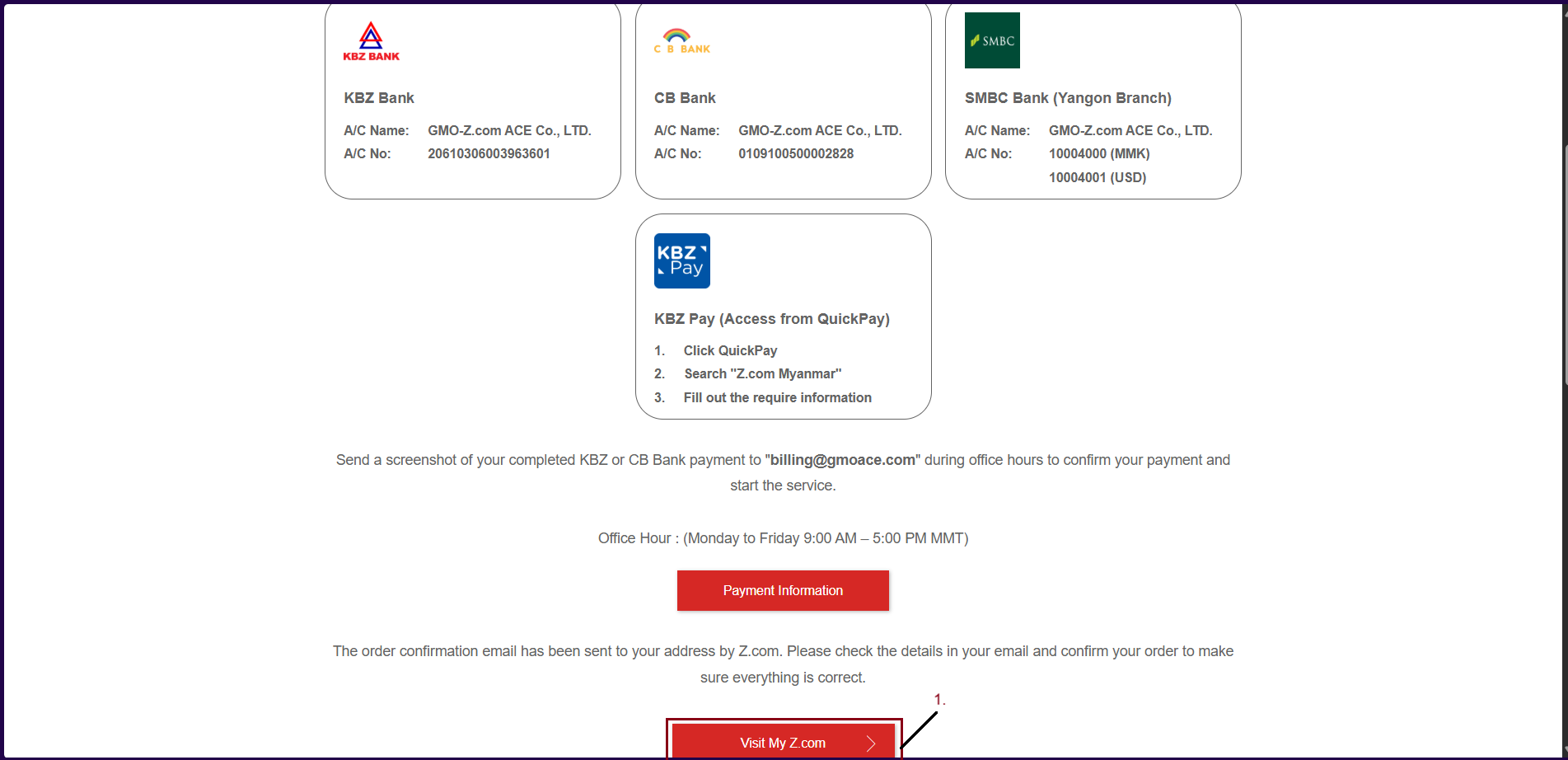
For Bank Transfer, you can make the payment with the following and can also pay with Kpay(QuickPay). To Check "Payment Method", click here.
ငွေချေခြင်းအား ဘဏ်မှငွေလွှဲခြင်း၊ KBZPay (QuickPay) တို့ဖြင့်ပေးချေနိုင်ပါတယ်။
To go back Z.com Account, please click "Visit My Z.com".
အကောင့်ထဲသို့ပြန်လည် ဝင်ရောက်ရန် "Visit My Z.com" အားနှိပ်ပါ။
Step(5)- Check your order after completing the order.
အဆင့်(၅) - မှာယူထားသော မေးလ်ဆာဗာအား Email Hosting ၏ List of Email Service တွင်စစ်ဆေးနိုင်ပါတယ်။
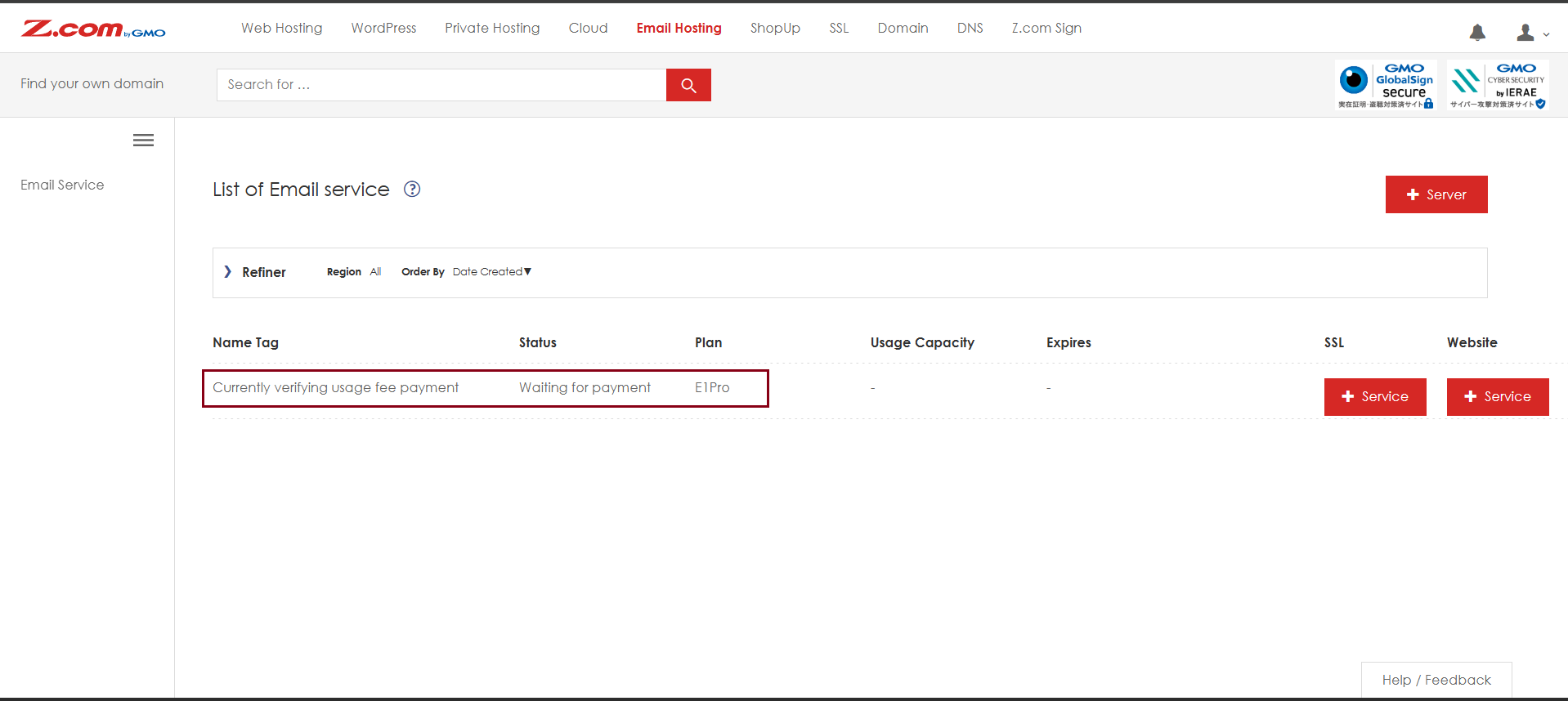
After payment completed and top up finished, the server will auto be active in your z.com account. Please follow the instruction for server Default Setting Setup, click Here.
ငွေချေမှုများ ပြီးစီးပါက မေးလ်ဆာဗာသည် "Server Default Setting" အခြေအနေသို့ရောက်ရှိမည်ဖြစ်ပါတယ်။
For DNS Setting, please contact support team. Contact Here.
မေးလ်အသုံးပြုရန် DNS Records များချိတ်ဆက်ရန် Z.com Support Team အားဆက်သွယ်နိုင်ပါတယ်။
Thank You!!!
Was this article helpful?
That’s Great!
Thank you for your feedback
Sorry! We couldn't be helpful
Thank you for your feedback
Feedback sent
We appreciate your effort and will try to fix the article