How to Login to Email Server (SmarterMail)
After Setup the email server default setting, you can login to your email admin account and manage your email accounts.
မေးလ်ဆာဗာများ setting ပြုလုပ်ပြီးနောက် မေးလ်အကောင့်များကို စီမံနိုင်ပါသည်။
Step1. To login to your Admin Account in SmarterMail
အဆင့်(၁)- Admin account ၏ Login URL, username တို့ကို စစ်ဆေးပါ။
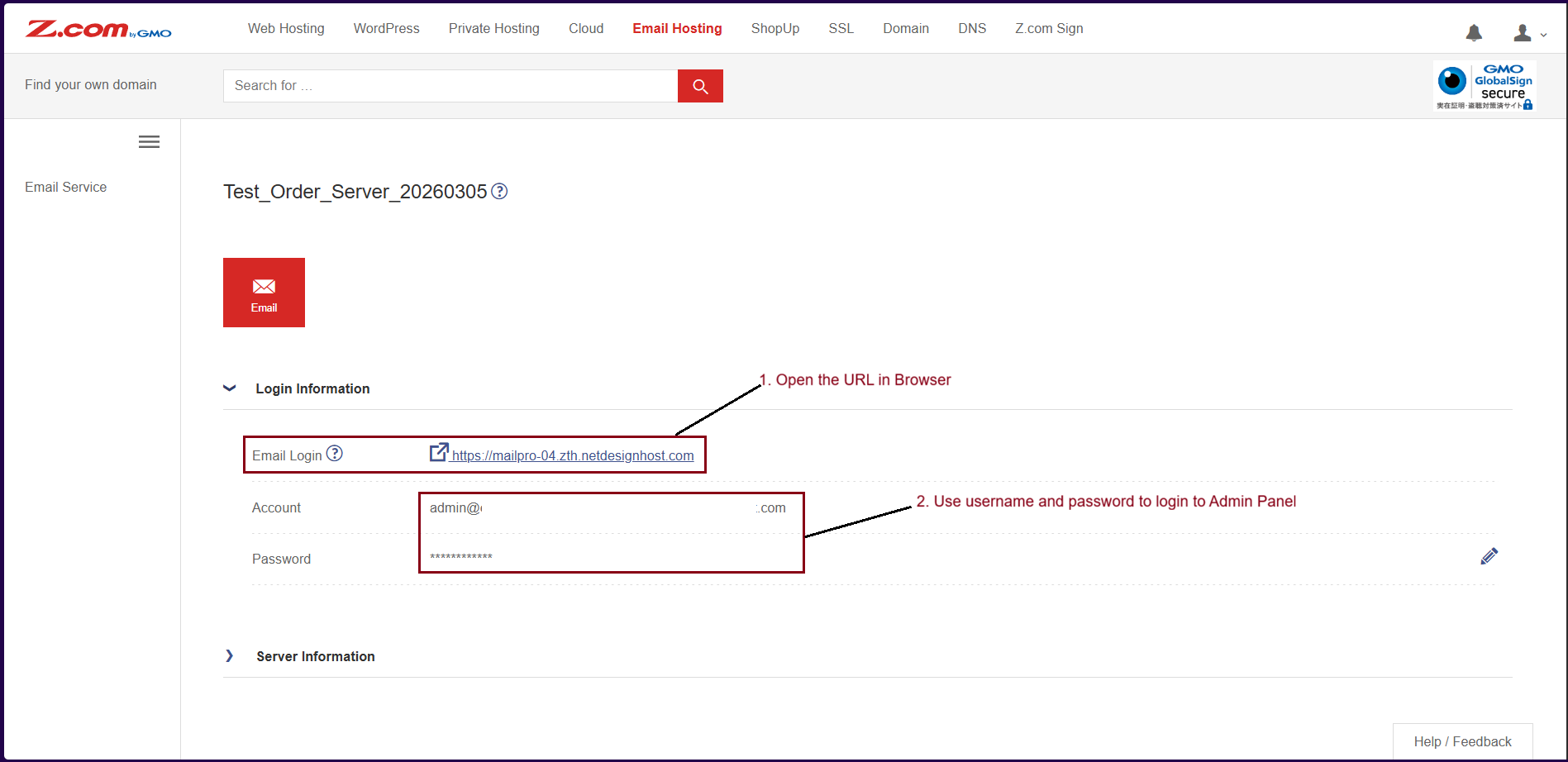
Step2. Login to webmail for email services
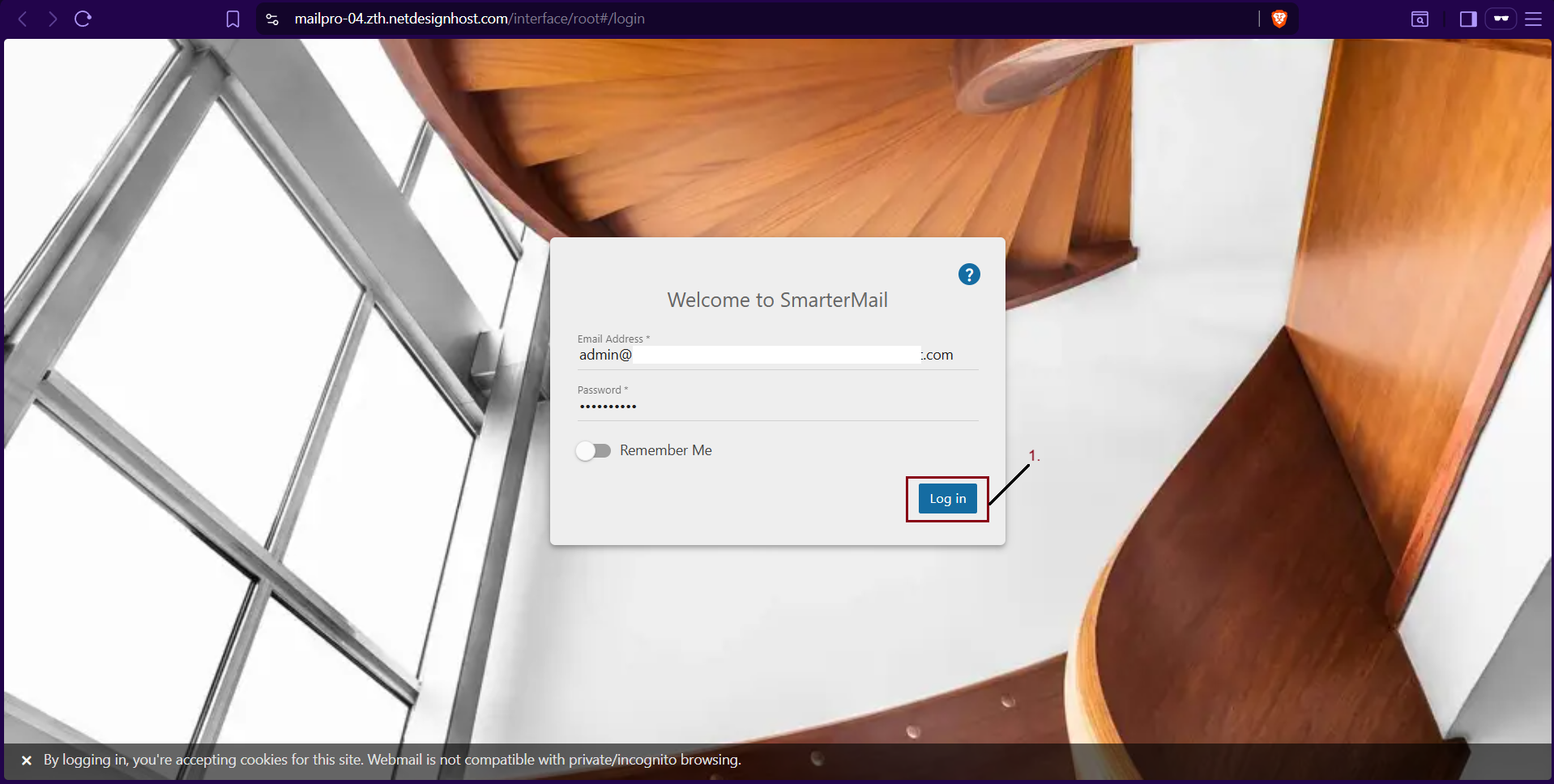
အဆင့်(၂)- Web Browser ဖြင့် login ဝင်ရောက်ခြင်း။
- Login with Email Login (https://mailpro-01.zth.netdesignhost.com, https://mailpro-04.zth.netdeisgnhost.com, ...)
- မေးလ်ဆာဗာများကို Z.com System မှသတ်မှတ်ပေးသော URL မှဝင်ရောက်ခြင်း။ (https://mailpro-01.zth.netdesignhost.com, https://mailpro-04.zth.netdeisgnhost.com, ...)
- Login with yourdomain.com (https://mail.yourdomain.com, https://mail.yourdomain.net, ...)
- ဒိုမိန်း URL ဖြင့် Login ဝင်ရောက်ခြင်း (https://mail.yourdomain.com, https://mail.yourdomain.net, ...)
Use your admin username and password to login
မေးလ်အကောင့်၏ username နှင့် password ဖြင့် ဝင်ရောက်ပါ။
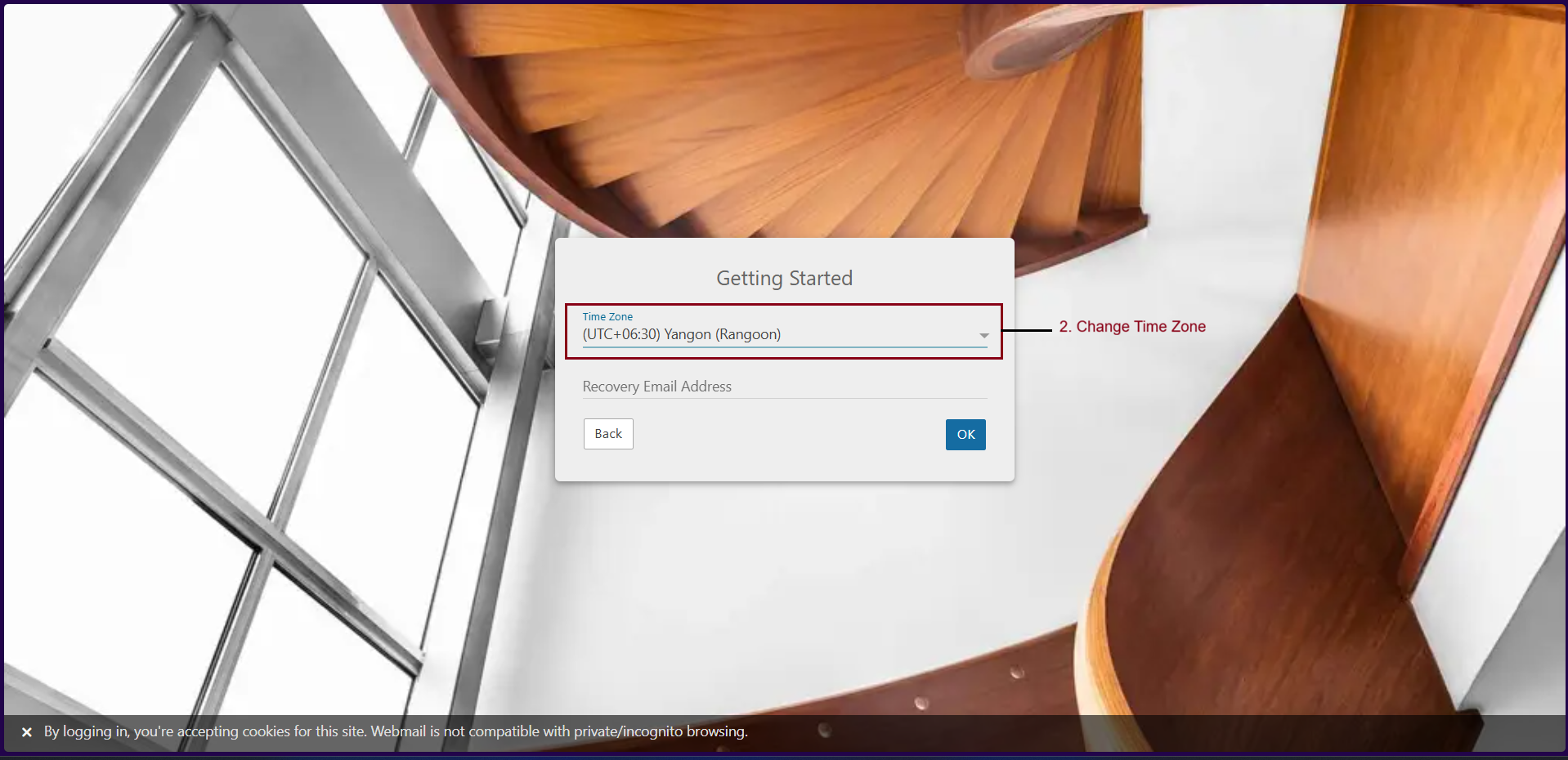
You can change the "Time Zone" Setting of your email account.
မေးလ်အကောင့်သို့ ဝင်ရောက်စဉ်ဝင်တွင် Time Zone ပြောင်းလဲ အသုံးပြုနိုင်ပါတယ်။
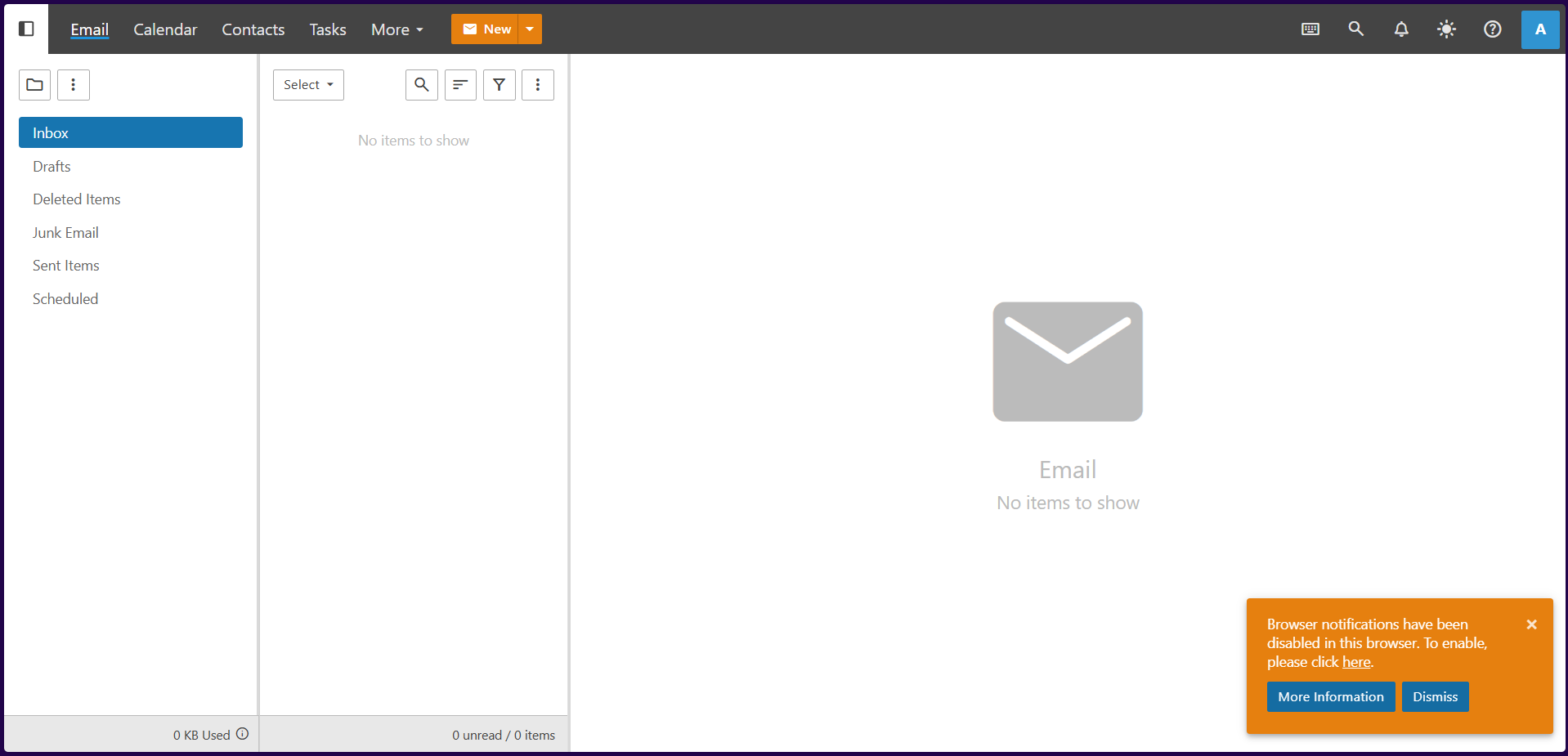
Now, you can login to your admin account successfully.
မေးလ်အကောင့်ထဲသို့ login ဝင်ရောက်ပြီး အကောင့်သစ်များဖွင့်ခြင်းနှင်အခြားသောလုပ်ဆောင်ချက်များကိုဆောင်ရွက်နိုင်ပါသည်။
Please follow the instruction for new email addresses creation, Click Here.
Thank you!!!
Was this article helpful?
That’s Great!
Thank you for your feedback
Sorry! We couldn't be helpful
Thank you for your feedback
Feedback sent
We appreciate your effort and will try to fix the article