How To Set up the Web Hosting Pro
Step1. Login to your Z.com Account, https://cloud.z.com/mm/signin
Step2. Click the "Web Hosting" Menu and check the Web Hosting Server List
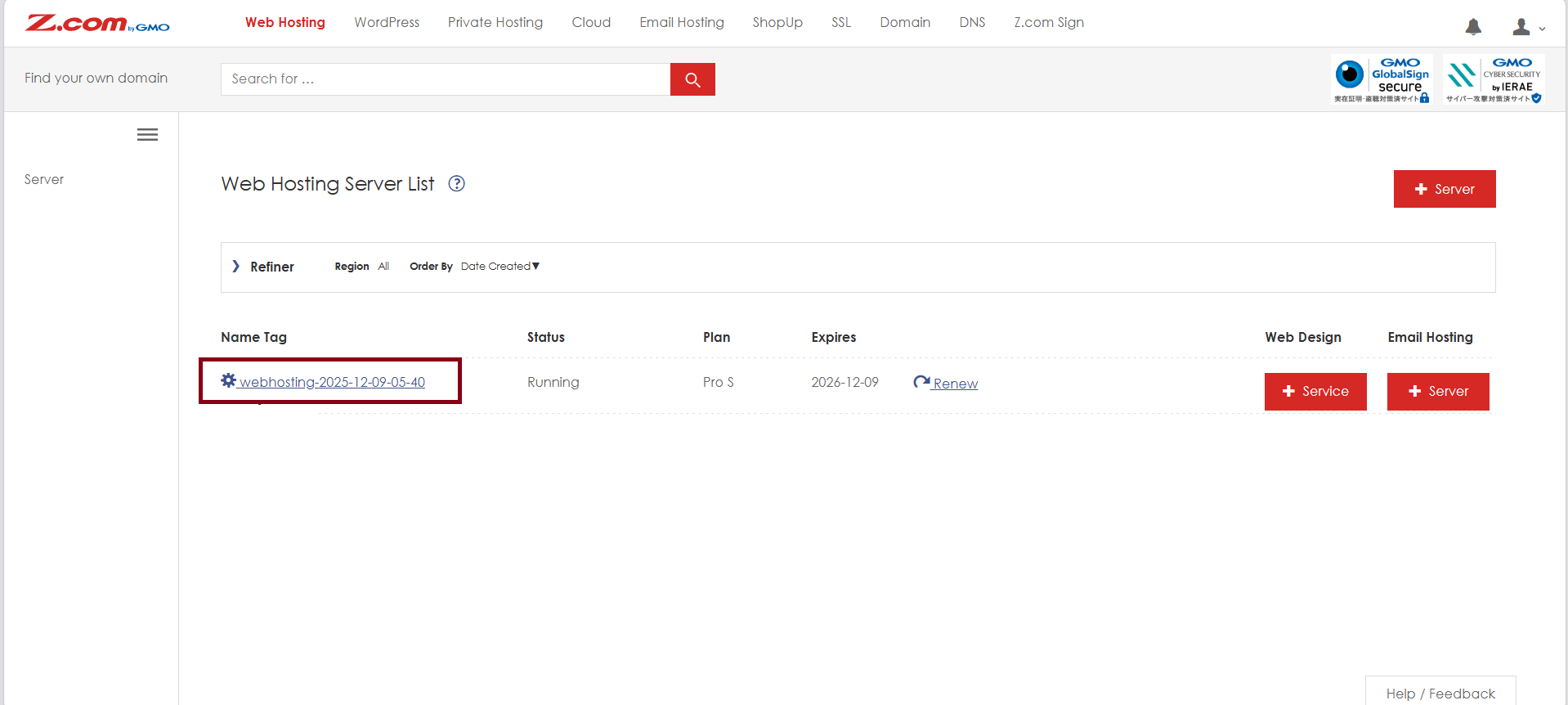
Step3. Click your Web Hosting Server to check the server information
Step4. You can login to your cPanel Server via Z.com Panel by clicking the "Login" Button
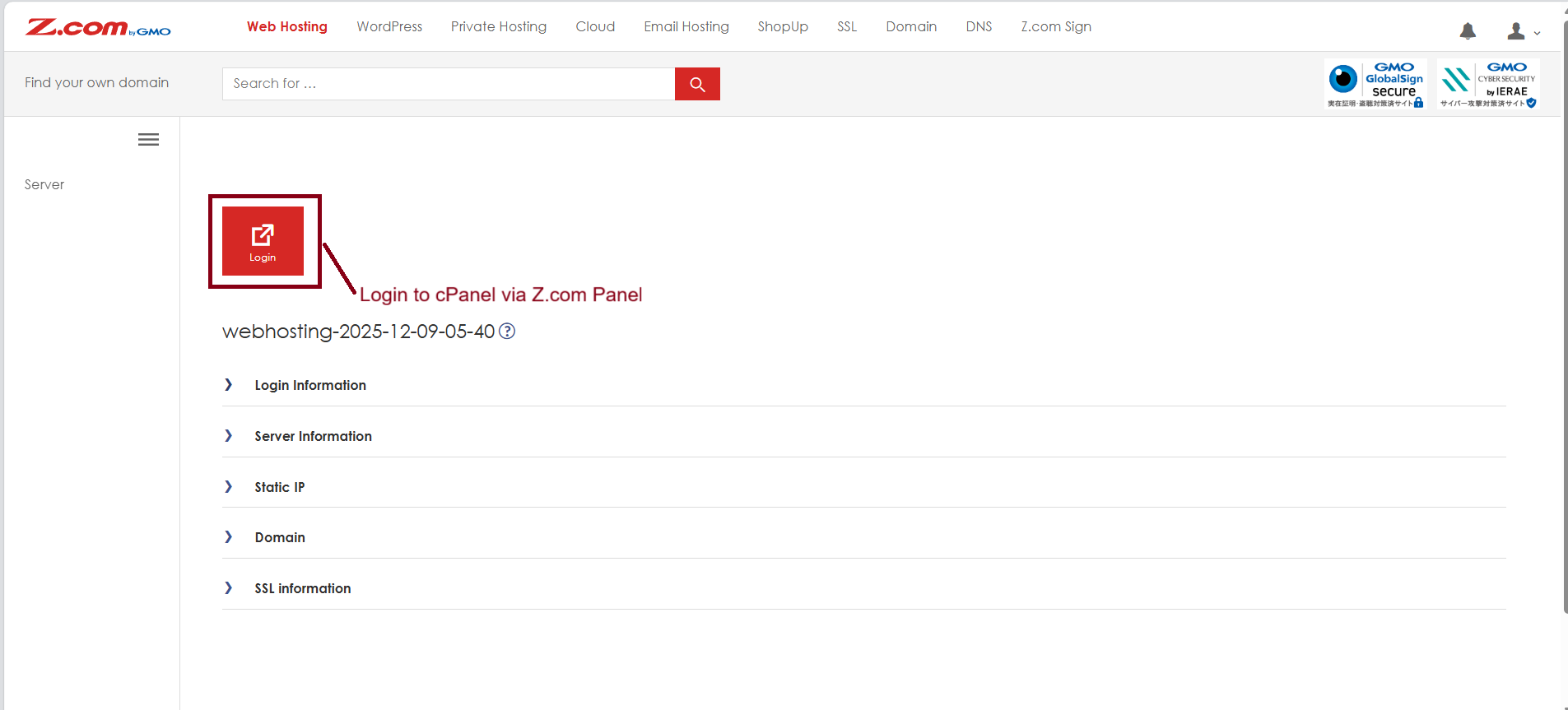
Step5. Now, you can login to your cPanel successfully.
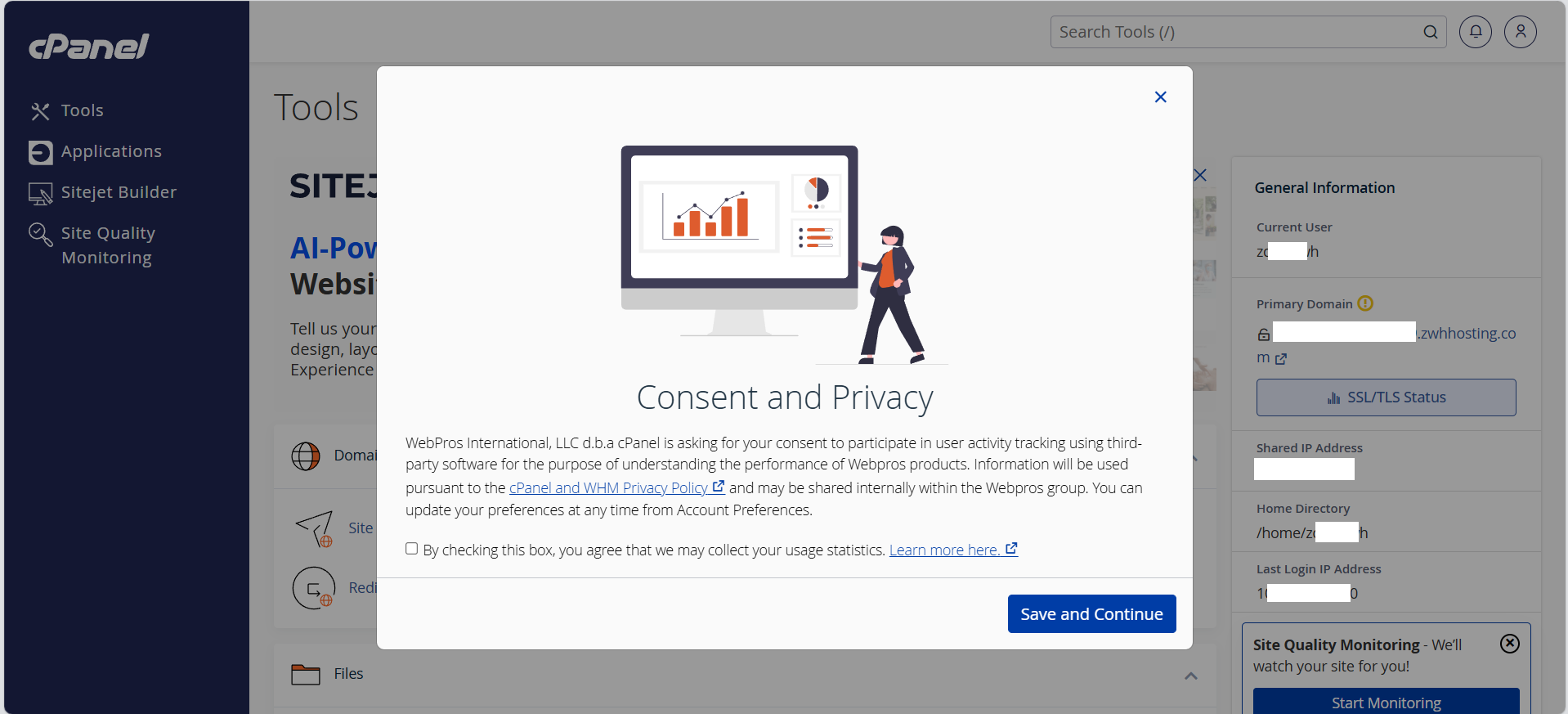
Login to cPanel with Username and Password
After running the Web Hosting Server in your Z.com Panel, the system will send the Access Credentials to your Registered email. So, you can check the email for Hosting information and Access Credentials.
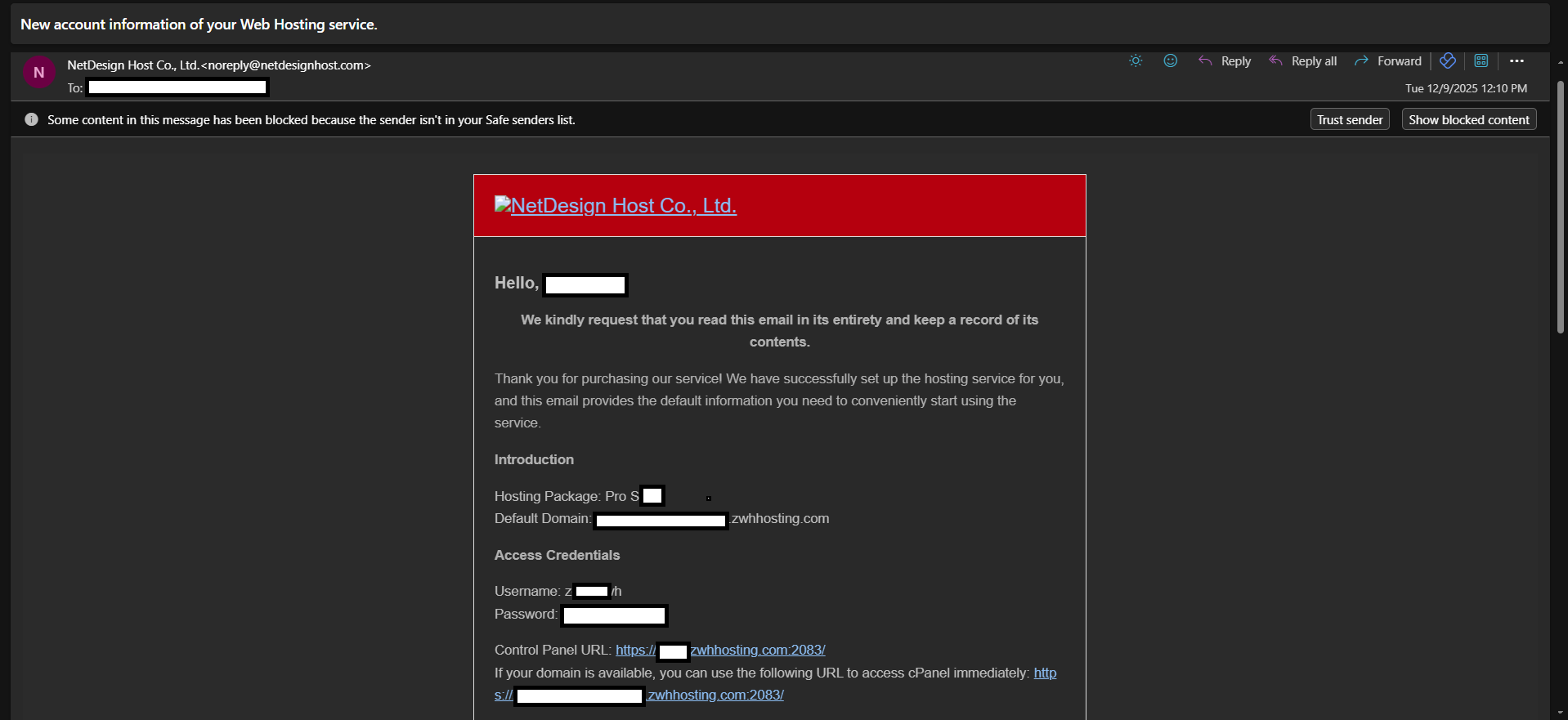
Step1. Copy the cPanel Server information and saved.
Step2. Browse the Control Panel URL as per your email.
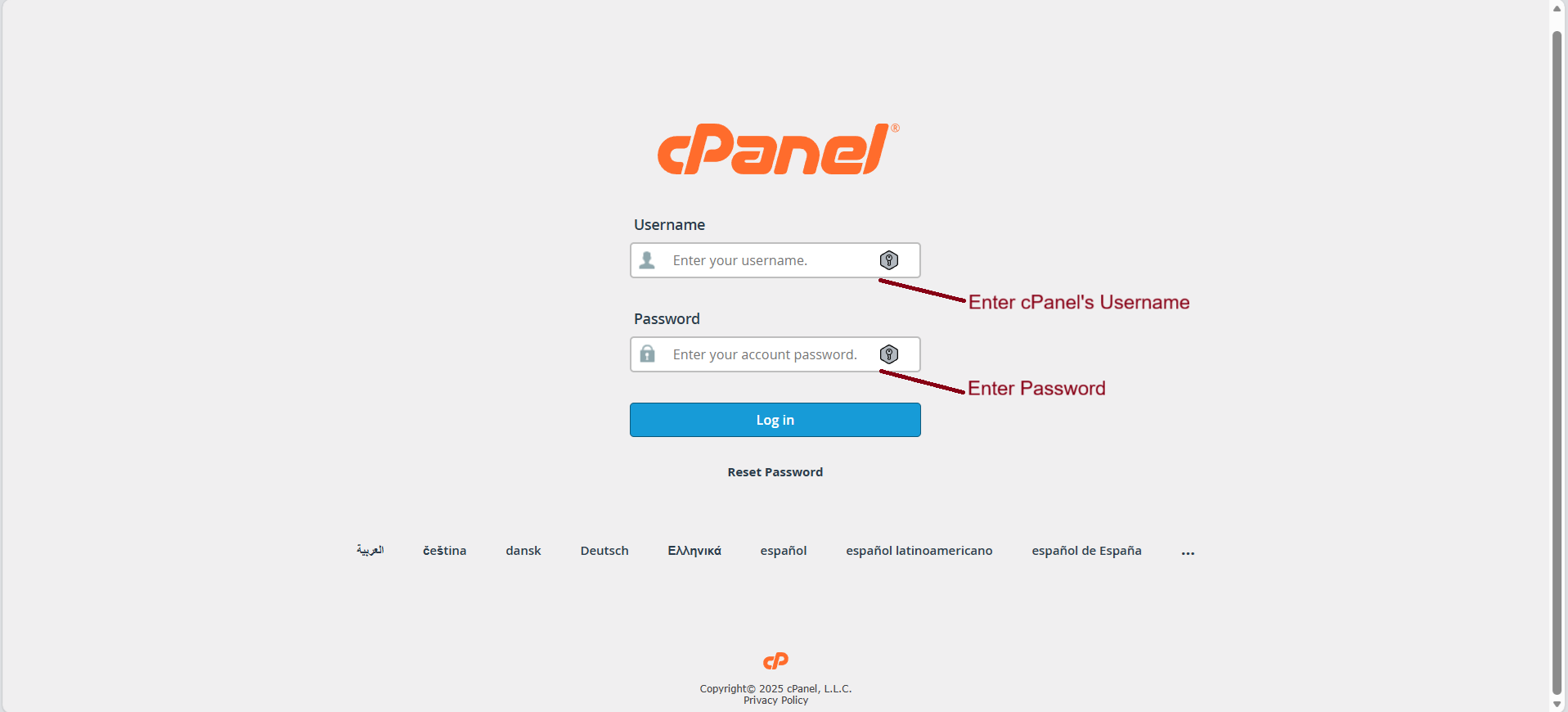
Step3. After that, you can login the cPanel successfully.
Thank you.
Was this article helpful?
That’s Great!
Thank you for your feedback
Sorry! We couldn't be helpful
Thank you for your feedback
Feedback sent
We appreciate your effort and will try to fix the article