How To Setup WHM And Create a cPanel account?
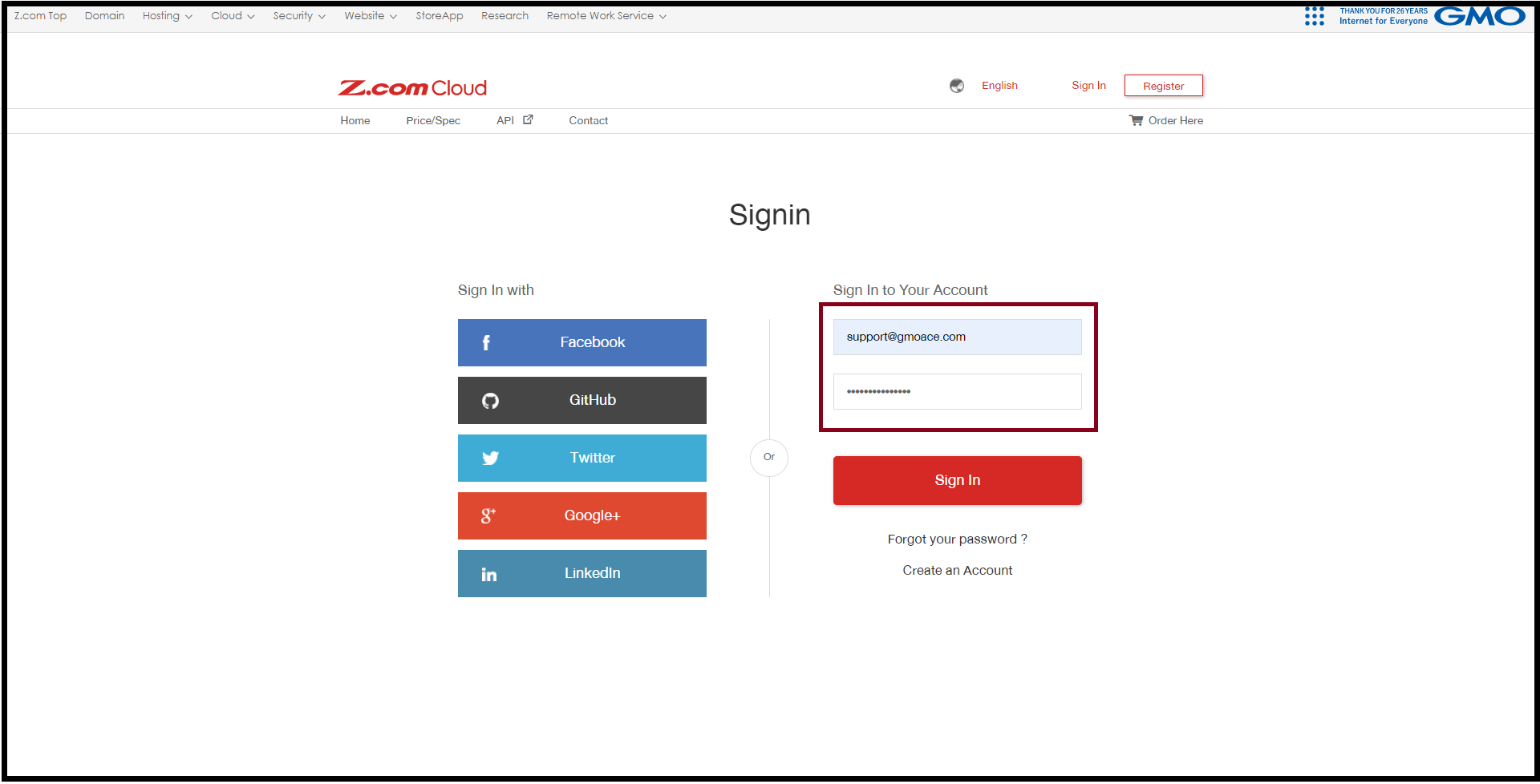
Step1. Login to z.com account, https://cloud.z.com/mm/signin/
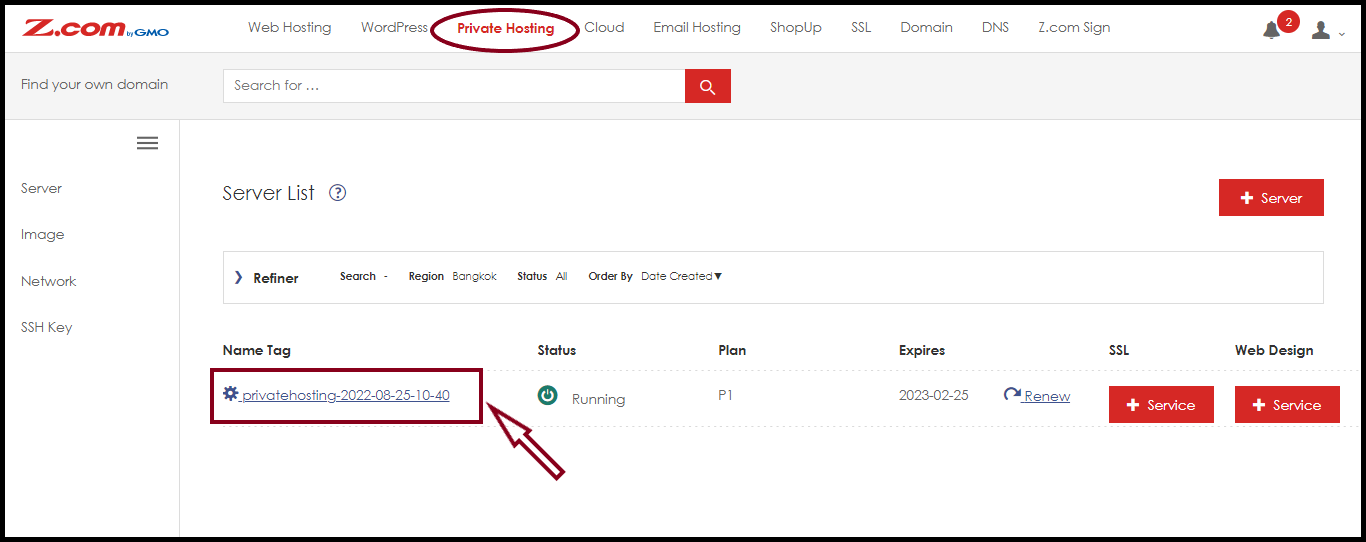
Step2. Click the “Private Hosting” Menu
Step3. Select your PrivateHosting server Under Private Hosting Server List
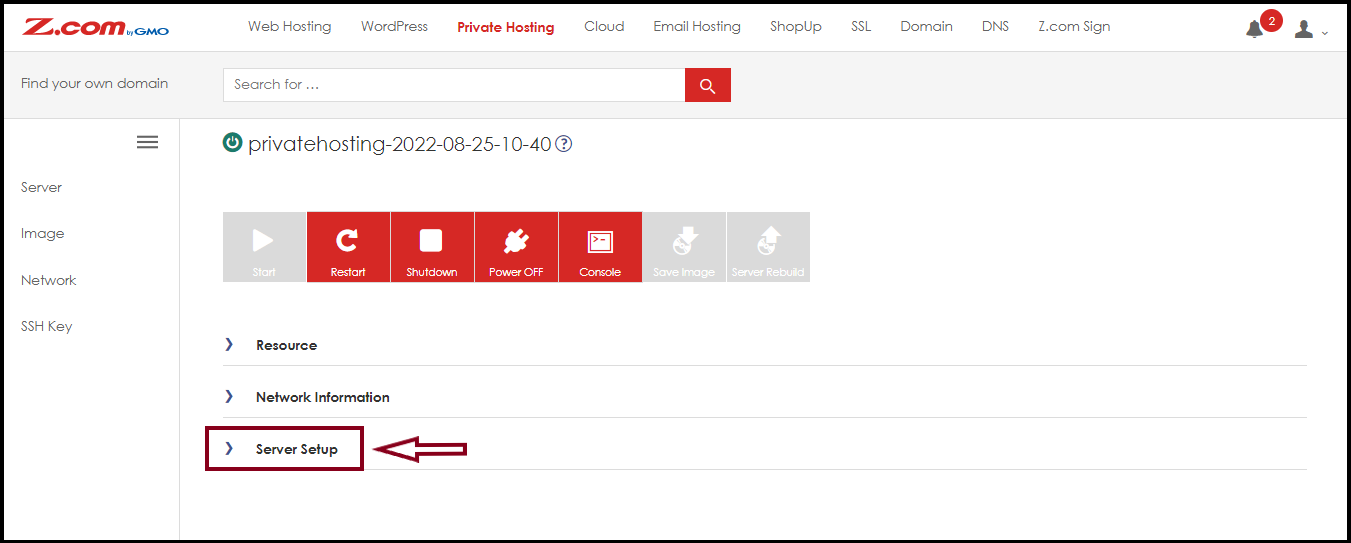
Step4. Go to the “Server Setup” to check the WHM Login URL
Please Note the WHM Login URL to setup the server and services
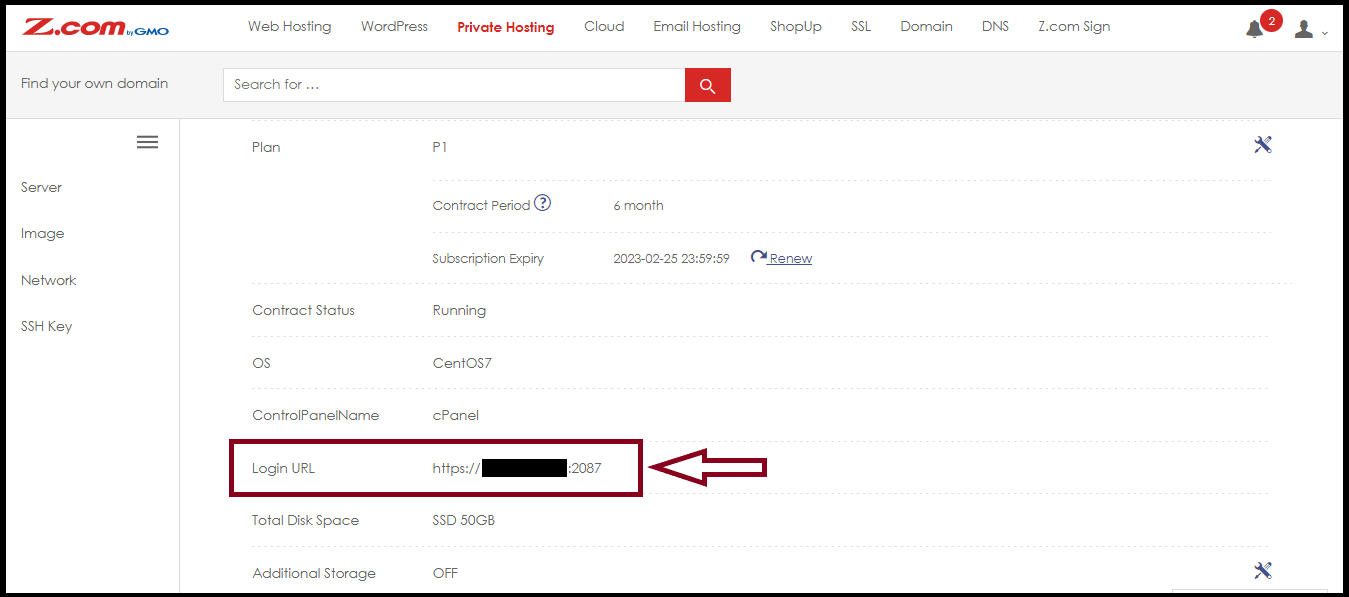
After that, please log in with the WHM Login URL in some browser
Step5. Login to WHM

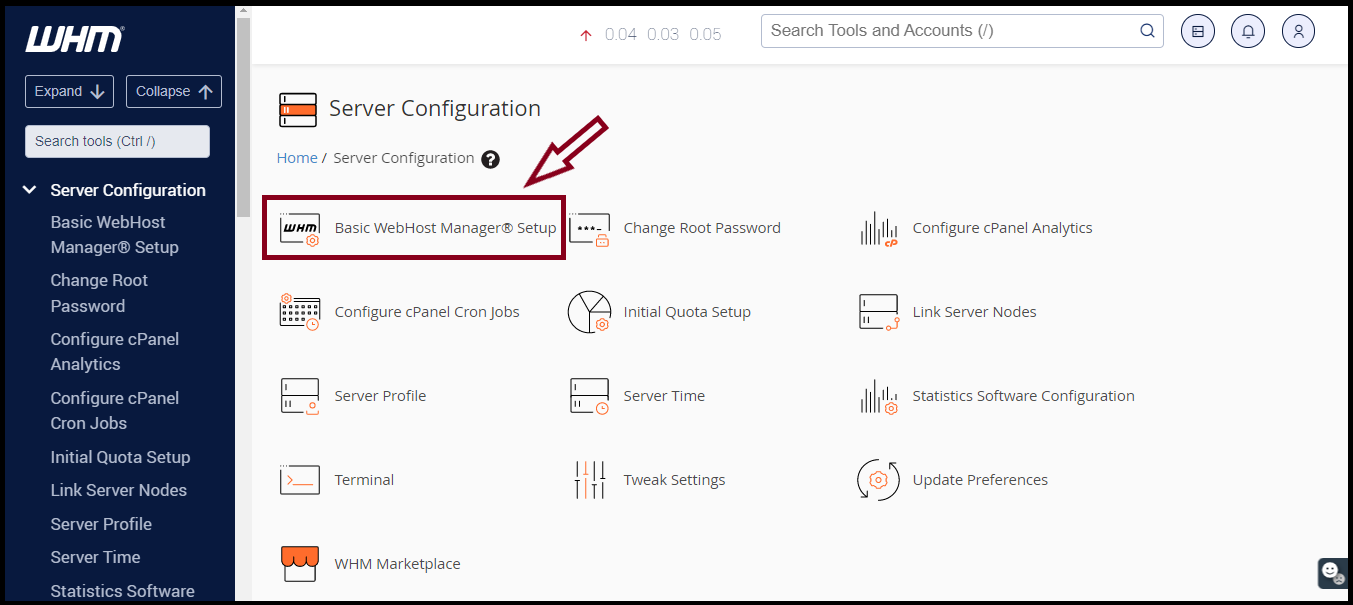
Step6. Go to the “Basic WebHost Manager Setup” under Server Configuration
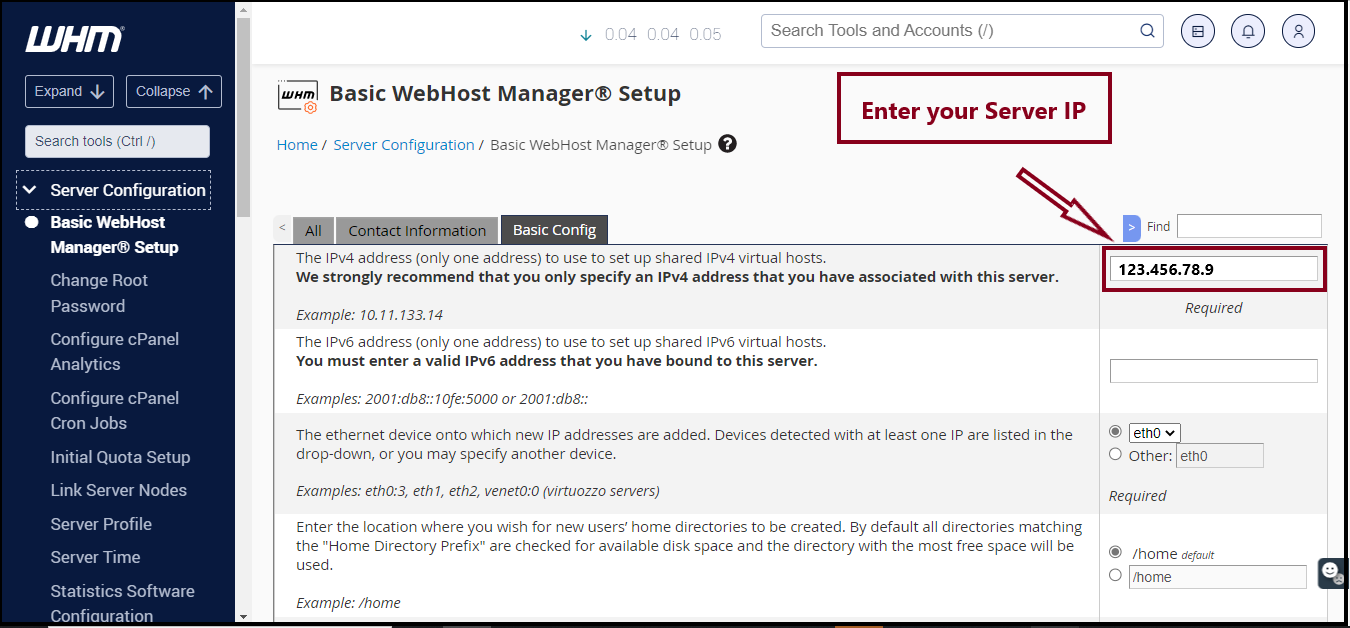
And then, Select “Basic Config” to set up Server IP as follows
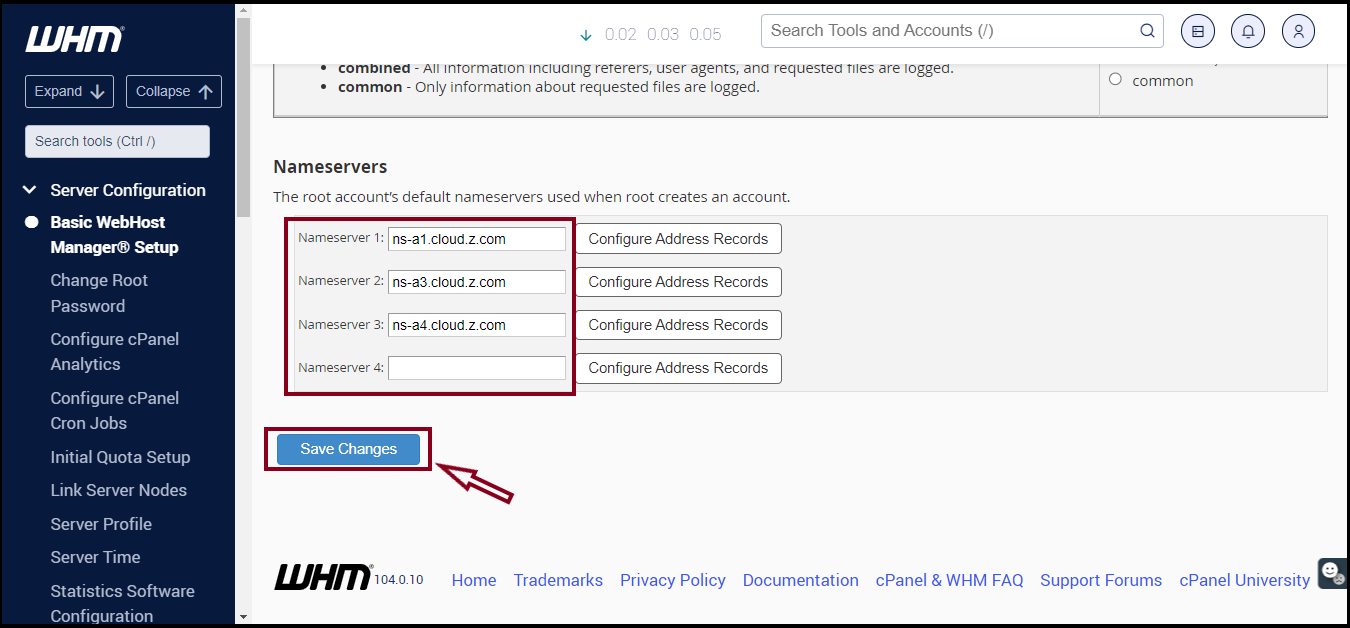
Next, Please Configure the Nameservers of the root account and Click “Save Changes“
In the next section, we will show how to cPanel account creation on WHM. So, Let’s go.
Step7. Go to the “List accounts” to create a cPanel account
and Click “Create a New Account“

To create a cPanel account, set up the Domain, Username, and Password as follows.
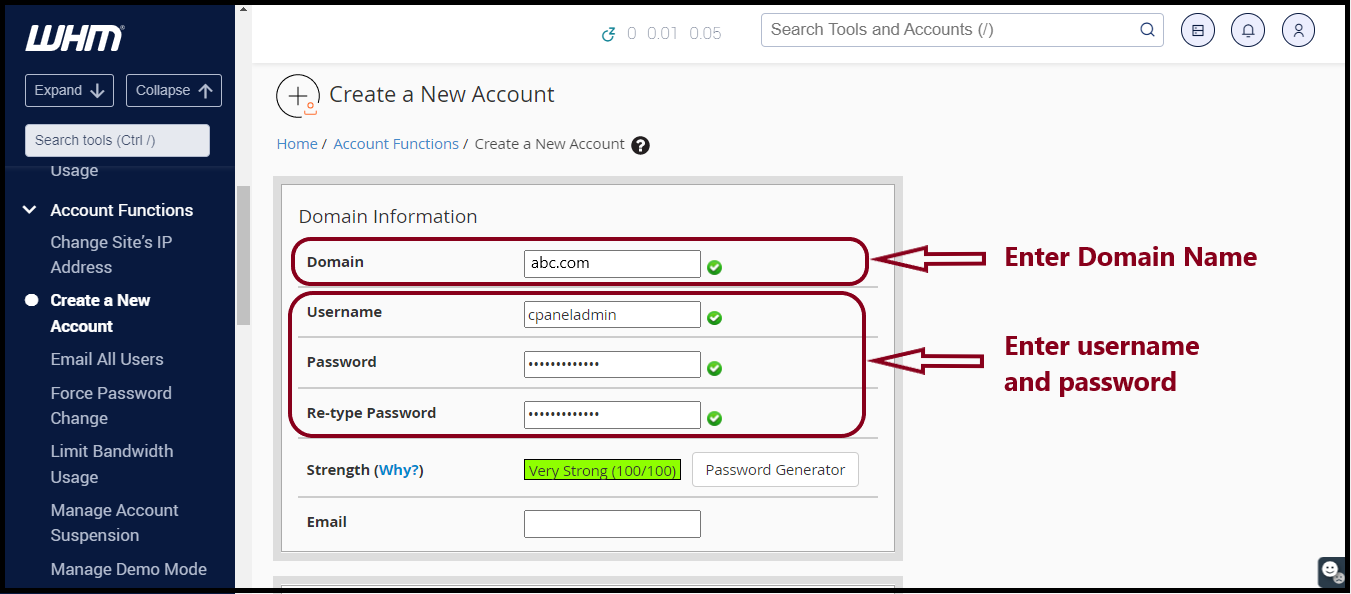 then go to the bottom and click “Create“
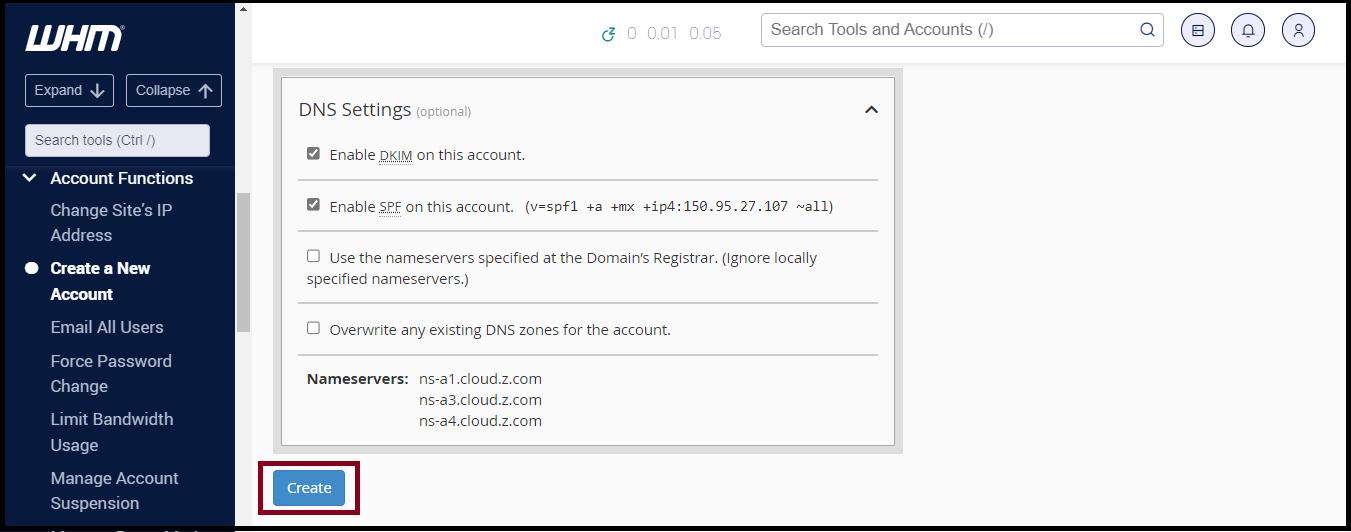
Now you create a new cPanel account on WHM successfully.
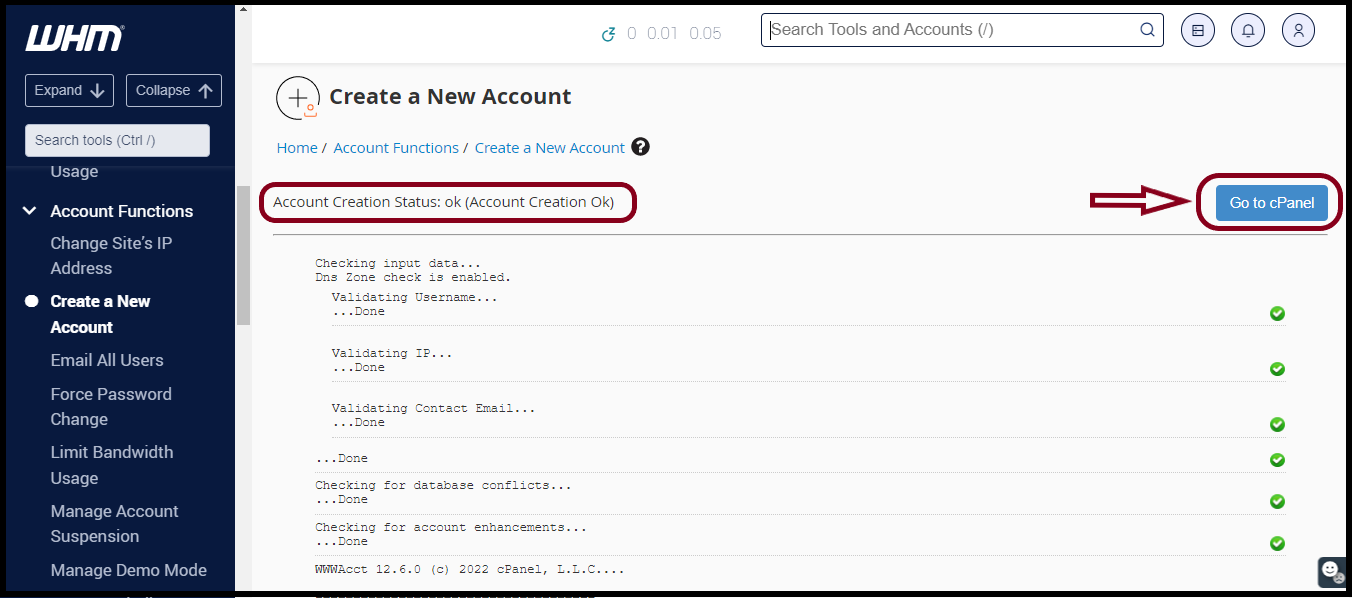
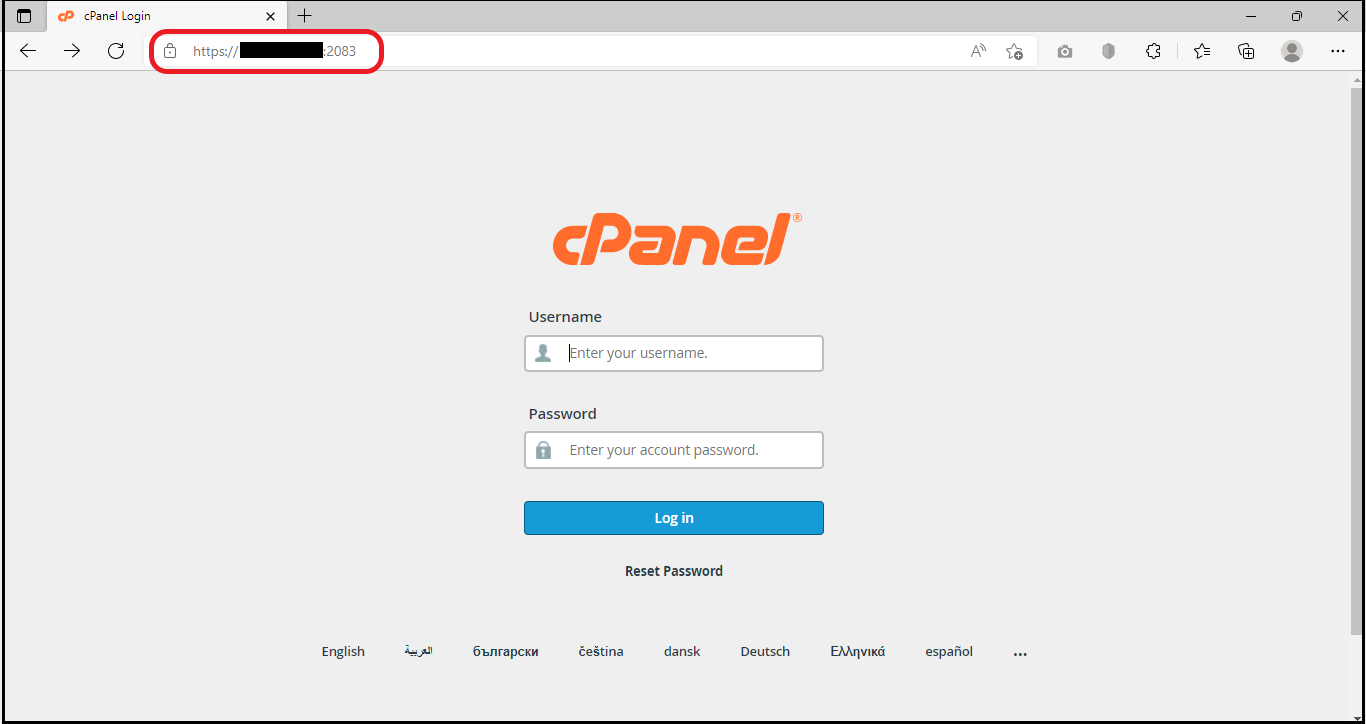
Step8. You can also log in to the cPanel with the following URL.
URL: https://123.456.78.9:2083
THANK YOU!!!
Was this article helpful?
That’s Great!
Thank you for your feedback
Sorry! We couldn't be helpful
Thank you for your feedback
Feedback sent
We appreciate your effort and will try to fix the article