How to map disk on Private host WHM?
*** The [newdata] that I will set up as an example for users. You can define newdata from the word as any other name you want. Or if you want convenience, you can create newdata accordingly. ****
Have you SSH into the server system first.
After that, type the following commands:
Command check disk to check if the purchased disk has arrived in the server or not, if found it will show vdb for 1 more disk
#fdisk -lFormat command
mkfs.ext4 /dev/vdbCommand to create directory
mkdir /newdataMap drive command
mount /dev/vdb /newdataEdit the file so that Auto Detect disk is always found when booting the machine.
vi /etc/fstabby adding this command to the bottom line and save or look at the picture below
/dev/vdb /newdata ext4 defaults 0 0Example
How to Change path web WHM from home Directory
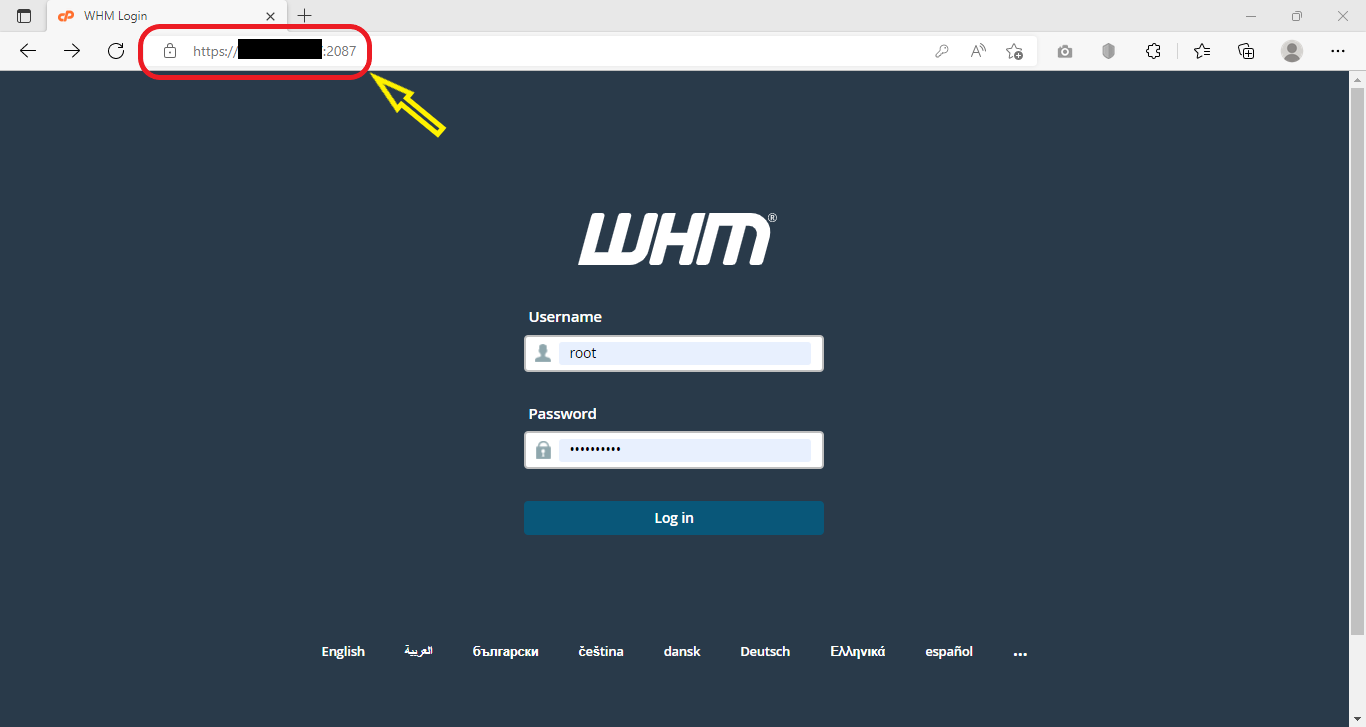
1.login to WHM https://domain name followed by active dot:2087
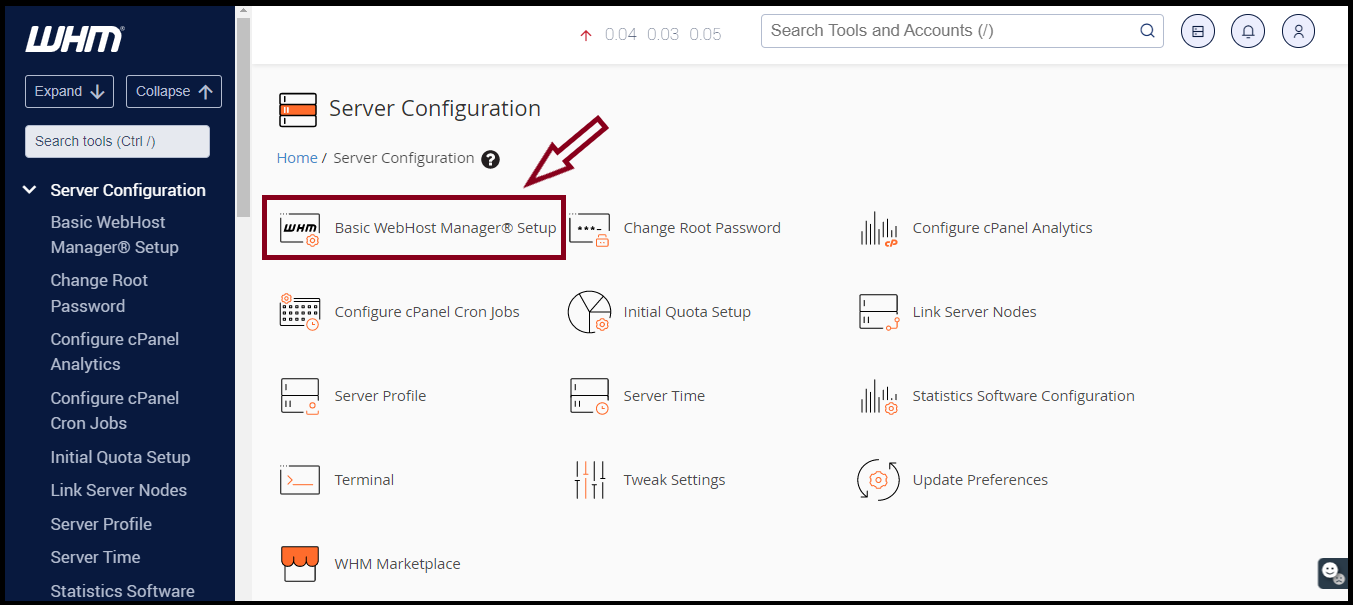
 2. Go to Basic WebHost Manager® Setup menu.
 3. Press Basic Config and come to Enter the location where you wish for new users’ home directories to be created. By default, all directories matching the “Home Directory Prefix” are checked for available disk space and the directory with the most free space. will be used.
By default, Default is ticked. At home, select it as the box below and enter the path.
( create path as we have previously mounted disk, for example create as newdata, set path as newdata )
Next, Additional home directories matching the following value will also be used for new home directory creations. (Leaving this value blank disables the feature.) Only mount points are considered. This option only takes one value.
Examples: “home” matches /home, /home2, /newhome, /usr/home, /anythingwith/homeinit
Default default will be ticked at home, select it as the box below. and leave a blank space.
After that, go to the bottom and click on Save changes.
For account cPanel that was created before changes path
4. Go to the Account Functions menu and click on Rearrange an Account Documentation.
Press on the domain name created before changing path and at Rearrange.
5. Click on Move account
Then wait until the system loads 100%, the system will show Completed
After that, you can go to C panel and look at Home Directory, you will find that the path has been changed.
THANK YOU!!!
Was this article helpful?
That’s Great!
Thank you for your feedback
Sorry! We couldn't be helpful
Thank you for your feedback
Feedback sent
We appreciate your effort and will try to fix the article