How to Setup Email Hosting Server in the Z.com Portal?
Step1. Login to the Z.com account, https://cloud.z.com/mm/signin/
အဆင့်(၁)- Z.com account ထဲသို့ ဝင်ရောက်ပါ။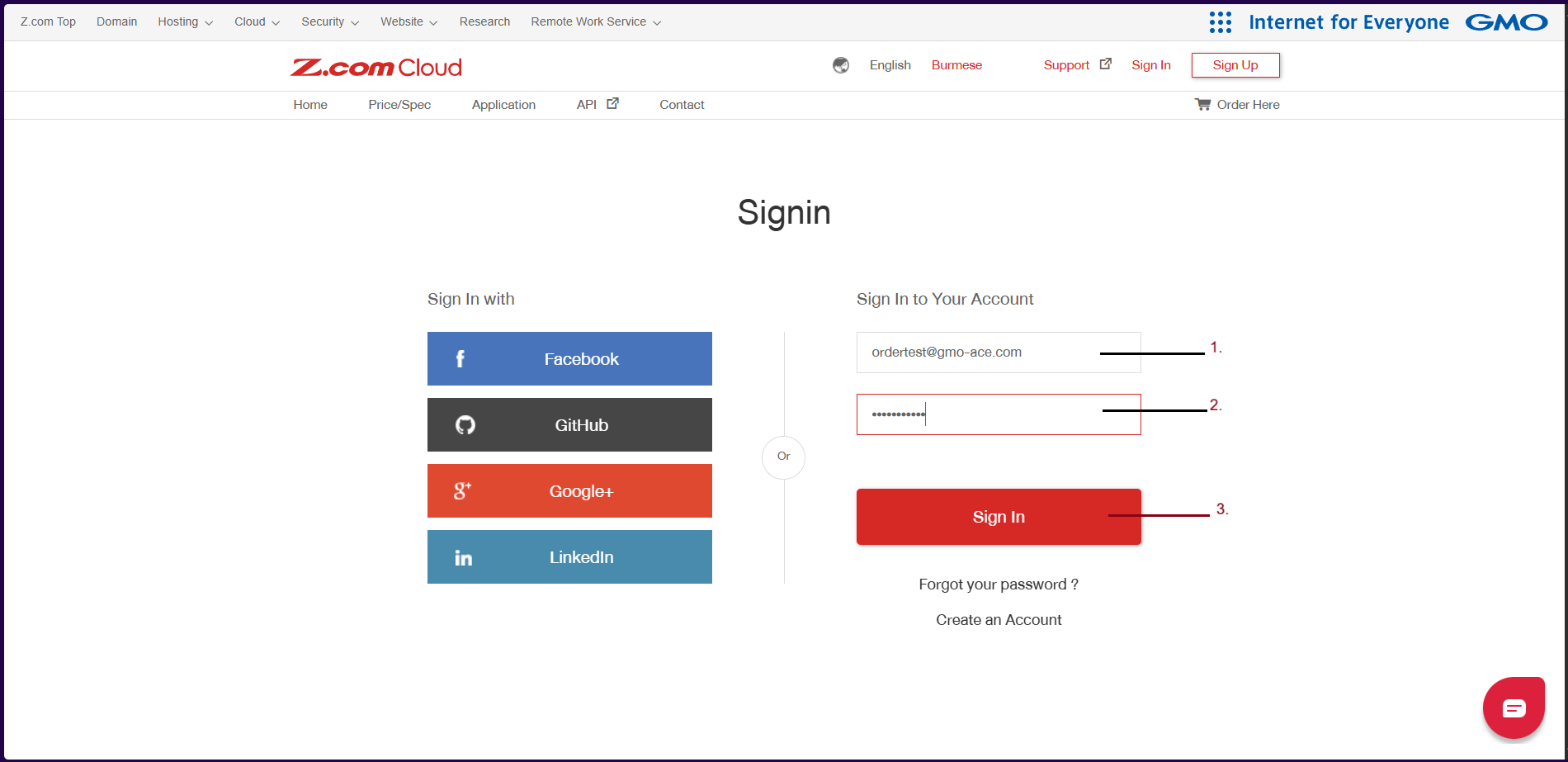
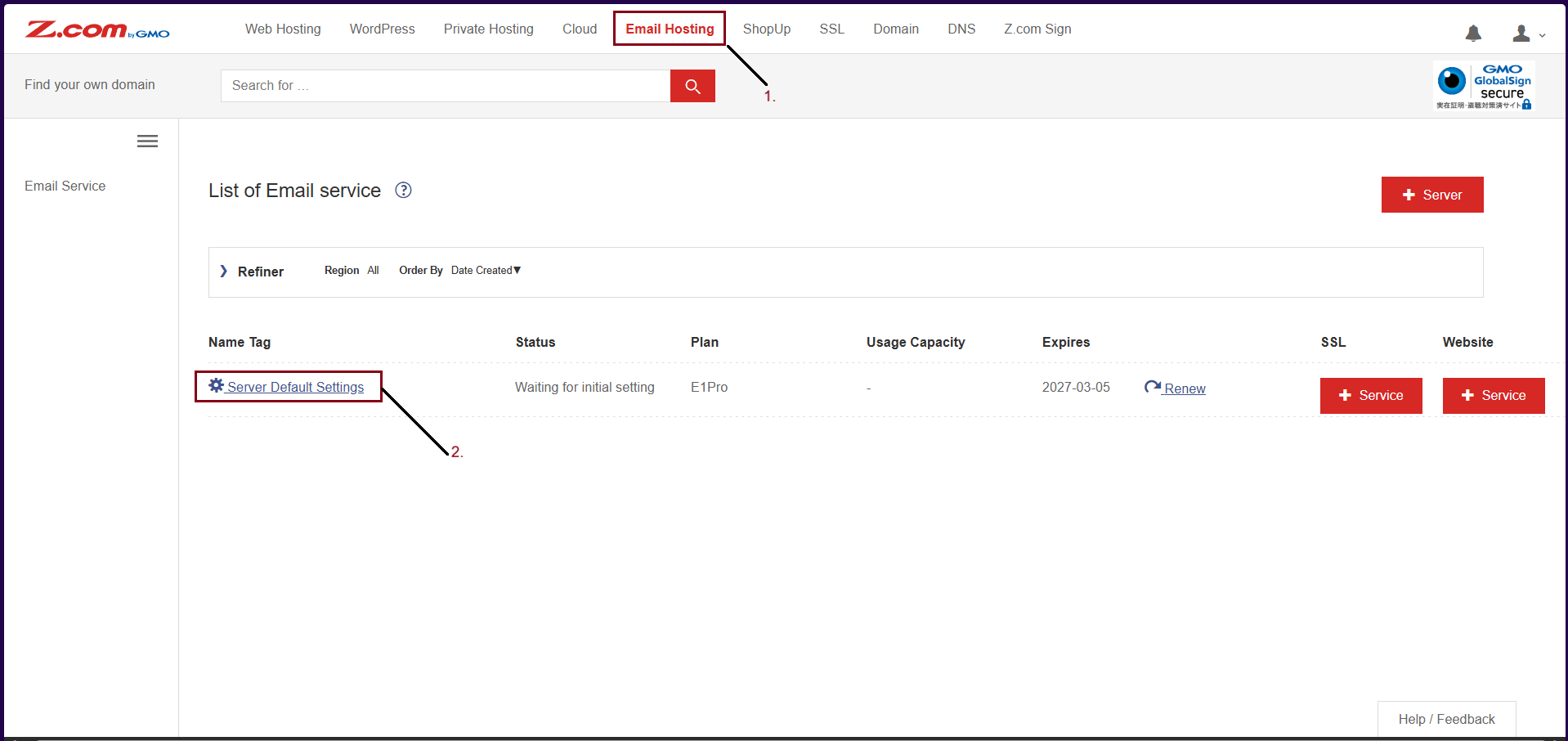
Step2. Click the “Email Hosting” Menu to check ordering server
အဆင့်(၂)- Email Hosting သို့နှိပ်၍ ဝယ်ယူထားသော မေးလ်ဆာဗာအား စစ်ဆေးပါ။
Step3. Click “Server Default Settings” Under Name Tag
အဆင်(၃)- Server Default Settings ကိုနှိပ်ပါ။
And then, please set up the admin password for the email hosting as follows.
ပြီးနောက် Admin Password ထည့်ပြီးသွင်းရန်လိုအပ်ပါသည်။
Step4. Enter the “Password” and you can change the “Name Tag” of email hosting also.
အဆင့်(၄)- Admin Password အားထည့်သွင်းပြီး မေးလ်ဆာဗာအား မှတ်မိစေရန် အမည်သတ်မှတ်ပေးနိုင်ပါတယ်။
Click "Set" 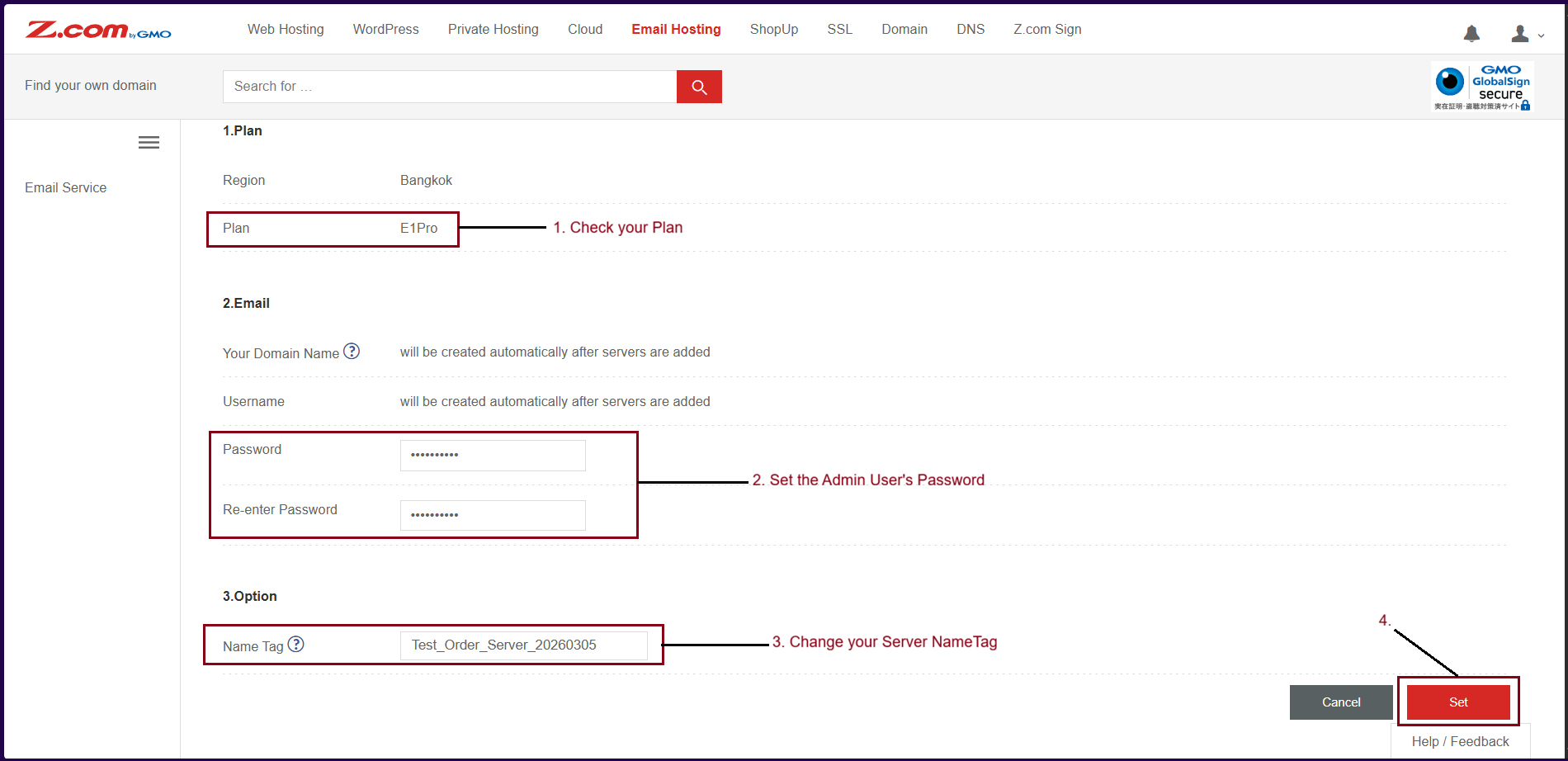
Now, the Email Hosting is Active and Ready to use.
မေးလ်ဆာဗာသည် "Active" အခြေအနေသို့ဖြစ်နေပါက မေးလ်ကို စတင်အသုံးပြုနိုင်ပါတယ်။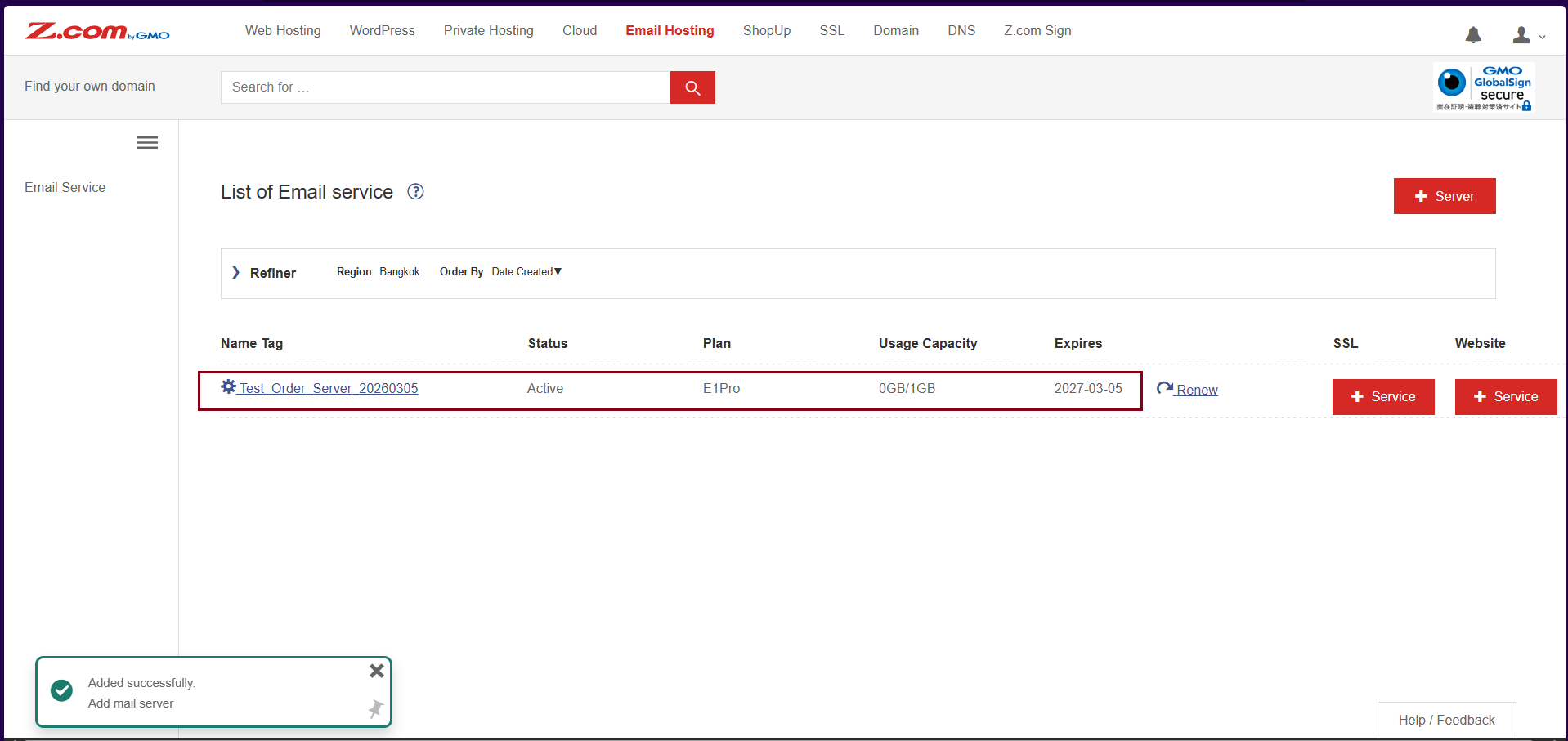
To check your email hosting Login, please enter your server under Name Tag as follows.
မေးလ်ဆာဗာအချက်အလက်များစစ်ဆေးရန် အမည်သတ်မှတ်ထားသော မေးလ်ဆာဗာကို နှိပ်ပါ။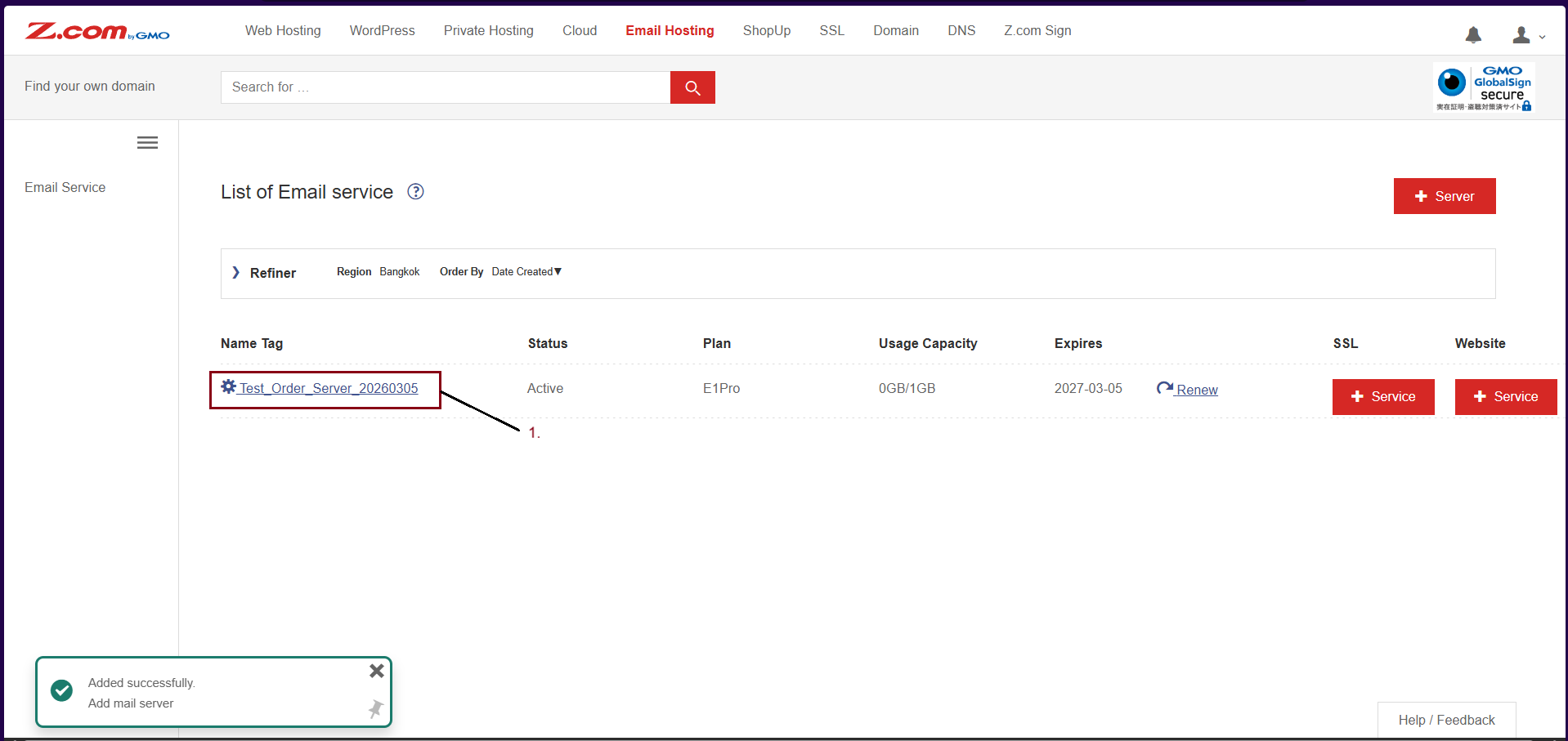
Step5. You can check the "Login URL" and "Admin address" of the email hosting.
အဆင့်(၅)- မေးလ်ဆာဗာ၏ Login URL link နှင့် Admin Username တို့ကိုစစ်ဆေးနိုင်ပါတယ်။
If the domain of the admin account is the system’s default domain, you can change your domain manually. [For using submain feature when you order email hosting]
တကယ်၍ မေးလ်ဆာဗာ၏ system default domain ဖြစ်နေလျှင် အသုံးပြုလိုသည့် active domain အားပြောင်းလဲ အသုံးပြုရန်လိုပါတယ်။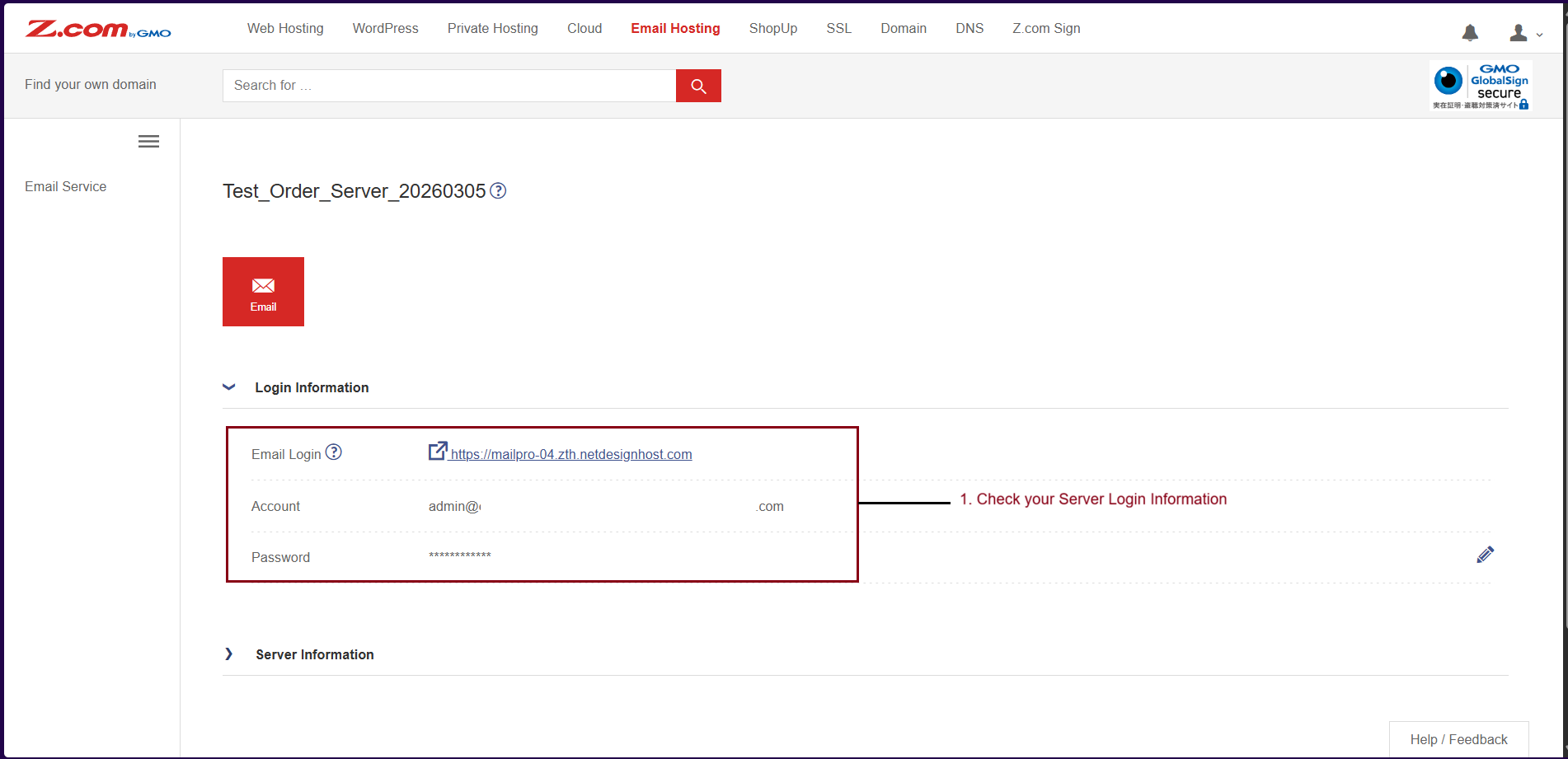
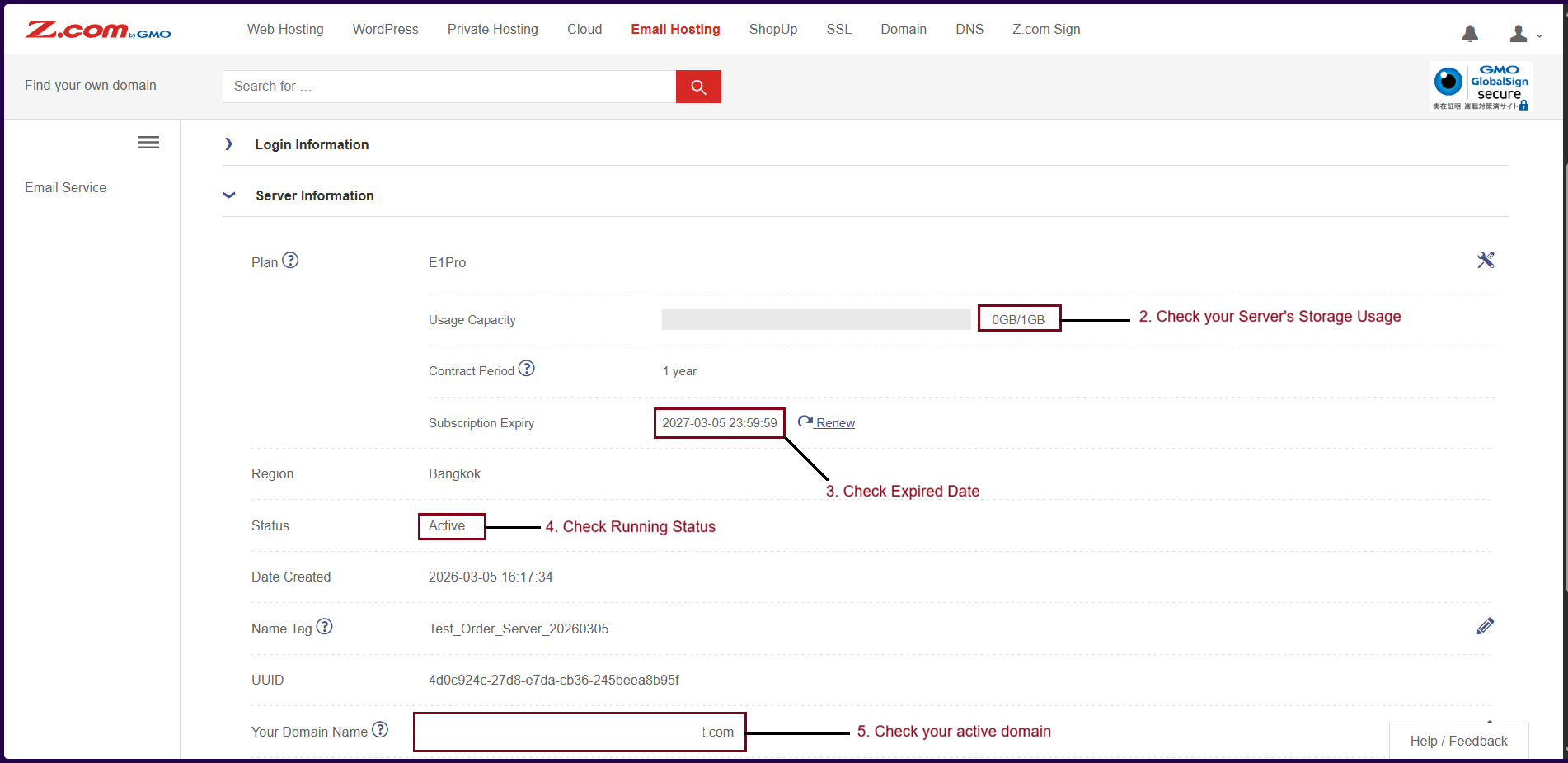
And you can also check your Server information such as Plan, Usage Capacity, Expiry, Status and Active domain on email hosting.
မေးလ်ဆာဗာအချက်အလက်များကိုလည်းအောက်ပါအတိုင်း စစ်ဆေးနိုင်ပါတယ်။
Now. the email server setting is completed. You can login to your email server with Admin account.
မေးလ်ဆာဗာအား Setup ပြုလုပ်ပြီးနောက် ဆာဗာသို့ Admin account ဖြင့်ဝင်ရောက်နိုင်ပါသည်။
[For Only System Default Domain in Email Hosting]
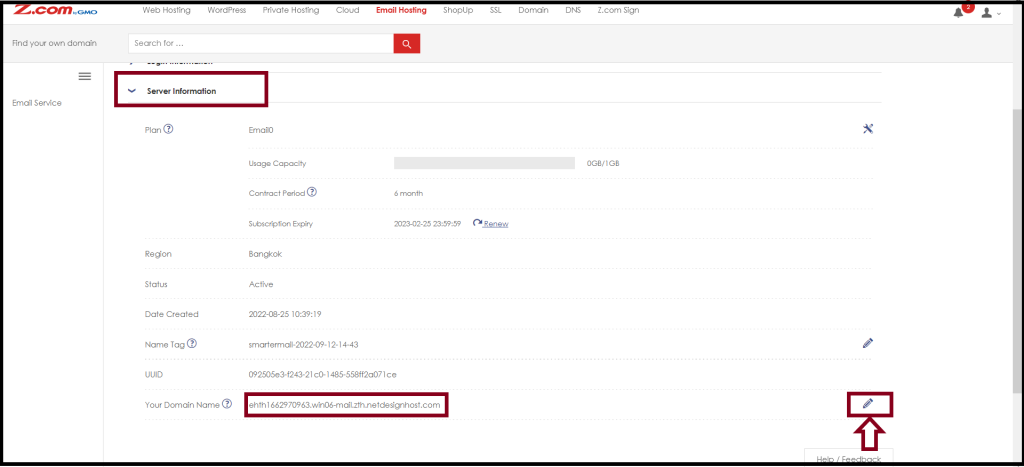
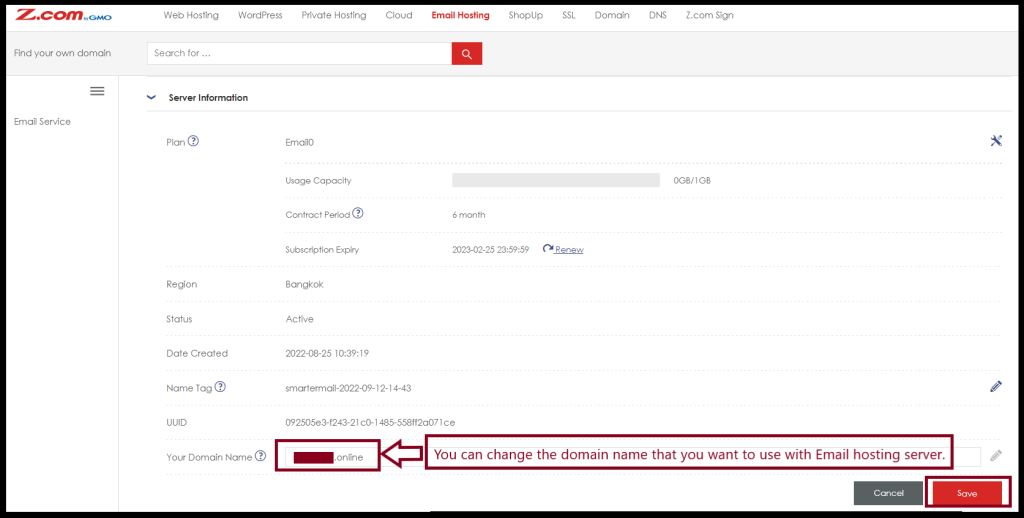
Step1. To change the system default domain, Go to the "Server Information".
အဆင့်(၁)- မေးလ်ဆာဗာ၏ system default domain ပြောင်းရန်အတွက် Server Information ကိုနှိပ်ပါ။
Step2. Please click the “Pencil image” to Edit the domain
အဆင့်(၂)- ပြင်ဆင်ရန်ကိုနှိပ်ပါ။
Step3. Enter your active domain
အဆင့်(၃)- အသုံးပြုလိုသော ဒိုမိန်းအား ထည့်ပါ။
Click "Save"
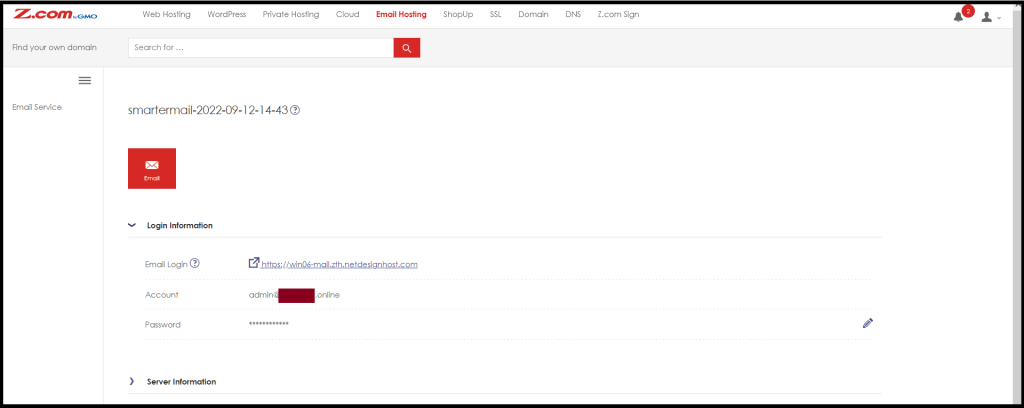
Now, you got the admin account with your own domain.
ပြောင်းလဲထားသော ဒိုမိန်းအား admin account တွင်တွေ့ရမည်ဖြစ်ပါတယ်။
Thank you!!!
Was this article helpful?
That’s Great!
Thank you for your feedback
Sorry! We couldn't be helpful
Thank you for your feedback
Feedback sent
We appreciate your effort and will try to fix the article