How To Setup An Email Account On Android Phones?
အဆင့် (၁) – Z.com Account ကို မိမိဖွင့်ထားသော Username, Password နှင့်အတူ အောက်ပါ Link မှဝင်ရောက်လိုက်ပါ။ https://cloud.z.com/mm/signin/
ပြီးလျှင် အပေါ် Menu မှ Email Hosting ကို နှိပ်လိုက်ပါ။
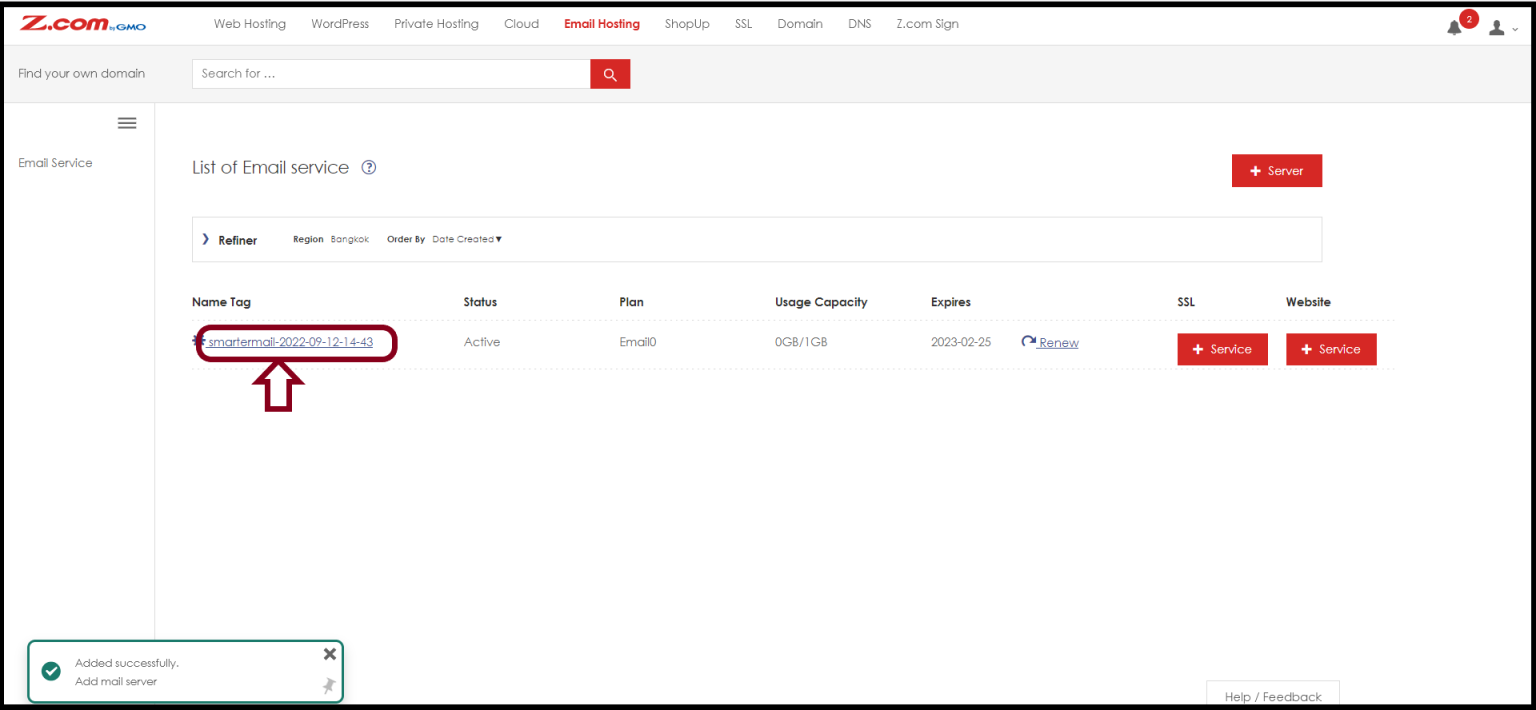
Email Hosting Menu အောက်သို့ရောက်လျှင် Name tag ၏ အောက်တွင် ရှိသော မိမိ Server ၏ နာမည် Link ကို နှိပ်ပါ။
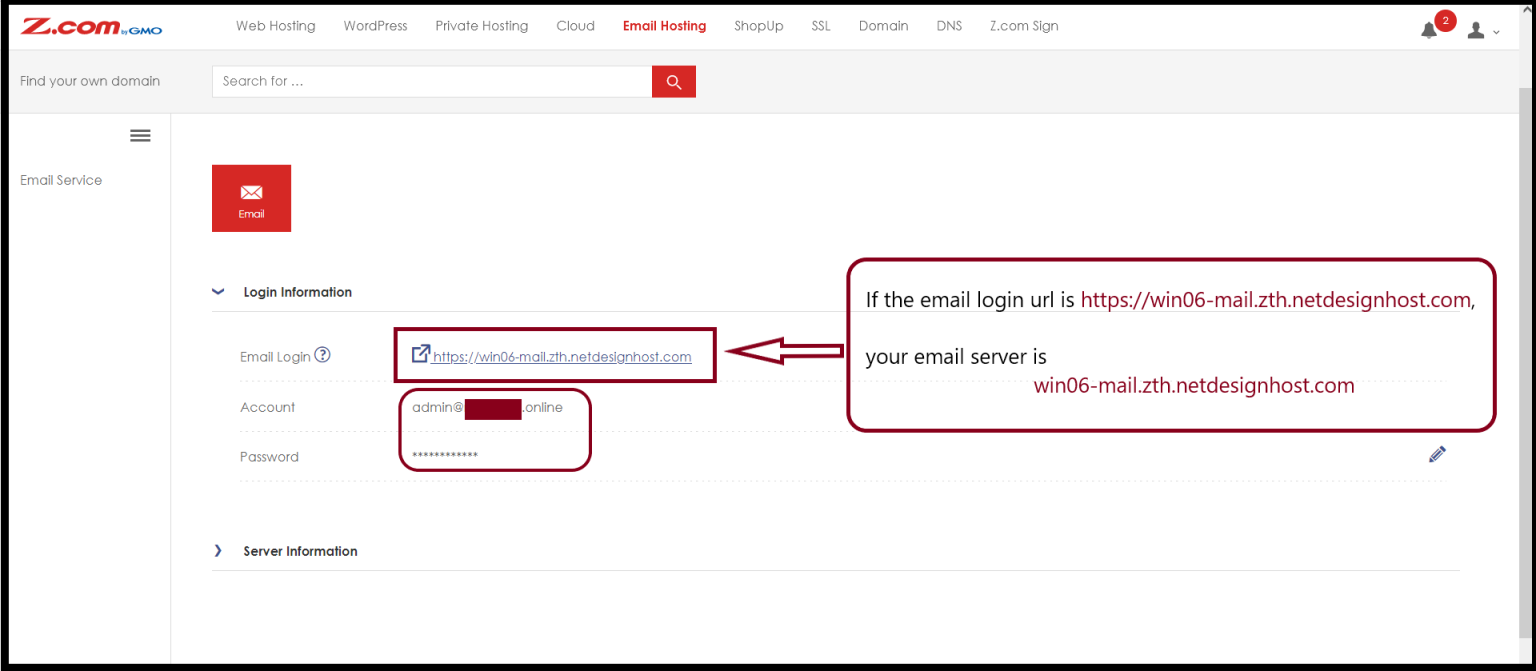
ပြီးလျှင် Email Setting တွင် ထည့်သွင်းအသုံးပြုရန် Incoming / outgoing server အချက်အလက်အားမှတ်သားထားပေးပါ။ https:// မပါပဲ ကူးယူလိုက်ပါ။
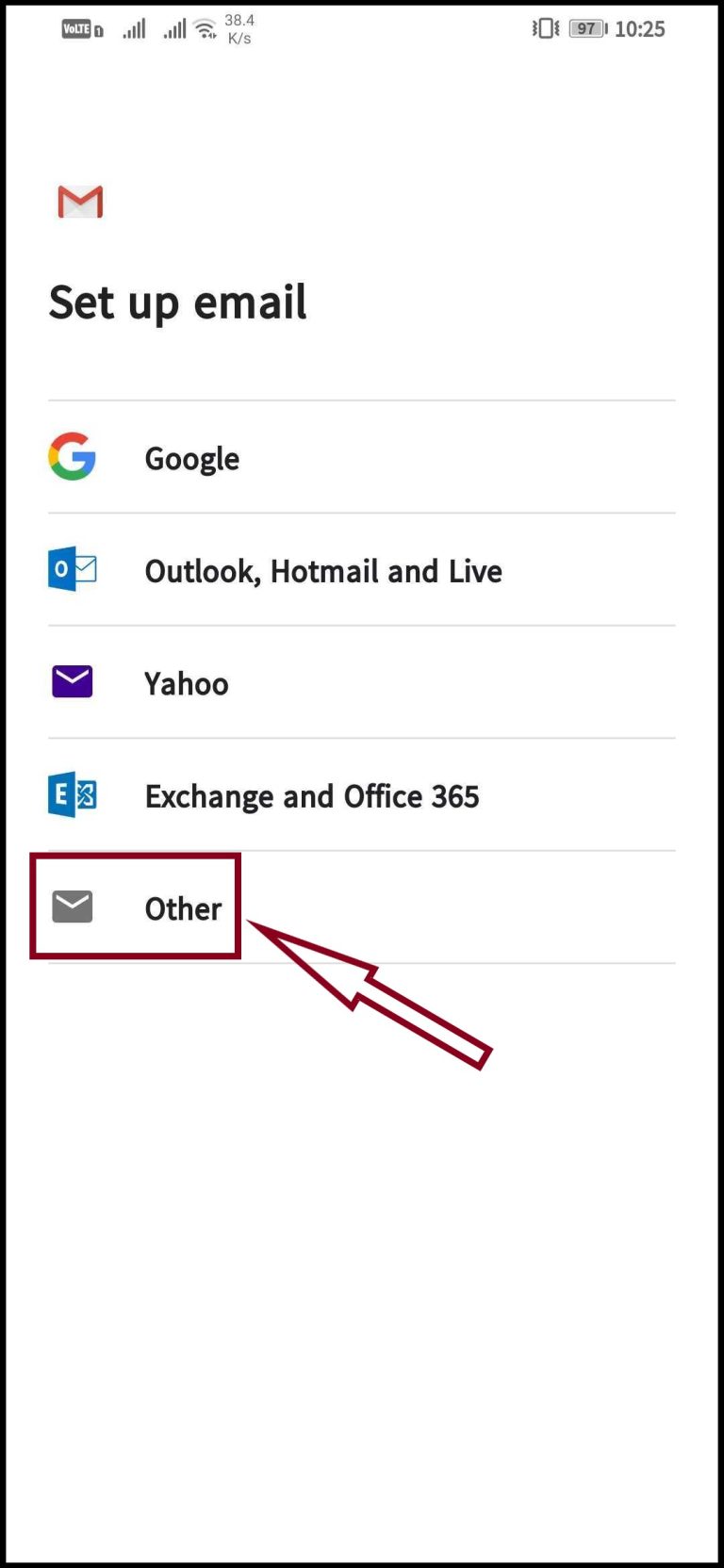
အဆင့် (၂) - သင်၏ ဖုန်းအတွင်းရှိ G-Mail App ကို ဖွင့်လိုက်ပါ။ Login ဝင်ထားသော Account များရှိပါက Add another account ကိုရွေးချယ်ပေးပါ။ ပြီးလျှင် " other " ကိုထပ်မံရွေးချယ်ပေးပါ။
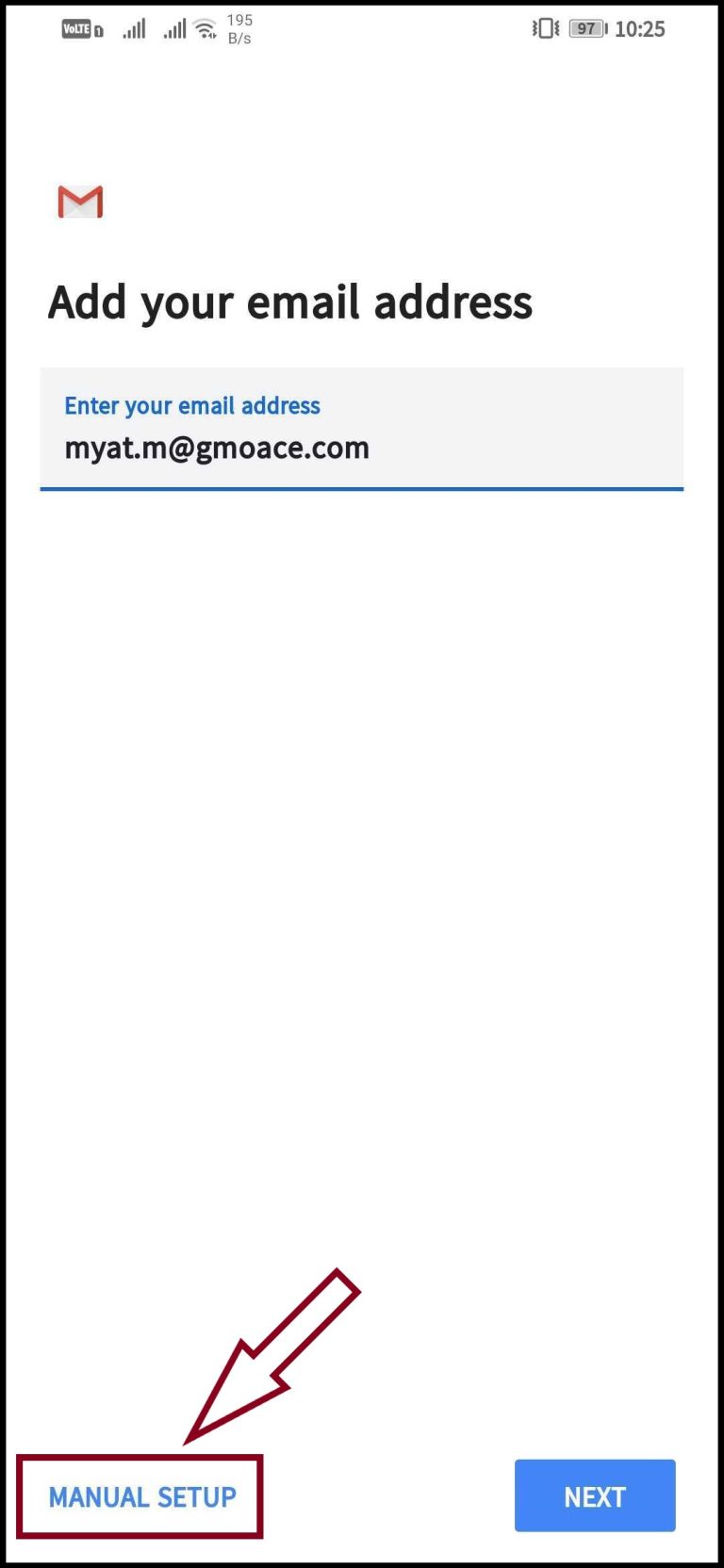
အဆင့် (၃) - Other ကိုရွေးချယ်ပြီးလျှင် သင်ဖွင့်ထားသော Z.com Email Hosting မှ Email address ကို ဖြည့်ပြီး MANUAL SETUP ကိုနှိပ်ပေးပါ။
 |  |
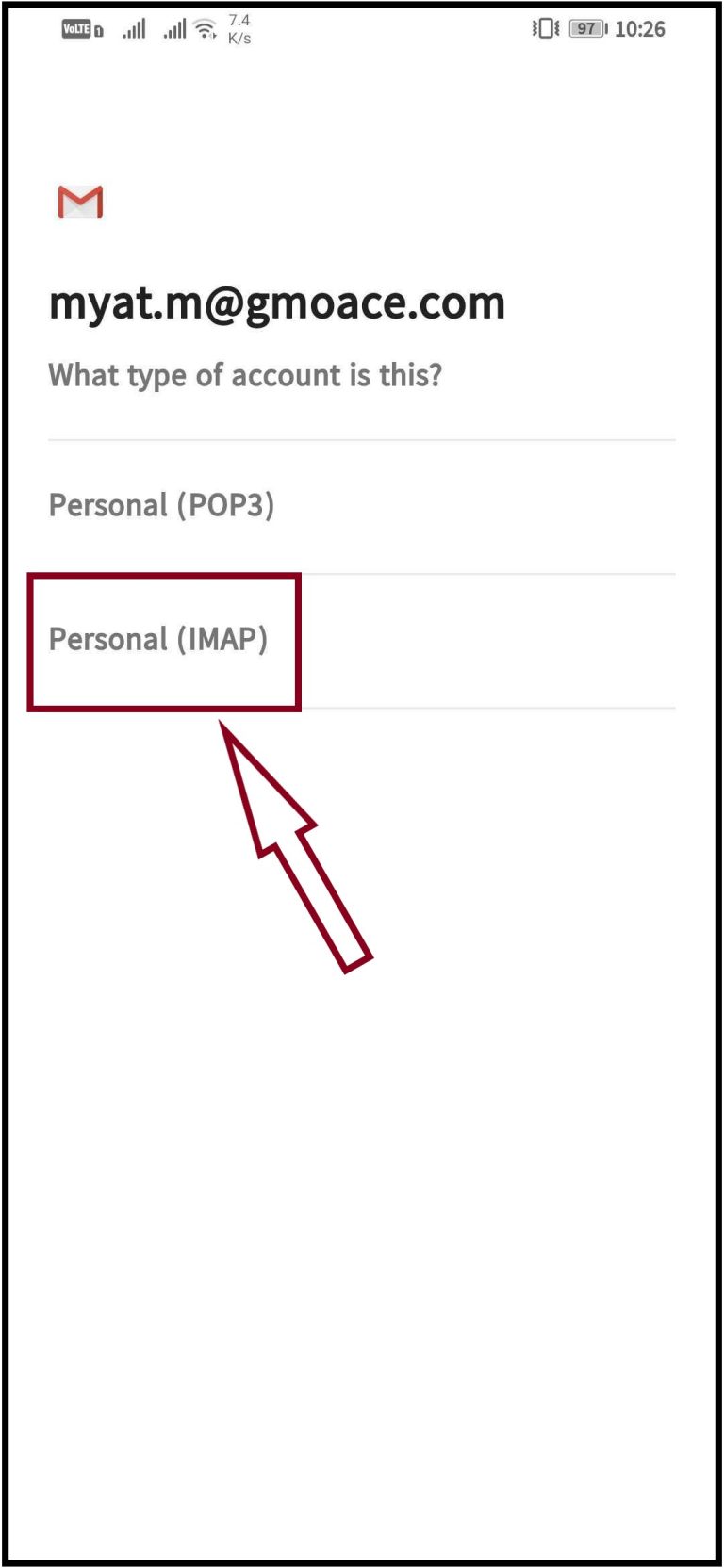
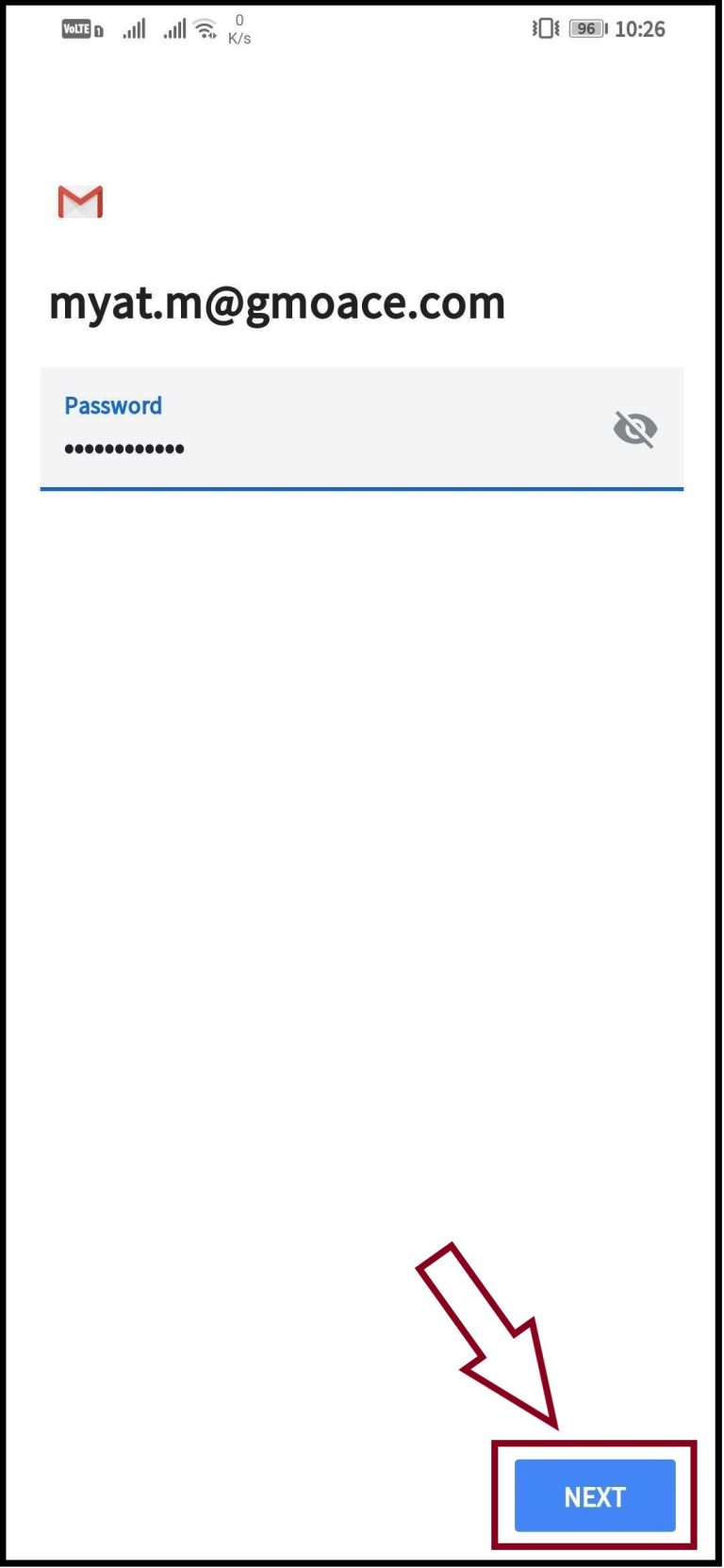
ပြီးလျှင် Personal (IMAP) ကိုရွေးချယ်ပြီး သင်ဖွင့်ထားသော Email account ၏ password ကိုထည့်သွင်းပြီး NEXT ကိုနှိပ်ပေးပါ။
 |  |
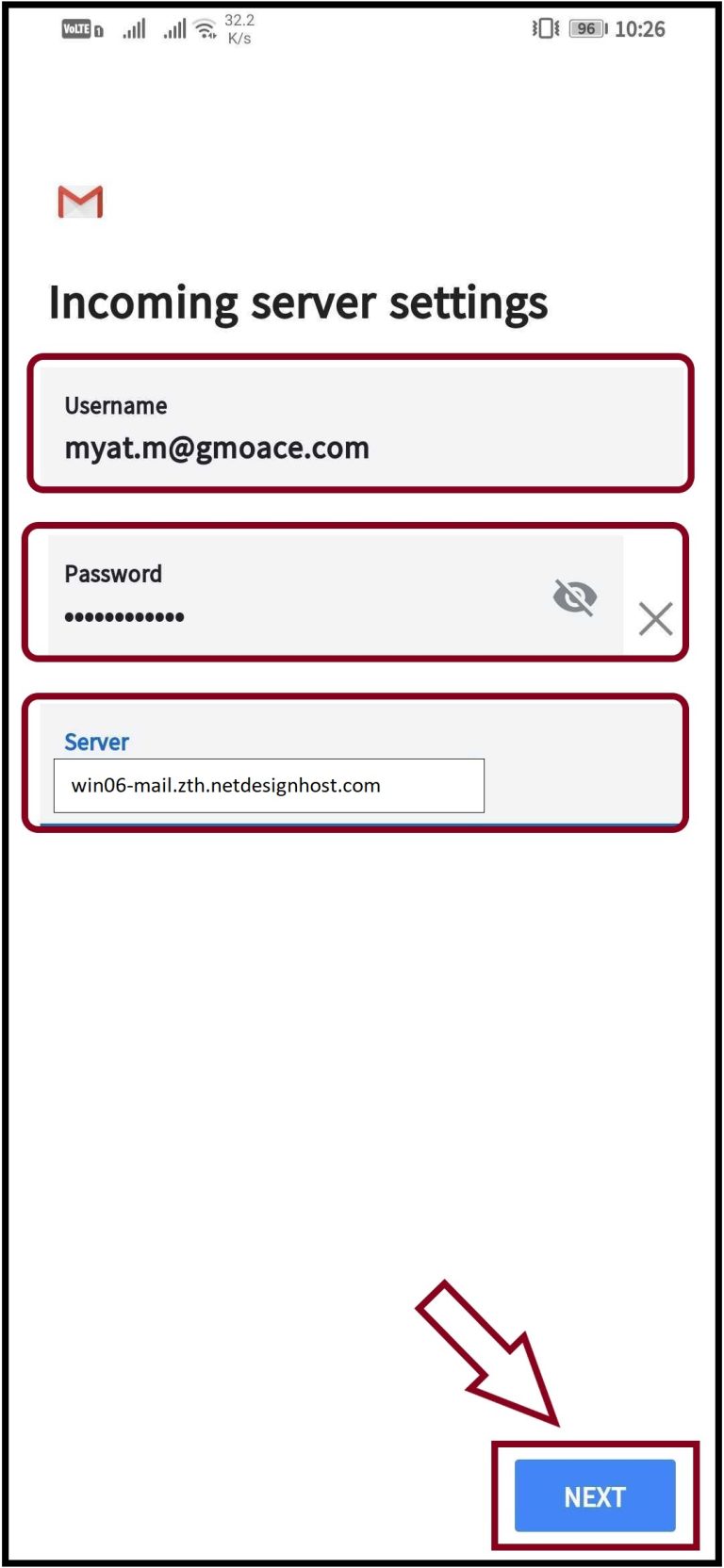
အဆင့် (၄)- ပြီးလျှင် Incoming Server နေရာတွင် သင် ဝယ်ယူထားသော Email Hosting ၏ Login information မှ Link ကို https:// မပါပဲထည့်သွင်းပေးပါ။
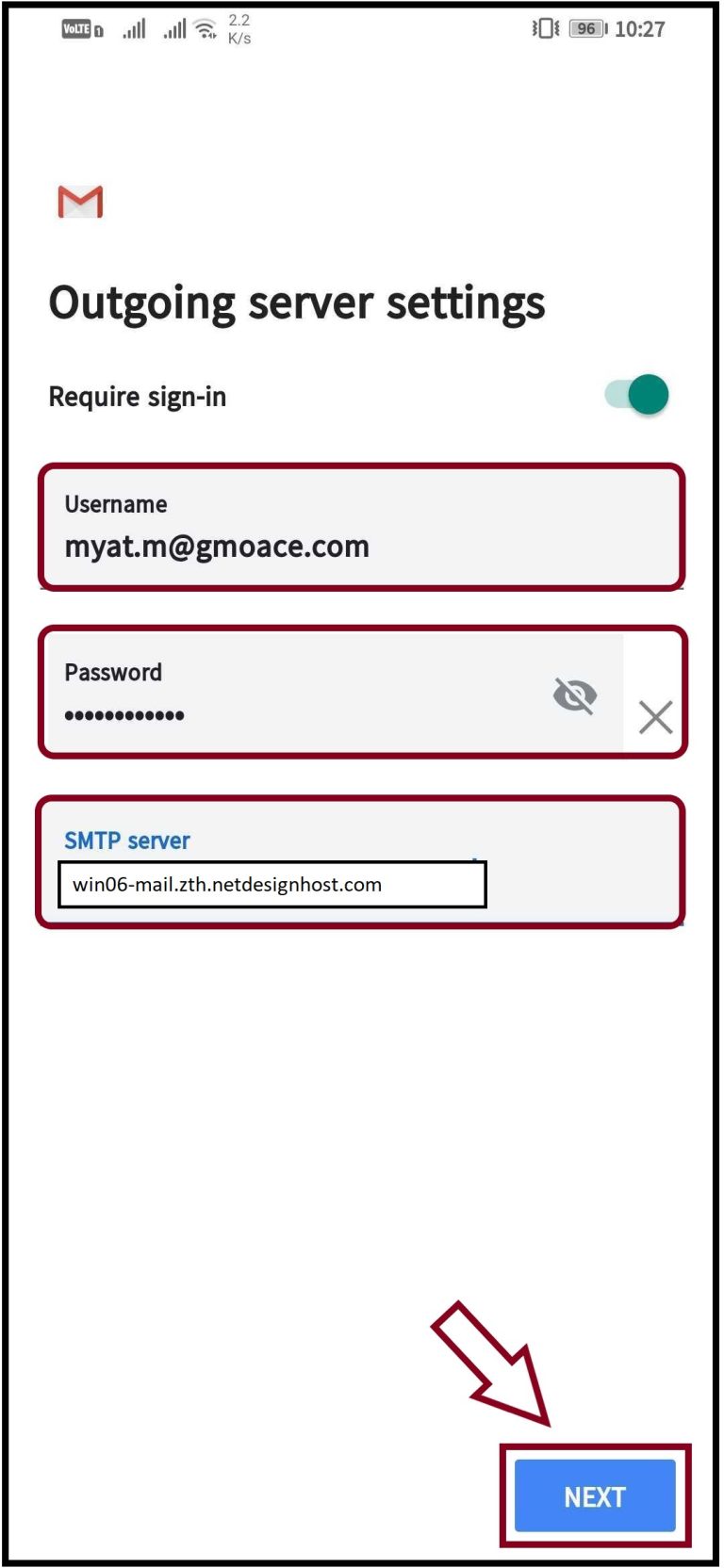
Outgoing server နေရာတွင်လည်း သင် ဝယ်ယူထားသော Email Hosting ၏ Login information မှ Link ကို https:// မပါပဲထပ်မံထည့်သွင်းပေးပါ။
 |  |
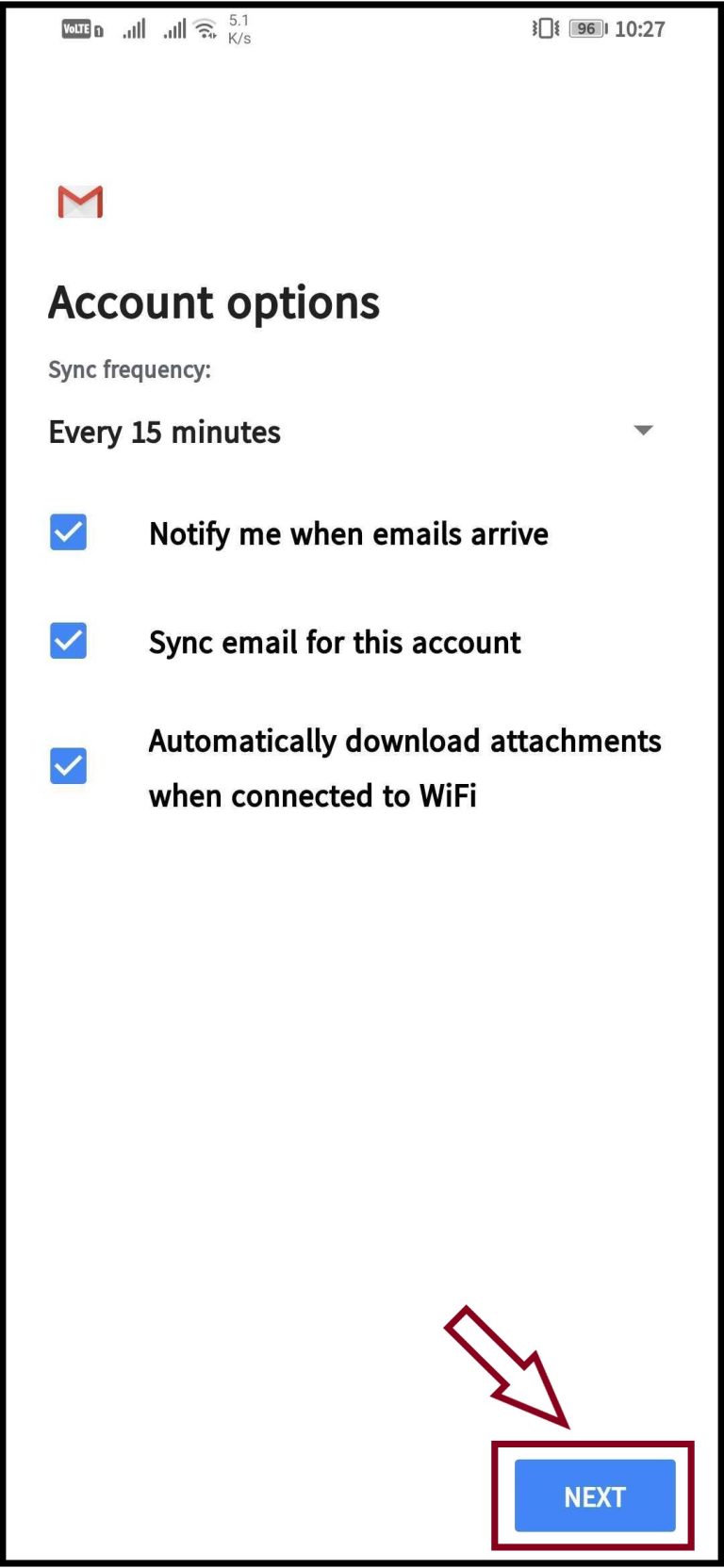
အဆင့် (၅) - ပြီးလျှင် Account options များကို အမှန်ခြစ်ပေးပြီး NEXT ကိုနှိပ်ပေးပါ။
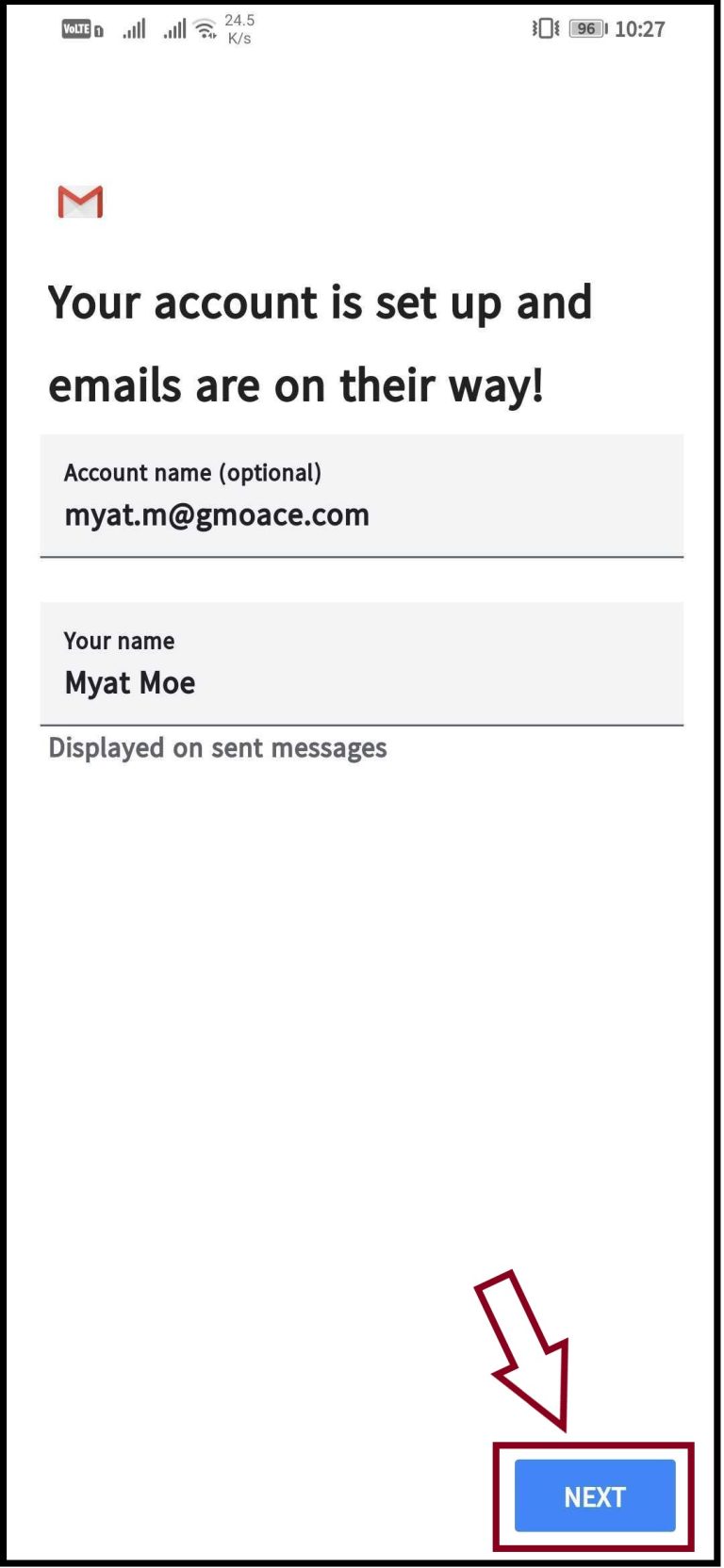
အားလုံးပြီးဆုံးပါက Account name နေရာတွင် သင်ဖွင့်ထားသော Email address ကိုထည့်ပြီး Your Name နေရာတွင် သင့်ပေးချင်သောနာမည်ကိုထည့်သွင်းပြီး NEXT ကိုနှိပ်ပေးလိုက်ပါက Android ဖုန်းများထဲရှိ Gmail app တွင် စတင်အသုံးပြု နိုင်ပြီဖြစ်ပါတယ်။
 |  |
Thank you!!!
Was this article helpful?
That’s Great!
Thank you for your feedback
Sorry! We couldn't be helpful
Thank you for your feedback
Feedback sent
We appreciate your effort and will try to fix the article