How to Setup Two-Step Verification of MyZ.com Account?
MyZ.com Account can be logged in with Two-step Verification to prevent unknown login access. So, let me show you how to set up Two-step Verification.

Before setting up 2FA, please download Microsoft Authenticator on your phone.
For Android,
URL: https://play.google.com/store/apps/details?id=com.azure.authenticator&hl=en&gl=US
For iPhone,
URL: https://apps.apple.com/us/app/microsoft-authenticator/id983156458
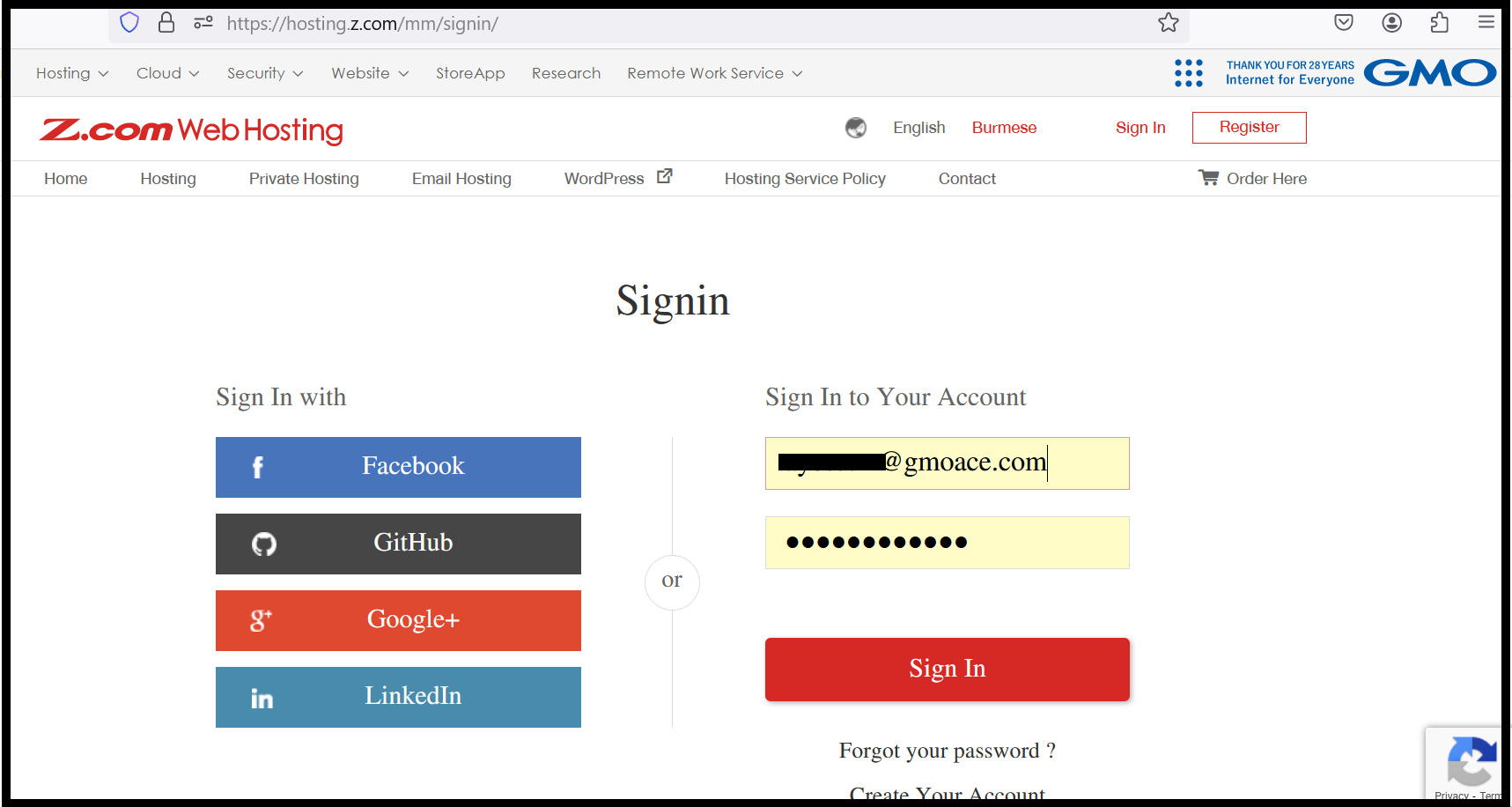
Step1. Firstly, log in to MyZ.com Account with the registered email address.
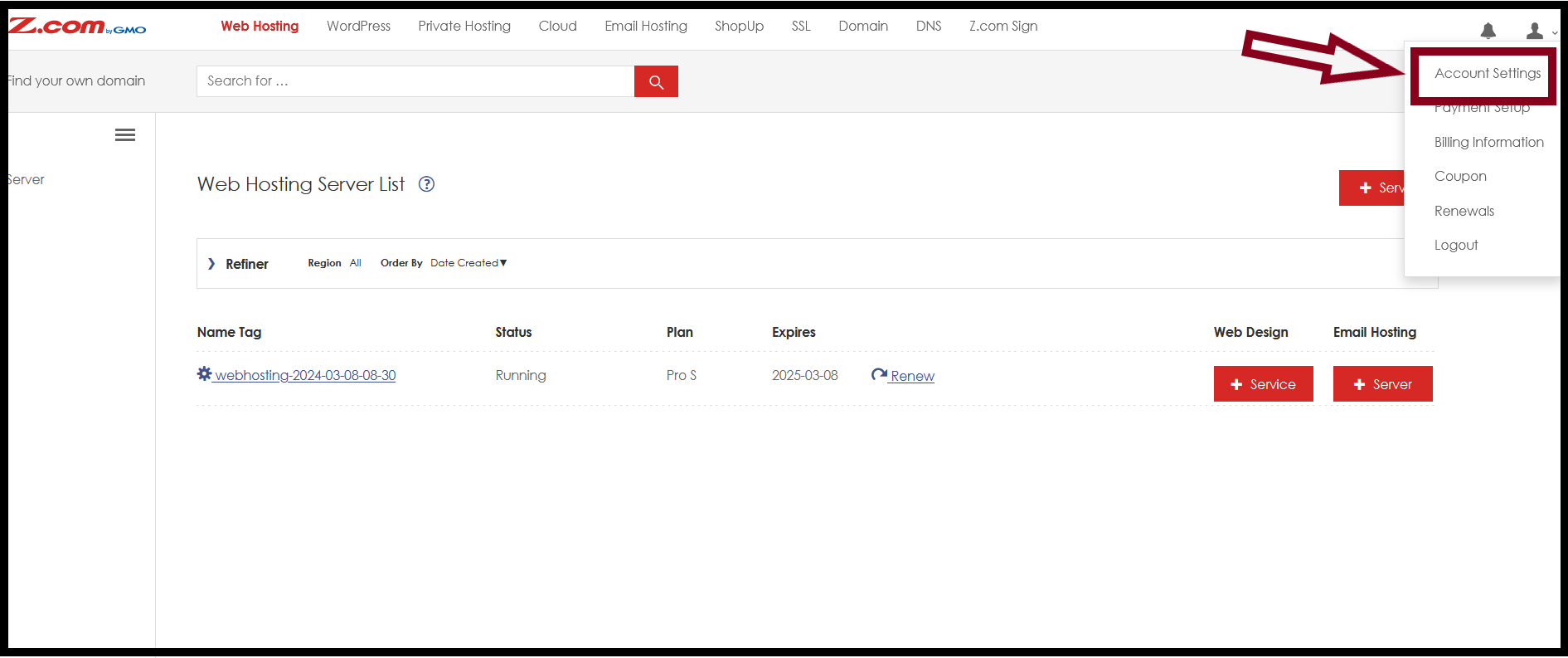
Step2. Click on the personal icon on the right top side and select "Account Setting".
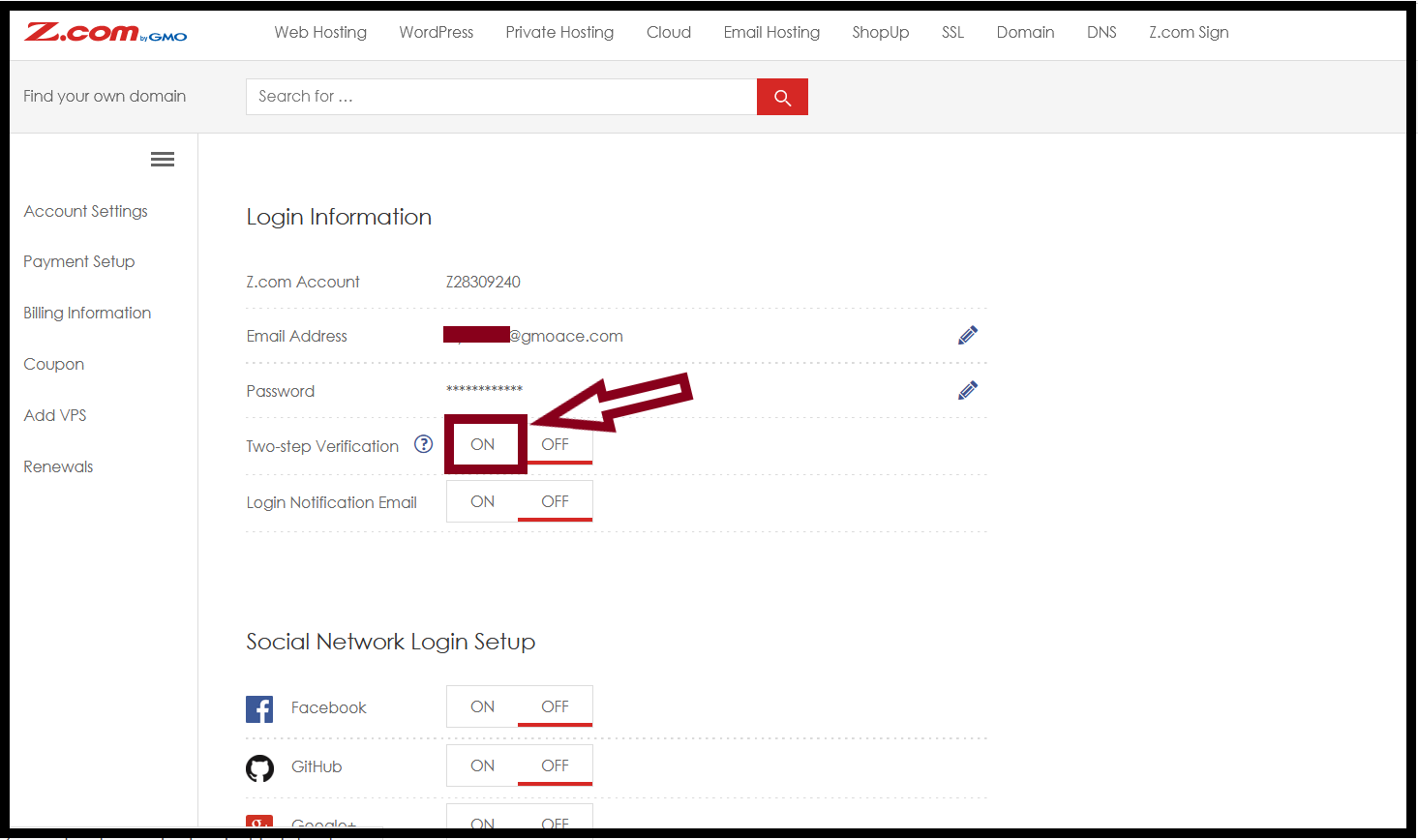
Step 3. Click the “ON” button of the Two-step Verification.
Step4. Opened the Microsoft Authenticator app on the Mobile. Click on the (+) sign, choose the personal account, then choose “Scan a QR code” and scan the QR.
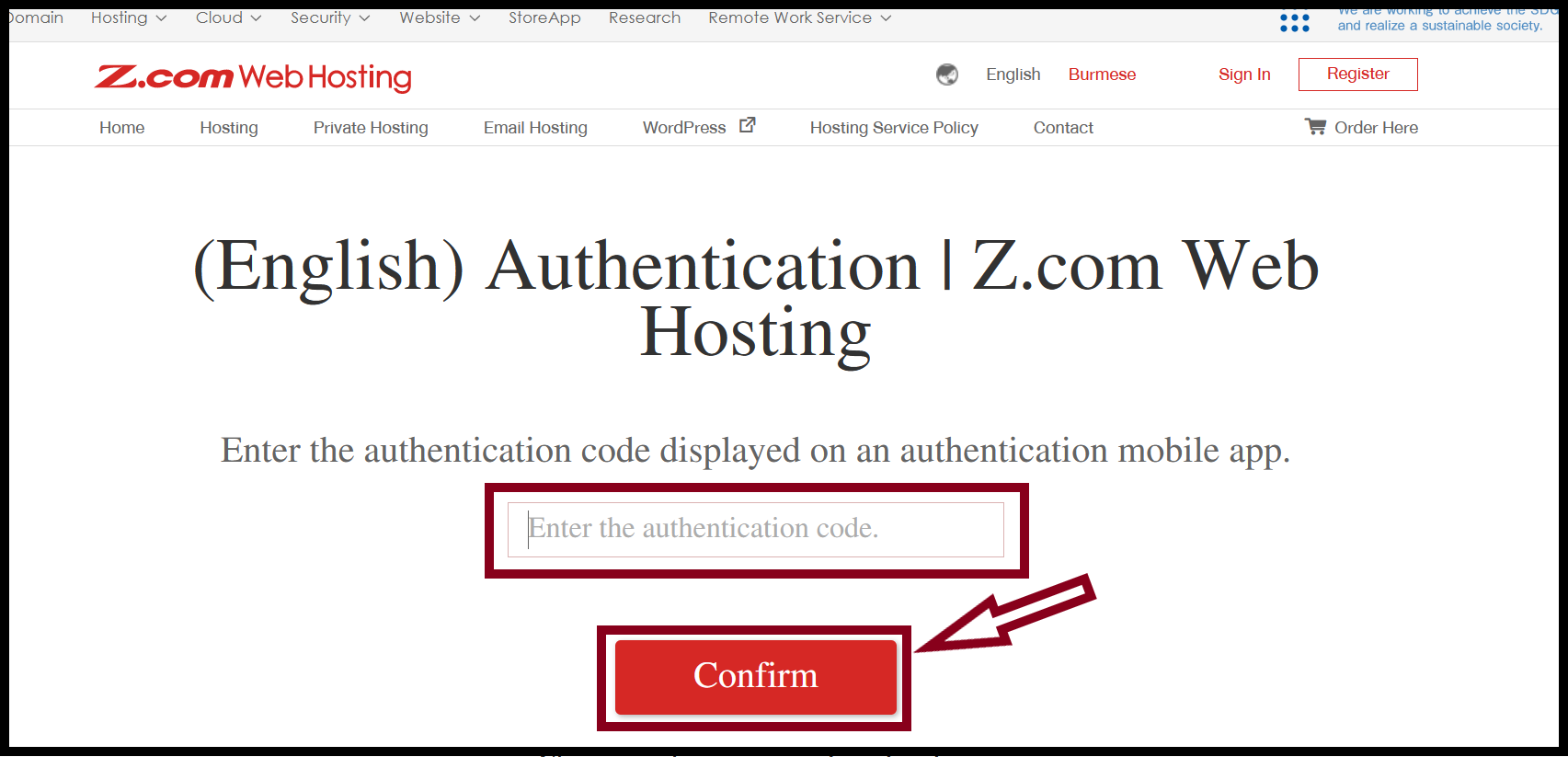
Step5. Enter the Authentication Code and click Authentication.
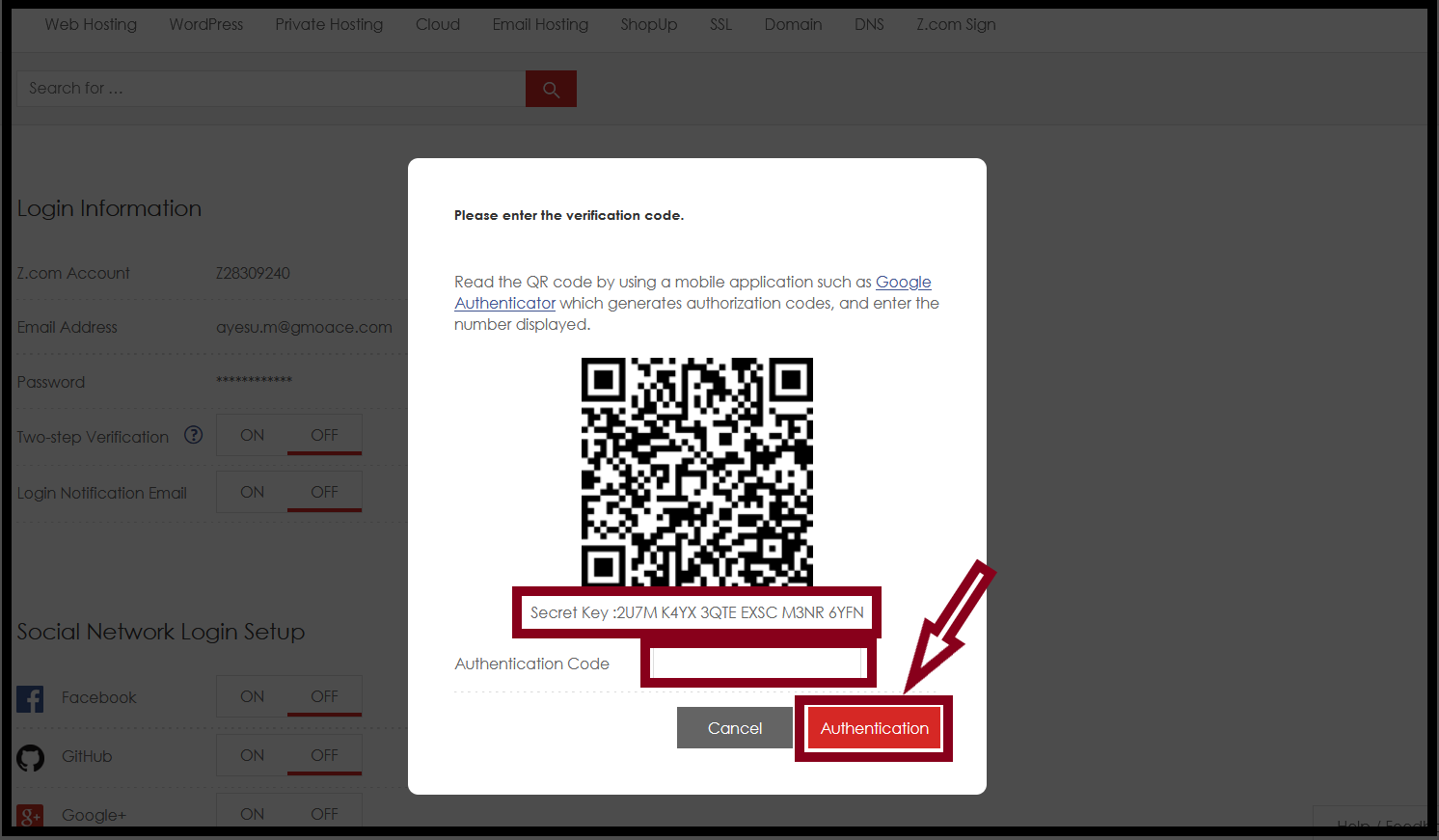
Step6. After Authentication is completed, use the Authentication code for the next time login.
THANK YOU!!!
Was this article helpful?
That’s Great!
Thank you for your feedback
Sorry! We couldn't be helpful
Thank you for your feedback
Feedback sent
We appreciate your effort and will try to fix the article