How to Setup Email Account On Outlook Application for Email Hosting?
Step 1. Login to the Z.com account, https://hosting.z.com/mm/signin/
Step 2. Click the “Email Hosting” Menu
Step 3. Select your Email Hosting server Under Email Hosting Server List
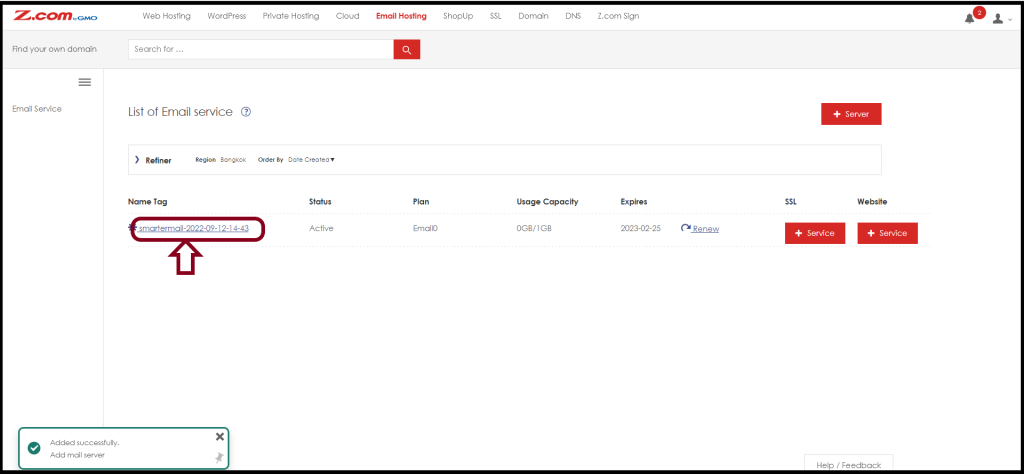
If you want to set up an email account on outlook, you need to configure incoming & outgoing mail server settings.
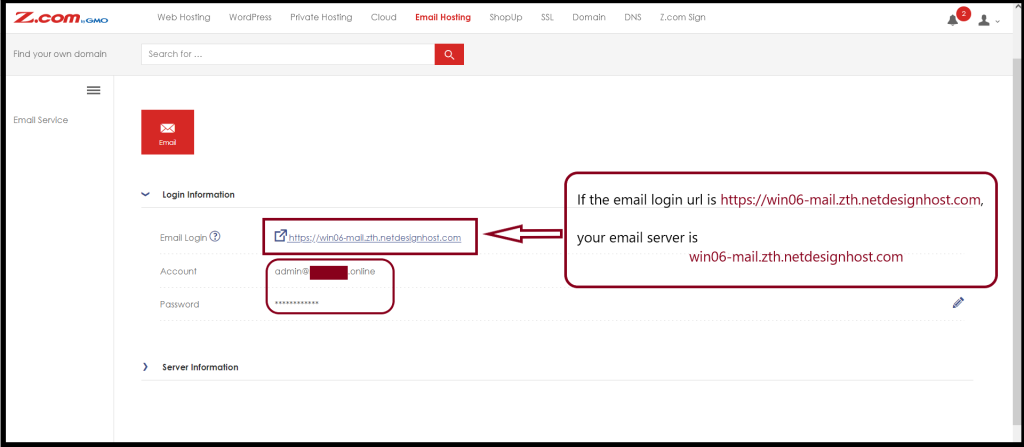
Step 4. And then, Select “Login Information“
Please note the mail server as follows in an image.
Setup an Email Account on the Outlook application
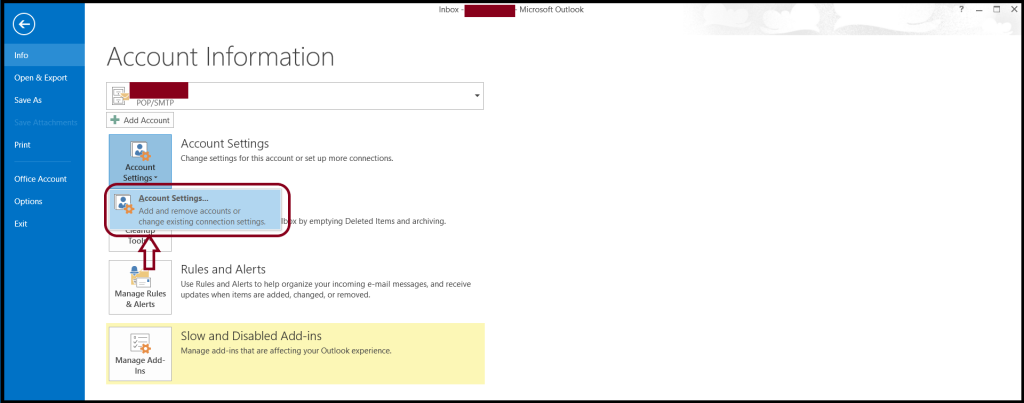
Now, Let we will start to set up an email account on the Outlook application. So, please open the Outlook application on your PC.
File > Info > Account Settings
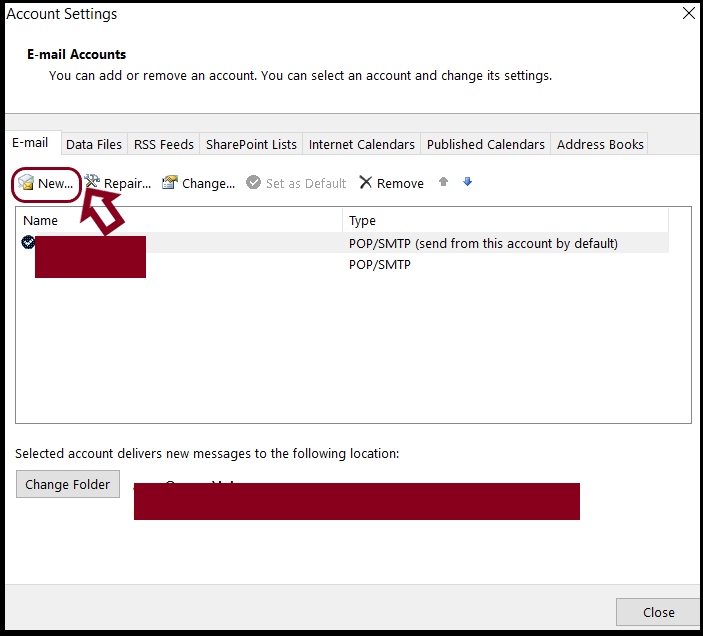
And then, please select “New” to add an email account
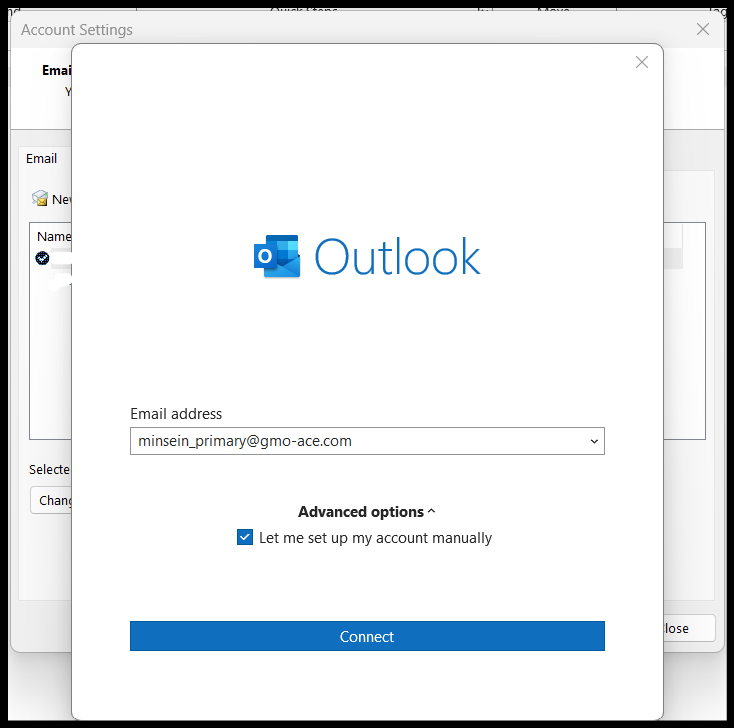
Next, add email address and click "Advanced options" to select "Let me set up my account manually" and click "Connect"
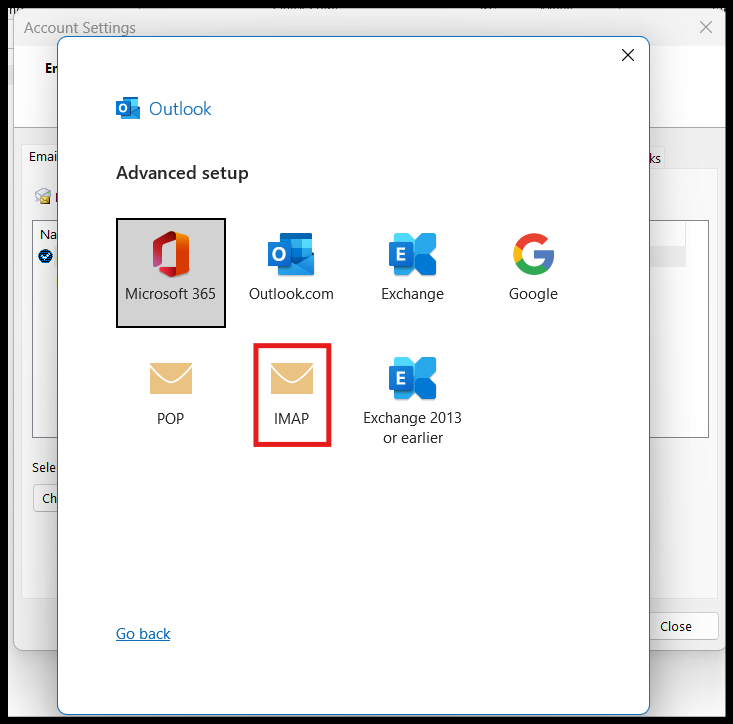
Choose "IMAP”
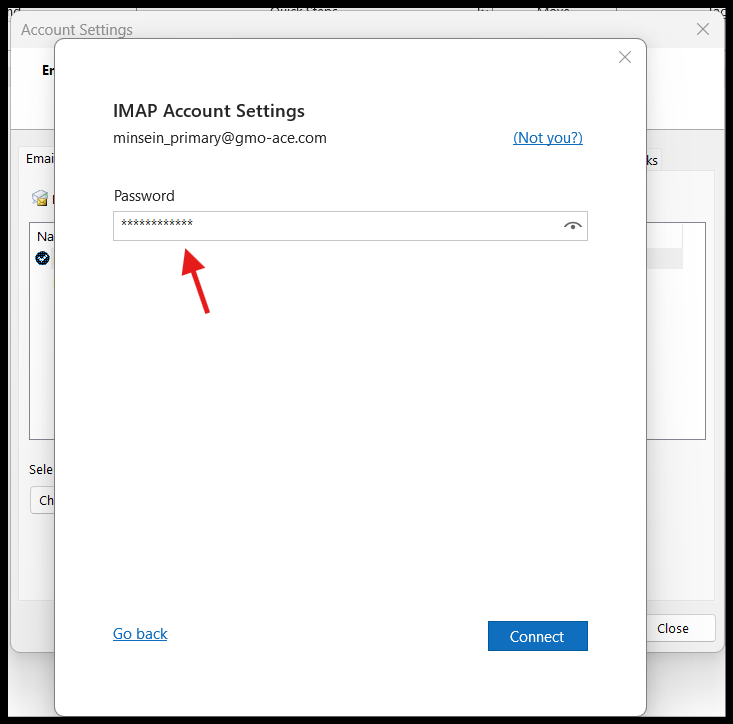
Fill the email address password and click "Connect"
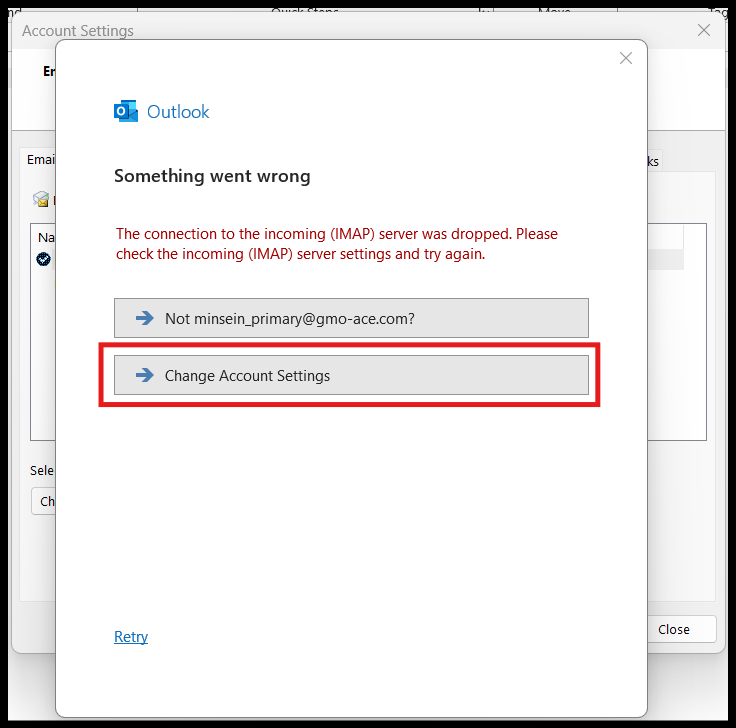
If the server is showing mail.netdesignhost.com, click "Cancel" to change server address.
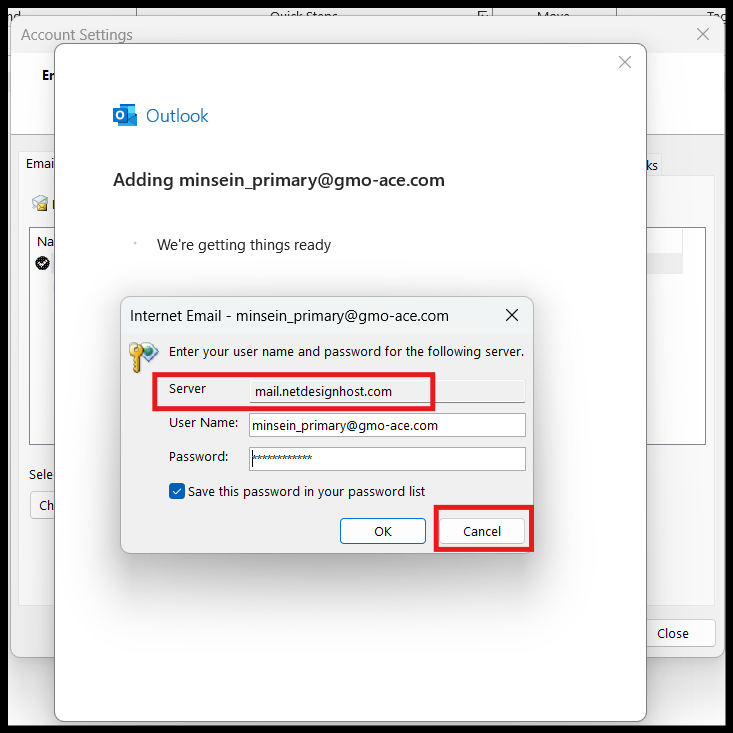
Then, click "Change Account Settings". Then Account Settings will open.
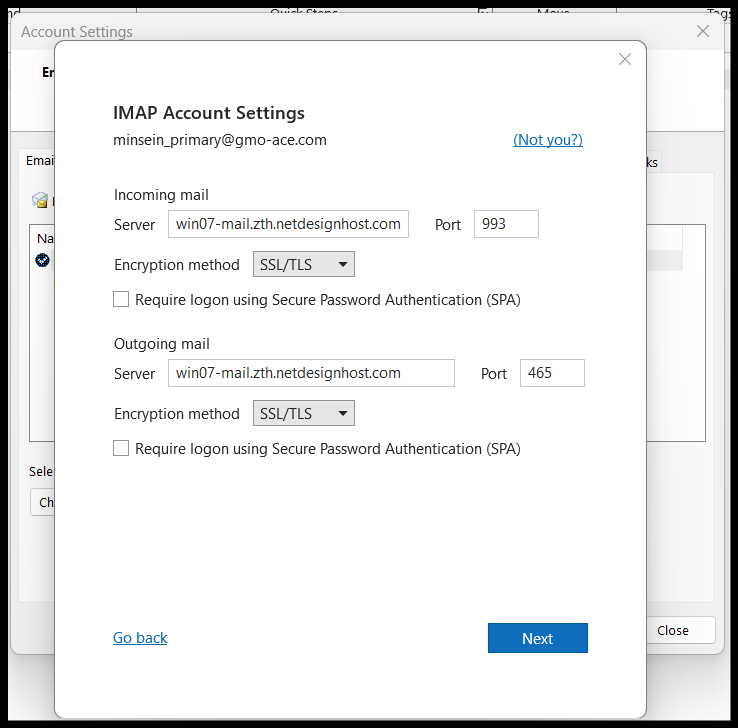
Please add email hosting server which is same for both incoming server and outgoing server. Then click "Next".
Remark: The email hosting server is the server information that you noted in earlier steps.
For SSL Ports, For Non SSL Ports,
Incoming Server(IMAP): 993 Incoming Server(IMAP): 143
Incoming Server(POP) : 995 Incoming Server(POP) : 110
Outgoing Server(SMTP): 465 Outgoing Server(SMTP): 25 or 587
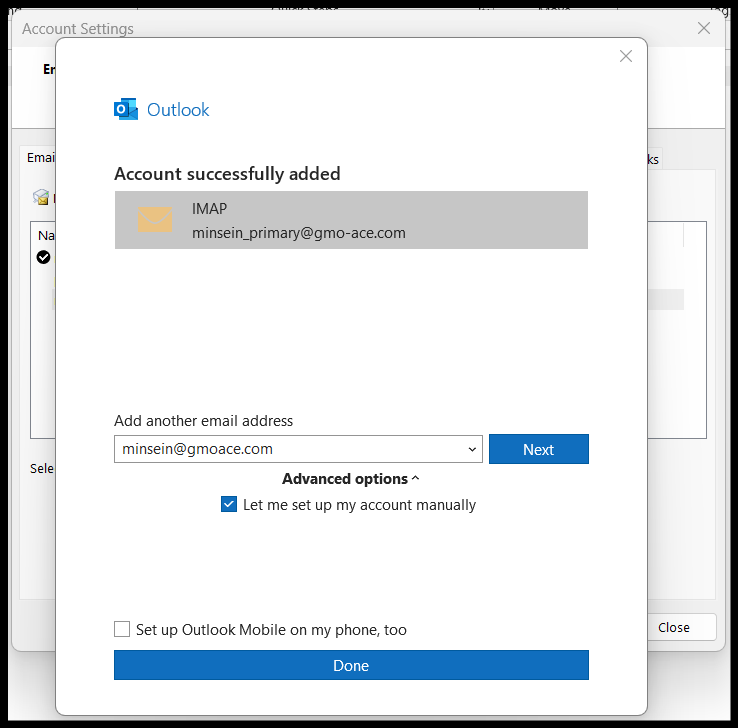
When "Account successfully added" shows, the setup is completed. Click "Done".
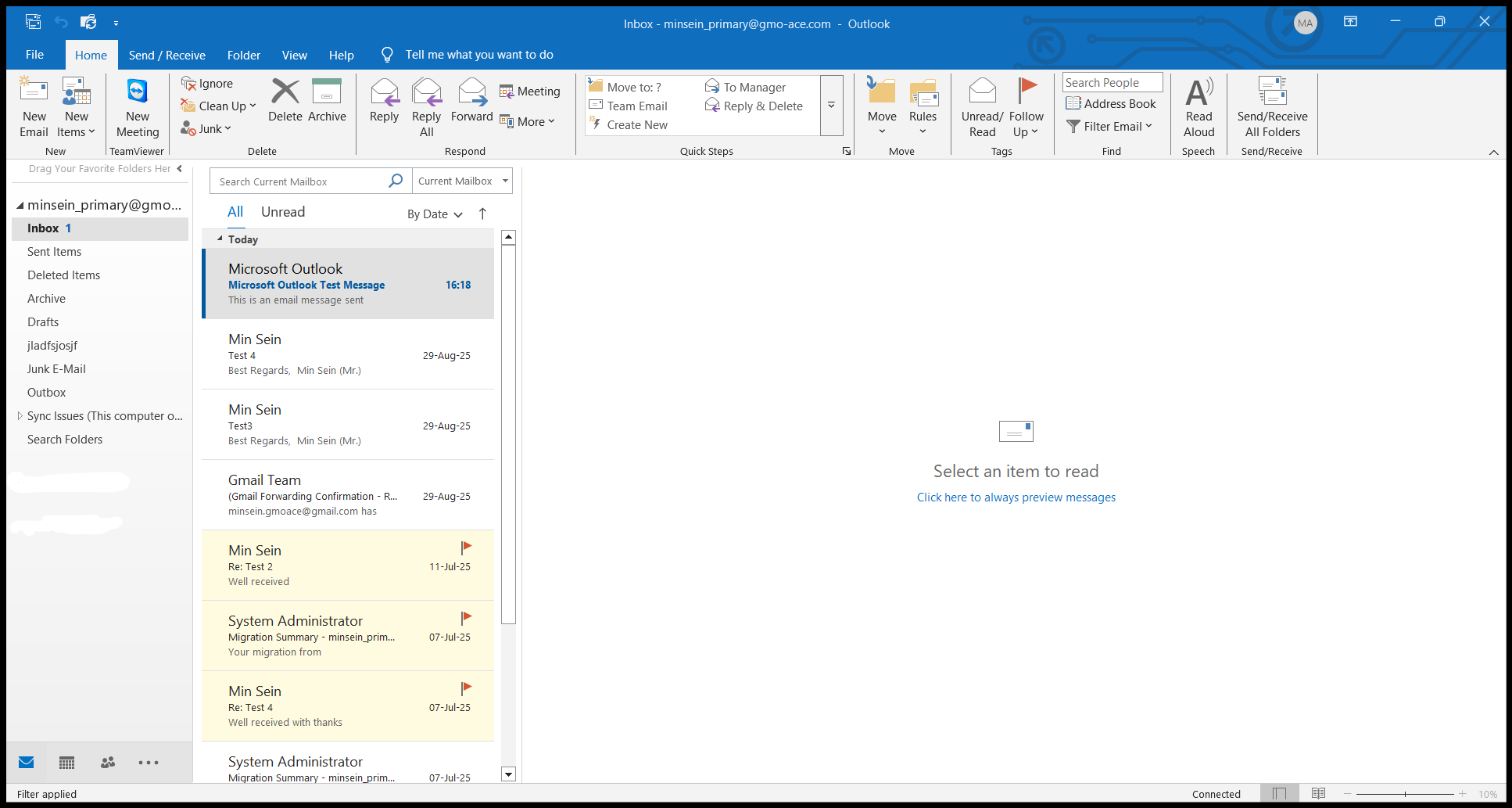
Finally, you completed to set up an email account on the Outlook application.
Thank you!!!
Was this article helpful?
That’s Great!
Thank you for your feedback
Sorry! We couldn't be helpful
Thank you for your feedback
Feedback sent
We appreciate your effort and will try to fix the article