How to Set up Email Account on Outlook Application For DirectAdmin (Lite Plan)?
Step 1. Open the Outlook Application on your PC.
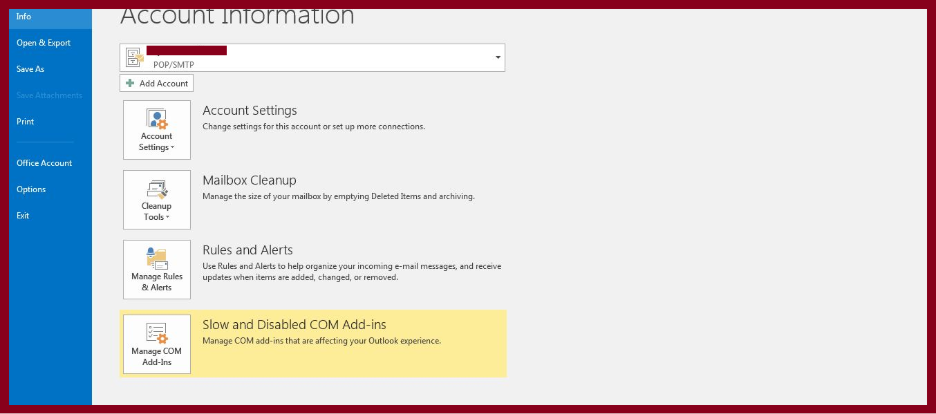
Step 2.Click on the File and select Add Account .
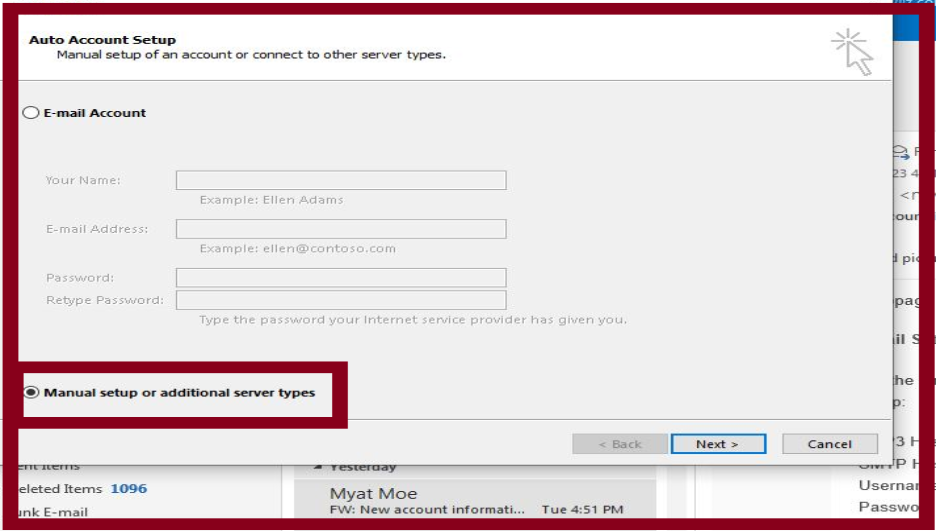
Step 3. Select Manual setup or additional server types and then click Next .
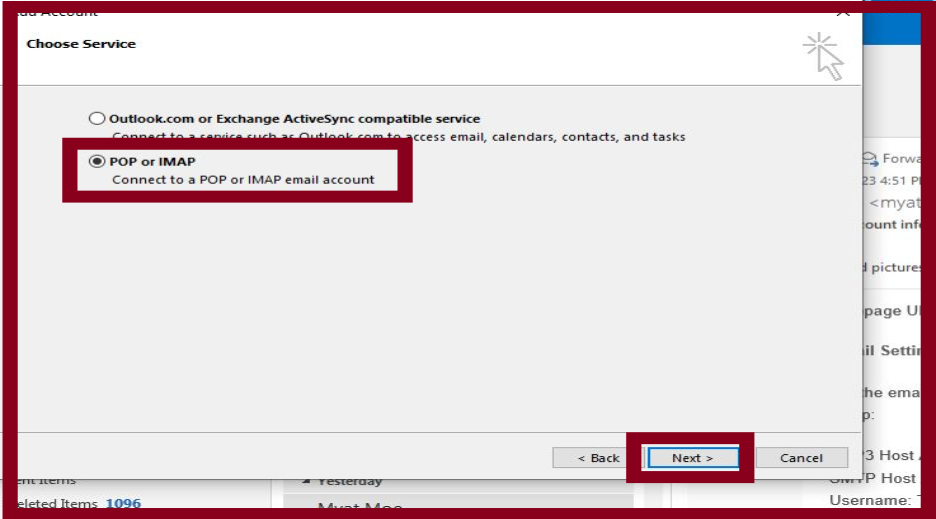
Step 4. Select POP or IMAP setting and then click Next .
Step 5. Enter your mail address.
* The Incoming mail server and Outgoing mail server (SMTP) information will be in your Z.com register mail sending by Net Design Host .
Step 6. Click " More Setting " . 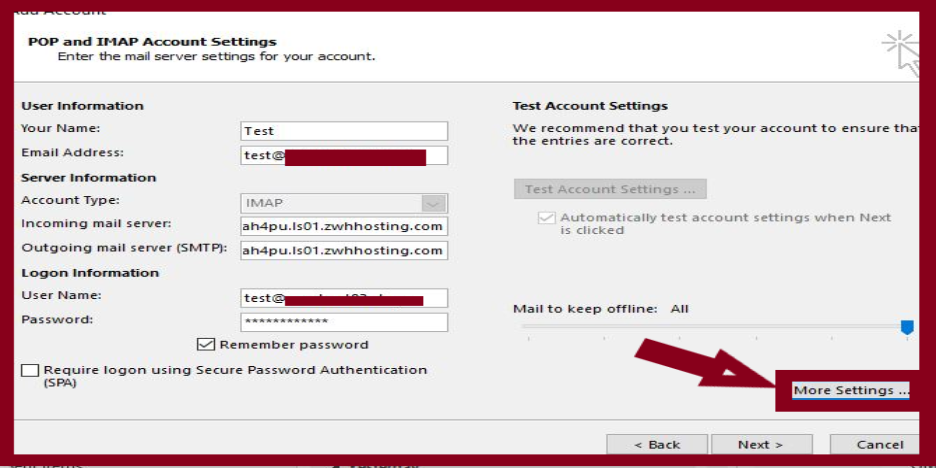
Step 7. Go to the Outgoing Server and select My Outgoing server (SMTP) requires authentication and then click " OK ".
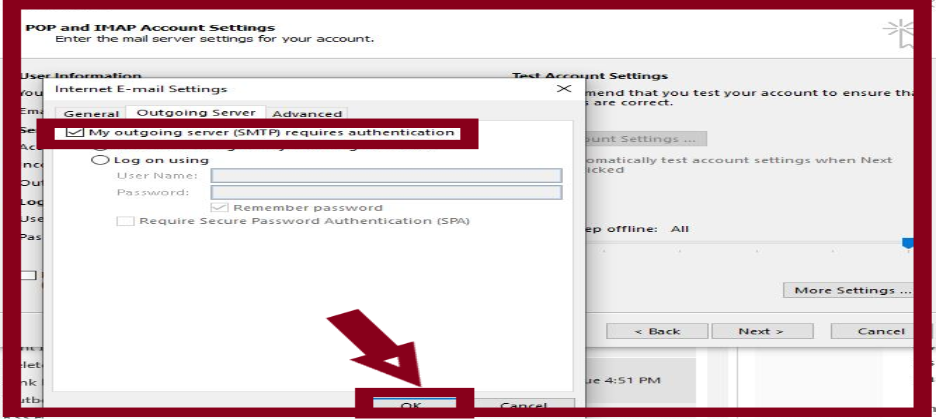
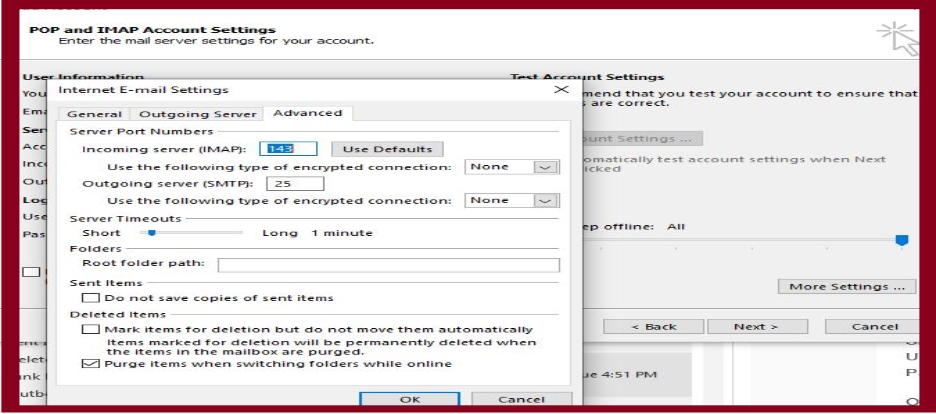
Step 8. Go to the Advance Tab and configure Incoming Server (IMAP) and Outgoing Server (SMTP) setting.
For SSL Ports, For Non SSL Ports,
Incoming Server(IMAP): 993 Incoming Server(IMAP): 143
Incoming Server(POP) : 995 Incoming Server(POP) : 110
Outgoing Server(SMTP): 465 Outgoing Server(SMTP): 25 or 587
- For Outlook App : IMAP
- For GMail : POP
Step 9 . Click " Next " .
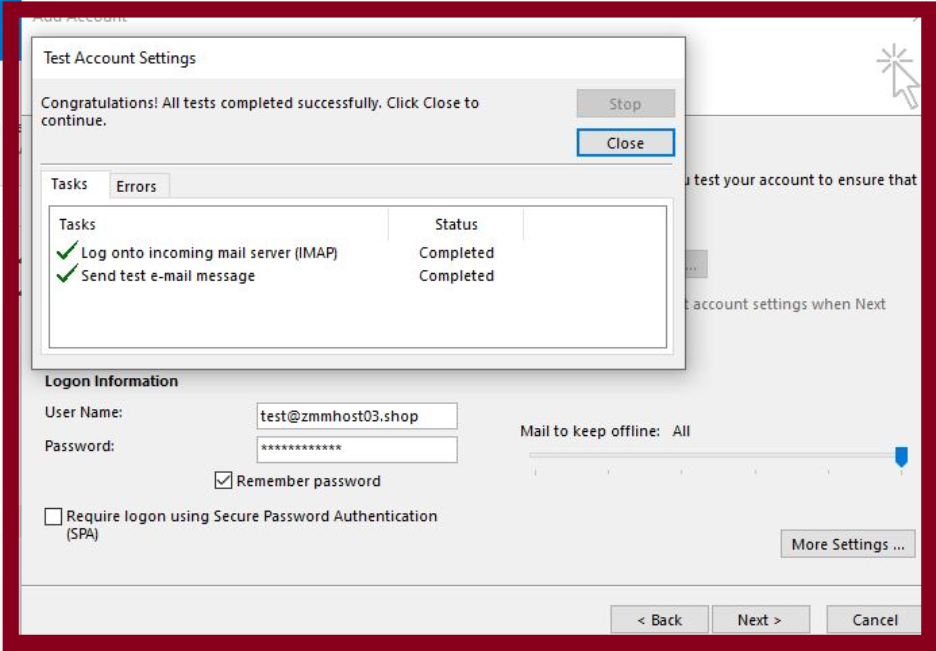
Finally Your email account has been configured successfully.
Thank You!!!
Was this article helpful?
That’s Great!
Thank you for your feedback
Sorry! We couldn't be helpful
Thank you for your feedback
Feedback sent
We appreciate your effort and will try to fix the article