How to Setup Email Account in Outlook Application For Web Hosting(Pro)?
Step1. Login to your z.com account, https://cloud.z.com/mm/signin
Step1.1. Click the “Web Hosting” Status
Step1.2. Select your webhosting server Under Web Hosting Server List
Step1.3. Enter to the “ Webmail ” with the Email Login URL.
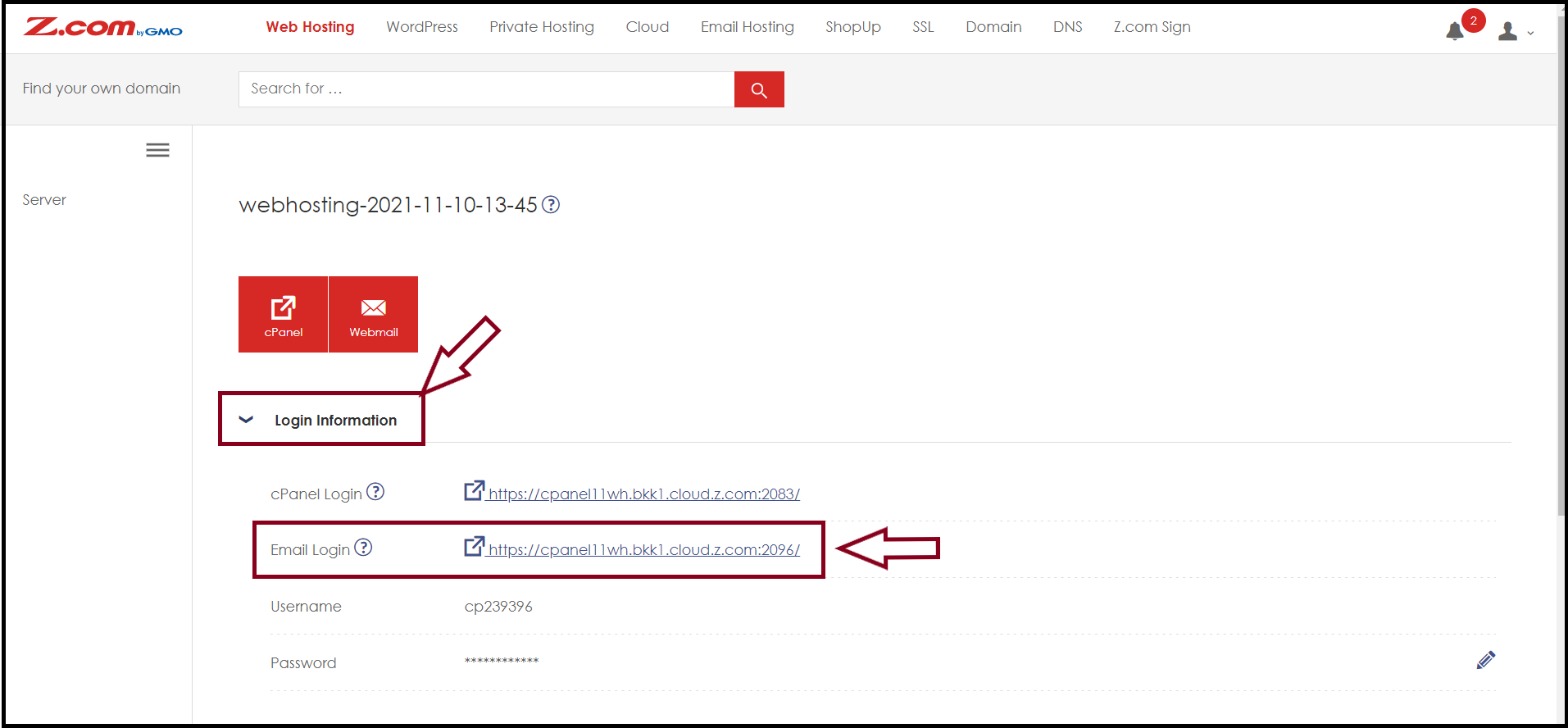
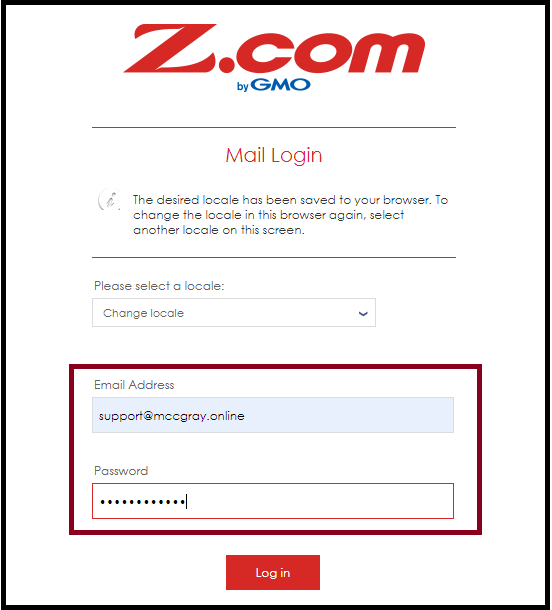
Step2. Before we setup email account on outlook, please login Webmail.
Email Login URL: https://cpanel11wh.bkk1.cloud.z.com:2096/
Username: support@mccgray.online ( your_emailaddress)
Password: *********
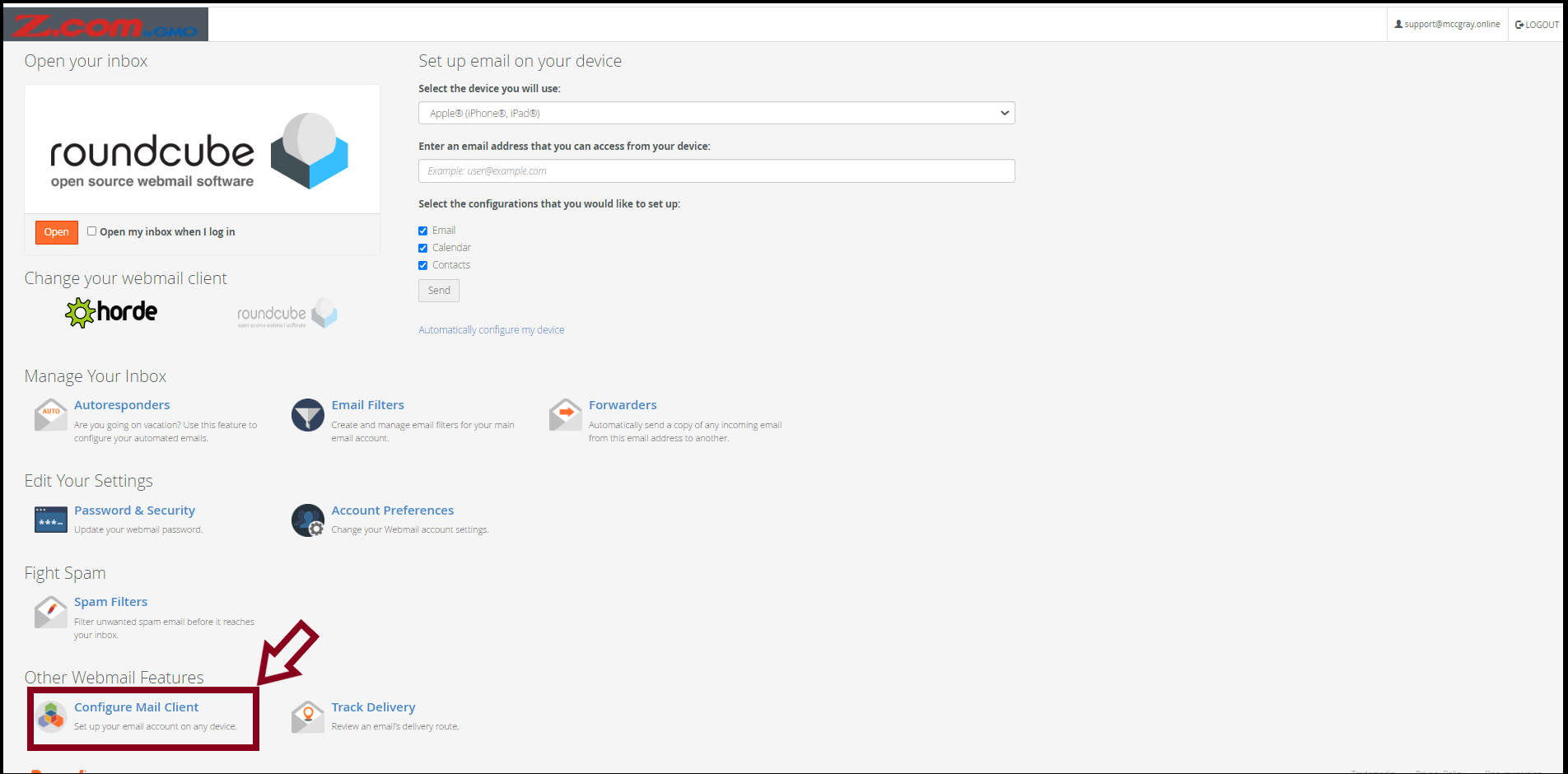
Step2.1 Check Incoming and outgoing mail setting from Webmail.
If you want to setup email account on outlook, you need to configure incoming& outgoing mail server setting. You can see this setting from the following instruction.
Click=> Go to Configure Mail Client
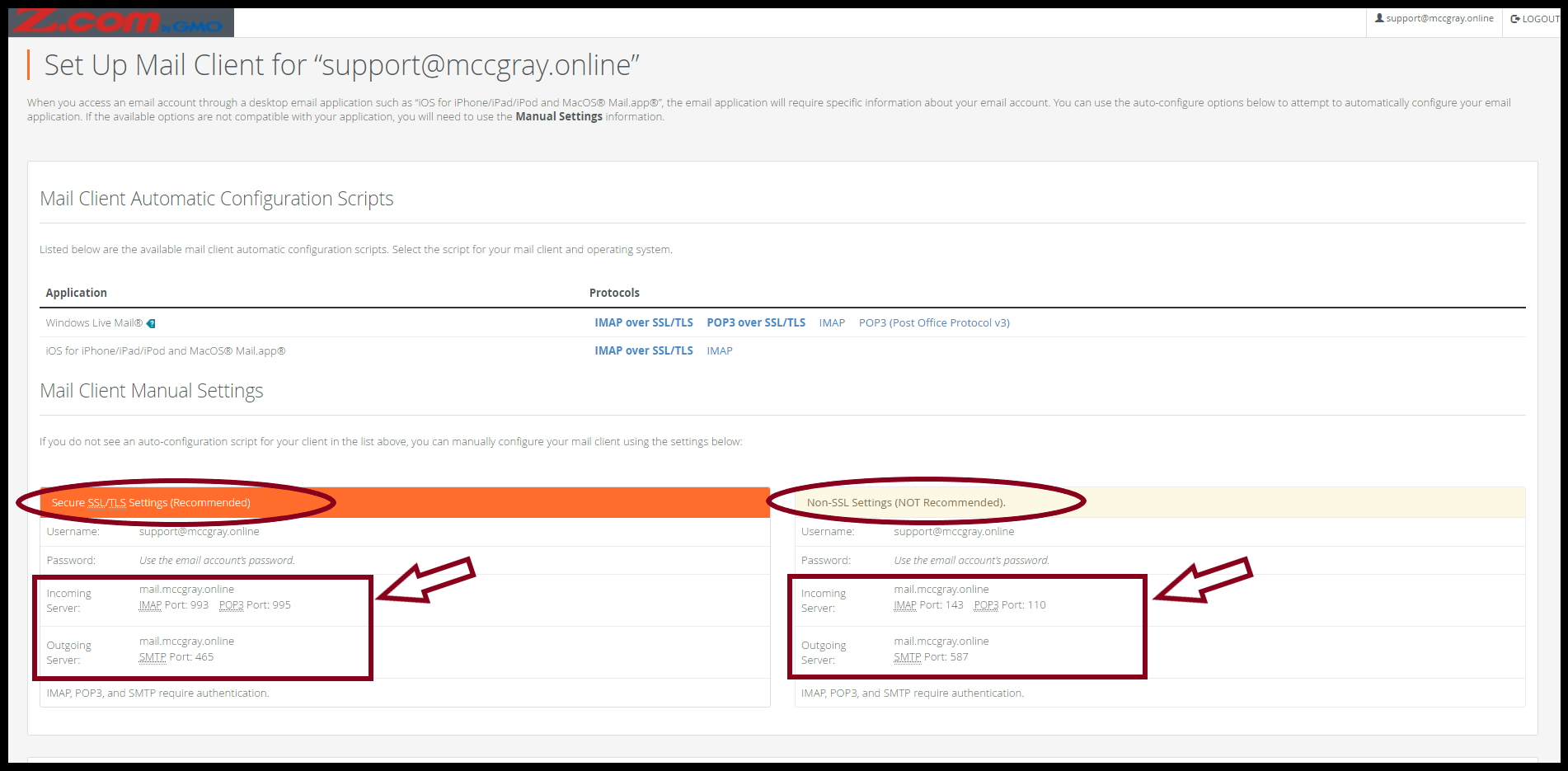
You will see incoming and outgoing mail server setting.
Step3. Please open outlook application in your PC.
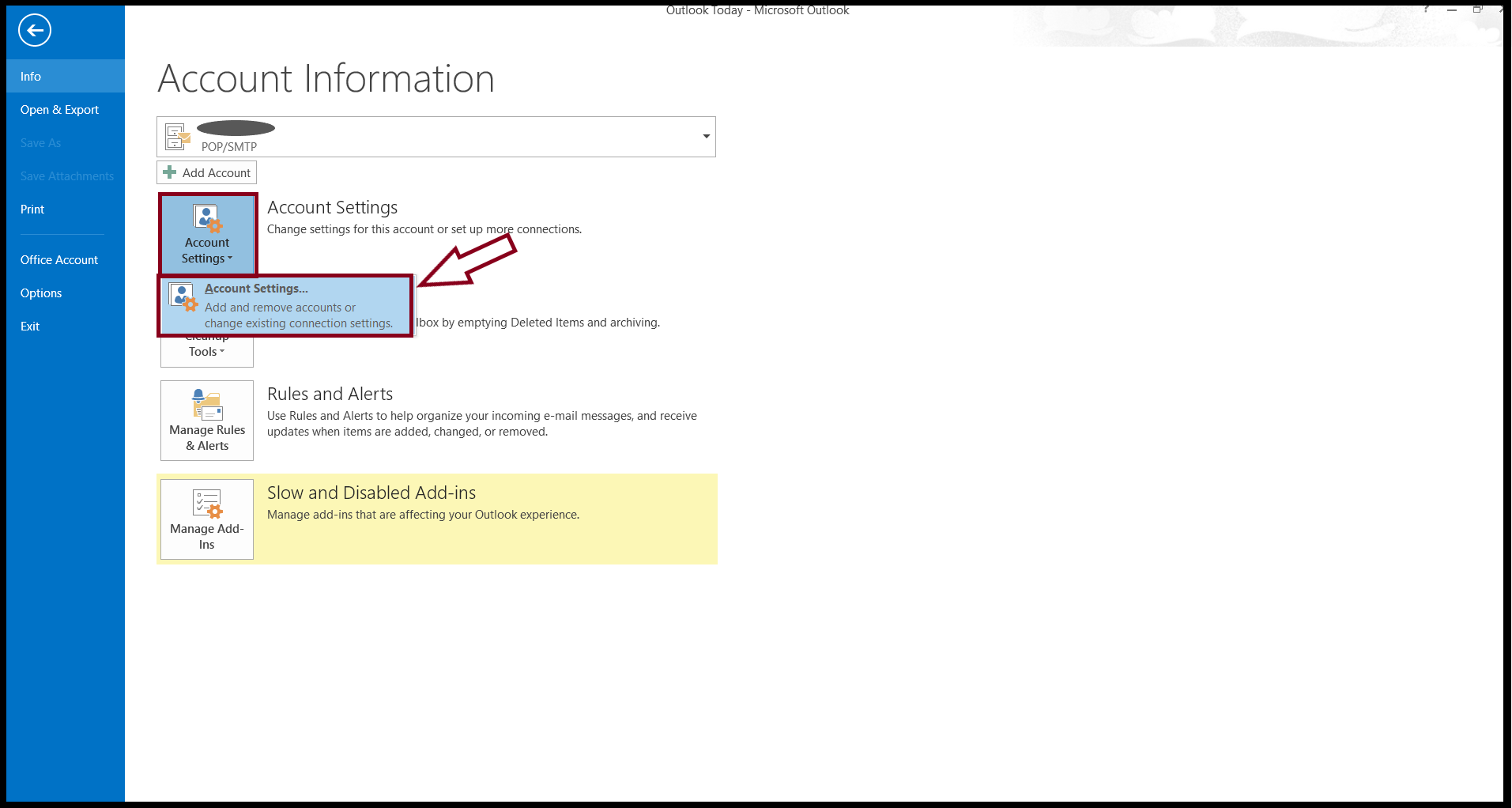
File=> Account Settings
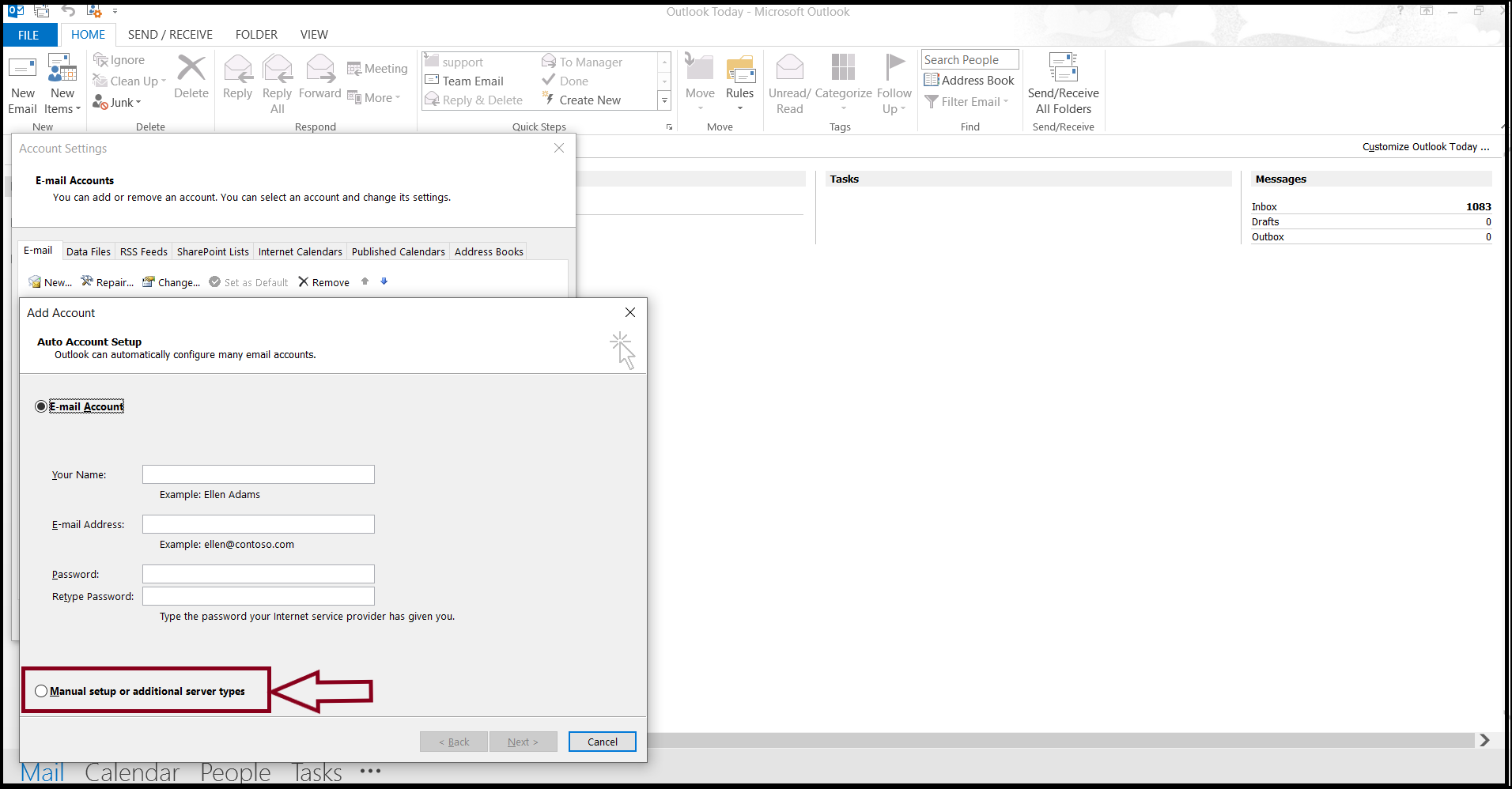
Choose=>Please setup with " Manual setup or additional server types "
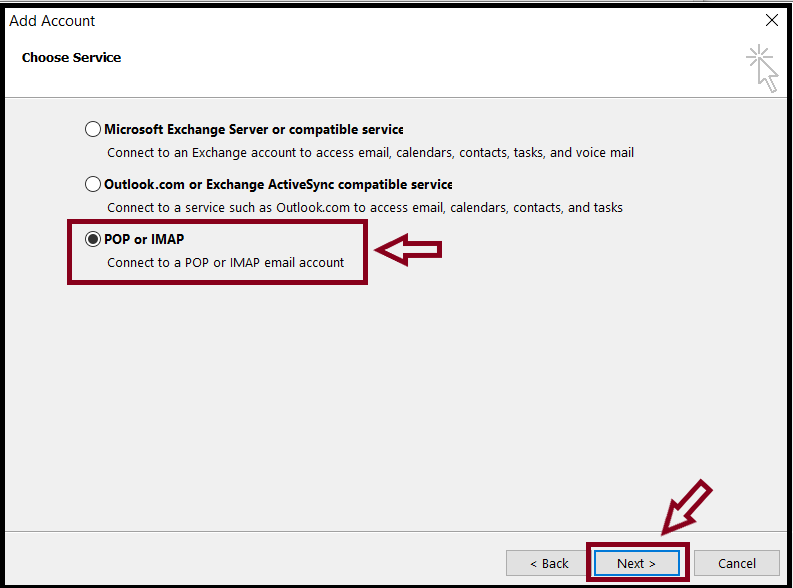
Choose POP (or) IMAP.
For Incoming mail and outgoing mail server setting, you can look Configure Mail Client setting.
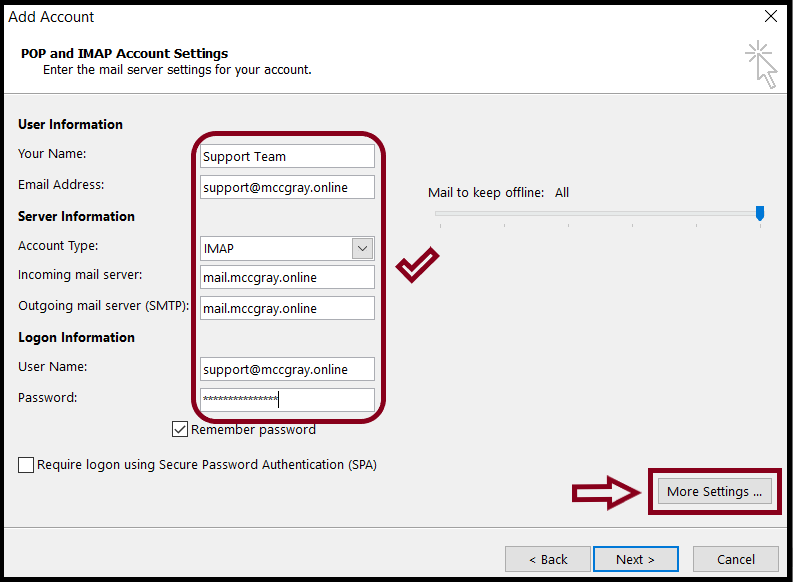
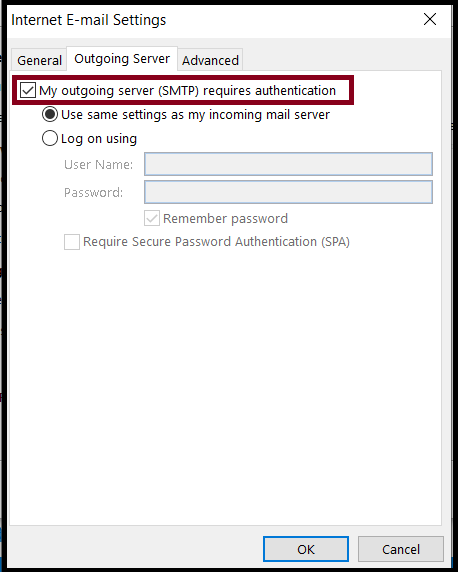
Enter More Settings and Go Outgoing Server Tab. Please check mark " My outgoing server(SMTP) requires authentication " .
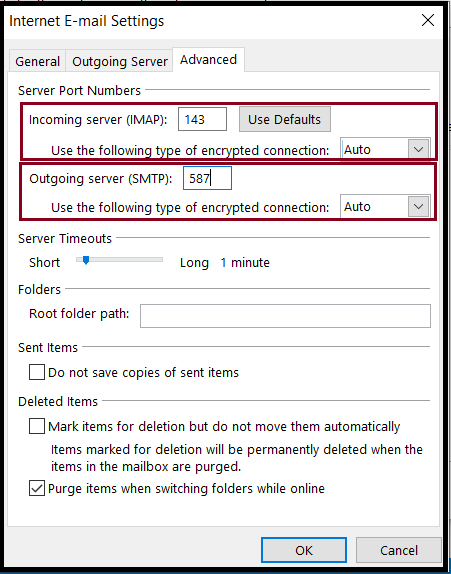
Step3.1 For Incoming and Outgoing Server port setting, you can see Configure mail Client setting.
Go to Advanced Tab
For SSL type=>
Incoming port setting=> IMAP Port: 993, POP3 Port: 995
Outgoing port setting=> SMTP Port: 465
For Non SSL type=>
Incoming port setting=> IMAP Port: 143, POP3 Port: 110
Outgoing port setting=> SMTP Port: 587
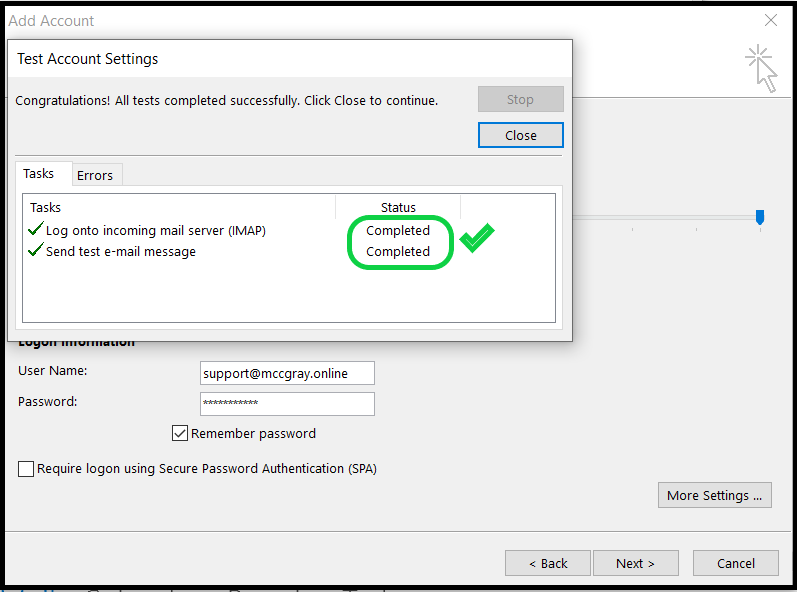
Now, you can setup email account successfully in outlook.

THANK YOU!!!
Was this article helpful?
That’s Great!
Thank you for your feedback
Sorry! We couldn't be helpful
Thank you for your feedback
Feedback sent
We appreciate your effort and will try to fix the article