How to use File Manager to manage files and folders
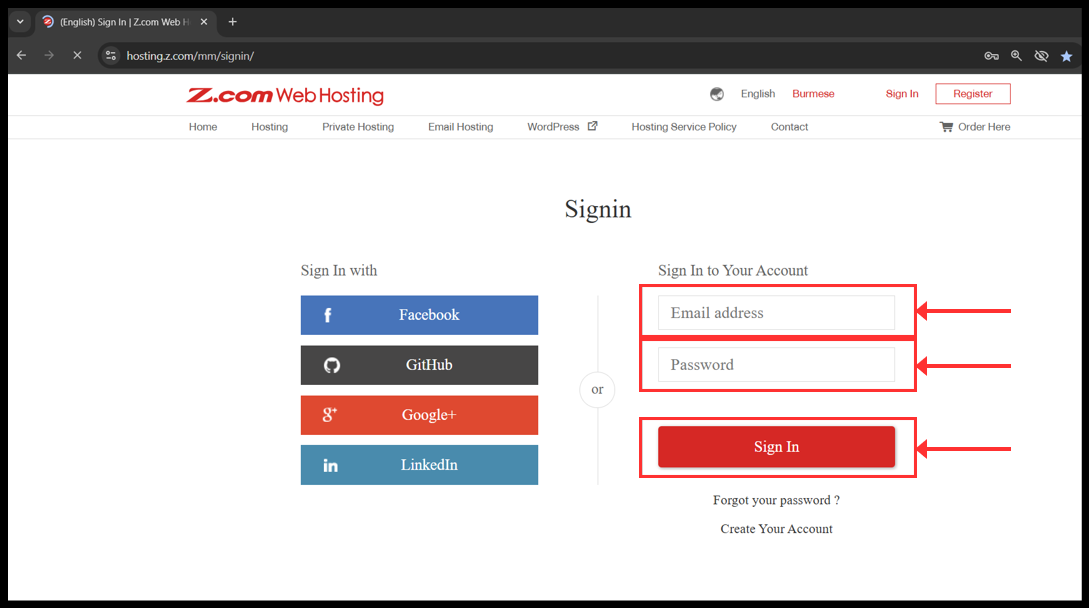
1. Login to your z.com account with registered email address.
၁။ သင်၏ အီးမေးလ်လိပ်စာကို အသုံးပြုပြီး သင့်၏ Z.com အကောင့်သို့ ဝင်ရောက်ပါ။
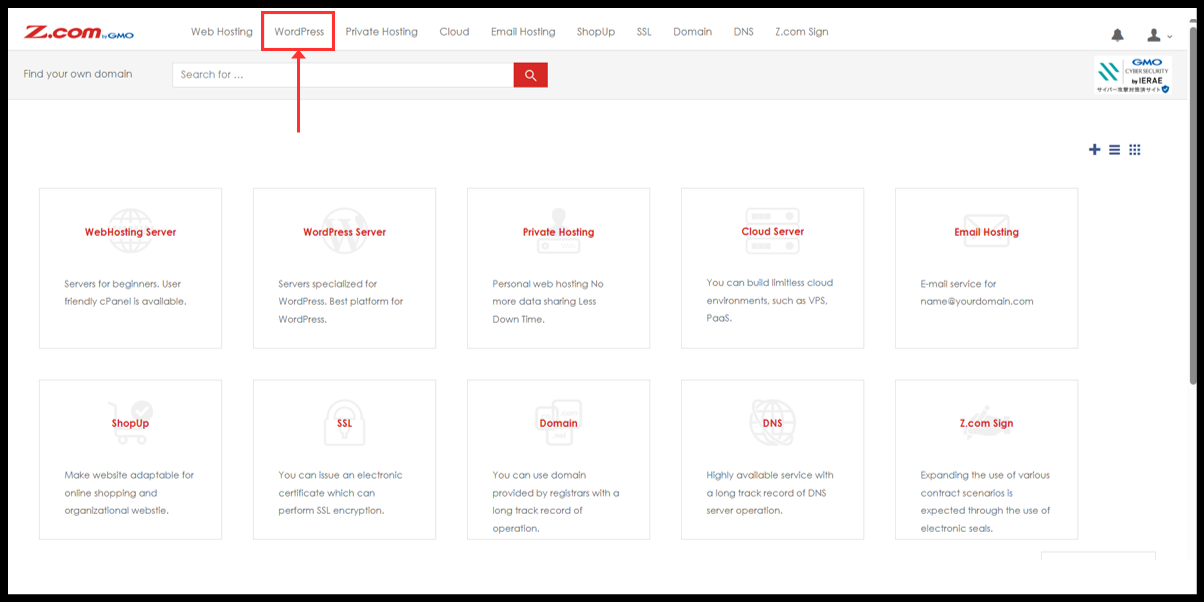
2. Click to WordPress.
၂။ Wordpress ကို ဆက်လက်နှိပ်ပါ။
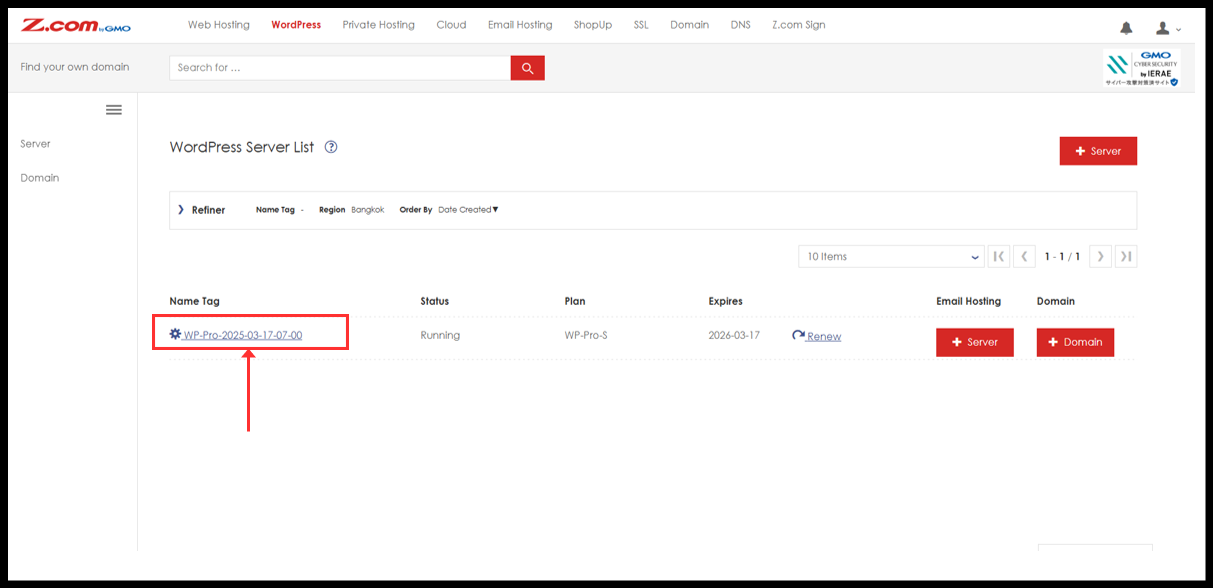
3. You will see the WordPress server under Name Tag. Please click it.
၃။ Nametag အောက်မှာ WordPress ဆာဗာကိုတွေ့ပါမည်။ ကလစ်နှိပ်ပြီးဆက်သွားပါ။
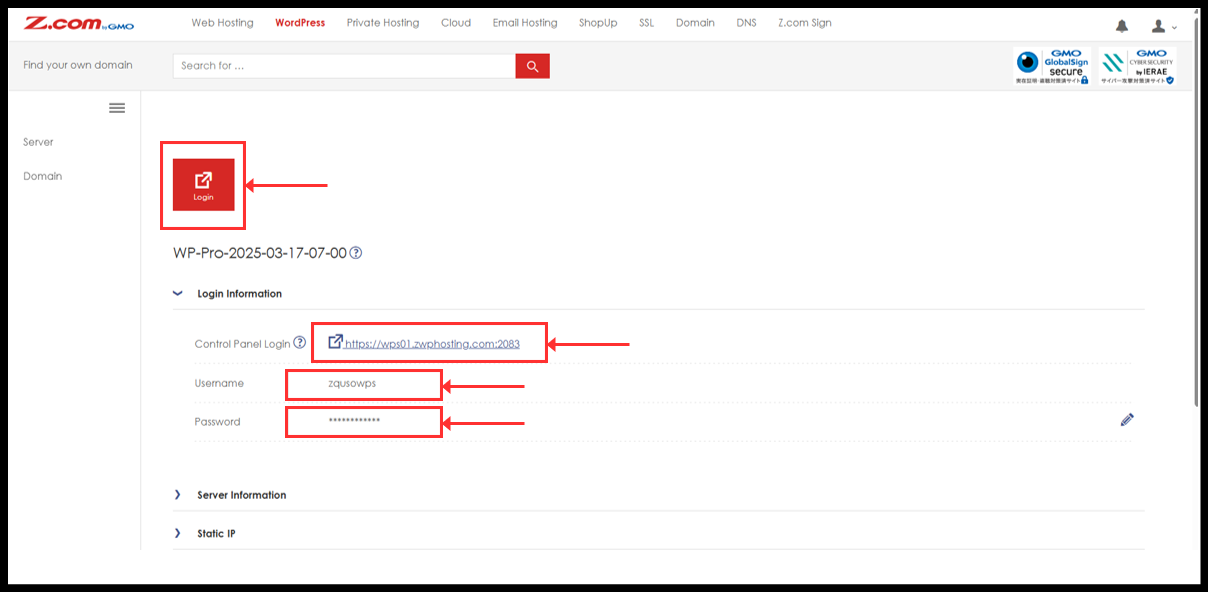
4. You can click “Login” red button to directly login or can be manually log in from Login information.
၄။ “Login” အနီရောင်ခလုတ်ကို နှိပ်၍ တိုက်ရိုက် ဝင်ရောက်နိုင်ပါသည်။ သို့မဟုတ် Login Information များကို အသုံးပြုပြီး ပေးထားသော Login link တွင် Username နှင့် Password ထည့်ပြီးလည်း ဝင်ရောက်နိုင်ပါသည်။
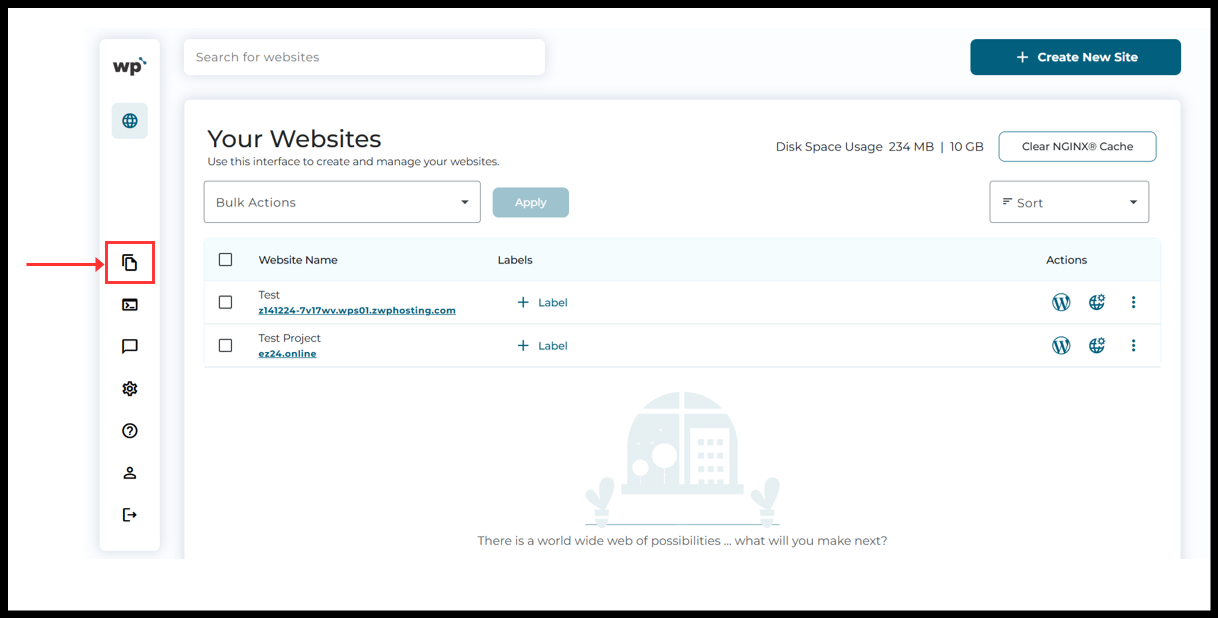
5. Now, the WordPress Squared Panel will see and click on the “File Manager” button from left side menu.
၅။ ယခု WordPress Squared Panel ကို မြင်တွေ့ရပါလိမ့်မည်။ ဘယ်ဘက် menu တွင်ရှိသော “File Manager” ခလုတ်ကို နှိပ်ပါ။
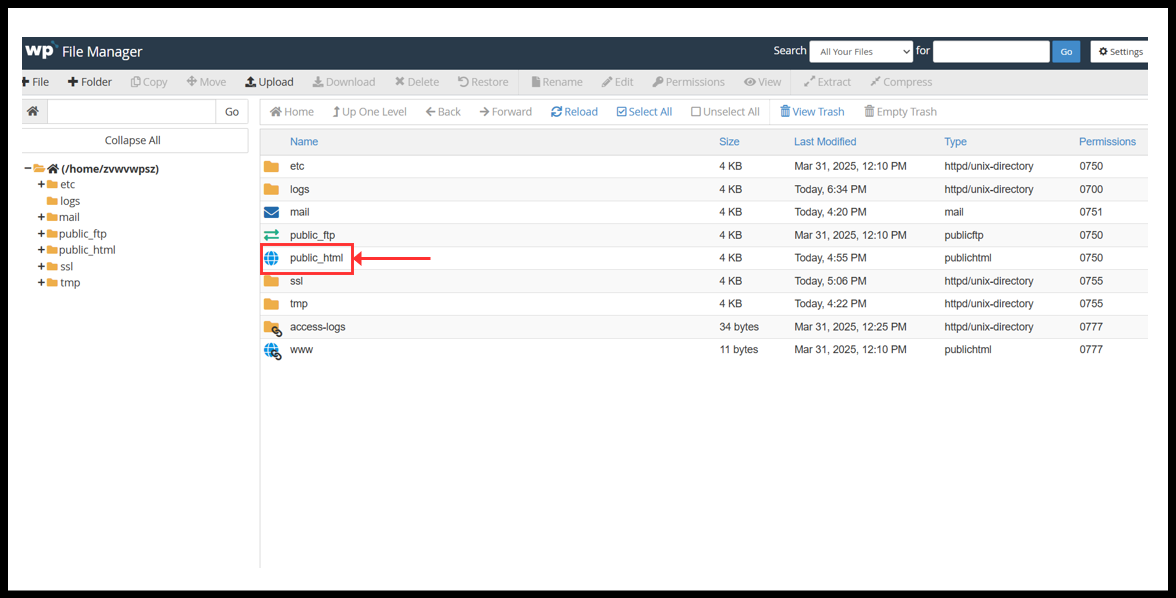
6. Now the file manager page will open. To manage website files, click “public_html”.
၆။ ယခု File Manager စာမျက်နှာကို ဖွင့်လာပါလိမ့်မည်။ Website ဖိုင်များကို စီမံခန့်ခွဲရန် “public_html” ကို နှိပ်ပါ။
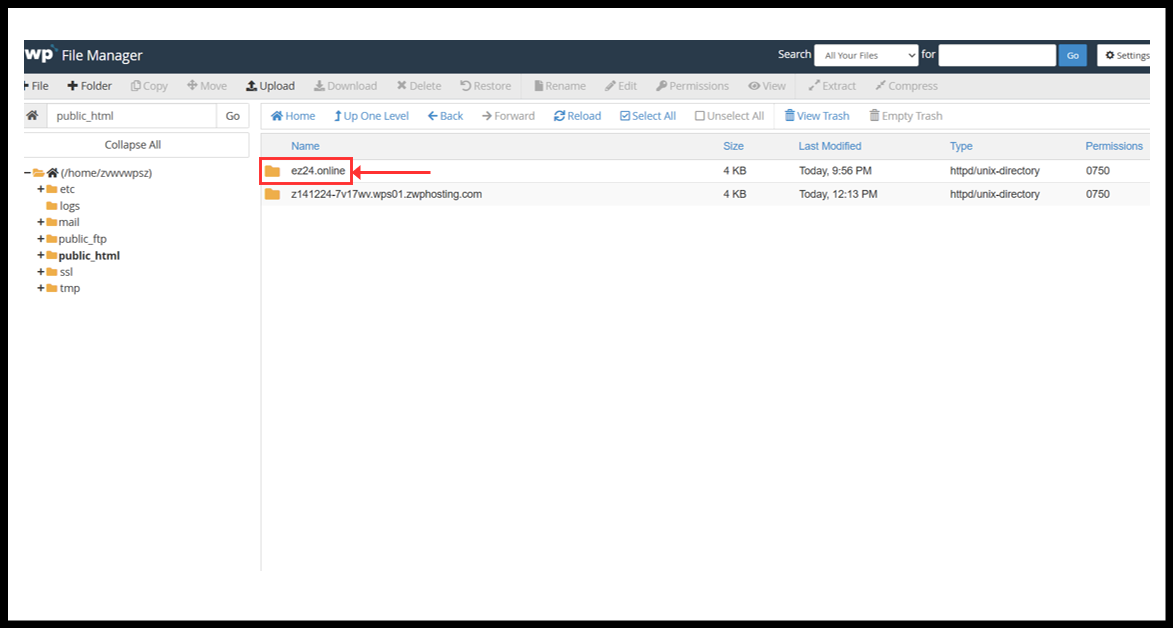
7. Click to the domain folder.
၇။ Domain ဖိုလ်ဒါကို နှိပ်ပါ။
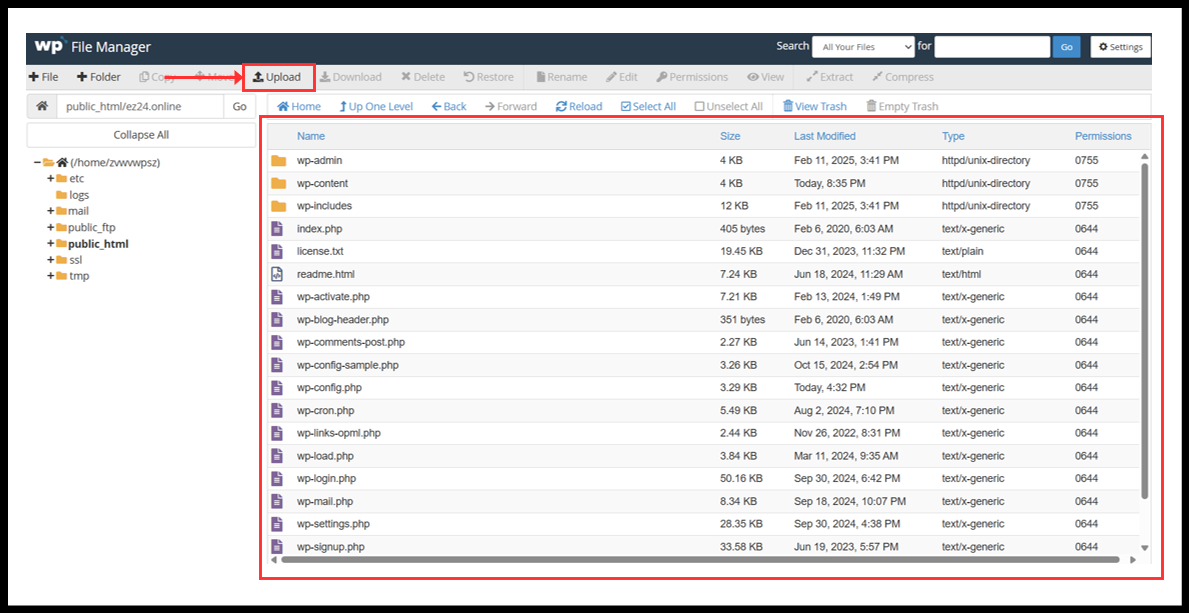
8. Here you will see the website files. If you wish to upload new files, click “Upload” button from the menu bar.
၈။ ဤနေရာတွင် website ဖိုင်များကို မြင်တွေ့ရပါလိမ့်မည်။ ဖိုင်အသစ်များကို တင်လိုပါက menu bar မှ “Upload” ခလုတ်ကို နှိပ်ပါ။
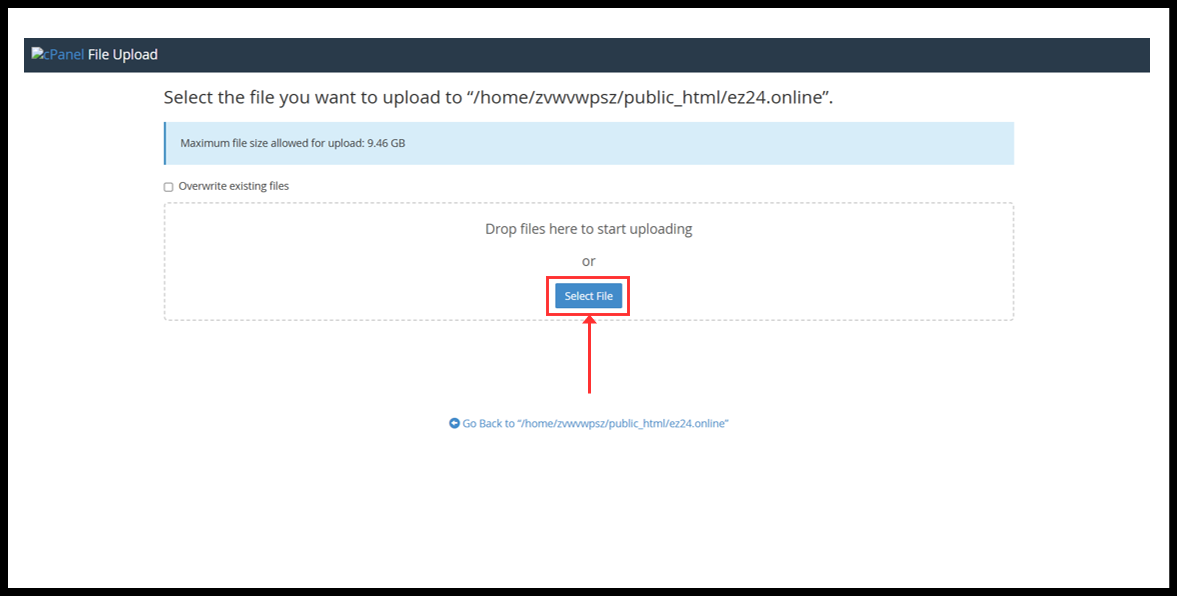
9. The upload page will open. Click “Select File” and choose your file to upload.
၉။ Upload စာမျက်နှာကို ဖွင့်လာပါလိမ့်မည်။ “Select File” ကို နှိပ်ပြီး တင်လိုသည့် ဖိုင်ကို ရွေးချယ်ပါ။
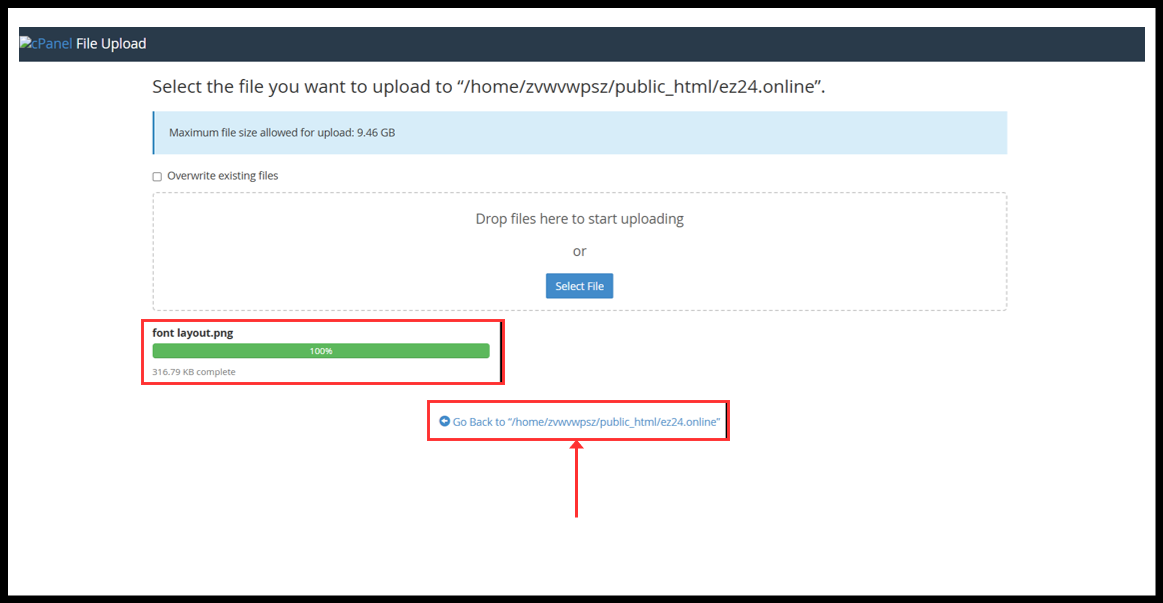
10. After uploading completed to 100%, the progress bar will change to green color. Then click “Go Back” button. This will close the File Upload page and go back to File Manager page.
၁၀။ Upload လုပ်ခြင်း ၁၀၀% ပြီးဆုံးသွားပါက progress bar သည် အစိမ်းရောင်အဖြစ် ပြောင်းလဲသွားပါလိမ့်မည်။ ထို့နောက် “Go Back” ခလုတ်ကို နှိပ်ပါ။ ထိုအခါ File Upload စာမျက်နှာကို ပိတ်ပြီး File Manager စာမျက်နှာသို့ ပြန်လည်သွားရောက်ပါလိမ့်မည်။
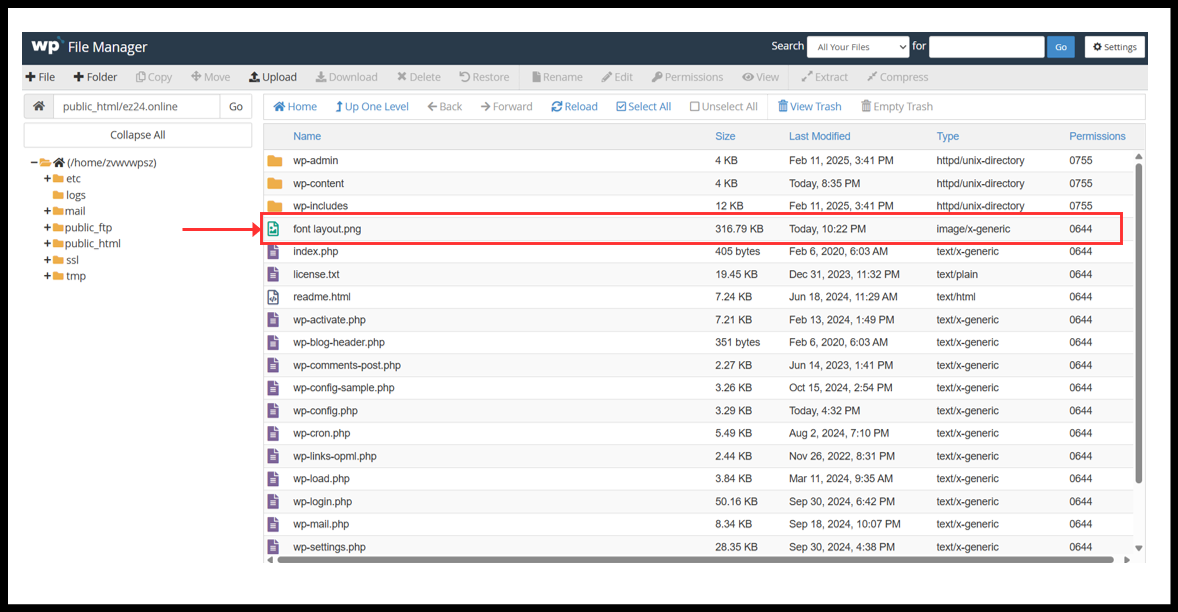
11. Now you can see the newly uploaded file in the File Manager.
၁၁။ ယခု File Manager အတွင်းတွင် အသစ်တင်ထားသော ဖိုင်ကို မြင်တွေ့ရပါလိမ့်မည်။
Thank You!!
Was this article helpful?
That’s Great!
Thank you for your feedback
Sorry! We couldn't be helpful
Thank you for your feedback
Feedback sent
We appreciate your effort and will try to fix the article