How to Save Image in CloudVPS?
The Save Image Function is a kind of Server clone function of CloudVPS. Let’s start to save the server’s image as follows.
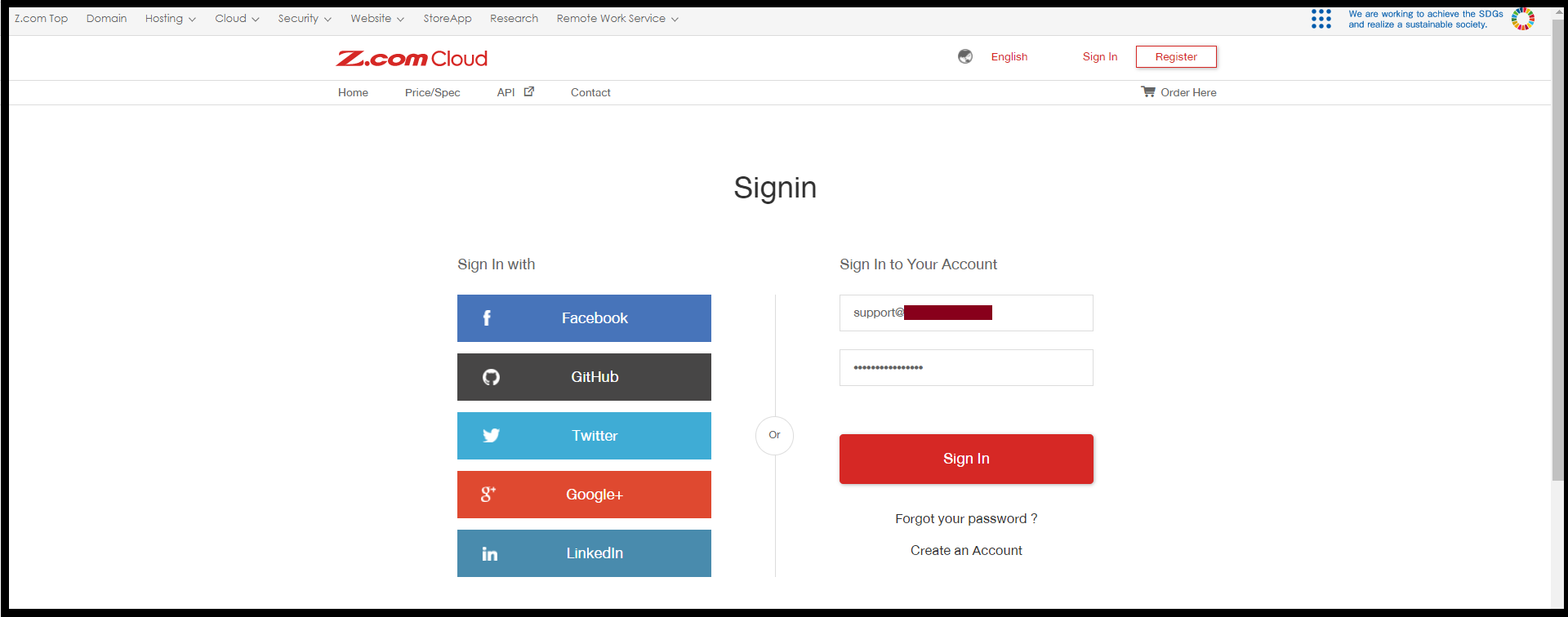
Step(1)- Login to the z.com account, https://cloud.z.com/mm/signin
Step(2)- Click the “Cloud“ Tab and Select your “Cloud VPS Server“ Under the Name Tag.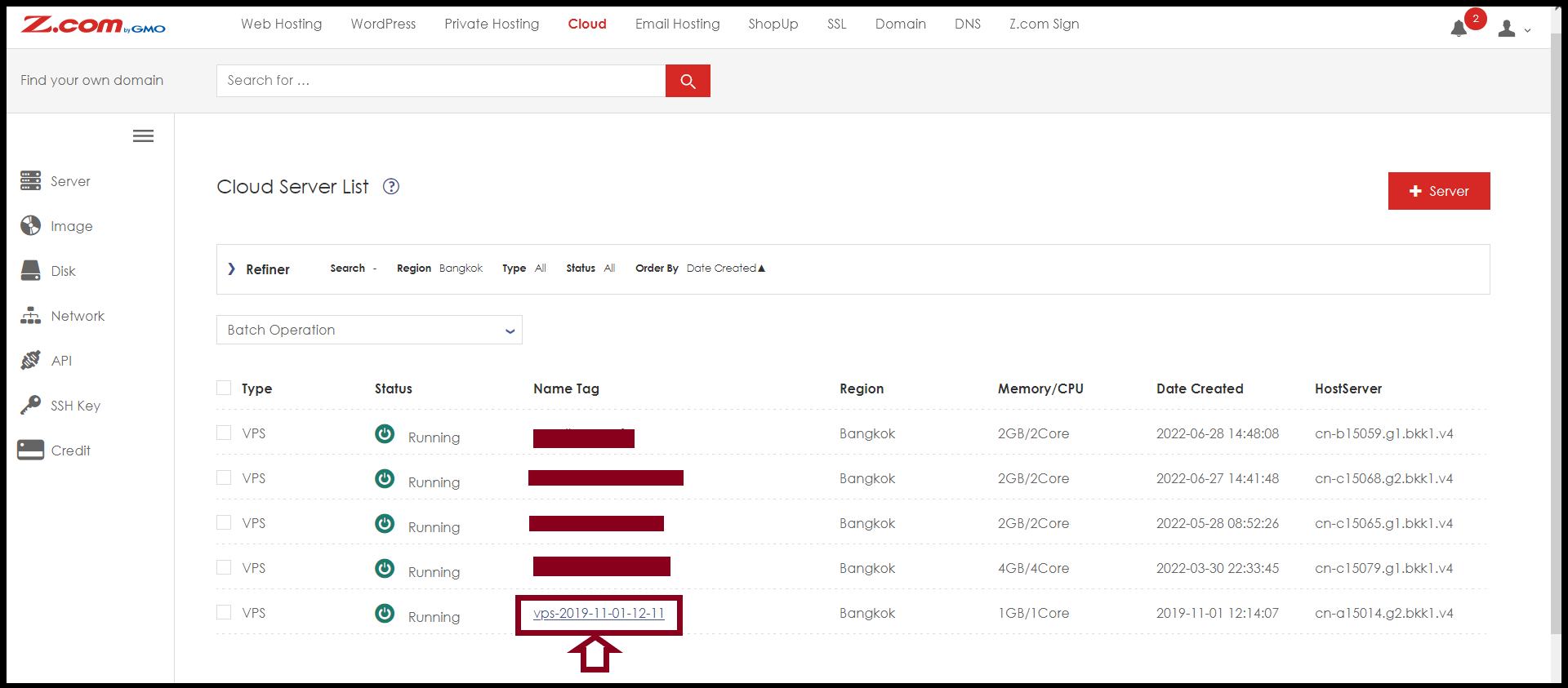
Step(3)- To do the Save Image of the Private Hosting Server, Please “Shutdown“ the Server first.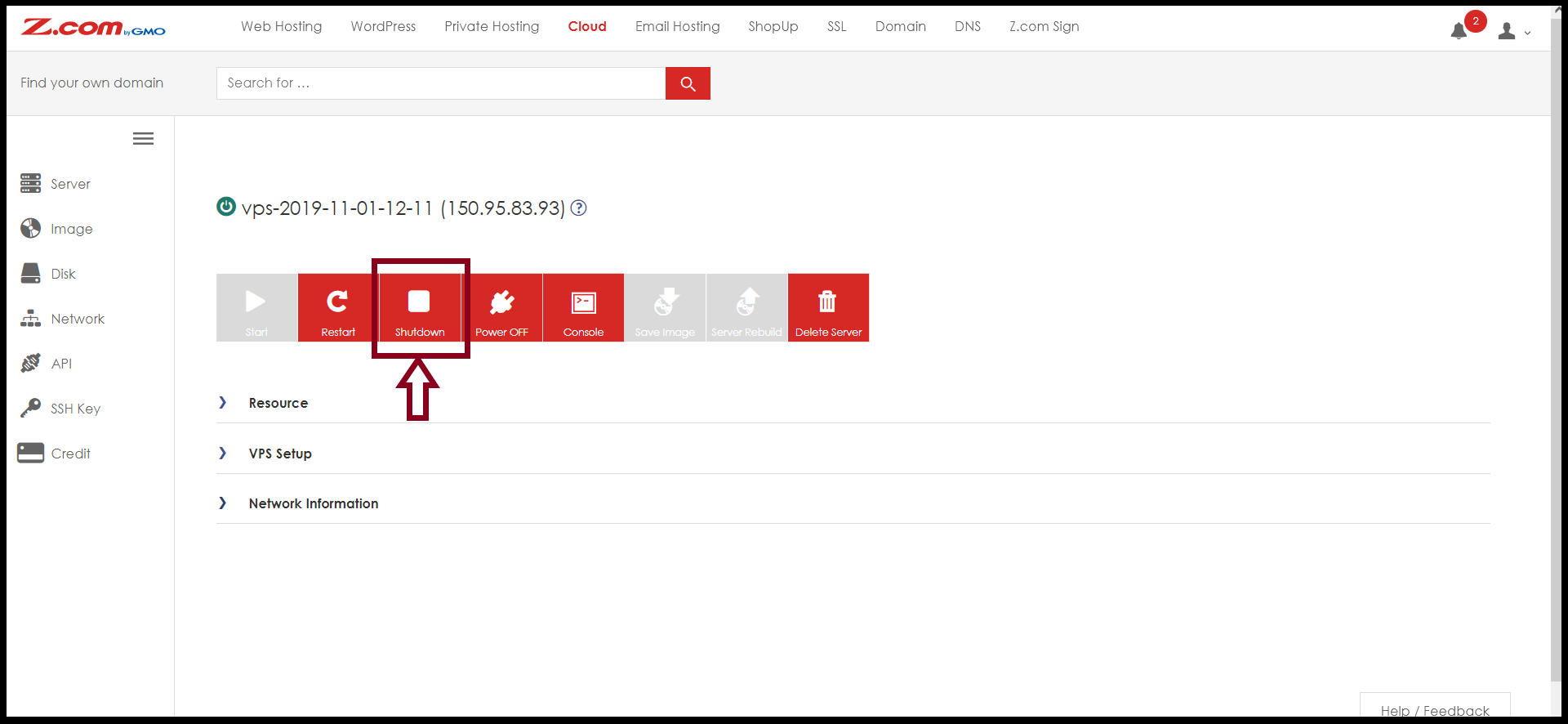
Step(4)- Click the “Save Image“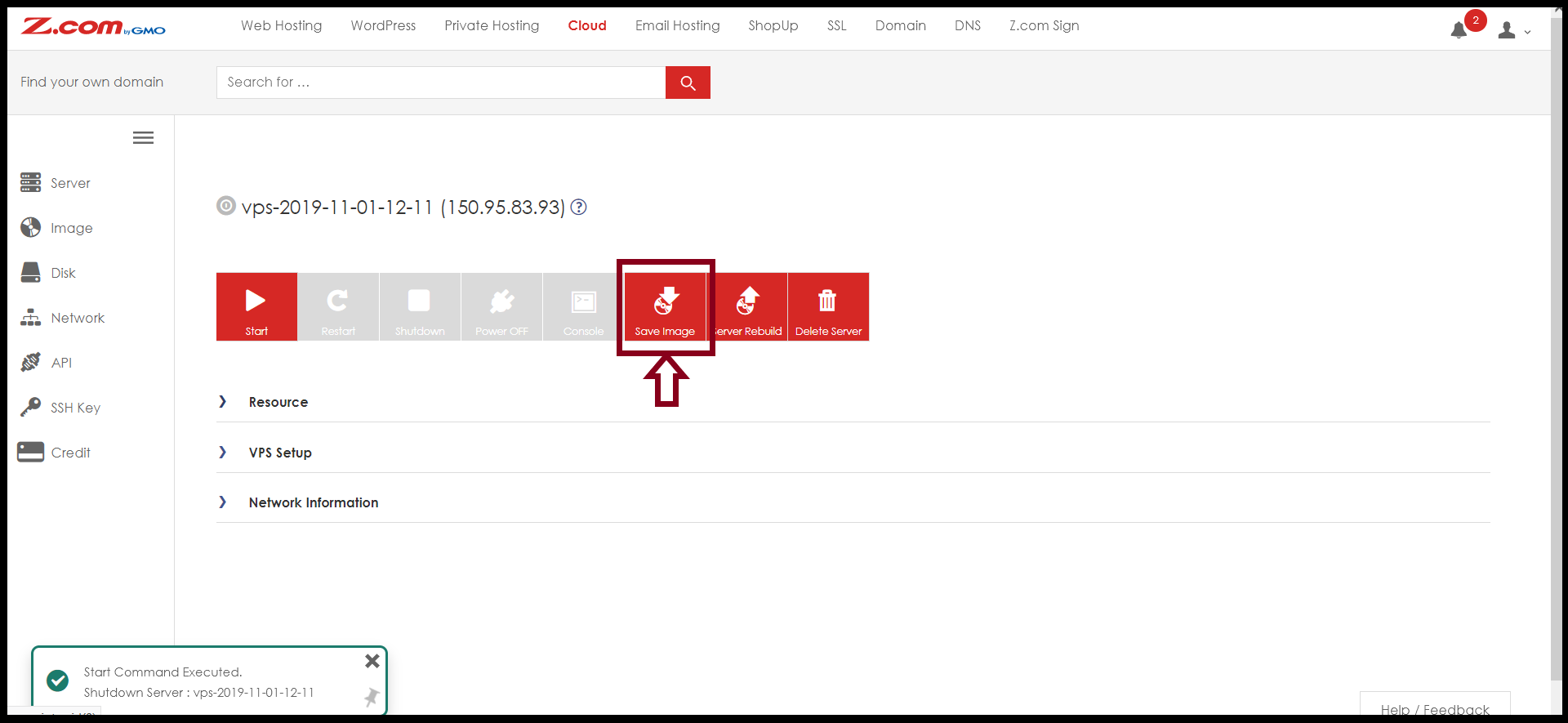
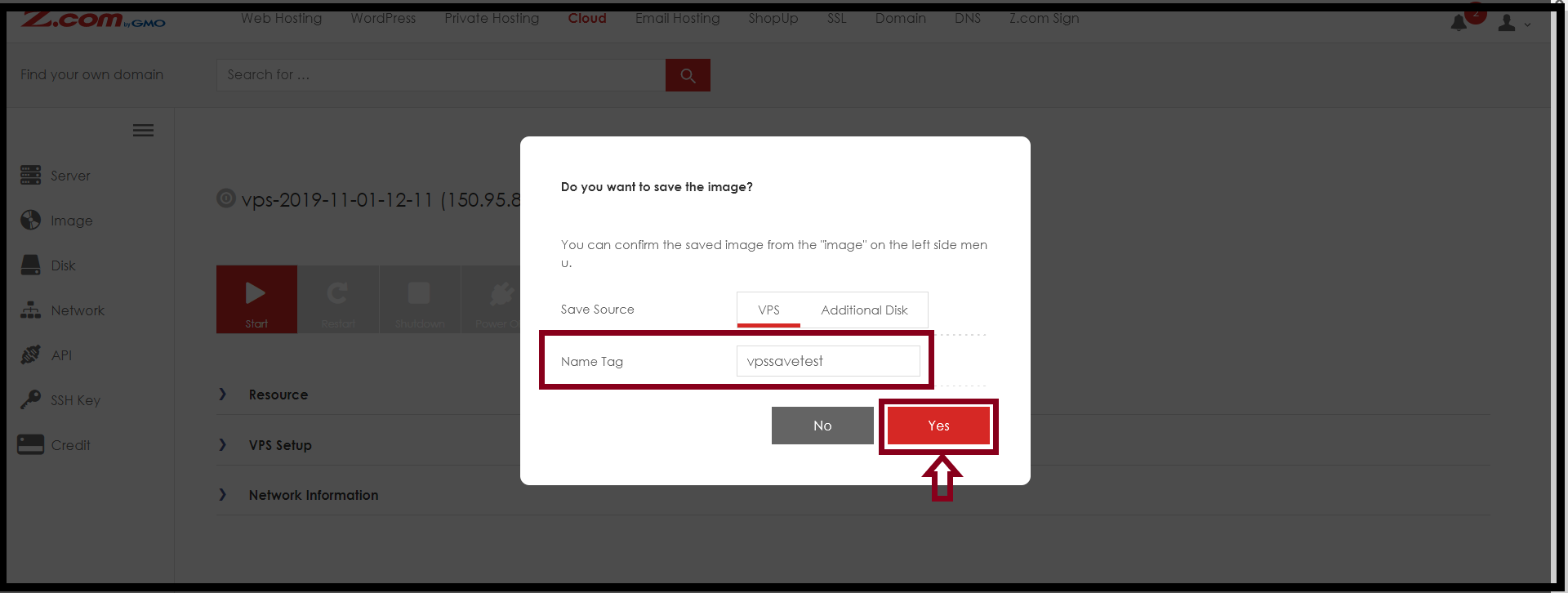
Step(5)- Choose the “Save Source“
- VPS: Select this if you want to save the image of the PrivateHosting (50GB).
- Additional Disk: If your server has an additional disk (200GB or 500GB), choose “Additional Disk”.
Then, enter the Name Tag you want to use for the server, and click “Yes”.
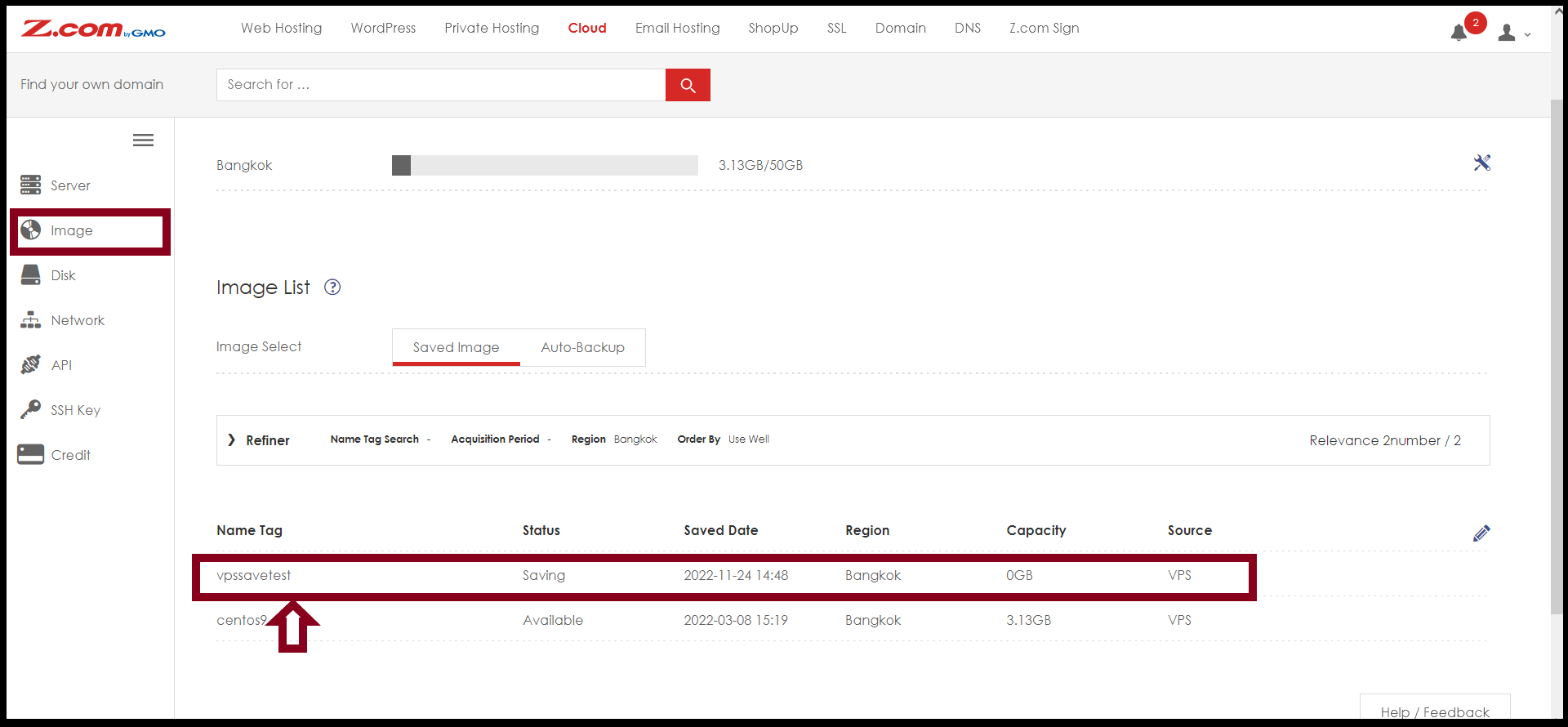
Step(6)- You can check your server’s image from the “Image“ Menu on the Left side.
It may take some hours or minutes to complete the saved image. Before completion, the Capacity will be “0GB“.
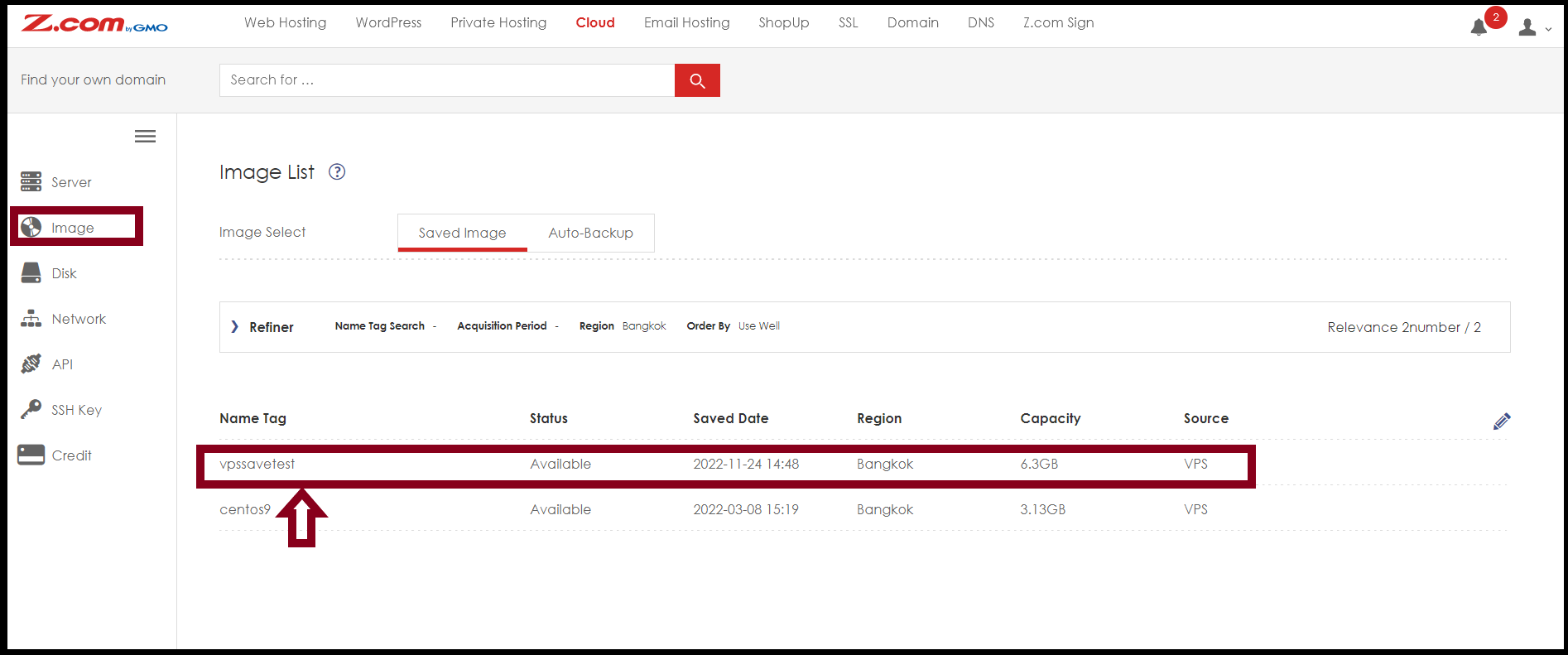
After that, you can check your server’s image with actual capacity as follows.
THANK YOU!!!
Was this article helpful?
That’s Great!
Thank you for your feedback
Sorry! We couldn't be helpful
Thank you for your feedback
Feedback sent
We appreciate your effort and will try to fix the article