How to enable Additional IP Address on Cloud VPS?
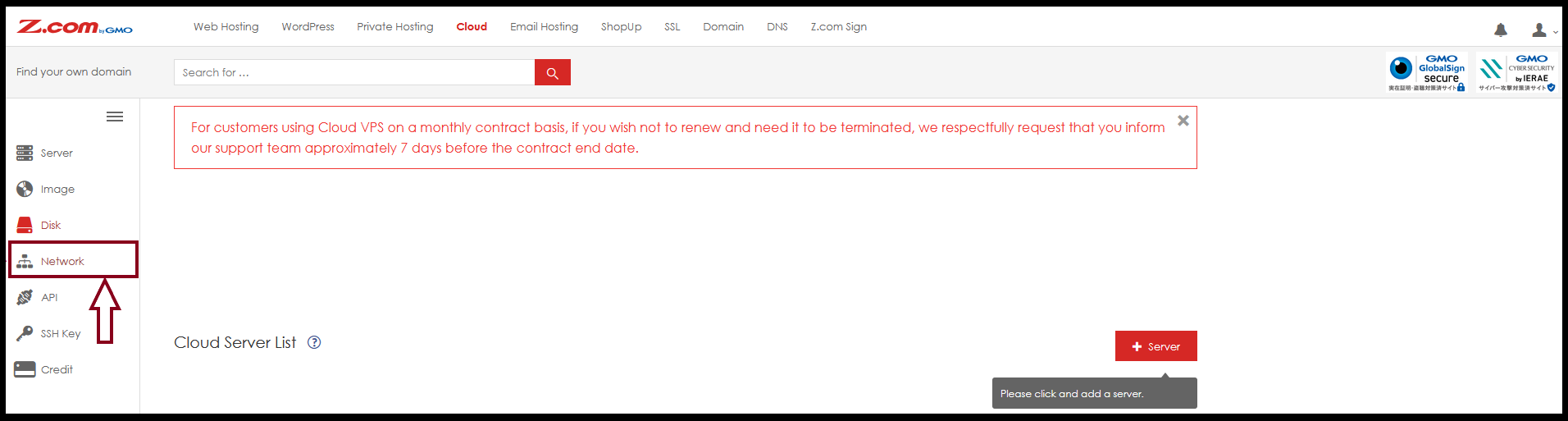
Step1: Log in to the member and click on the top menu “Cloud” and click on the left menu “Network”.
Step2: Click the red button “+IP Address”.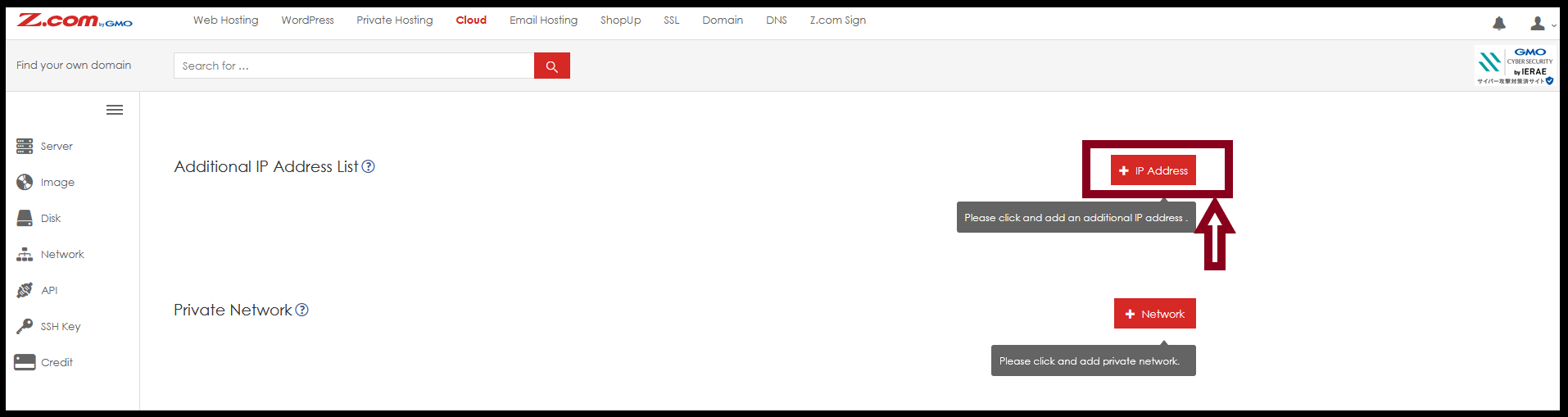
Step3: Select the number of IPs you want to order (up to 16 IPs) If done, click the red button “Add”.
"Please note that on a Cloud VPS server, you can configure up to two network interface cards (NICs). The first NIC is included by default when you purchase the VPS. If you require additional IP addresses, they can only be assigned to a second NIC. Therefore, we recommend planning in advance the number of IP addresses you will need before making your purchase." 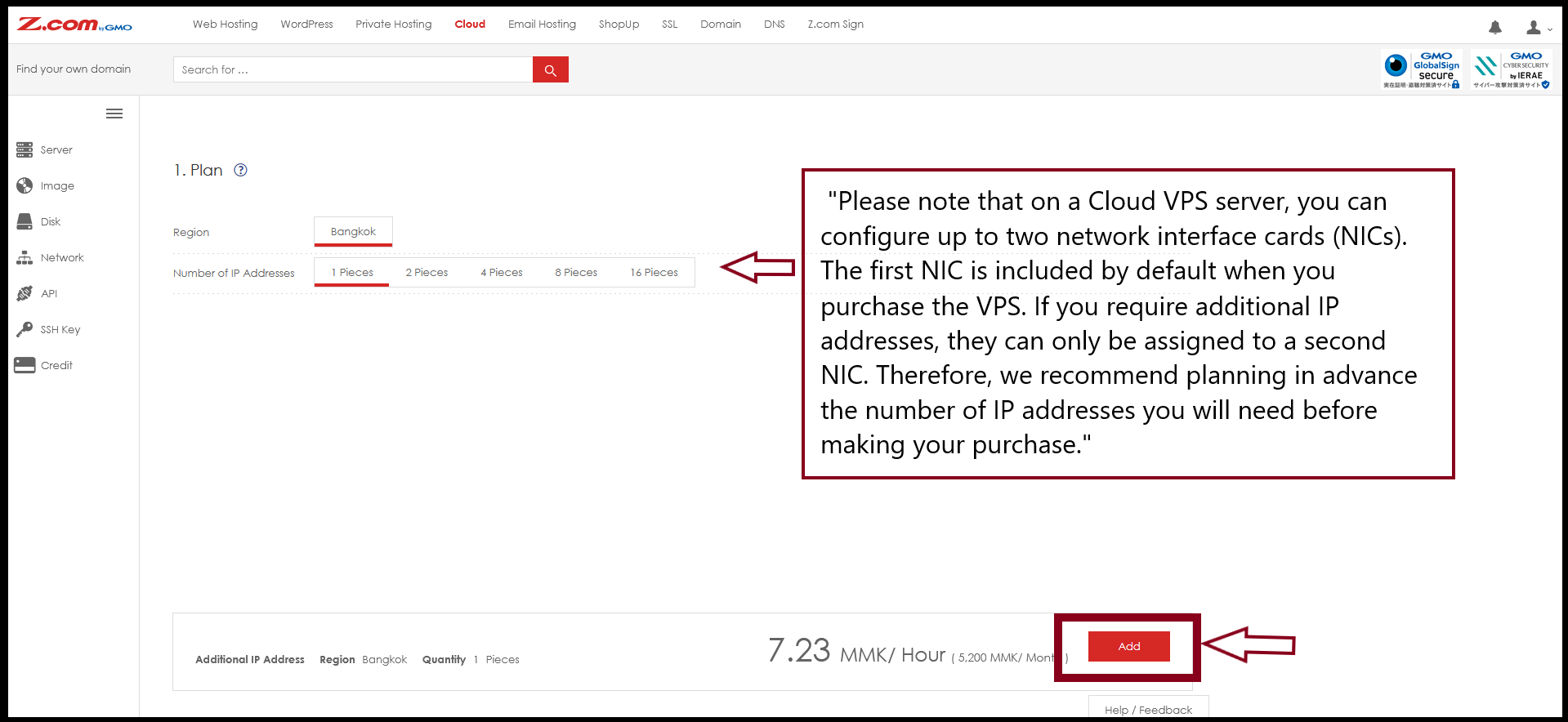
Step4: Click the red button “Yes”.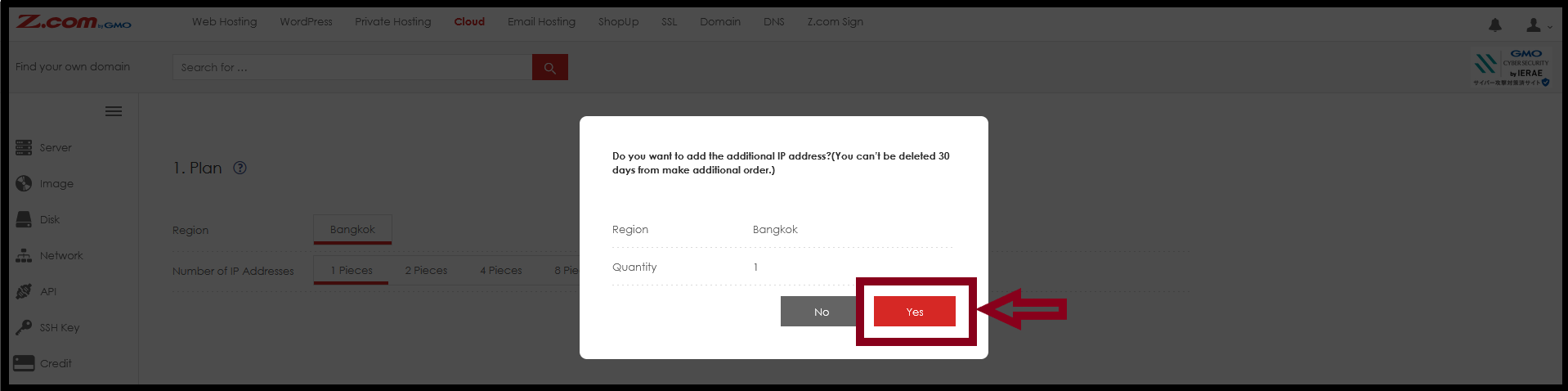
The system will activate the IP Address immediately within 30-60 minutes.
THANK YOU!!!
Was this article helpful?
That’s Great!
Thank you for your feedback
Sorry! We couldn't be helpful
Thank you for your feedback
Feedback sent
We appreciate your effort and will try to fix the article