How To Order WordPress Pro Plan?
Step1. Login to z.com account, https://cloud.z.com/mm/signin/
Step2. Go to the "WordPress" Menu and click "+Server"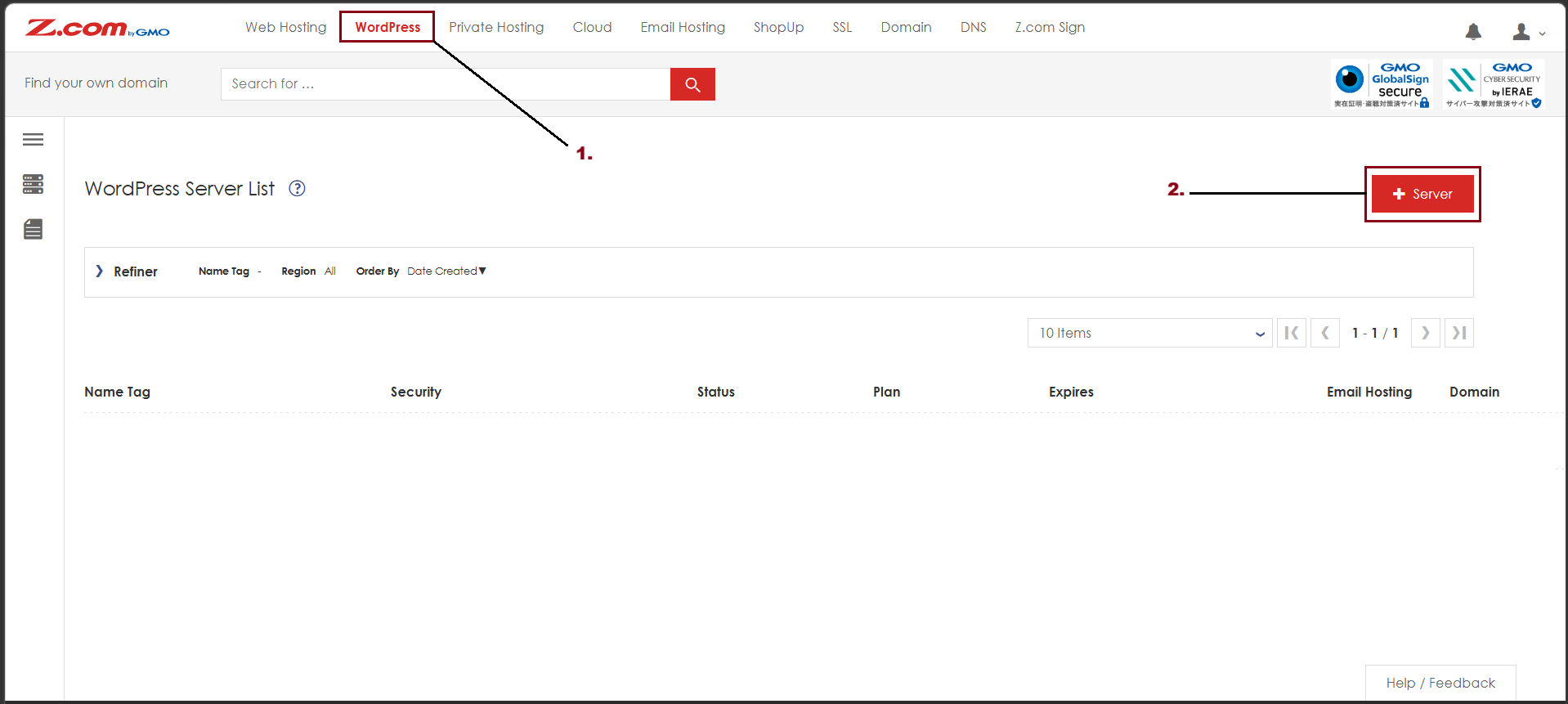
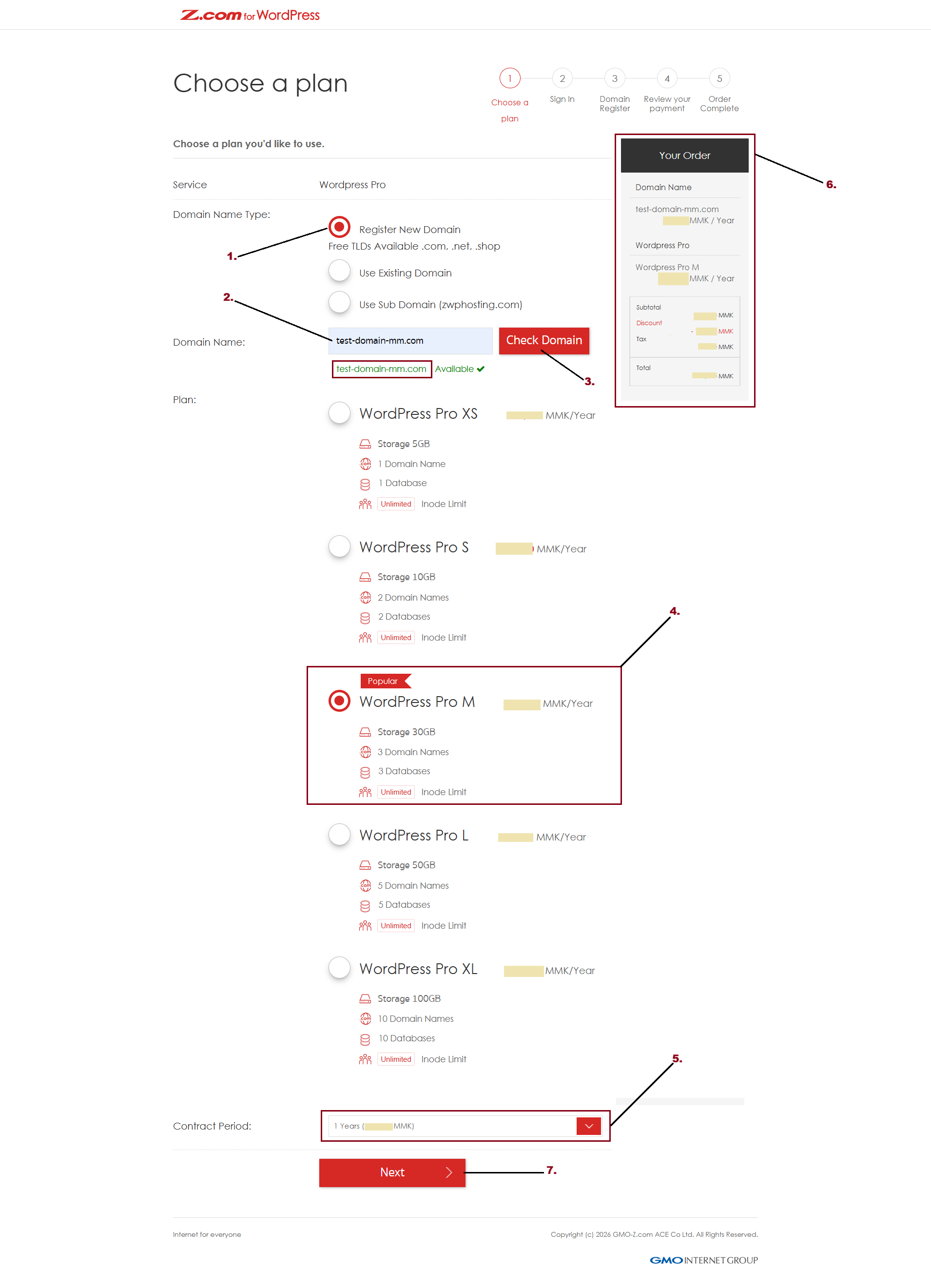
Step3. Choose a WordPress Pro Plan as follows
- Choose Domain Name Type
- Regisger New Domain
- Use Existing Domain
- Use Sub Domain (zwphosting.com)
- Choose Plan
- Choose Contract Period
- And Check Your Order
- Click "Next"
Step4. Review your payment
- Choose your Payment Method
- Check your Order and Amount
And Click "Order"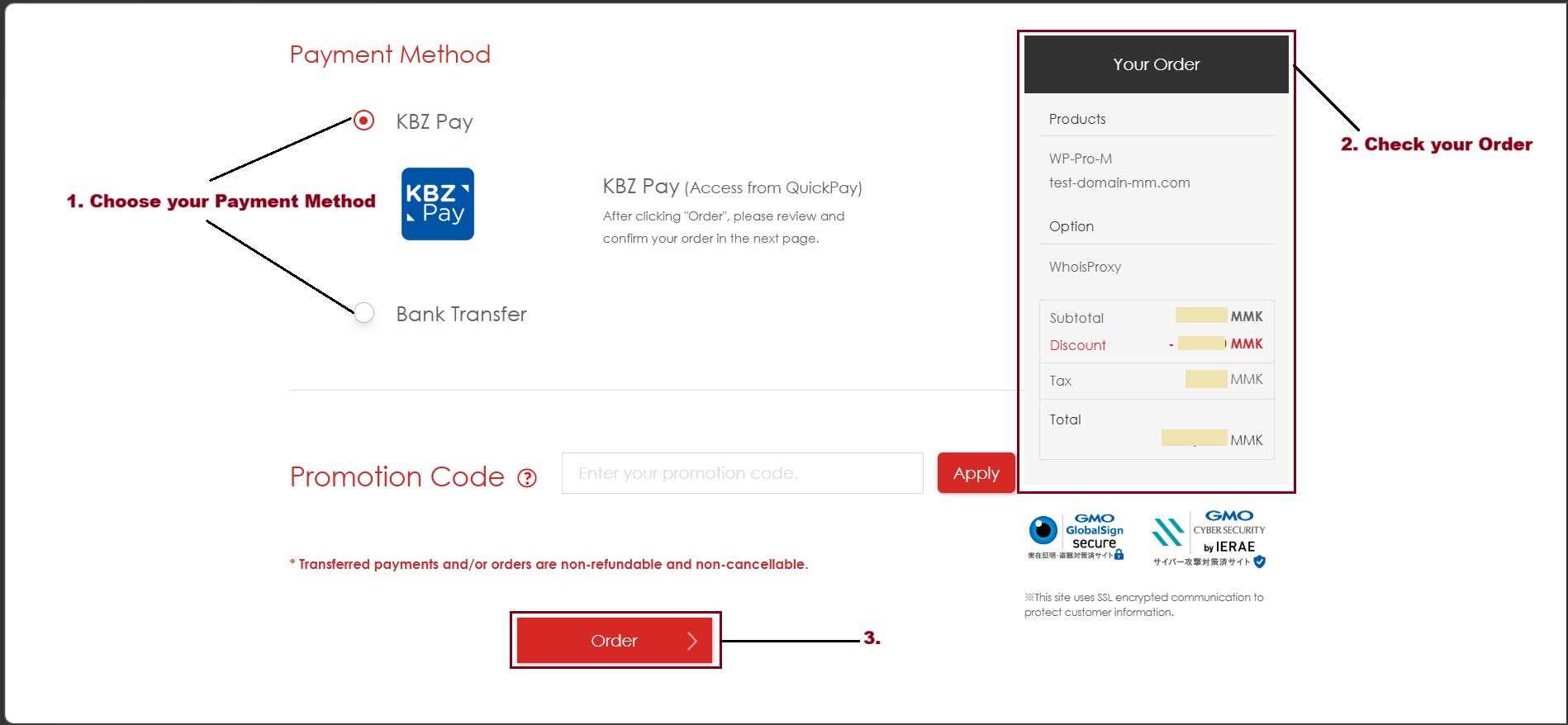
To complete your order, click "Complete". 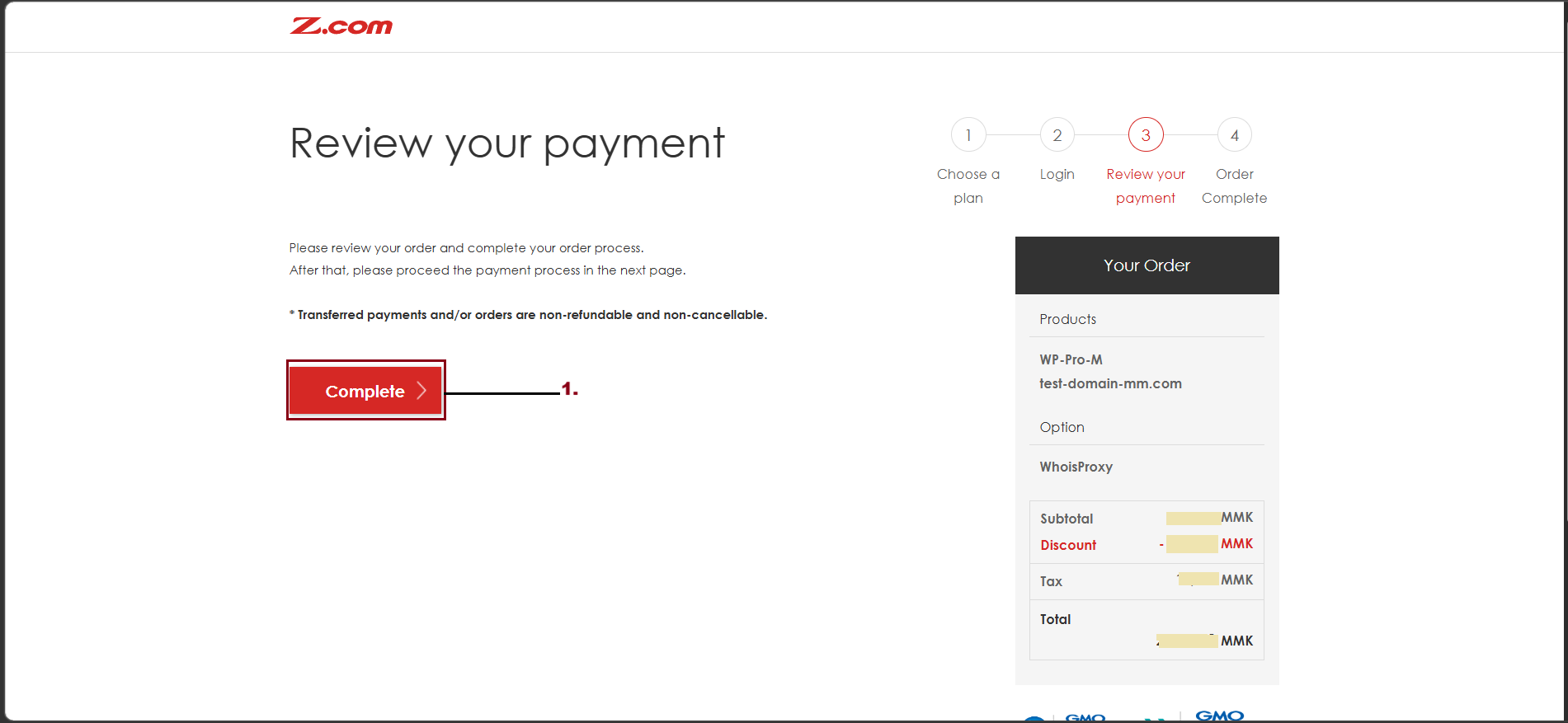
And then, you can click "Visit My Z.com" to check your order on your Z.com account. 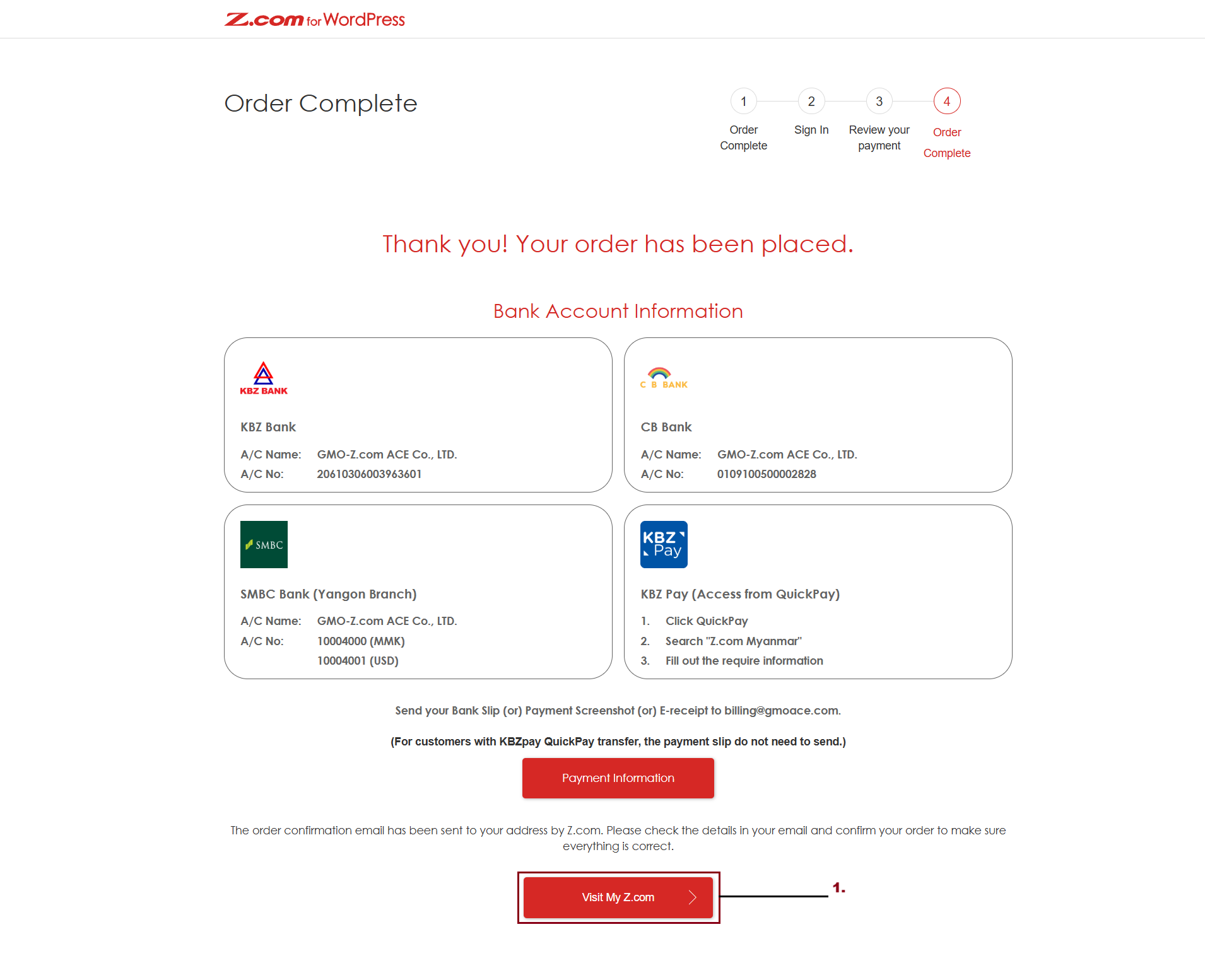
Now, the WP Pro service is placed in your Z.com Account.
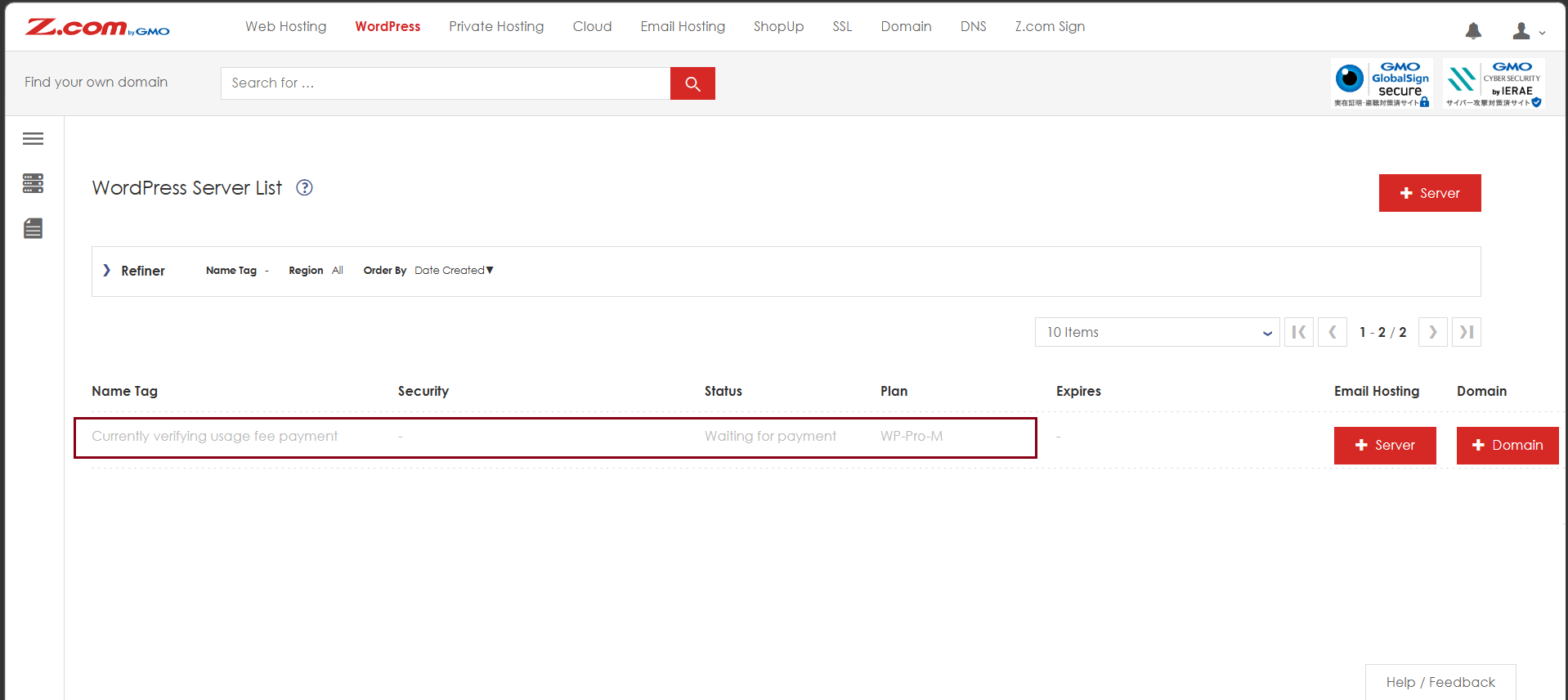
How To Check WordPress Pro Services and Login Information?
After you completed the payment, your WordPress server is running Status.
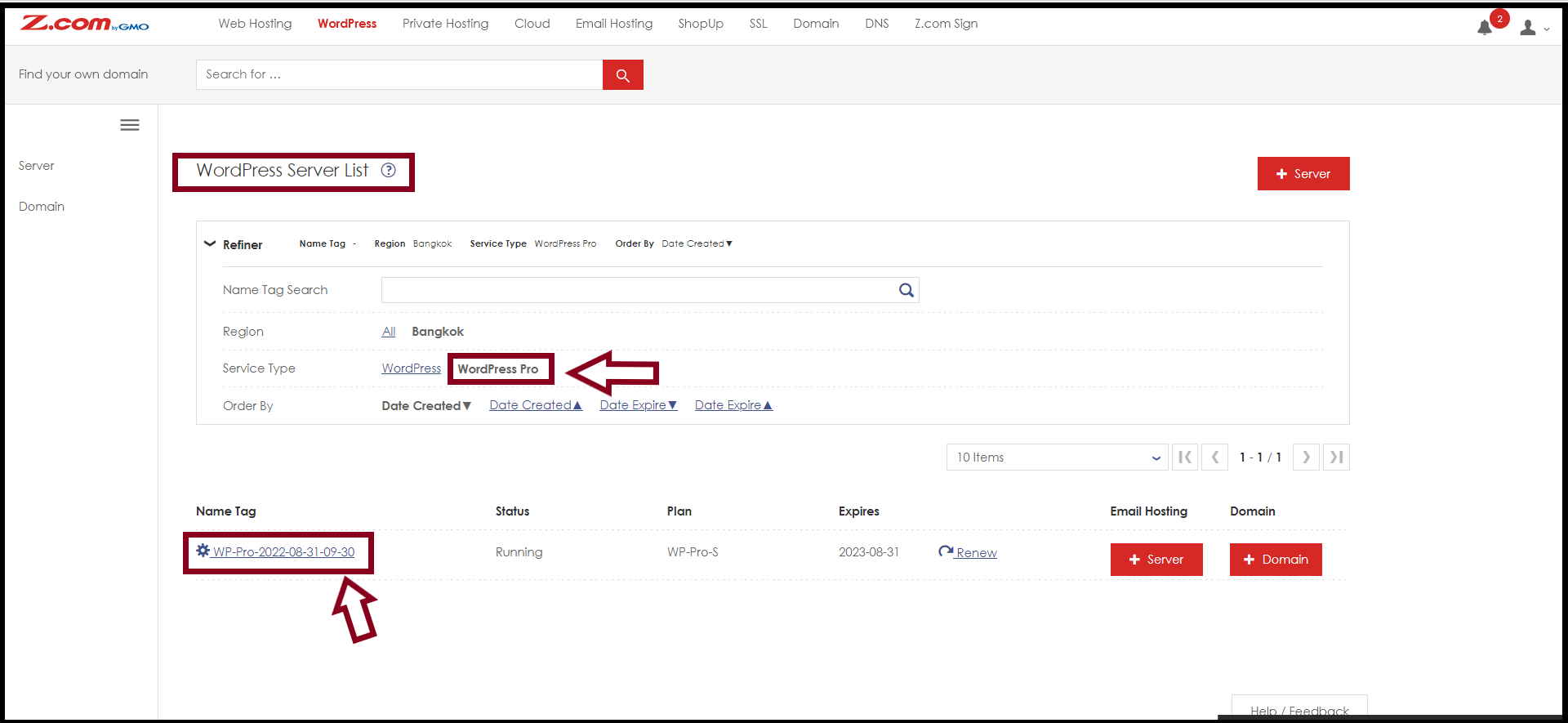
Step1. Go to the "Refiner" under WordPress Server List to check your WordPress Pro Services
- Select "WordPress Pro" as follows
Step2. Click your "WordPress Pro Server" Under Name Tag
Step3. Click "Login Information" to check the cPanel login
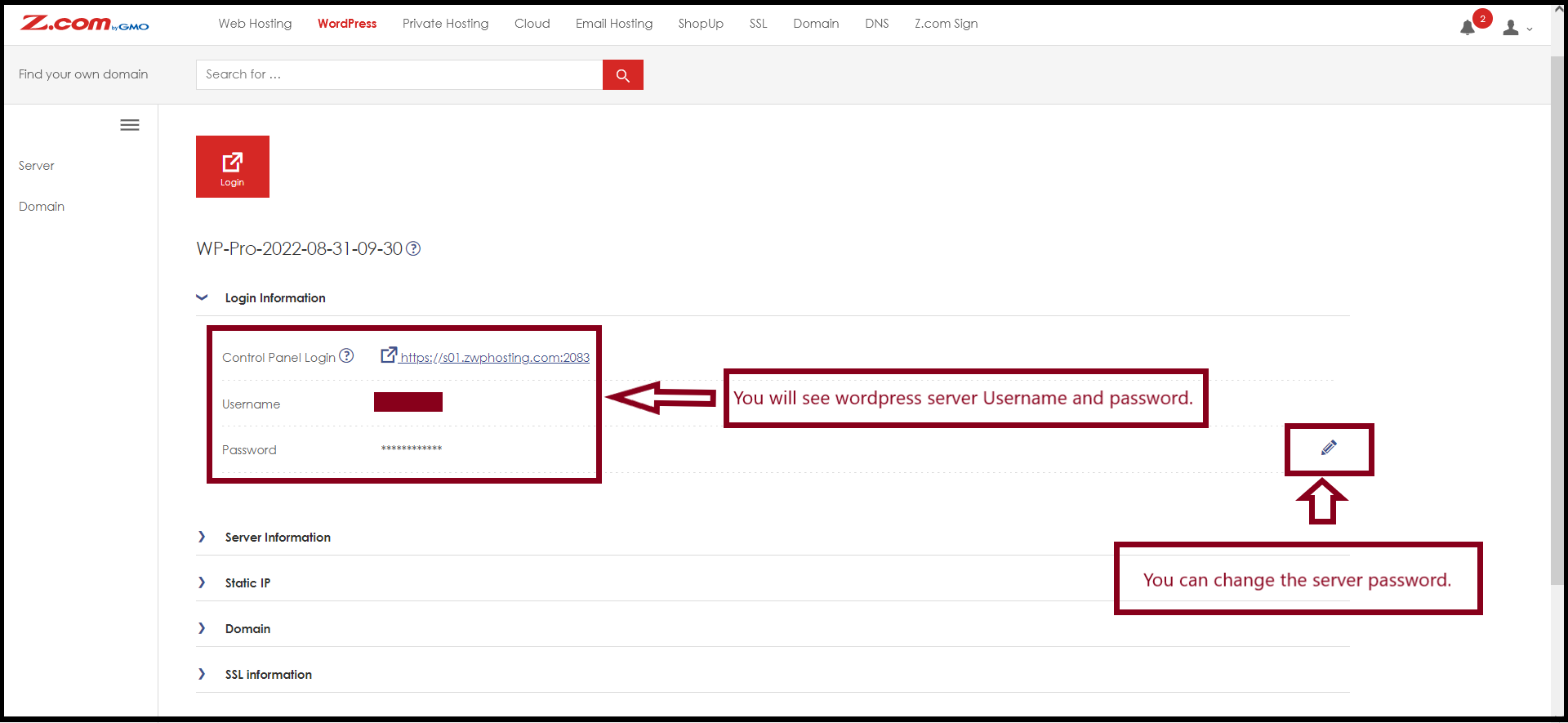
Step4. Click the "Login" Button to enter cPanel

Now, the cPanel login is successful.

Thank you!!!
Was this article helpful?
That’s Great!
Thank you for your feedback
Sorry! We couldn't be helpful
Thank you for your feedback
Feedback sent
We appreciate your effort and will try to fix the article