How to Add a Site in CloudPanel MM4?
Step1. Login to z.com account, https://hosting.z.com/mm/signin/ 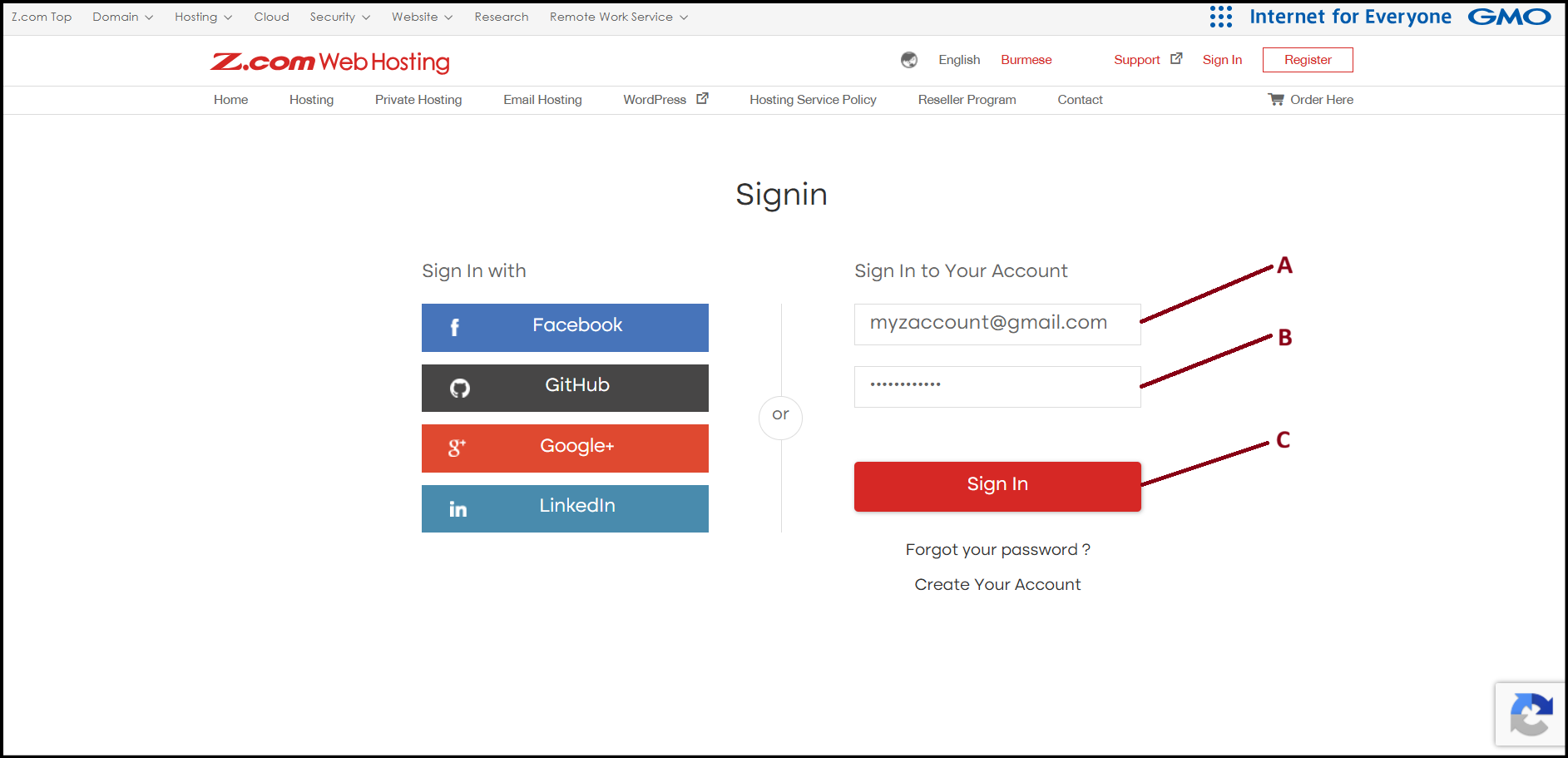
Step2. Go to the "Private Hosting" tab under MM4. And click the server under Name Tag. 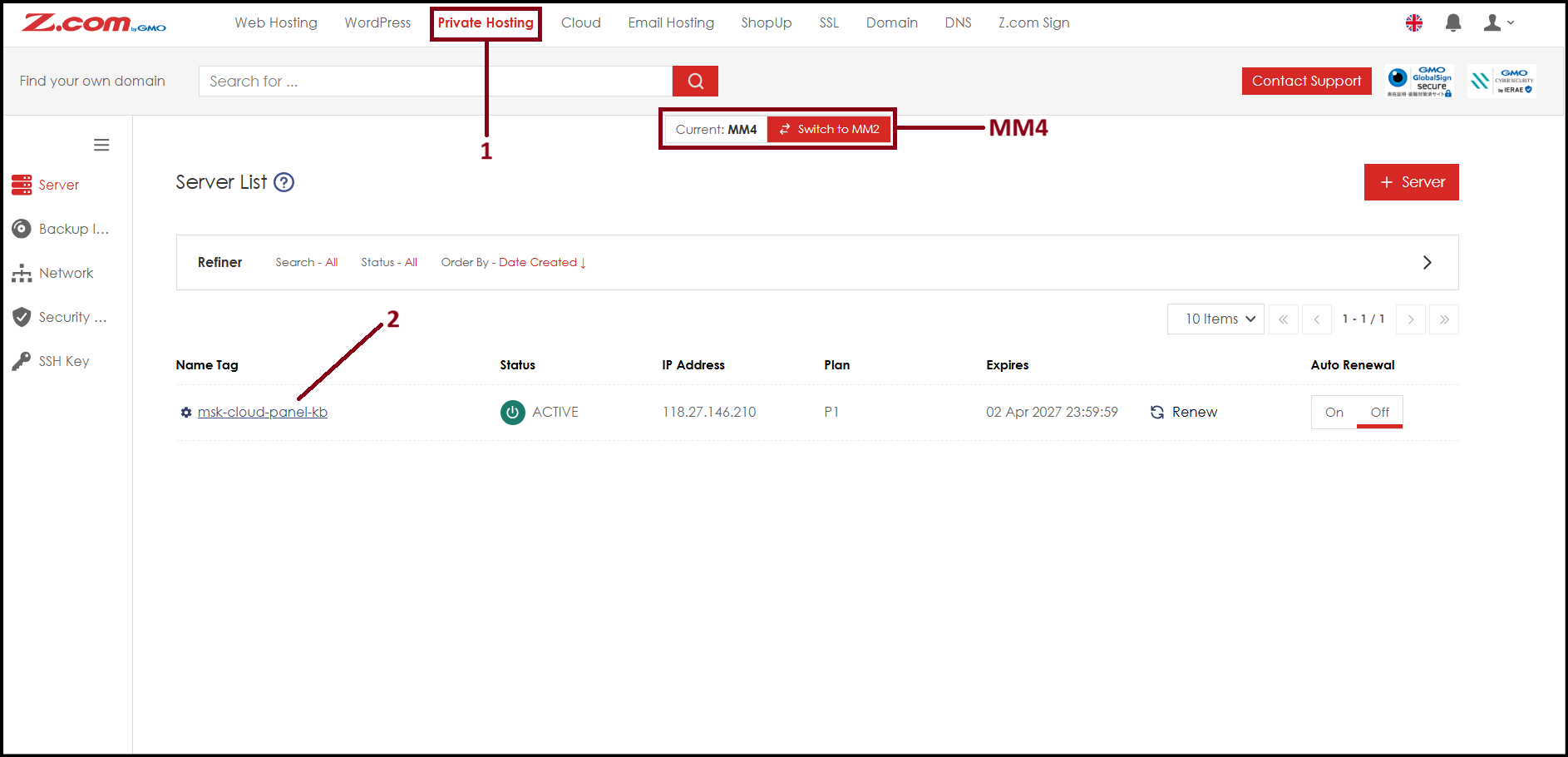
Step3. Click "VM Information" to check Cloud Panel login URL.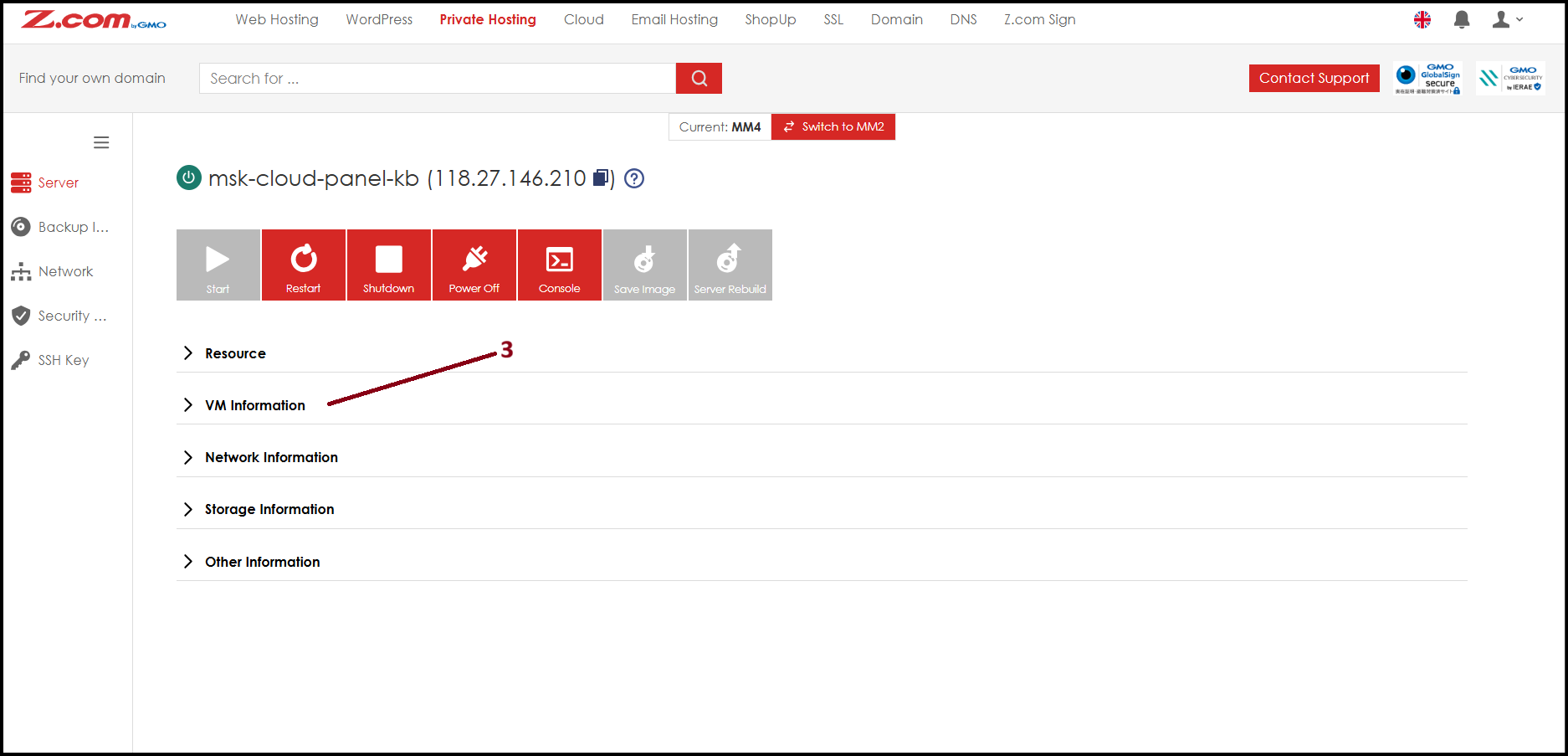
Step4. Click the Login URL link to open the Cloud Panel login page.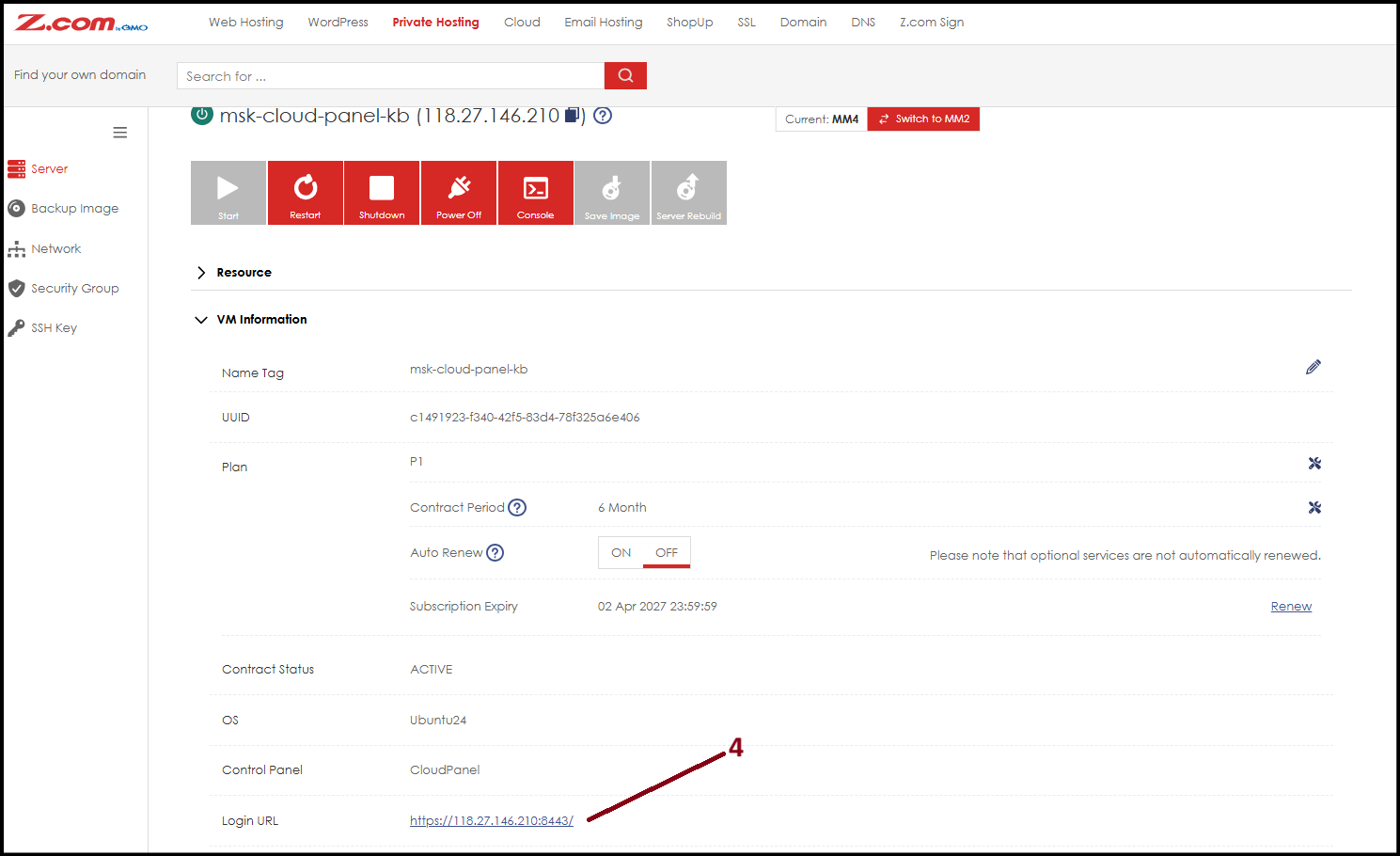
Step5. Login with Cloud Panel Username and Password.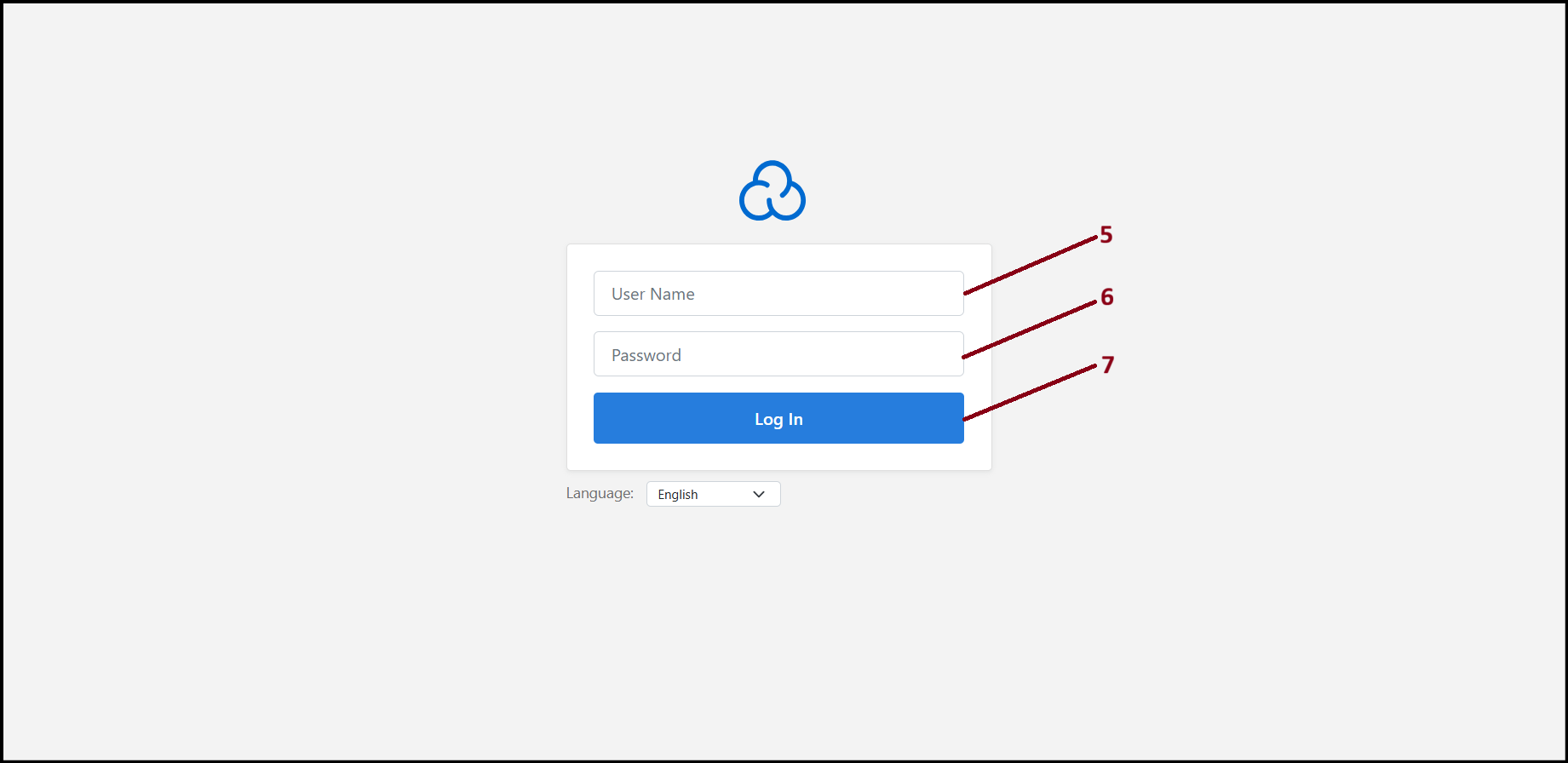
Step6. Click "+Add Site".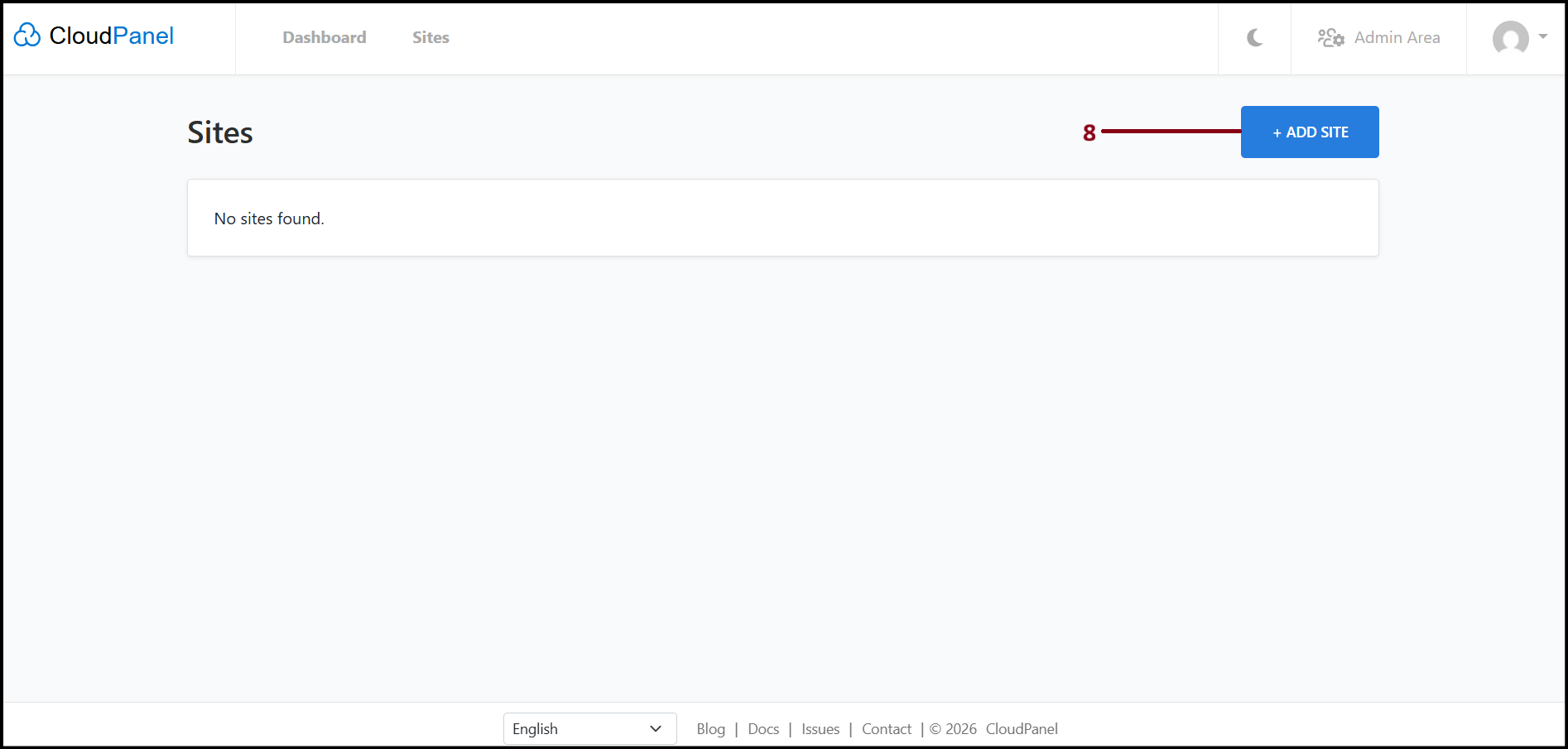
Step7. Choose the prefer site type to create. We'll continue with "Create a Static HTML Site" for example.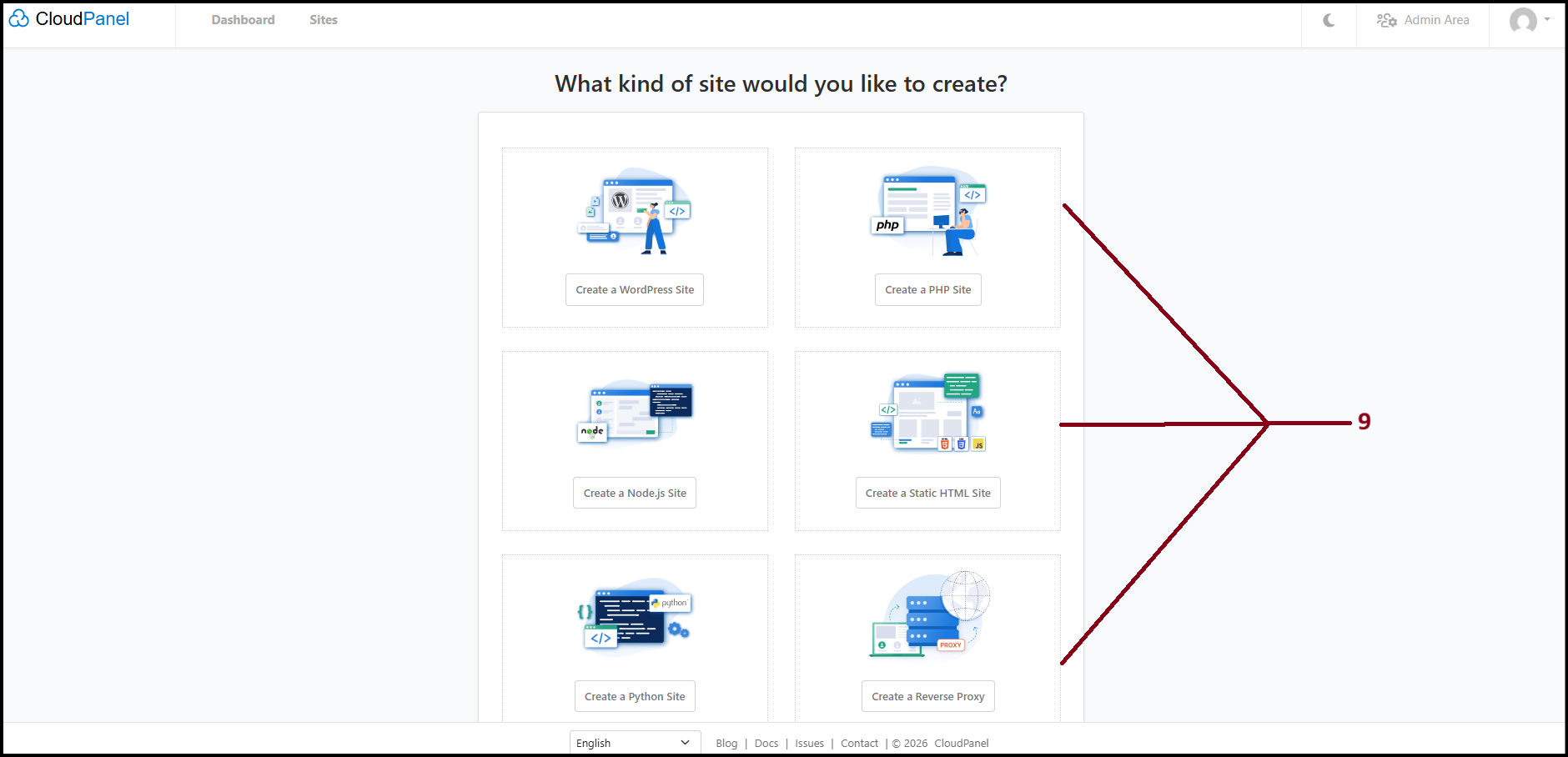
Step8. Add "Domain Name", create a "Site User" and set a new "Site User Password". Then click "Create".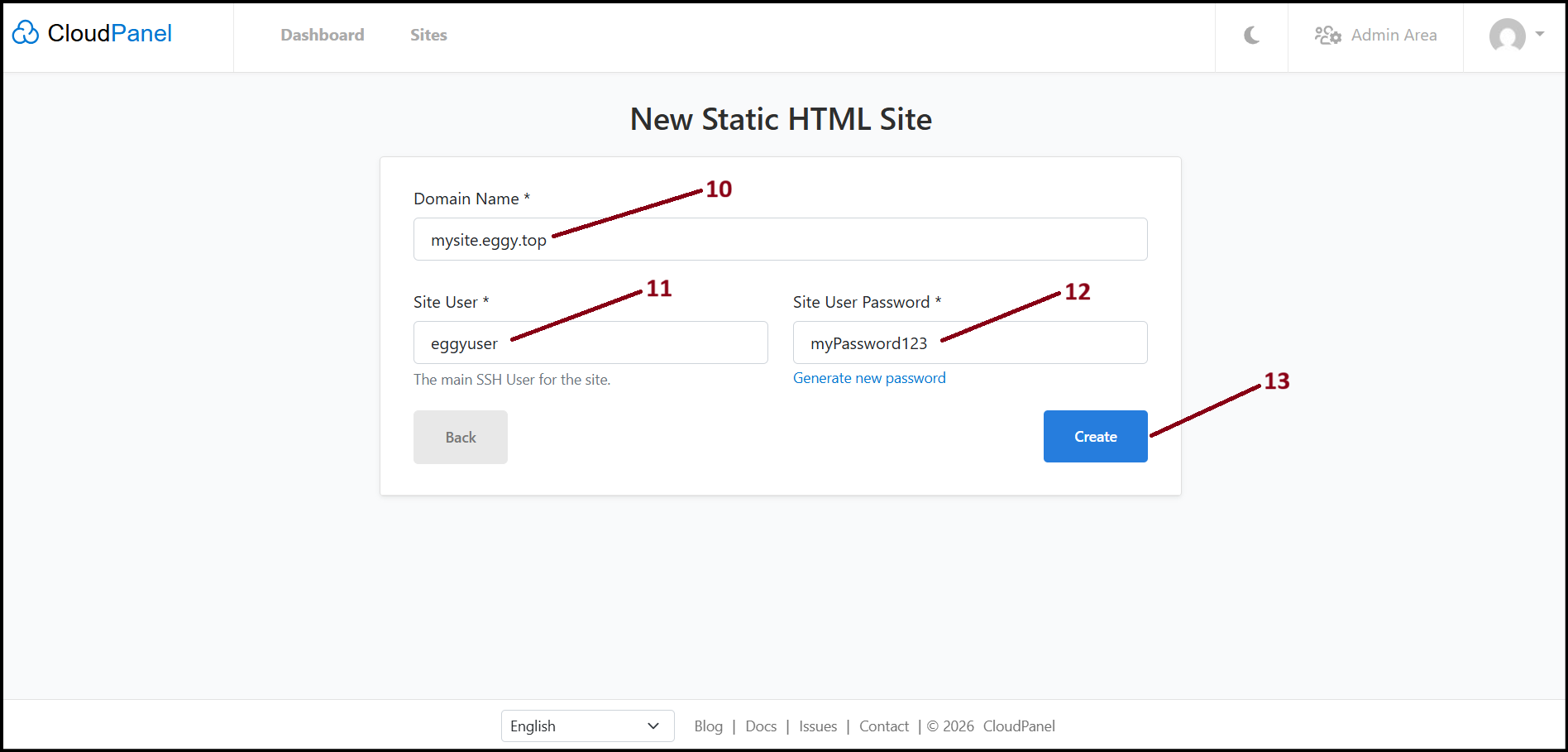
Step9. Now the site is successfully added to the Cloud Panel. You can now use File Manager, SSL, etc., with "Manage" option.
[NOTE: You may need to add DNS record to the domain name to work the domain.]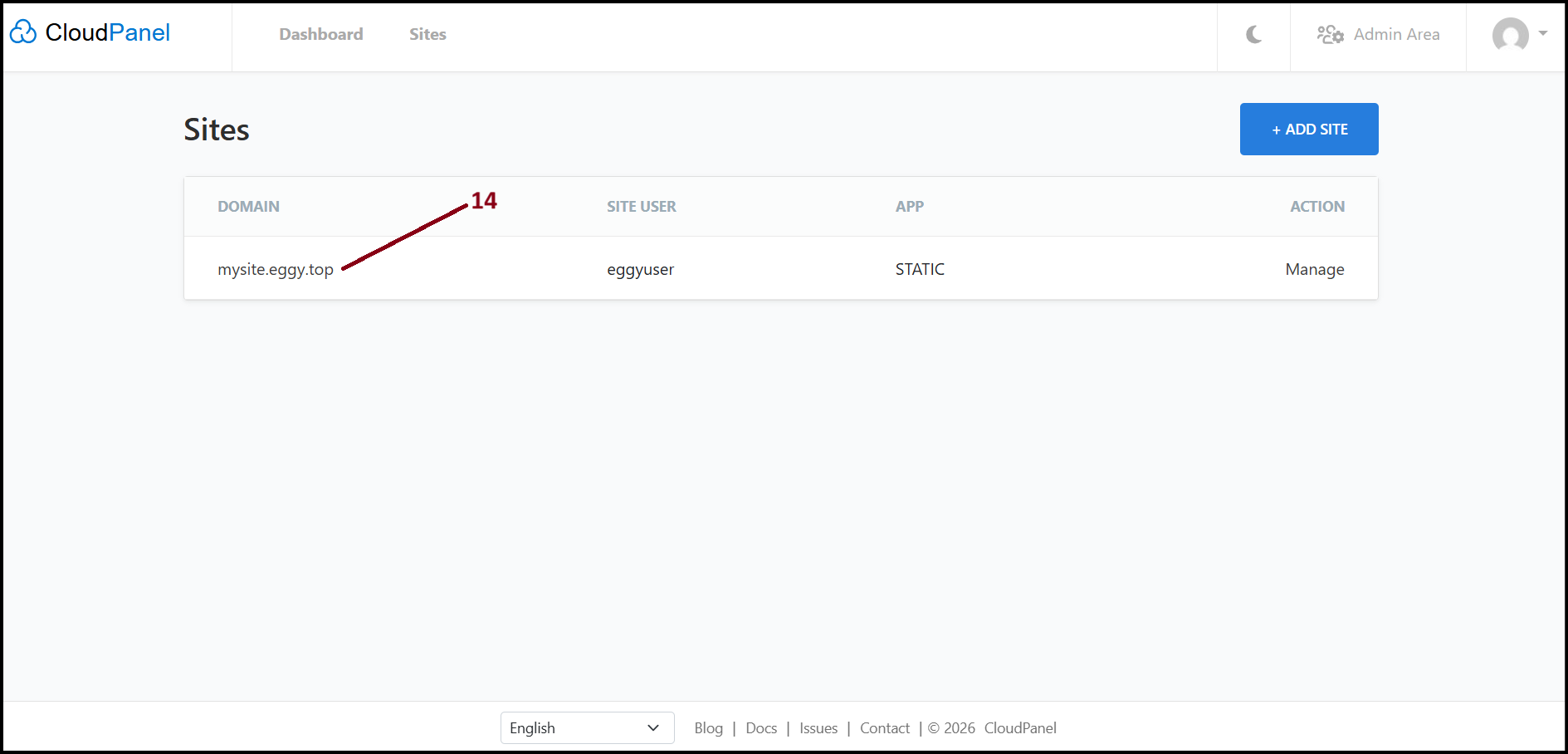
Thank You!
Was this article helpful?
That’s Great!
Thank you for your feedback
Sorry! We couldn't be helpful
Thank you for your feedback
Feedback sent
We appreciate your effort and will try to fix the article