1. How To Add DNS Record For a Domain?
Step 1. Login to your Z.com account: https://cloud.z.com/mm/signin/
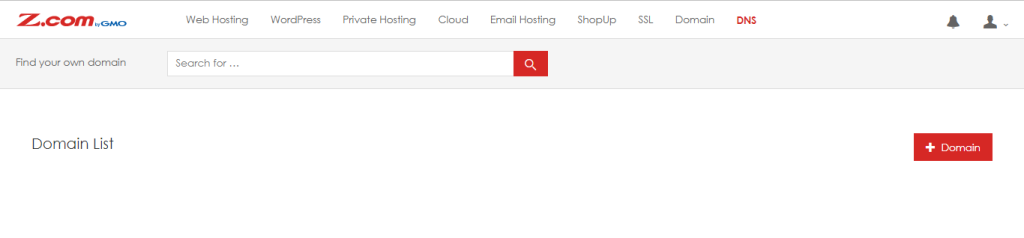
Step 2. Click the "DNS" Menu
Step 3. Click the "+Domain" button
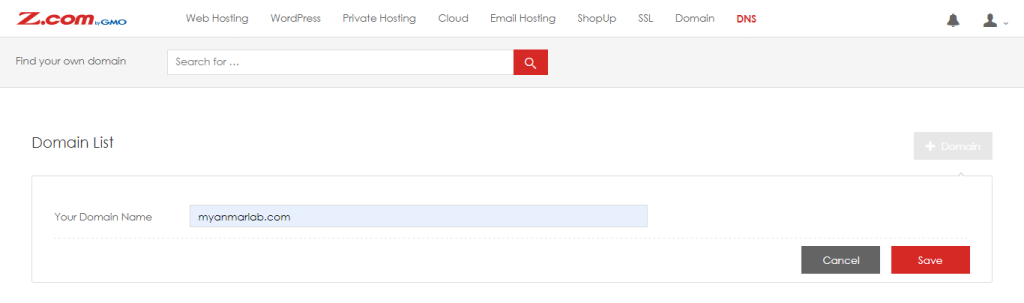
Step4. Enter the Domain Name that you want to add DNS
Step 5. Click the “Save” button
Step6. The Domain Name that is displayed on the DNS panel
Step7. Click the “Edit” button as a pencil image
Step8. Click “+” to add a DNS record for this domain
And then, Click the “Save” button
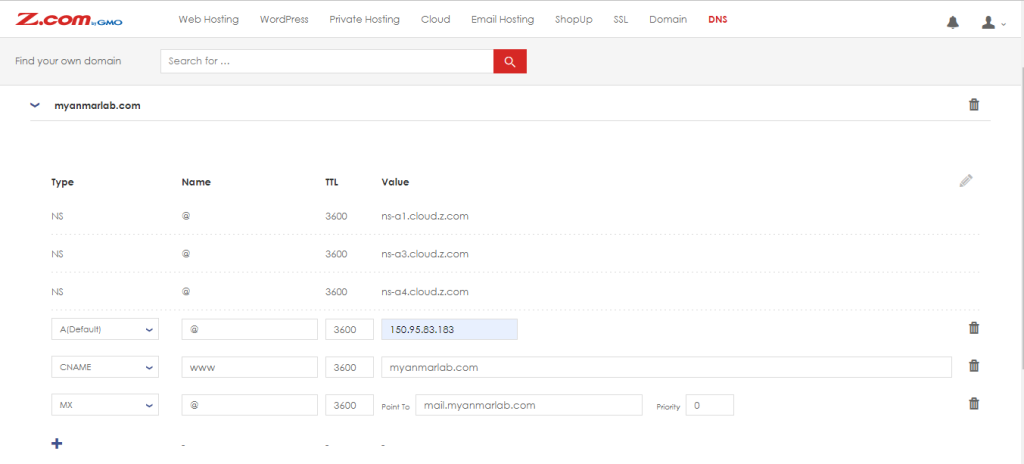
After adding the DNS record, These will be updated these records for 24 hours.
2. How To Delete DNS Record For a Domain
Step1. Login to z.com account, https://cloud.z.com/mm/signin/
Step2. Click “DNS” Menu
Step3. The Domain Name that you want to delete the DNS record
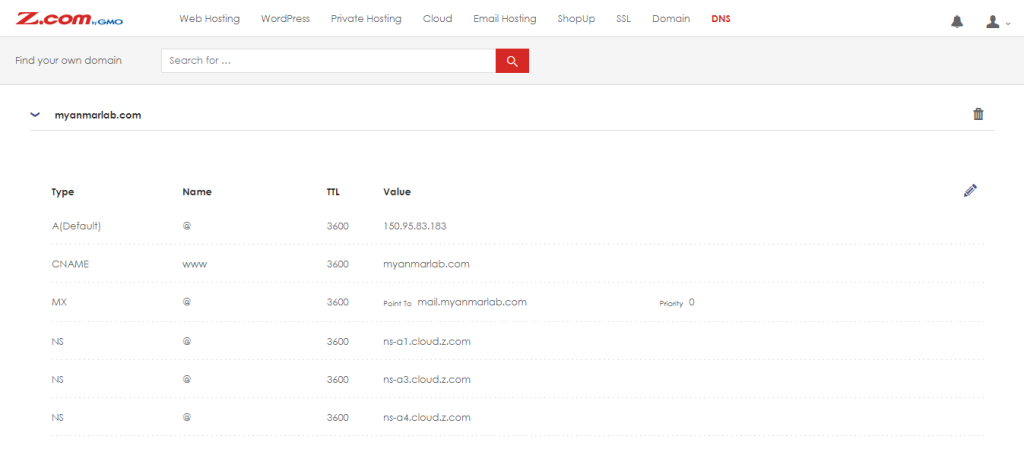
Step4. Click the “Edit” button as a pencil image
Step5. Click the “Delete” button that you want to delete the DNS record
And then, Click the “Save” button.
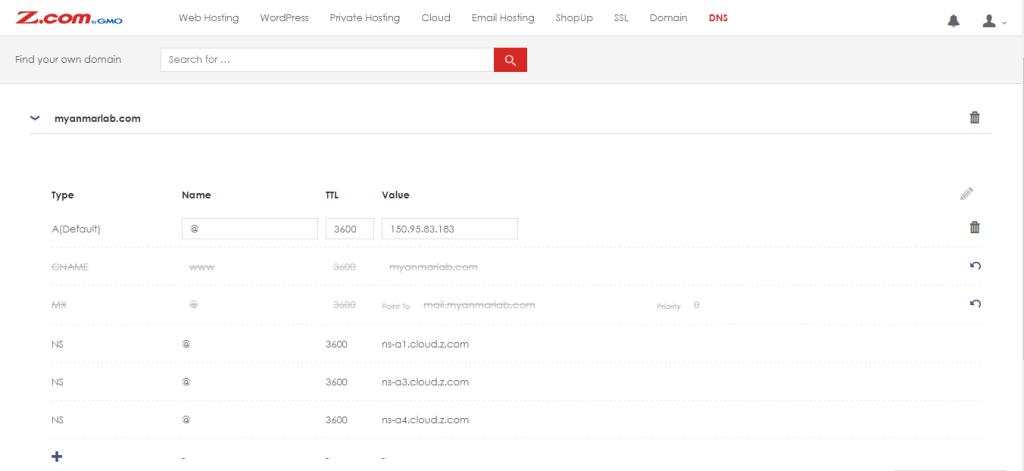
** The DNS record will update for 24 hours.
THANK YOU!!!
Was this article helpful?
That’s Great!
Thank you for your feedback
Sorry! We couldn't be helpful
Thank you for your feedback
Feedback sent
We appreciate your effort and will try to fix the article