How to Apply Alpha SSL with DNS Authentication Method in Z.com?
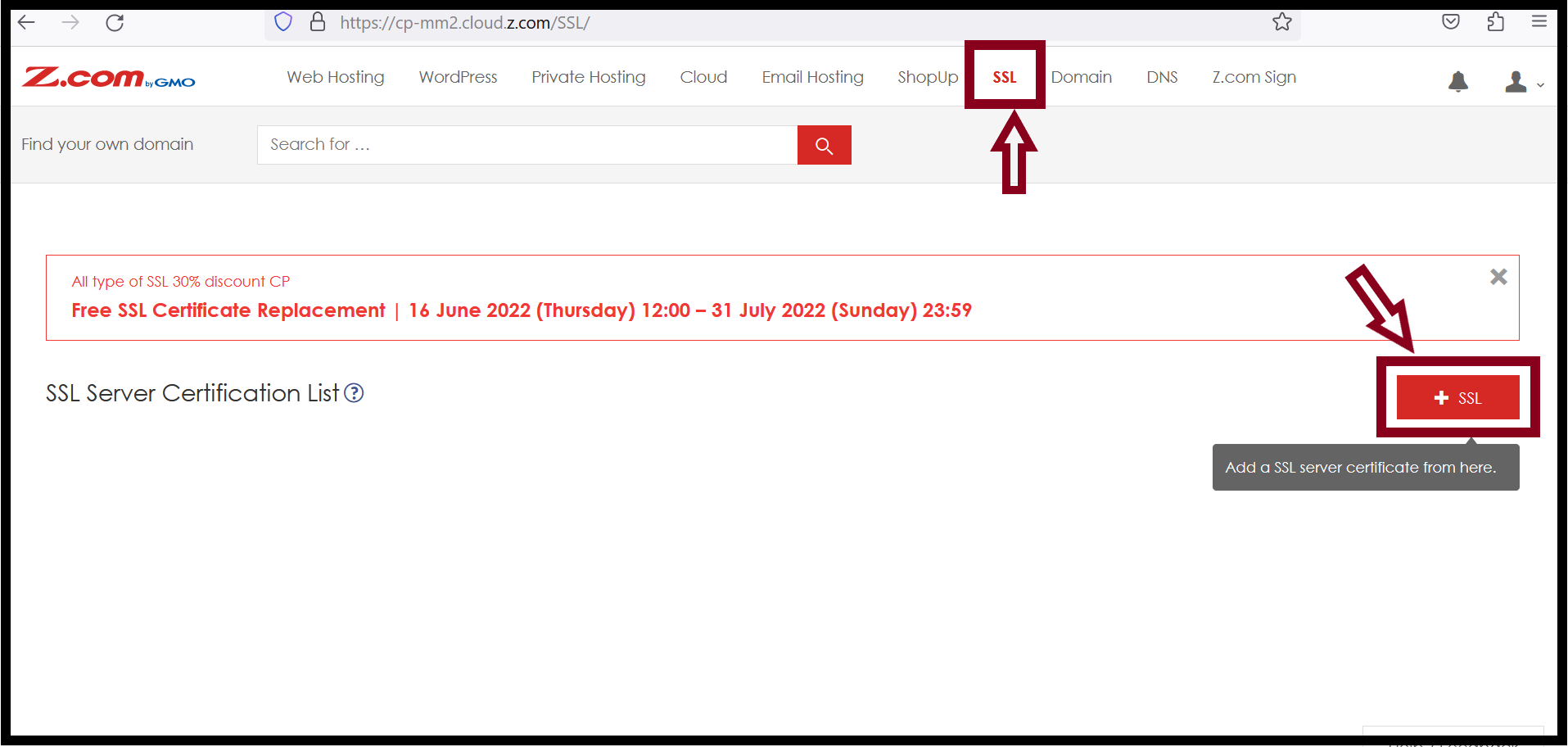
In Z.com's SSL Services, there are 3 types of Domain Validation Methods such as DNS Authentication, Email Authentication, and Page Authentication. You can use one Domain Validation Method to issue the Alpha SSL. Now, we will demonstrate DNS authentication Method.Step1. Login to My Z.com Account and go to "SSL" Tab.
Step2. Start to apply SSL, Click "+SSL".
Step3. Choose the properties.
- Plan: Alpha SSL
- Destination Server: Other Server
- Acquisition Form: New
- Contract Period: 1 Year
- Wild Card: Enable or Disable
- 2-way SSL Authentication: Enable or Disable
- Authentication Method: DNS Authentication (Recommended)
* If you want to use with www, choose 2-way SSL Authentication Enable.
* If you want to use without www, choose 2-way SSL Authentication Disable.
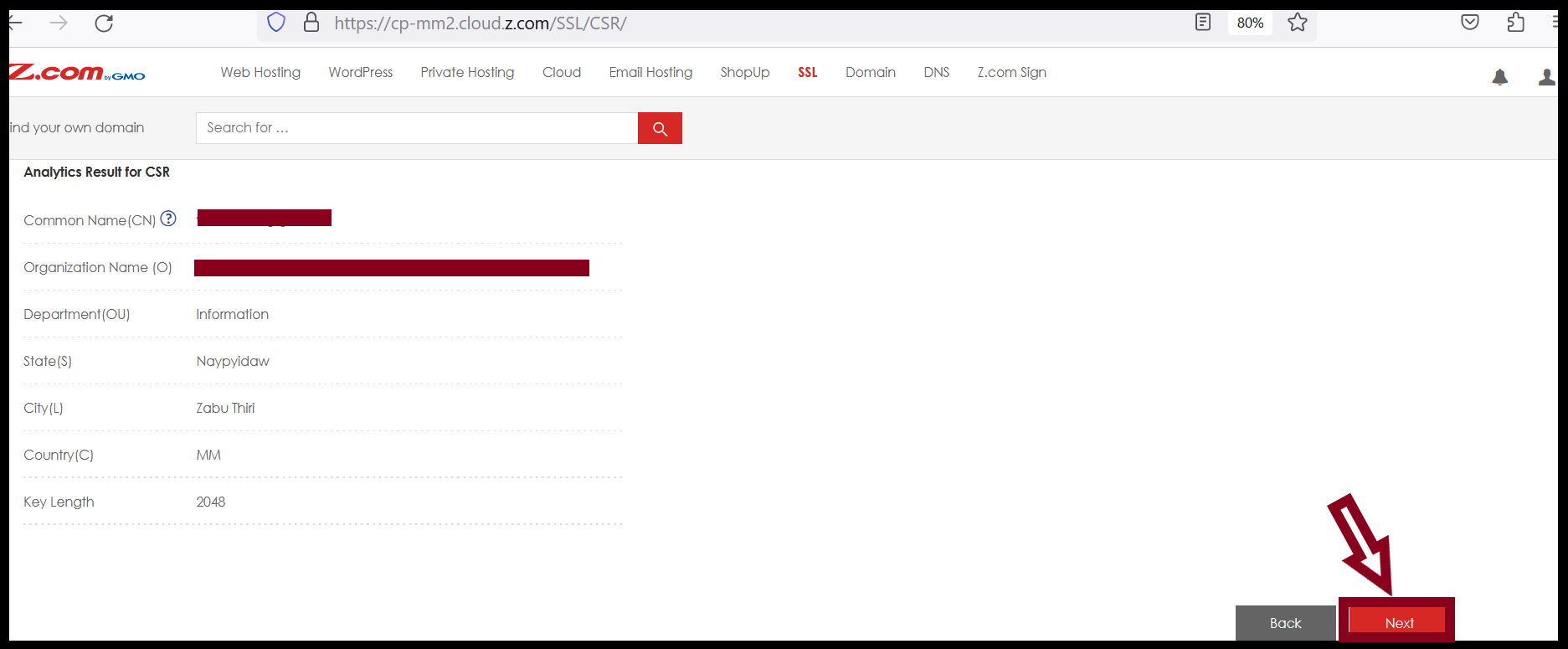
Step4. Add CSR and click on Confirmation. Check the details of the Analytics Results for CSR. And then Click Next.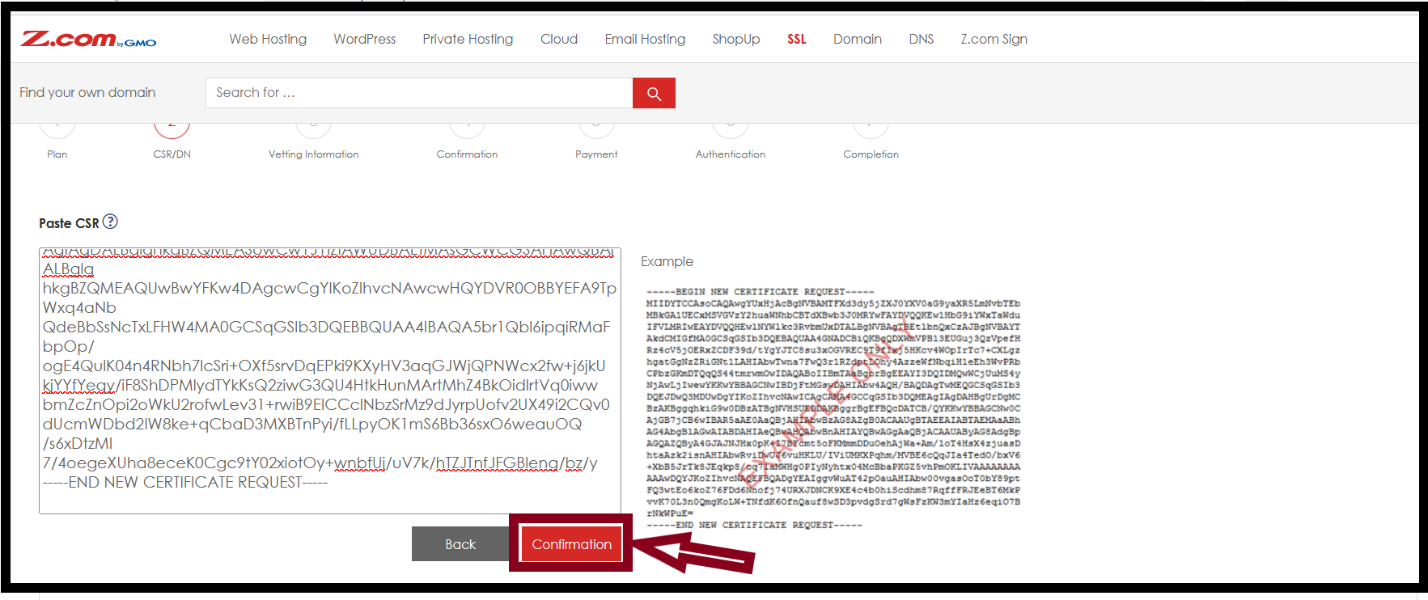
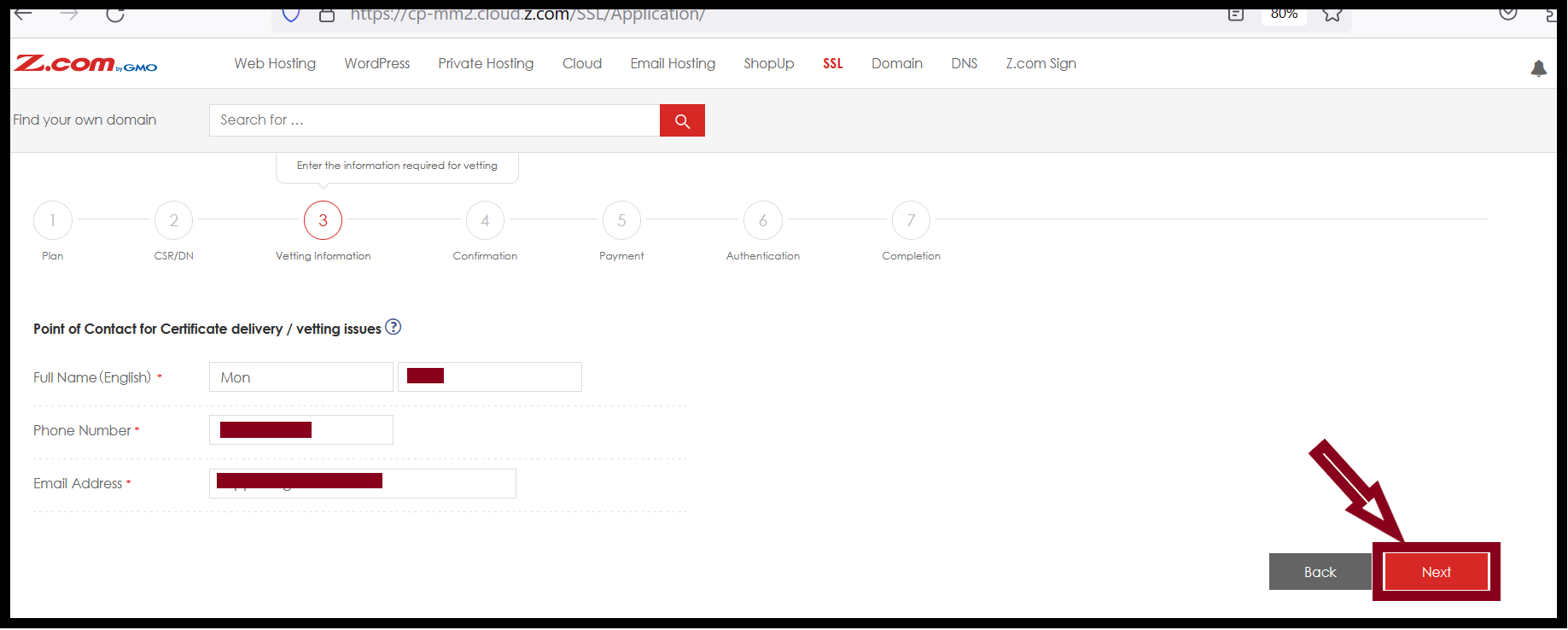
Step5. Check the Point of Contact for Certificate delivery/vetting issues and click Next.
Step6. Check the registration details of the Plan, CSR information and Point of Contact for Certificate delivery/vetting issues and then Click on Set.
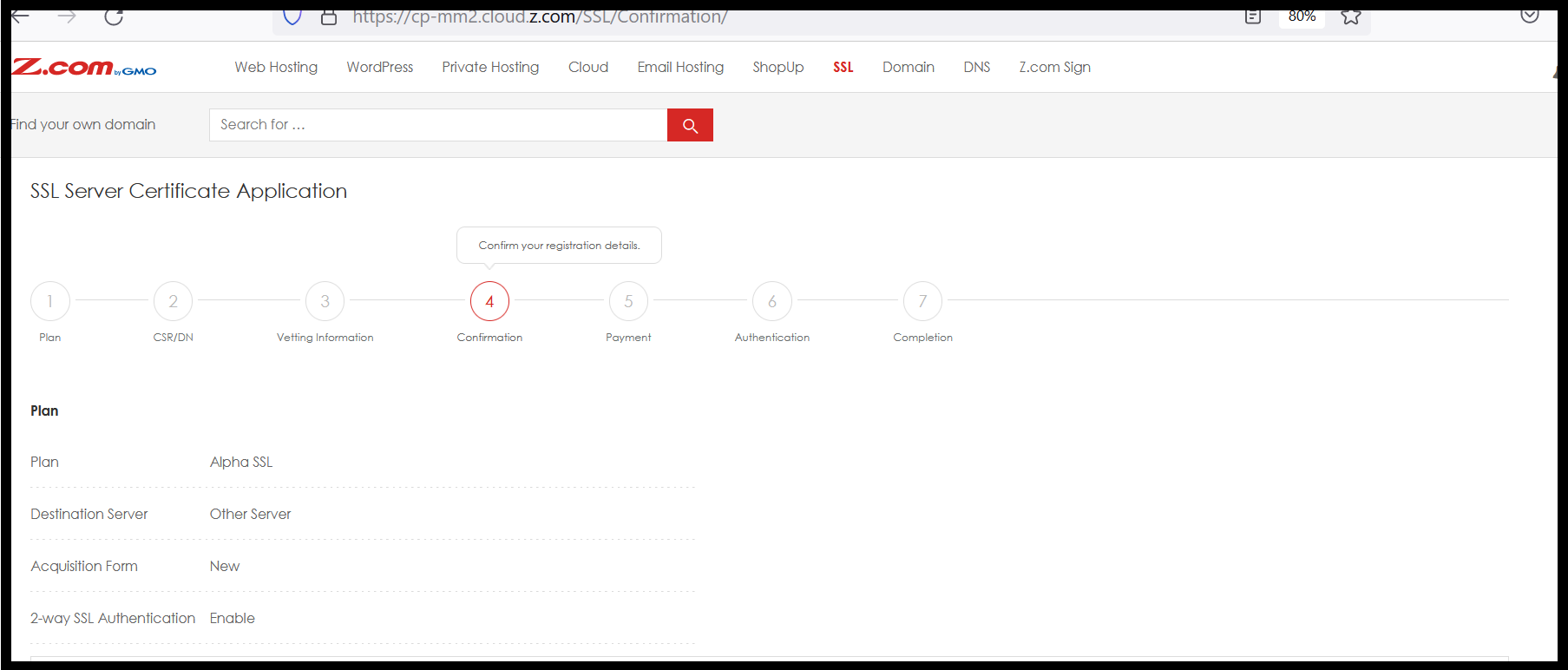
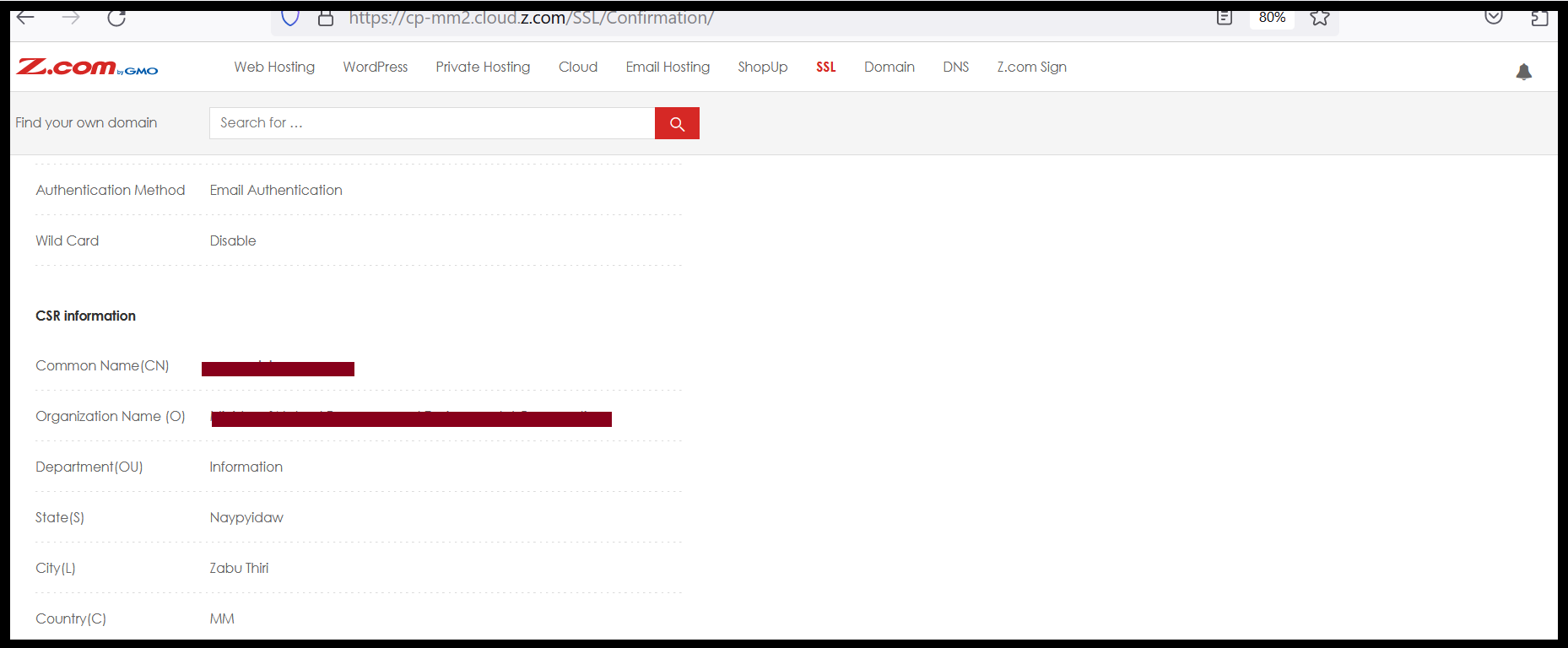
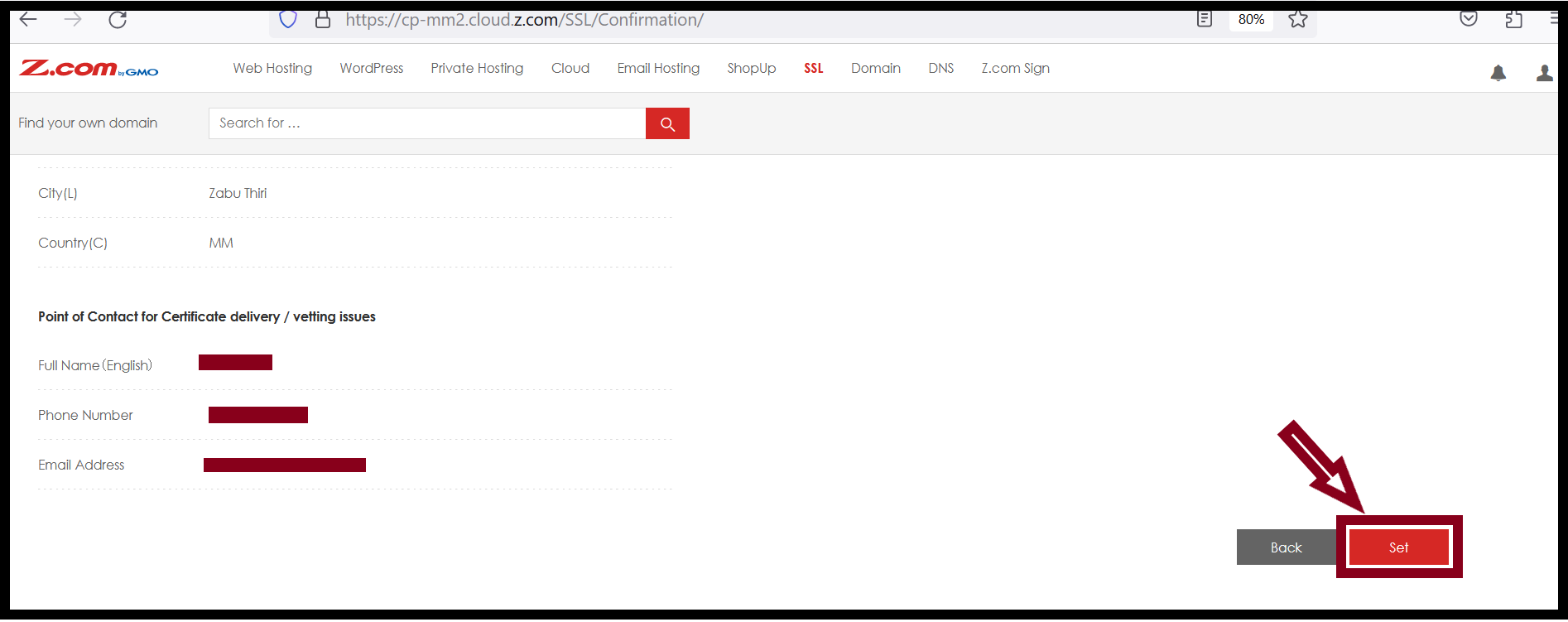
Step7. Check the Payment Amount and Choose the Payment Method and then Click on the Settlement.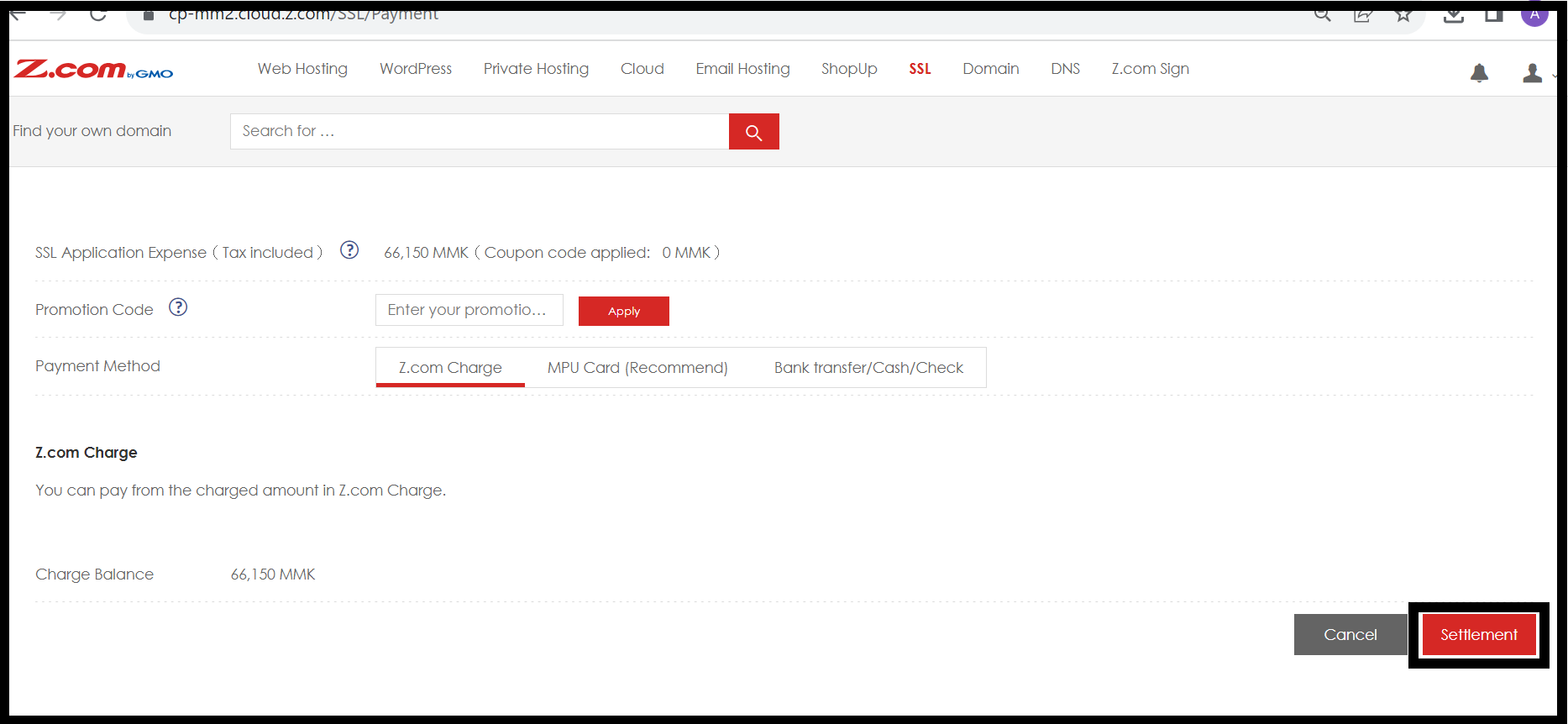
Step8. You will get the Authentication ID and Add this ID in your DNS control panel as per format.
- Type: TXT
- Name: @
- TTL: 3600
- Value: Authentication ID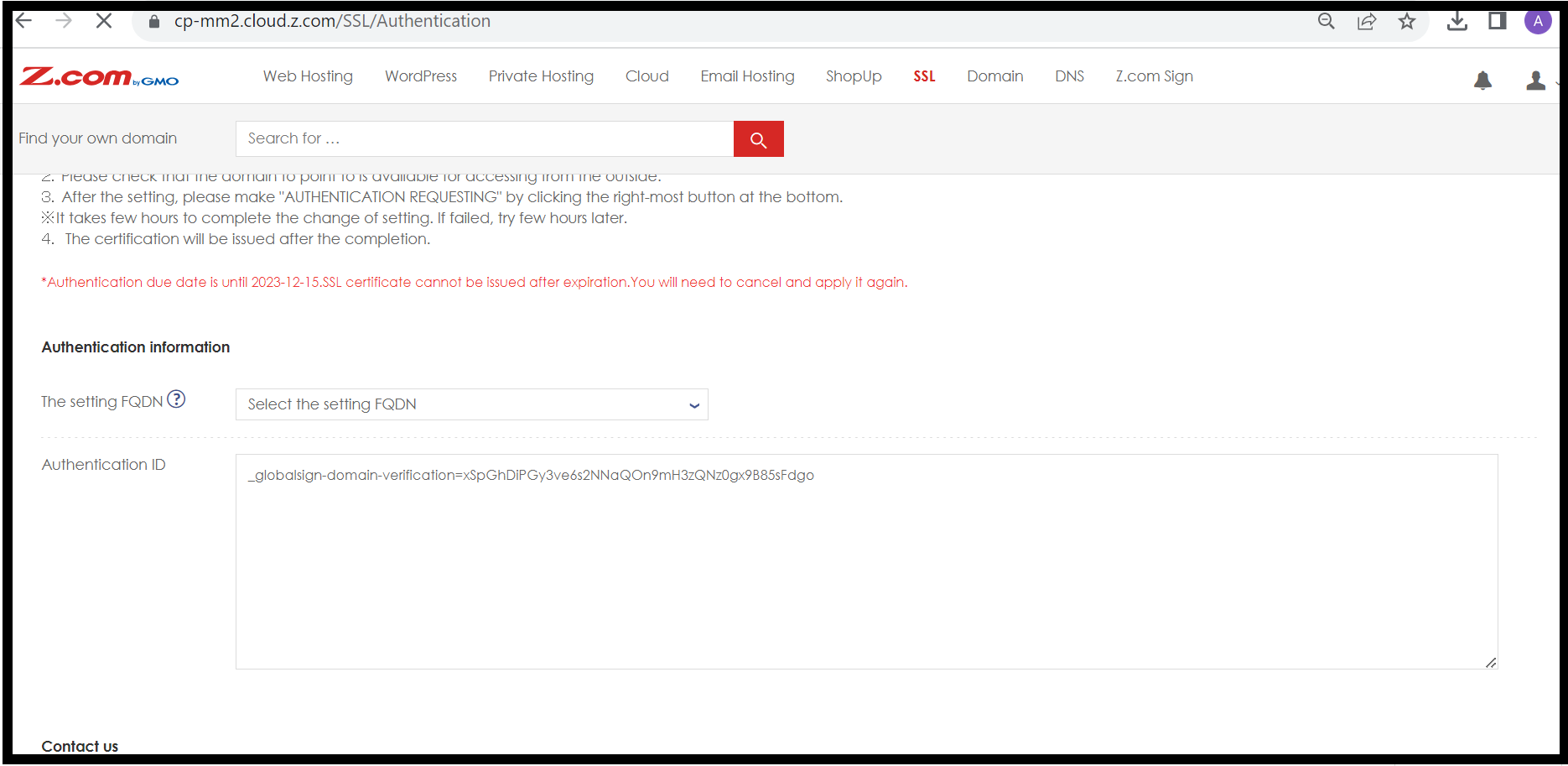
Step9. After Adding the Authentication ID in the DNS record of your Domain Name, choose the SSL Common name in "The setting FQDN" and Click on the Authentication Requesting.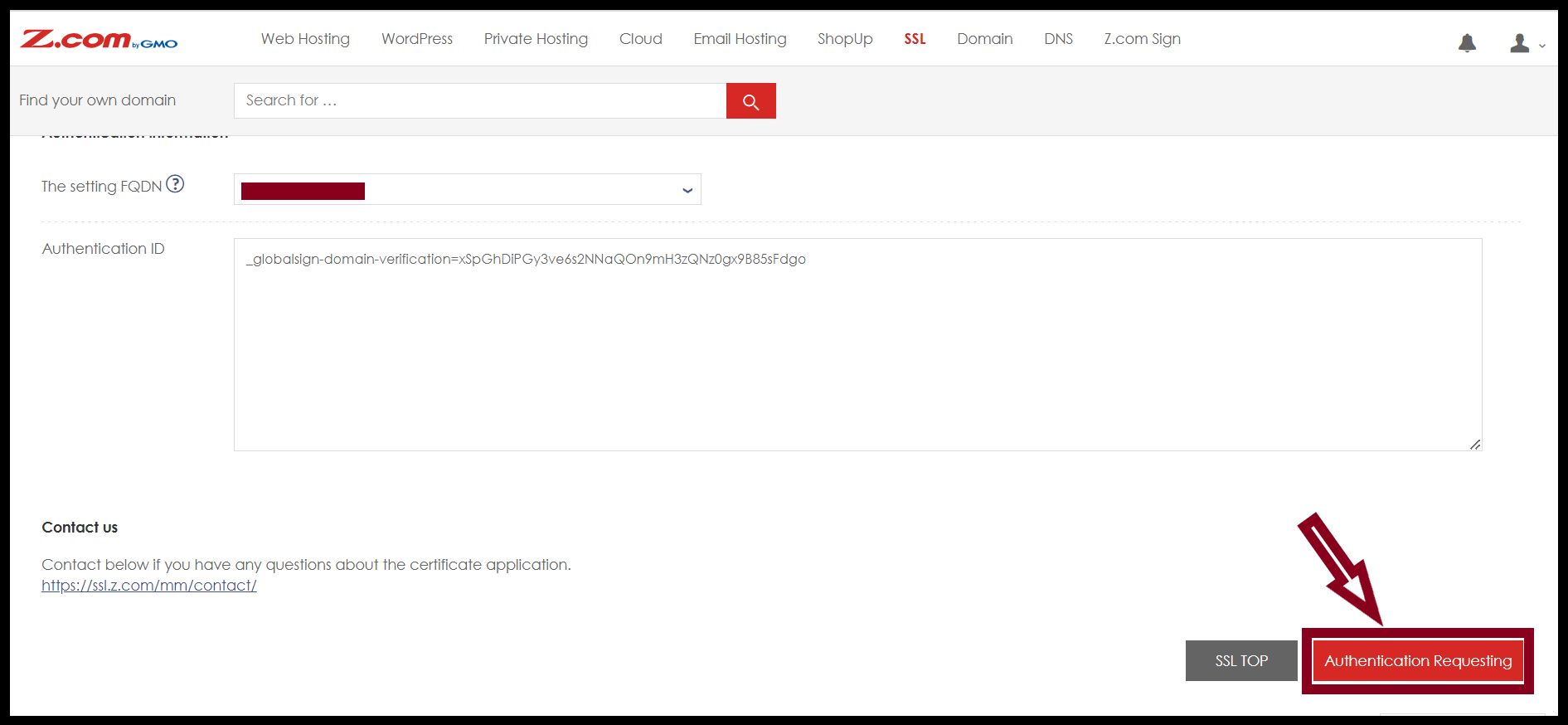
After issuing the SSL, you can download and install the SSL Certificates.
THANK YOU!!!
Was this article helpful?
That’s Great!
Thank you for your feedback
Sorry! We couldn't be helpful
Thank you for your feedback
Feedback sent
We appreciate your effort and will try to fix the article