How to Generate CSR and SSL Installation in Plesk Server ?
To install the SSL certificate in the Plesk server, please follow the below instruction.
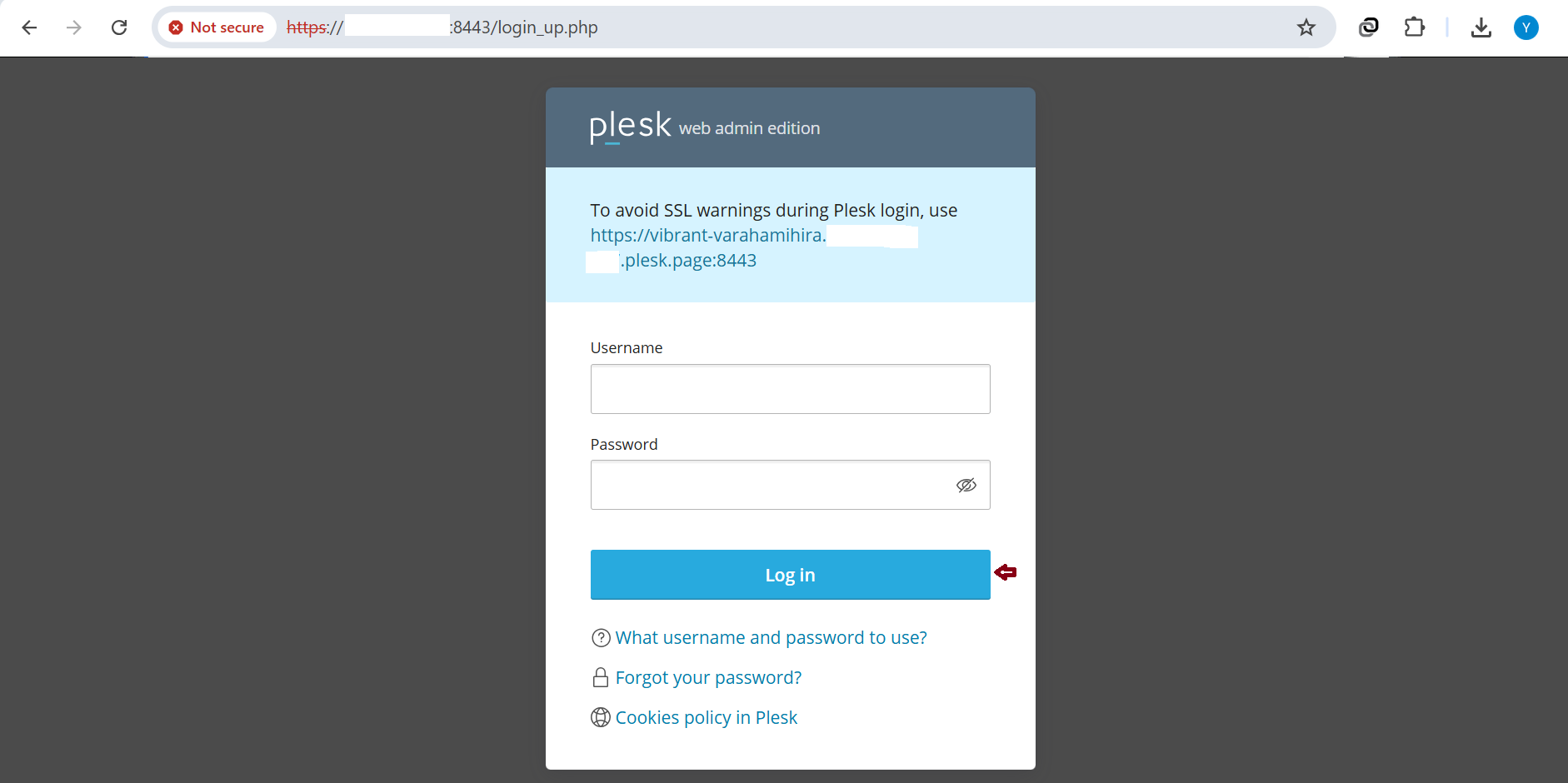
Login to the Plesk Server, https://150.95.xx.xx:8443/
The username is predefined like admin or administrator; the password is the one which you enter during server initial setup.
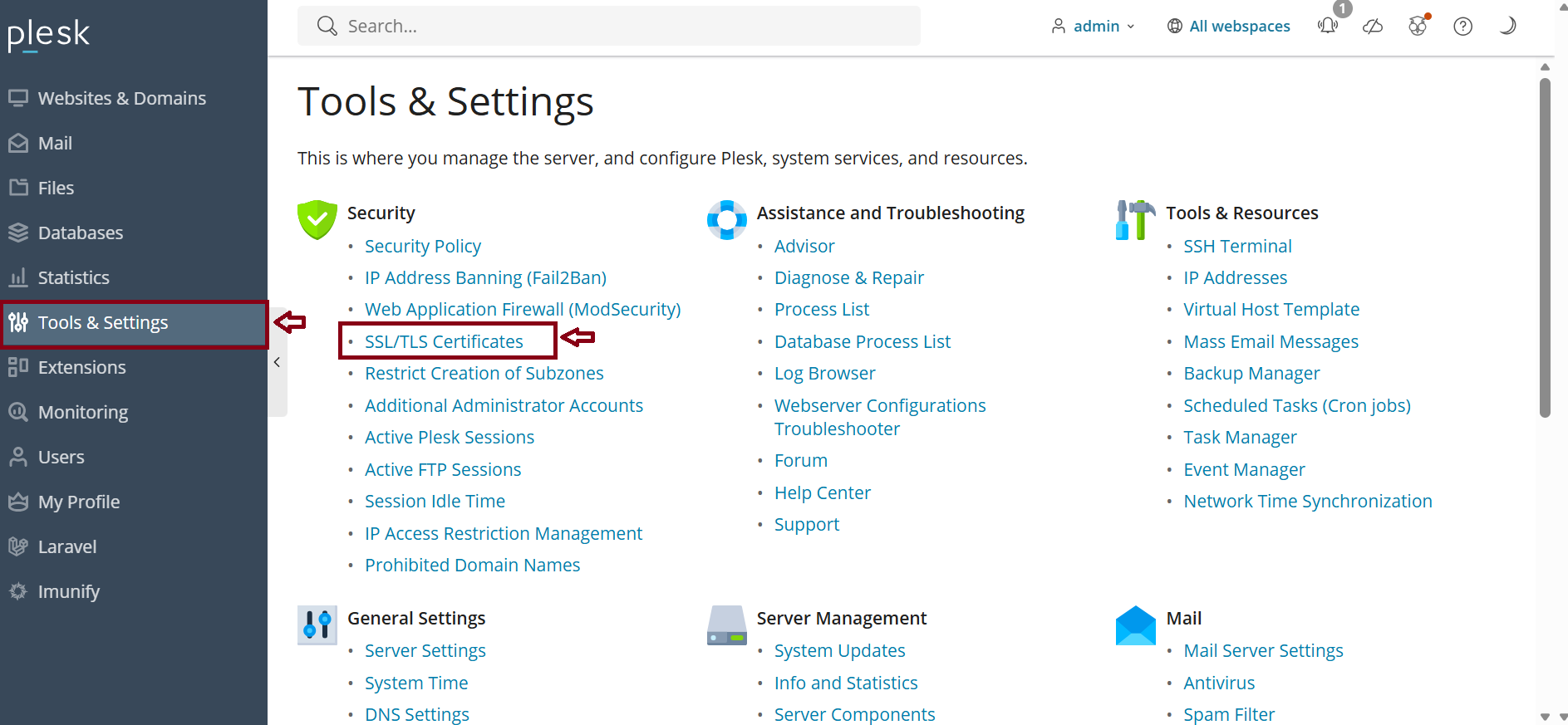
Step2: Click “+ Add” to generate CSR.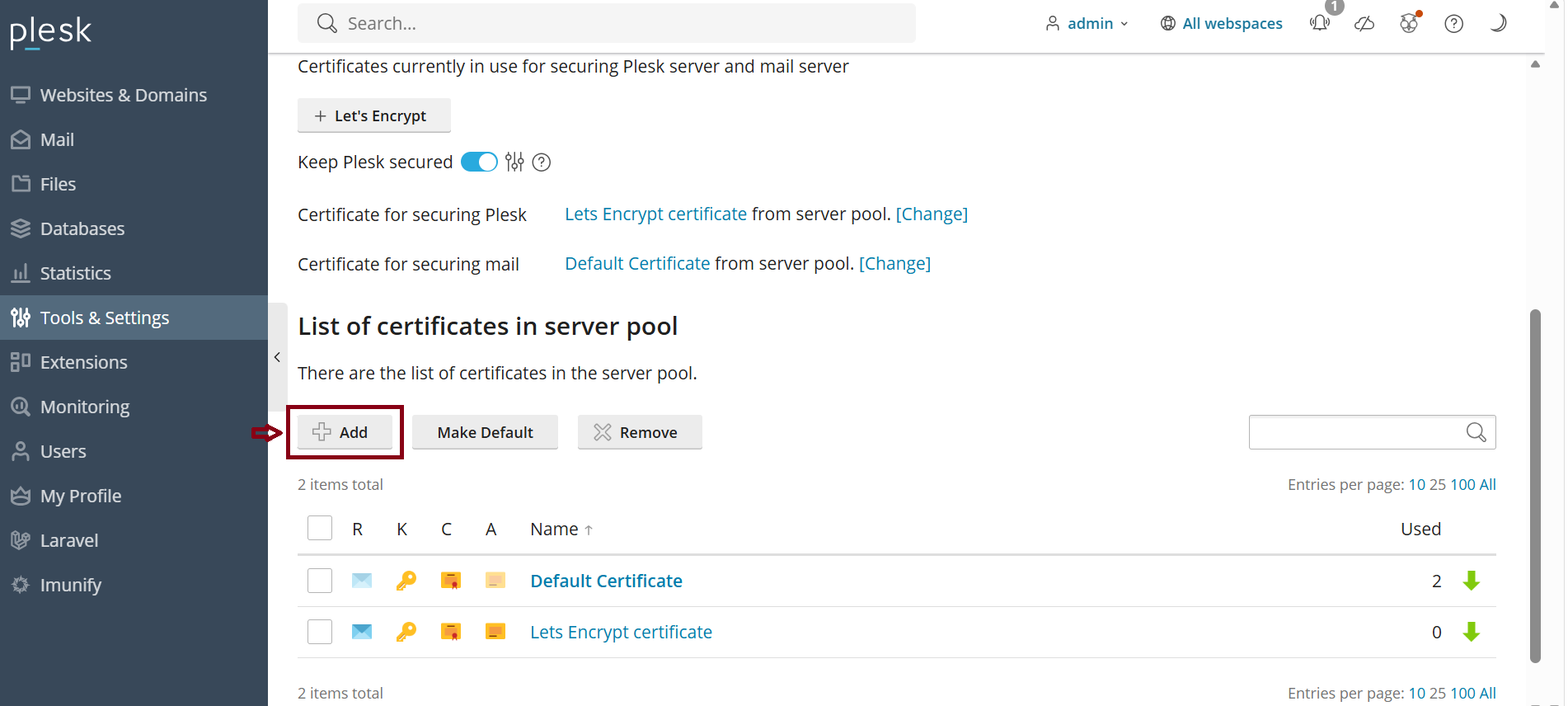
Step3: Fill require information for CSR generating process.
|
- Please double check the domain name of the CSR that you want to apply SSL.
After filling in the information, click "Request" .
Plesk will generate a CSR and a Private Key. 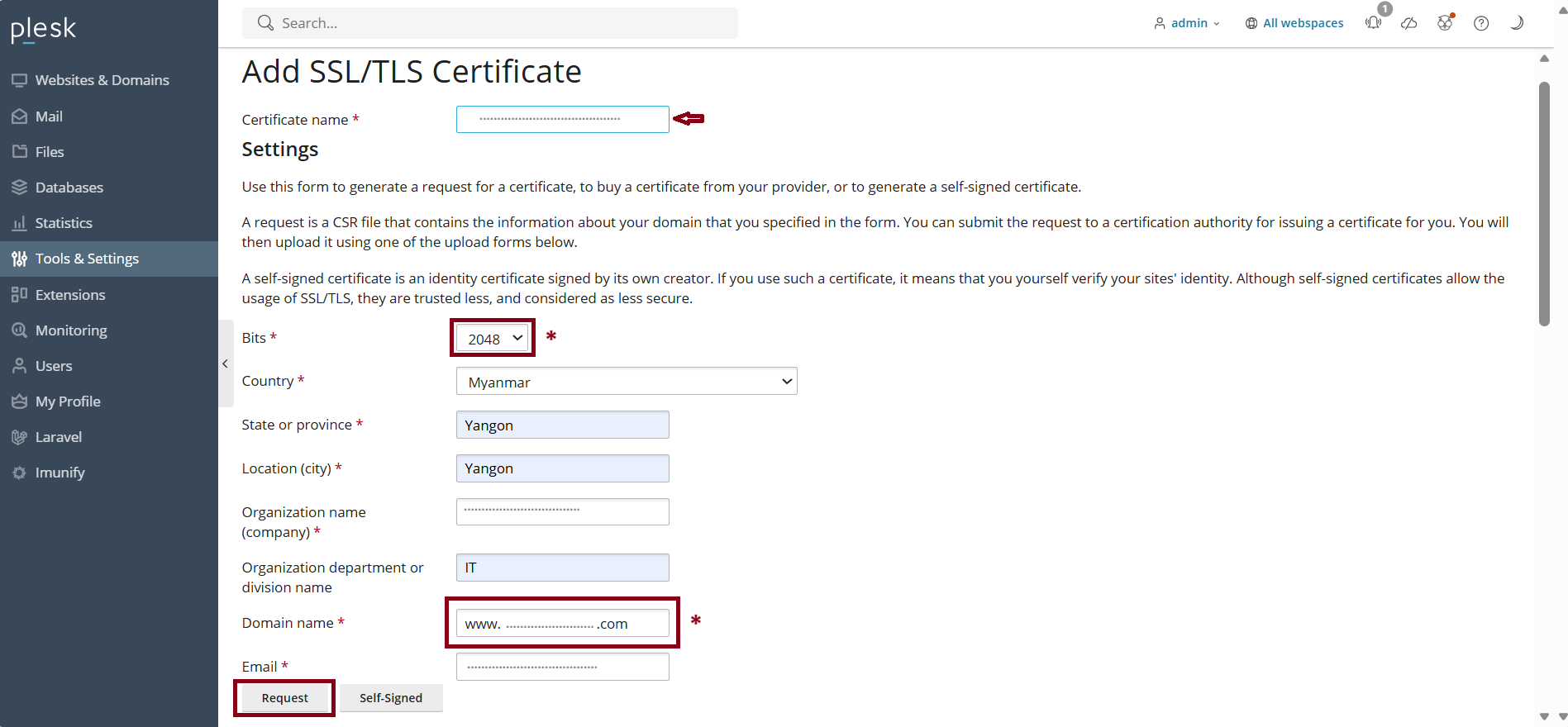
Step4: Go back to "SSL/TLS Certificates" and click the certificate name you created.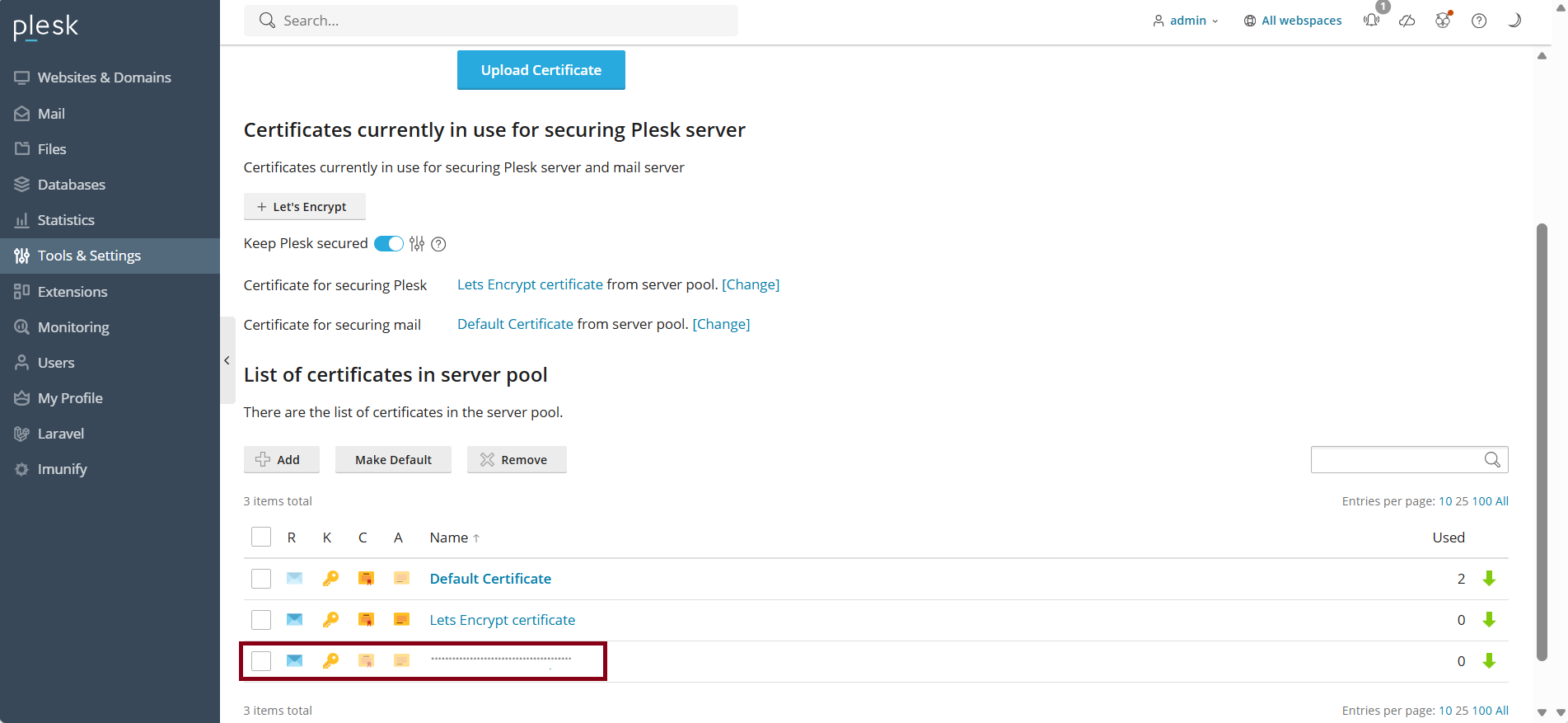
Step5: Open the Notepad and copy the CSR code to it.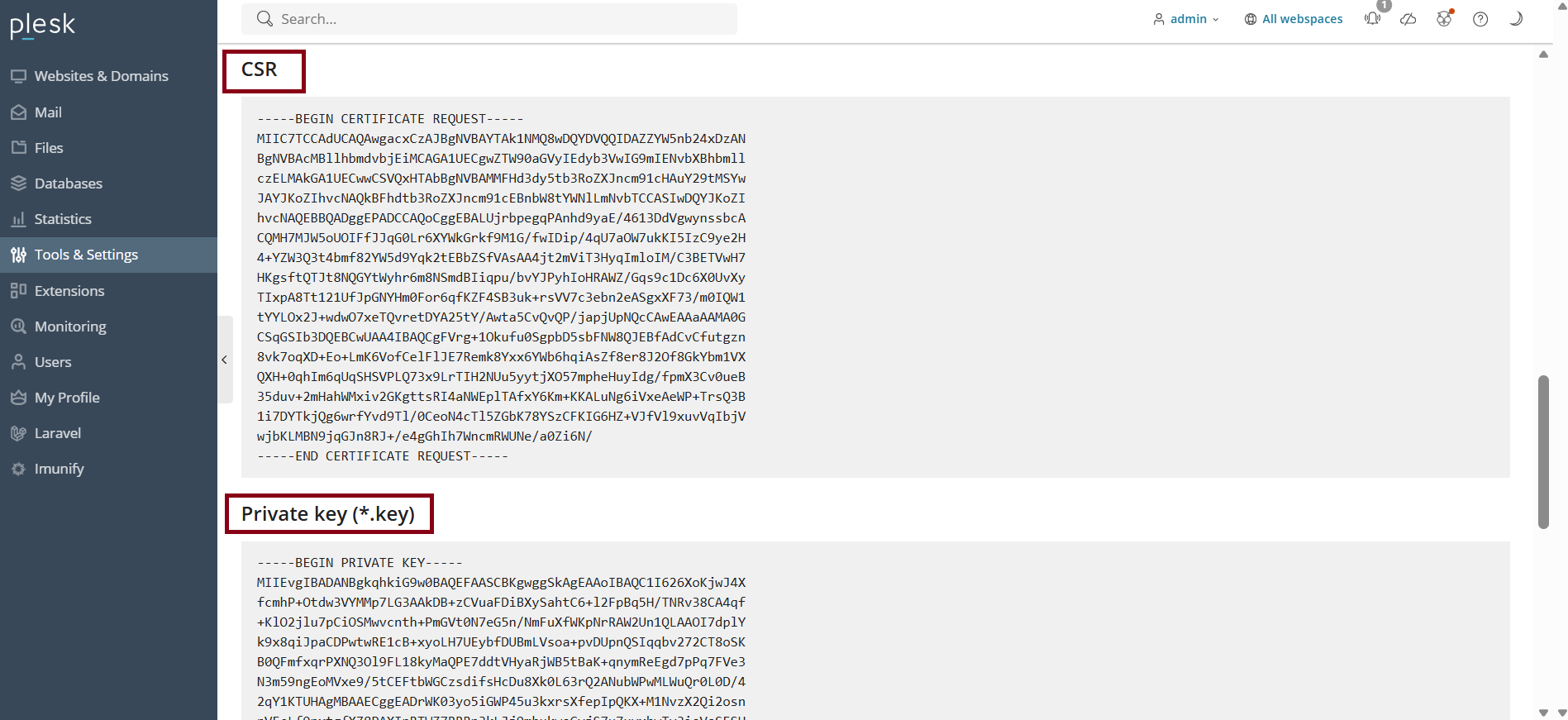
2. How to Install SSL in Plesk Server ?
In your SSL Server , add the CSR to your domain’s SSL section and apply for SSL. Then you will get the PEM File and ICA File.
Step1:To install the SSL certificate, upload the PEM File and ICA File.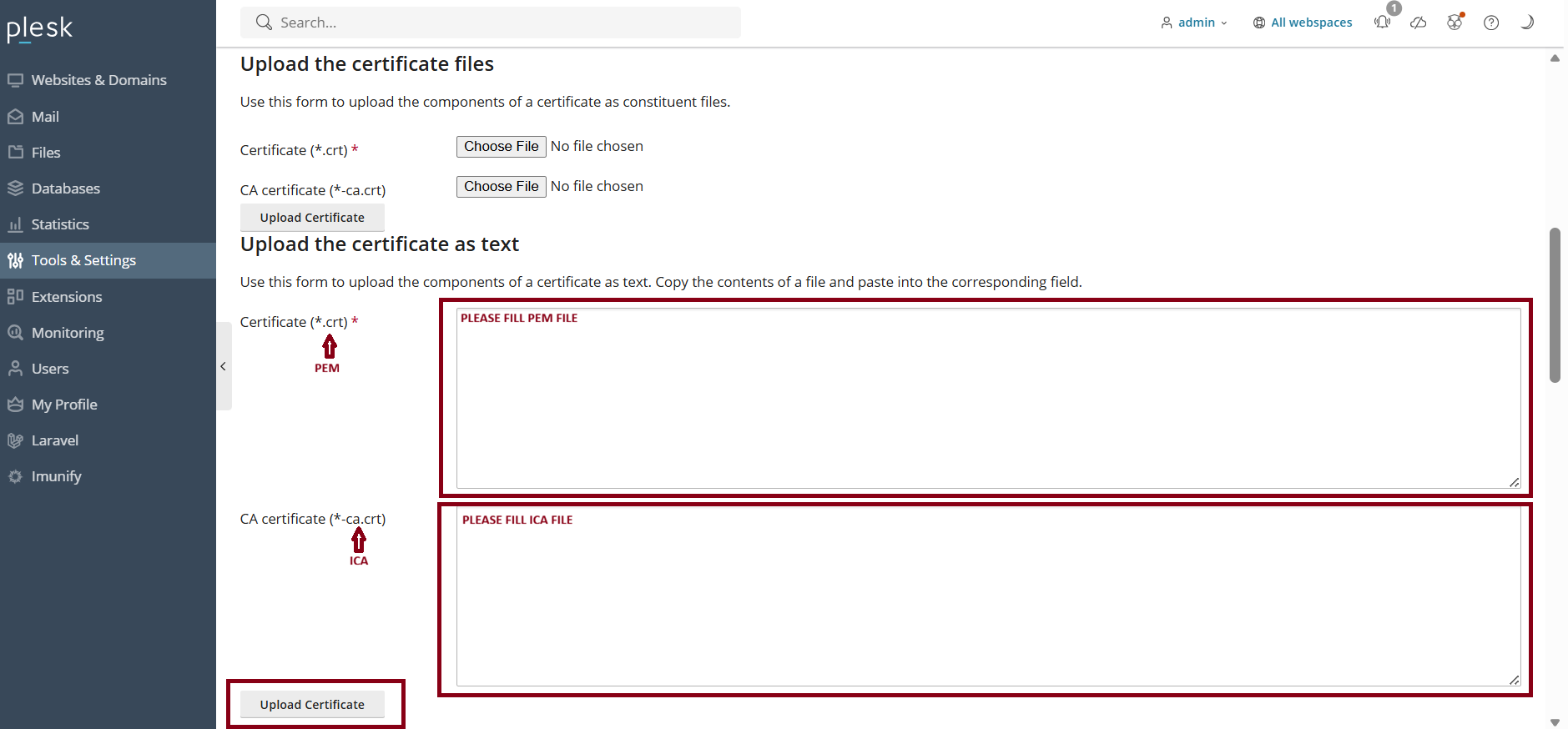
Step2: Select the uploaded certificate from the list.
Click " Make Default " .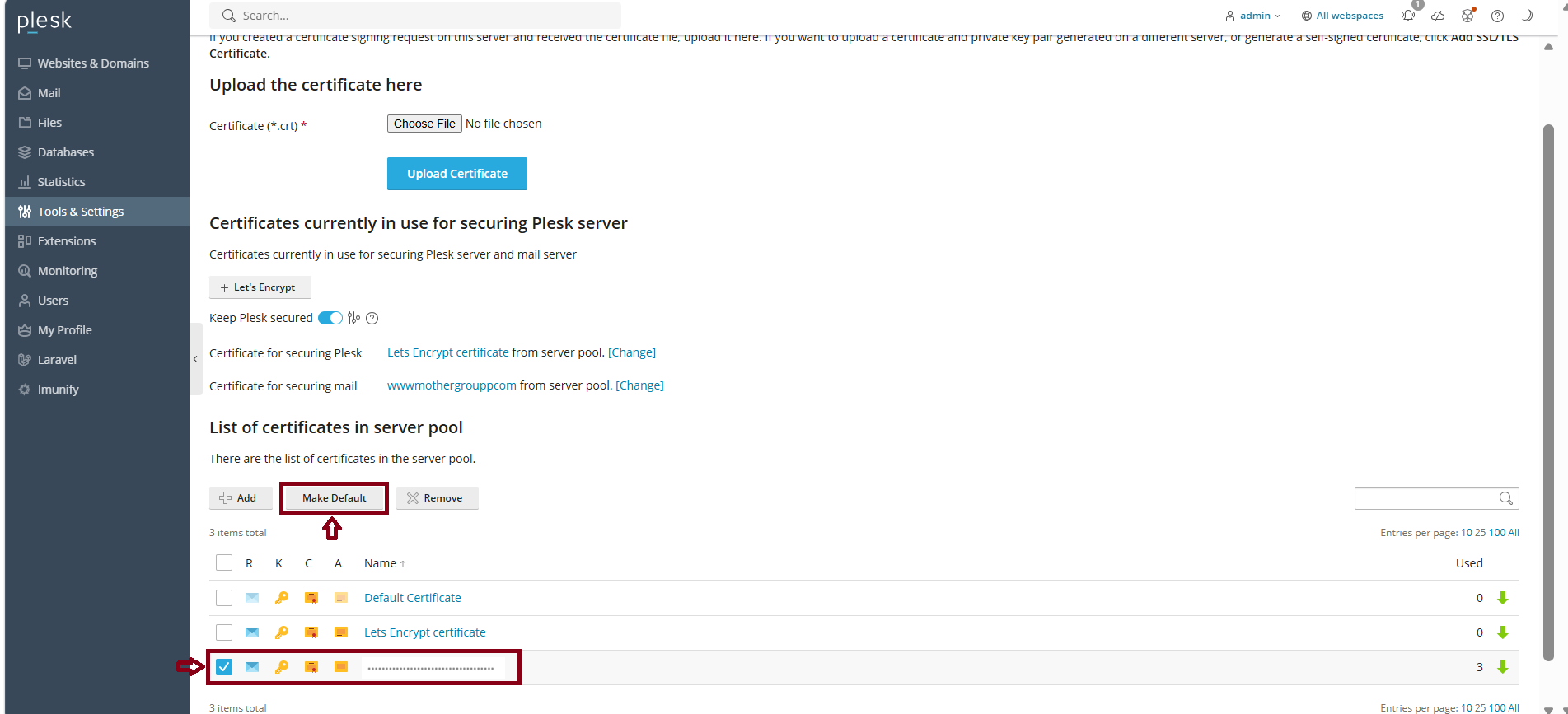
Step3: Click the " Hosting & DNS " tab under Website & Domain
And then click " Hosting "
To check the certificate and domain connect or not . If it is not connect, you can adjust it in Hosting Settings.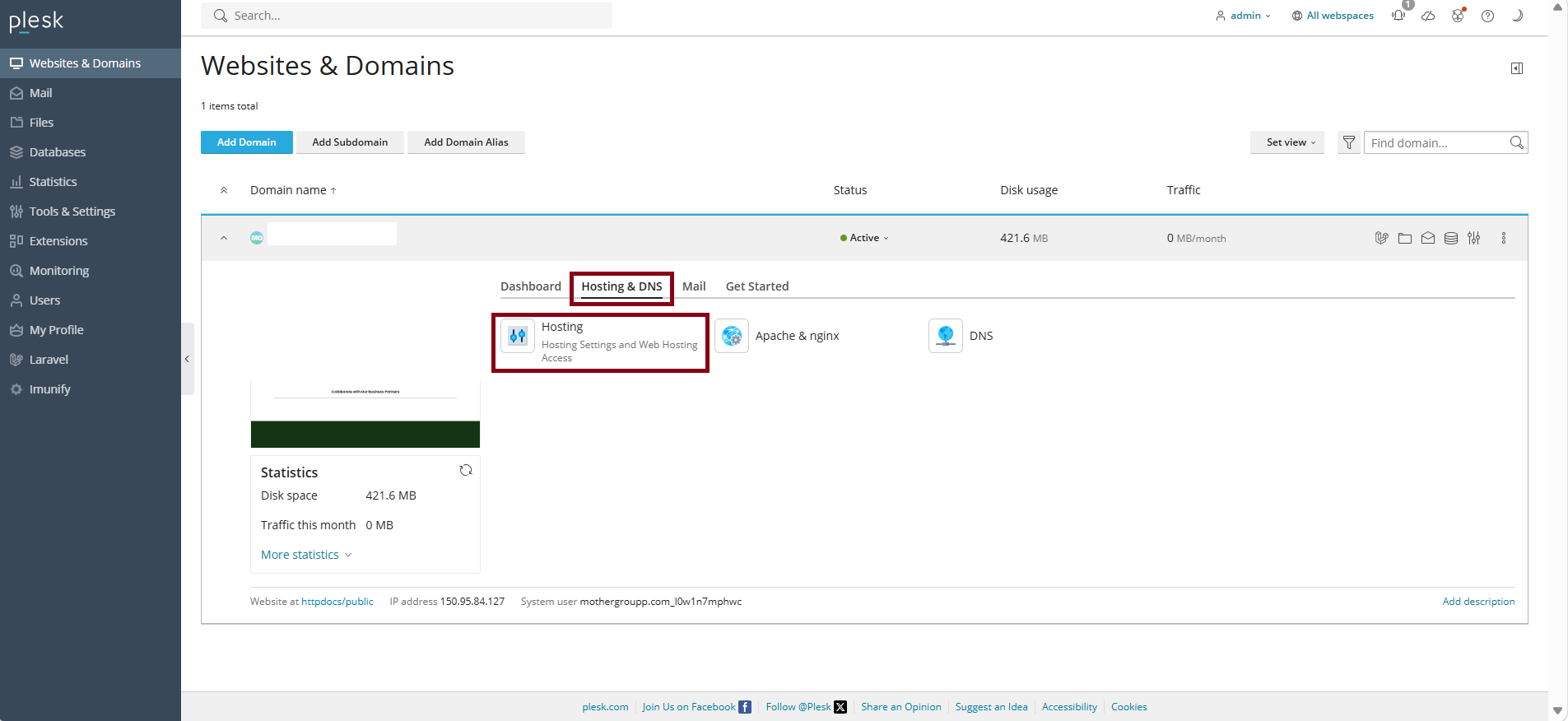
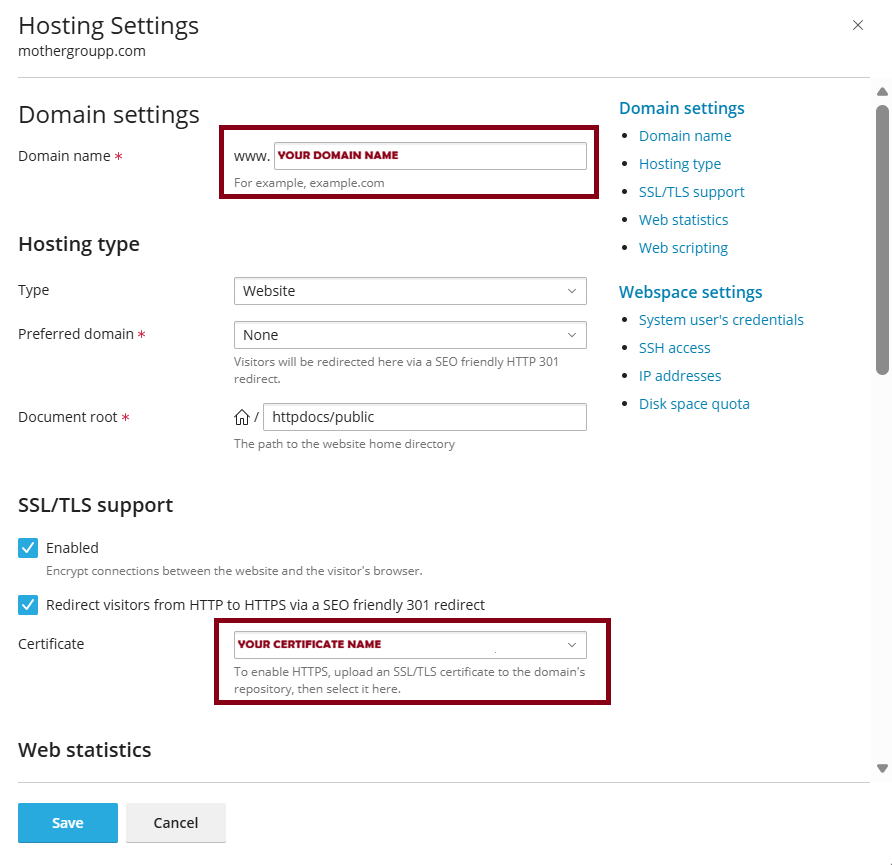
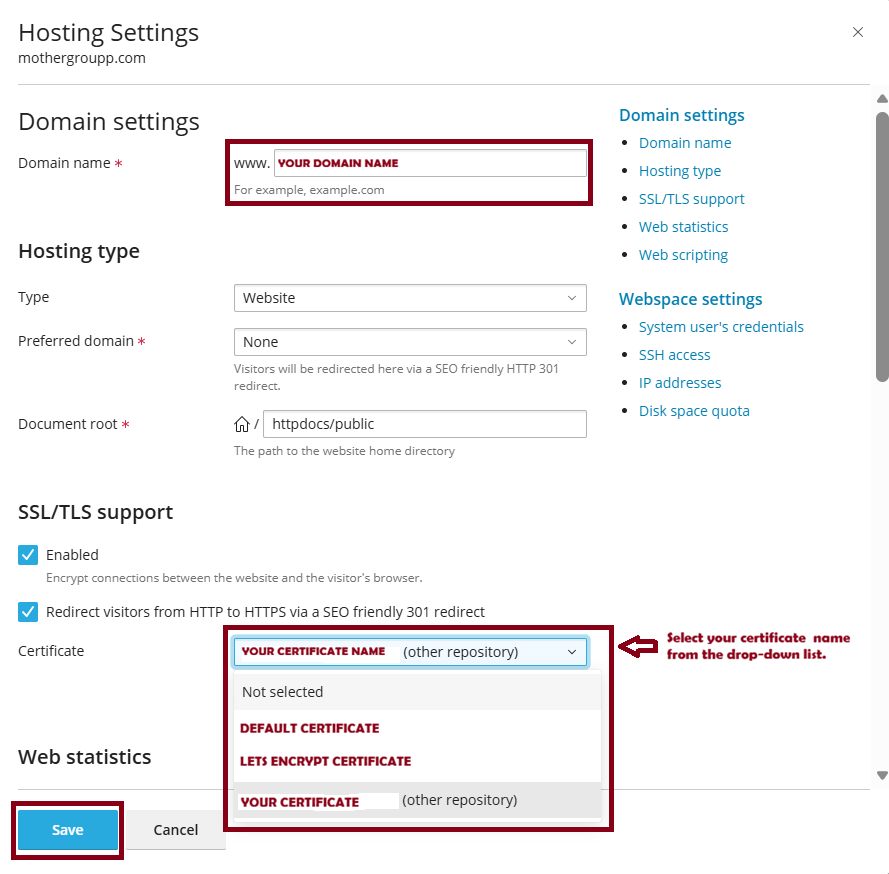
Step4: In Hosting Settings, enable SSL/TLS support and check Redirect visitors from HTTP to HTTPS.
Select the certificate from drop down list , and then click " Save " .
 |  |
Your SSL Installation is Complete.
THANK YOU!!!
Was this article helpful?
That’s Great!
Thank you for your feedback
Sorry! We couldn't be helpful
Thank you for your feedback
Feedback sent
We appreciate your effort and will try to fix the article