How to Migrate SmarterMail Data to Microsoft 365?
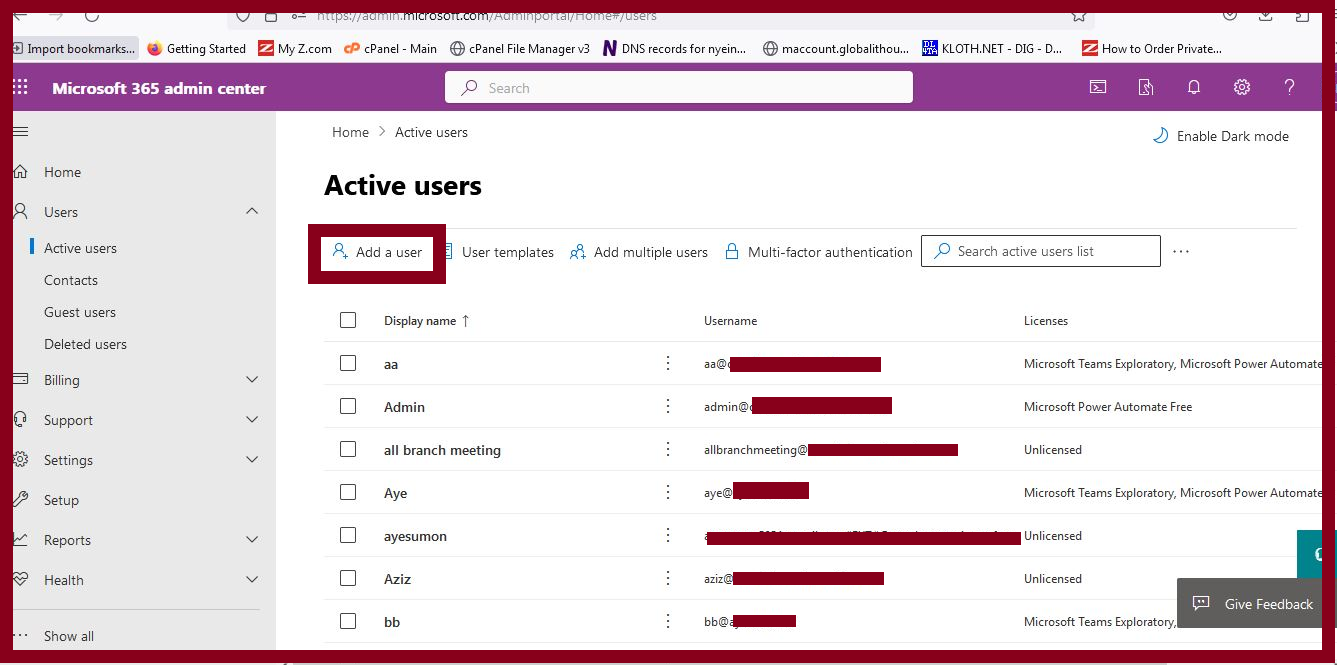
1. Login to Microsoft 365 admin center and go to Active users and then click Add a User to create a user account that you want to migrate from Smarter Mail Server to Microsoft 365.
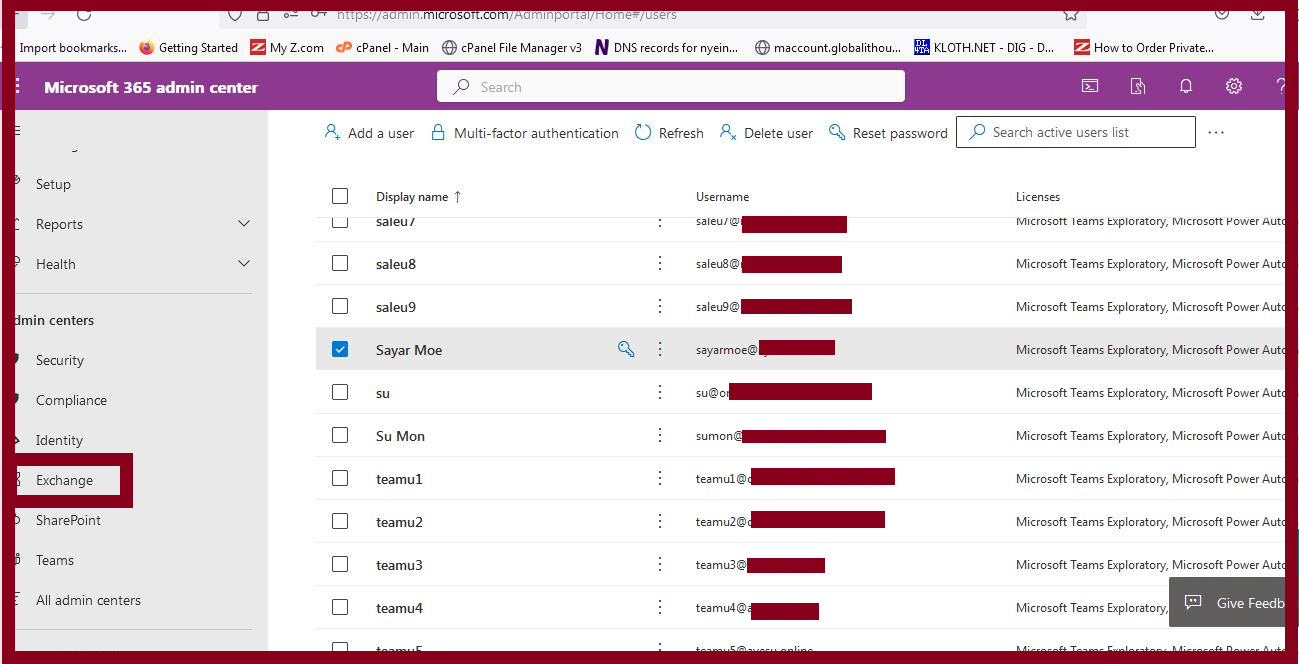
2. Go to the Exchange Admin Center.
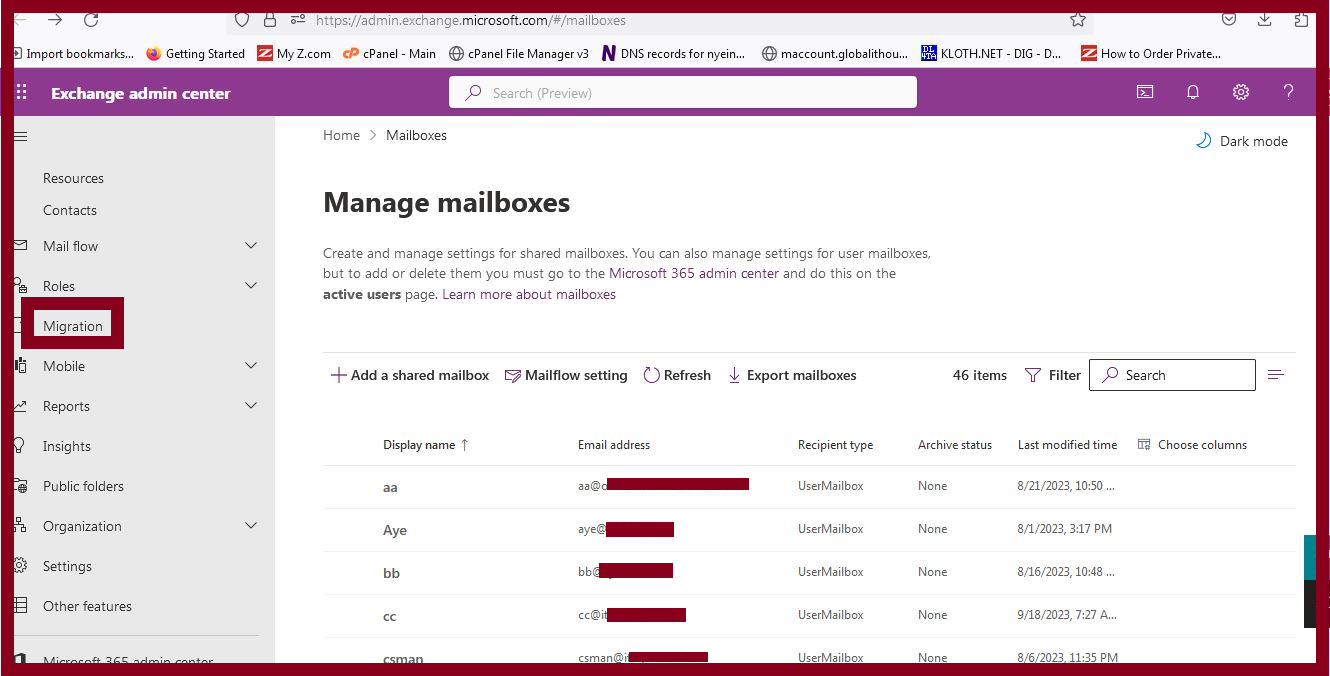
3. Click Migration.
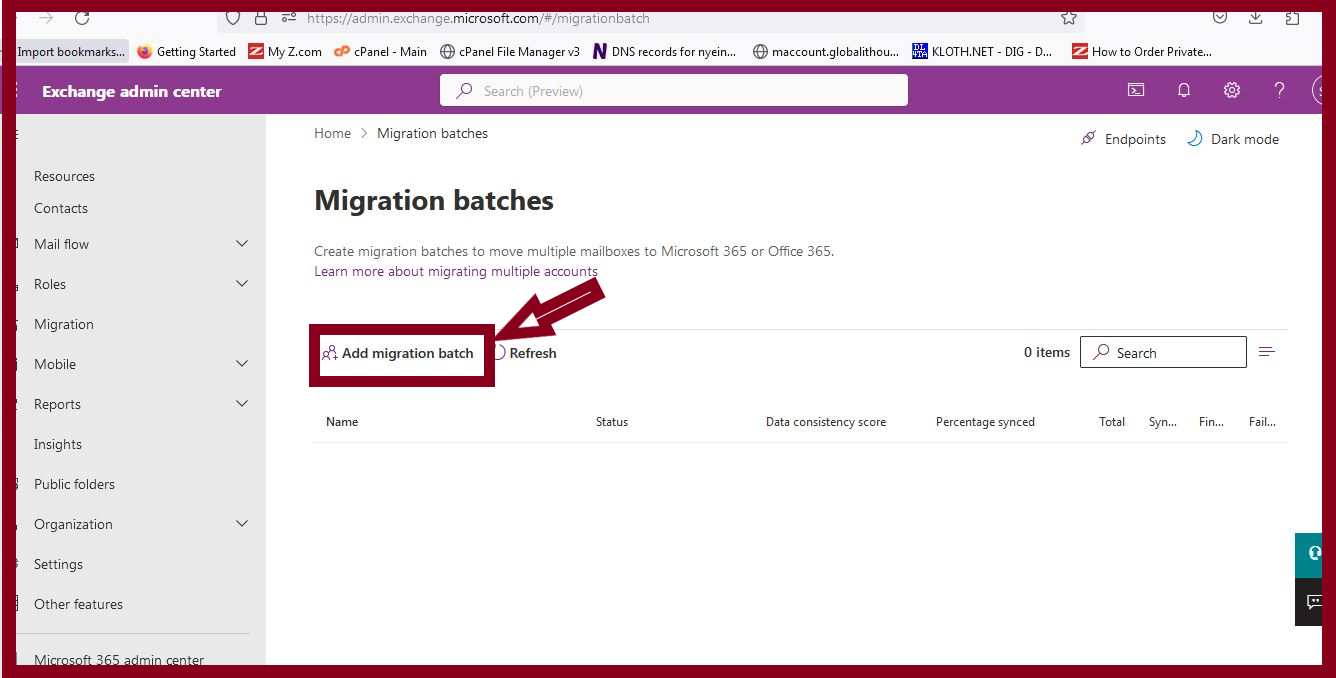
4. Click Add Migration batch.
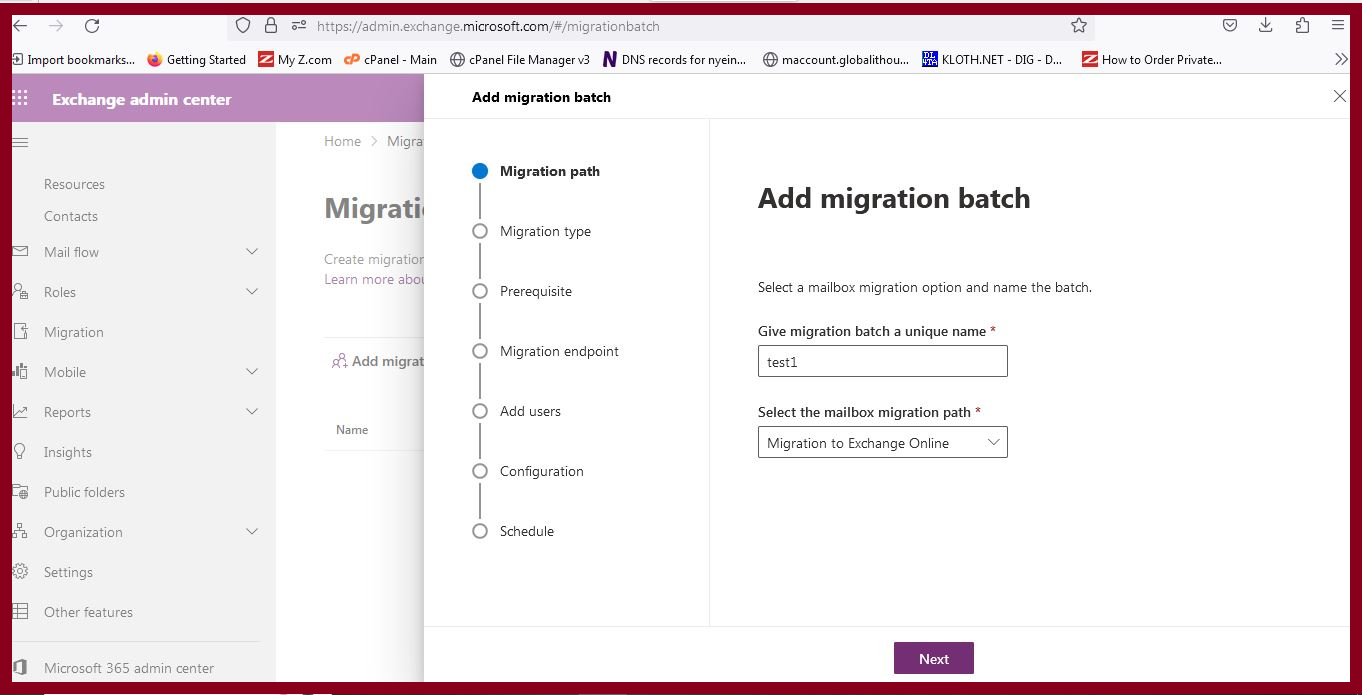
5. Give Migration batch name and select Migration to Exchange Online.
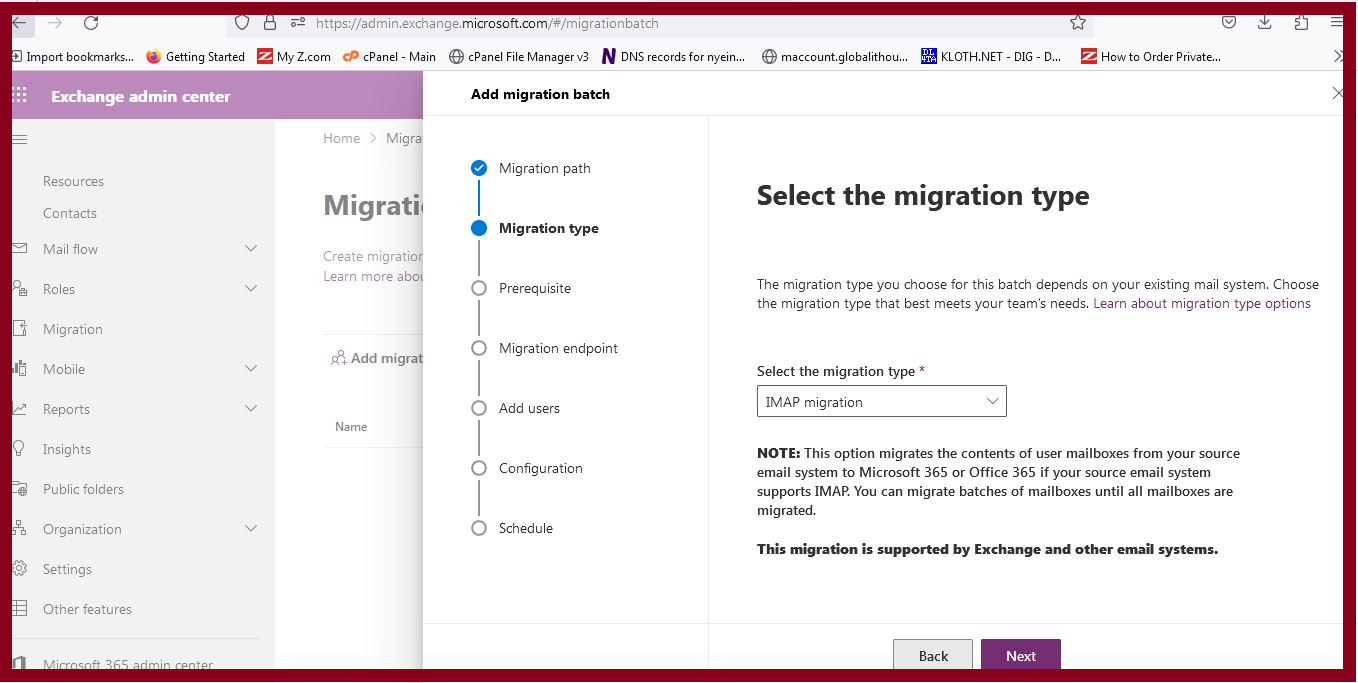
6. Select the IMAP Migration type.
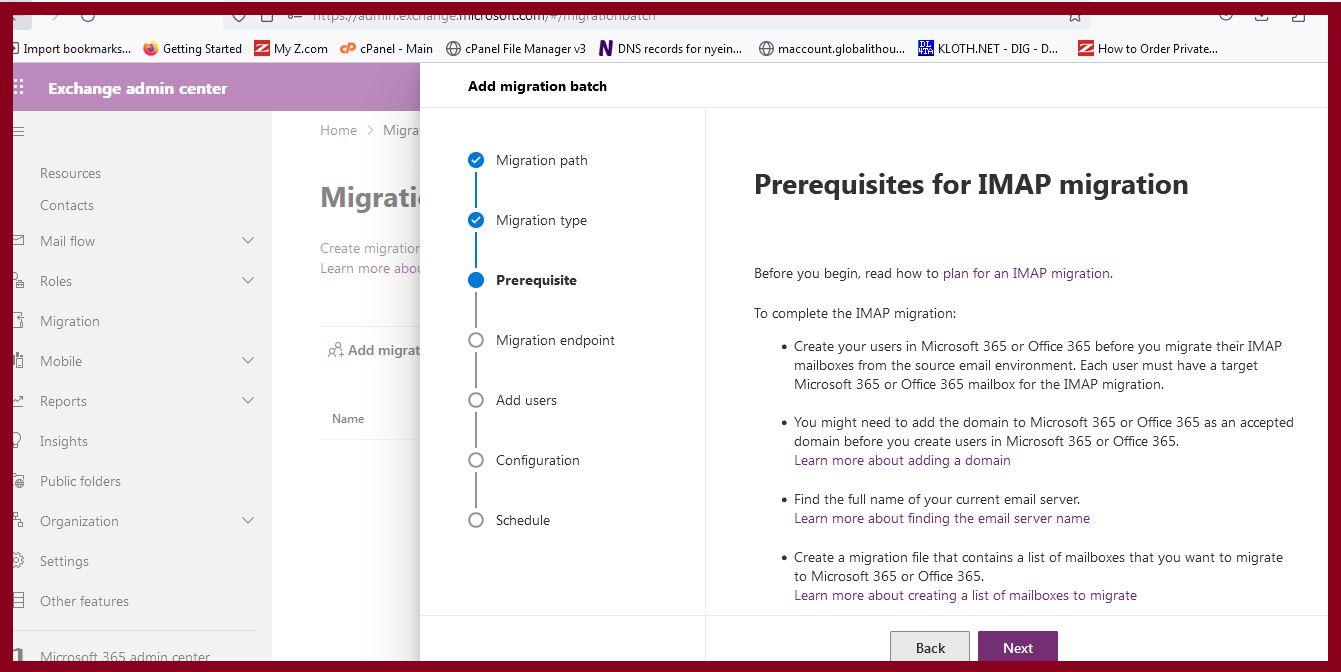
7. Click Next in Prerequisites for IMAP migration.
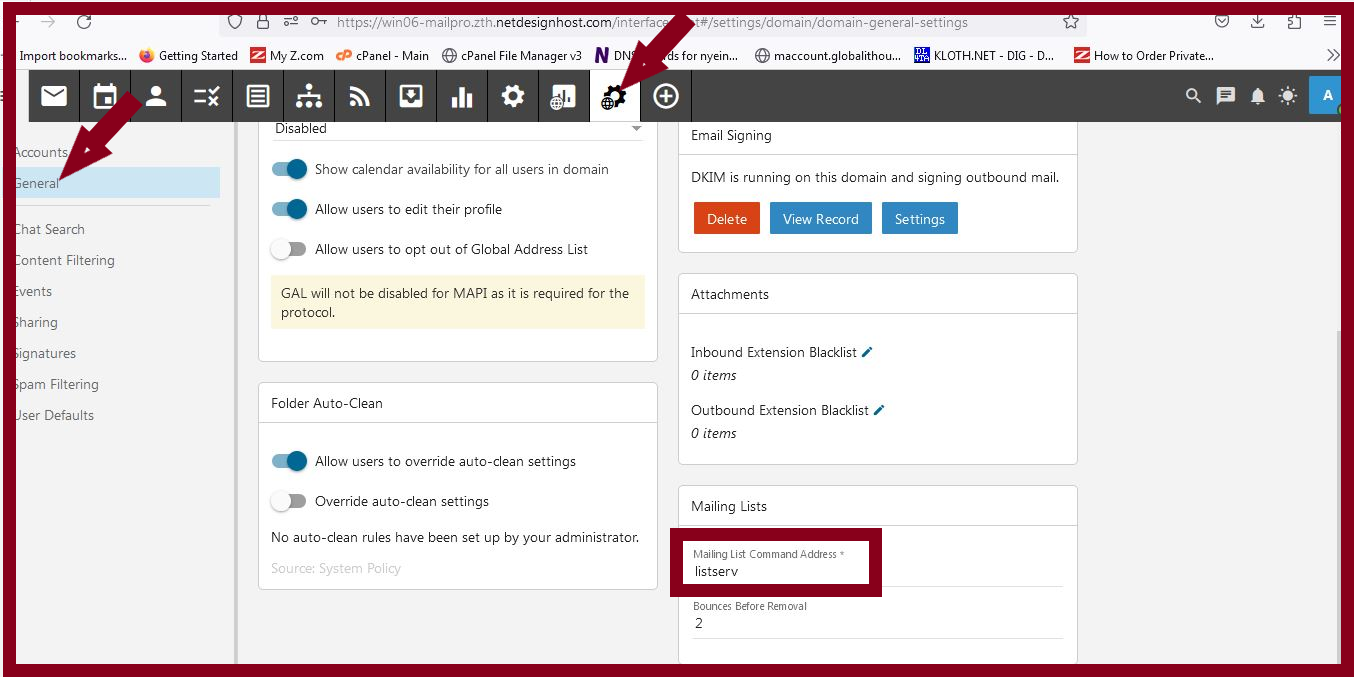
8. Go to the SmarterMail server setting and see the Migration connection address.
9. Select Create a new migration endpoint and insert the migration connection address name of the SmarterMail server.
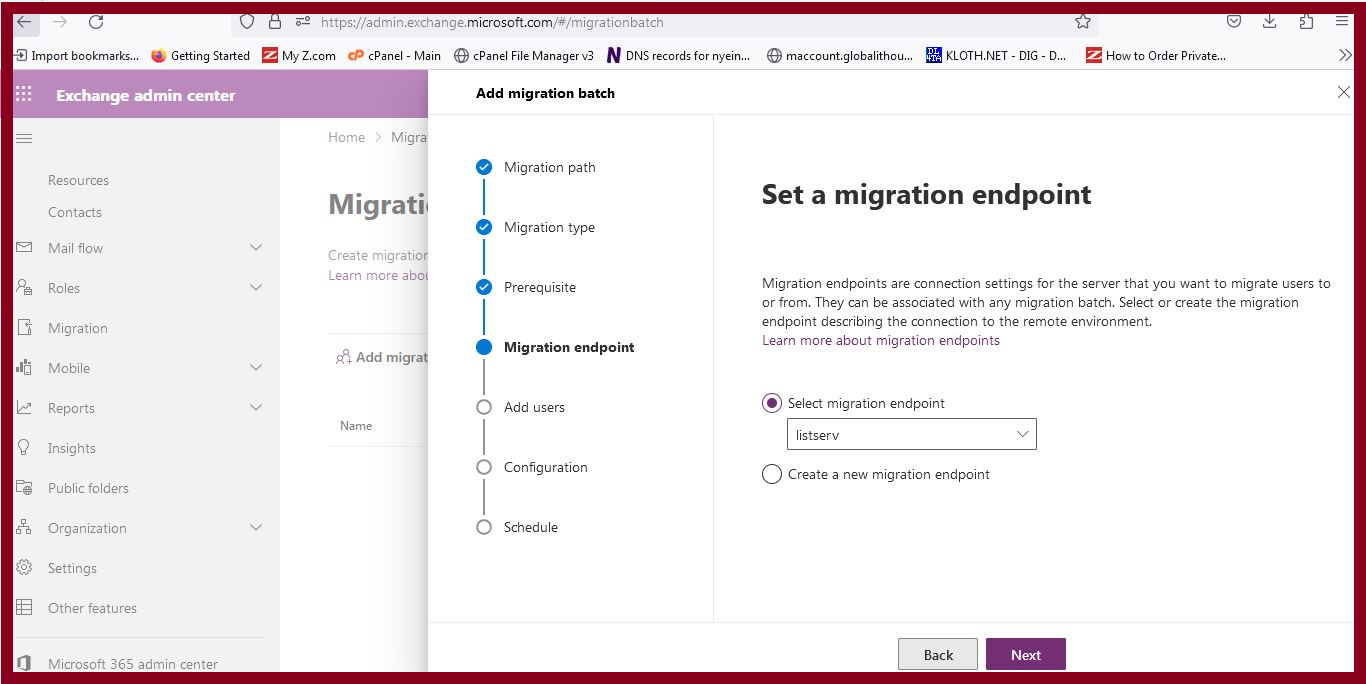
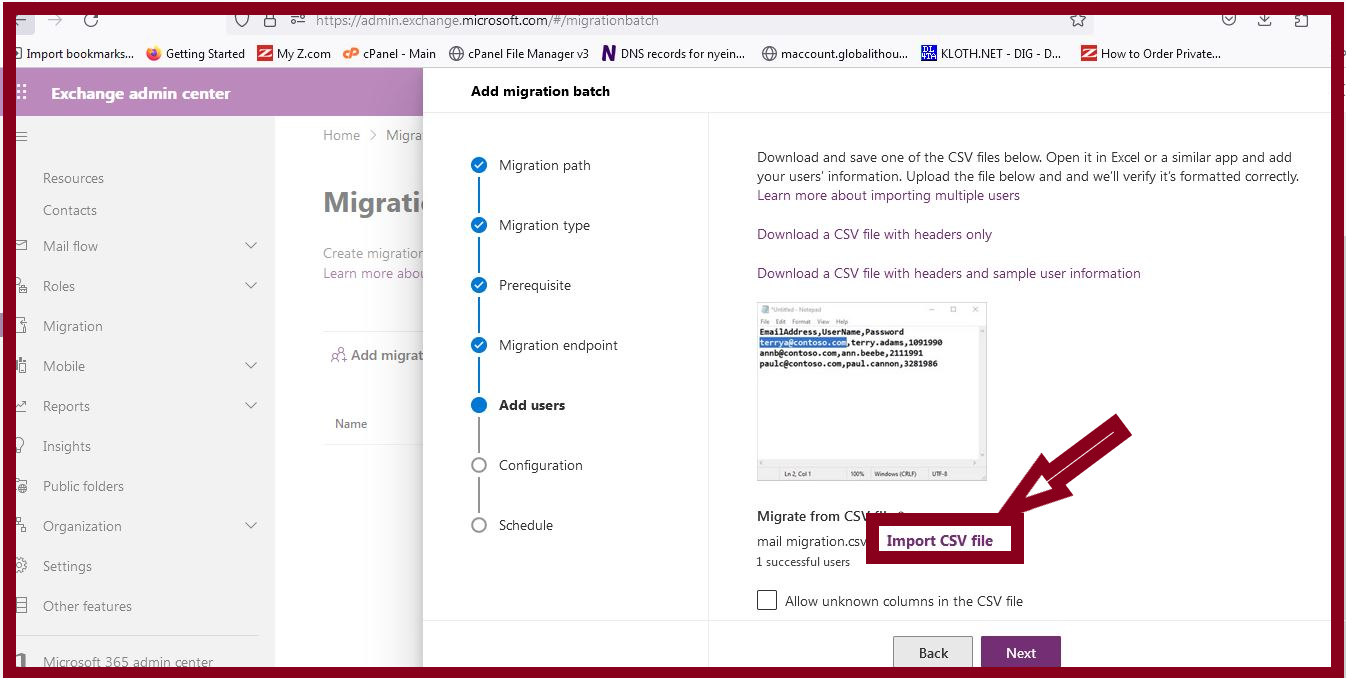
10. Import CSV file.
11. Click Next.
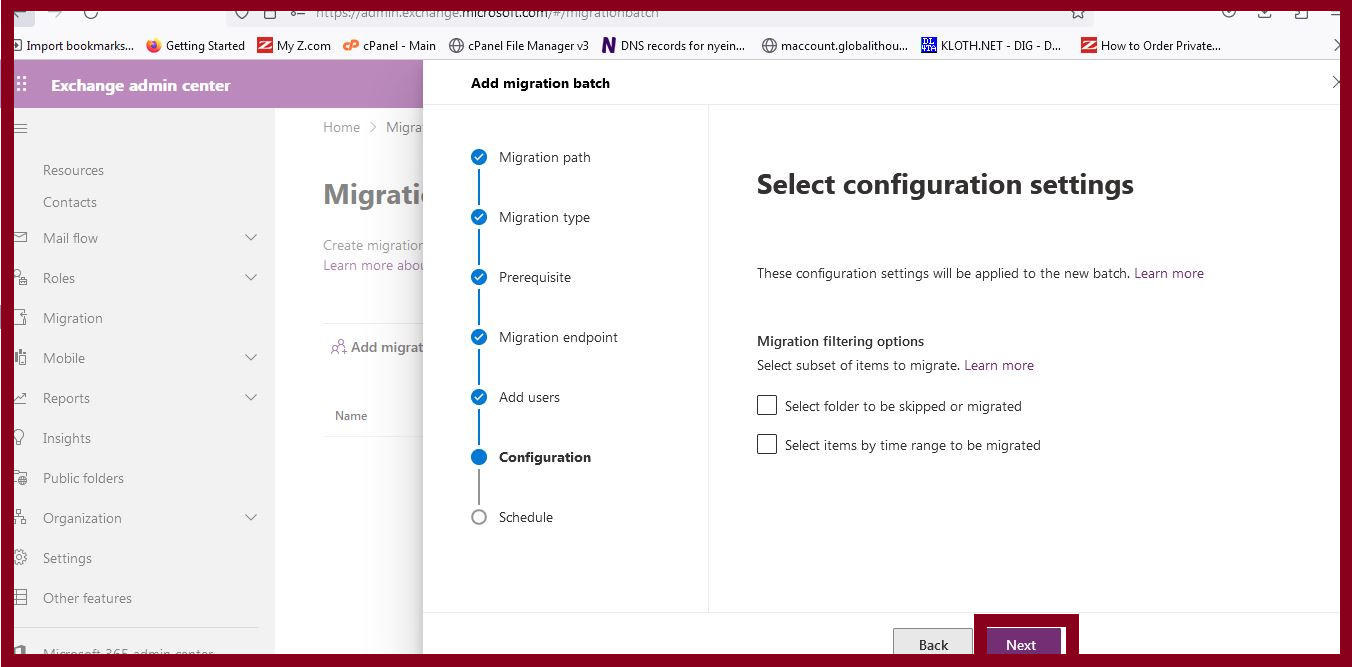
12. Click Next.
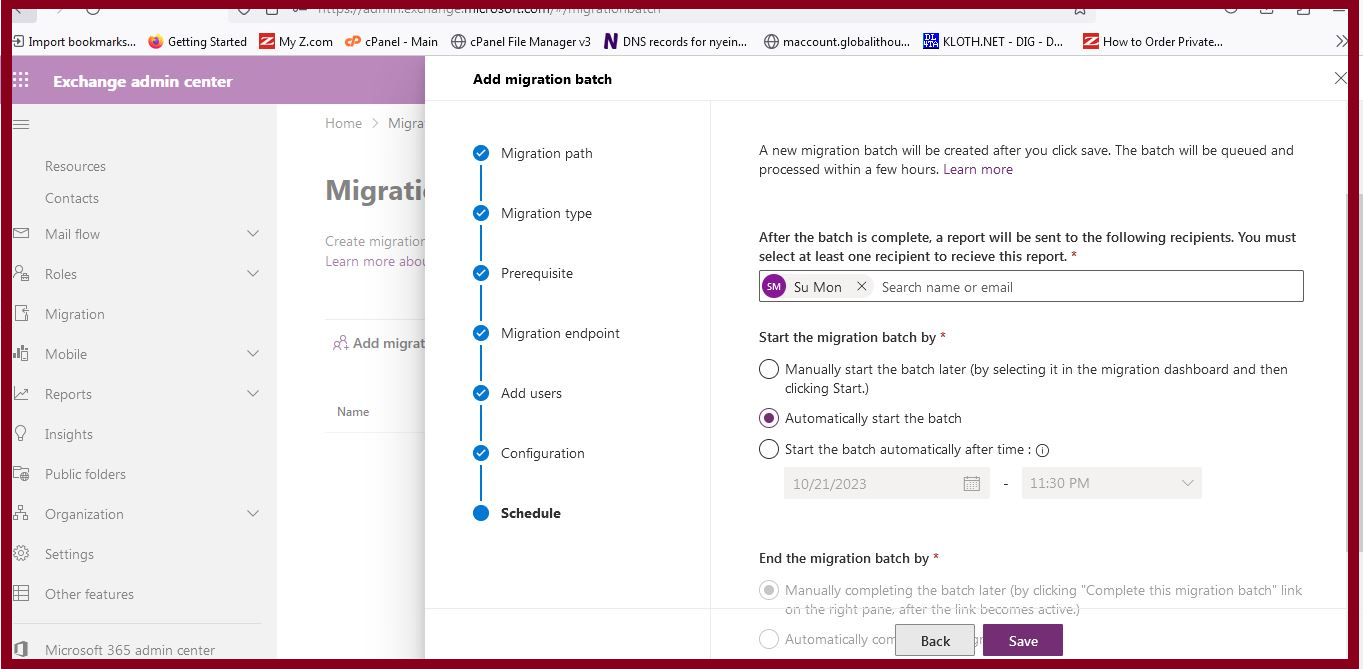
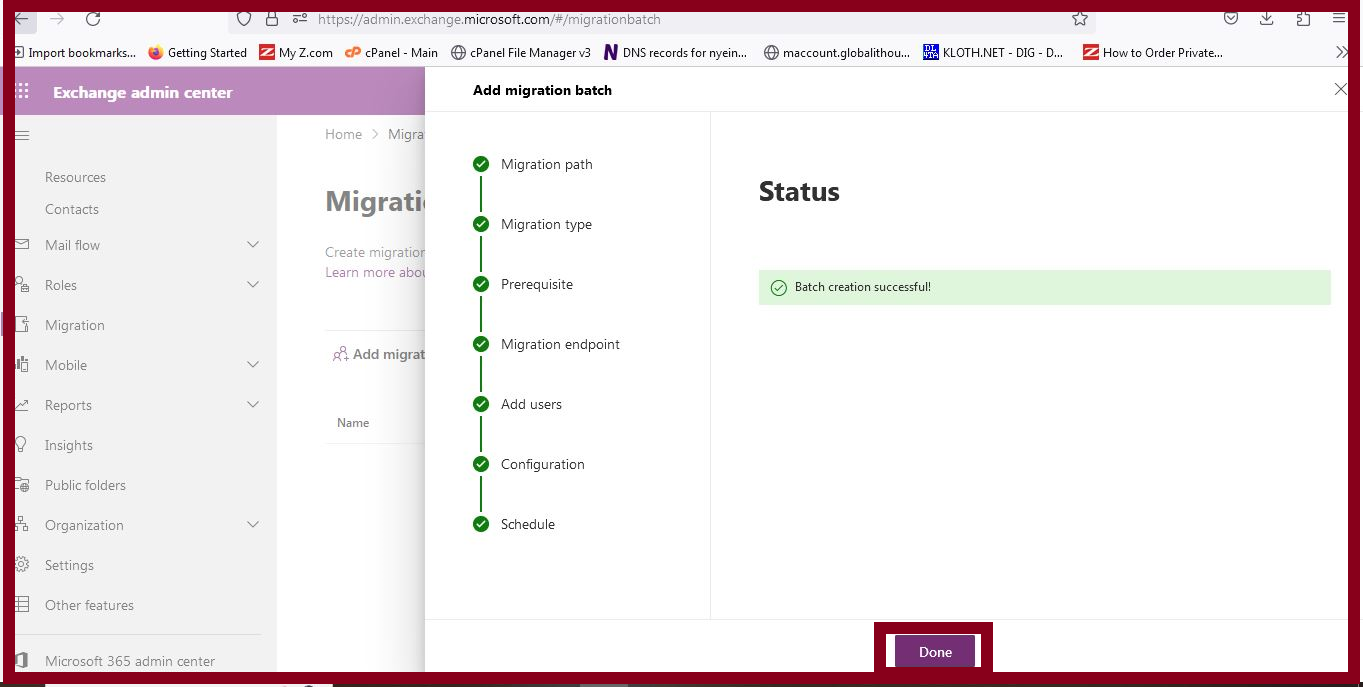
13. After finishing all processes, the status will be successful.
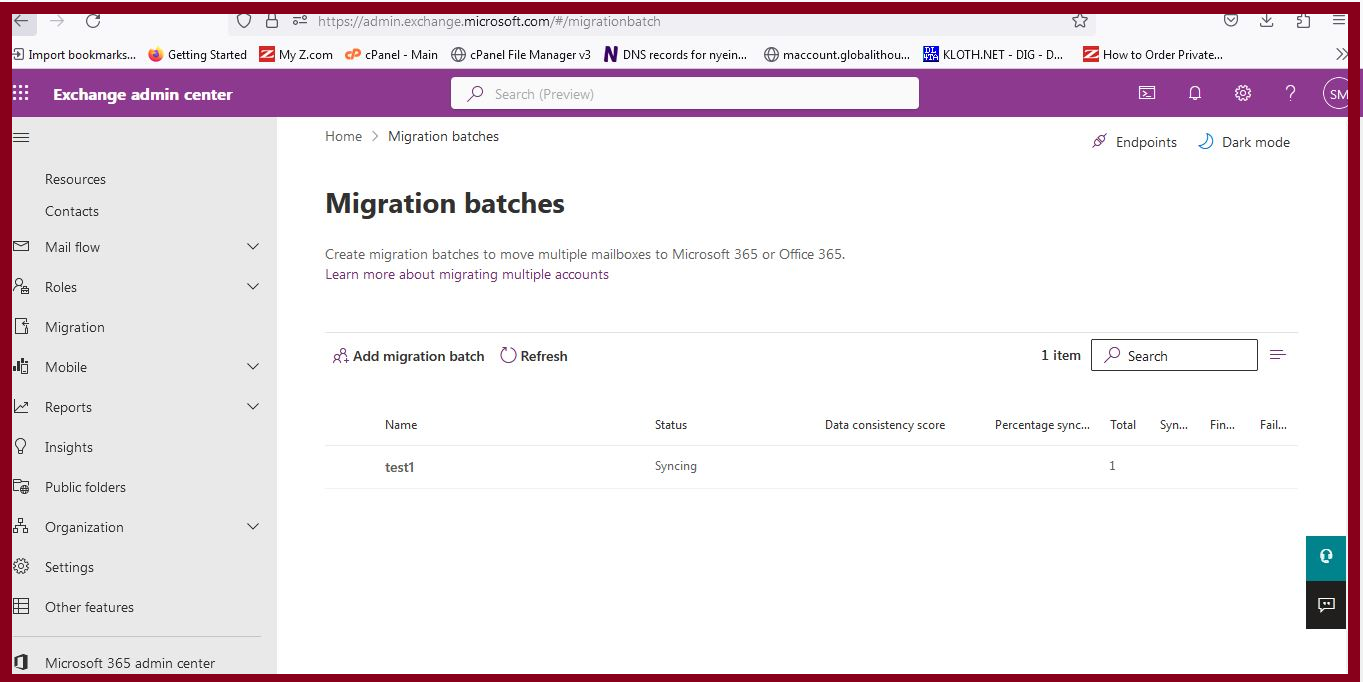
14. Data synchronizing process will take a few minutes.
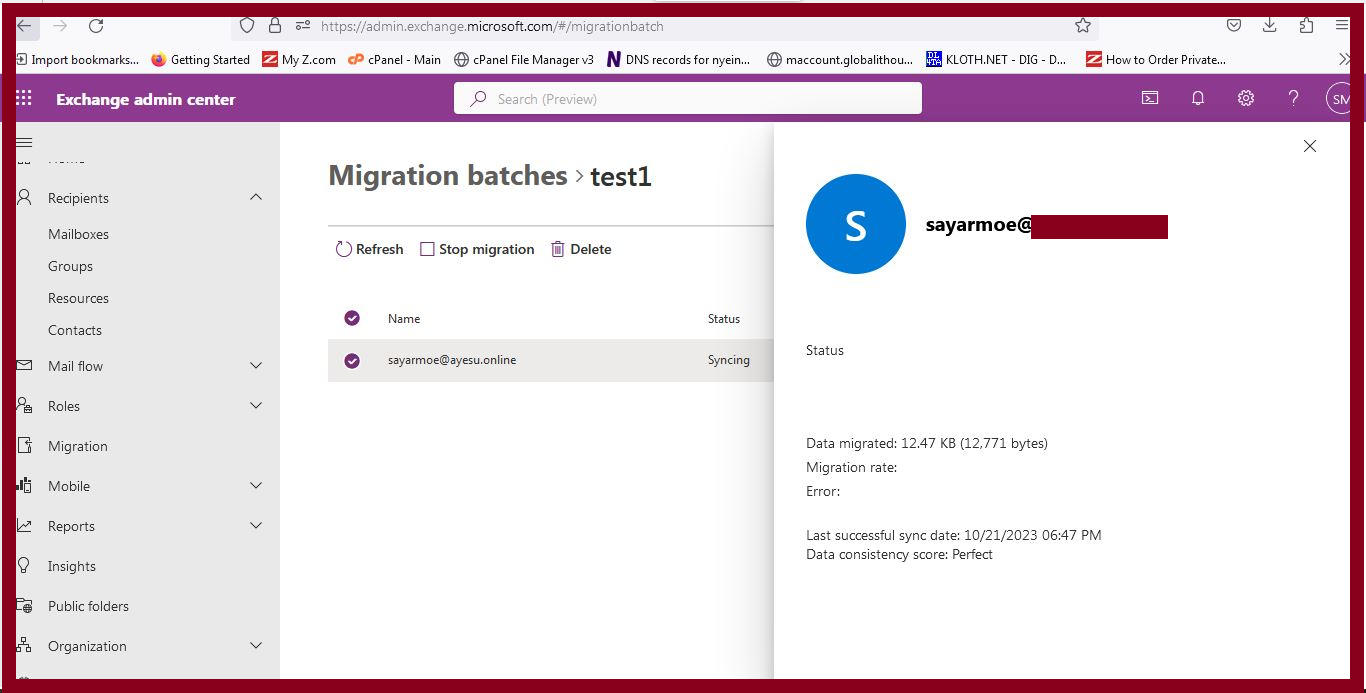
15. If the data migration process is successful, it will show Perfect.
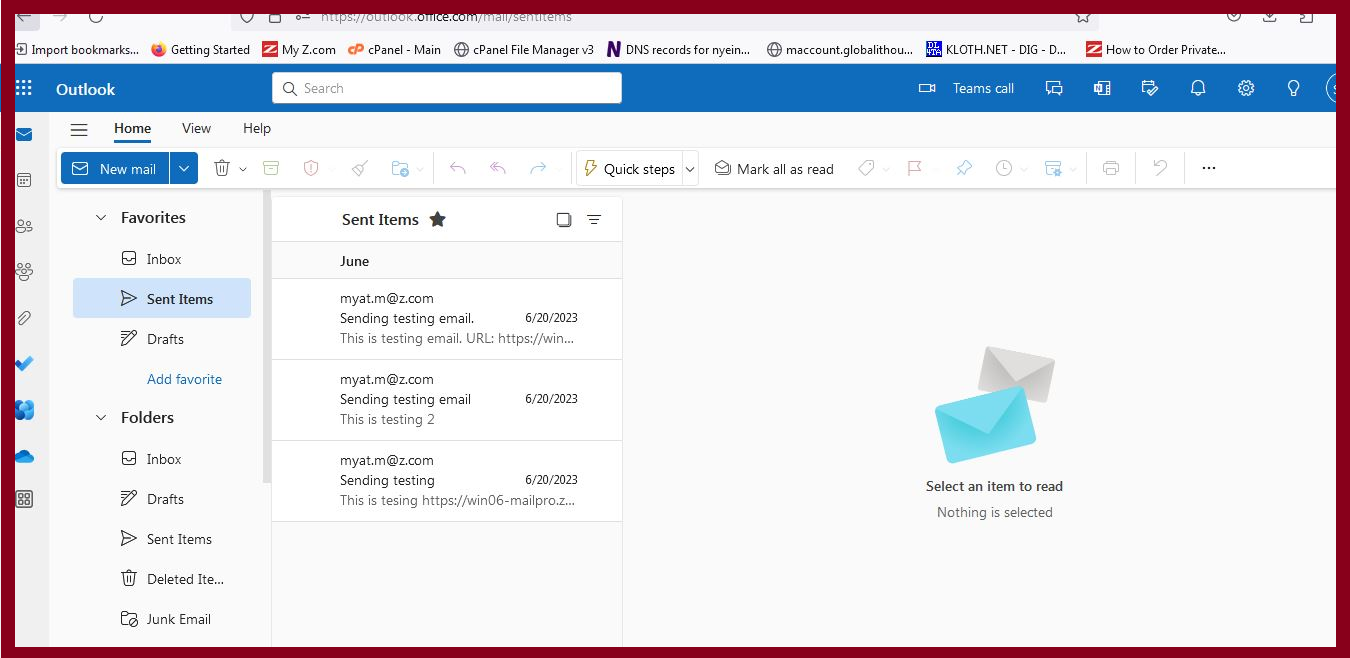
16. After finishing the migration, check your mail data.
Thank you!!!.
Was this article helpful?
That’s Great!
Thank you for your feedback
Sorry! We couldn't be helpful
Thank you for your feedback
Feedback sent
We appreciate your effort and will try to fix the article