How to Create an FTP Account in Plesk?
To create an FTP account in Plesk, please follow the below instruction.
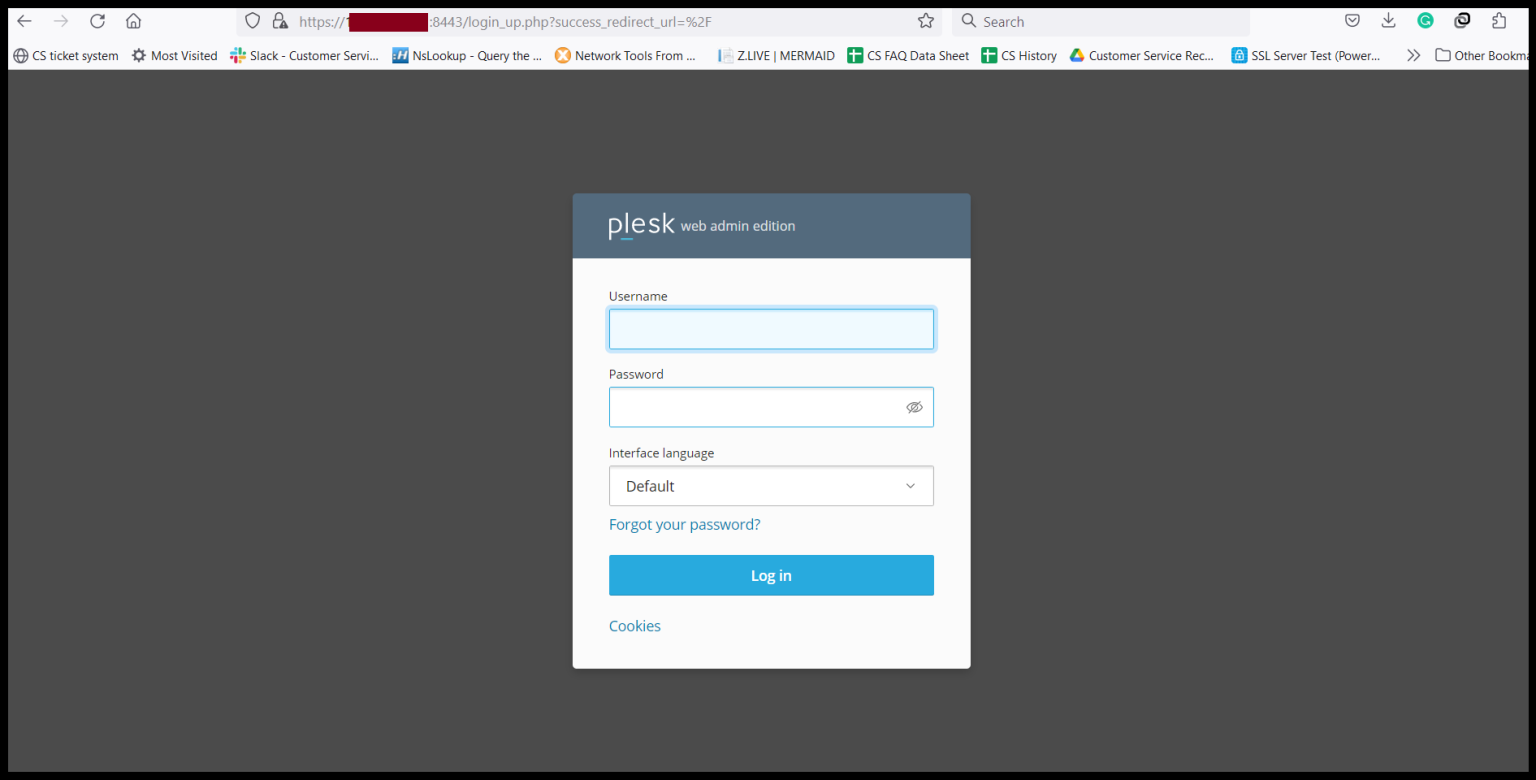
Step 1. Login to the Plesk server.
Sample URL- https://150.95.xxx.xxx:8443/
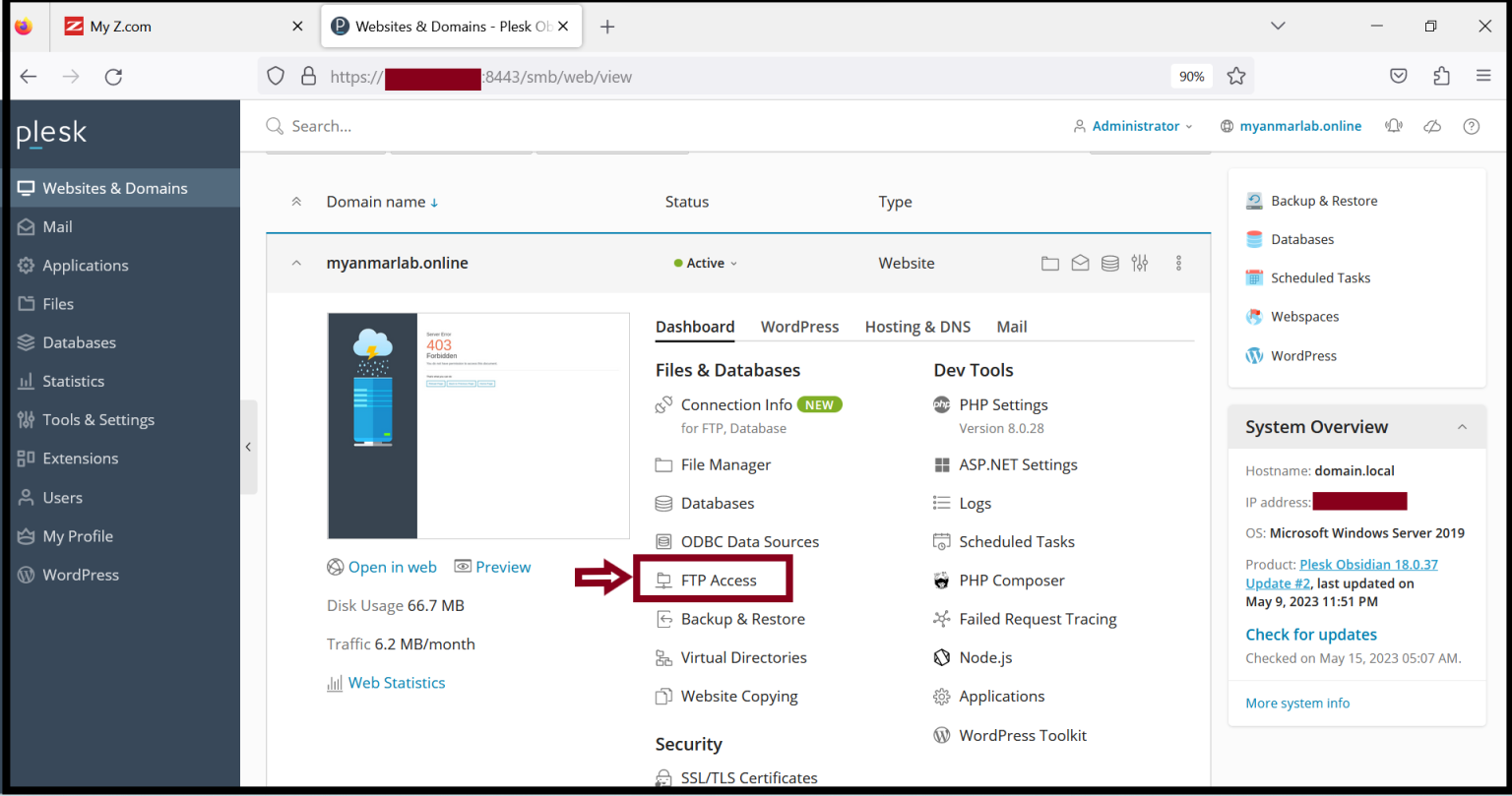
Step 2. Go to "Websites & Domains" and Click "FTP Access".
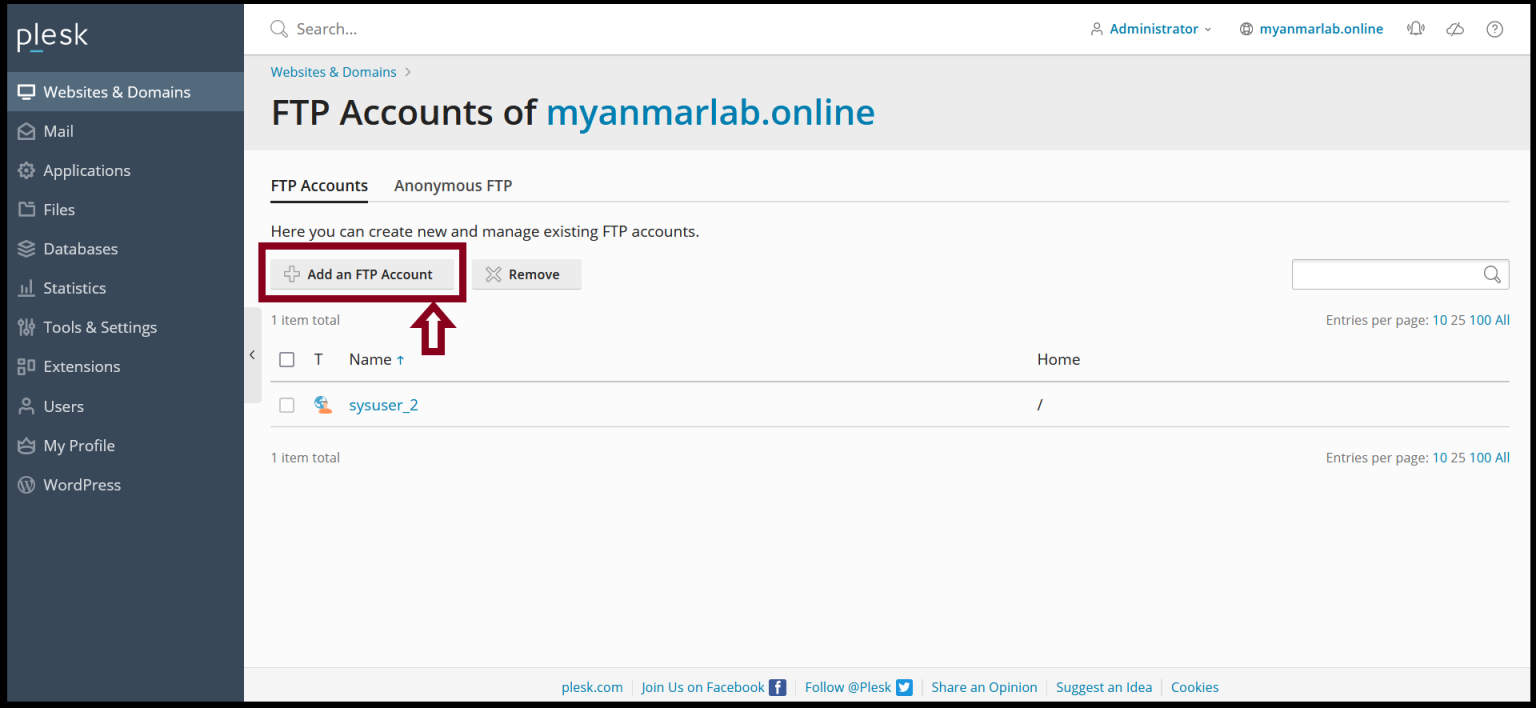
Step 3. Click "Add an FTP Account".
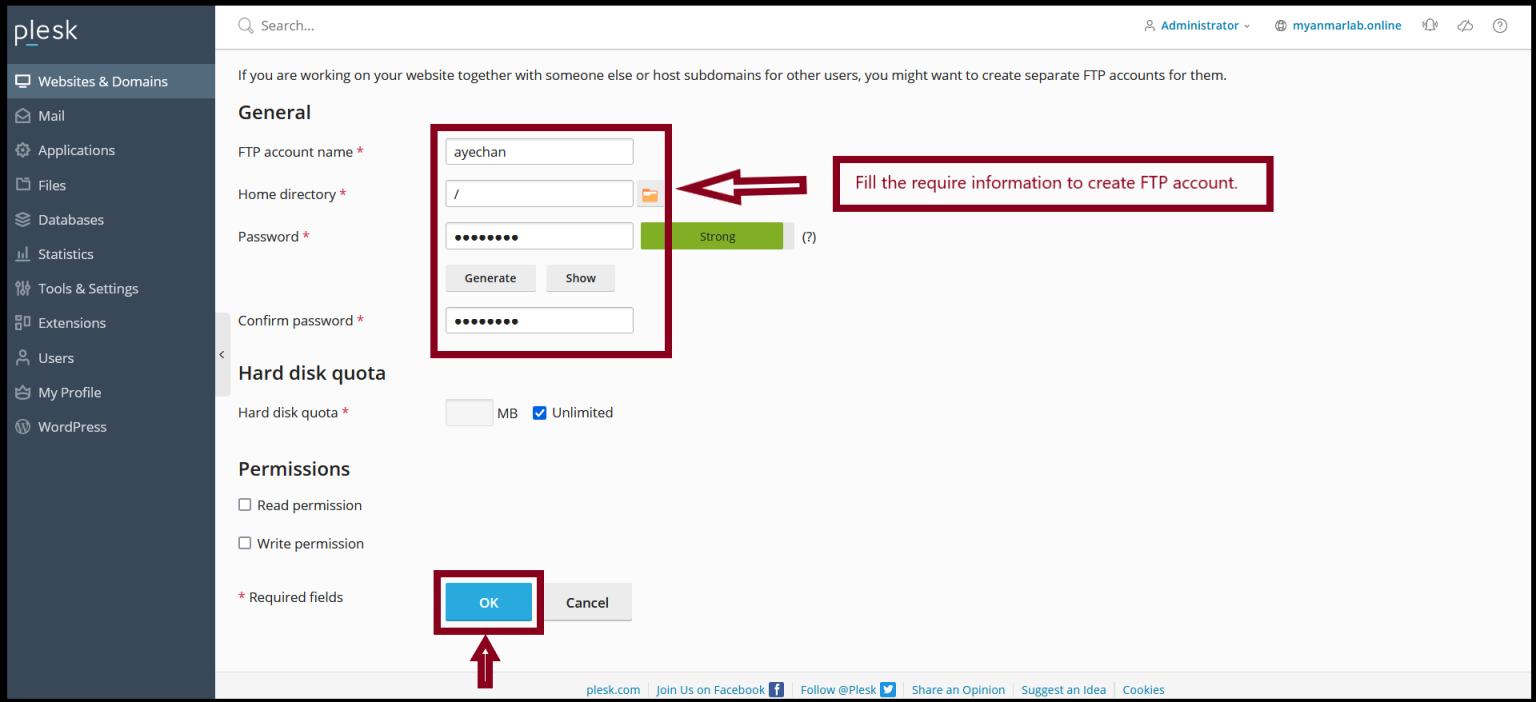
Please fill require information to create FTP account. And also we can give Permissions for FTP user. FTP account name: Password: |
After that please click "Ok".
Step 4. Now, you can see the FPT account created and click on account name for account details.
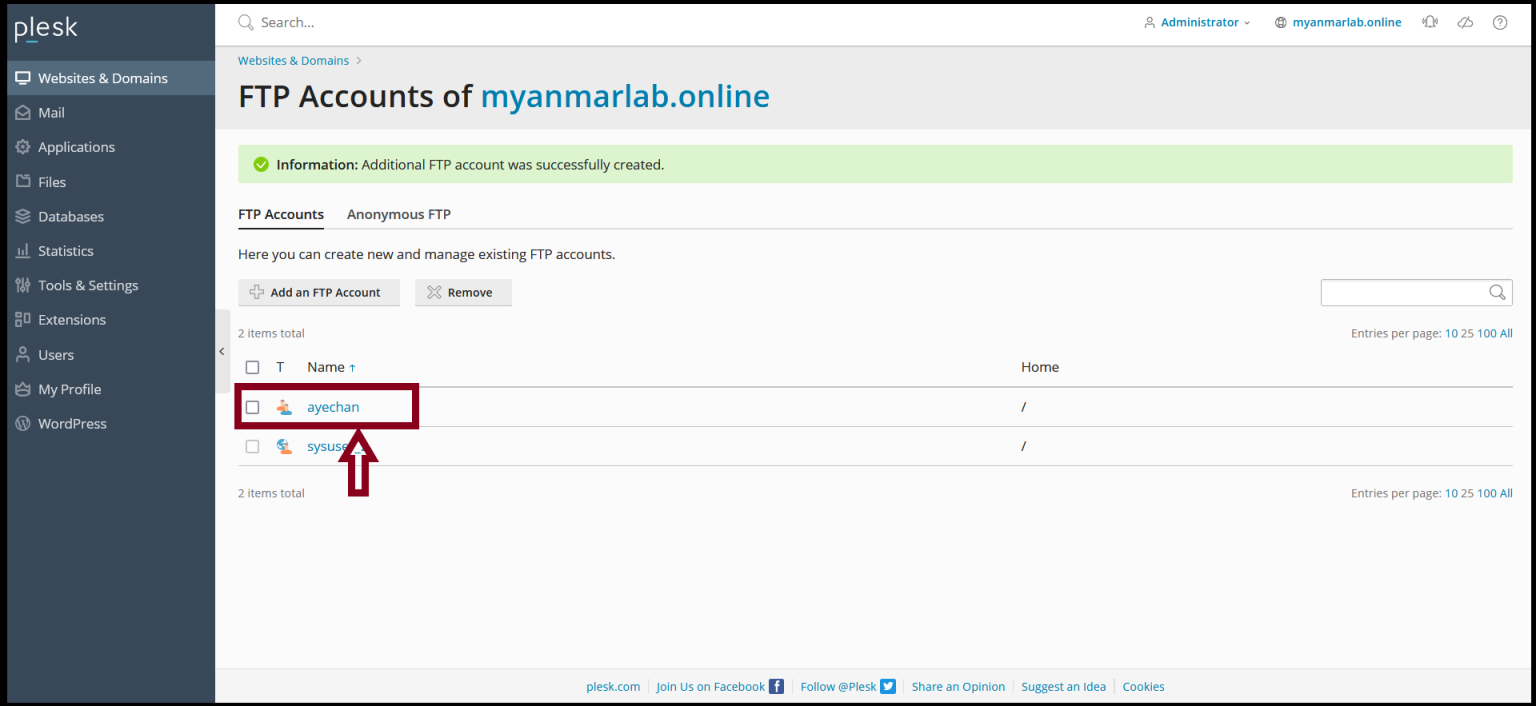
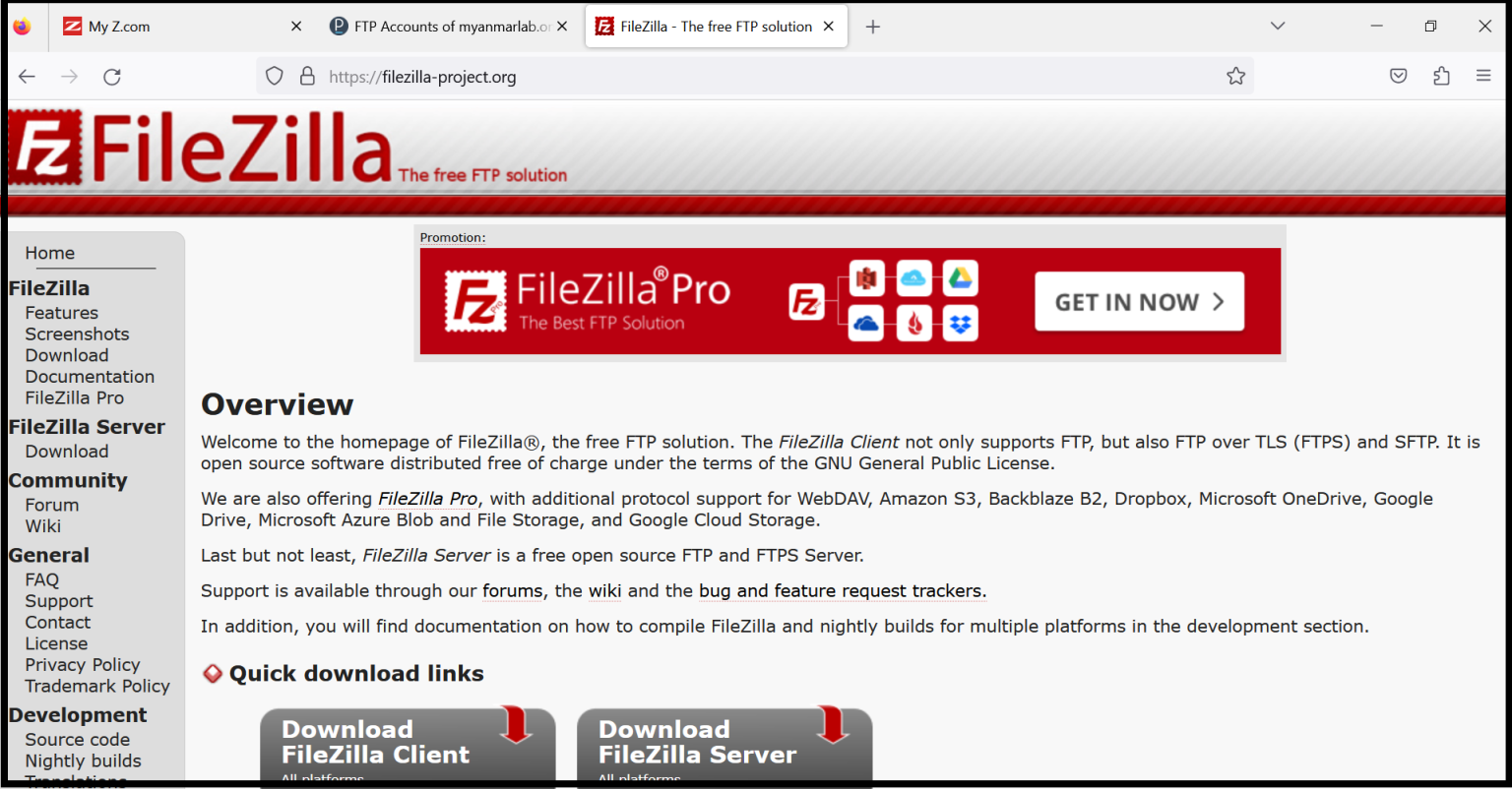
Step 5. Now you can use any FTP client software to transfer files from and to the server. Most common software are FileZilla, WinSCP etc...
Download FTP software from the following URL.
FileZilla: https://filezilla-project.org/download.php
WinSCP: https://winscp.net/eng/download.php
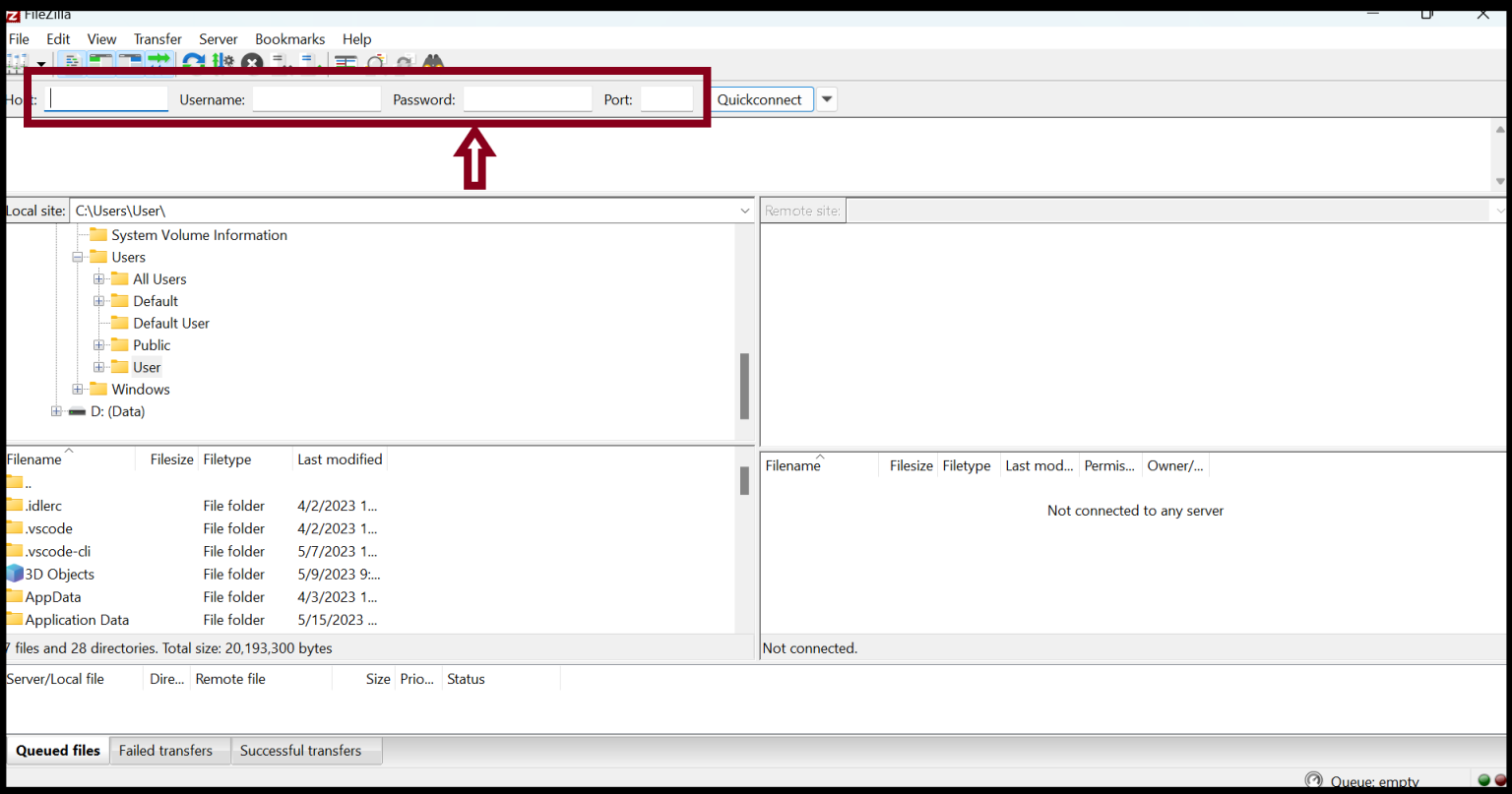
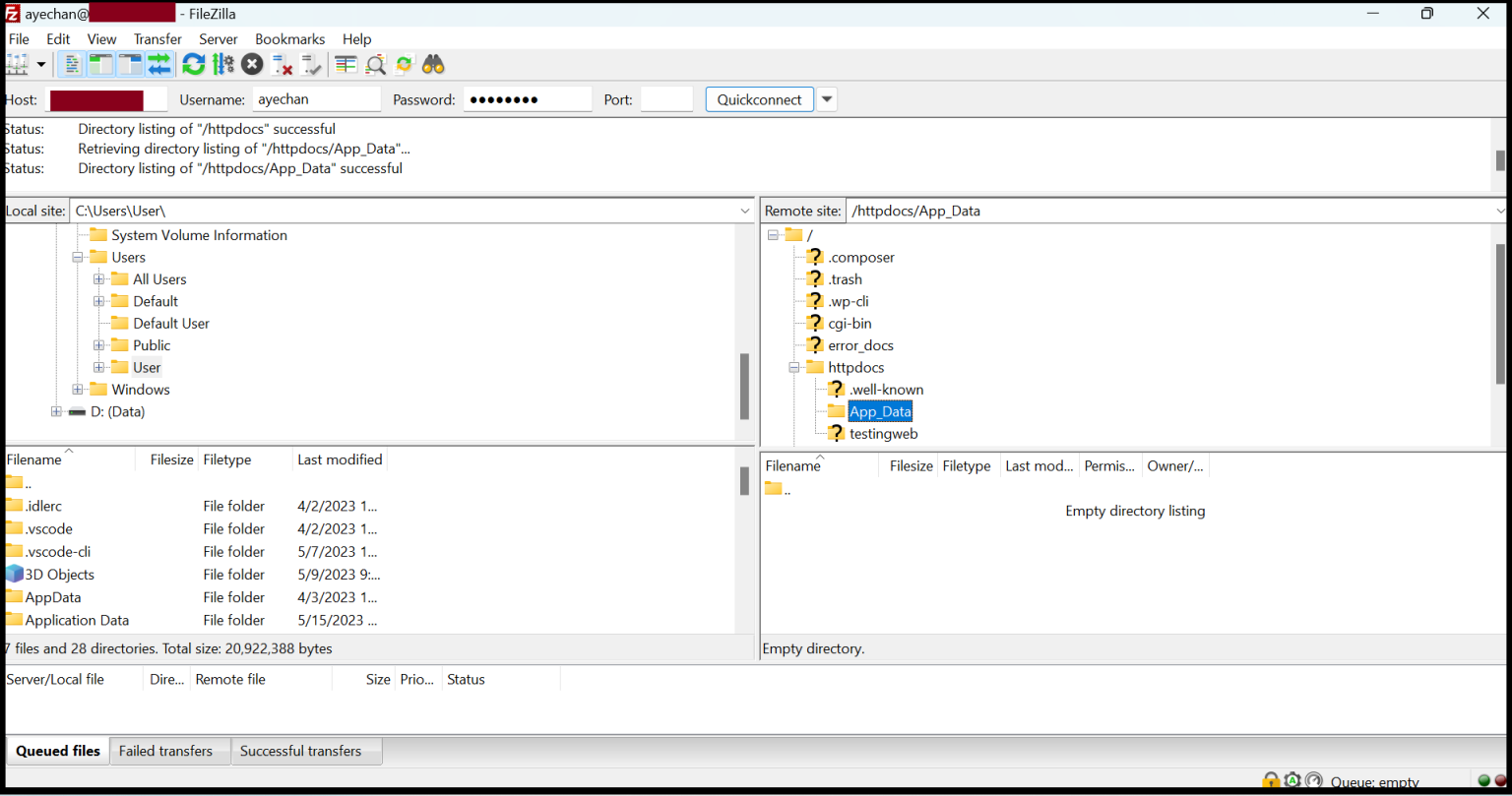
Step 6. Fill the information to login to the server with FTP user.
Hostname: 150.95.xx.xx (example server IP) Username: Password: Port: |
Then click "Ok".
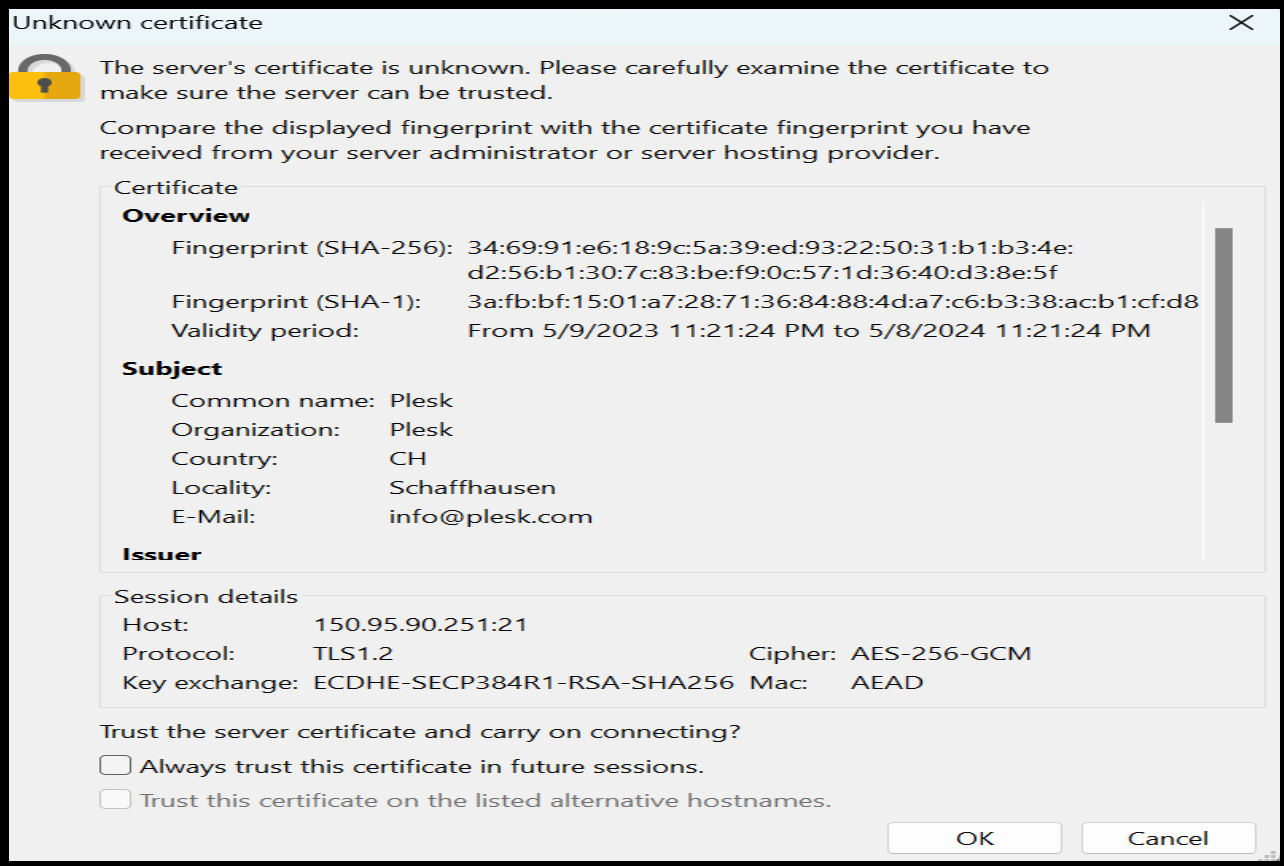
Step 7. Now you login to the server with FTP user successfully.
Thank you!!!
Was this article helpful?
That’s Great!
Thank you for your feedback
Sorry! We couldn't be helpful
Thank you for your feedback
Feedback sent
We appreciate your effort and will try to fix the article