How to Create the FTP Account on cPanel (Web Hosting)?
Step1. Login to the Z.com account, https://cloud.z.com/mm/signin/
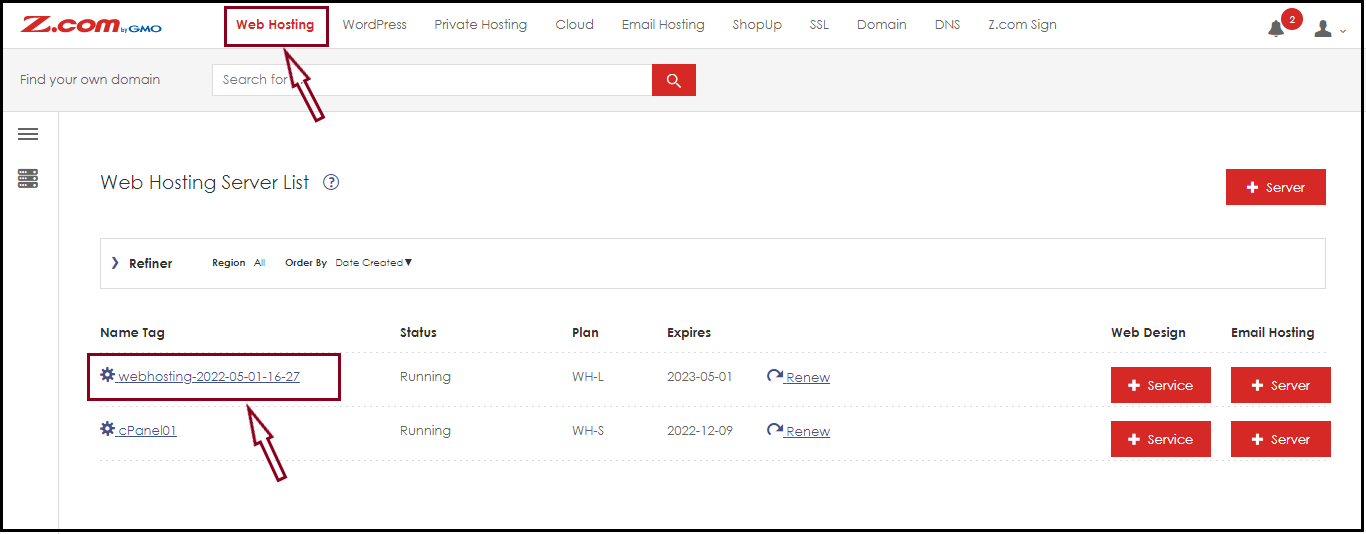
Step2. Click the "Web Hosting" Menu
Step3. Select your Webhosting server Under Web Hosting Server List.
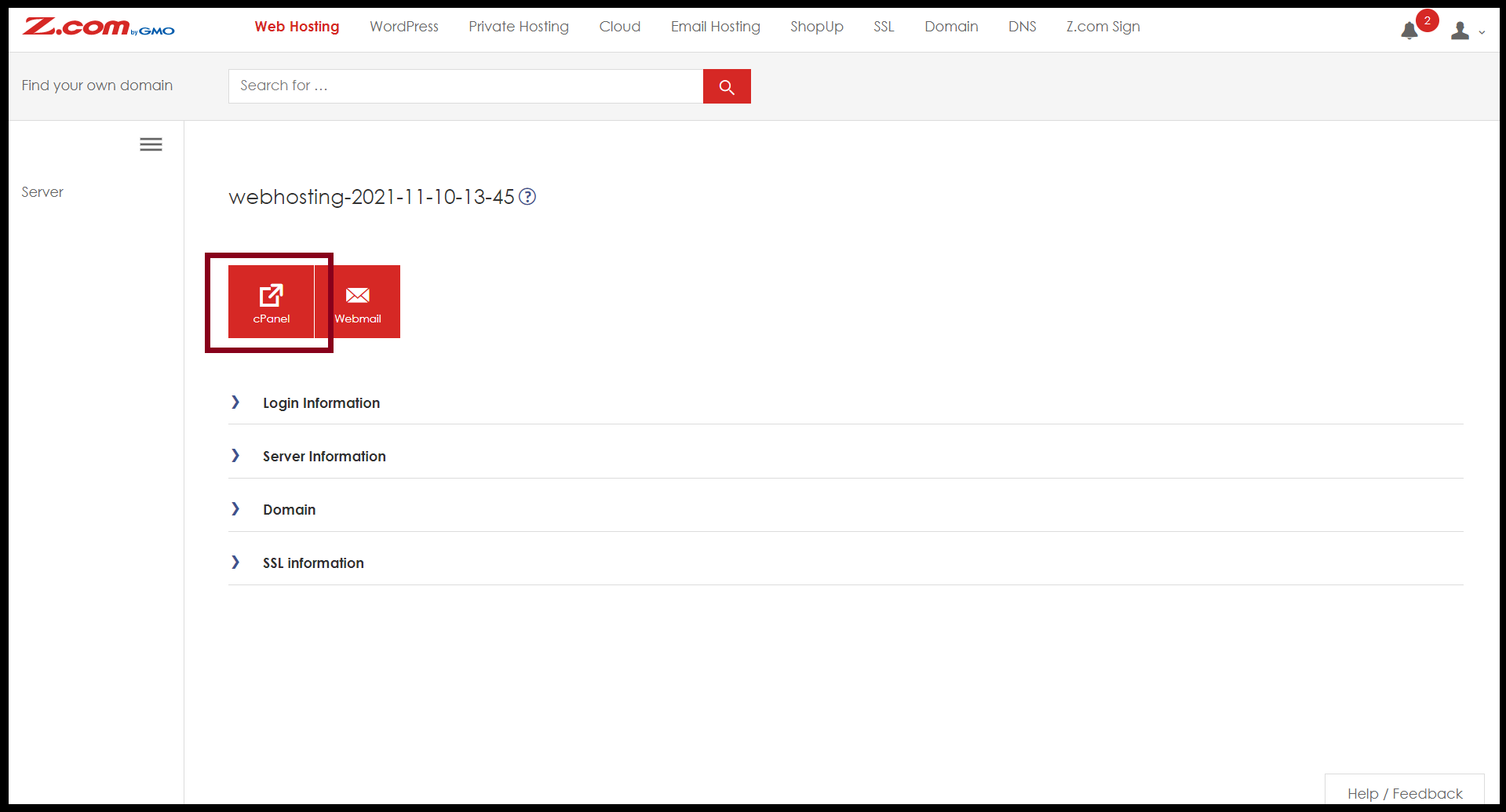
Step4. Enter the "cPanel"
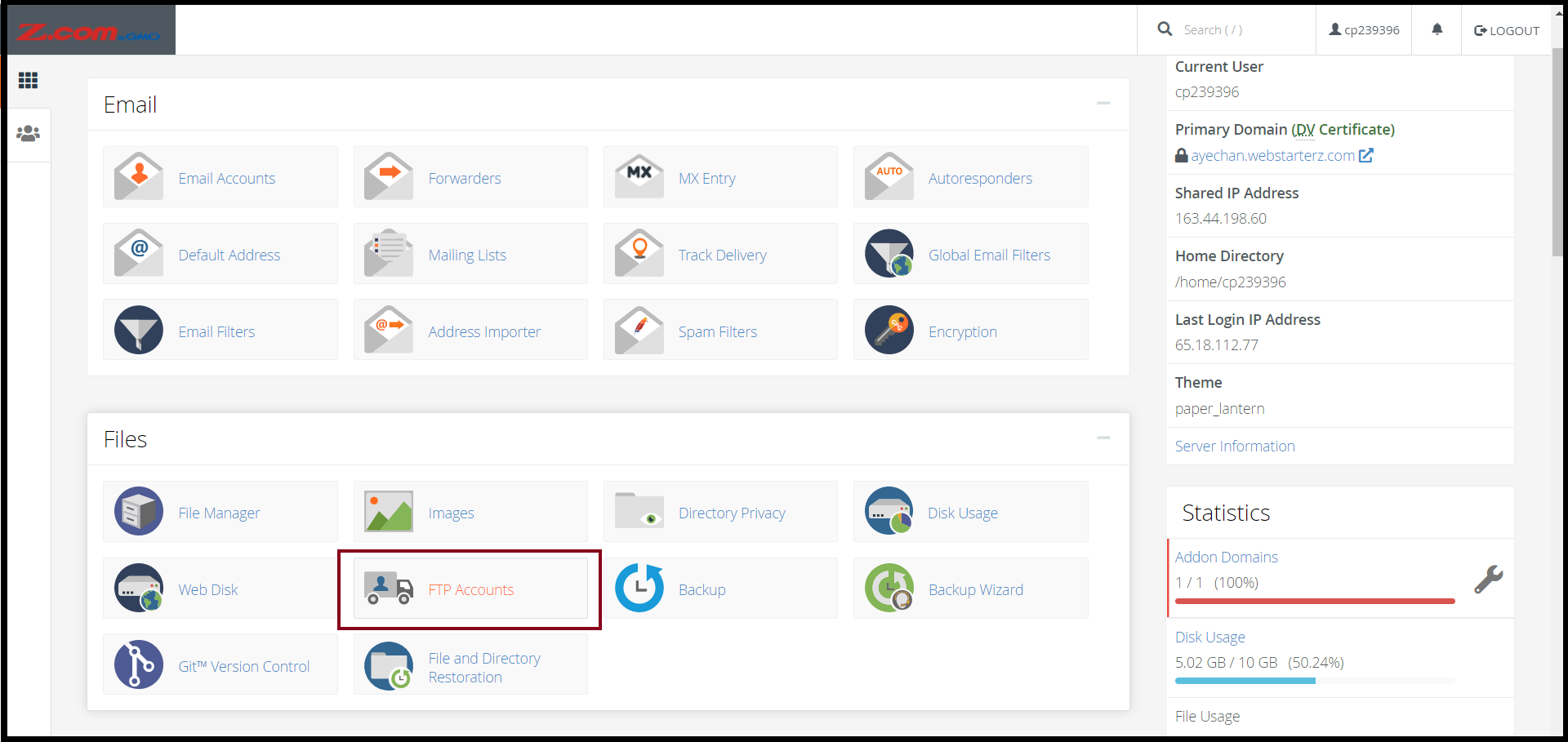
Step5. Click "FTP Accounts" Under Files Menu to create an FTP
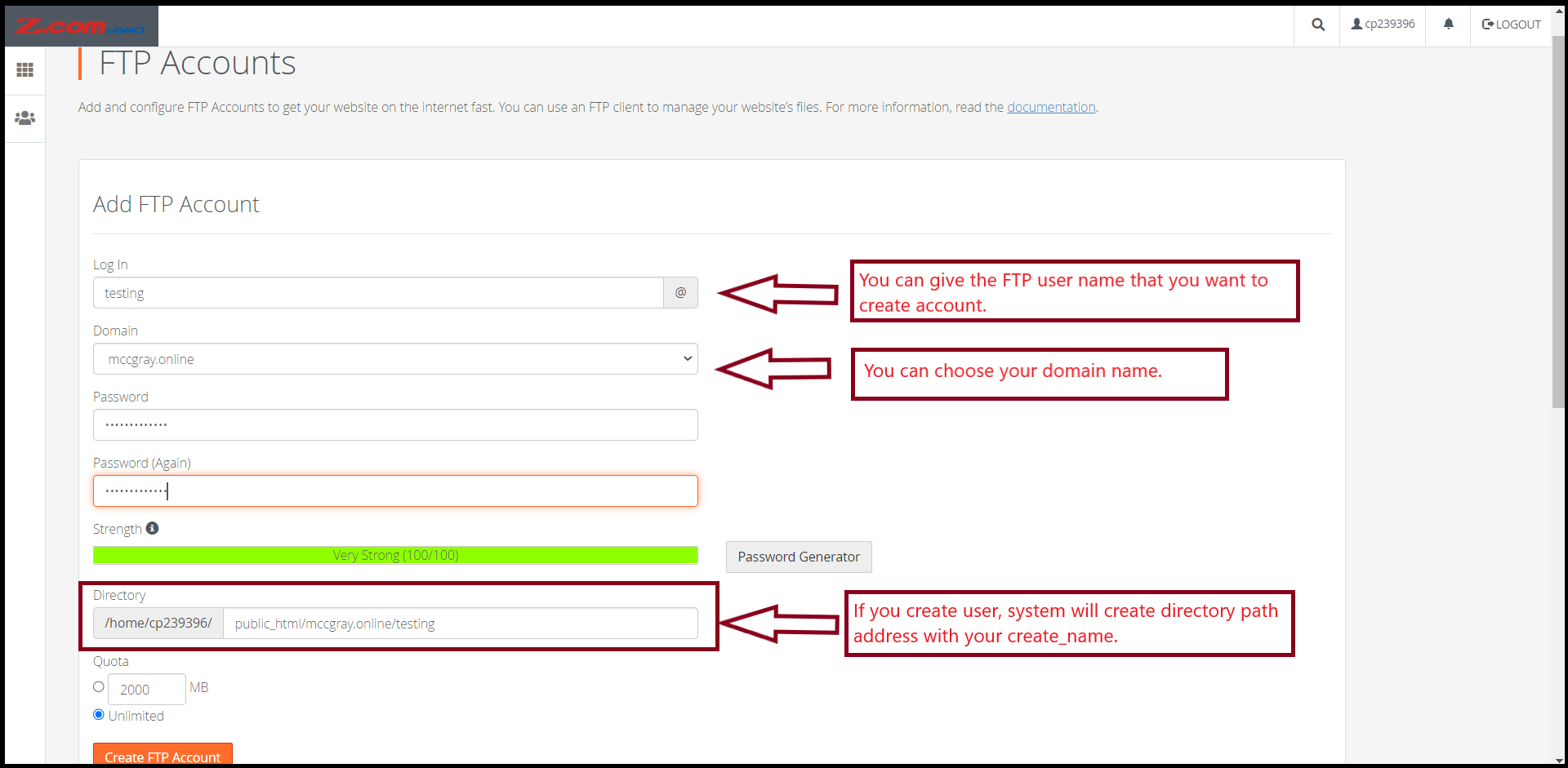
And then, enter an FTP username, password, and directory path.
After that, click "Create FTP Account"
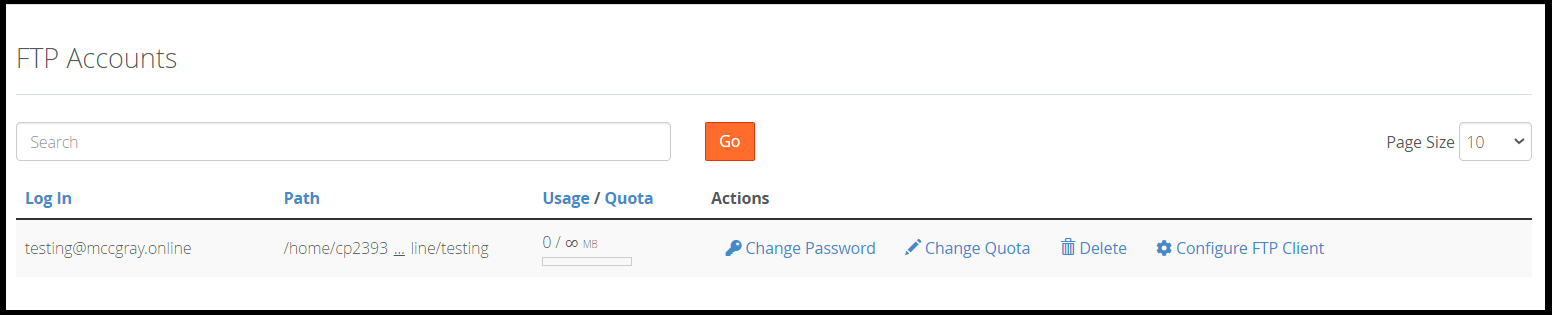
Now, the FTP account is created successfully as follows.
How to log in to an FTP Account via WinSCP?
After the FTP account is created completely, you can check FTP settings to configure FTP Client.Step1. Go to "Configure FTP Client" to check Manual Settings as follows.
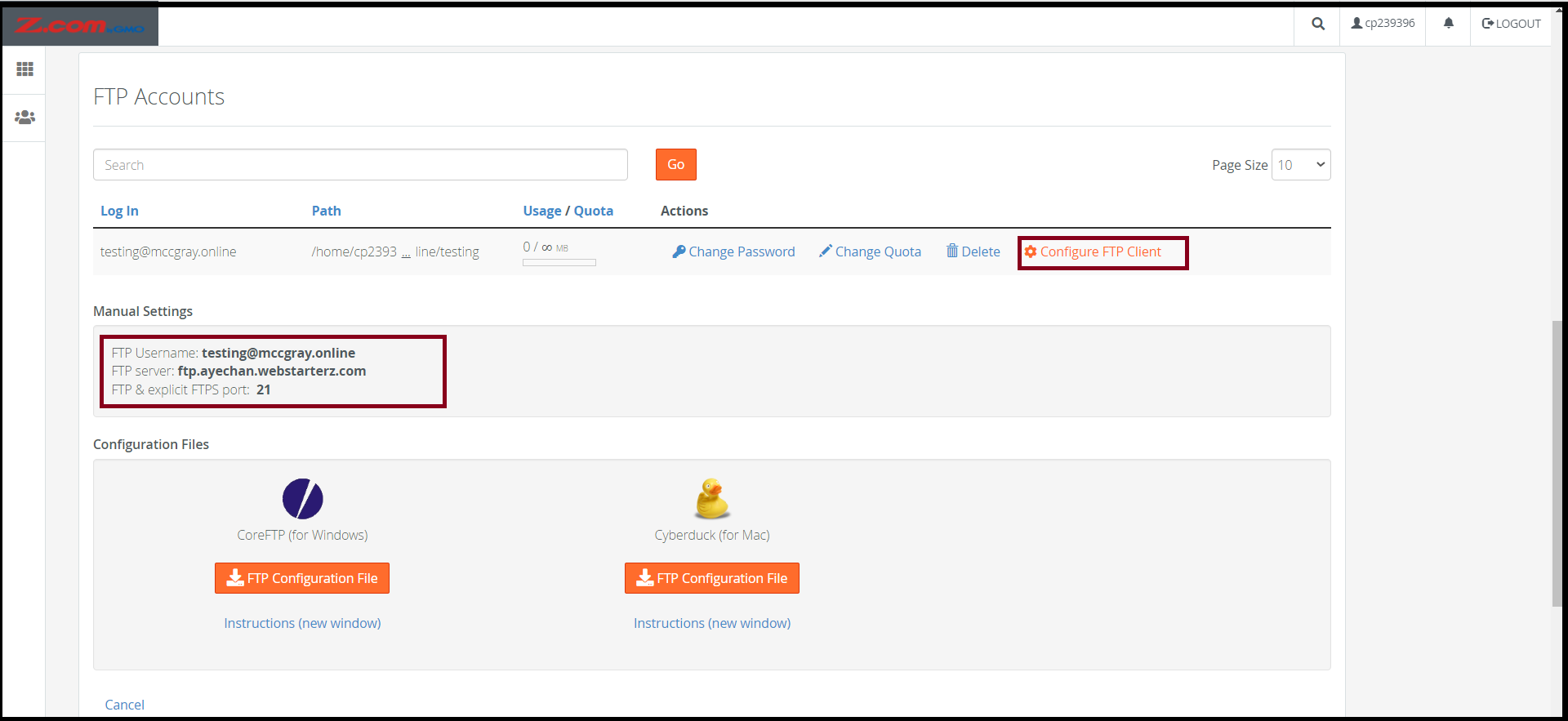
If there is no WinSCP application on the PC, please download it from hereStep2. Open the WinSCP program
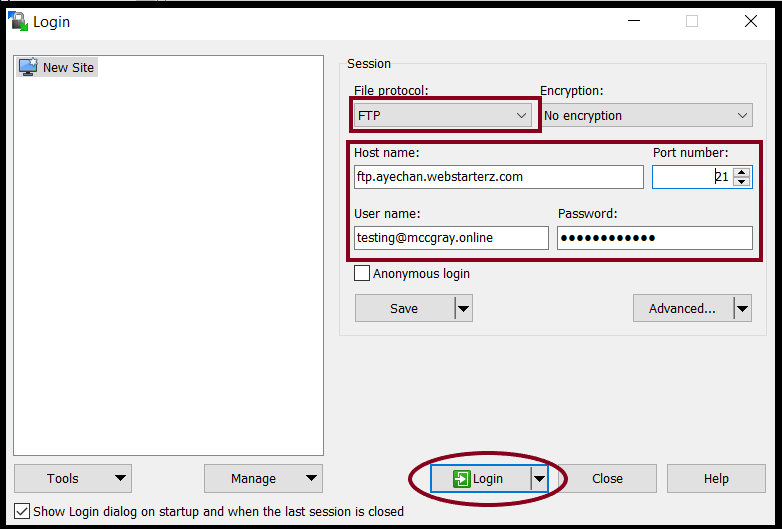
And then, enter your FTP account information as follows and Click "Login" Button
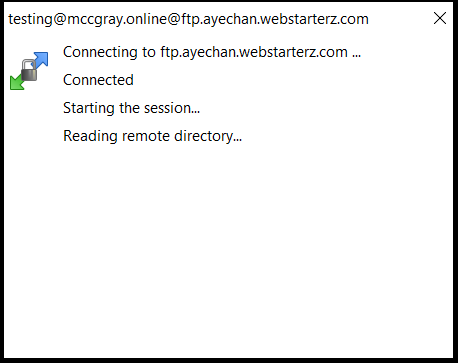
To connect FTP connection, please wait for a few seconds
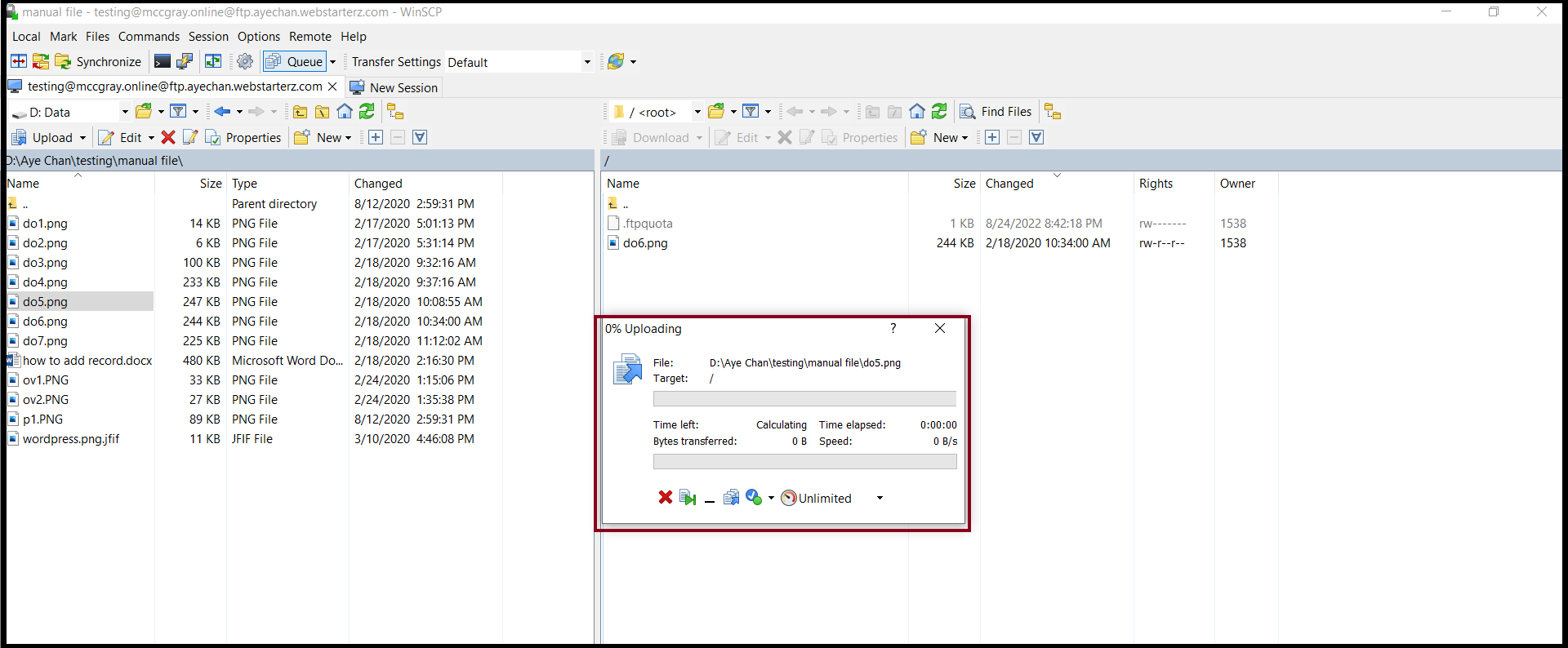
Step3. You can upload the various files on the server via WinSCP.
How to Change the FTP account’s Password on cPanel?
If you want to change the FTP account’s Password on cPanel, we will show you how to change the password.Select the FTP account that you want to change the password to and then click "Change Password".
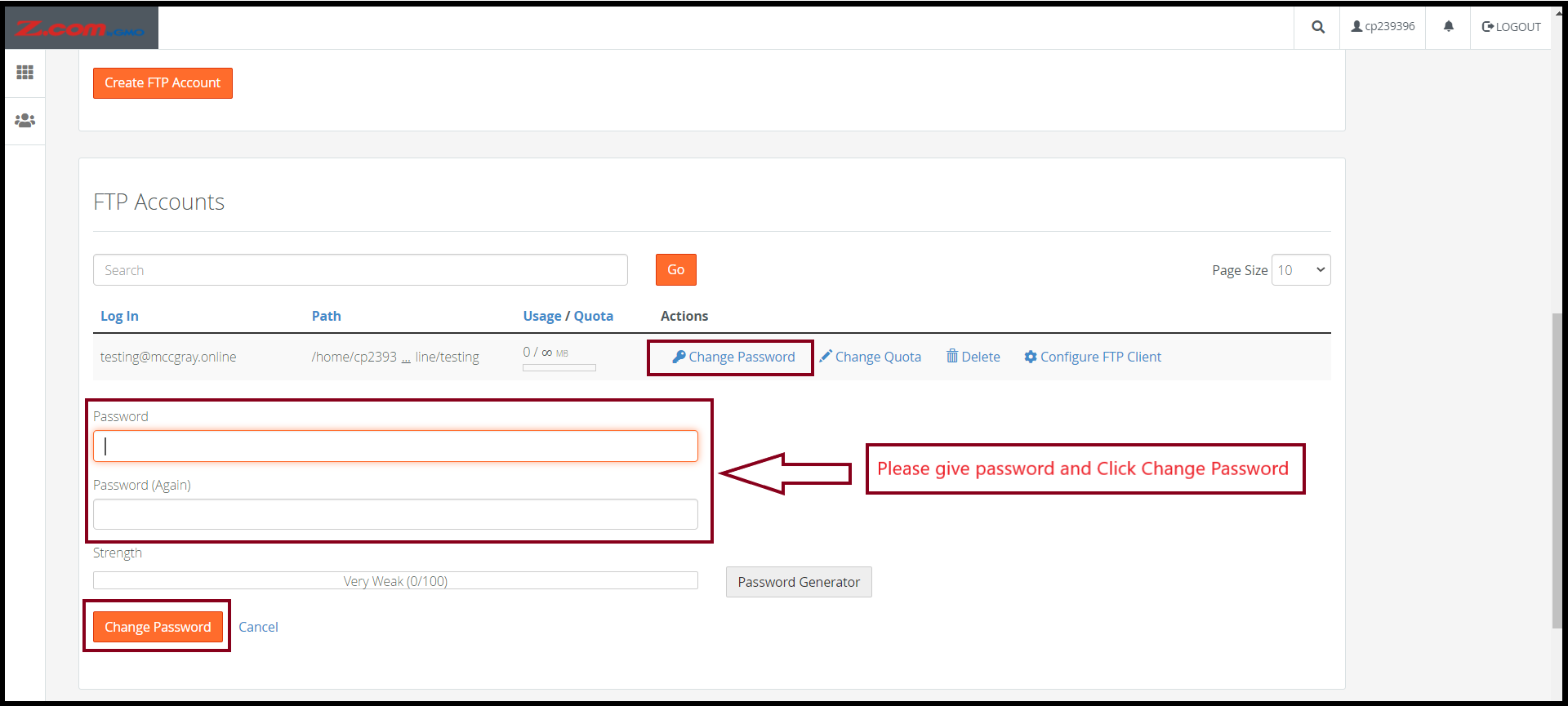
After that, you can change a new password successfully.
Thank you.
Was this article helpful?
That’s Great!
Thank you for your feedback
Sorry! We couldn't be helpful
Thank you for your feedback
Feedback sent
We appreciate your effort and will try to fix the article