How to Change the Current IP from ‘Shared’ to ‘Dedicated’ in the Plesk server?
To change the server IP from Shared to Dedicated in the Plesk server, please follow the instructions below.
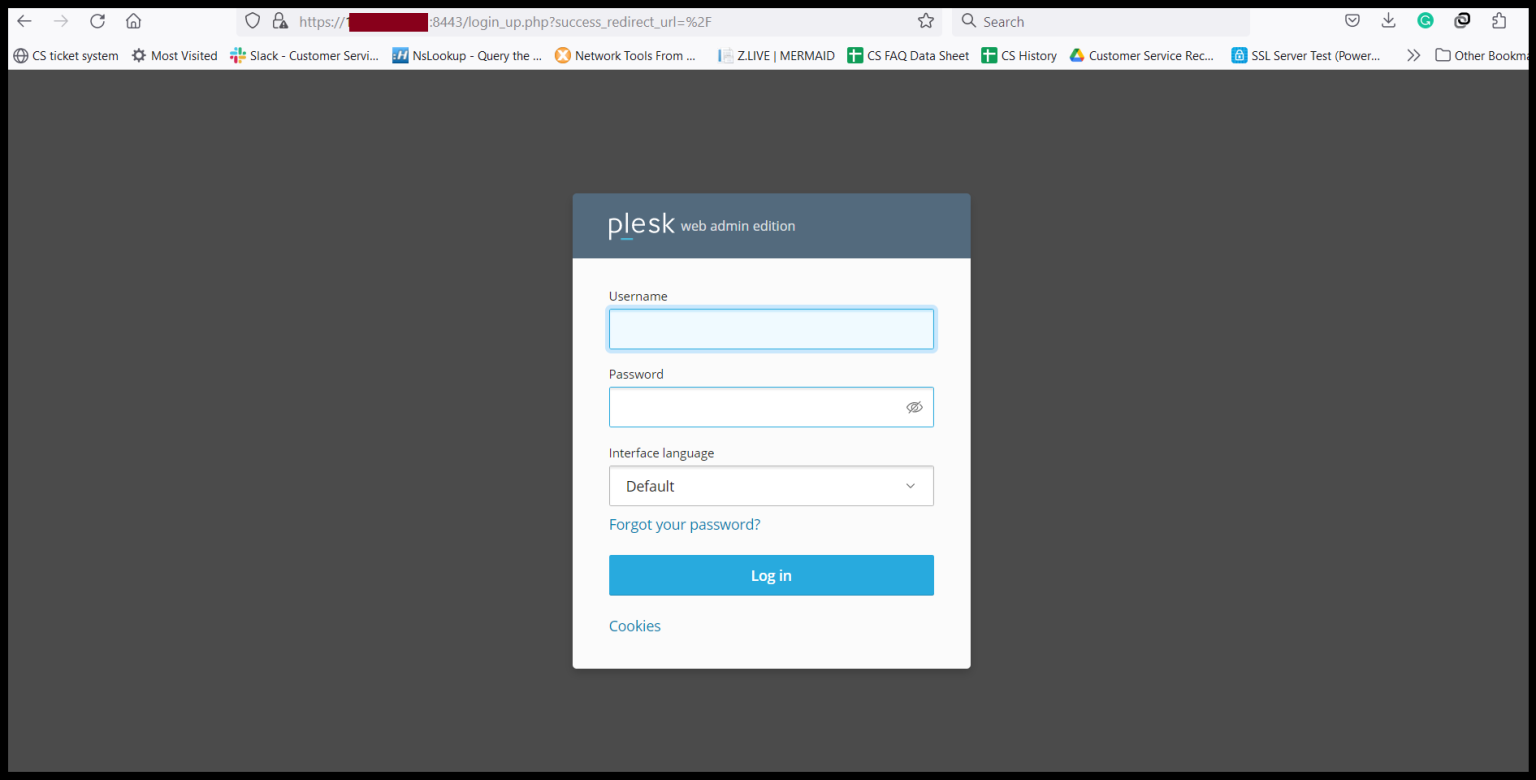
Step 1. Login to the Plesk server. https://150.95.xx.xx:8443/
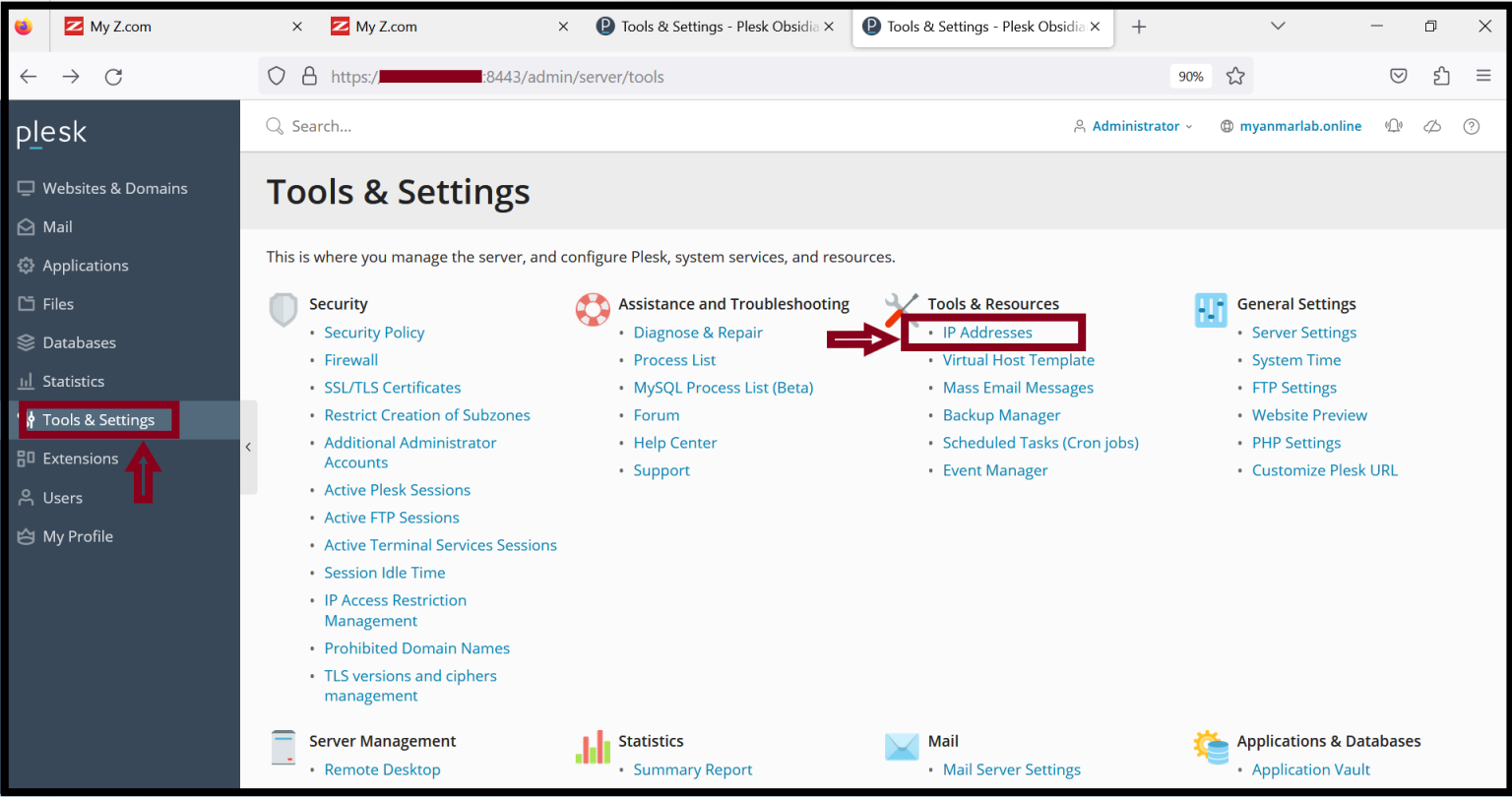
Step2. Go to the “Tools & Settings” Tab and Click “IP Addresses“.
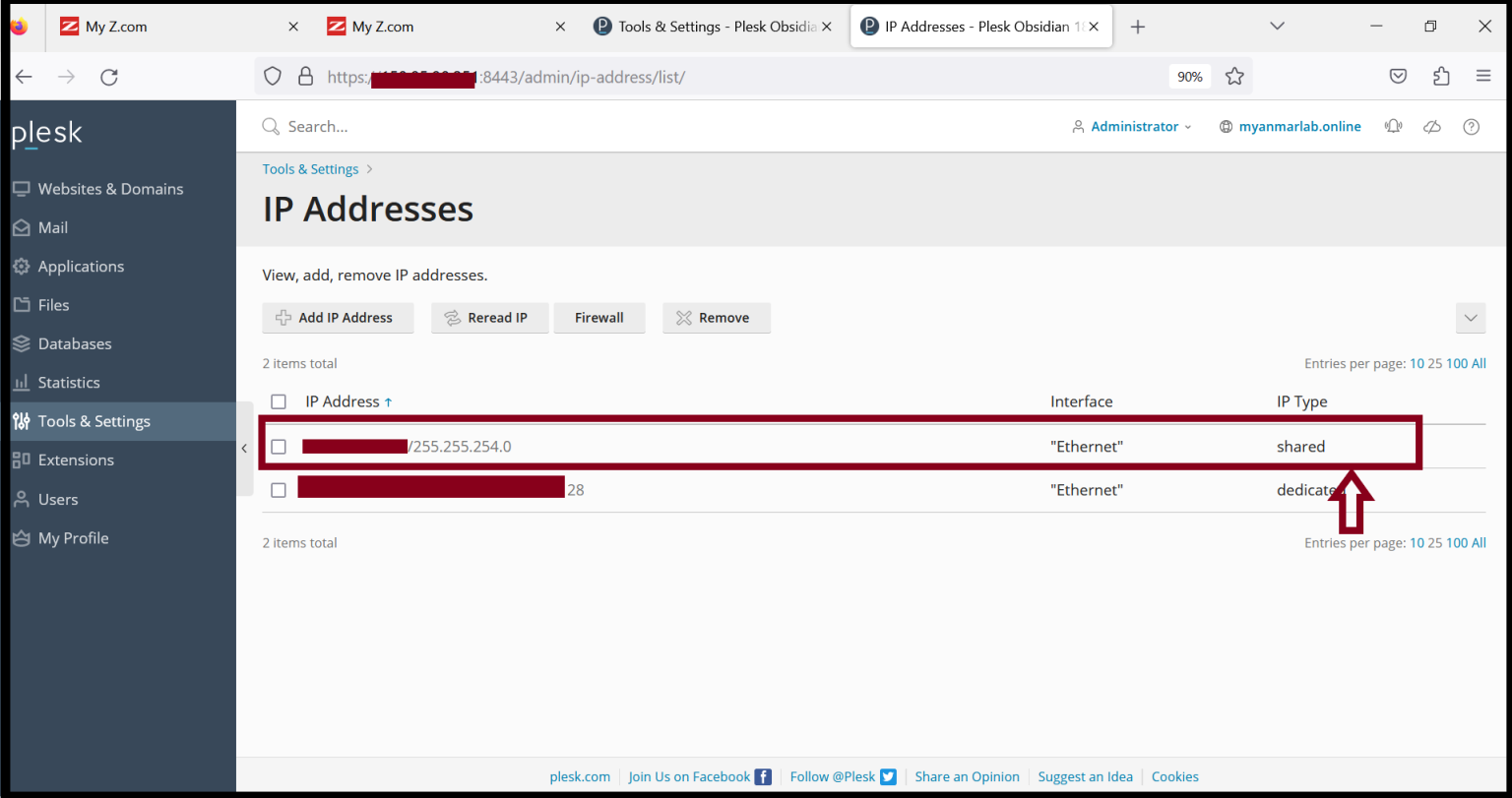
Step3. The current IP status is “shared” type. If you want to change the “dedicated” type, please click “Server IP” and Edit.
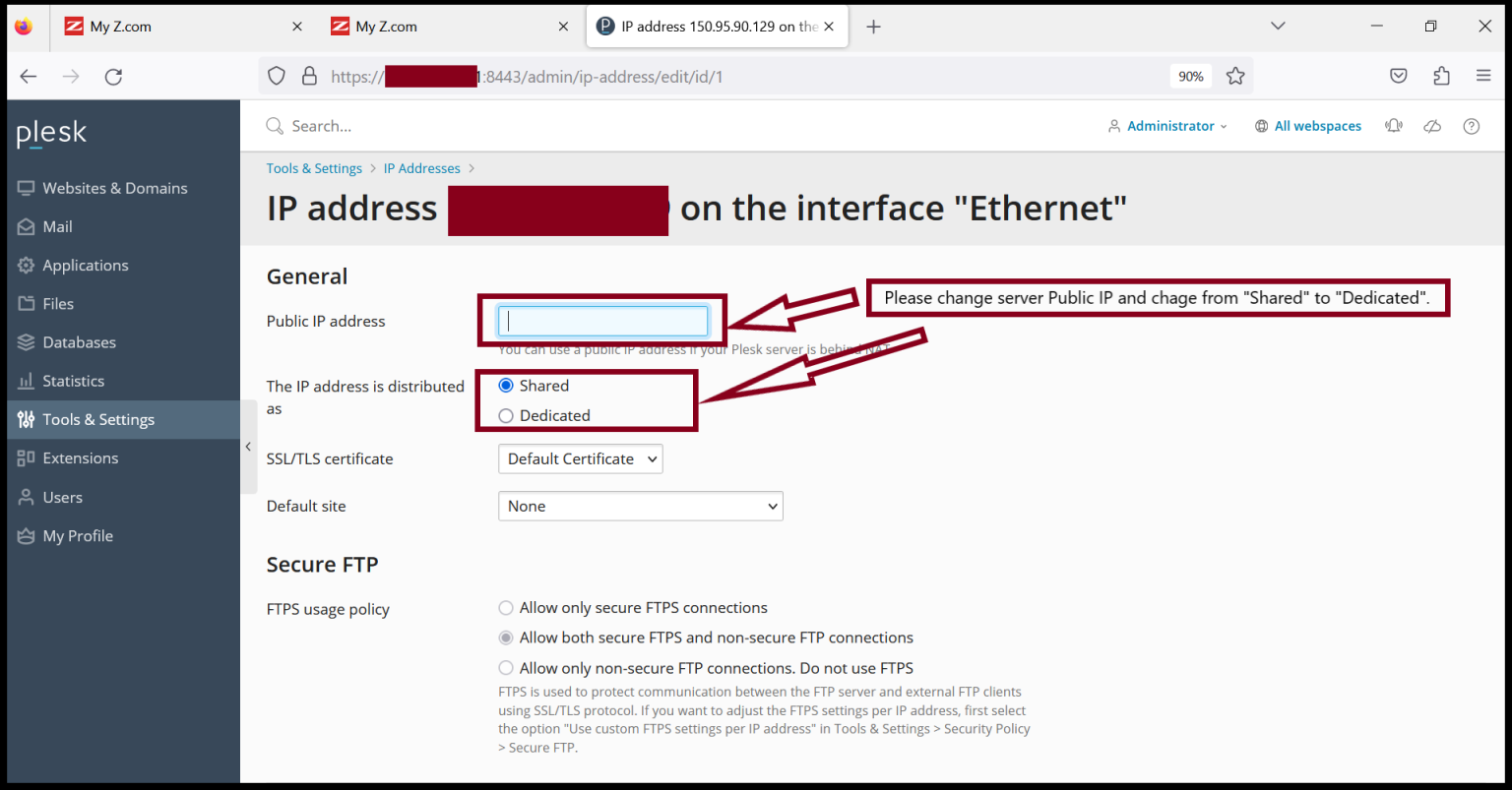
Step4. And then, choose the “Dedicated” type of the Public IP address.
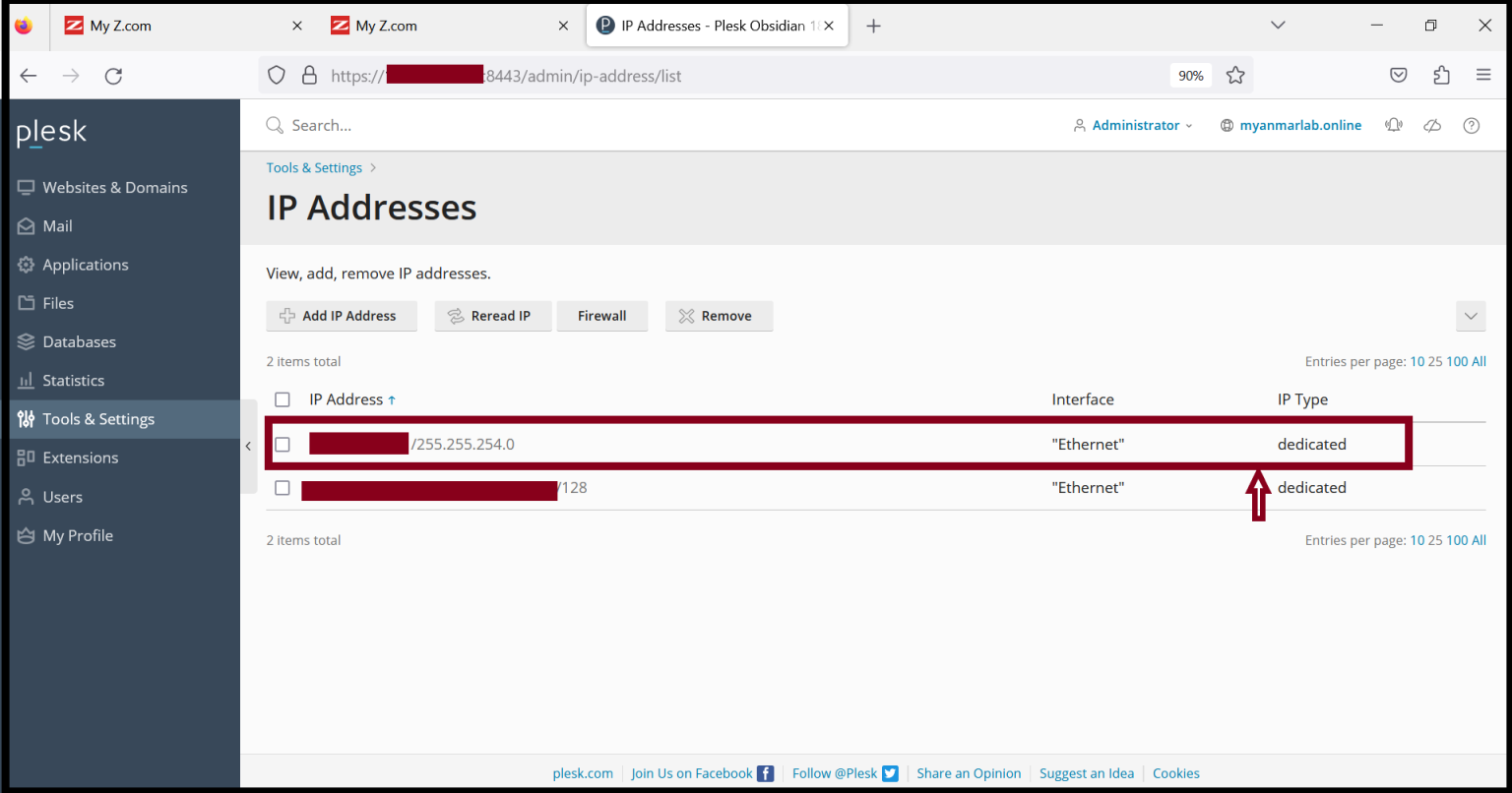
Step5. Now, the Server IP type is changing from “Shared” to “dedicated” as follows.
Thank you!!!
Was this article helpful?
That’s Great!
Thank you for your feedback
Sorry! We couldn't be helpful
Thank you for your feedback
Feedback sent
We appreciate your effort and will try to fix the article