How to Login to WordPress Management Page
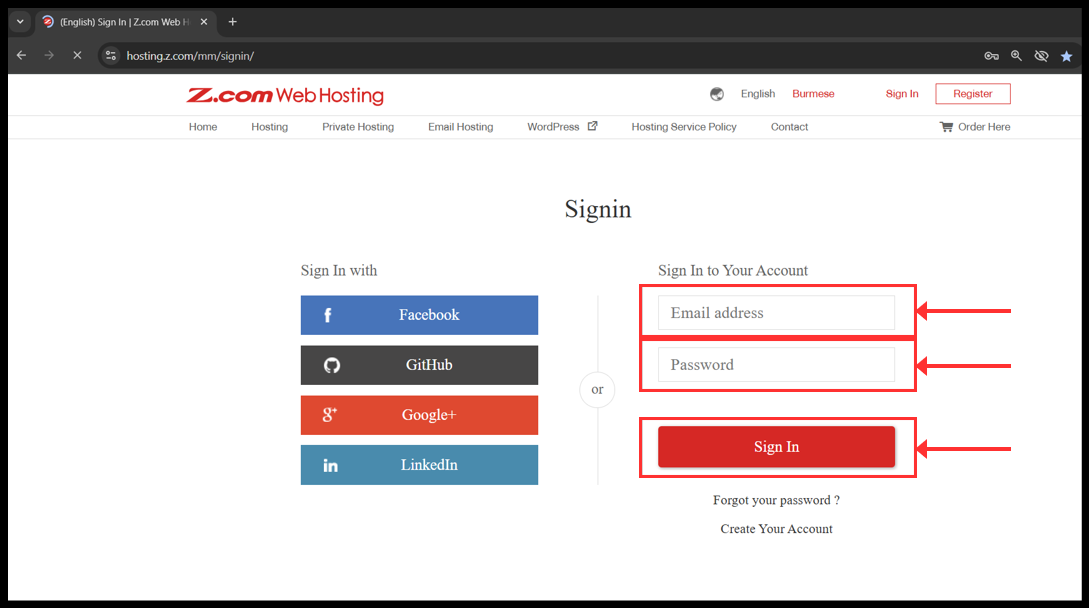
1. Login to your z.com account with registered email address.
၁။ သင်၏ အီးမေးလ်လိပ်စာကို အသုံးပြုပြီး သင့်၏ Z.com အကောင့်သို့ ဝင်ရောက်ပါ။
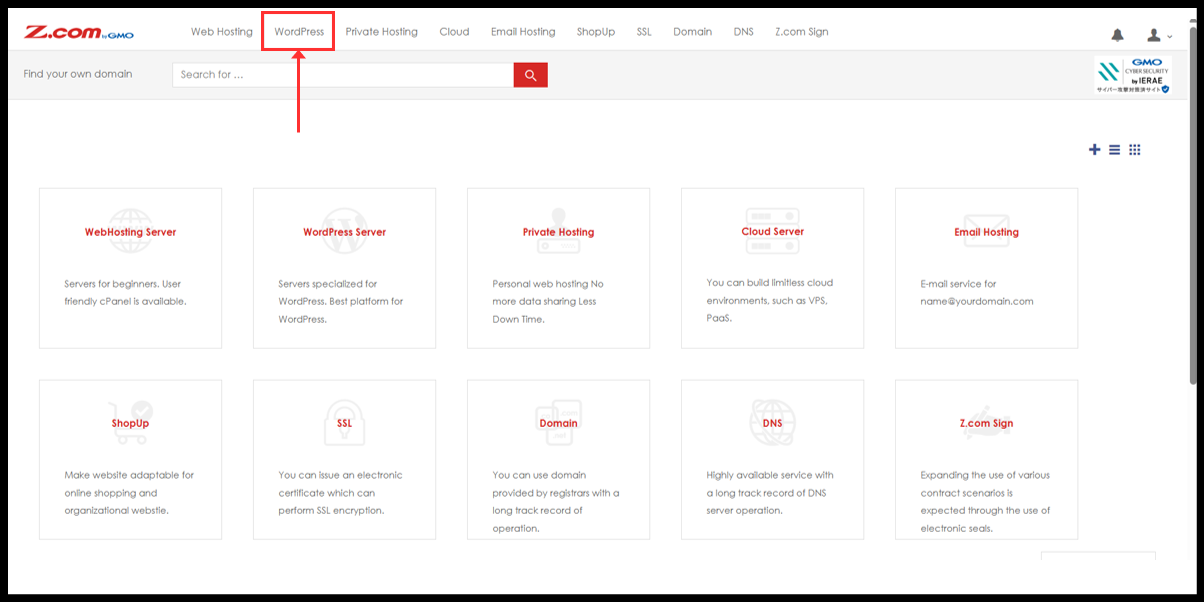
2. Click to WordPress.
၂။ Wordpress ကို ဆက်လက်နှိပ်ပါ။
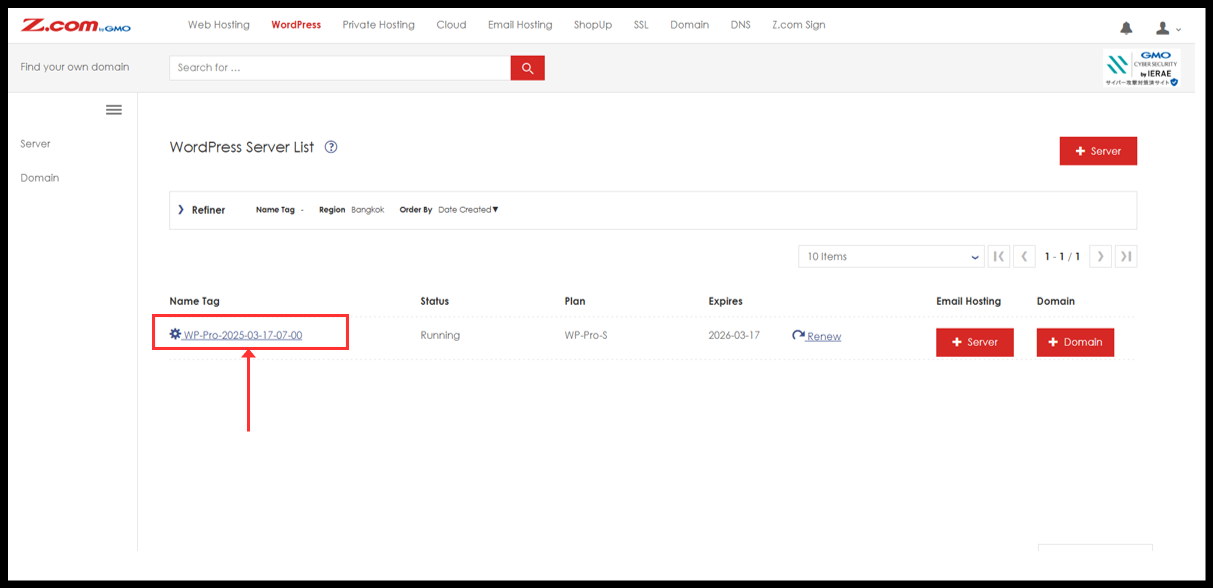
3. You will see the WordPress server under Name Tag. Please click it.
၃။ Nametag အောက်မှာ WordPress ဆာဗာကိုတွေ့ပါမည်။ ကလစ်နှိပ်ပြီးဆက်သွားပါ။
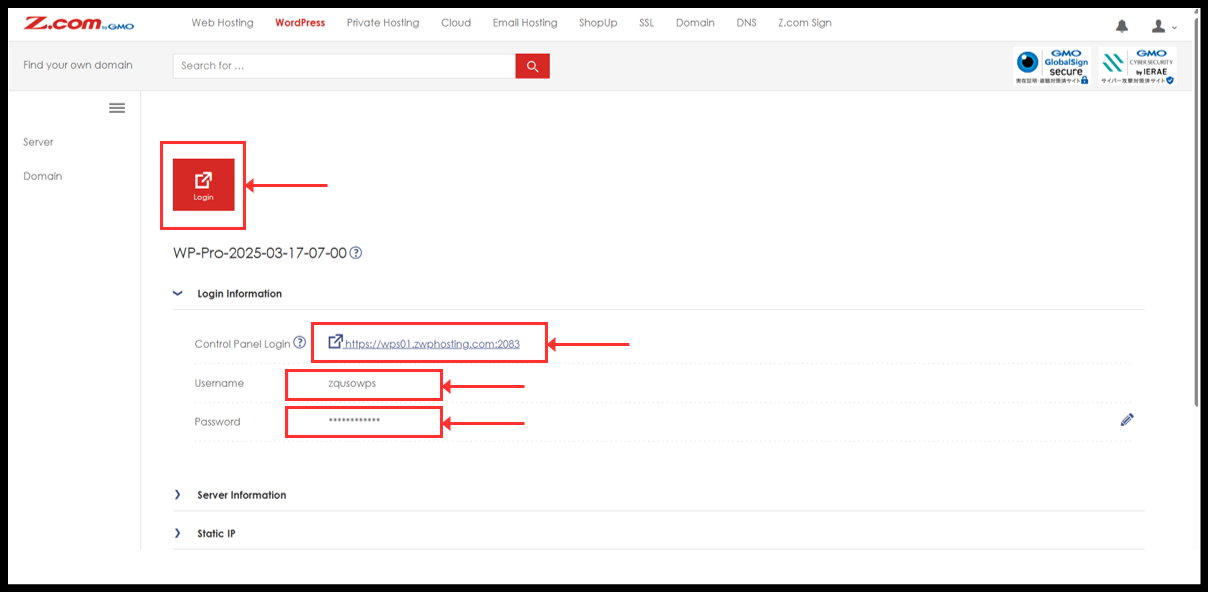
4. You can click “Login” red button to directly login or can be manually log in from Login information.
၄။ “Login” အနီရောင်ခလုတ်ကို နှိပ်၍ တိုက်ရိုက် ဝင်ရောက်နိုင်ပါသည်။ သို့မဟုတ် Login Information များကို အသုံးပြုပြီး ပေးထားသော Login link တွင် Username နှင့် Password ထည့်ပြီးလည်း ဝင်ရောက်နိုင်ပါသည်။
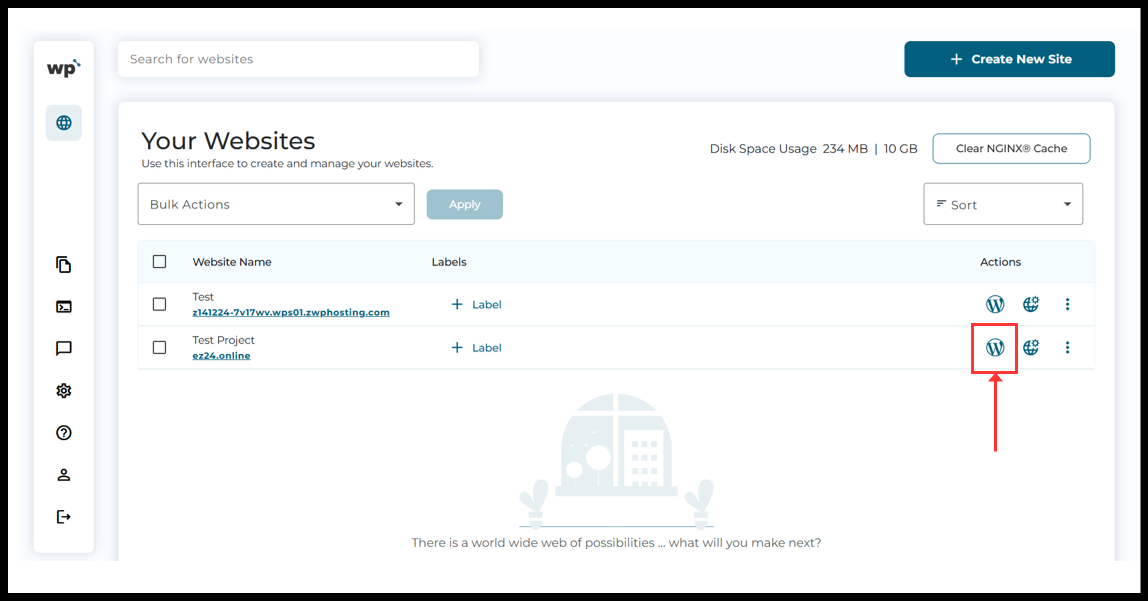
5. Now, the WordPress Squared Panel will see and click on the Wordpress icon from right side of domain name.
၅။ ယခု WordPress Squared Panel ကို မြင်တွေ့ရပါလိမ့်မည်။ Domain အမည်၏ ညာဘက်ဘက်ခြမ်းတွင်ရှိသော WordPress icon ကို နှိပ်ပါ။
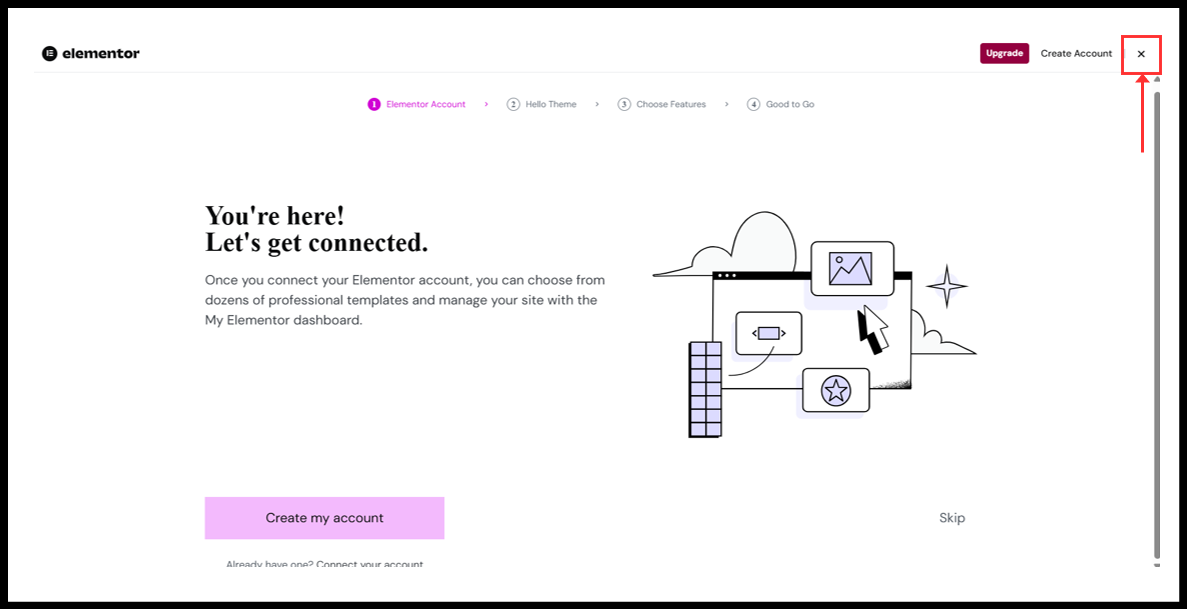
6. The Elementor plugin setup page will open. These setting can be set up later. Click cross (✕) botton from right side to continue.
(This page will only show if you are opening Wordpress Management page for the first time.)
၆။ Elementor plugin setup စာမျက်နှာကို ဖွင့်လာပါလိမ့်မည်။ ဤ setting များကို နောက်မှလည်း ပြန်လည် သတ်မှတ်နိုင်ပါသည်။ ဆက်လက်လုပ်ဆောင်ရန် ညာဘက်ဘက်ခြမ်းရှိ အမှတ်အသား (✕) ခလုတ်ကို နှိပ်ပါ။
(ဤစာမျက်နှာသည် WordPress Management စာမျက်နှာကို ပထမဆုံးအကြိမ် ဖွင့်သောအခါမှသာ ပေါ်လာပါမည်။)
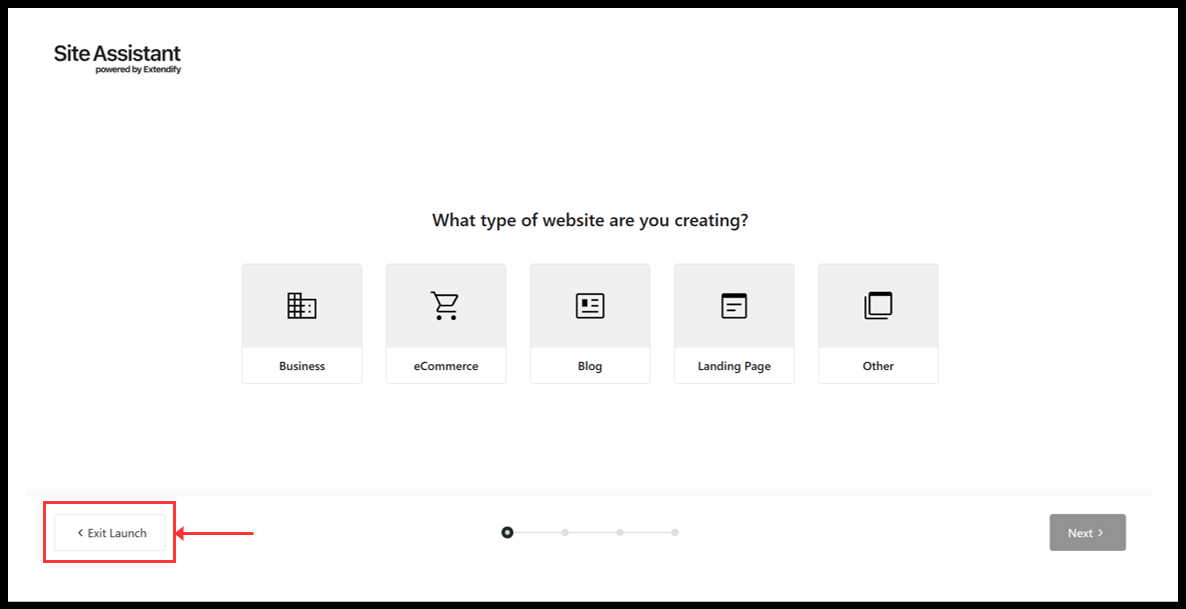
7. The Extendify plugin setup page will open. These setting can also be set up later. Click “Exit Launch” botton from left side to continue.
(This page will only show if you are opening Wordpress Management page for the first time.)
၇။ Extendify plugin setup စာမျက်နှာကို ဖွင့်လာပါလိမ့်မည်။ ဤ setting များကို နောက်မှလည်း ပြန်လည် သတ်မှတ်နိုင်ပါသည်။ ဆက်လက်လုပ်ဆောင်ရန် ဘယ်ဘက်ဘက်ခြမ်းရှိ “Exit Launch” ခလုတ်ကို နှိပ်ပါ။
(ဤစာမျက်နှာသည် WordPress Management စာမျက်နှာကို ပထမဆုံးအကြိမ် ဖွင့်သောအခါမှသာ ပေါ်လာပါမည်။)
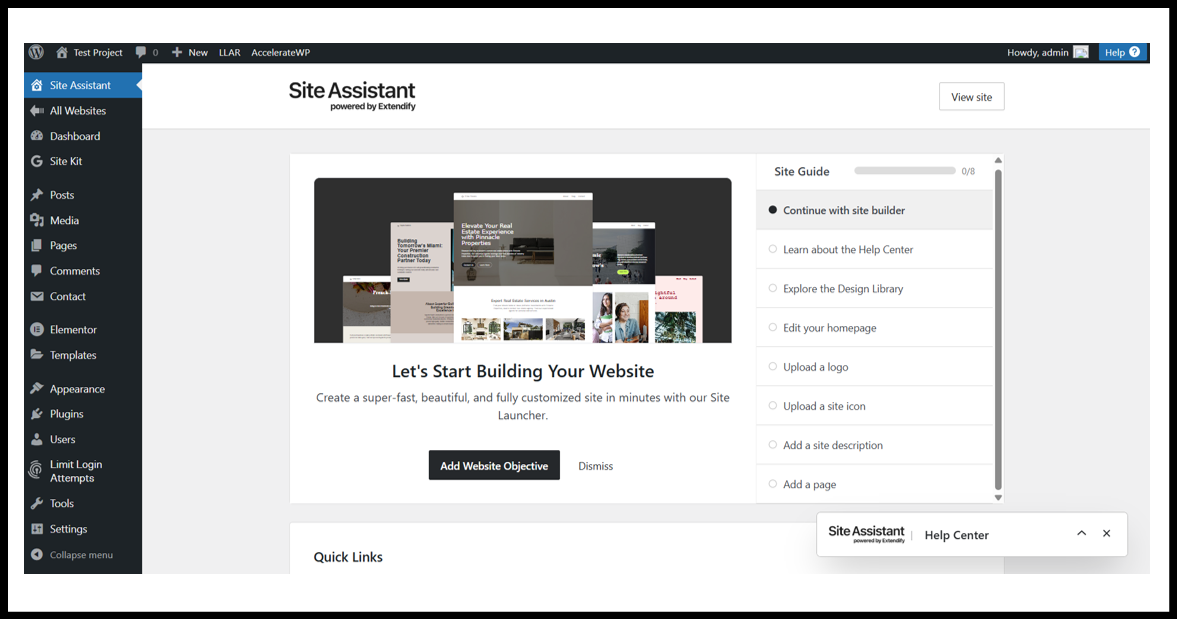
8. Now, you will see the Wordpress Dashboard Management page.
၈။ ယခု WordPress Dashboard Management စာမျက်နှာကို မြင်တွေ့ရပါလိမ့်မည်။
Thank You!!
Was this article helpful?
That’s Great!
Thank you for your feedback
Sorry! We couldn't be helpful
Thank you for your feedback
Feedback sent
We appreciate your effort and will try to fix the article