How to choose the PHP version for Wordpress
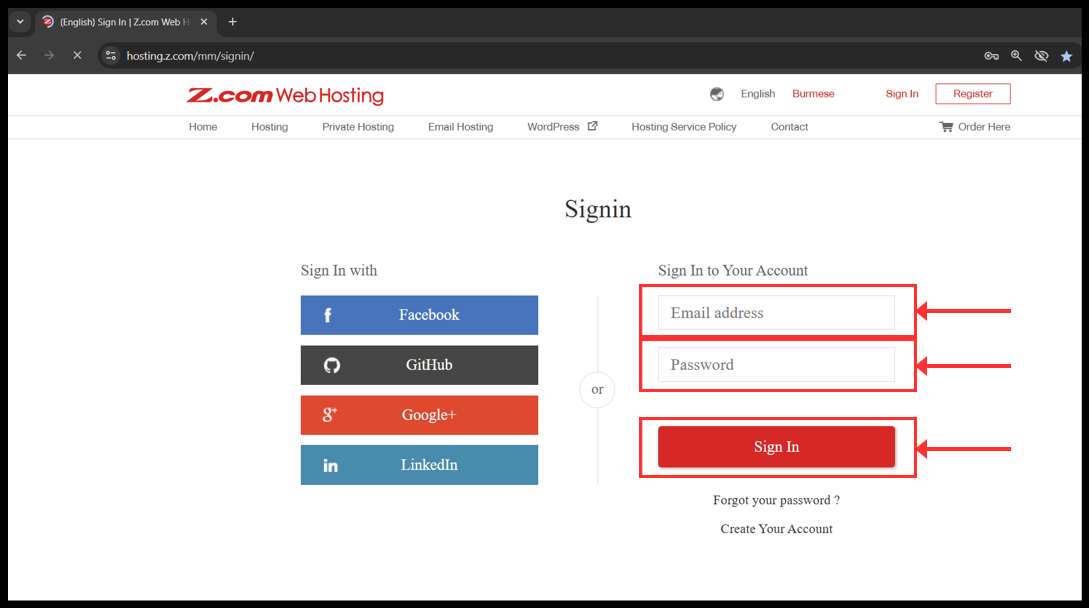
1. Login to your z.com account with registered email address.
၁။ သင်၏ အီးမေးလ်လိပ်စာကို အသုံးပြုပြီး သင့်၏ Z.com အကောင့်သို့ ဝင်ရောက်ပါ။
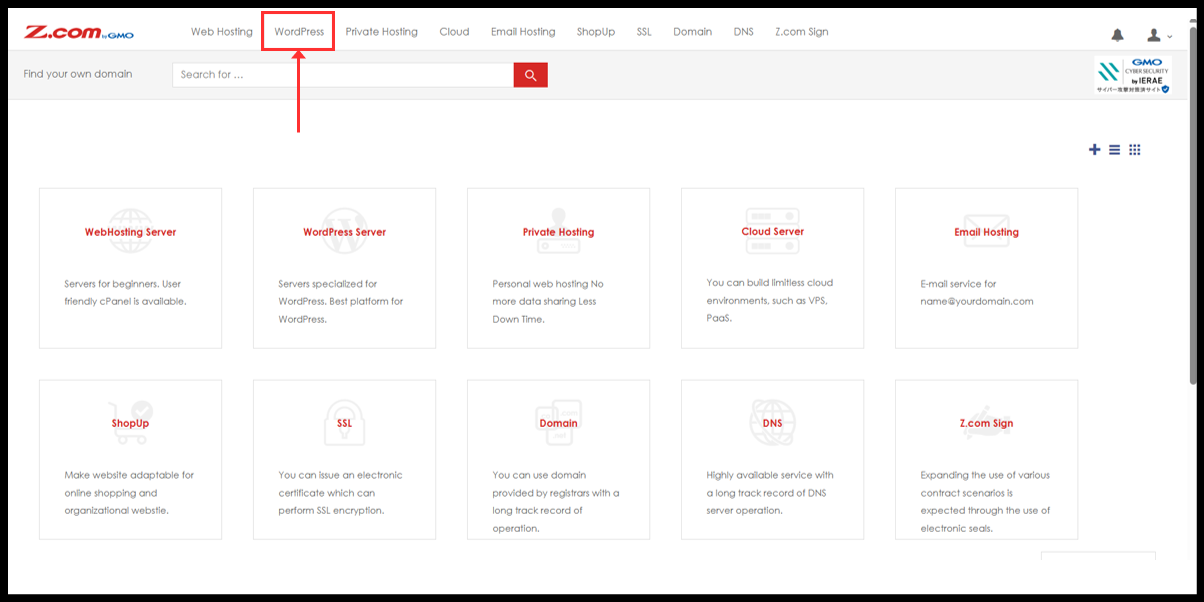
2. Click to WordPress.
၂။ Wordpress ကို ဆက်လက်နှိပ်ပါ။
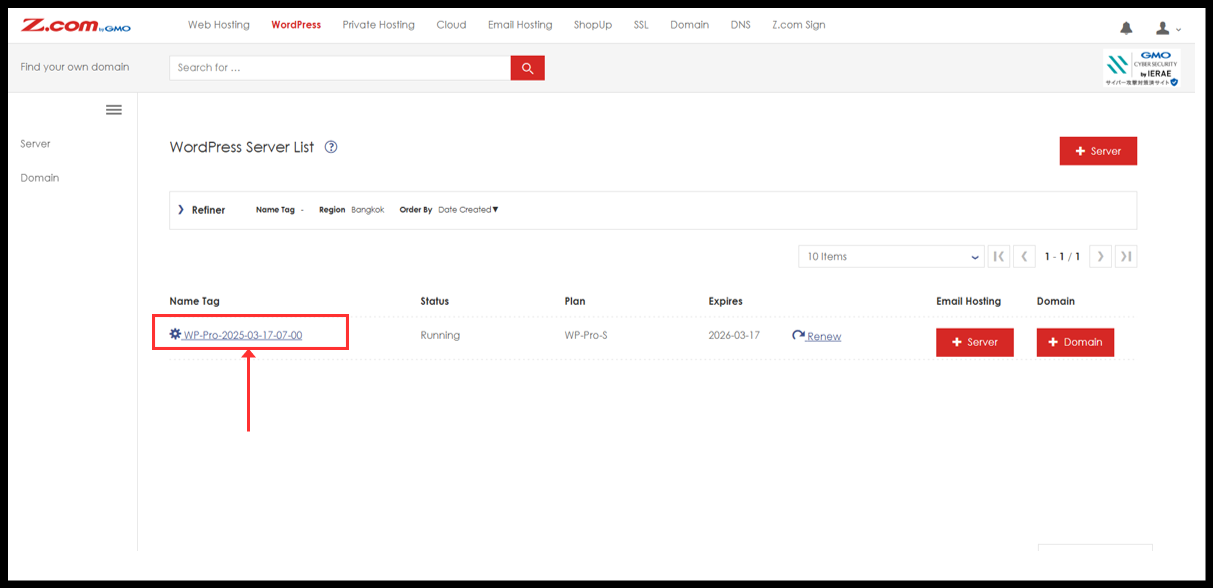
3. You will see the WordPress server under Name Tag. Please click it.
၃။ Nametag အောက်မှာ WordPress ဆာဗာကိုတွေ့ပါမည်။ ကလစ်နှိပ်ပြီးဆက်သွားပါ။
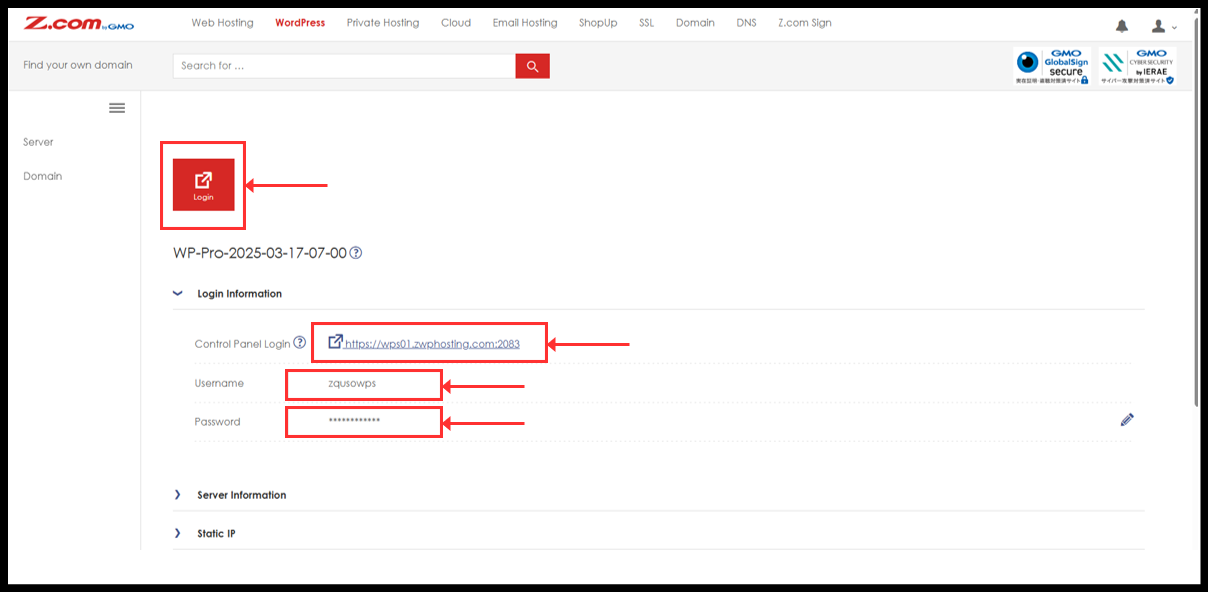
4. You can click “Login” red button to directly login or can be manually log in from Login information.
၄။ “Login” အနီရောင်ခလုတ်ကို နှိပ်၍ တိုက်ရိုက် ဝင်ရောက်နိုင်ပါသည်။ သို့မဟုတ် Login Information များကို အသုံးပြုပြီး ပေးထားသော Login link တွင် Username နှင့် Password ထည့်ပြီးလည်း ဝင်ရောက်နိုင်ပါသည်။
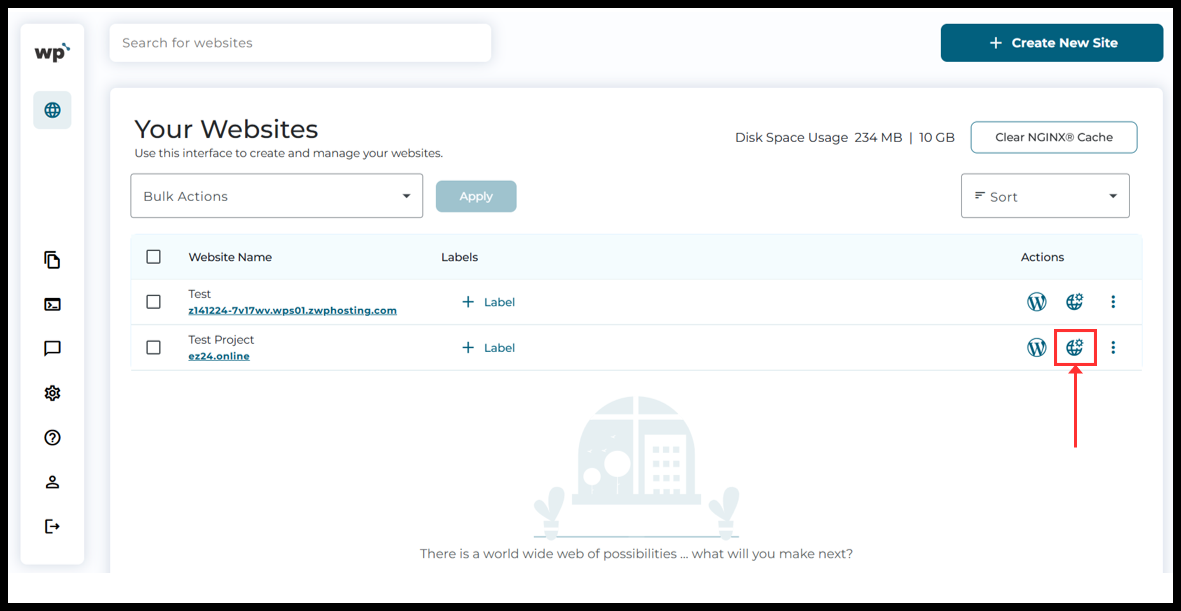
5. Now, the WordPress Squared Panel will see and click on the “Domain details” button from right side of domain name.
၅။ ယခုအခါ WordPress Squared Panel ကို မြင်တွေ့ရပါလိမ့်မည်။ Domain အမည်၏ ညာဘက်ဘက်ခြမ်းတွင်ရှိသော “Domain details” ခလုတ်ကို နှိပ်ပါ။
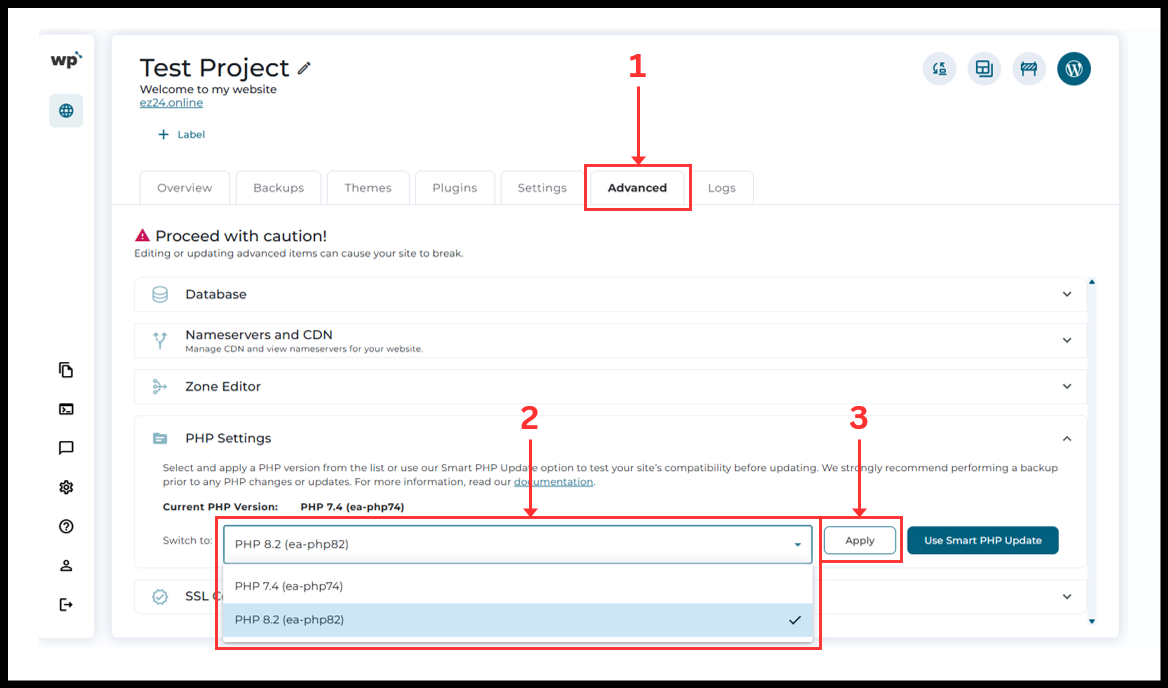
6. Domain details page will be opened. Click “Advanced” and select PHP prefer version then click “Apply“.
၆။ Domain details စာမျက်နှာကို ဖွင့်ပြီးပါက “Advanced” ကို နှိပ်ပါ။ ထို့နောက် သင်လိုအပ်သည့် PHP version ကို ရွေးချယ်ပြီး “Apply” ကို နှိပ်ပါ။
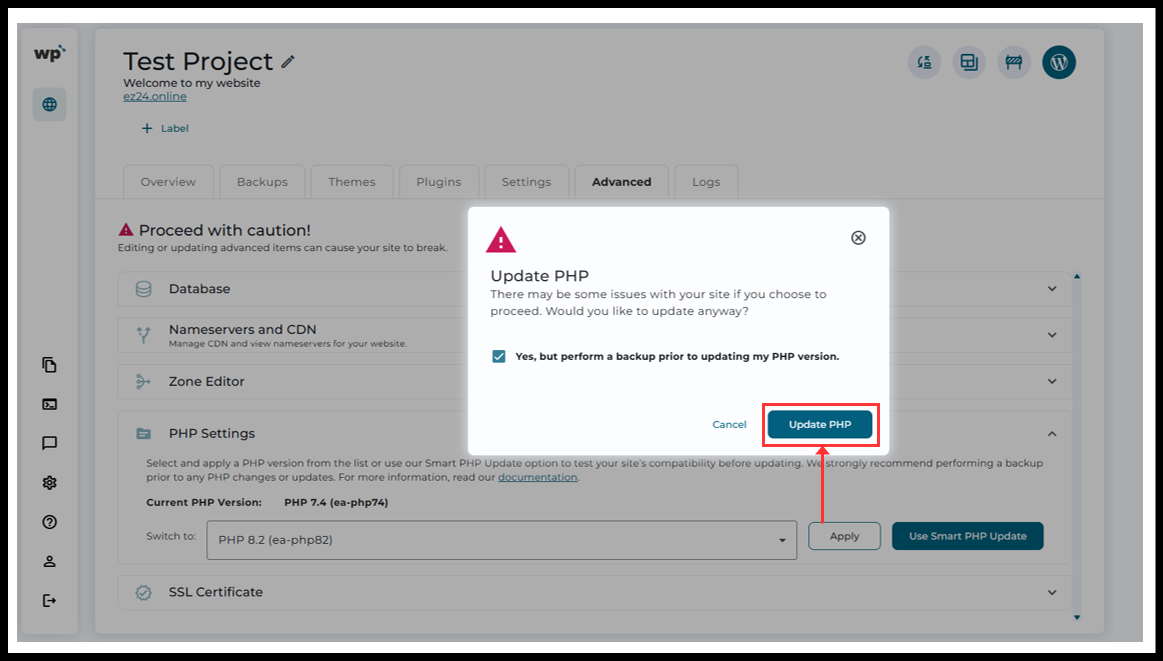
7. Tick (✓) the backup option and click “Update PHP”.
၇။ Backup option ကို အမှန်ခြစ် (✓) လုပ်ပြီး “Update PHP” ခလုတ်ကို နှိပ်ပါ။
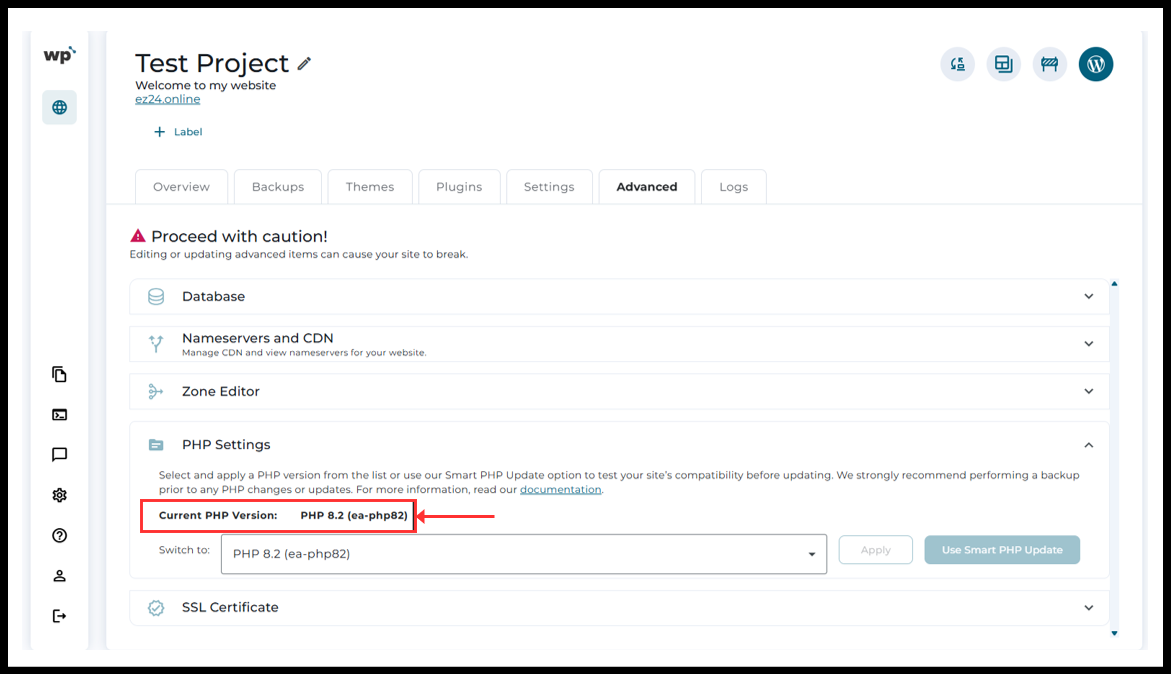
8. Now you will see the PHP version of the site has been changed.
၈။ ယခု website ၏ PHP version ကို ပြောင်းလဲပြီးဖြစ်ကြောင်းကို မြင်တွေ့ရပါလိမ့်မည်။
Thank You!!
Was this article helpful?
That’s Great!
Thank you for your feedback
Sorry! We couldn't be helpful
Thank you for your feedback
Feedback sent
We appreciate your effort and will try to fix the article