How to Order a Private Hosting Service and Complete the Initial Server Setup?
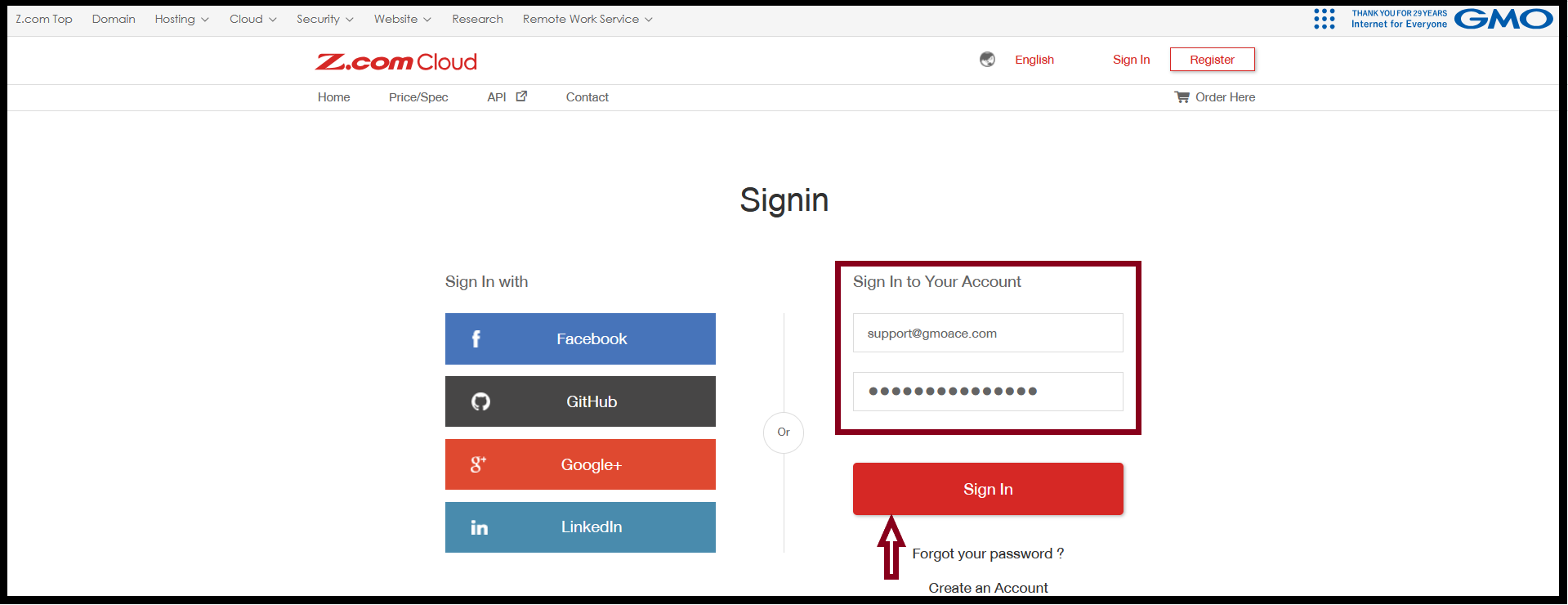
Step1. Login to the Z.com account with register email.
https://cloud.z.com/mm/signin/
Email: support@gmoace.com (please input your register email address)
Password: ***********
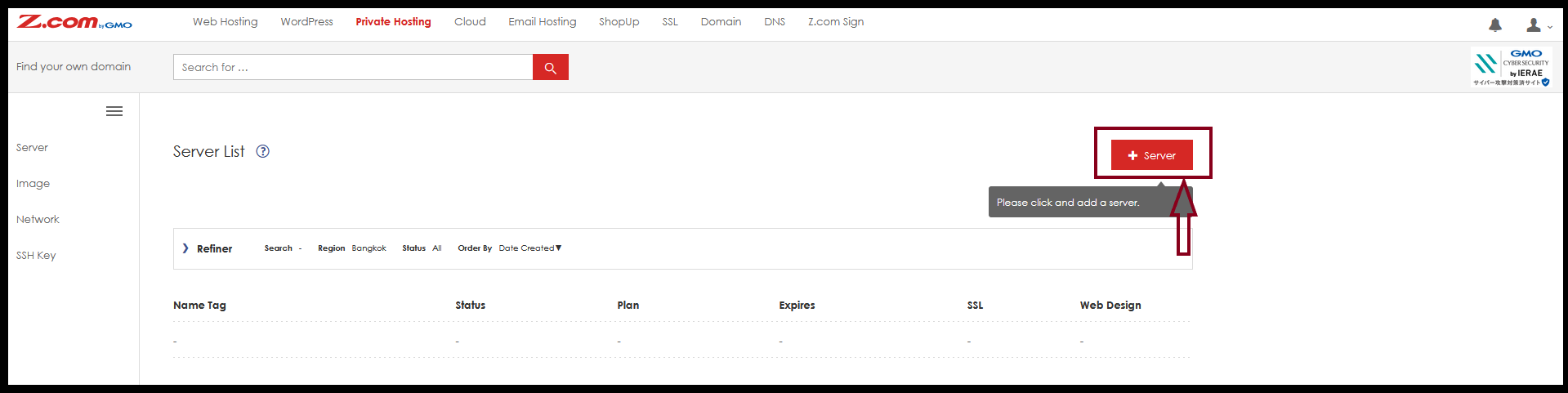
Step2. Go to “Private Hosting” Tab then Click “+Server” to order the service.
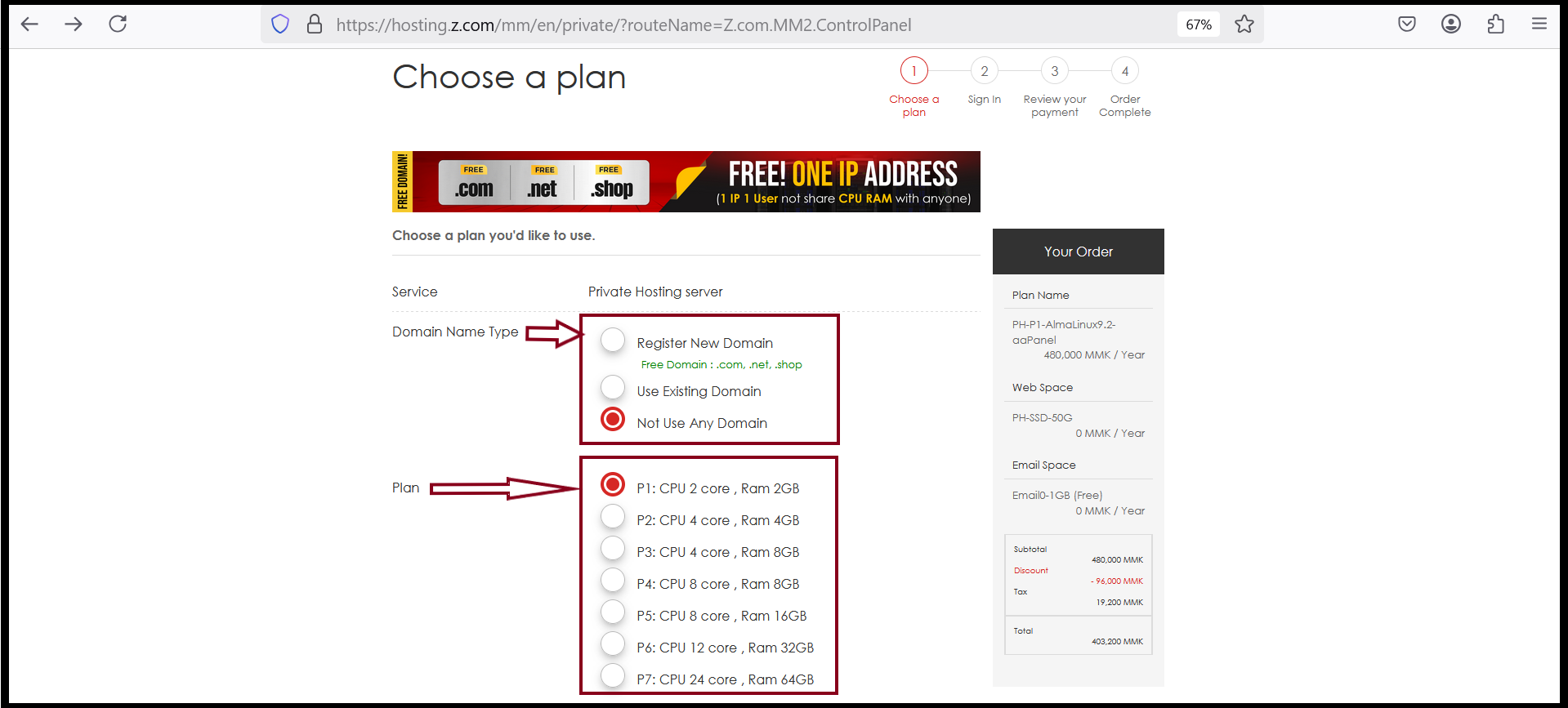
In this section, you need to choose “Domain Name Type”,”Plan package”, OS and Control Panel that you would like to use for your requirement.
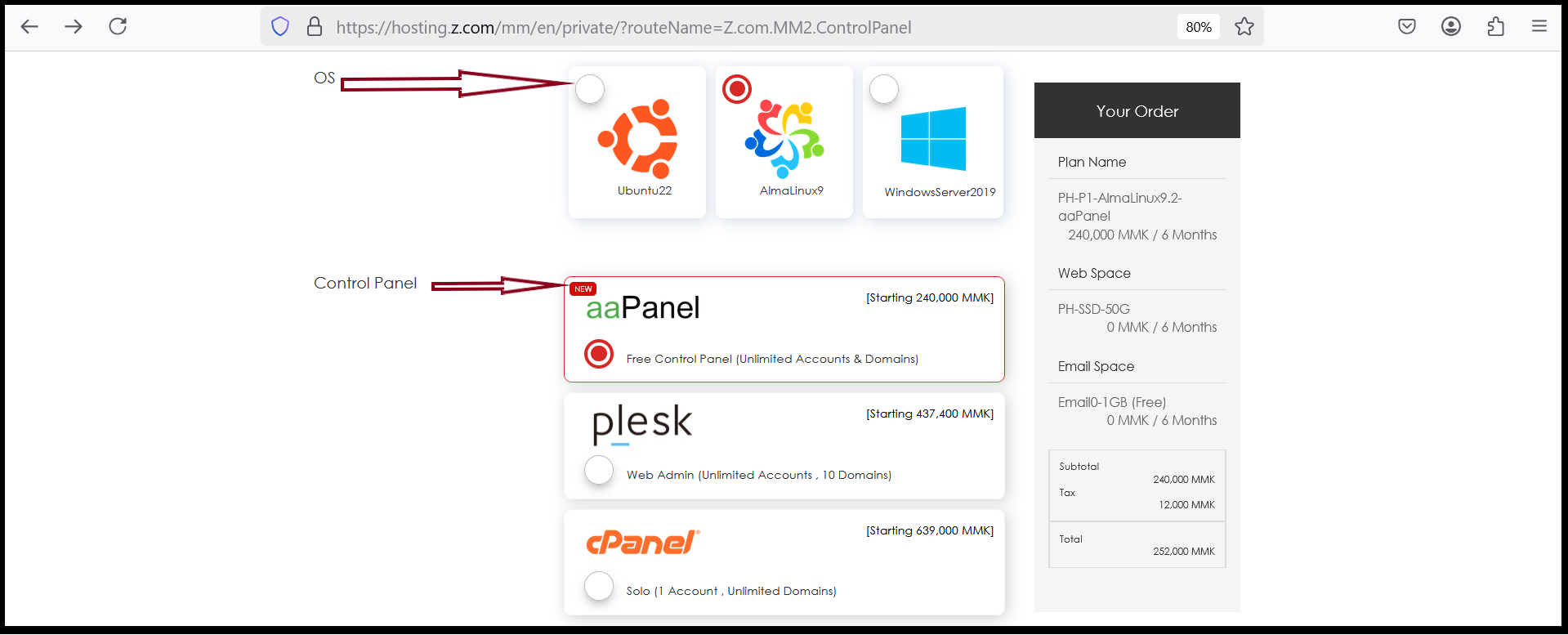
In Private Hosting package, we support Linux OS and Window OS.
In Linux, we provide two OS version like (Ubuntu and AlmaLinux).
In Window, we provide Window Server 2019 version.
Contract Period, we provide from 6 Months to 3 Years.
Web Space: In private hosting package, storage is available default 50GB. In you would like to use extra storage you can use additional 200Gb (or) 500Gb with extra charge.
IP Address: In private hosting package, default 1 IP is available. If you would like to use additional IP, you can use with additional IP with extra charge.
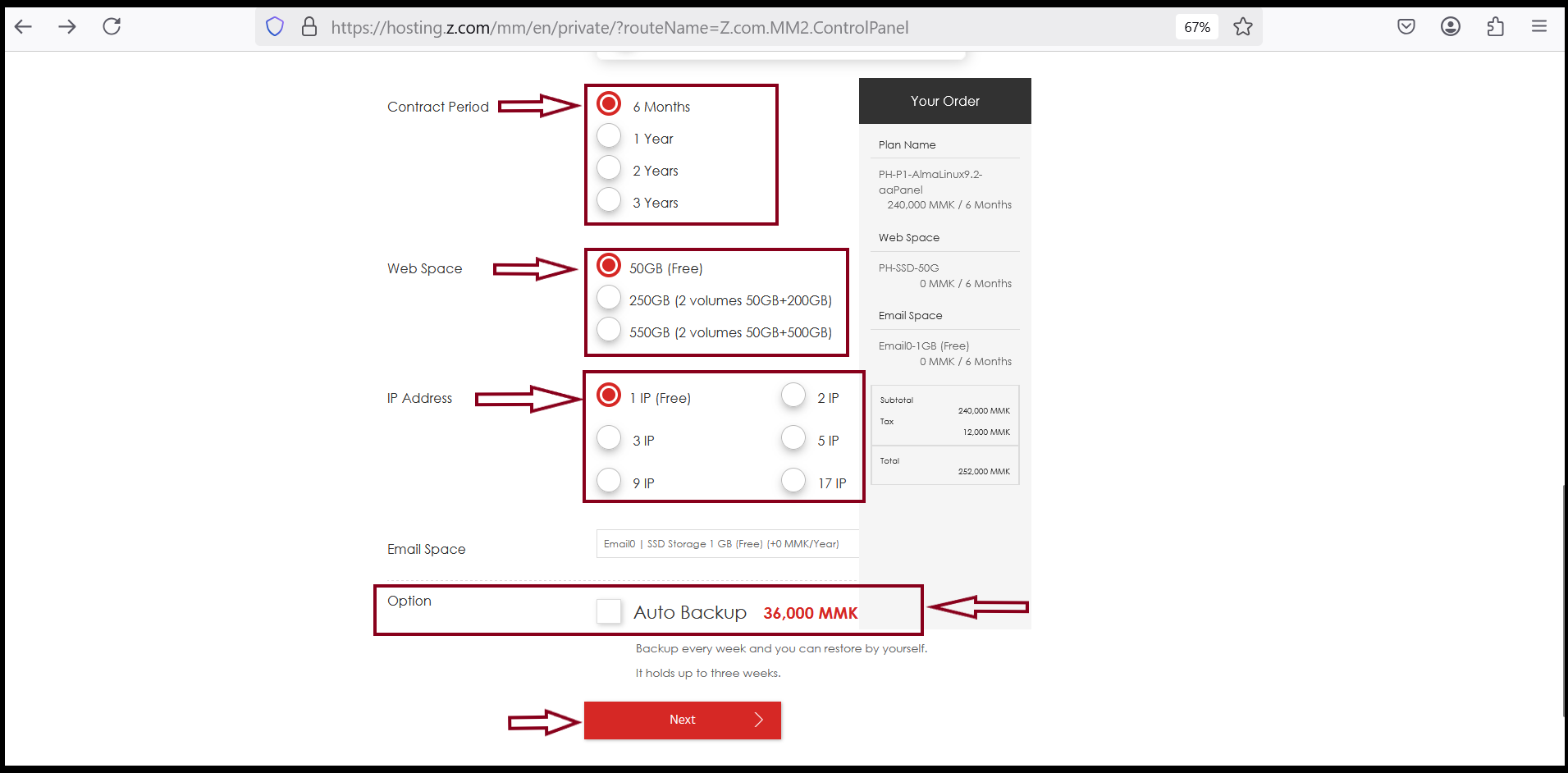
For the AutoBackup service, you can use with optional extra charge. If you don’t want to use this auto backup service, don’t checkmark Option service.
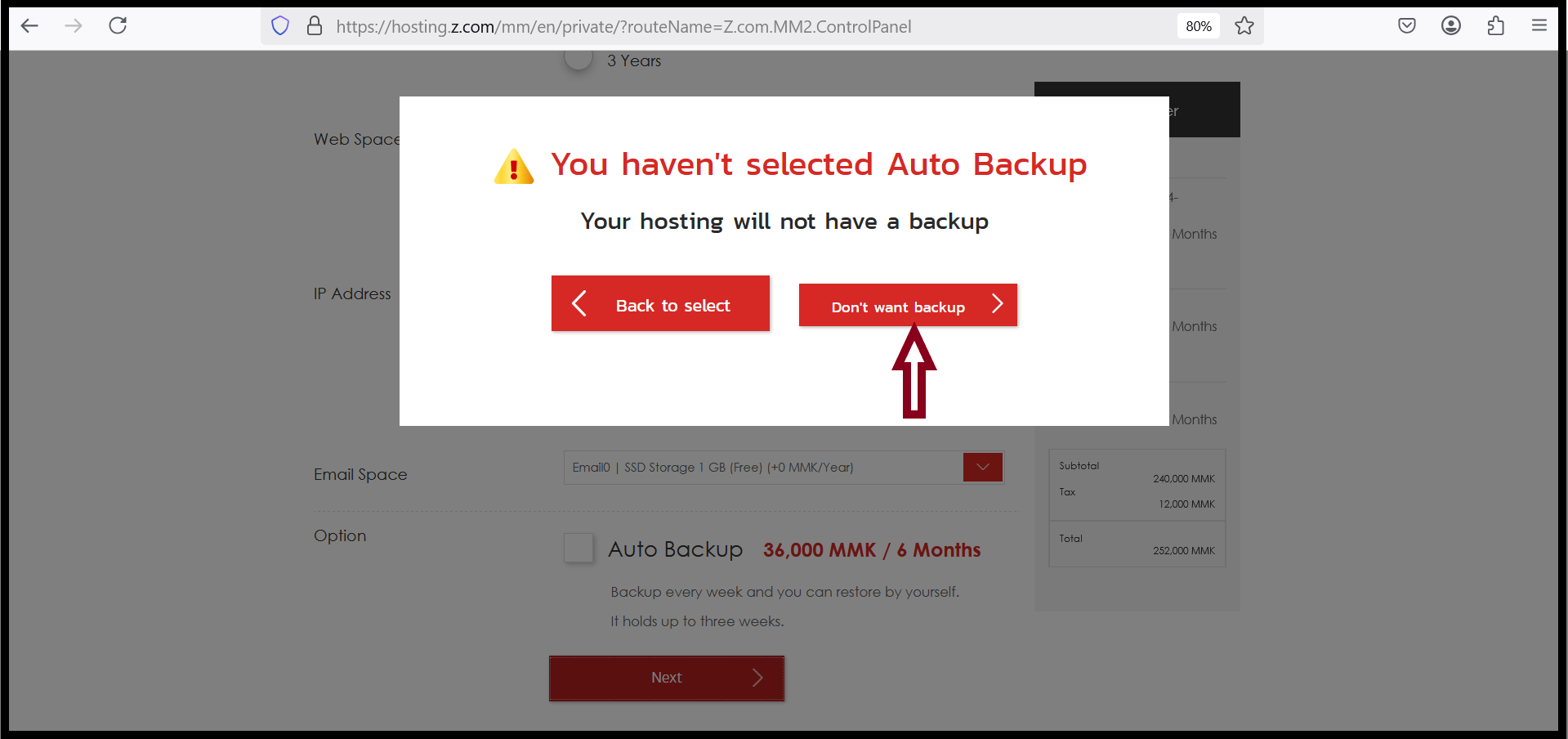
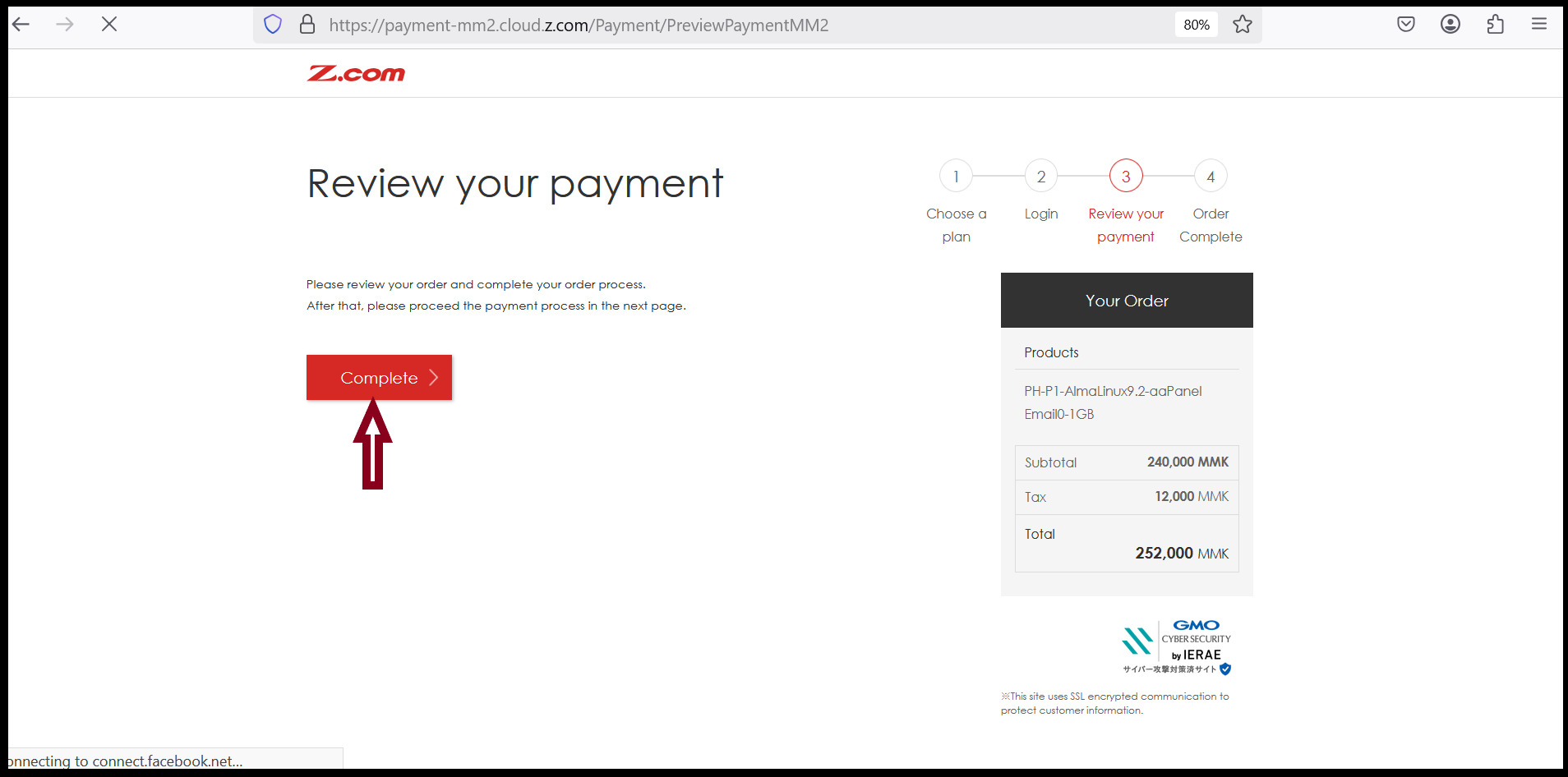
Click “Complete”
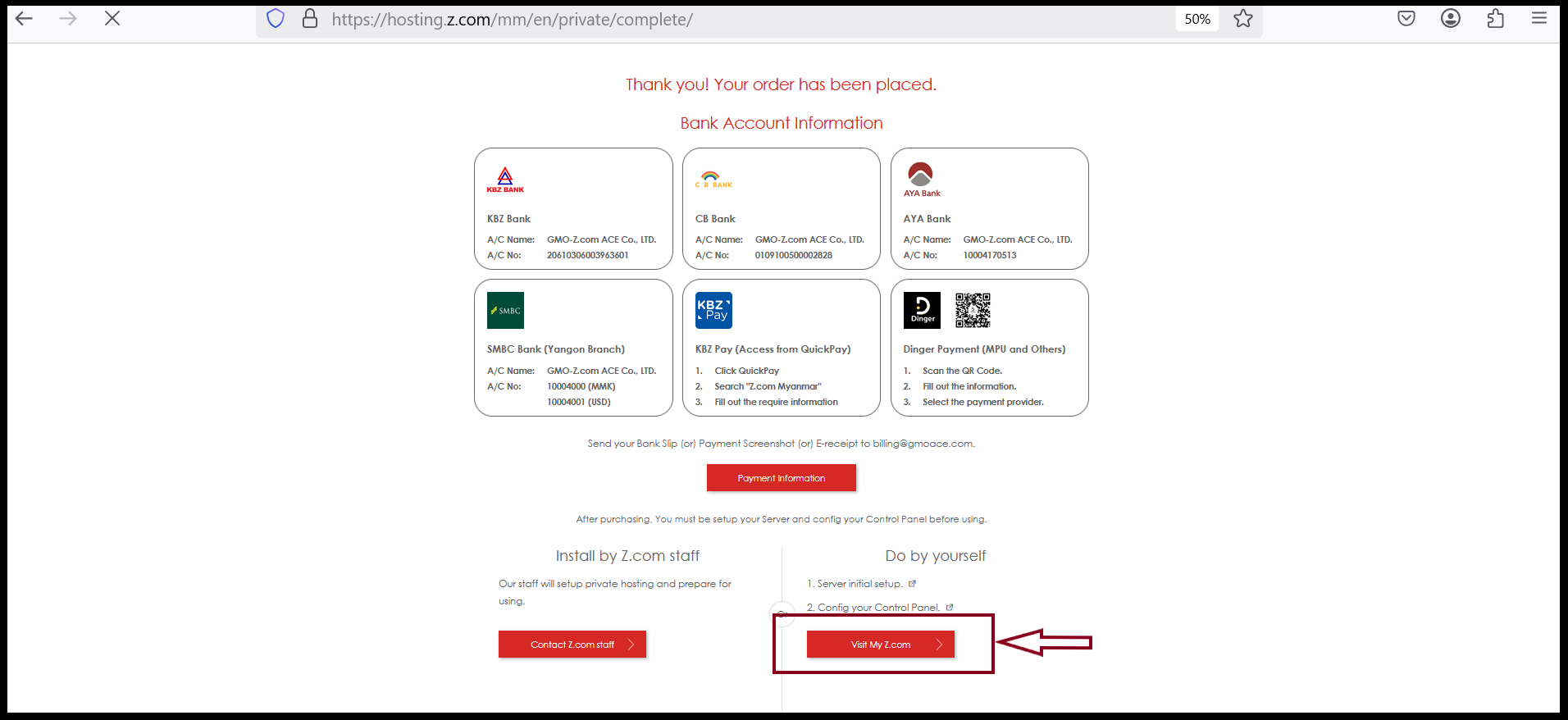
Step3. Click “Visit My Z.com”. Then go to “Private Hosting Tab”. And then, Click “Server Default Setting” Under Name Tag.
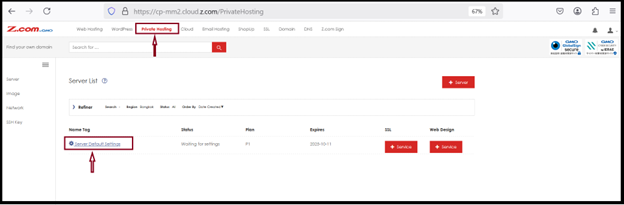
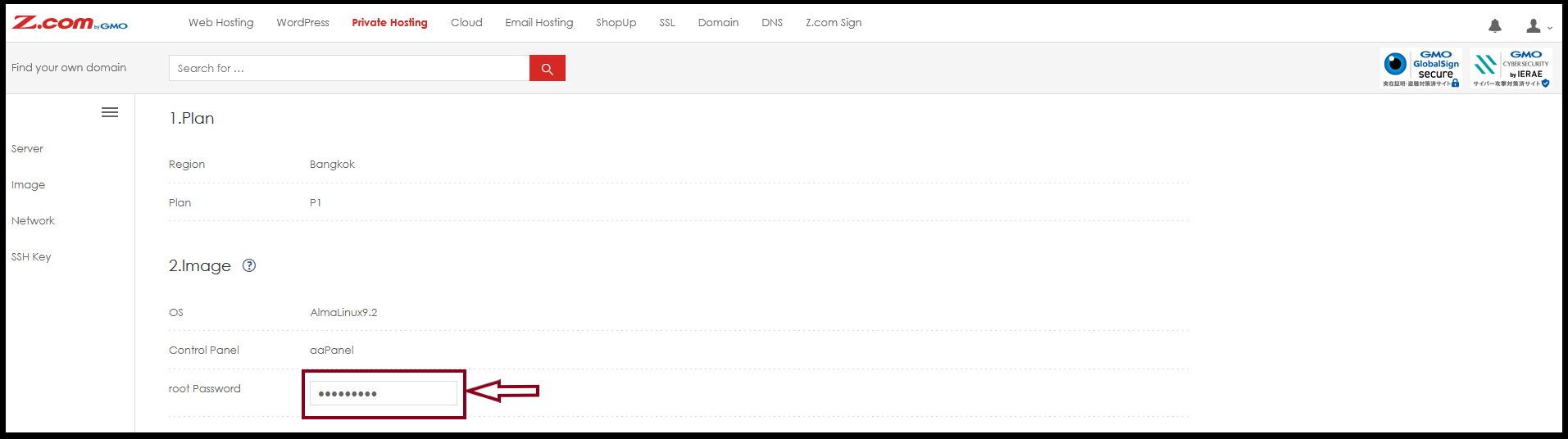
Now you can setup server password.
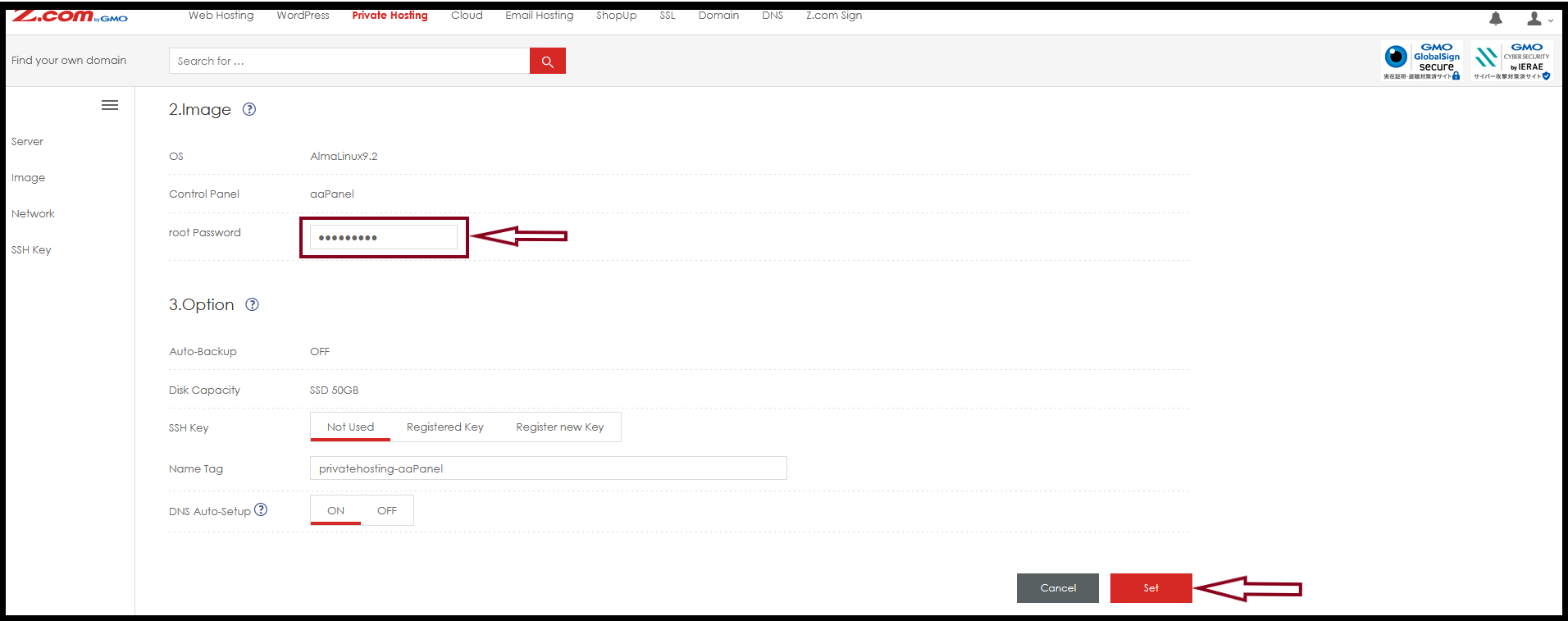
Then, Click “Set. If the password setup process is finished, you need to wait around 2hours for the server building process.
Thank you!!!
Was this article helpful?
That’s Great!
Thank you for your feedback
Sorry! We couldn't be helpful
Thank you for your feedback
Feedback sent
We appreciate your effort and will try to fix the article