How to Increase the Email Account's Storage on Email Hosting ( Smarter Mail ) ?
Z Account login link: https://hosting.z.com/mm/signin/
1.Firstly, log in to your Web Mail Login.
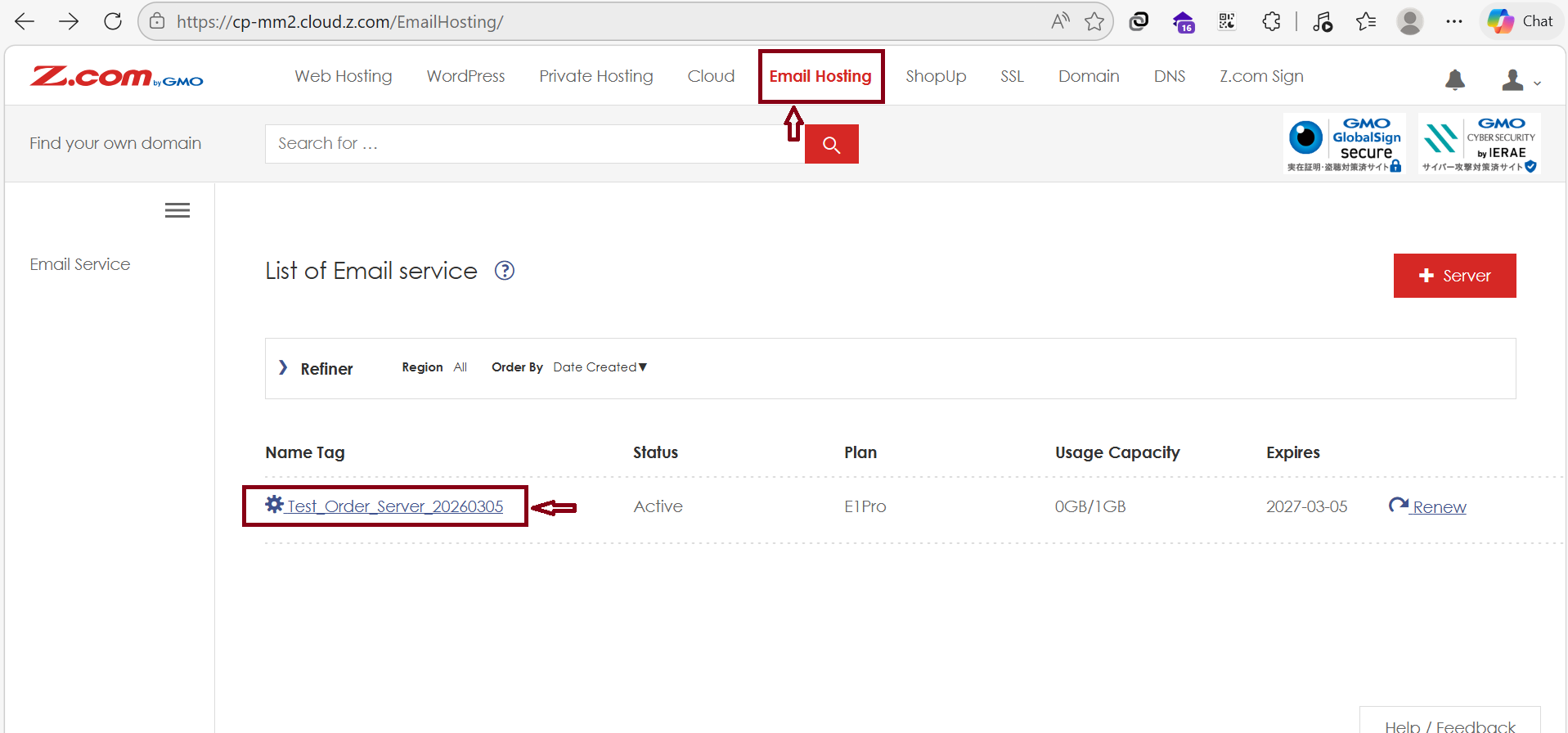
- Click the “Email Hosting” Menu
- Click the "Email server" shown under the Name Tag section.
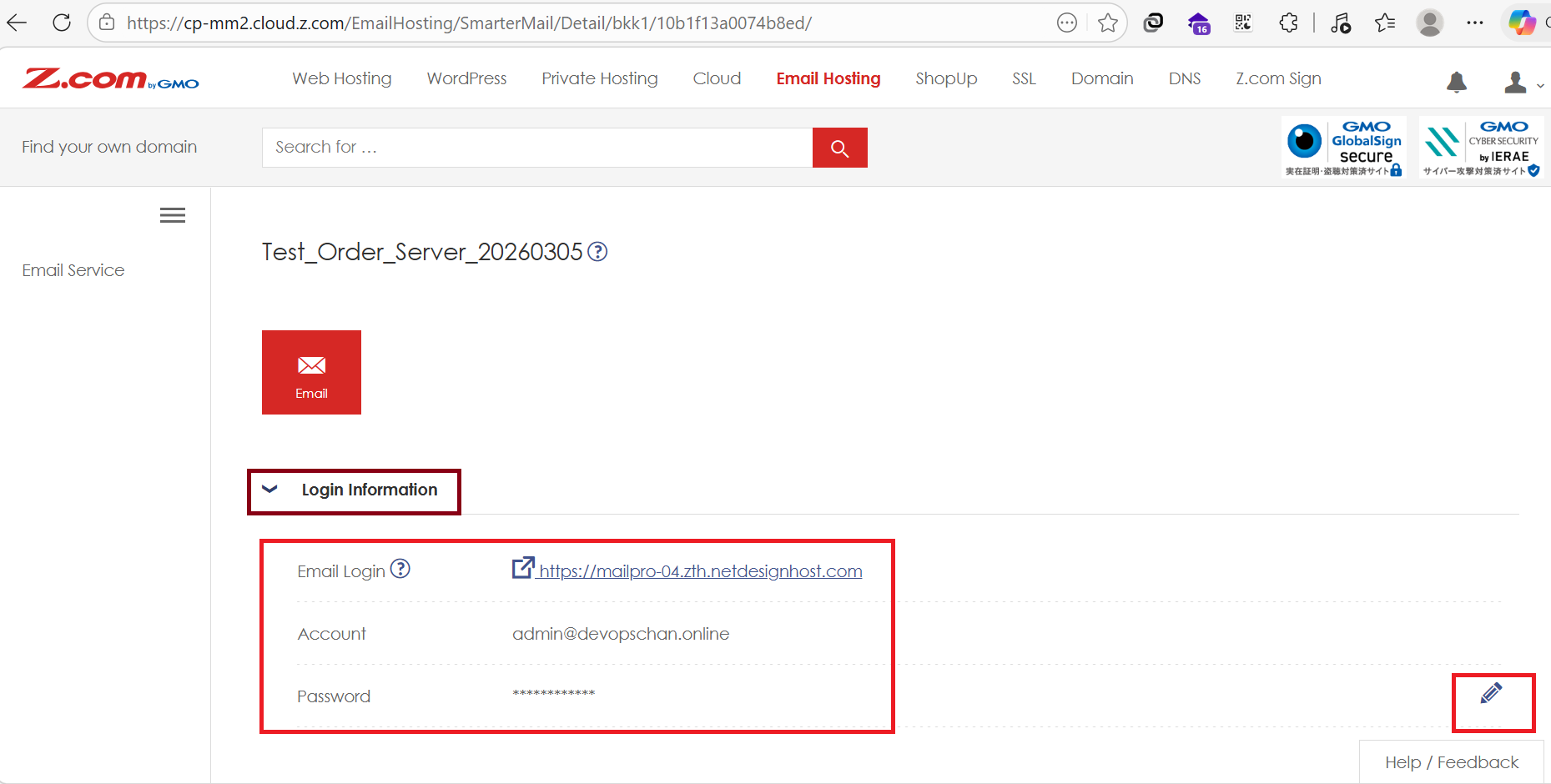
Check your Login Information for the Email Login link and Admin Account to enter the Admin panel.
Click the Pencil Icon to reset your password if you forget it.
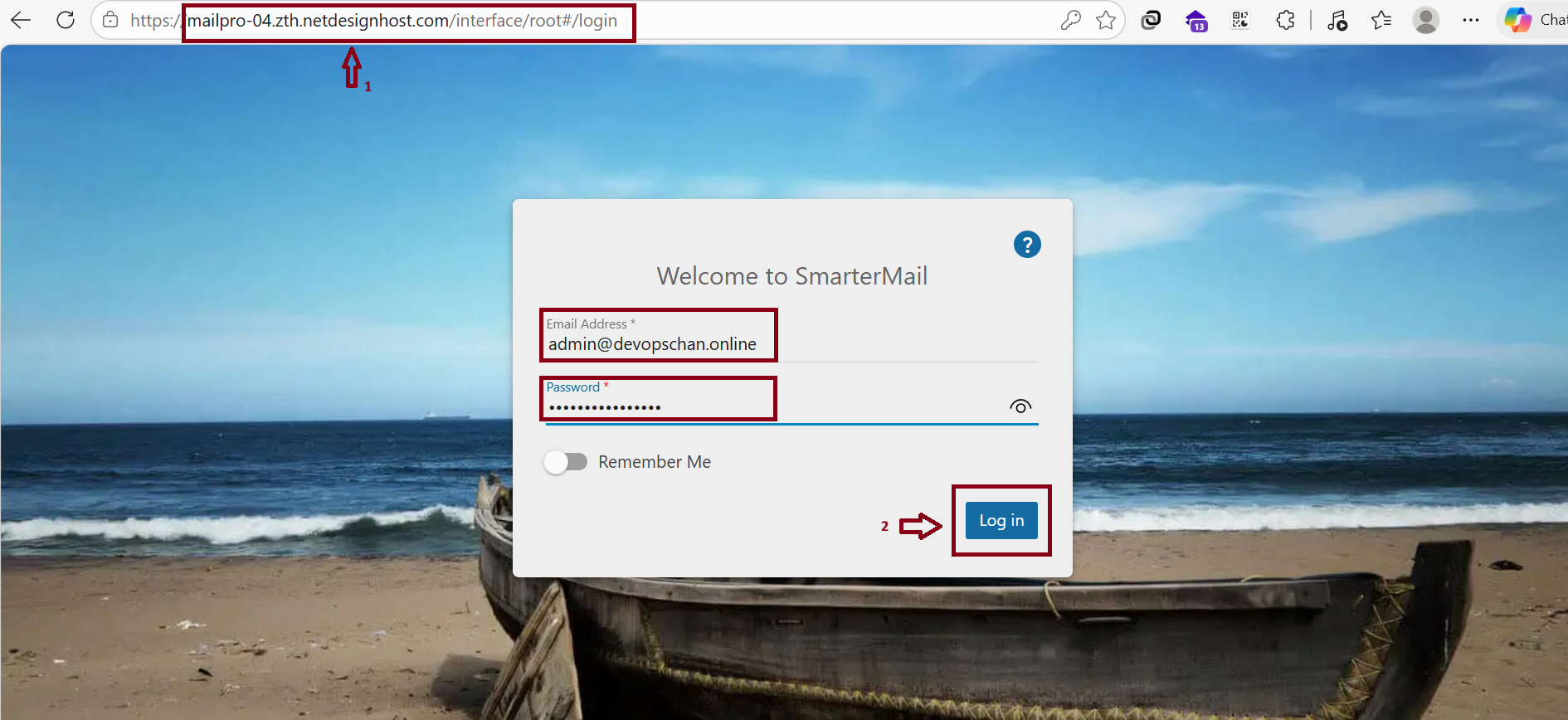
Use a web browser and enter these credentials to log in to your SmarterMail dashboard.
Note: The Webmail Login URL may change depending on the specific server being used.
Click " More "
Click " Domain Setting " when it appears 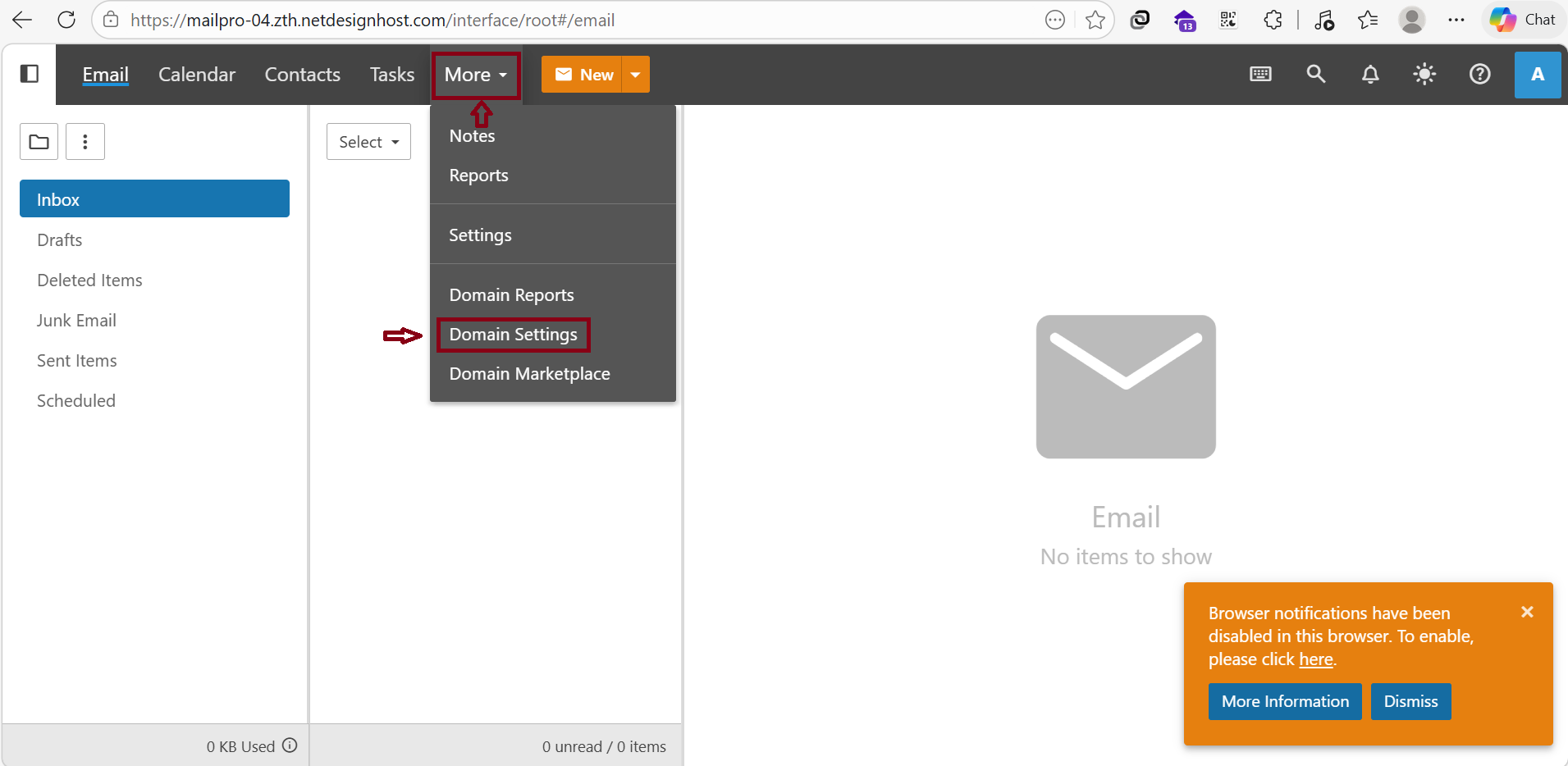
Select the user’s email account that you want to increase the storage. 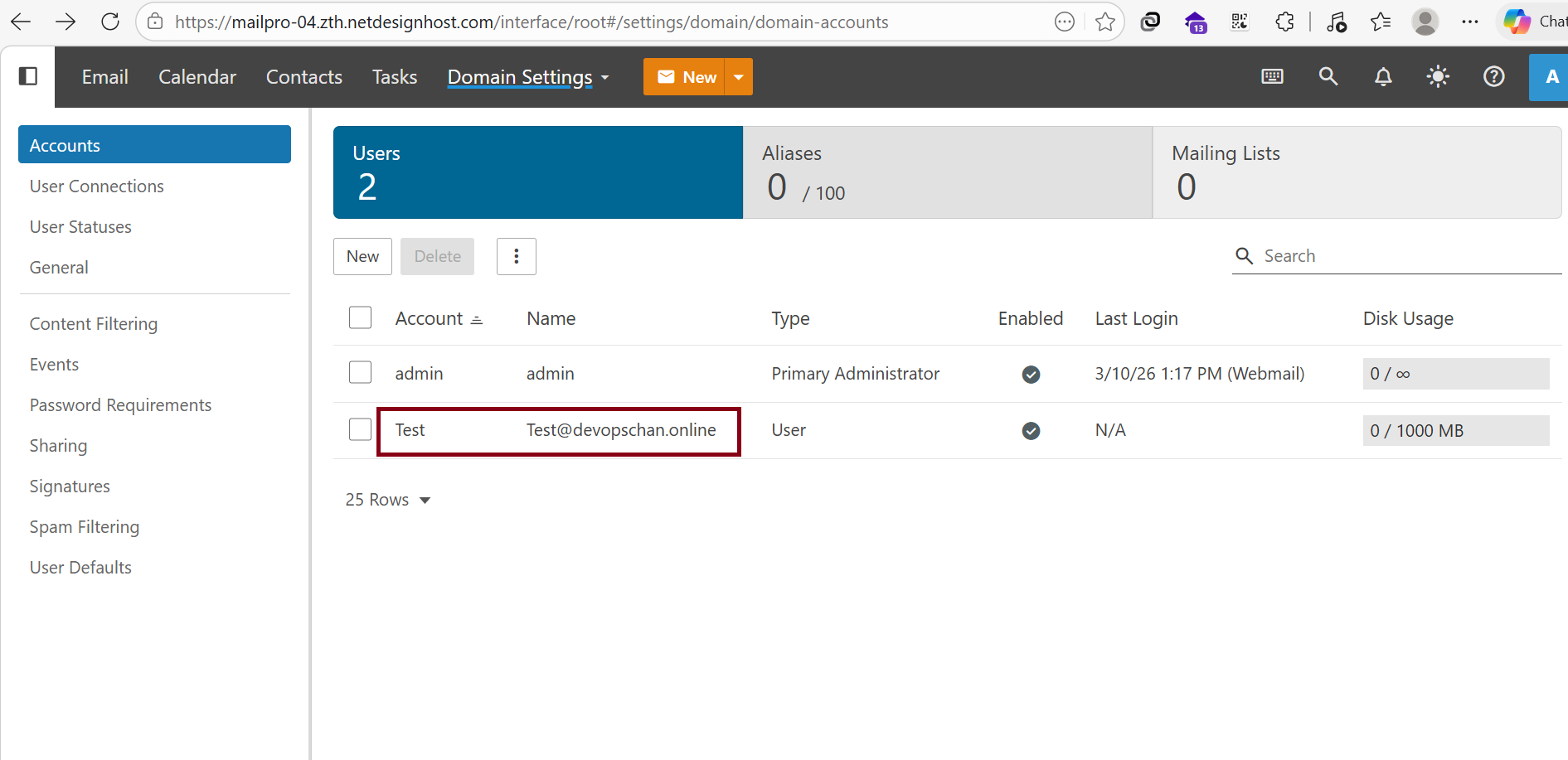
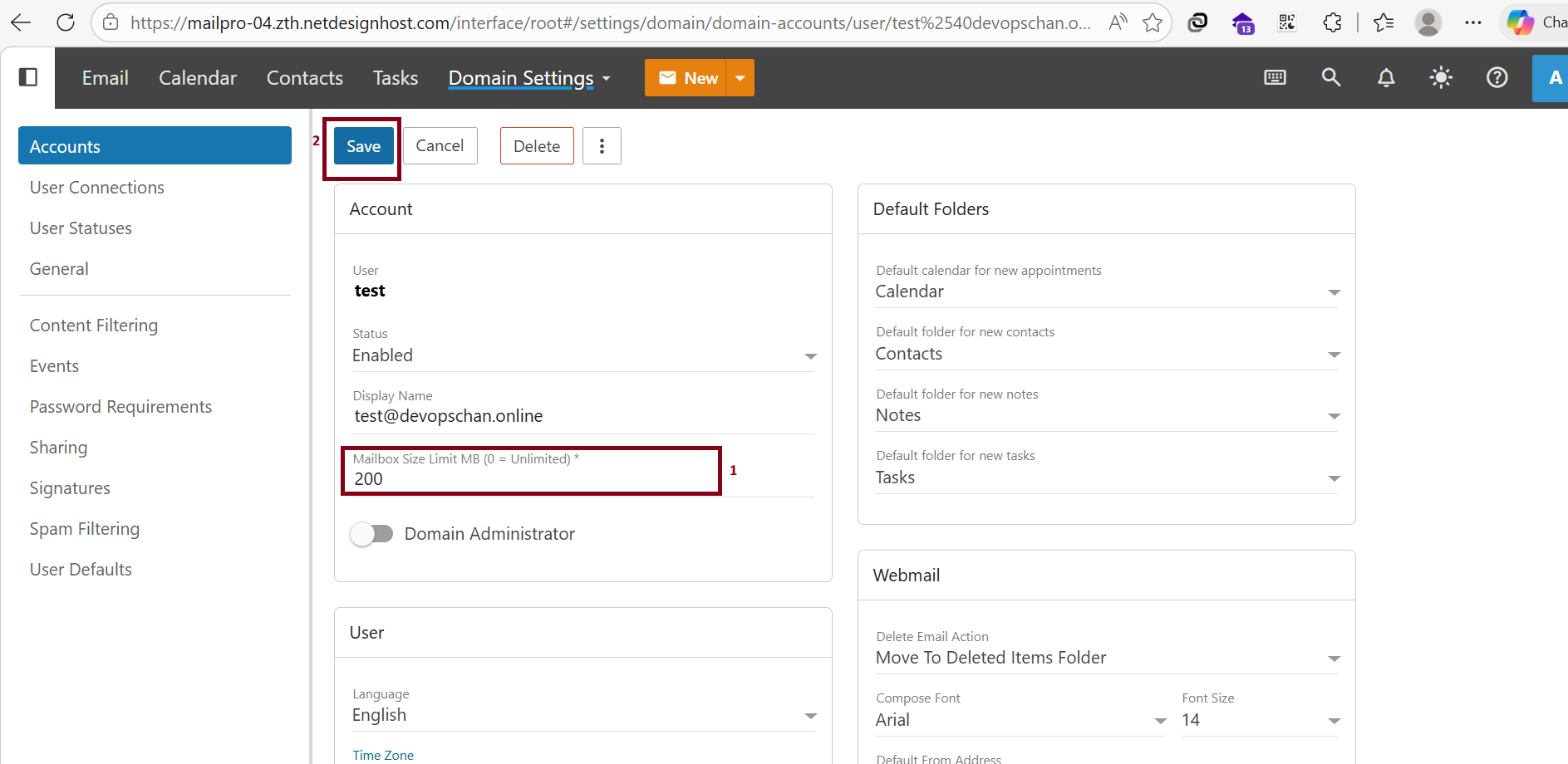
You can manually set the Mailbox Size Limit.
- You can adjust mailbox size limit that you want .( Enter "0" for Unlimited Mail Storage . )
- And than " Save "
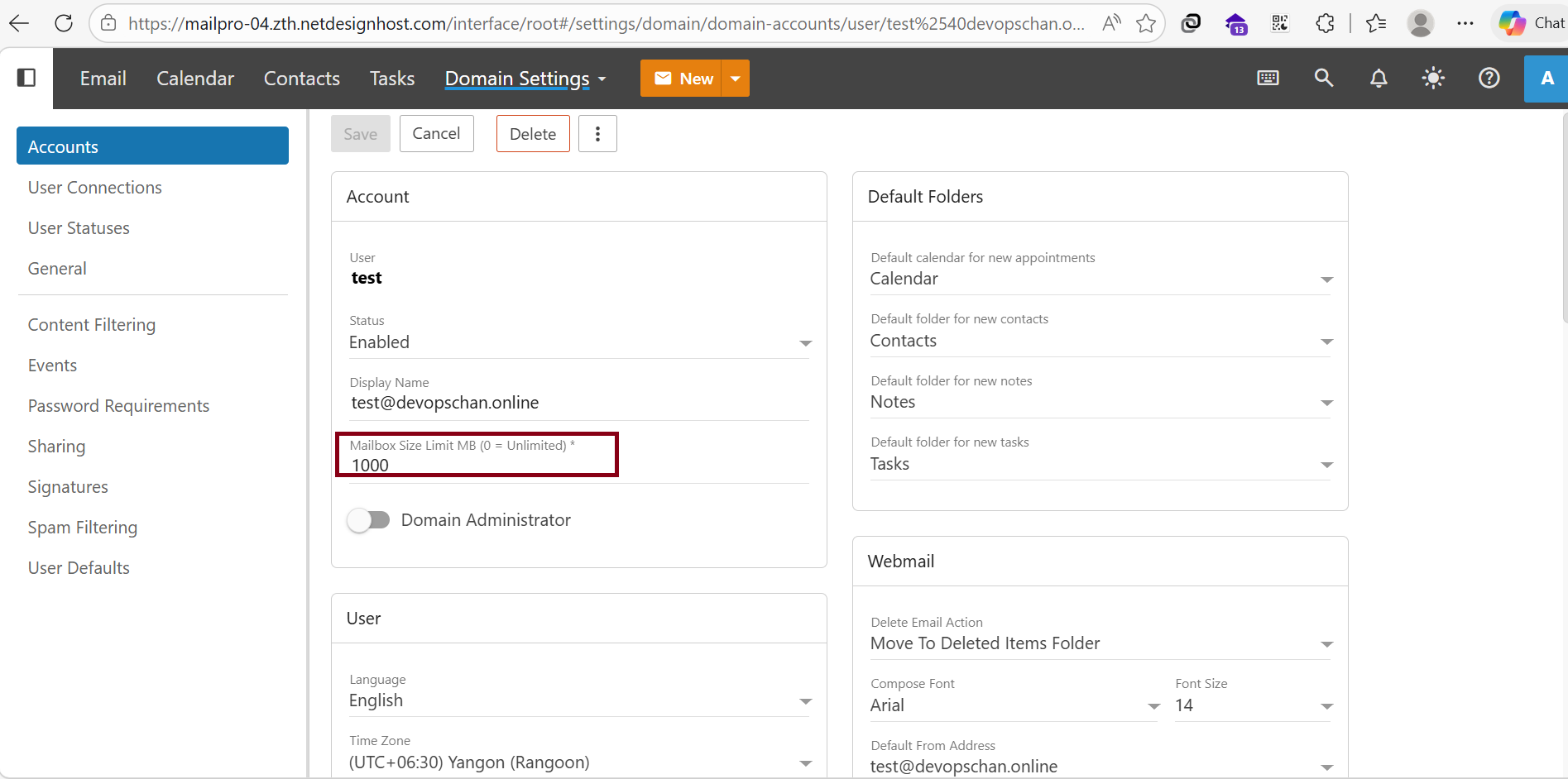
The result below shows the successfully updated the Mail Account Storage after increasing the limit to 1000MB .
Thank you for Watching !!!
Was this article helpful?
That’s Great!
Thank you for your feedback
Sorry! We couldn't be helpful
Thank you for your feedback
Feedback sent
We appreciate your effort and will try to fix the article