How to create an Auto-Generate SSH KEY in MM4 (Cloud VPS order)?
Step1. Login to z.com account, https://hosting.z.com/mm/signin/ 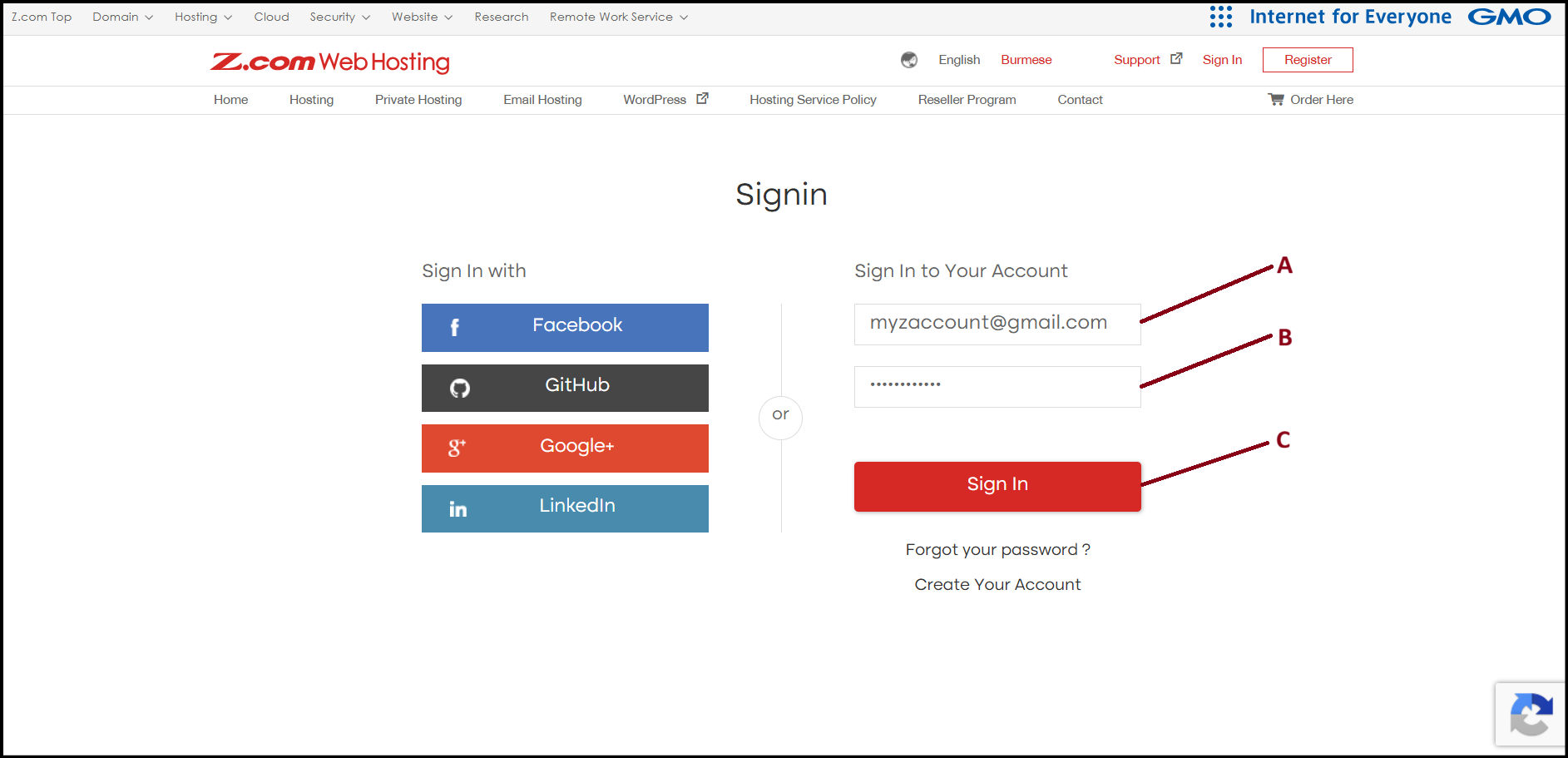
Step2. Go to the "Cloud VPS" tab under MM4. And click "+Add Cloud Server" to order new Cloud VPS with auto generate SSH key.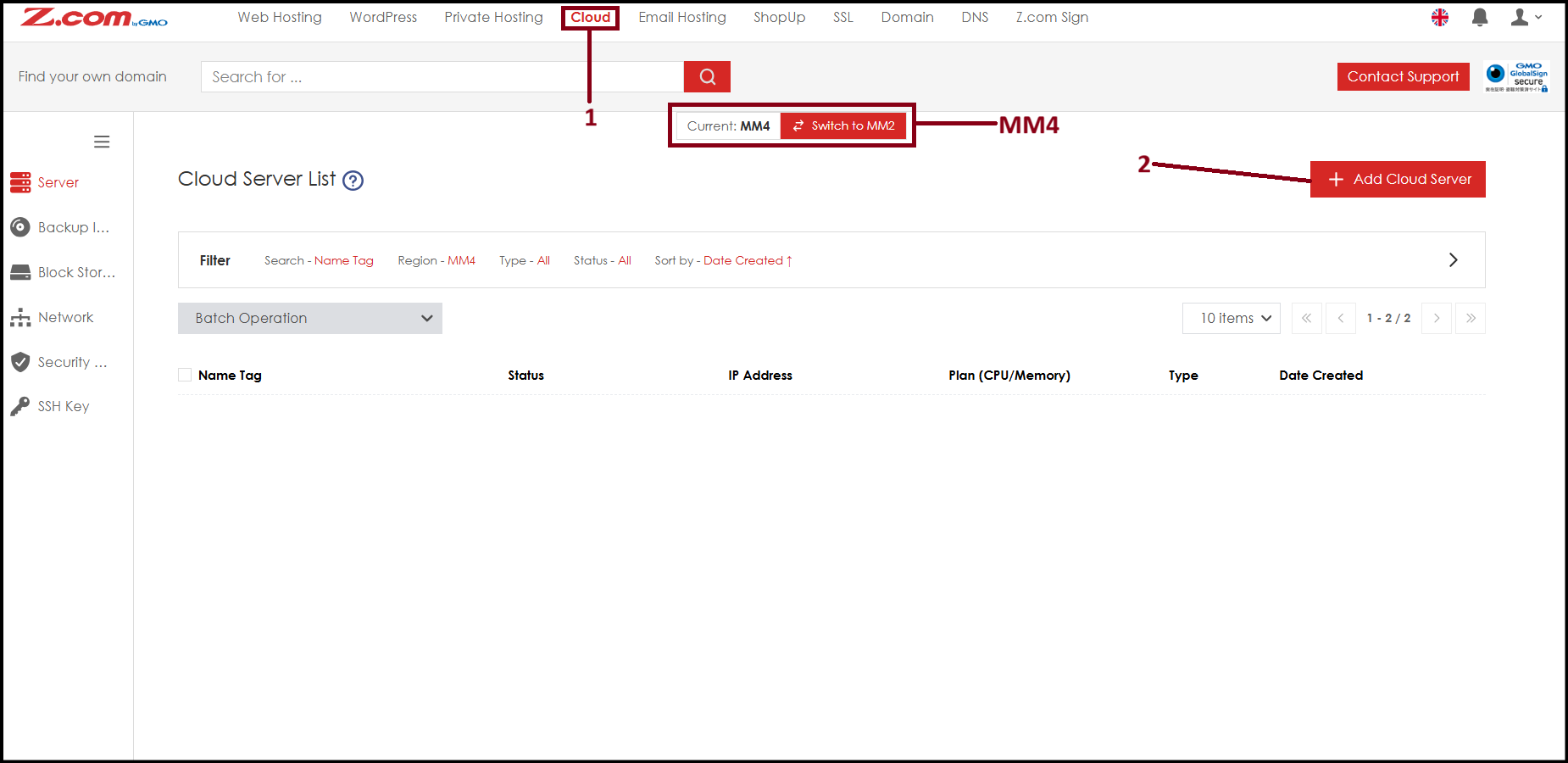
Step3. Choose server OS, version and plan type.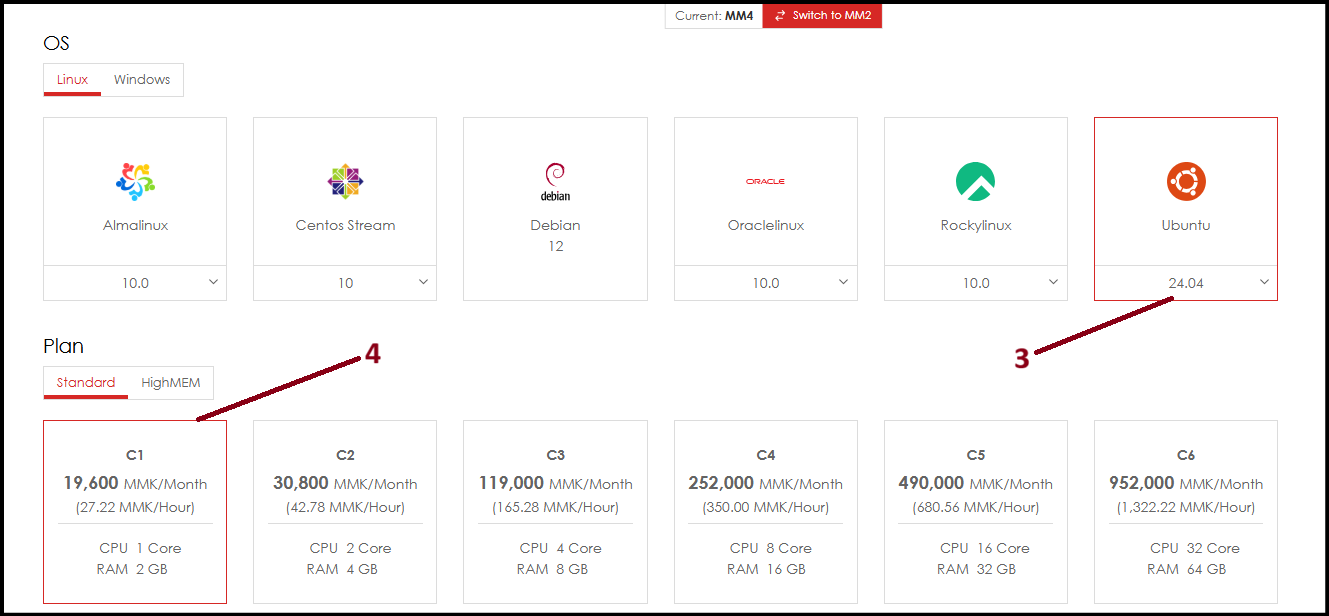
Step4. Choose server specs, root password, nametag and click "See Options".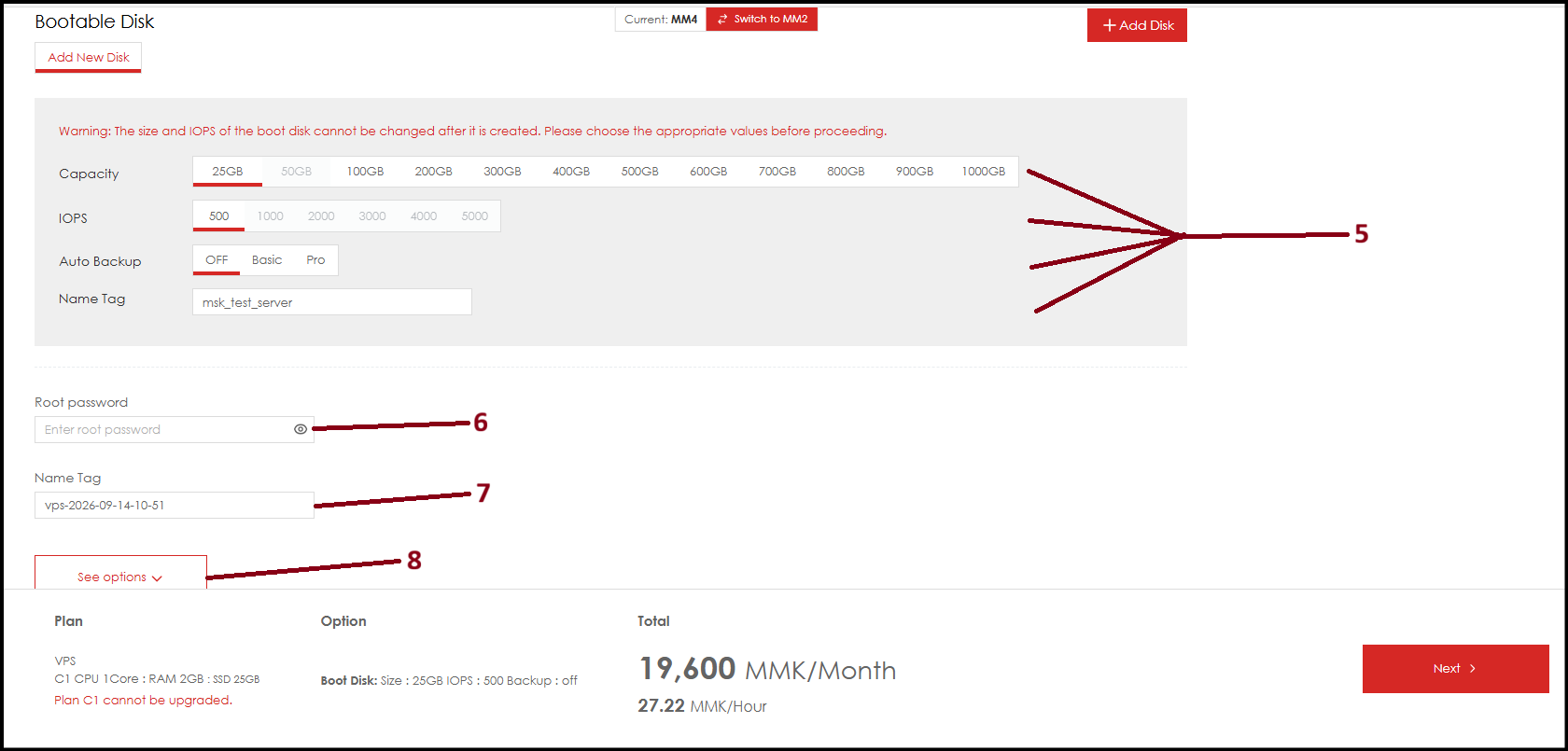
Step5. Now select "Register new key" then "Auto-generate" and click "Key registration".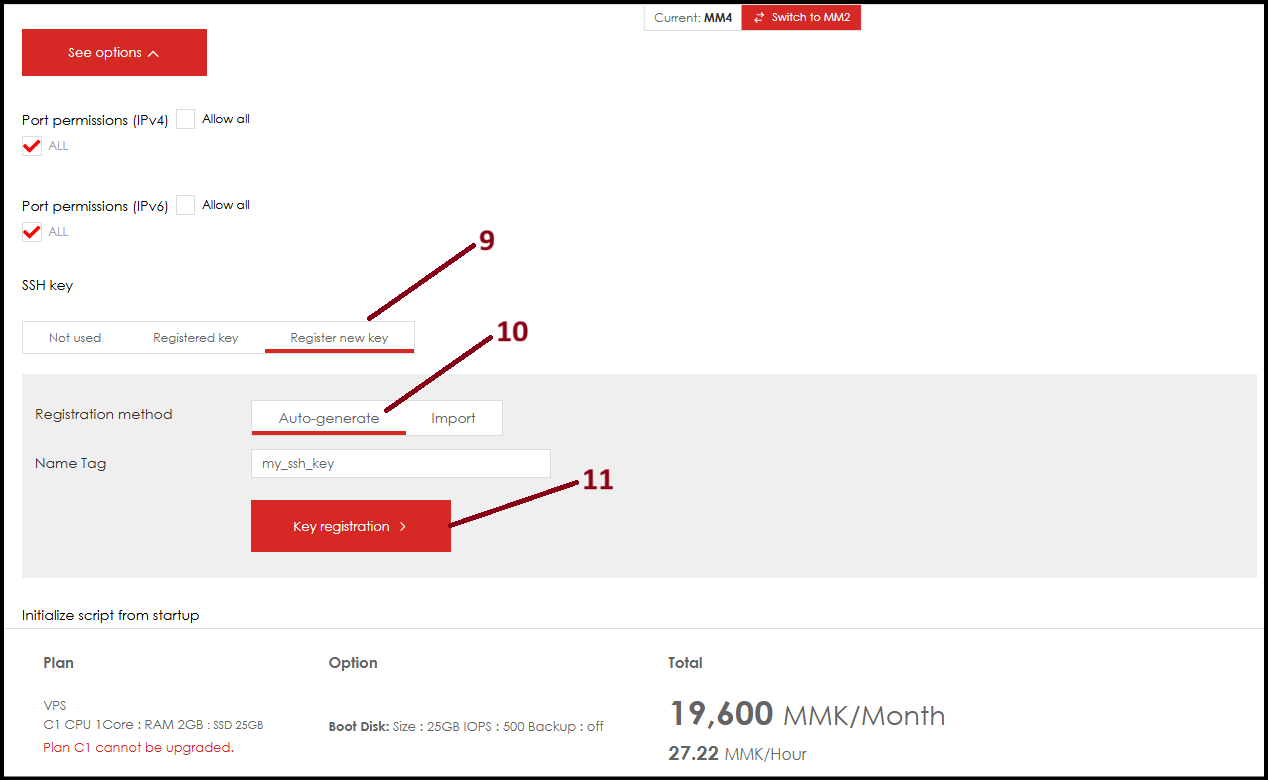
Step6. New SSH key will generate. Click "Download" to download ssh private key and save it in a safe place. The ssh public key will auto add into the server config.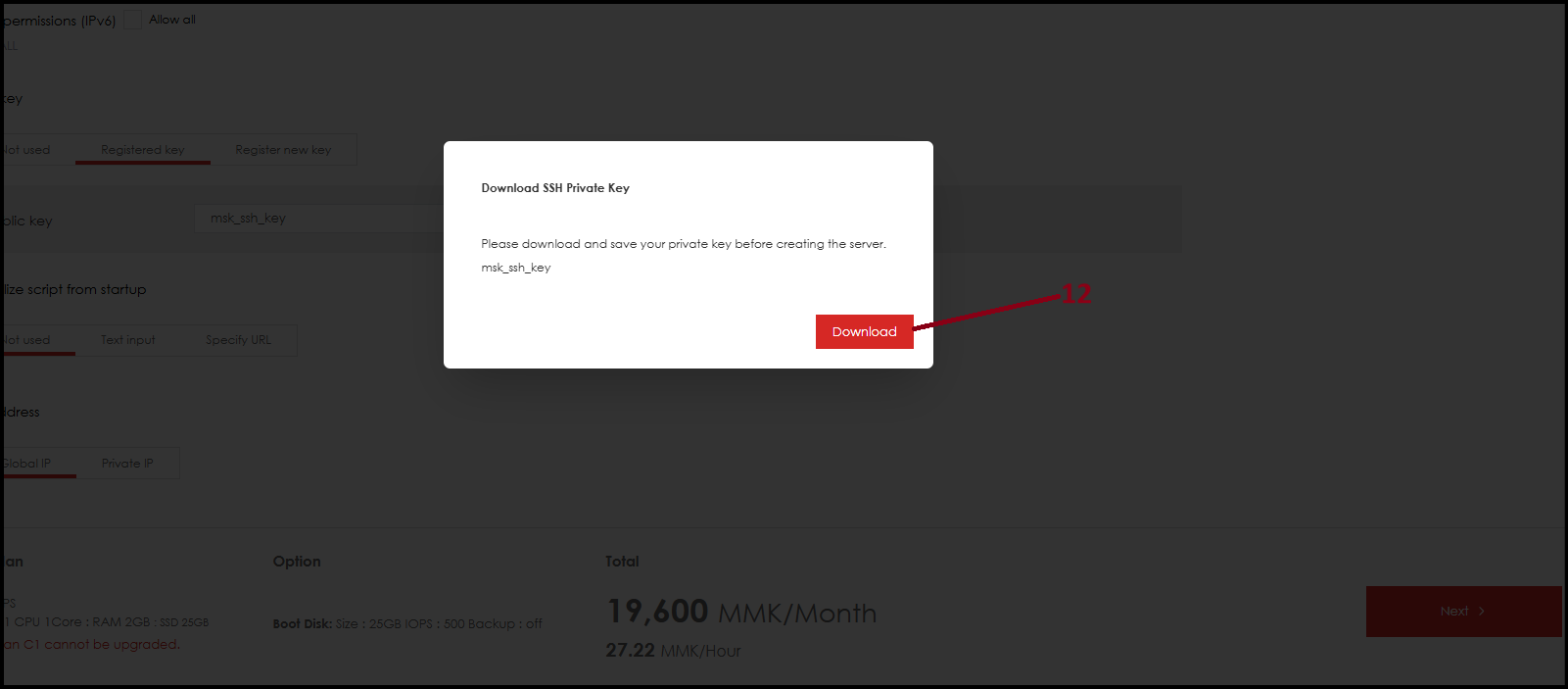
Step7. After that click "Next" to place order. 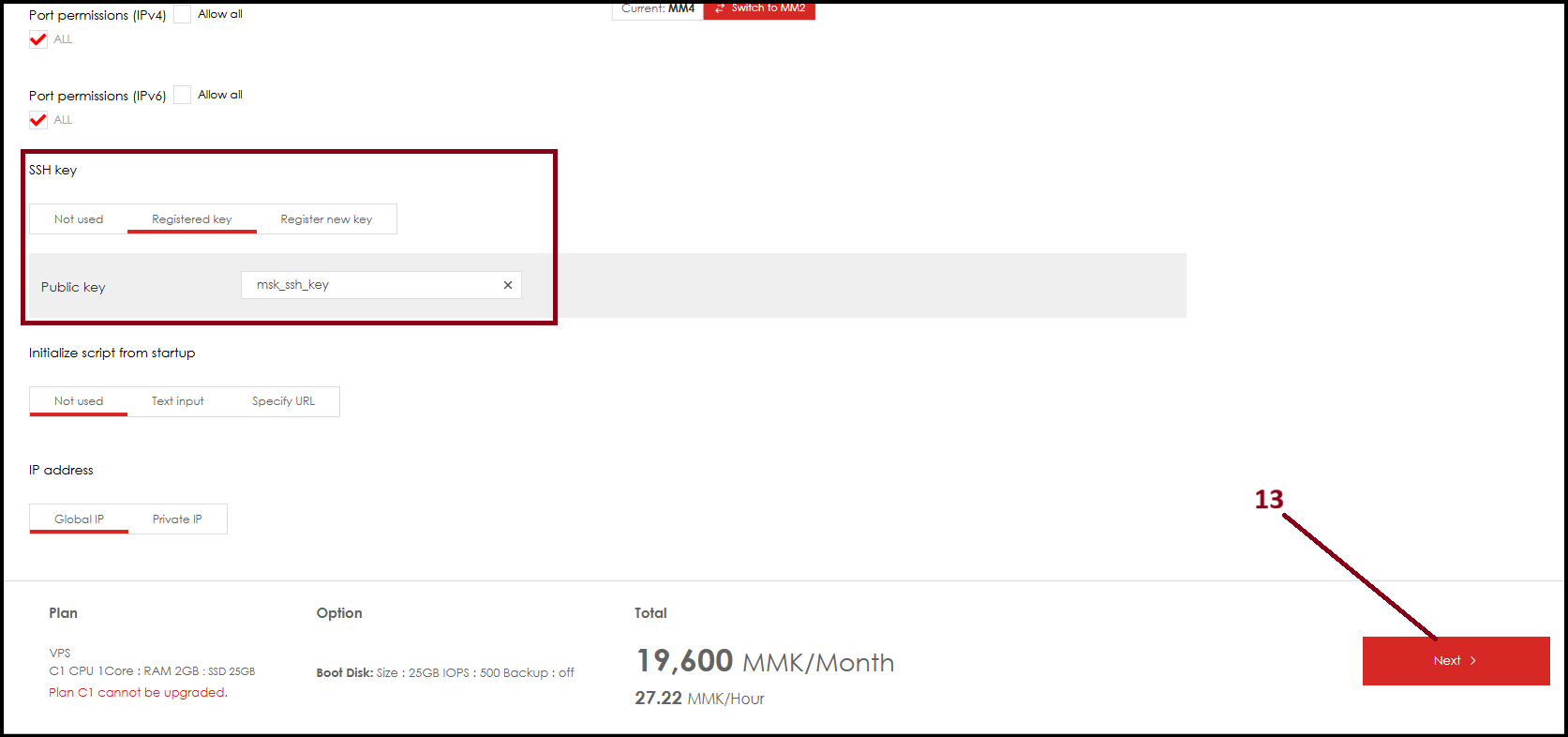
Step8. Now the server is successfully created. To login with SSH Key to server, copy the "IP Address" of server and copy the file path of downloaded SSH private key file and open "cmd" of local pc.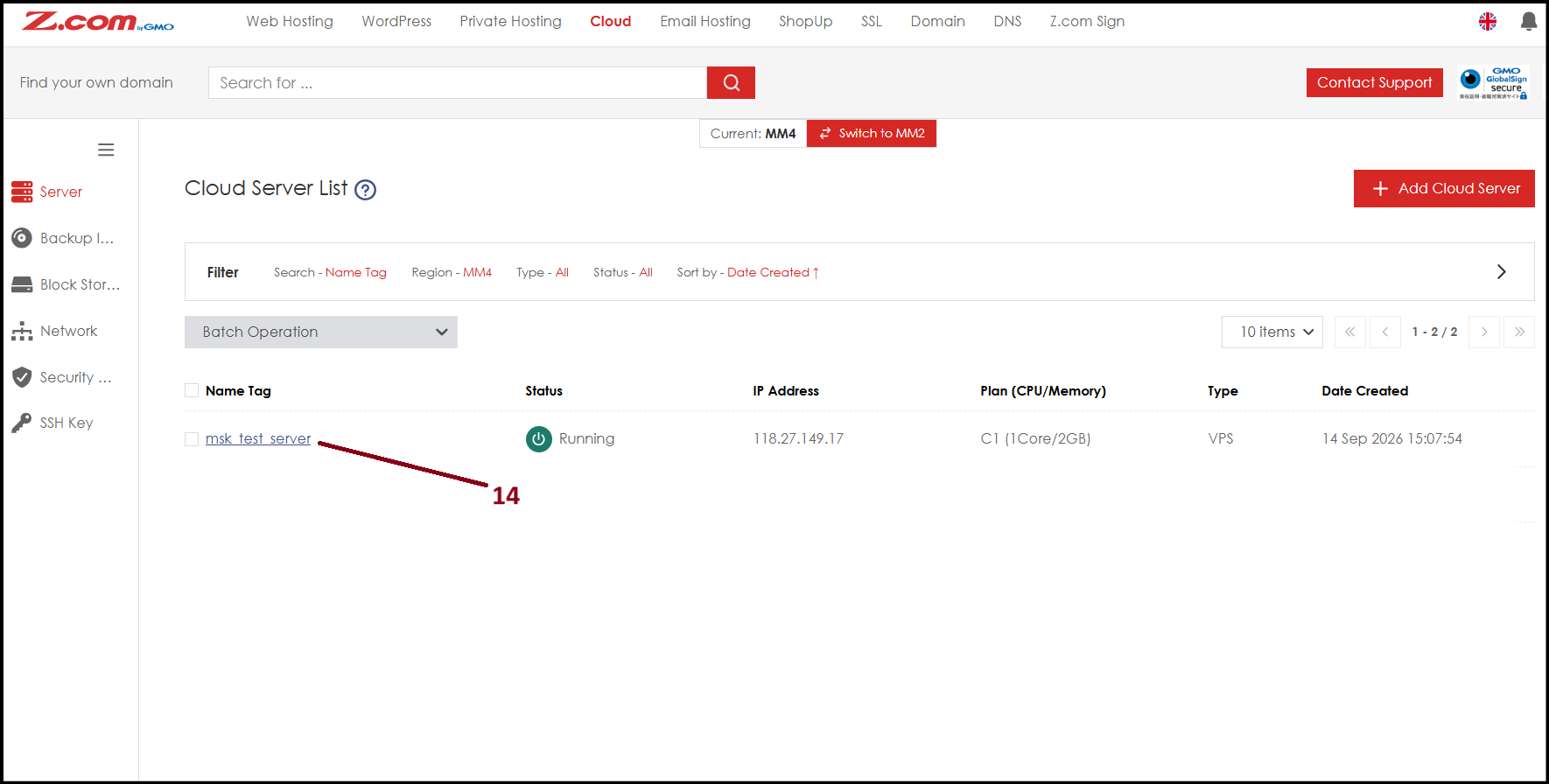
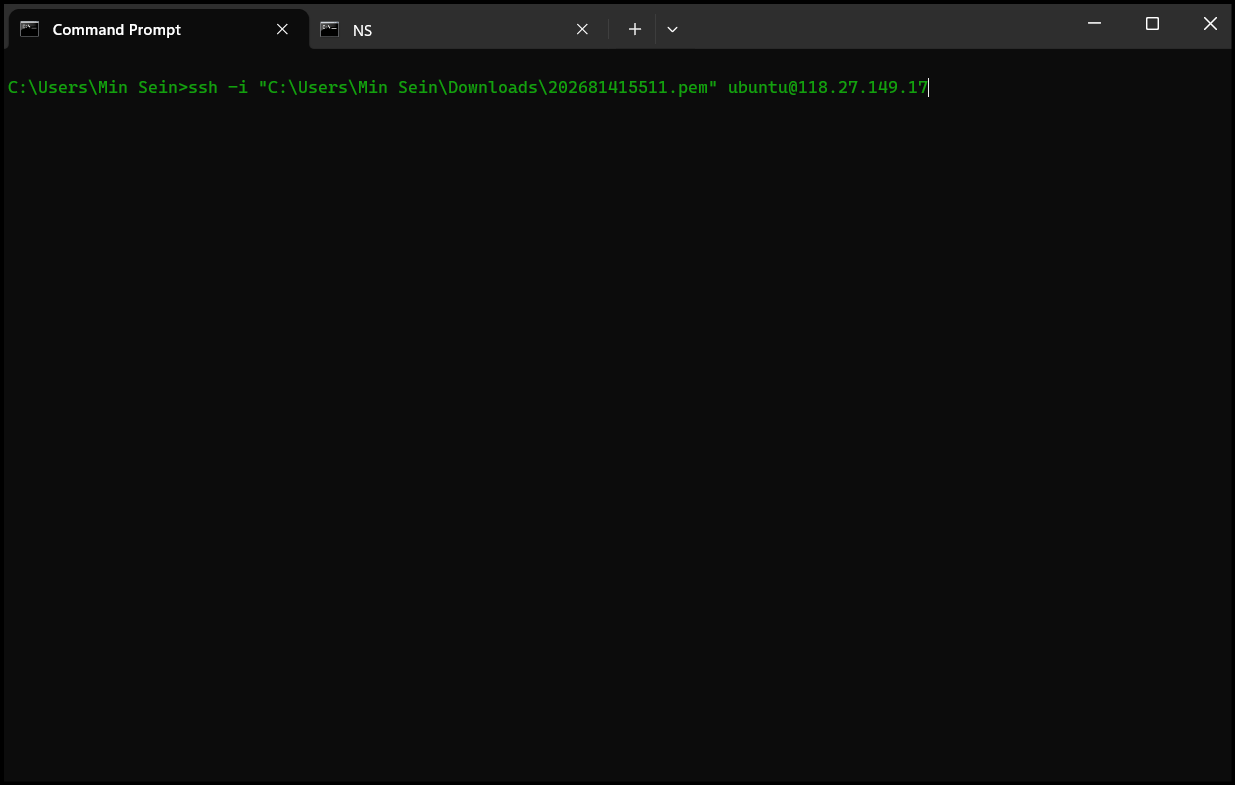
Step9. Write down the below command relative to your server information and click enter. NOTE: replace [file path of ssh private key] and [server ip] with your actual server information.
cmd - ssh -i [file path of ssh private key] ubuntu@[server ip]
example cmd - ssh -i "C:\Users\Min Sein\Downloads\202681415511.pem" ubuntu@118.27.149.17
Step10. Now successfully login to the server with SSH Key. 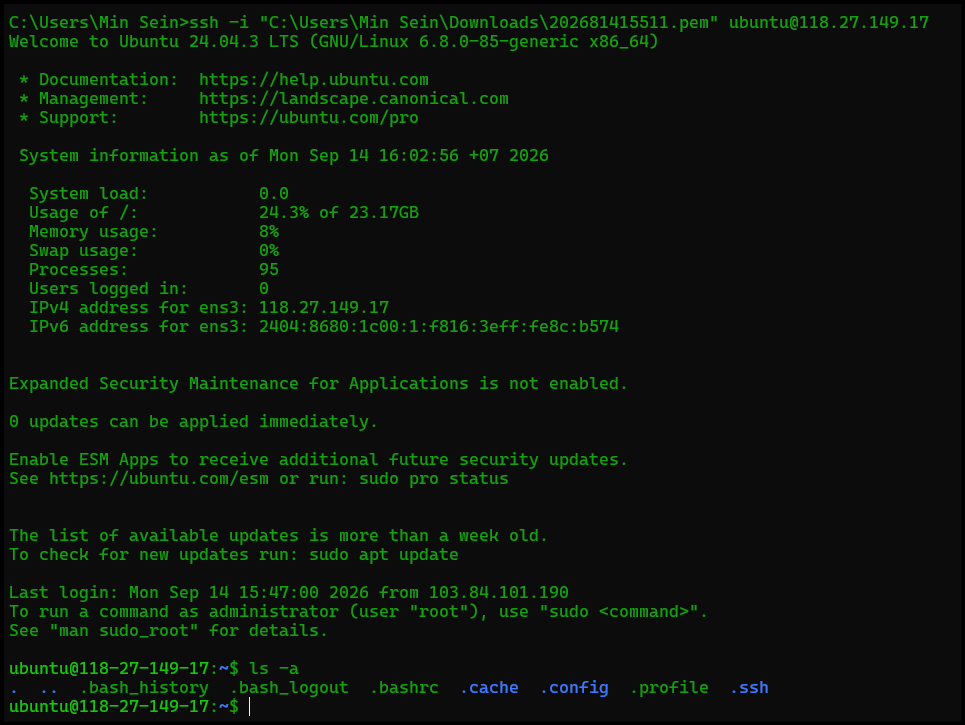
Thank You!
Was this article helpful?
That’s Great!
Thank you for your feedback
Sorry! We couldn't be helpful
Thank you for your feedback
Feedback sent
We appreciate your effort and will try to fix the article