How to remove SSH KEY from MM4 conslole?
Step1. Login to z.com account, https://hosting.z.com/mm/signin/ 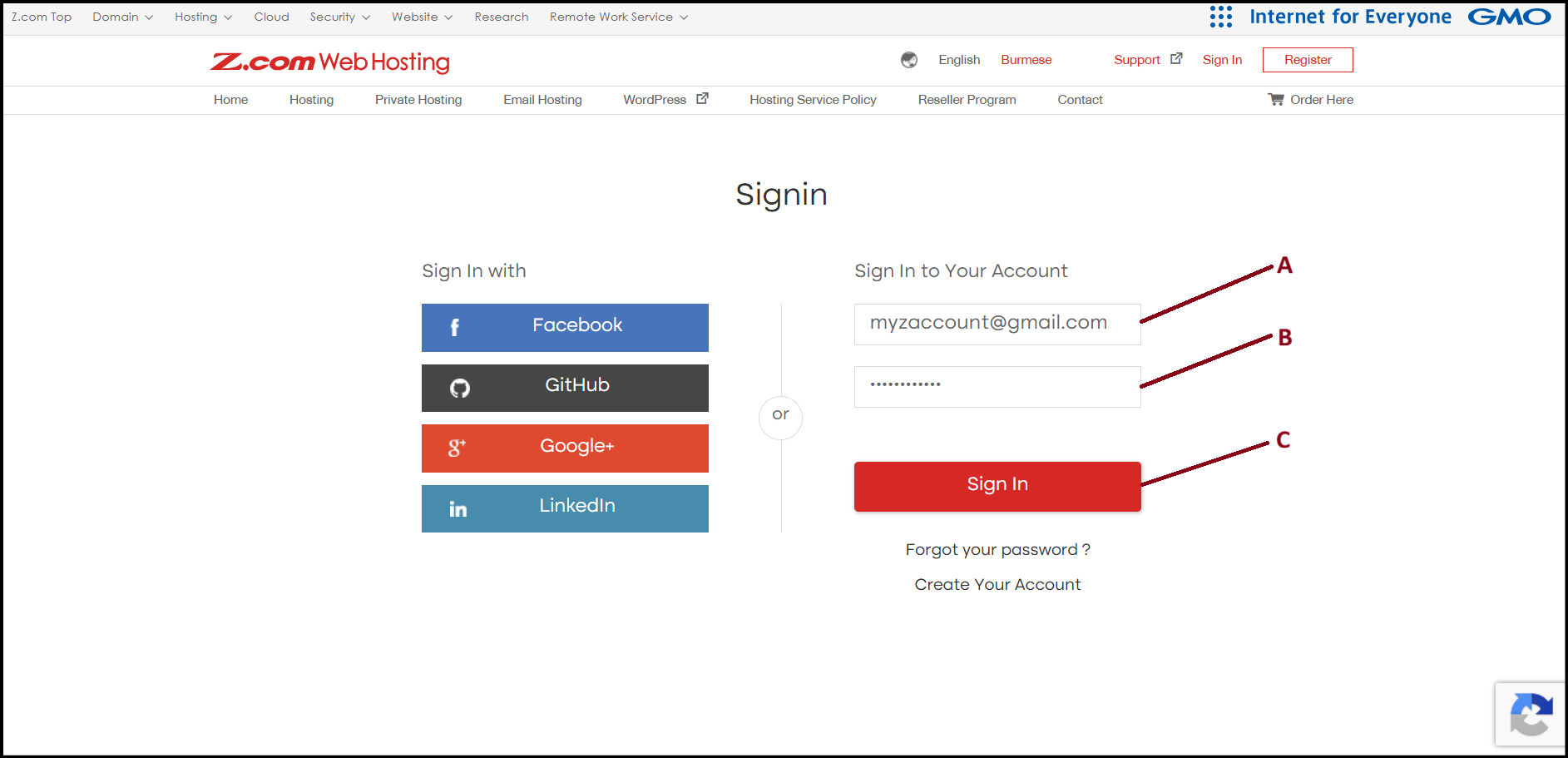
Step2. Go to the "Cloud VPS" tab under MM4. And click "SSH Key" to manage keys.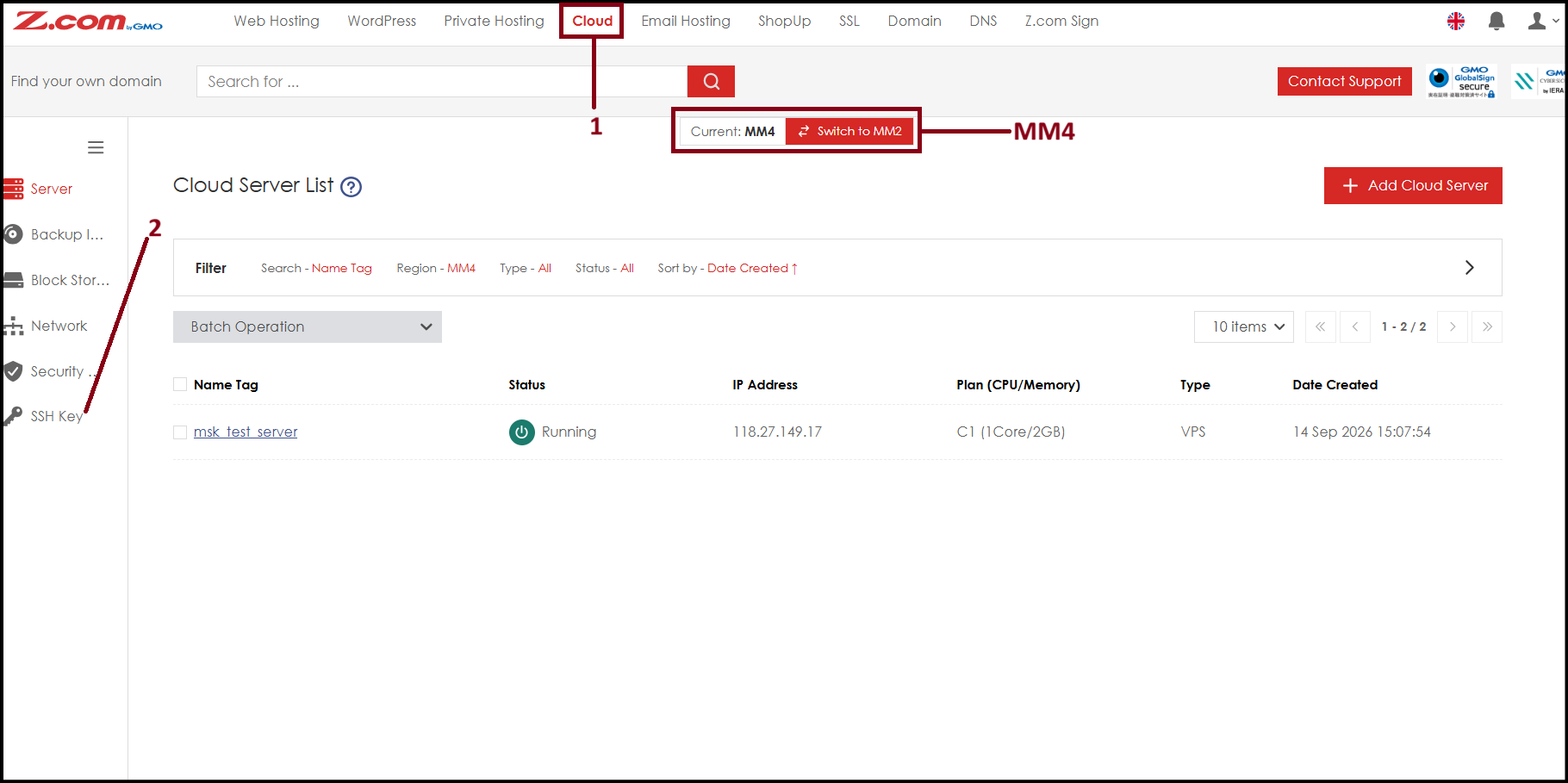
Step3. Select your SSH public key and click delete icon to delete.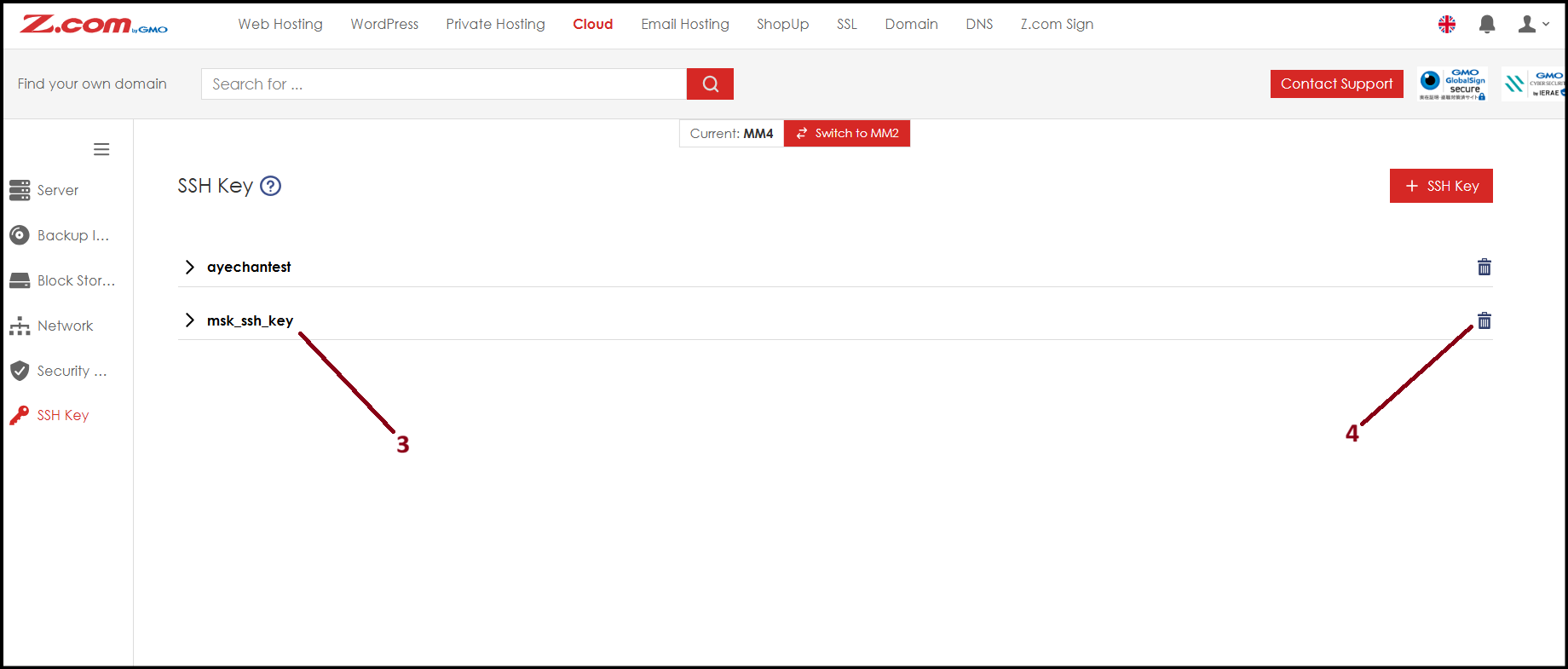
Step4. The SSH public key is still inside of VPS server so we need to remove from server also. Please login to the server from Server> [select server> "Console"] and login with root password. 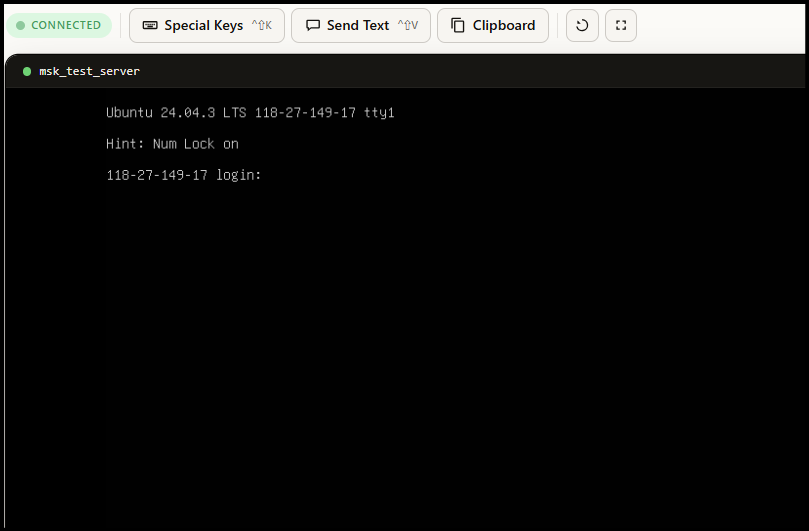
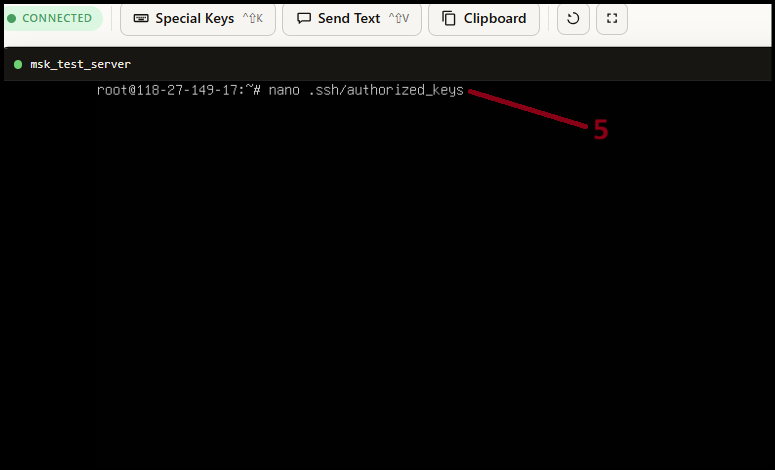
Step5. Now write down the following command and click enter.
cmd - nano .ssh/authorized_keys
Remove the SSH public key and click "Ctrl + O → Enter" then "Ctrl + X" to save. Then restart ssh service.
cmd - sudo systemctl restart ssh
[Note: If you have other linux user created and using with same SSH key, you may need to remove the SSH key from that user folder also.]
Step7. Now when trying to SSH login again with old key will result in Permission denied message.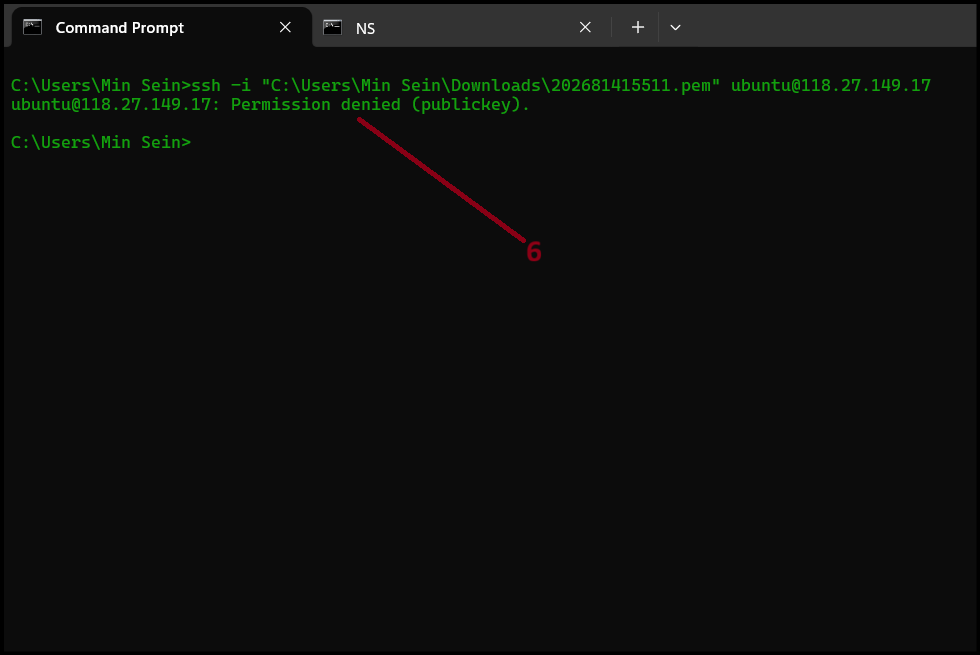
Thank You!
Was this article helpful?
That’s Great!
Thank you for your feedback
Sorry! We couldn't be helpful
Thank you for your feedback
Feedback sent
We appreciate your effort and will try to fix the article