How to install Free SSL on cPanel? (Shared Hosting)
Step 1: Login to the z.com account, https://cloud.z.com/mm/signin
Step 2: Login to the cPanel dashboard under the Web Hosting Tab.
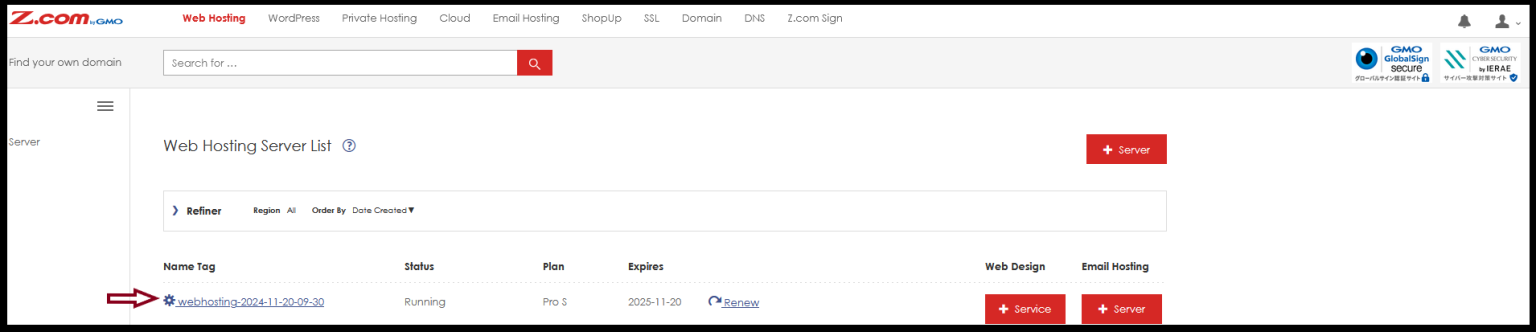
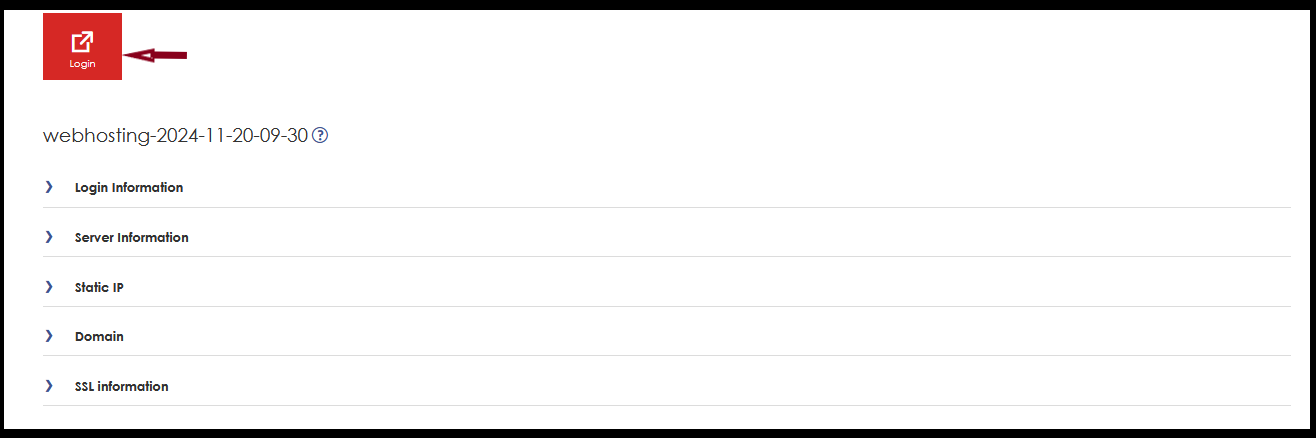
Click Login.
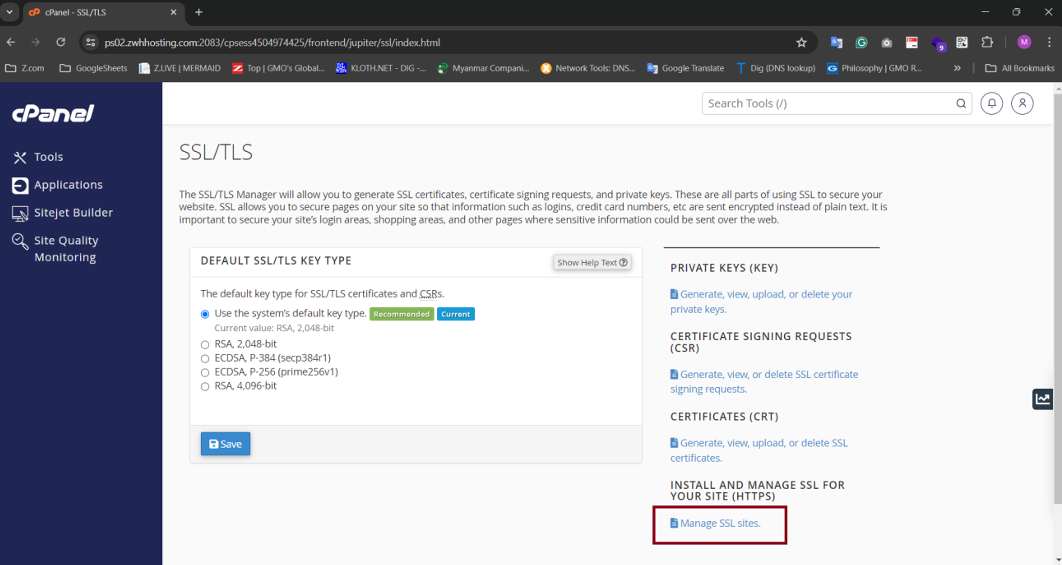
Step3: Click “SSL/TLS”.

Step4: Click “Manage SSL Sites”.
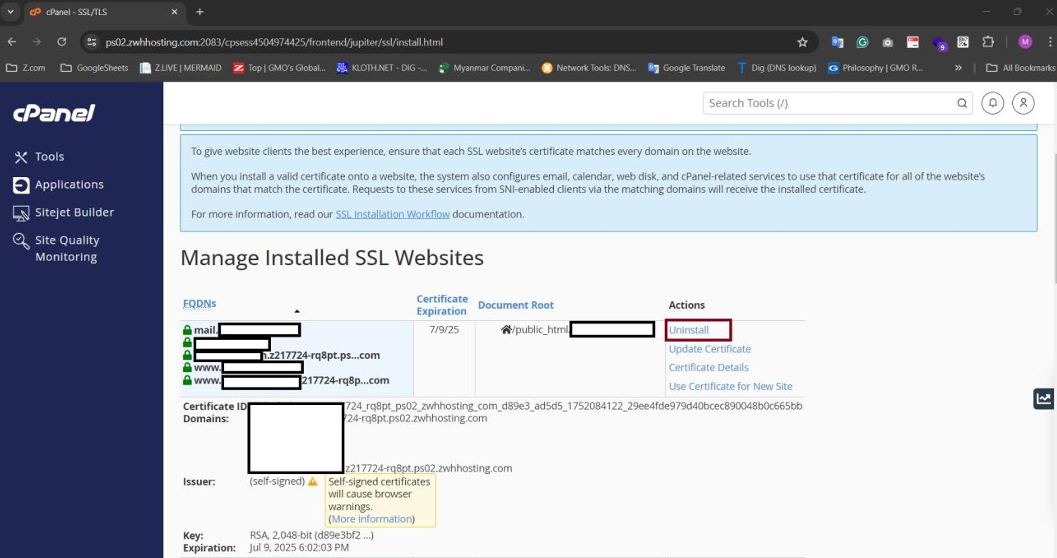
Step5: Click “Uninstall” the expired SSL and Self-signed SSL.
Step6: Click “SSL/TLS Status”.

Step 7: Now, You can check the Auto SSL error status of your domain.

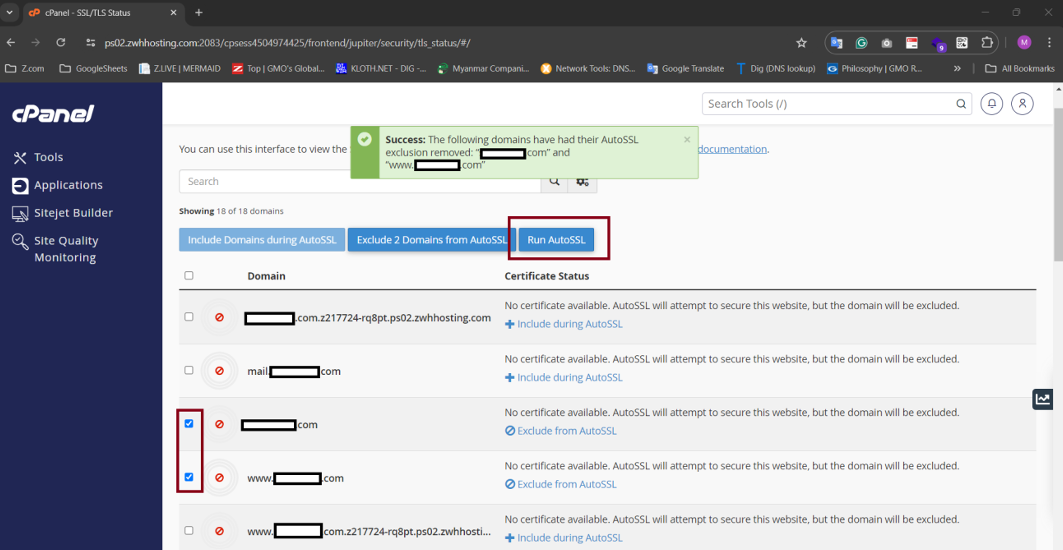
Step 8: Select the all Checkbox and Click “Exclude Domain from AutoSSL”.

Step 9: And then, select all Checkbox with Error status and Click “Run AutoSSL”.

Step 10: After clicking “Run AutoSSL”, all error status is changing to “No Certificates”.

Step 11: Select the Checkbox that you want to install SSL for domain and Click “Include Domains during AutoSSL”.

Step 12: And Click “Run AutoSSL” again.
Step 13: The Running status is as follows.

Step 14: Now, the Let’s Encrypt SSL is ACTIVE.

Thank You!!!
Was this article helpful?
That’s Great!
Thank you for your feedback
Sorry! We couldn't be helpful
Thank you for your feedback
Feedback sent
We appreciate your effort and will try to fix the article