How to install Let’s Encrypt SSL on cPanel? (Shared Hosting)
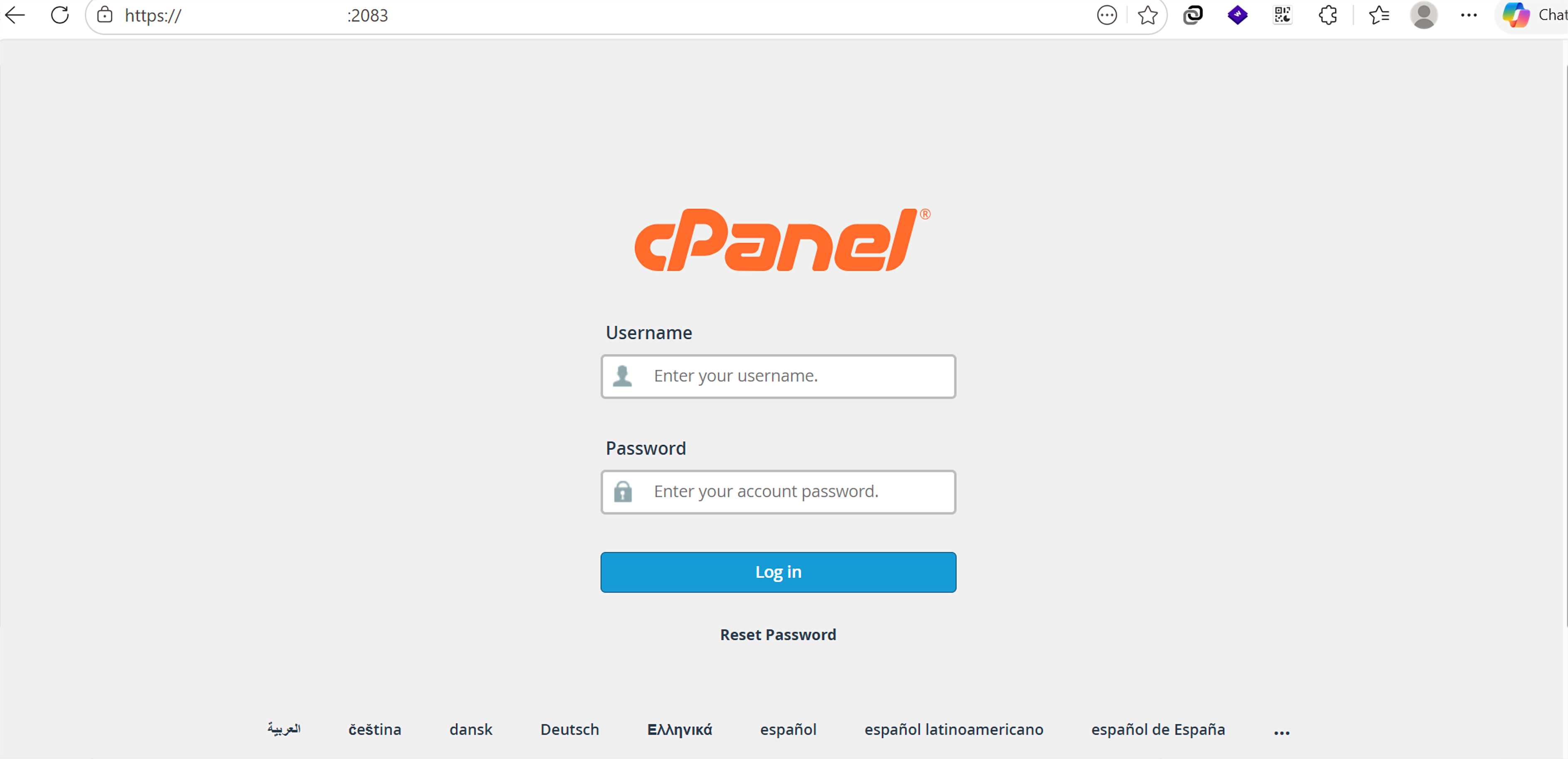
Step(1). Login to the cPanel.
Login URL: https://123.456.78.9:2083 (You can check the cPanel login URL in the Web Hosting Login Information.)
Username : *******
Password : *******
And then click " Log in "
Step(2). Select “SSL/TLS Certificates” under the “Security” section to install Let’s Encrypt SSL . 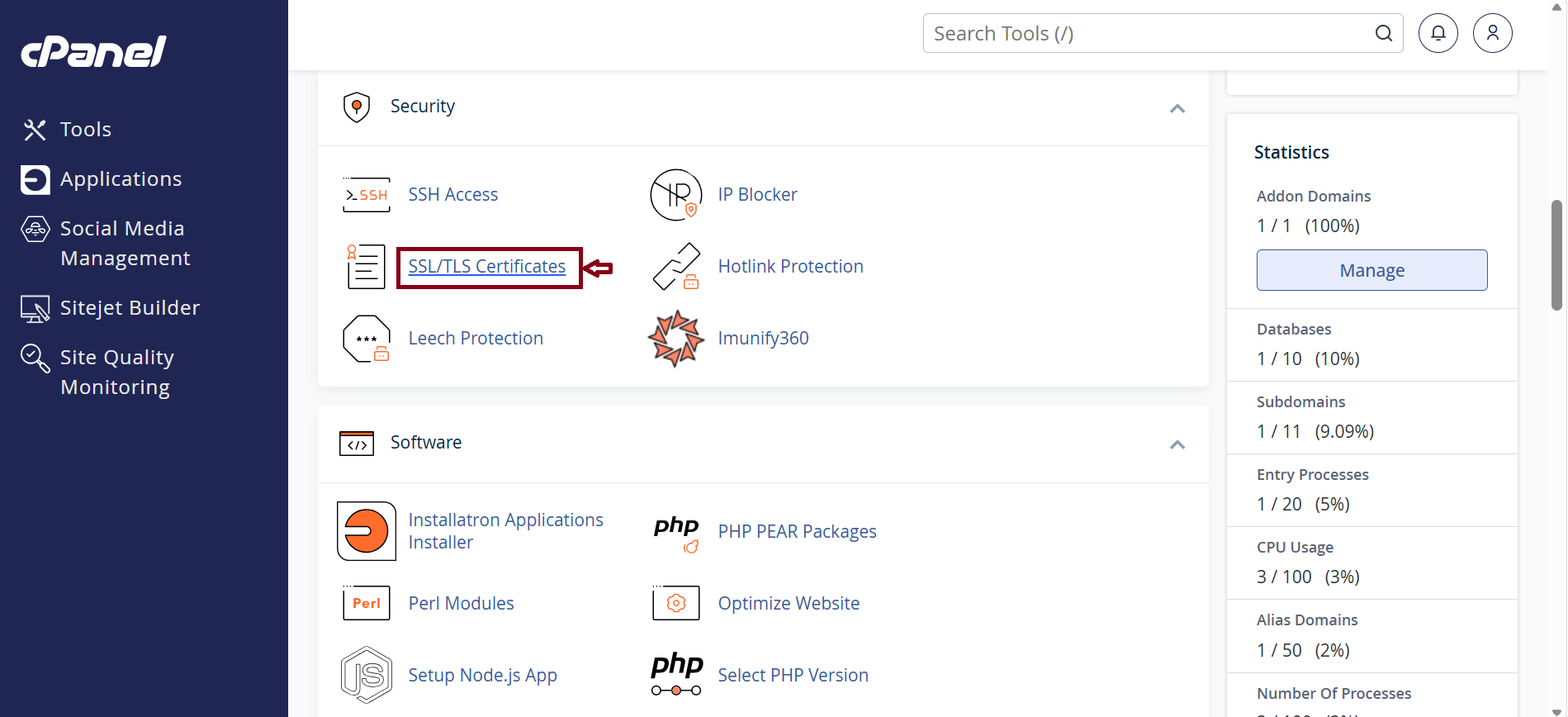
Step(3). Click " Wizard "
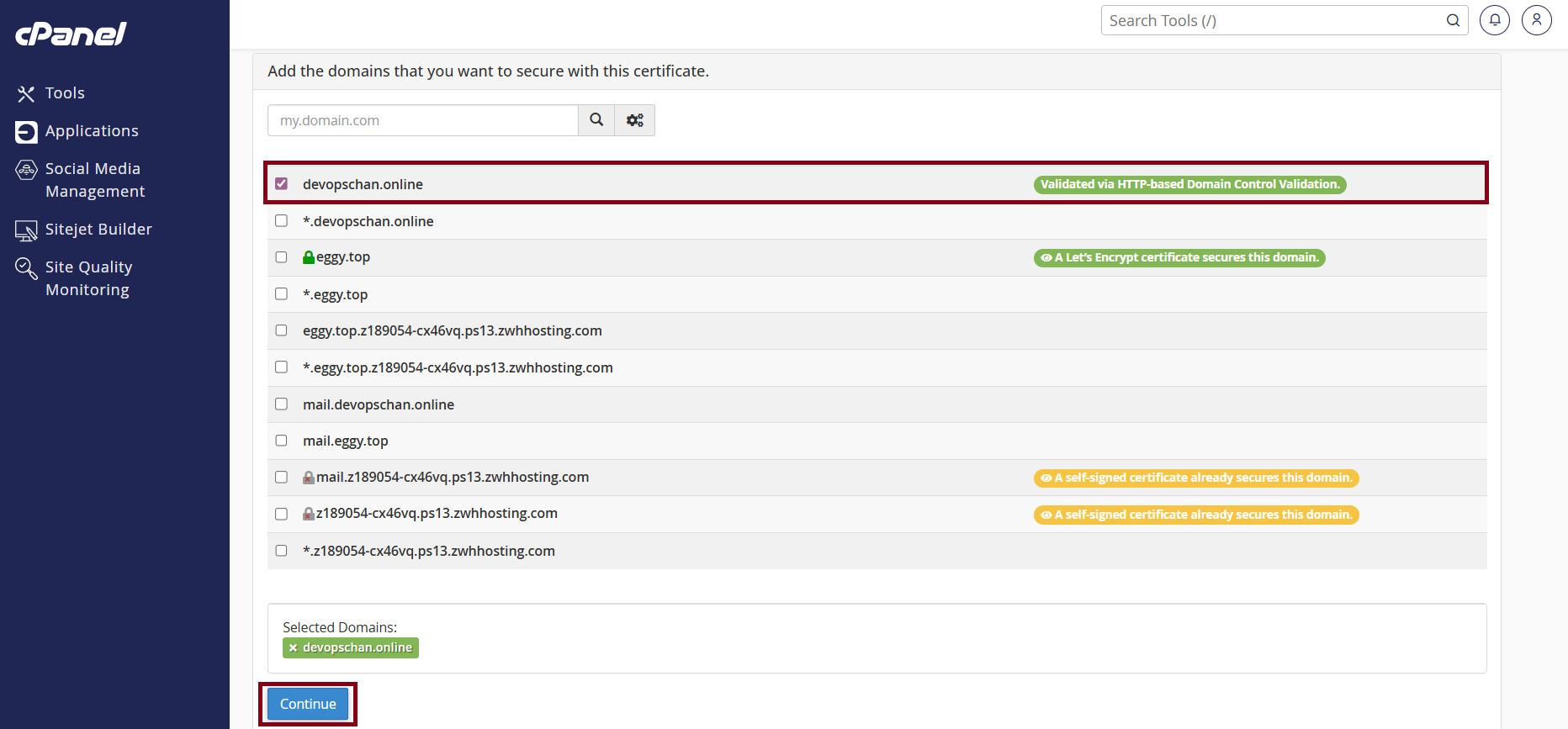
And then, select the Domain you want to apply the SSL certificate. 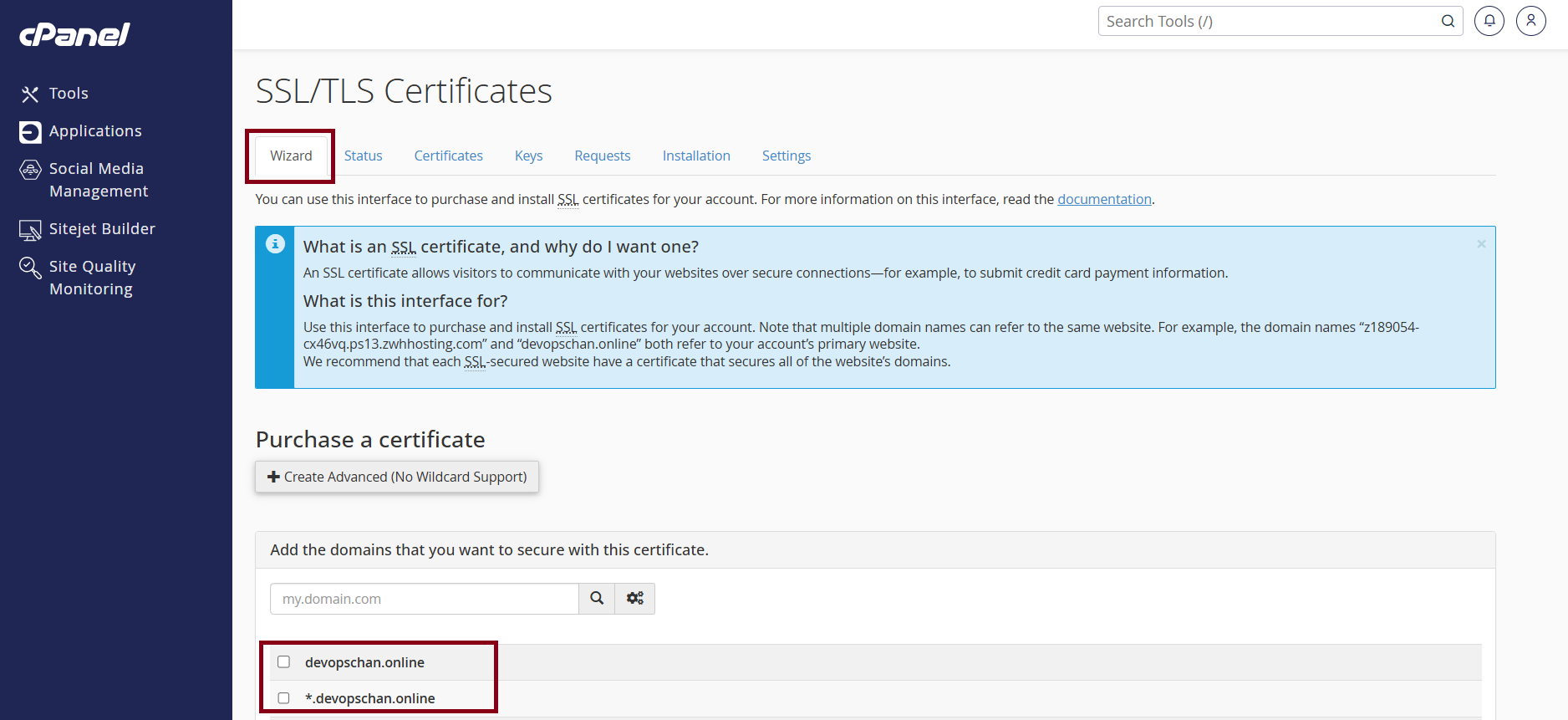
After select the Domain , the system is currently verifying the ownership of your selected domains.
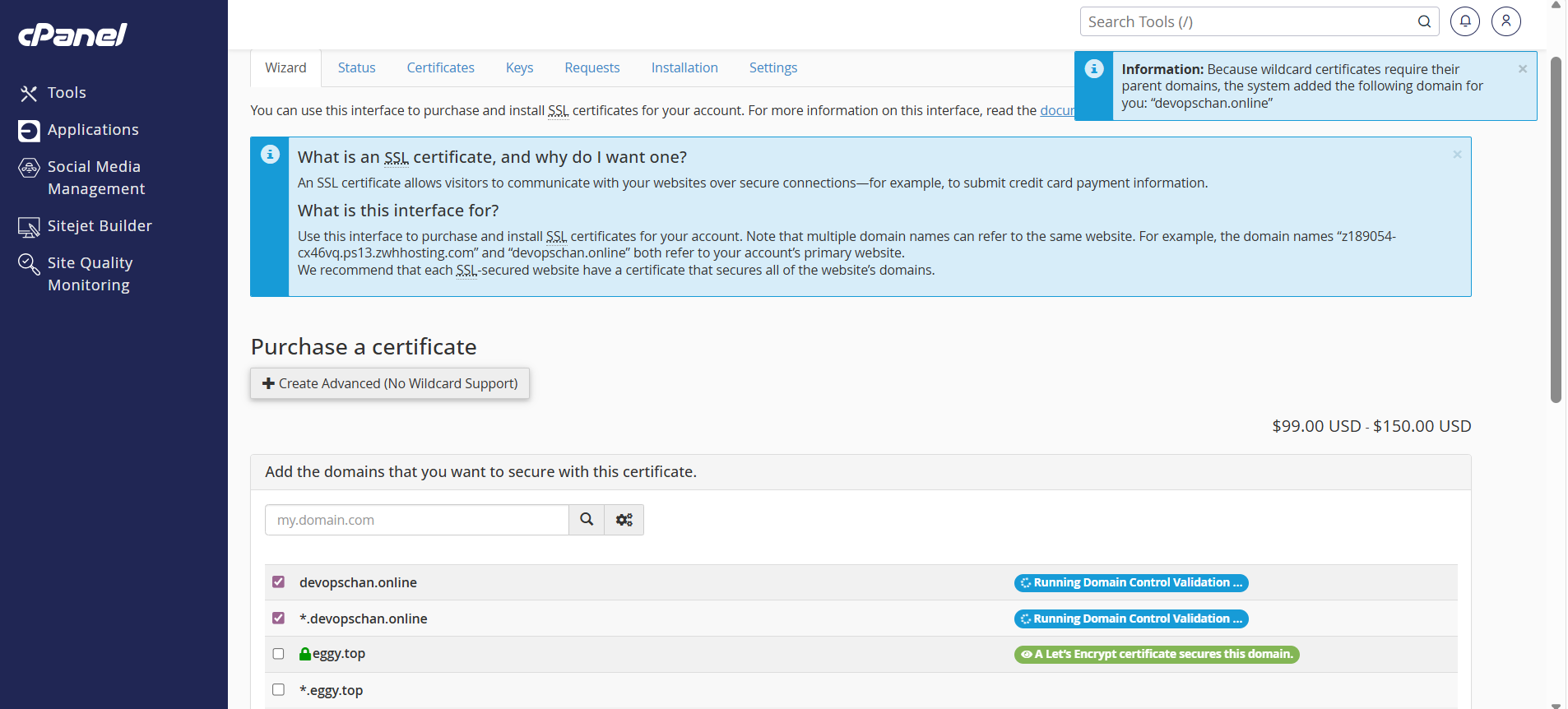
Confirm your selected domain is validated .
Click " Continue " .
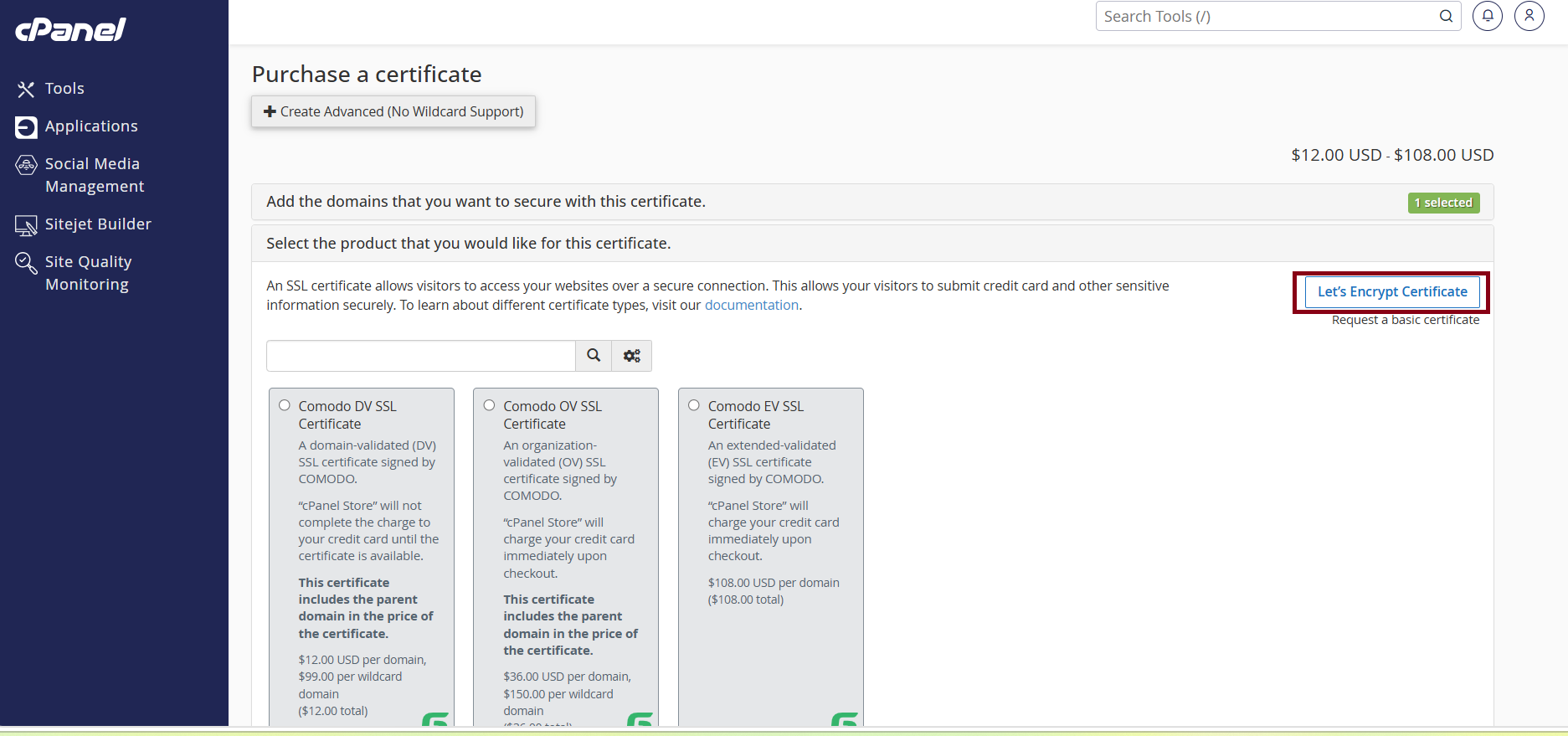
Click "Let's Encrypt Certificate" .
Please wait while the certificate is being added .
The system is currently installing your Let's Encrypt certificate . 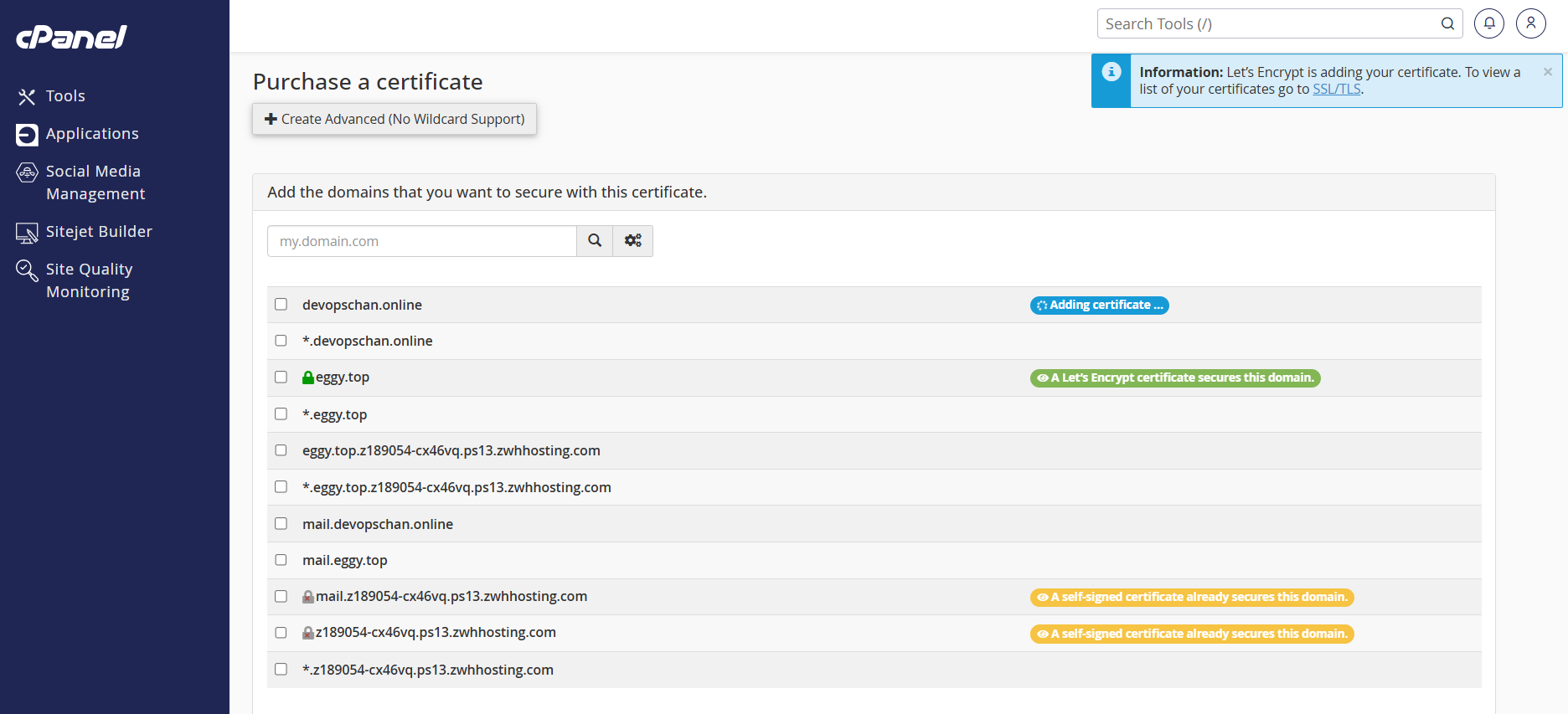
The SSL certificate is now ACTIVE .
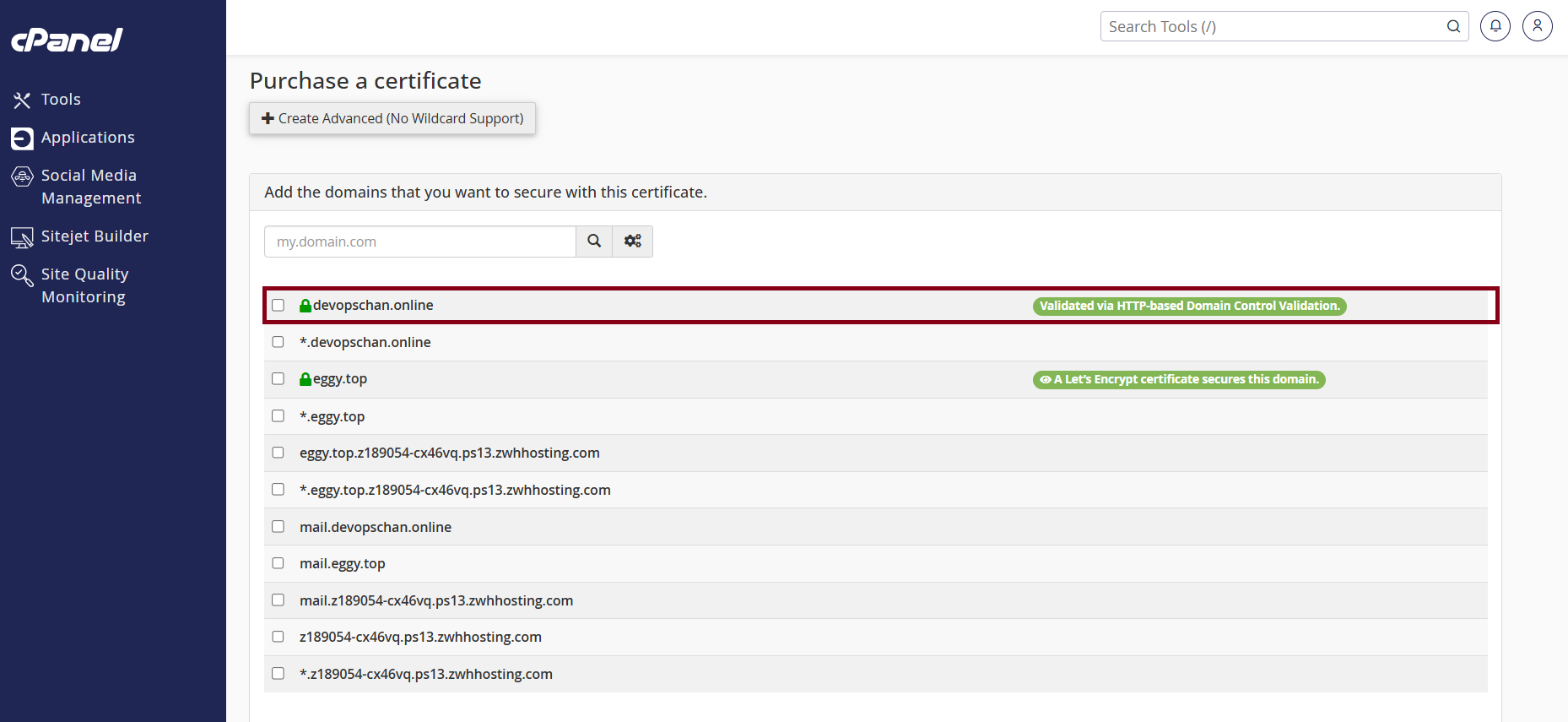
To check the SSL/TLS certificate, click " Status " .

Now , you can check it from the SSL/TLS " View Certificate " section .
Note: The SSL certificate is valid for only 3 months. If the SSL expires after 3 months, you will need to apply it manually again. 

Thank you !!!
Was this article helpful?
That’s Great!
Thank you for your feedback
Sorry! We couldn't be helpful
Thank you for your feedback
Feedback sent
We appreciate your effort and will try to fix the article