How to Install and Configure NextCloud in Apache using CentOS8?
Step1. Login to the server with SSH.
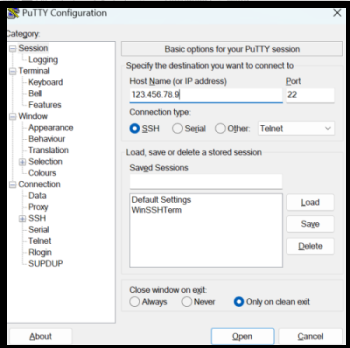
Step2. Installing PHP and Apache.
[root@zcom-mm ~]# yum install epel-release yum-utils

[root@zcom-mm ~] # yum install http://rpms.remirepo.net/enterprise/remi-release-8.rpm

To install the yum-utils package
[root@zcom-mm ~] # dnf install yum-utils

To enable the module stream for 8.2
[root@zcom-mm ~] # dnf module reset php
[root@zcom-mm ~] # dnf module install php:remi-8.2
[root@zcom-mm ~] # dnf update

Installing PHP and the required modules
[root@zcom-mm ~] # dnf install -y php php-cli php-gd php-mbstring php-intl php-pecl-apcu\ php-mysqlnd php-opcache php-json php-zip

Installing optional modules redis/imagick
[root@zcom-mm ~] #dnf install -y php-redis php-imagick

Step3. Install MariaDB 10.11 on CentOS8.
Firstly, Create a new repo file /etc/yum.repos.d/MariaDB.repo in your system and add below code:
[root@zcom-mm ~] # vim /etc/yum.repos.d/MariaDB.repo
# MariaDB 10.11 CentOS repository list - created 2024-01-24 18:19 UTC
# https://mariadb.org/download/
[mariadb]
name = MariaDB
# rpm.mariadb.org is a dynamic mirror if your preferred mirror goes offline. See https://mariadb.org/mirrorbits/ for details.
# baseurl = https://rpm.mariadb.org/10.11/centos/$releasever/$basearch
baseurl = https://mirror.kku.ac.th/mariadb/yum/10.11/centos/$releasever/$basearch
# gpgkey = https://rpm.mariadb.org/RPM-GPG-KEY-MariaDB
gpgkey = https://mirror.kku.ac.th/mariadb/yum/RPM-GPG-KEY-MariaDB
gpgcheck = 1
Step4. Install the MariaDB server and client packages.
[root@zcom-mm ~] # dnf install -y mariadb mariadb-server
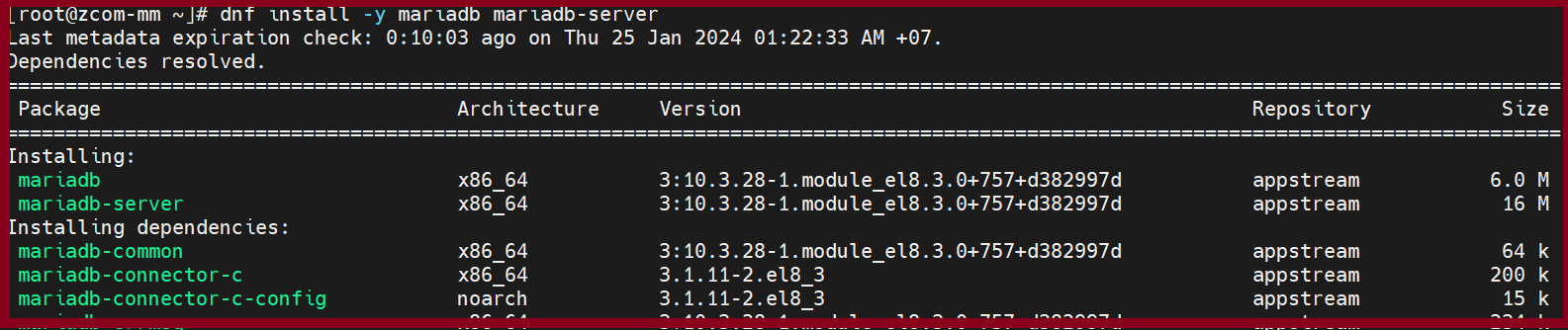
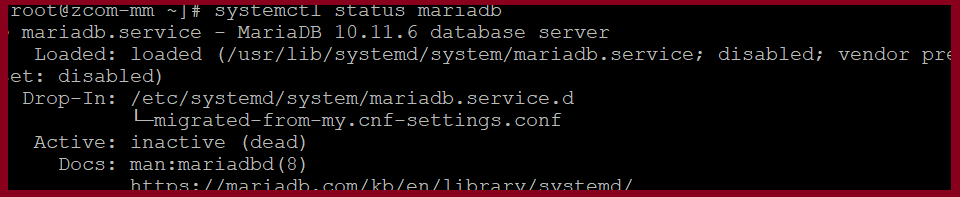
Step5. When the installation is finished, please check mariadb status.
[root@zcom-mm ~] # systemctl status mariadb
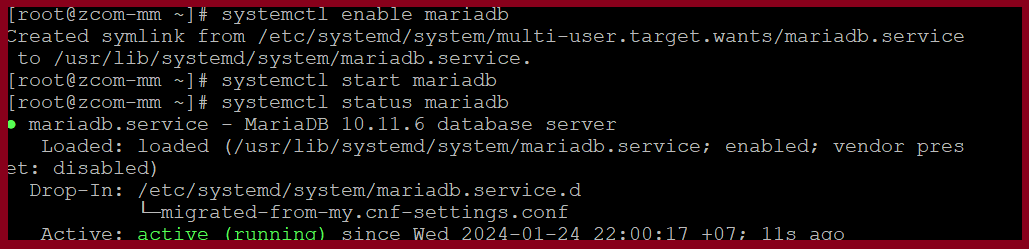
[root@zcom-mm ~] # systemctl enable mariadb
[root@zcom-mm ~] # systemctl start mariadb
[root@zcom-mm ~] # systemctl stautus mariadb
Step6.We need to secure your MariaDB installation using passwords and do some other changes. Please check the below instructions.
[root@zcom-mm ~] # mysql_secure_installation

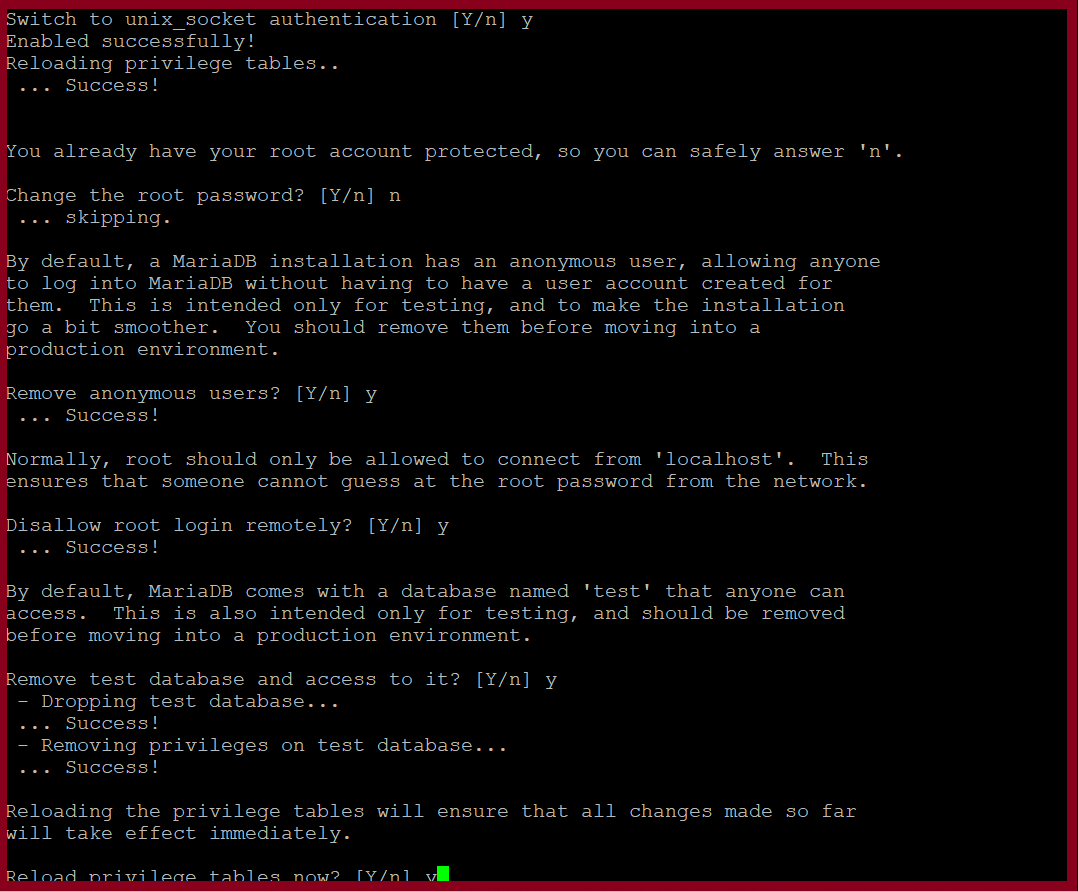
Then you will need to install the redis service and enable it for start up on reboot using the following commands:
[root@zcom-mm ~] # dnf install -y redis
[root@zcom-mm ~] # systemctl enable redis.service
[root@zcom-mm ~] # systemctl start redis.service

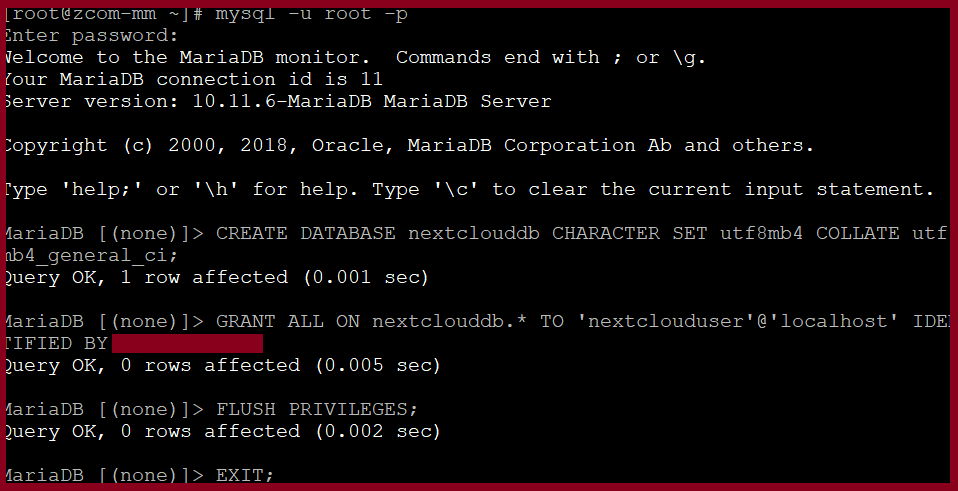
Step7.After installing and completing the configuration, connect to MariaDB server. Use the following command and login to the Mariadb Server.
[root@zcom-mm ~] # mysql -u root -p
Step7.1 Then create a database.
MariaDB [(none)]> CREATE DATABASE nextclouddb CHARACTER SET utf8mb4 COLLATE utf8mb4_general_ci;
Step7.2 Allow “nextclouduser” to access the “nextclouddb” database on localhost with a predefined password.
MariaDB [(none)]> GRANT ALL ON nextclouddb.* TO 'nextclouduser'@'localhost' IDENTIFIED BY 'change-with-strong-password';
MariaDB [(none)]> FLUSH PRIVILEGES;
MariaDB [(none)]>EXIT;
Step8. Then, we need to configure firewall setting.
[root@zcom-mm ~] # firewall-cmd --permanent --zone=public --add-service=http
[root@zcom-mm ~] # firewall-cmd --permanent --zone=public --add-service=https
[root@zcom-mm ~] # firewall-cmd --reload

Download the NextCloud.
Download the latest version of Nextcloud from the Nextcloud download page with wget command:
[root@zcom-mm ~] # wget https://download.nextcloud.com/server/releases/nextcloud-26.0.5.zip

Once the download is complete, extract the archive to the /var/www directory:
[root@zcom-mm ~] # unzip nextcloud-26.0.5.zip -d /var/www/

Set the ownership of the files inside the NextCloud directory so that apache user can write the data into it.
[root@zcom-mm ~] # chown -R apache: /var/www/nextcloud

Step9. Then configure the apache.
[root@zcom-mm ~] # vim /etc/httpd/conf.d/nextcloud.conf
Alias /nextcloud "/var/www/nextcloud/"
<Directory /var/www/nextcloud/>
Options +FollowSymlinks
AllowOverride All
<IfModule mod_dav.c> Dav off </IfModule>
SetEnv HOME /var/www/nextcloud
SetEnv HTTP_HOME /var/www/nextcloud
</Directory> 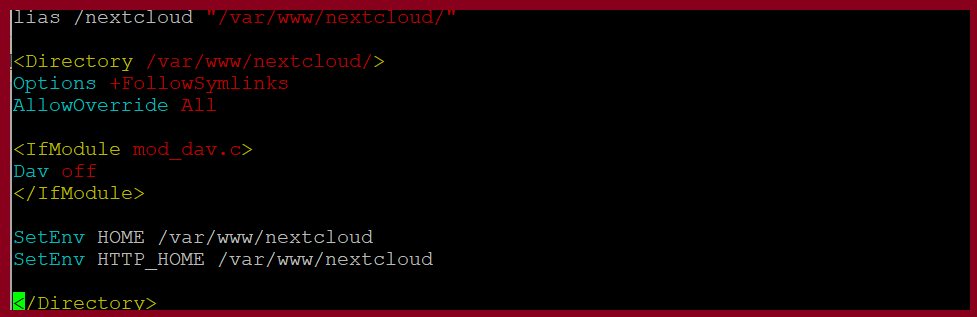
[root@zcom-mm ~] # systemctl restart httpd
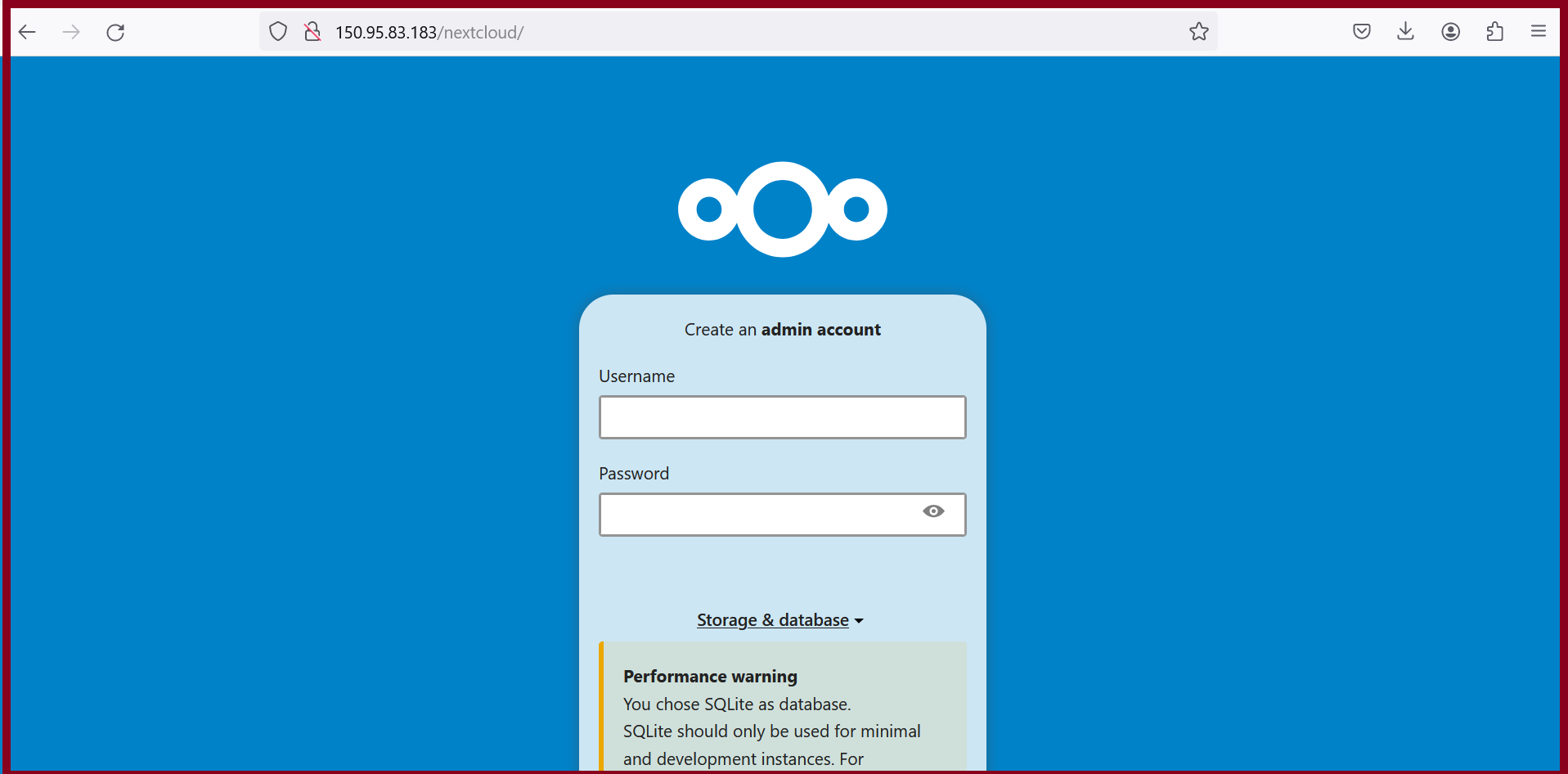
Open up your web browser, can access the nextcloud with ip (or) domainhttp://150.95.**.***/nextcloud/
THANK YOU!!!
Was this article helpful?
That’s Great!
Thank you for your feedback
Sorry! We couldn't be helpful
Thank you for your feedback
Feedback sent
We appreciate your effort and will try to fix the article