How to upload HTML files in DirectAdmin?
Step1. Login to your z.com account, https://cloud.z.com/mm/signin
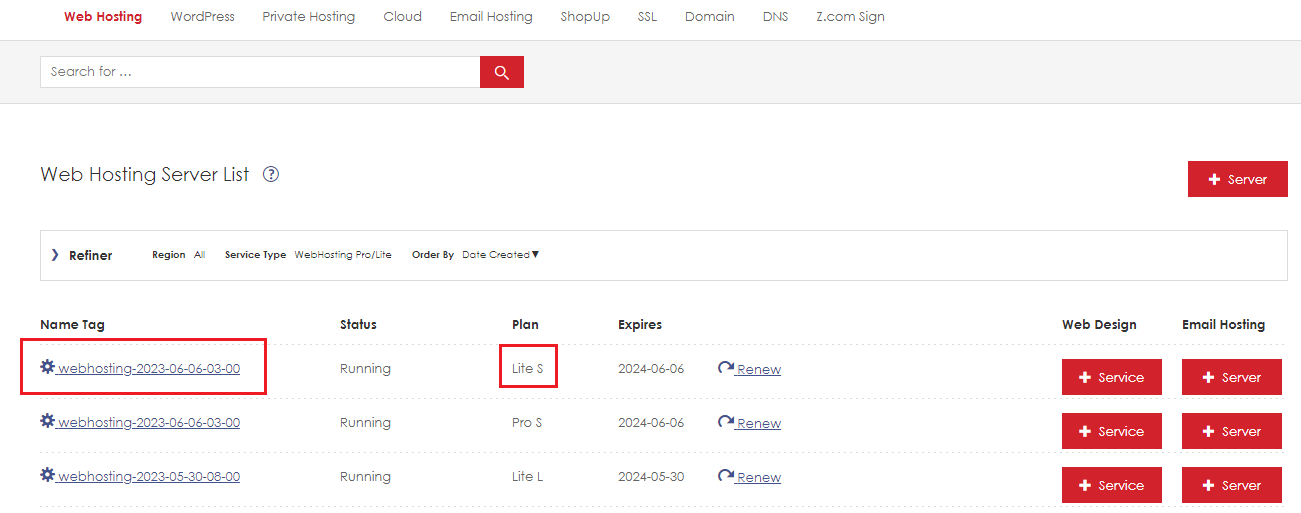
Step2. After login to the Z.com portal, Click the “Web Hosting” menu.
Click your server under Name Tag.
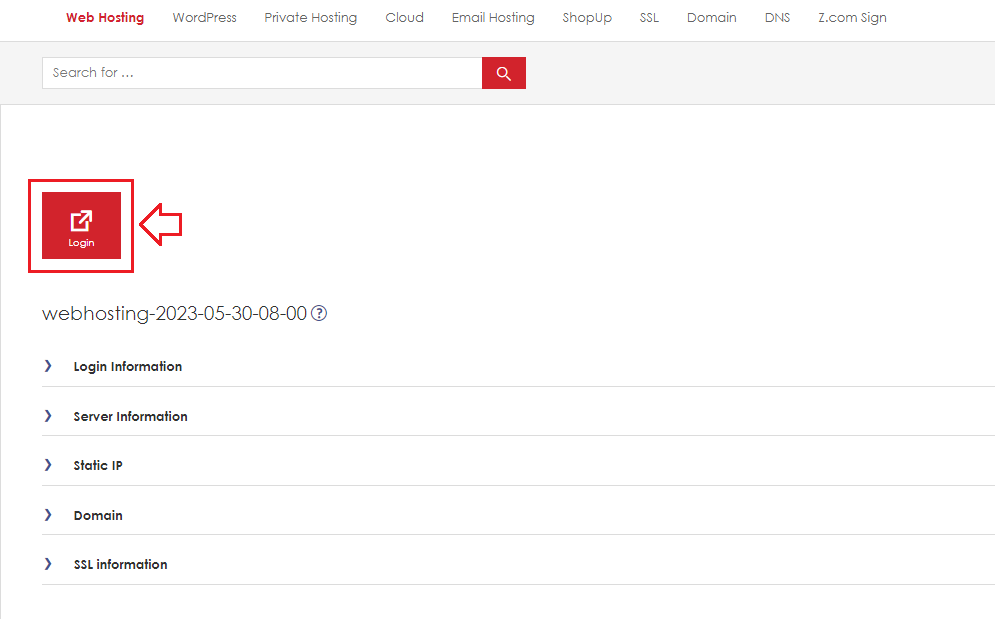
Step3. Click the Login icon.
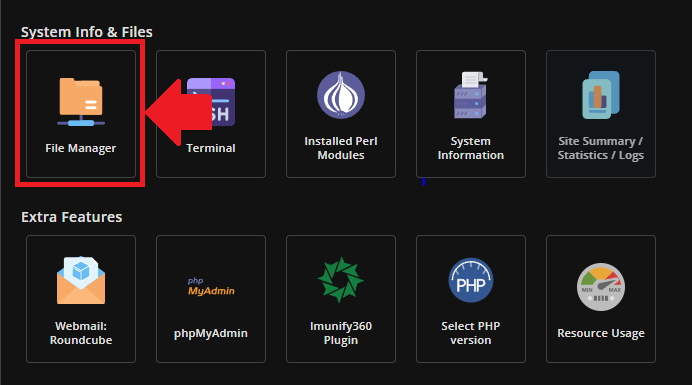
Step4. After Login into your DirectAdmin Panel, please click " File Manager "
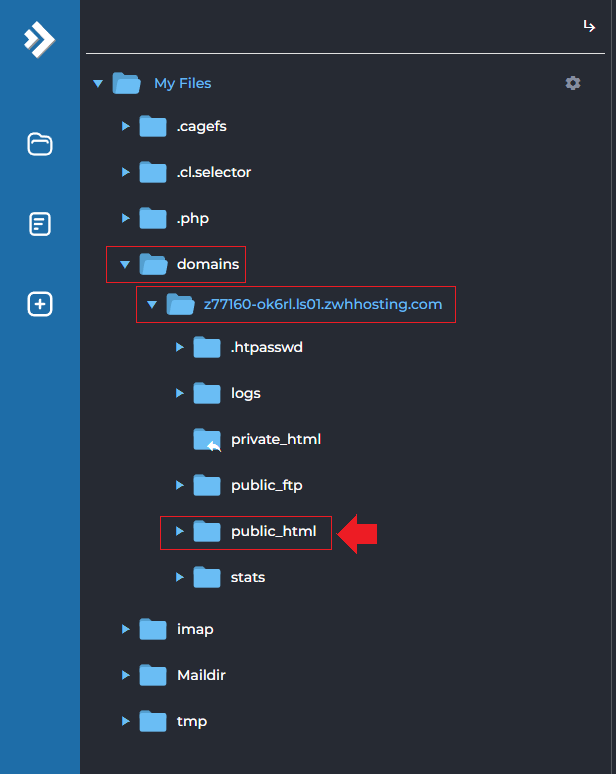
Then click domains , click your domain folder and click " public_html "
Step5. Now you can upload your Website Project. Click " Upload Files ".
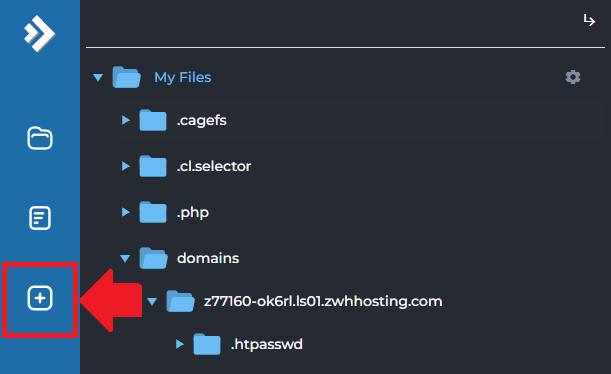
Step6. Click to Upload.
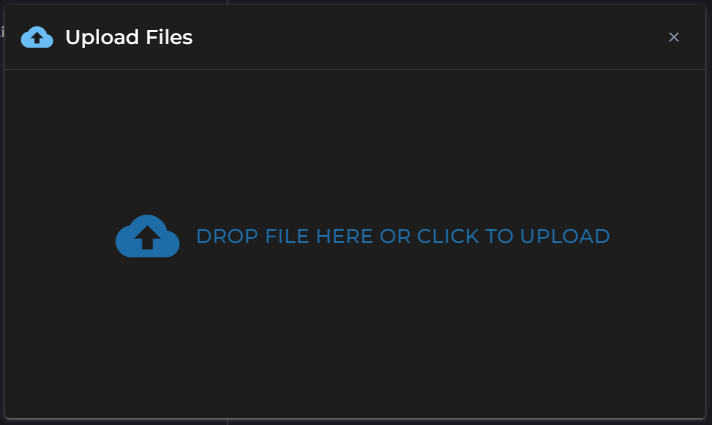
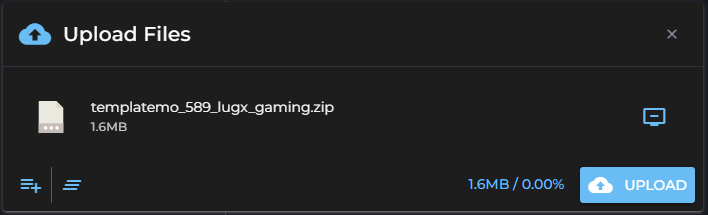
Step7. Upload your project.
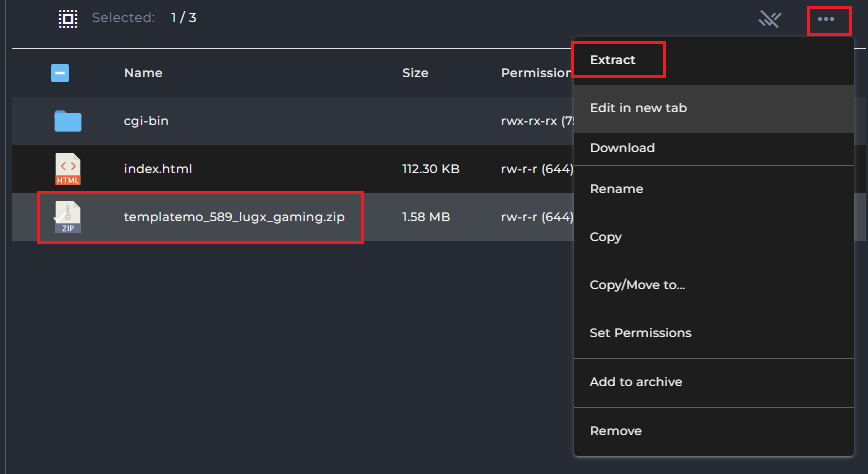
Select your project. Click more settings. Extract your project.
After extracting your project you can check your website.
THANK YOU!!!
Was this article helpful?
That’s Great!
Thank you for your feedback
Sorry! We couldn't be helpful
Thank you for your feedback
Feedback sent
We appreciate your effort and will try to fix the article