How to Install Composer and Deploy Laravel Project in cPanel Shared Hosting?
Step 1 • Upload and Extract Your Project
Log in to your cPanel dashboard and open the File Manager.
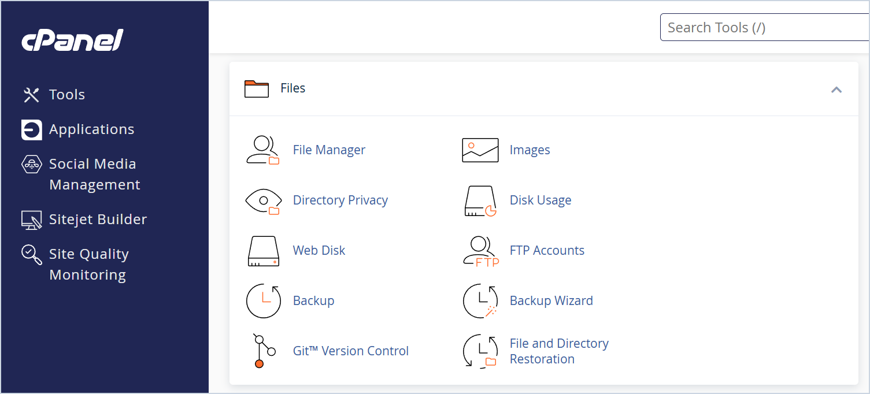
Figure 1 In cPanel, open File Manager from the Files section.
Navigate to your domain’s folder (for example, public_html/yourdomain.com) and upload your compressed Laravel project archive (for example, a .zip file).
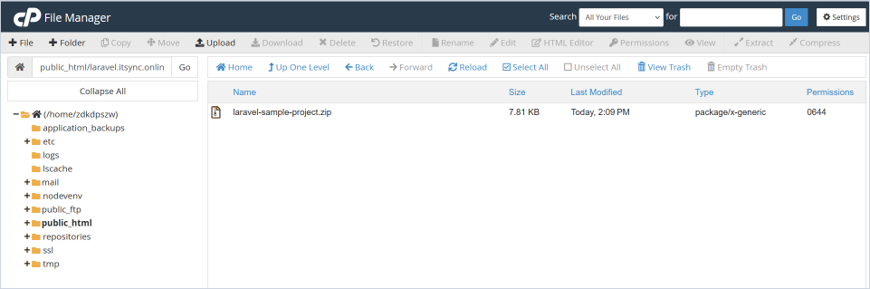
Figure 2 The project archive uploaded to the domain folder.
Select the uploaded archive and click Extract to unpack the files into your directory.
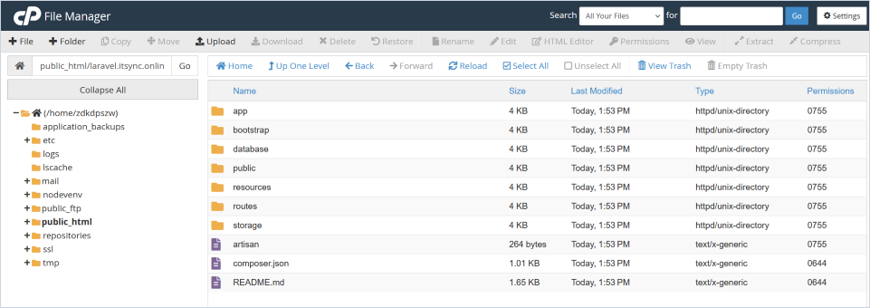
Figure 3 The Laravel project files after extraction.
Step 2 • Check PHP and Composer Versions
Open the Terminal tool under the Advanced section in cPanel. Run the following commands to check the active PHP version and verify whether Composer is already available:
php -v
composer --version
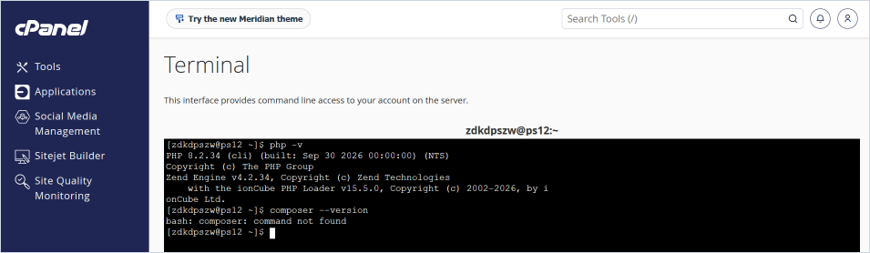
Figure 4 PHP version check; Composer is not installed globally.
Note: If the terminal returns bash: composer: command not found, you will need to install Composer locally for your project, as shown in the next step.
Step 3 • Install Composer Locally
Navigate inside your extracted project directory using the terminal, and list its files to confirm the project is there:
cd ~/public_html/yourdomain.com
ls
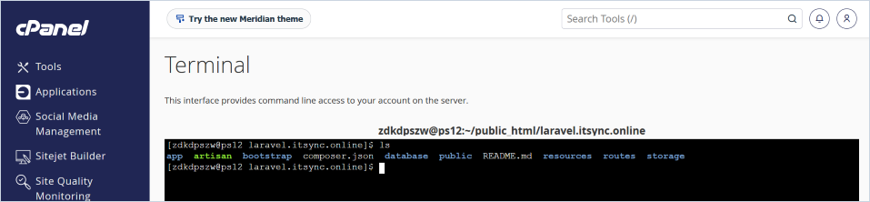
Figure 5 Project directory contents.
Download the official Composer installer script using curl:
curl -sS https://getcomposer.org/installer -o composer-setup.php
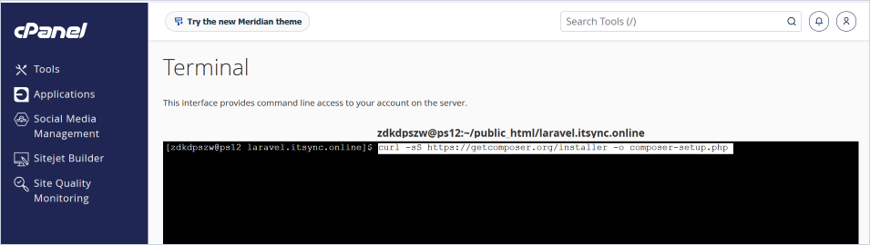
Figure 6 Downloading the Composer installer.
Install Composer into your project directory using your specific PHP path (for example, PHP 8.2):
/opt/alt/php82/usr/bin/php composer-setup.php \
 --install-dir="$PWD" \
 --filename=composer
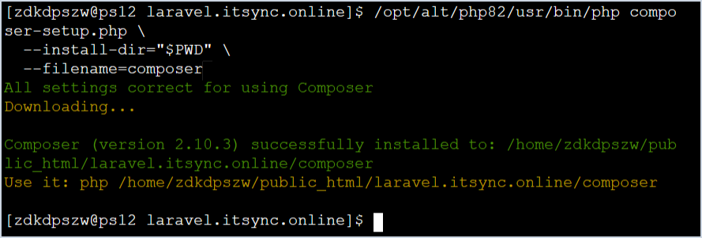
Figure 7 Composer installed successfully into the project folder.
Verify the local installation:
php ./composer --version

Figure 8 Composer version confirmed.
Step 4 • Install Dependencies and Verify Environment
Install the project’s dependencies with the local Composer:
php ./composer install
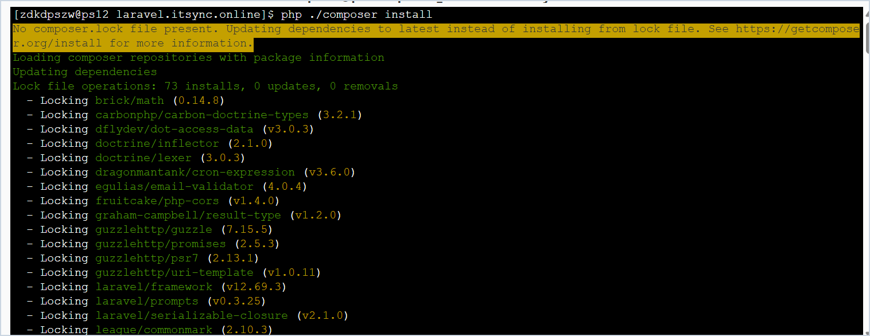
Figure 9 Composer resolving and installing the project’s dependencies.
Check that the server meets the platform requirements:
php ./composer check-platform-reqs
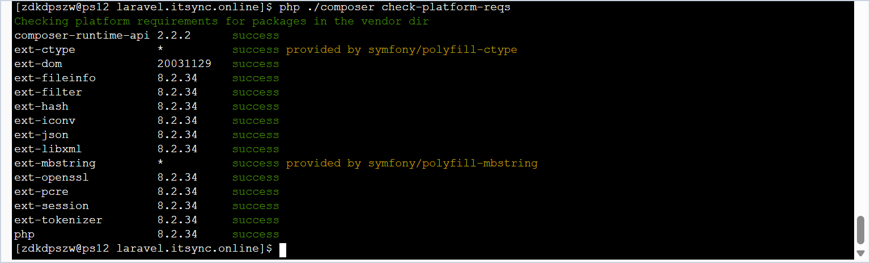
Figure 10 Platform requirements check; all items report success.
Verify your Laravel application details via Artisan:
php artisan --version

Figure 11 Installed Laravel framework version.
php artisan about
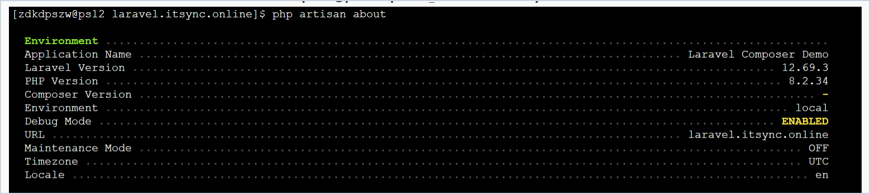
Figure 12 Application, PHP, and environment summary.
Check your application routes to confirm everything is loaded correctly:
php artisan route:list

Figure 13 Registered application routes.
Step 5 • Open Your Website
Now you can access your Laravel website successfully. Open your domain in a browser to confirm.
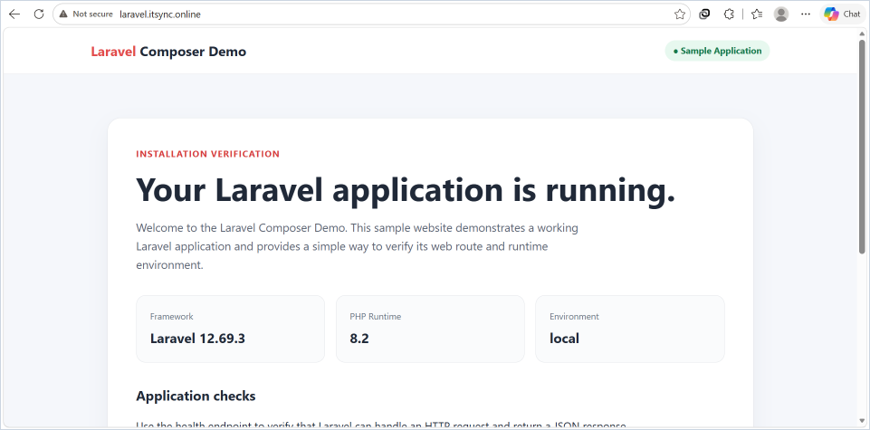
Figure 14 The Laravel application running in the browser.
Thank you!!!
Was this article helpful?
That’s Great!
Thank you for your feedback
Sorry! We couldn't be helpful
Thank you for your feedback
Feedback sent
We appreciate your effort and will try to fix the article