How To Use Smartermail?
Z Account login link: https://hosting.z.com/mm/signin/
1.Firstly, log in to your Web Mail Login.
- Click the “Email Hosting” Menu
- Click the "Email server" shown under the Name Tag section.
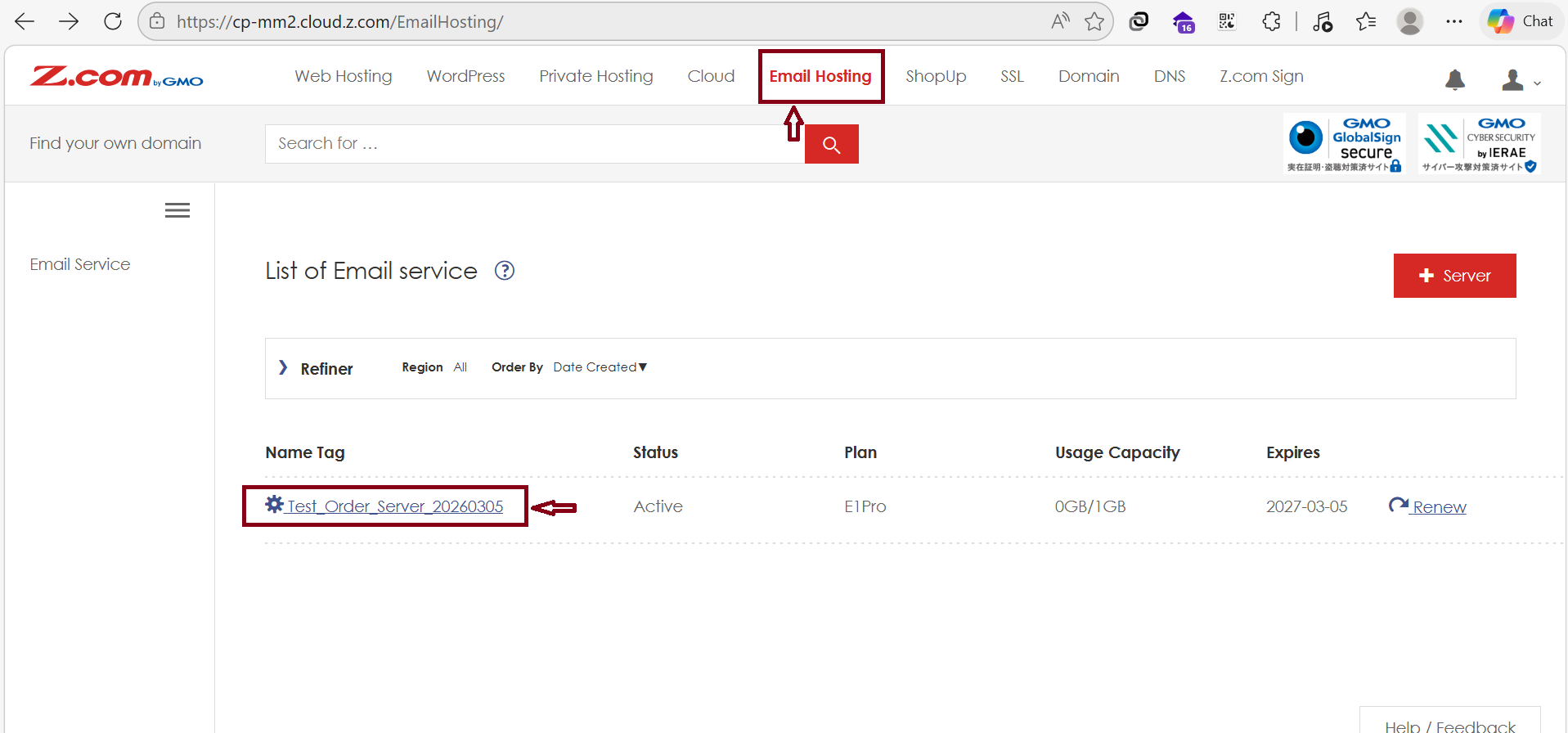
Check your Login Information for the Email Login link and Admin Account to enter the Admin panel.
Click the Pencil Icon to reset your password if you forget it.
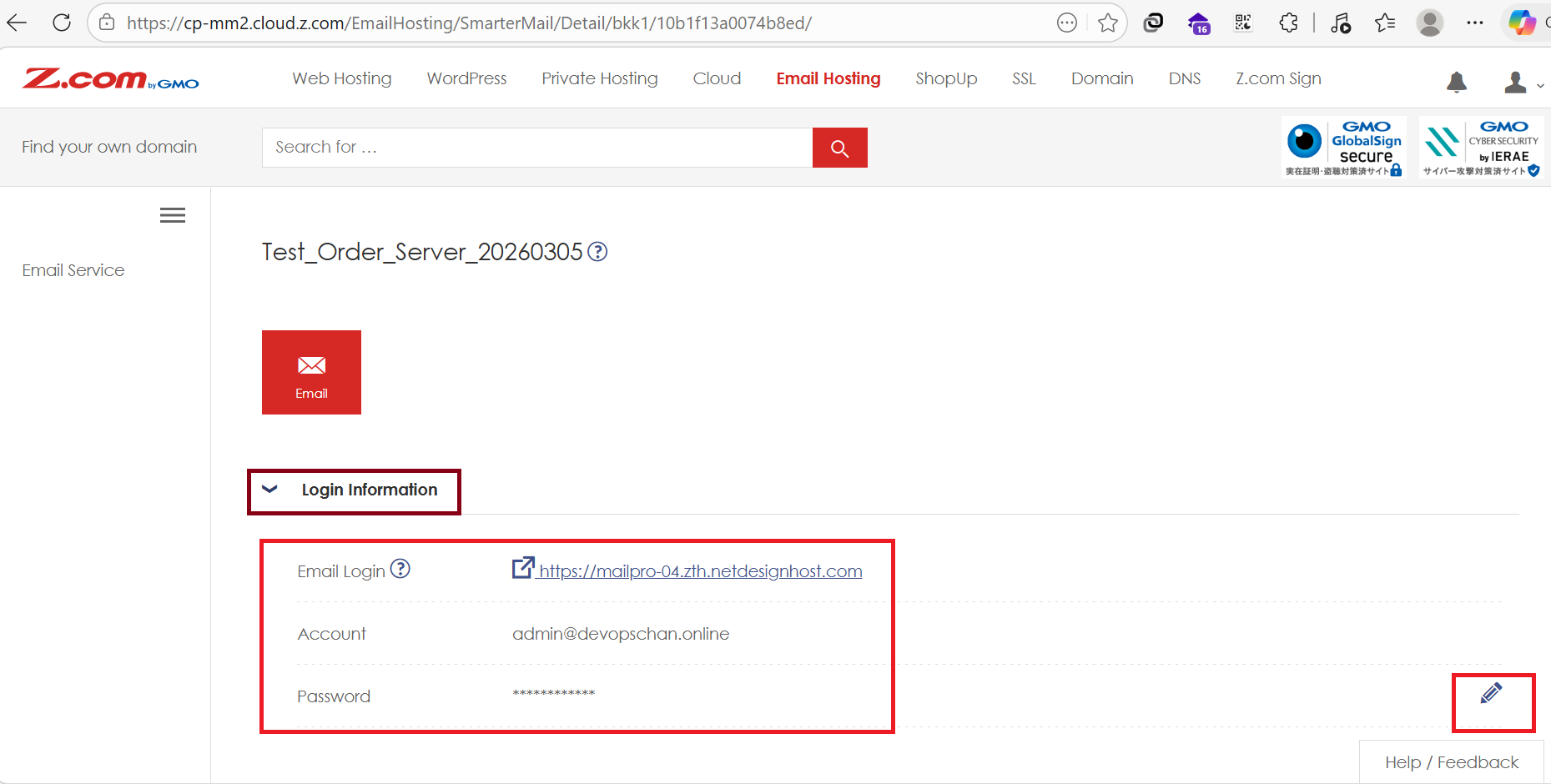
Use a web browser and enter these credentials to log in to your SmarterMail dashboard.
Note: The Webmail Login URL may change depending on the specific server being used.
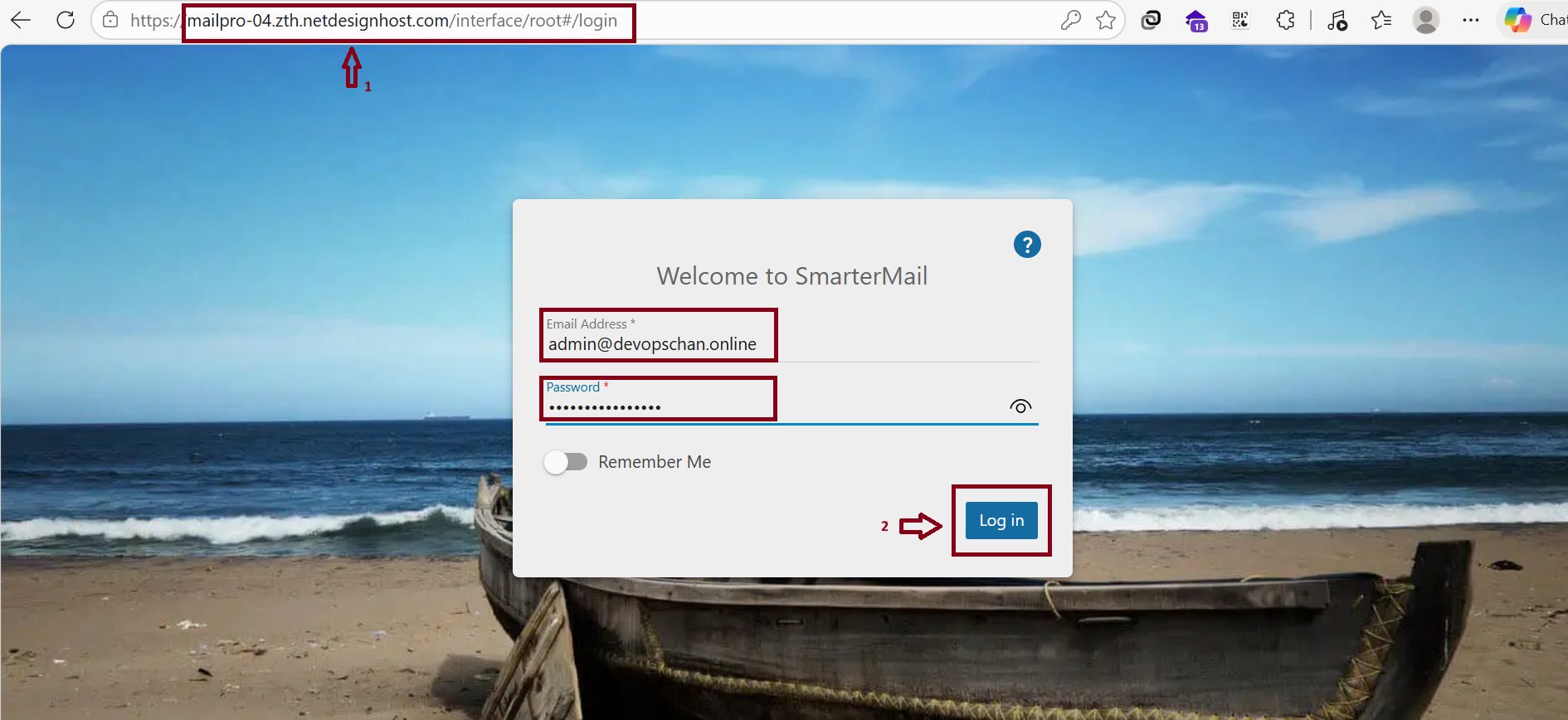
2. Creating New Email Accounts
To create a new email account through the Admin account, follow these steps:
- Click More.
- Click Domain Settings when it appears.
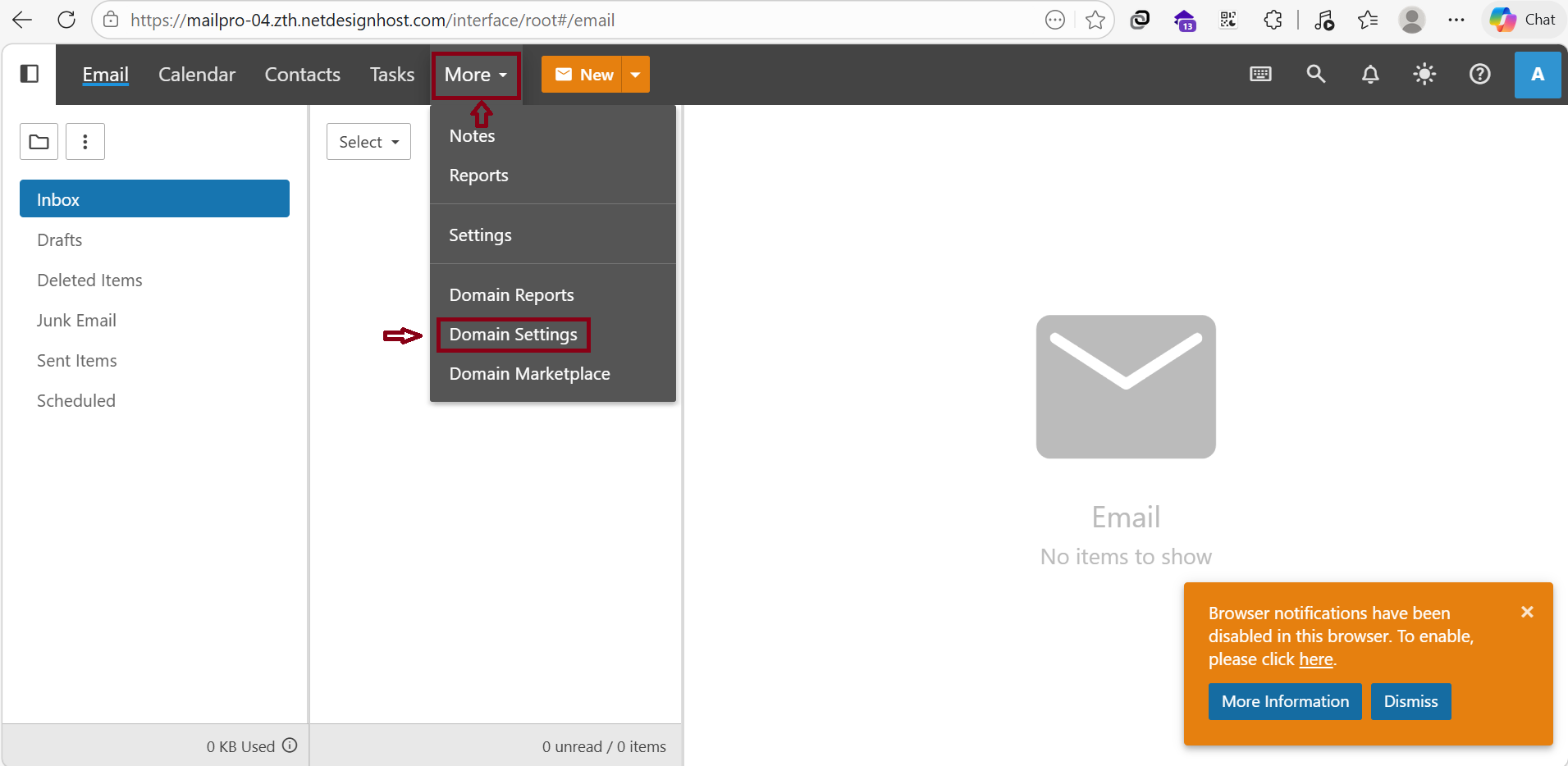
After entering the Domain Settings,
Follow the steps below to create a new account:
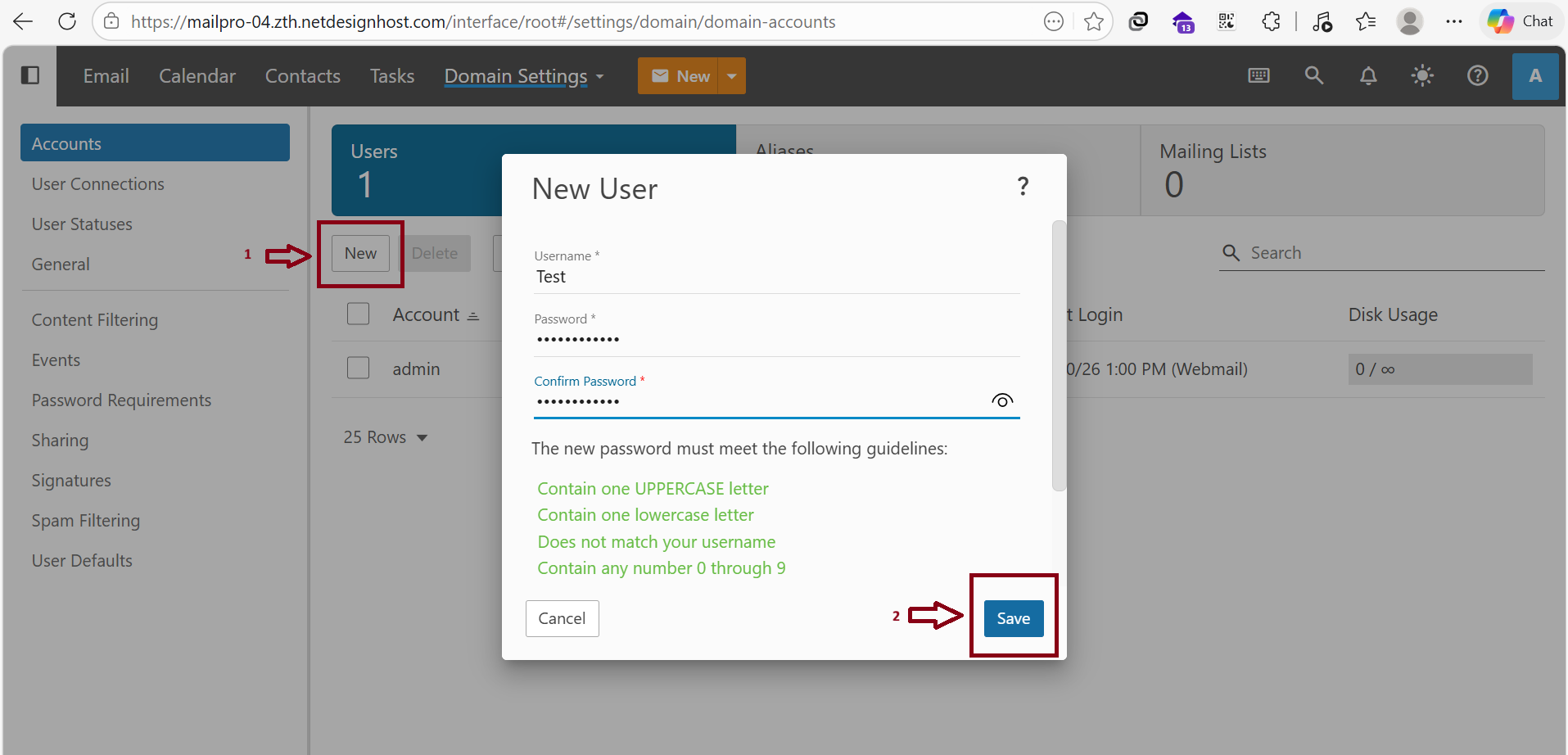
Click “New”
When the " New User window" appears:
Enter Test in the Username field (for example: Test@devopschan.online).
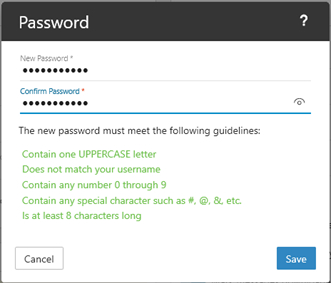
Set the Password for the (Test@devopschan.online) account.
After completing all fields, click “Save”
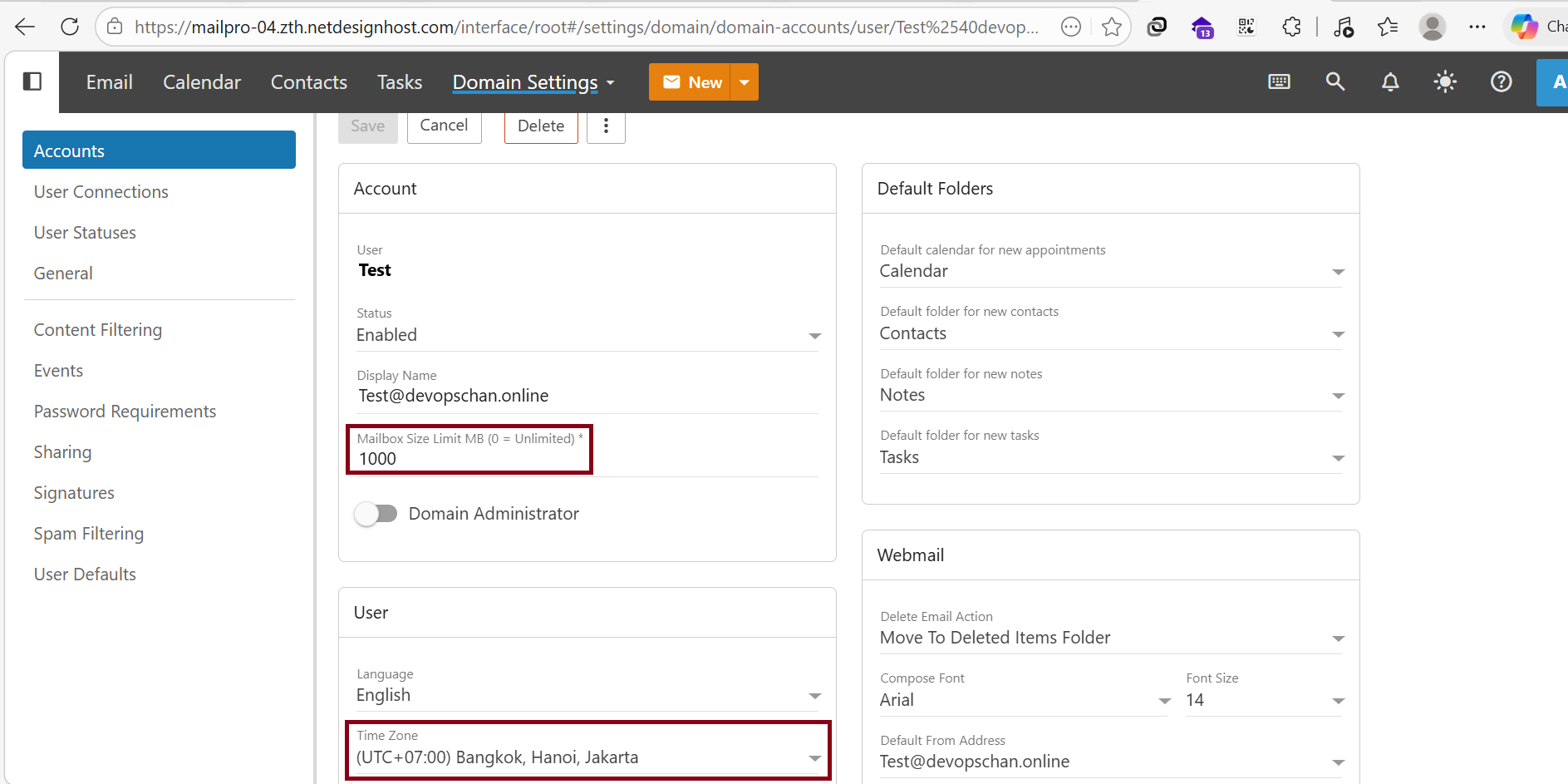
-You can manually set the Mailbox Size Limit for each email account.
-Enter "0" for Unlimited Mail Storage .
-You can also manually set the Time Zone to (UCT+06:30)Yangon .
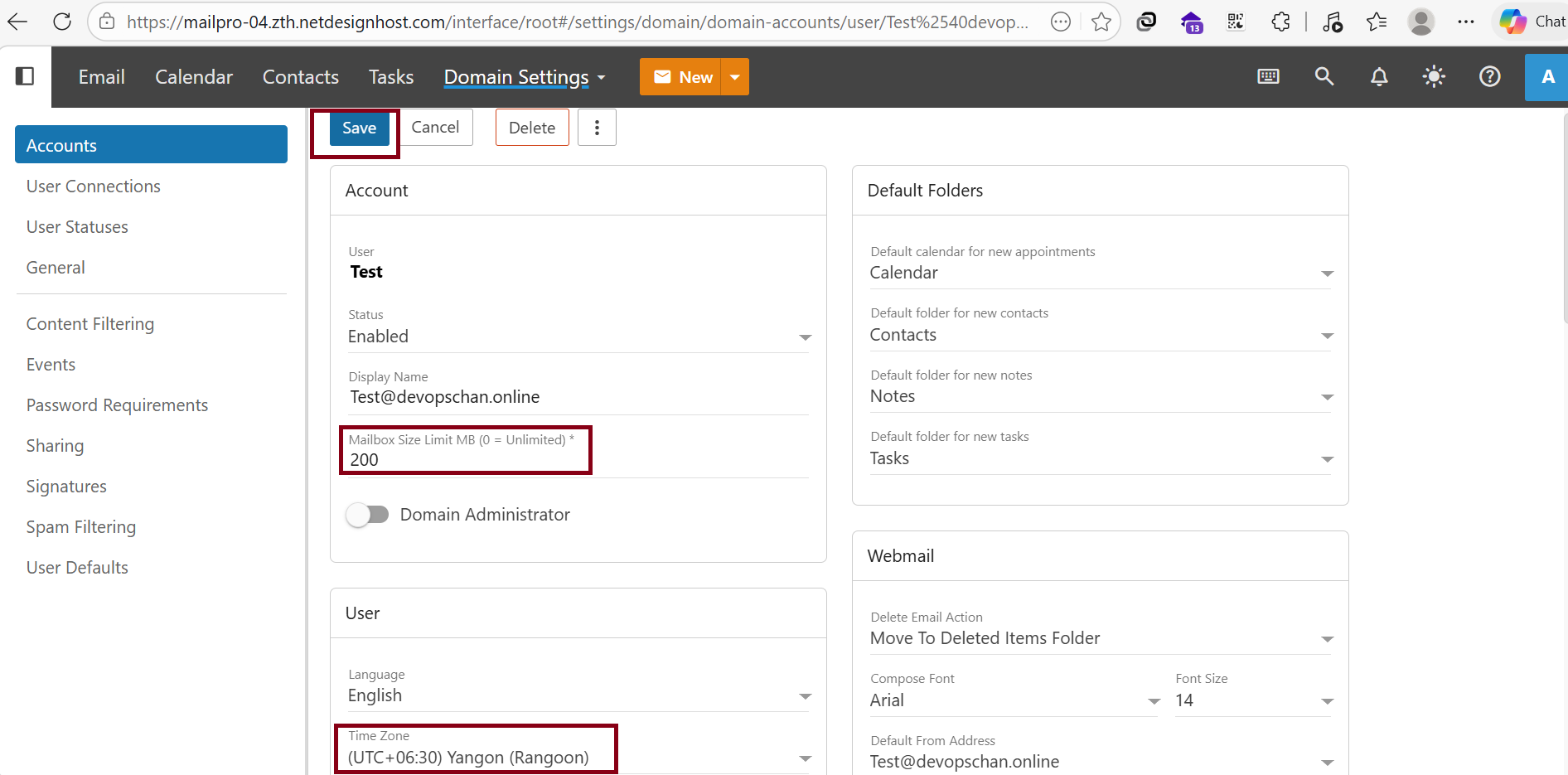
After completing all settings, click "Save" as shown in the photo.
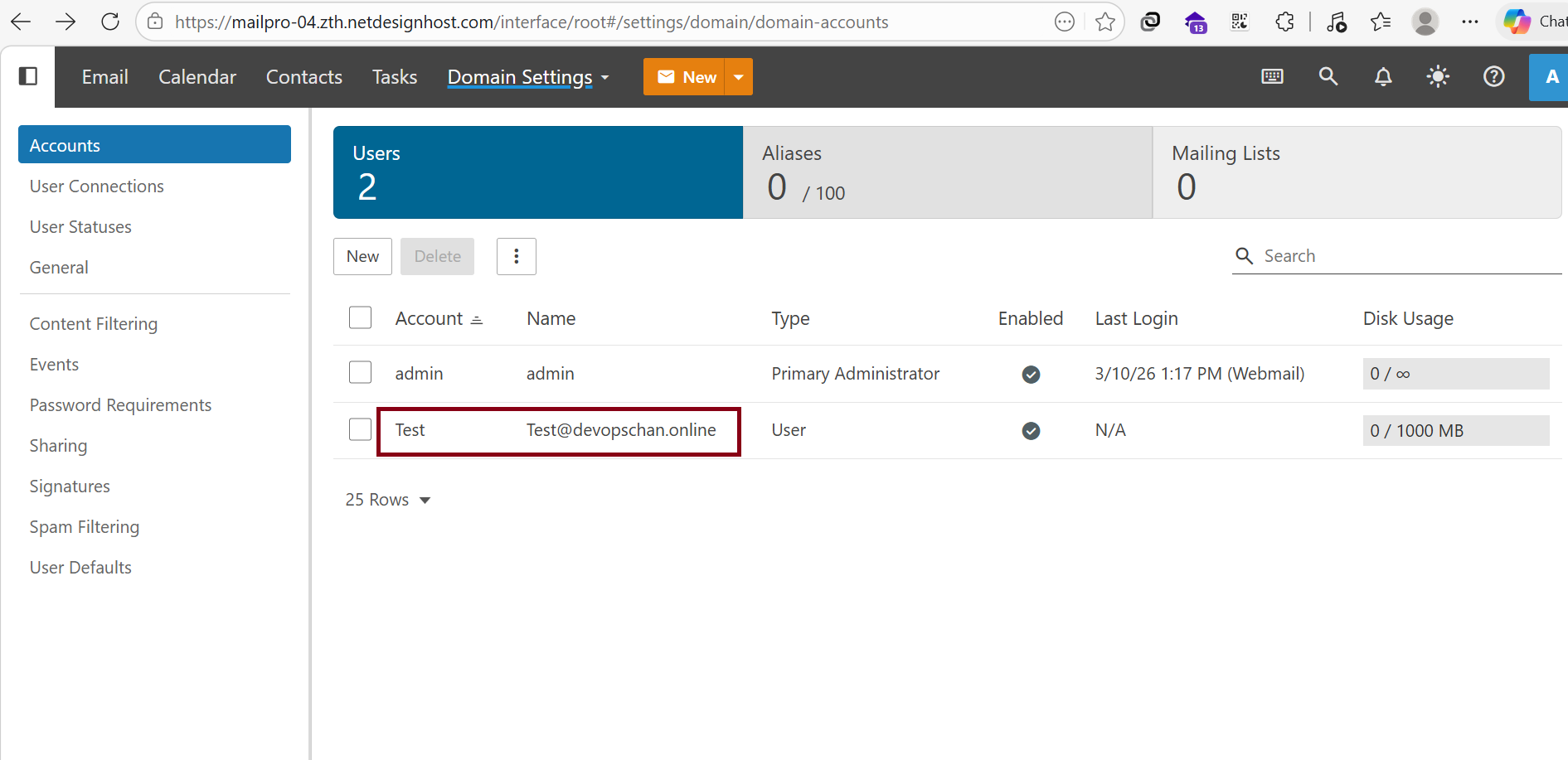
3. Changing Email Account Password
You can change the password for any created email account.
Select and click on the email account you wish to change.
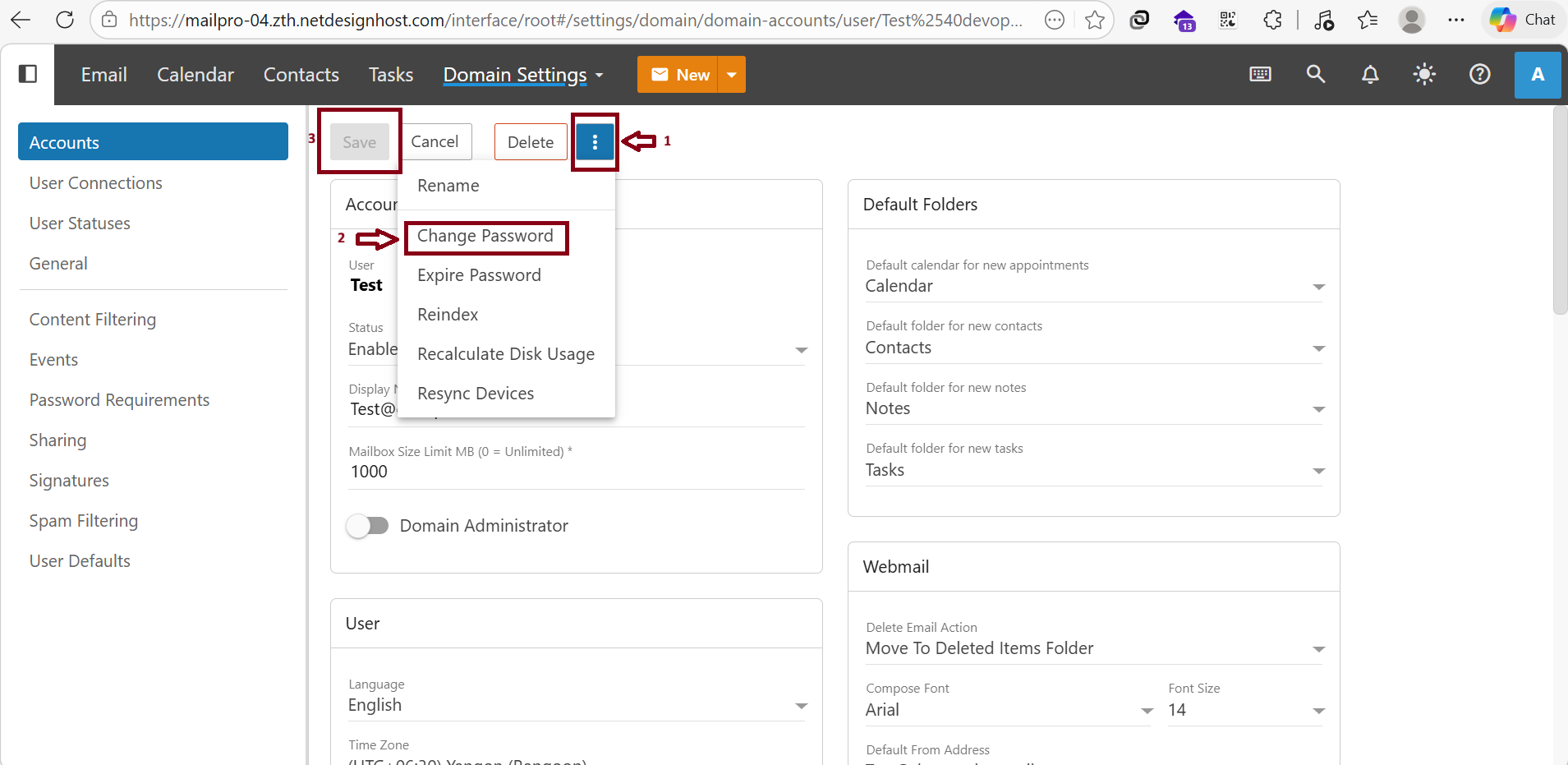
To change the password, follow these steps as shown in the photo:
- Click the three dots icon.
- Click Change Password.
- After changing the password, click "Save".
4. Deleting Email Accounts
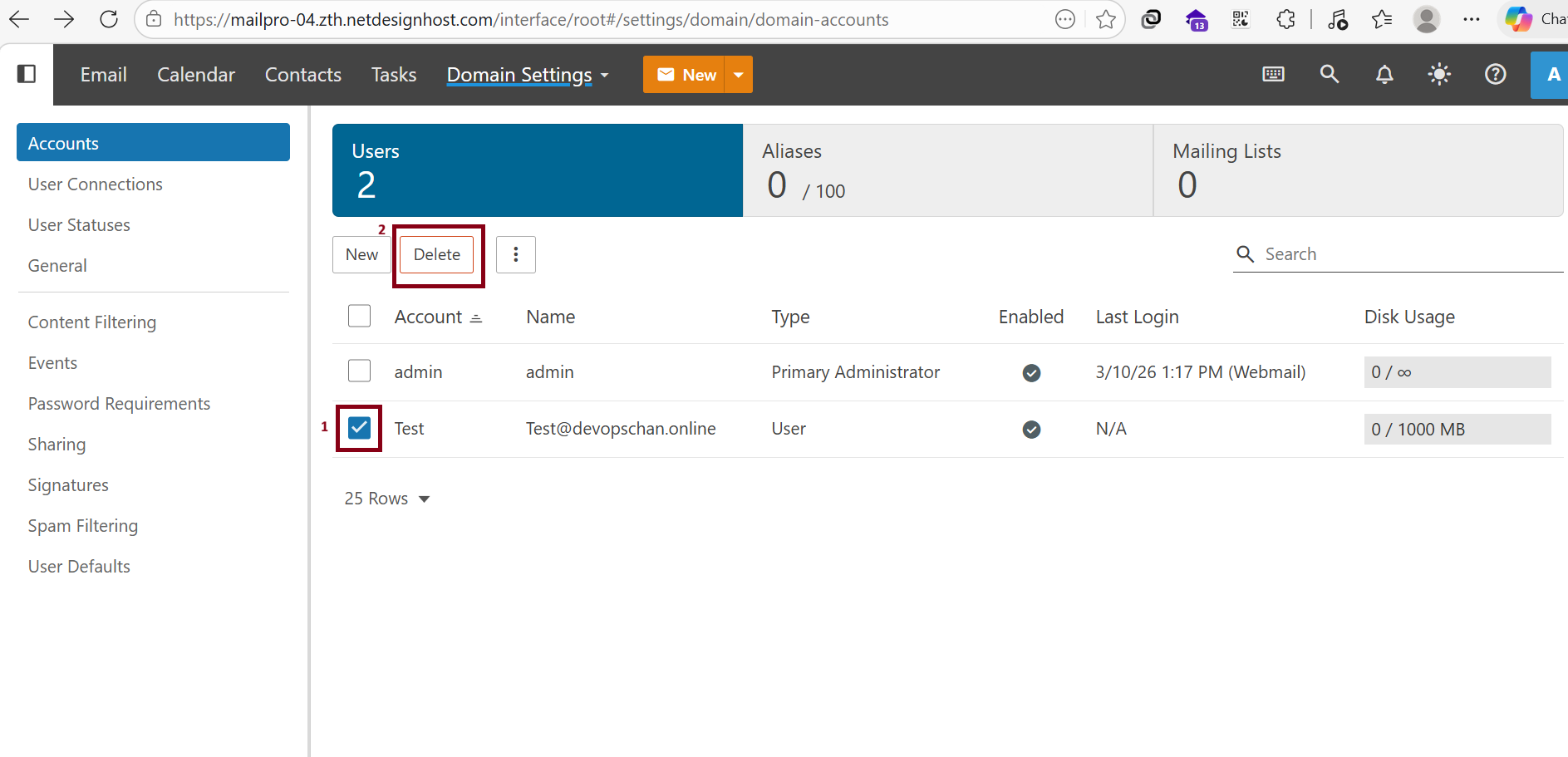
You can delete email accounts by following these steps:
- Select the email account you want to delete.
- Click "Delete".
Please Note : Once an account is deleted, all associated Mail Data cannot be recovered.
Thank You for Watching .
Was this article helpful?
That’s Great!
Thank you for your feedback
Sorry! We couldn't be helpful
Thank you for your feedback
Feedback sent
We appreciate your effort and will try to fix the article