How to Configure Trusted Senders (Whitelisting) in SmarterMail?
1. Login to the Z.com account.
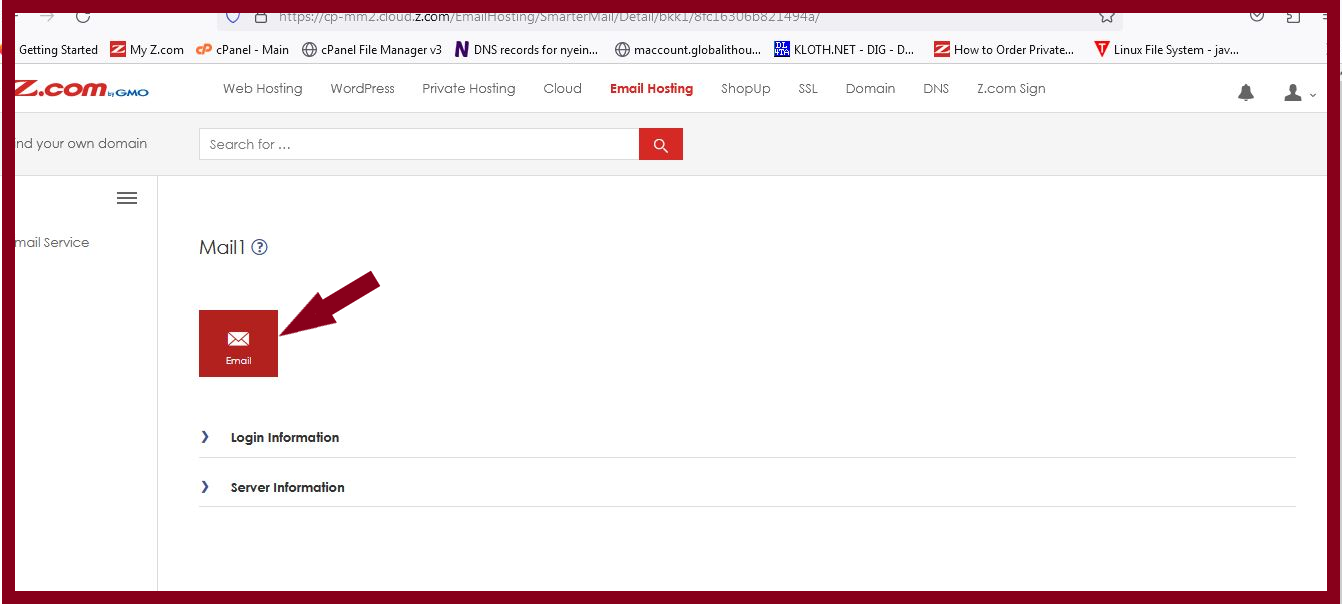
2. And then click the Email icon or URL link from Login information to log in to your mail server.
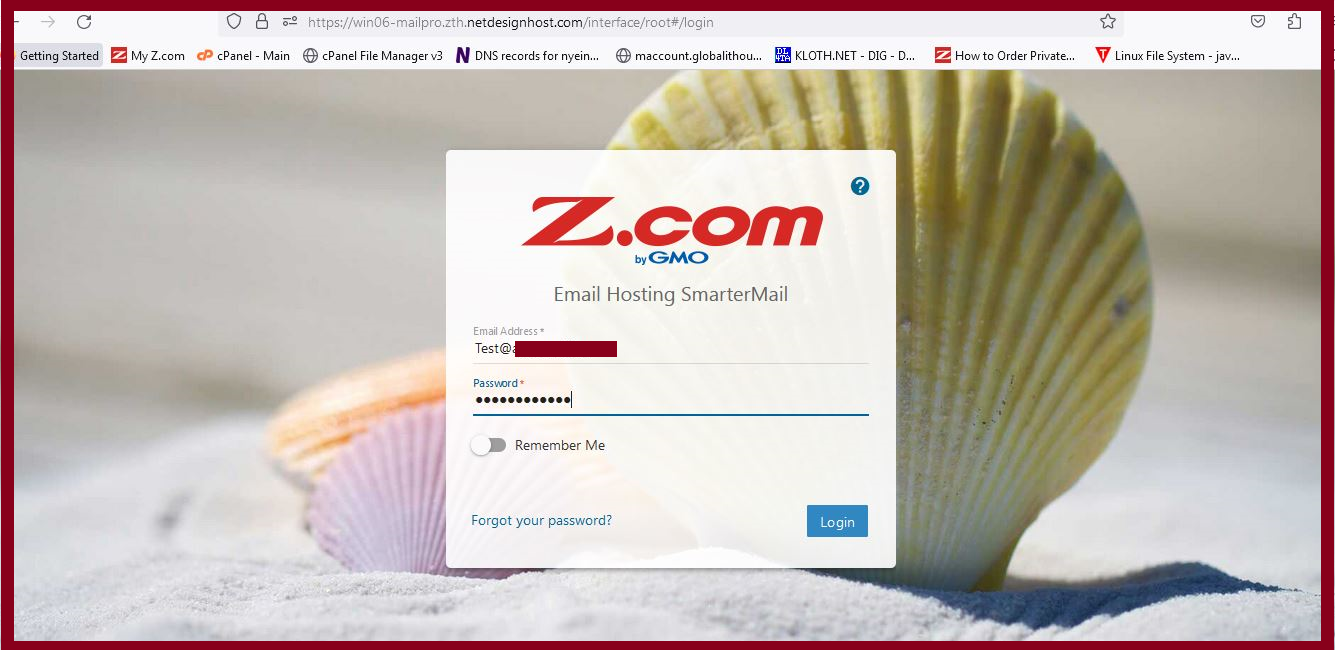
3. Log in to Smarter Mail with the email account you want to apply the Trusted Senders setting to.
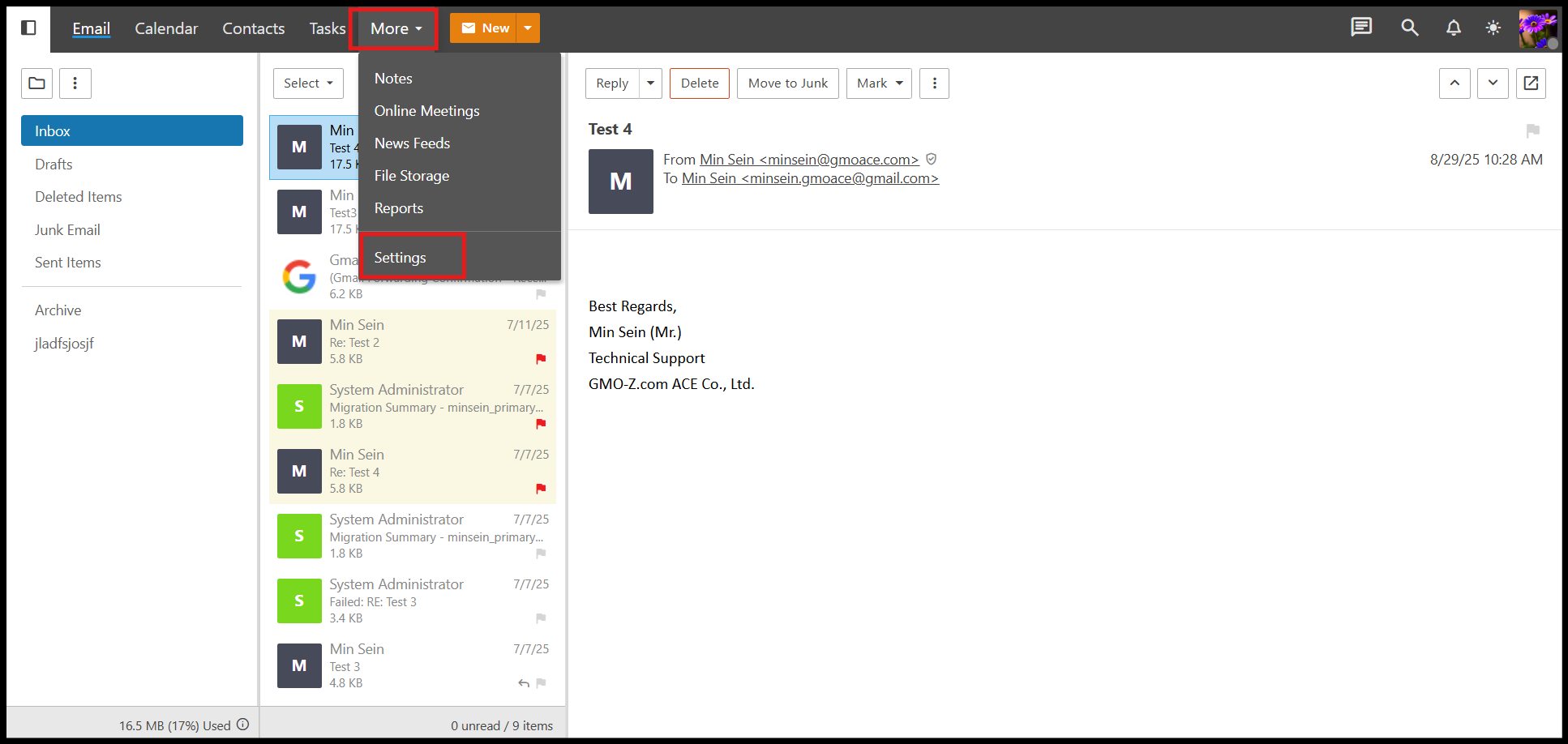
4. Go to More and click Settings.
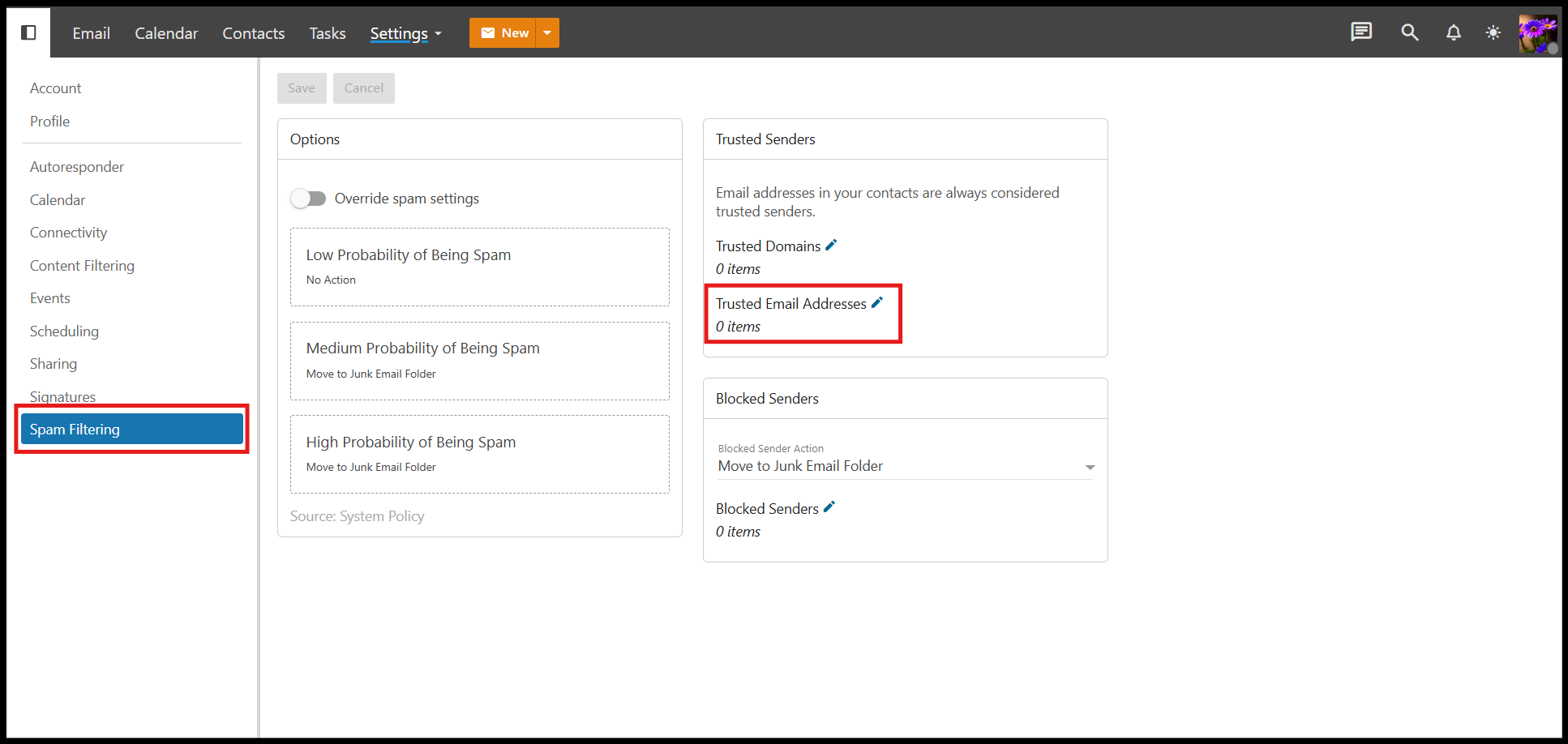
5. Click on the Spam filtering and then click on the Pencil icon by the Trusted Email Addresses.
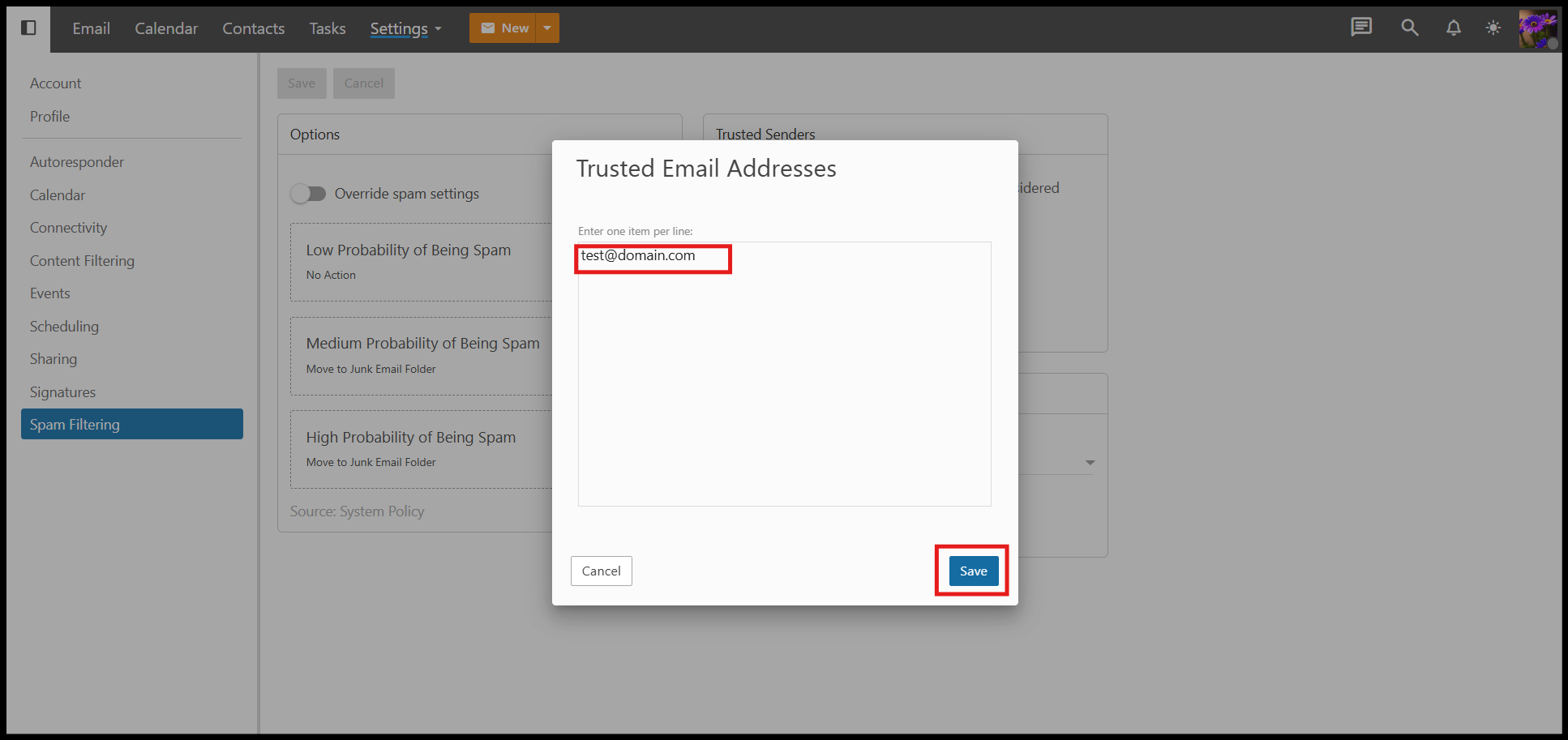
6. Enter the email addresses you want to whitelist and then click Save.
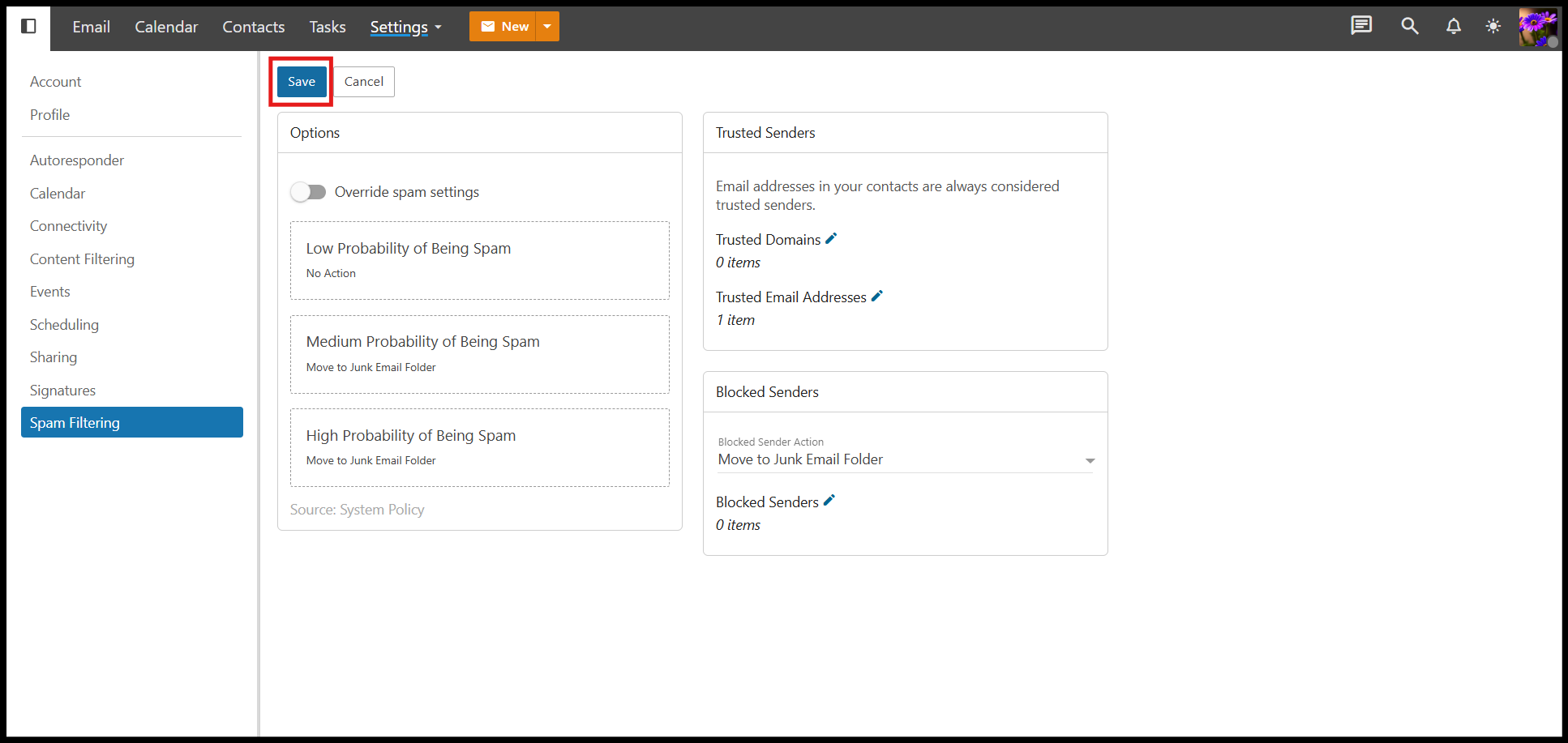
7. Click Save again.
Thank you!!!
Was this article helpful?
That’s Great!
Thank you for your feedback
Sorry! We couldn't be helpful
Thank you for your feedback
Feedback sent
We appreciate your effort and will try to fix the article