How to initial set up Private Hosting Cloud Panel in MM4?
Step1. Login to z.com account, https://hosting.z.com/mm/signin/ 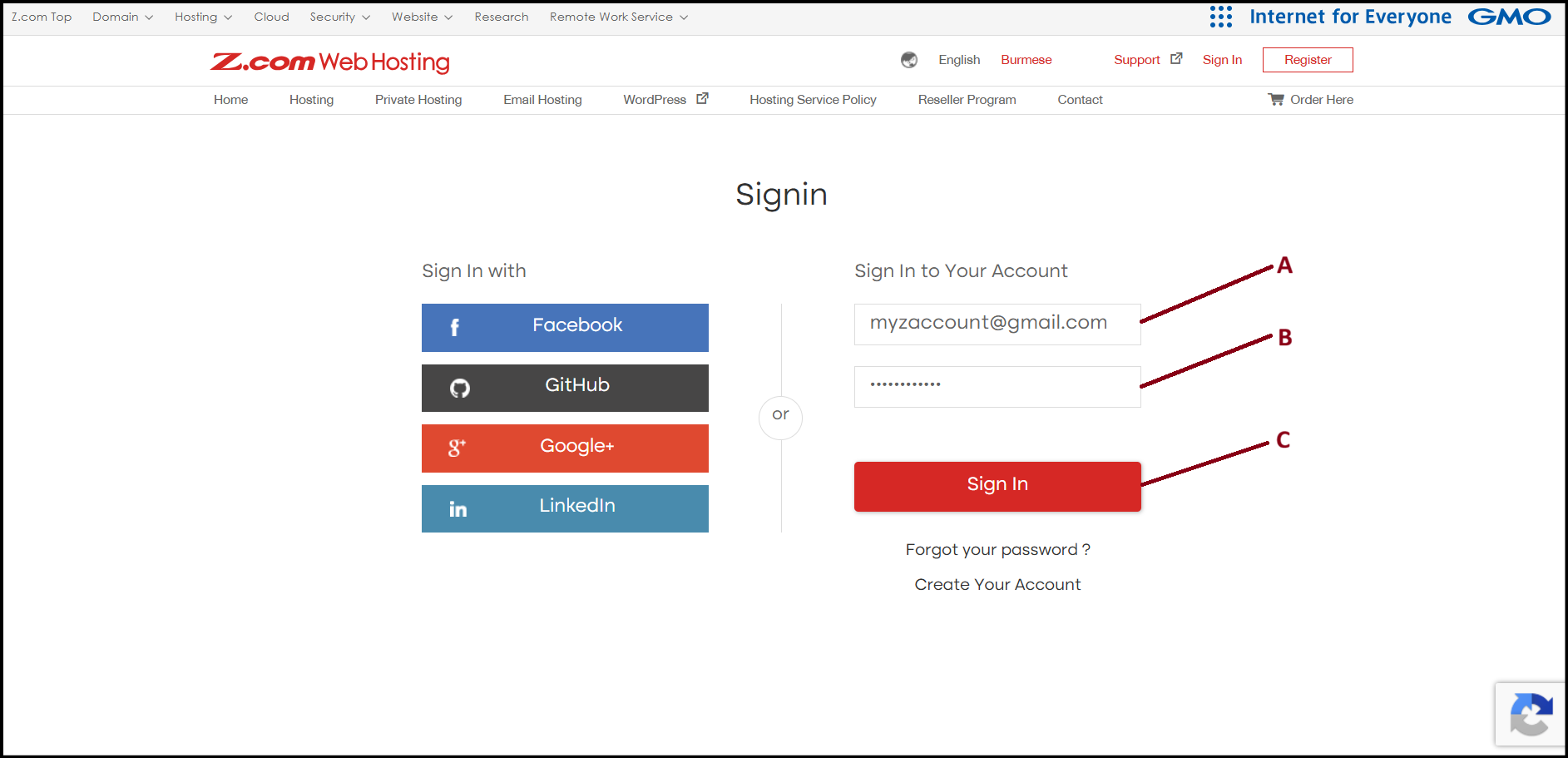
Step2. Go to the "Private Hosting" tab under MM4. And click "initail Setup". 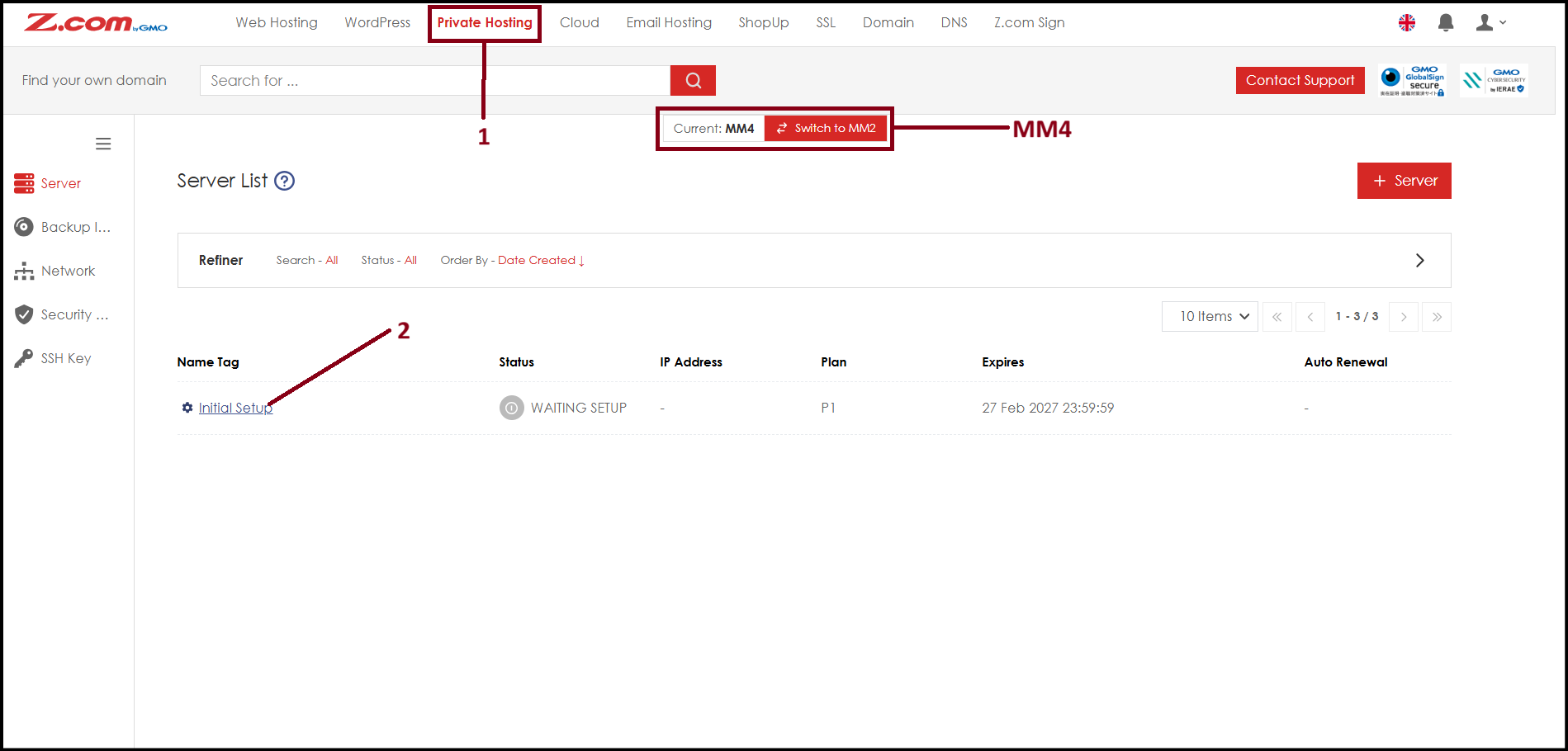
Step3. Create Root passwod and click "Save" . The Root password will be use for both Cloud Panel login and server console/SSH login. 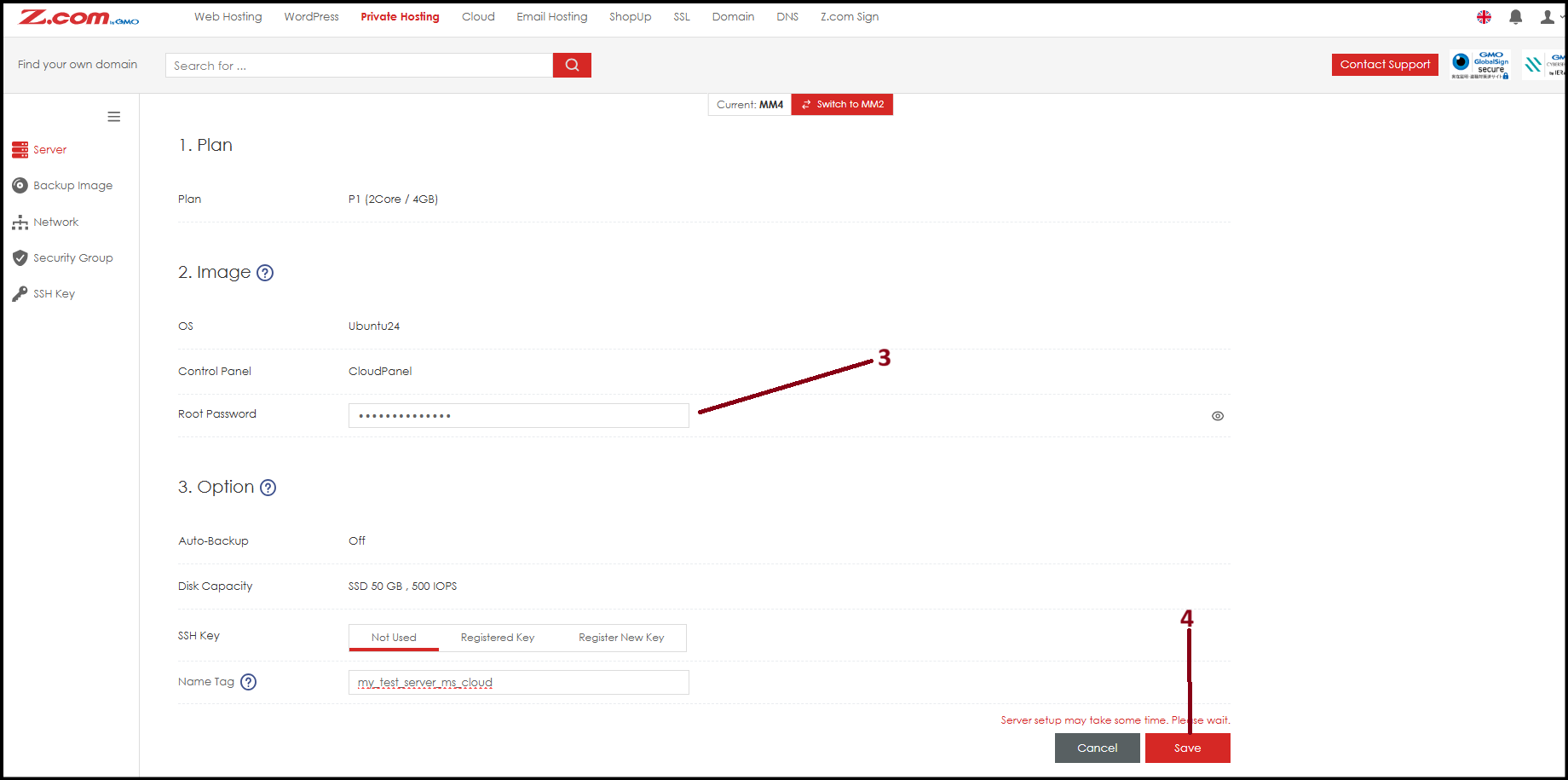
Step4. Now the server is installing OS and Cloud panel with your provided password showing server status as "CREATING". Please wait around 30 ~ 40 mins to complete. 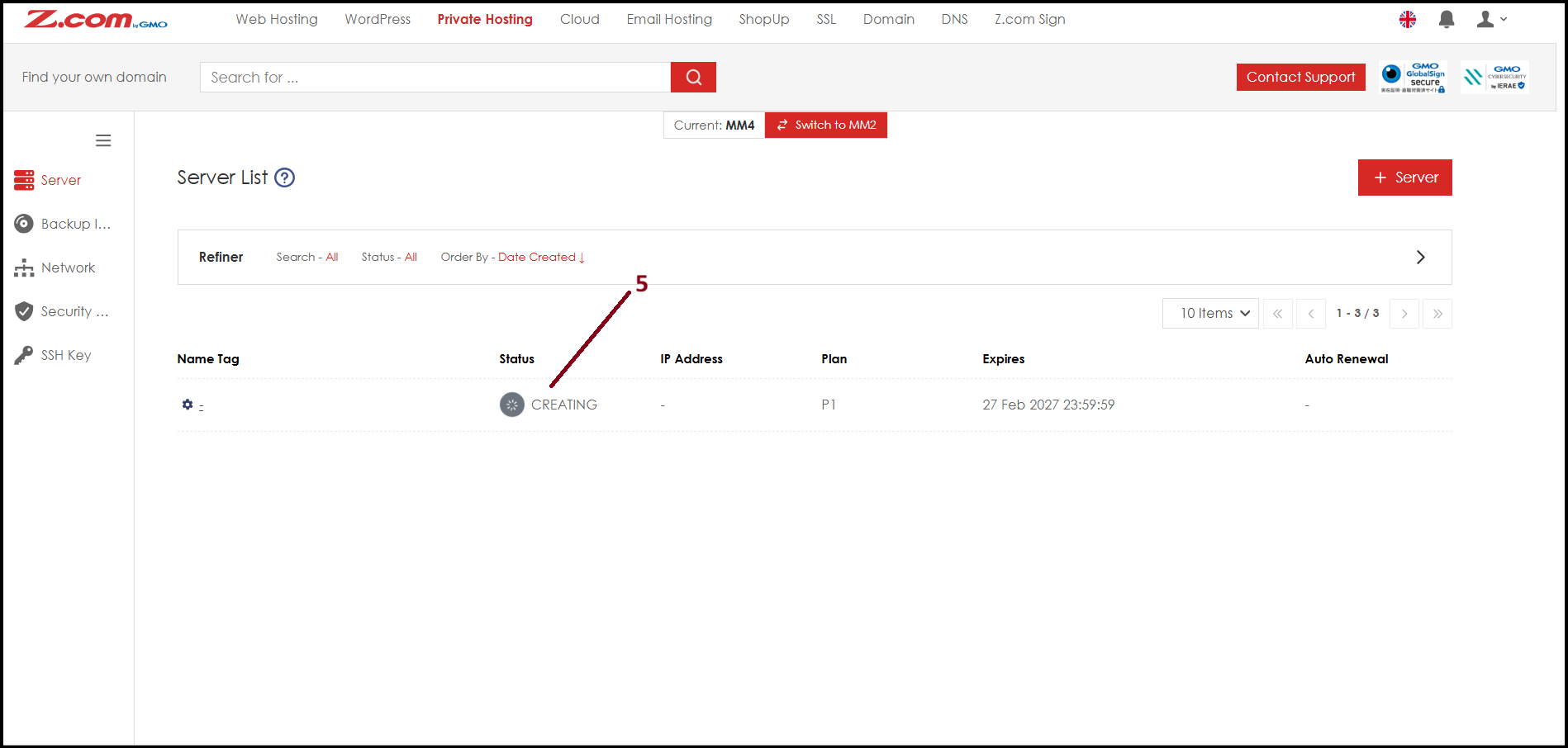
Step5. Now the server status is "Active". Please click the server below of NameTag. 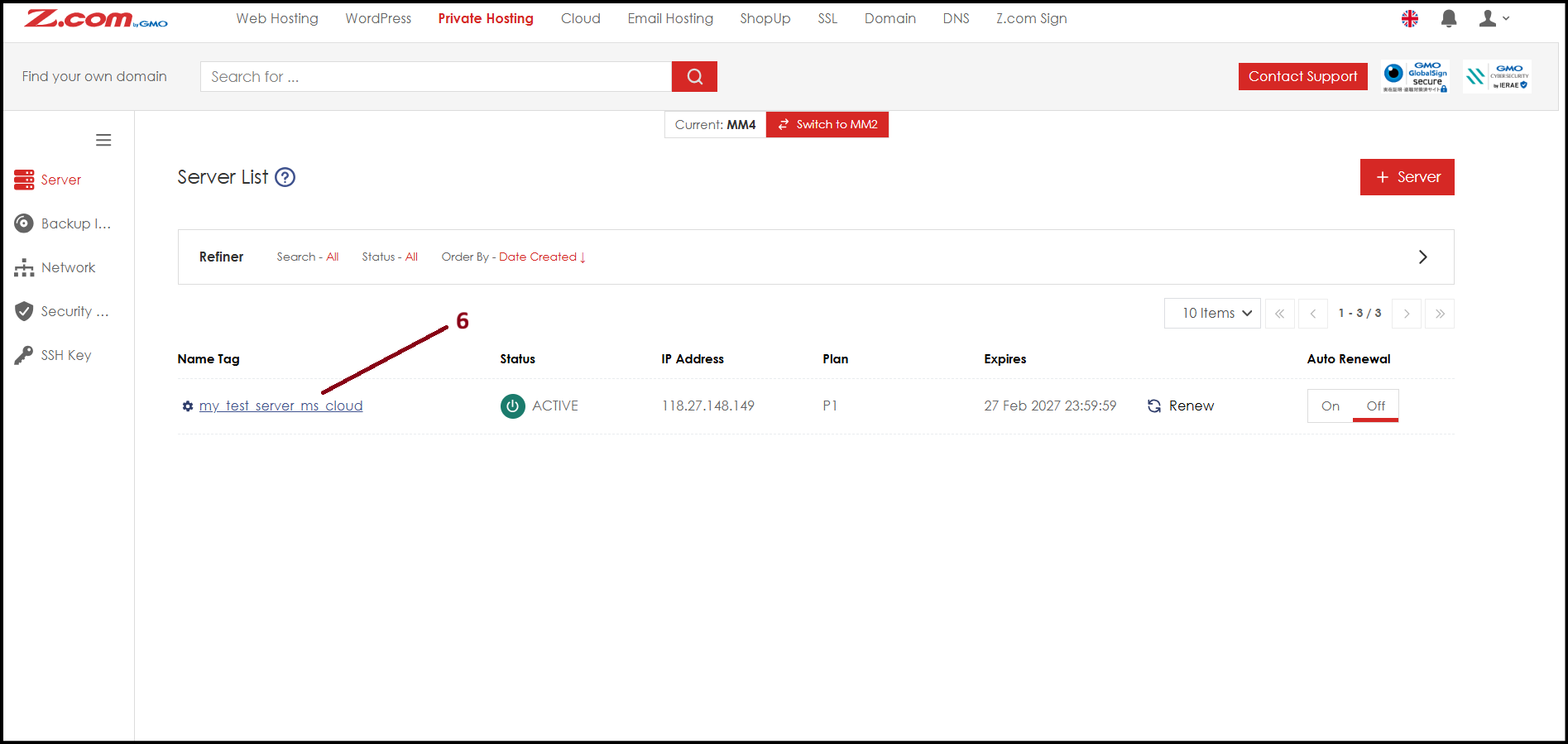
Step6. Here you will see server related informations. Please click "VM Information". 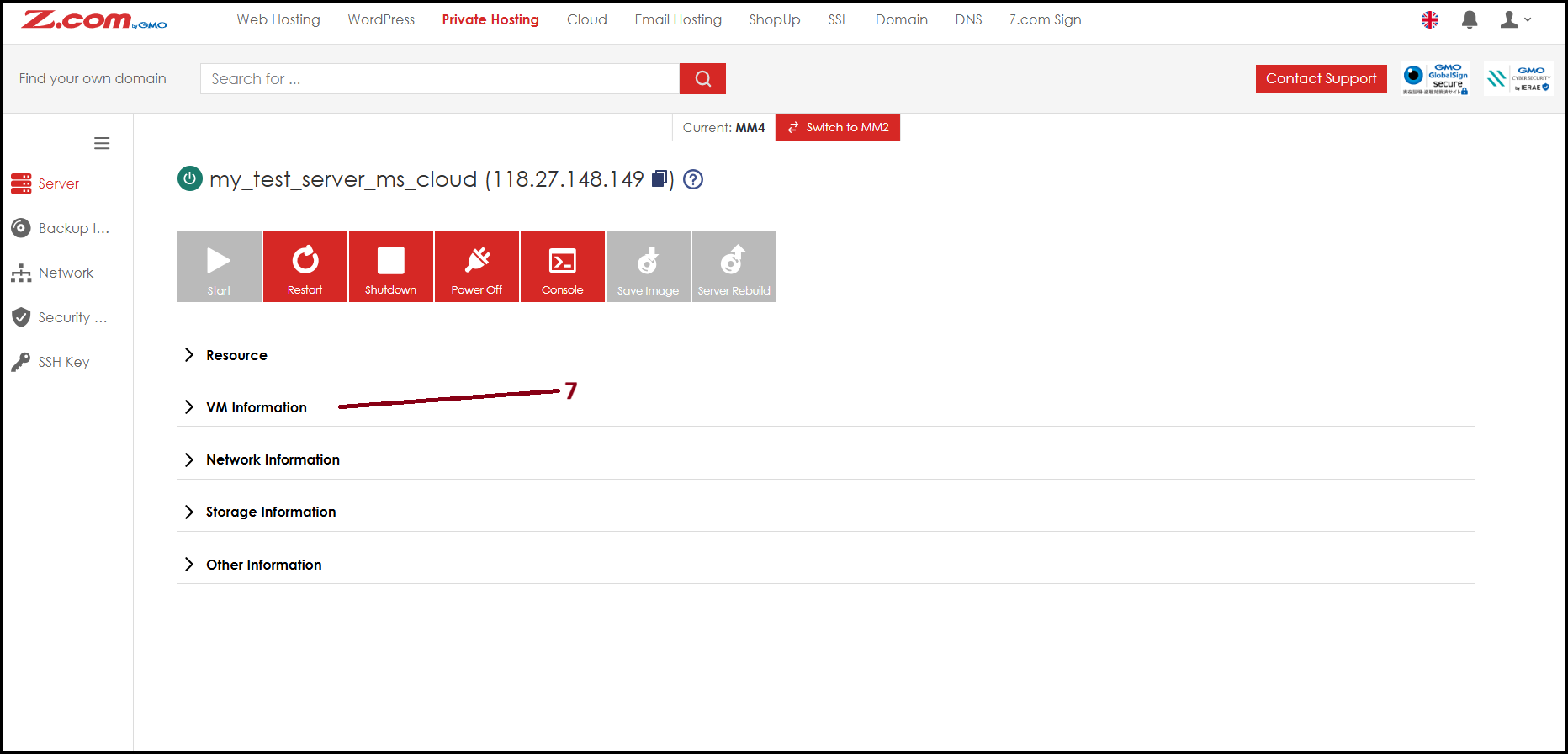
Step7. Copy "Login URL" address and open in a new tab to login to Cloud panel. 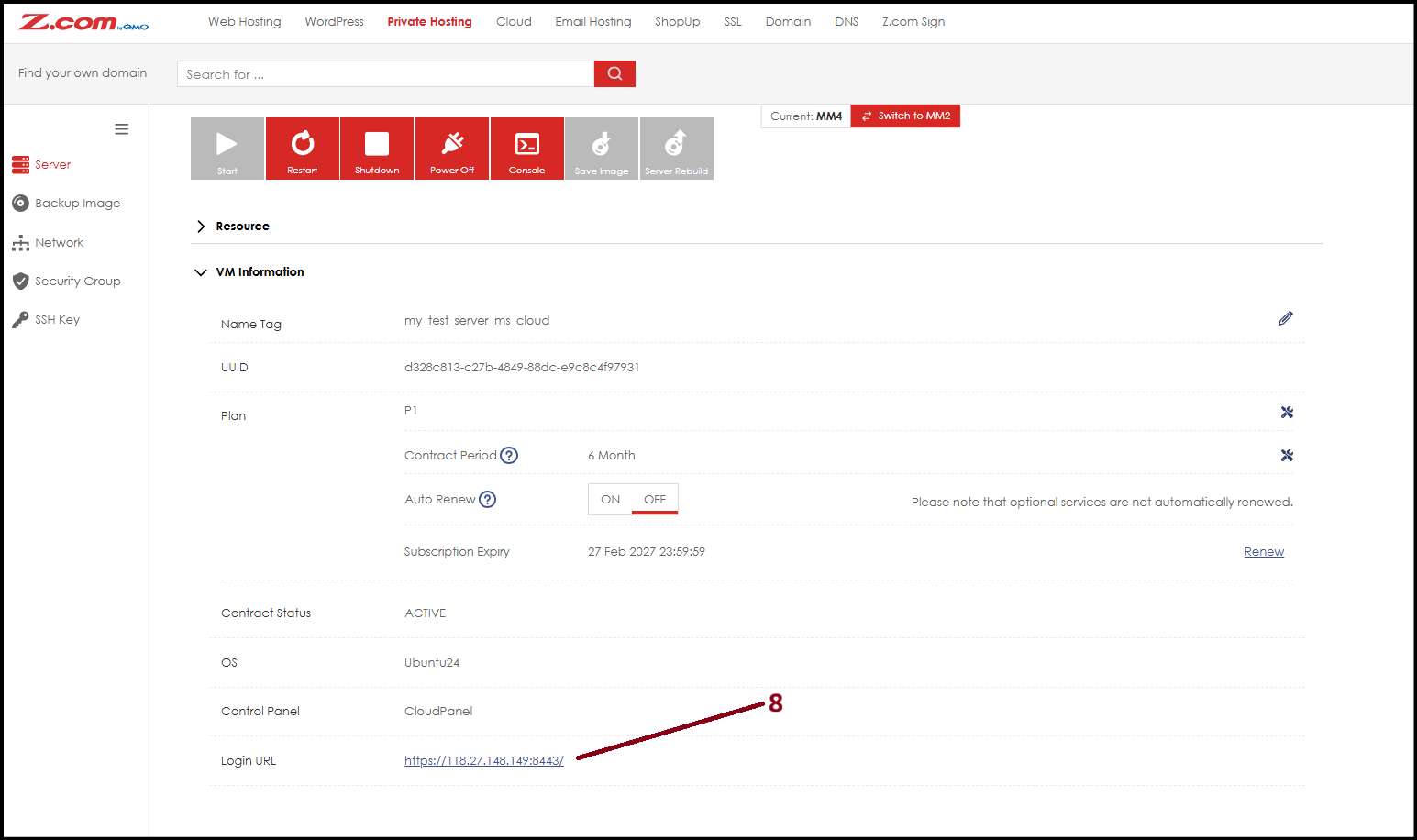
Step8. Since IP address can't have SSL, the browser may show Not Secure screen. Please click "Advance" and then click "Proceed to..". 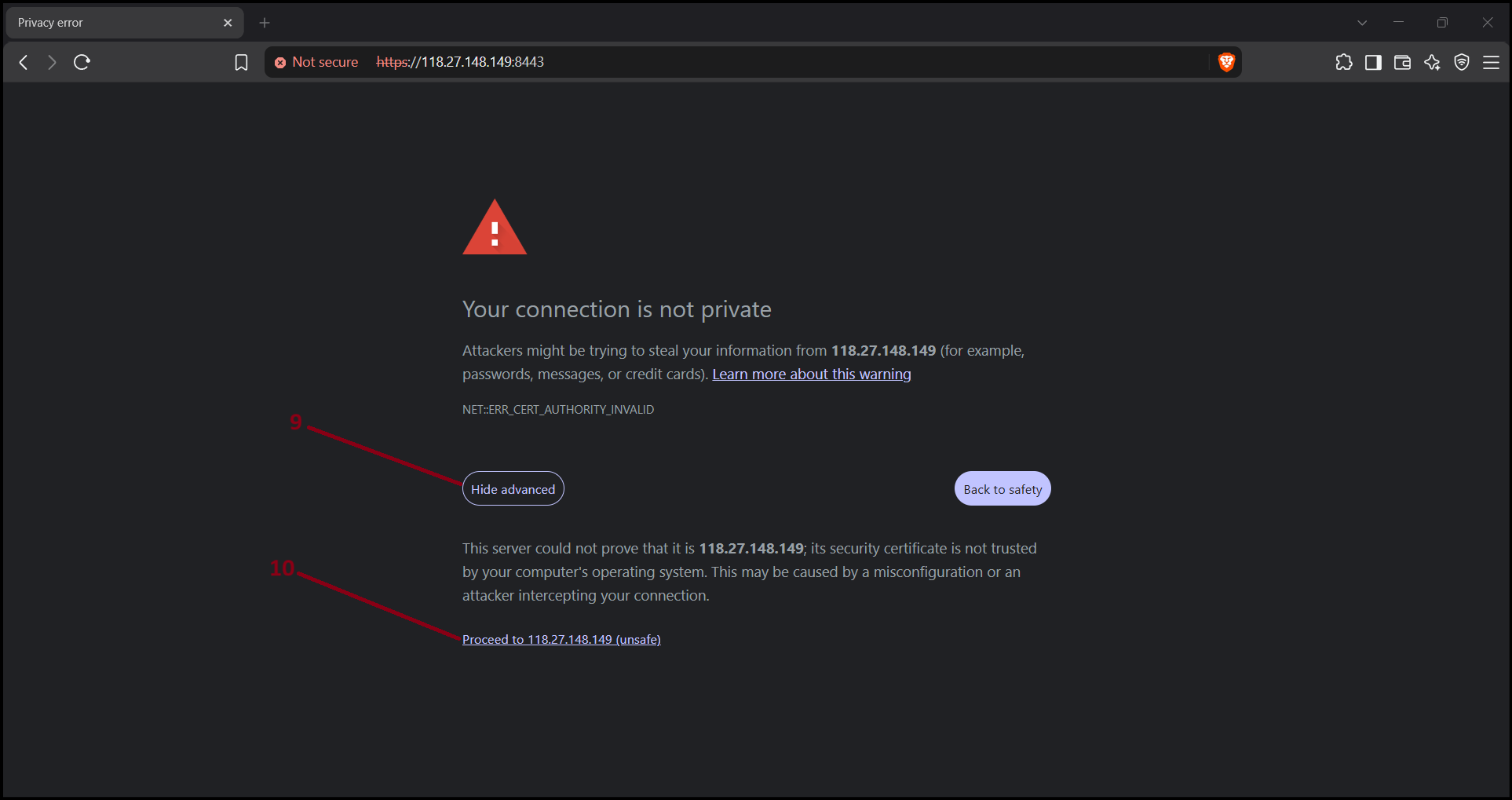
Step9. Now the Cloud panel user registeration page will open. Fill all the six filed and then click "Create User"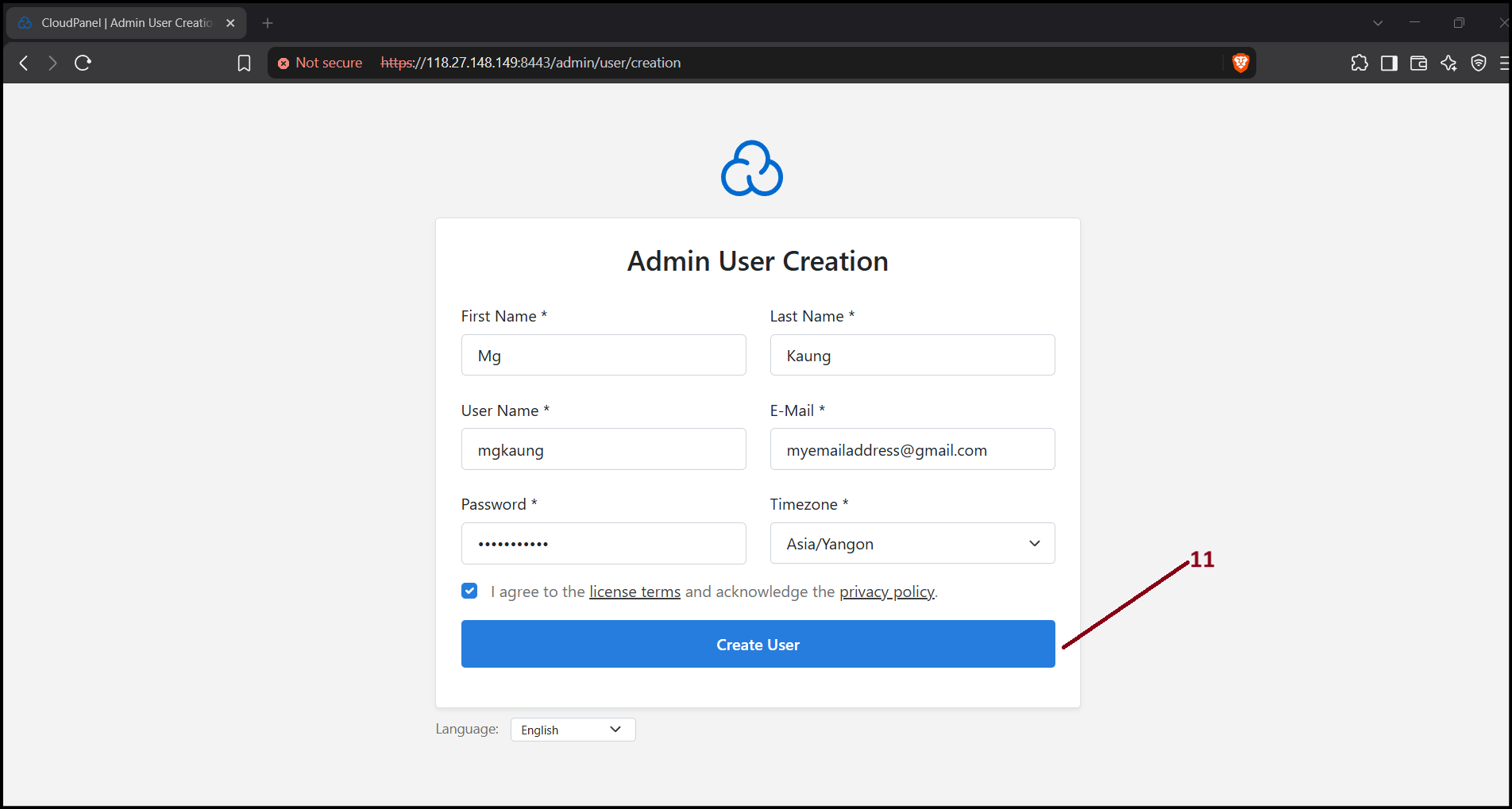
Step10. User creation completed and you can now login with created username and password. 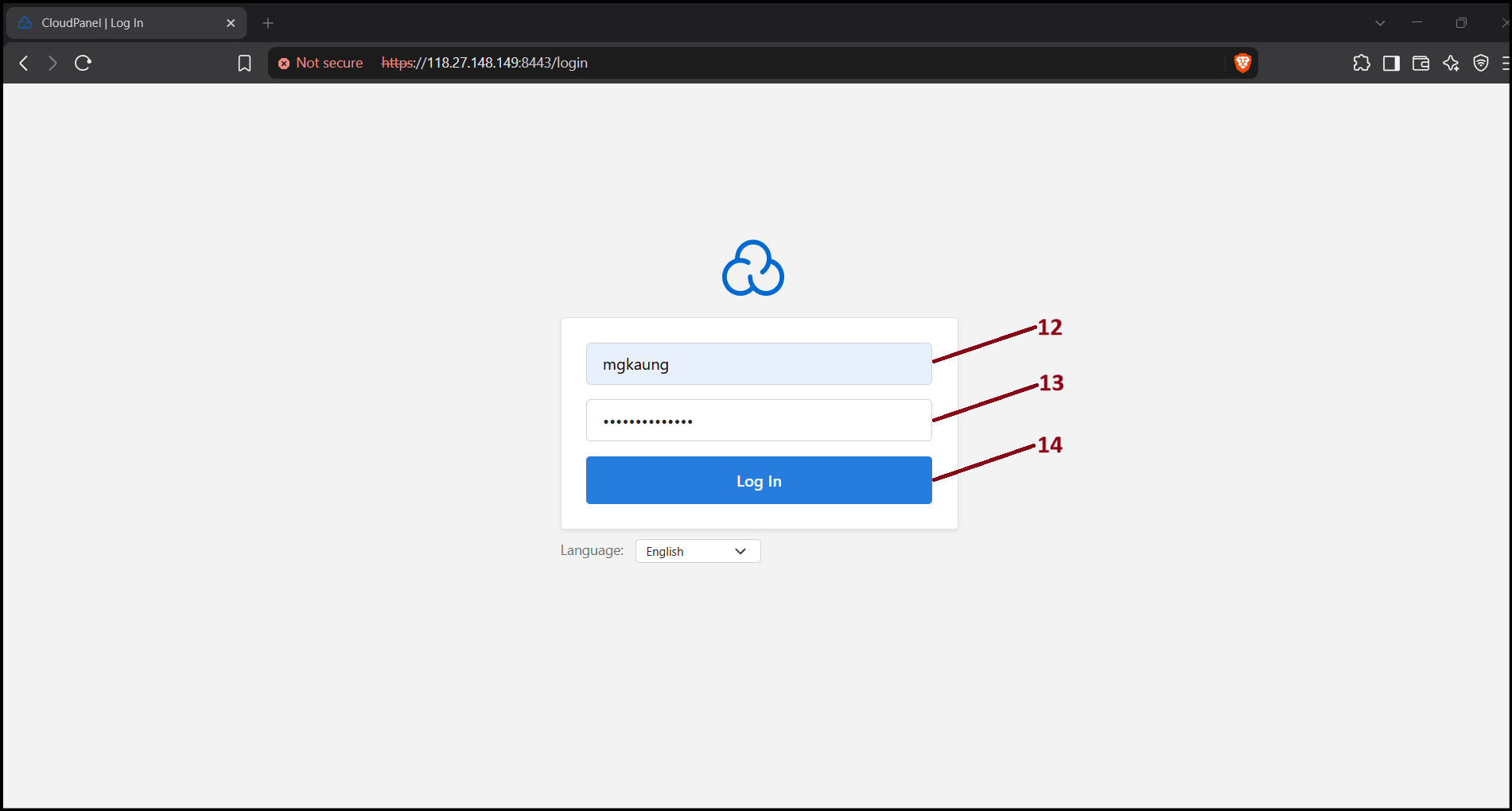
Step11. The Cloud panel will open and you can start adding domain in "+Add Site" to deploy your website projects. 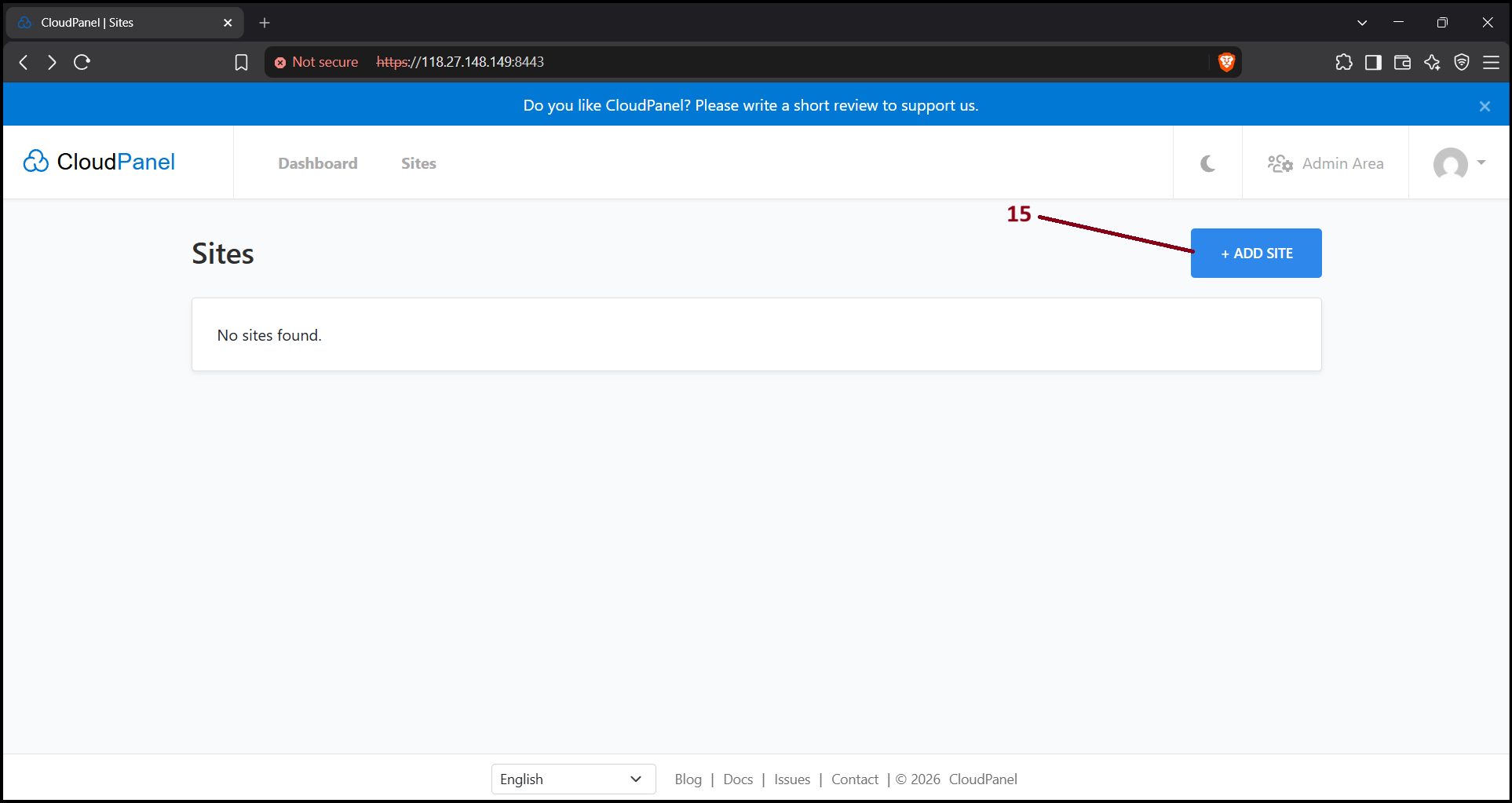
Thank You!
Was this article helpful?
That’s Great!
Thank you for your feedback
Sorry! We couldn't be helpful
Thank you for your feedback
Feedback sent
We appreciate your effort and will try to fix the article