How To Install Let’s Encrypt SSL on Direct Admin?
Step 1: Login to the z.com account, https://cloud.z.com/mm/signin
Step 2: Login to the Direct Admin dashboard under the Web Hosting Tab 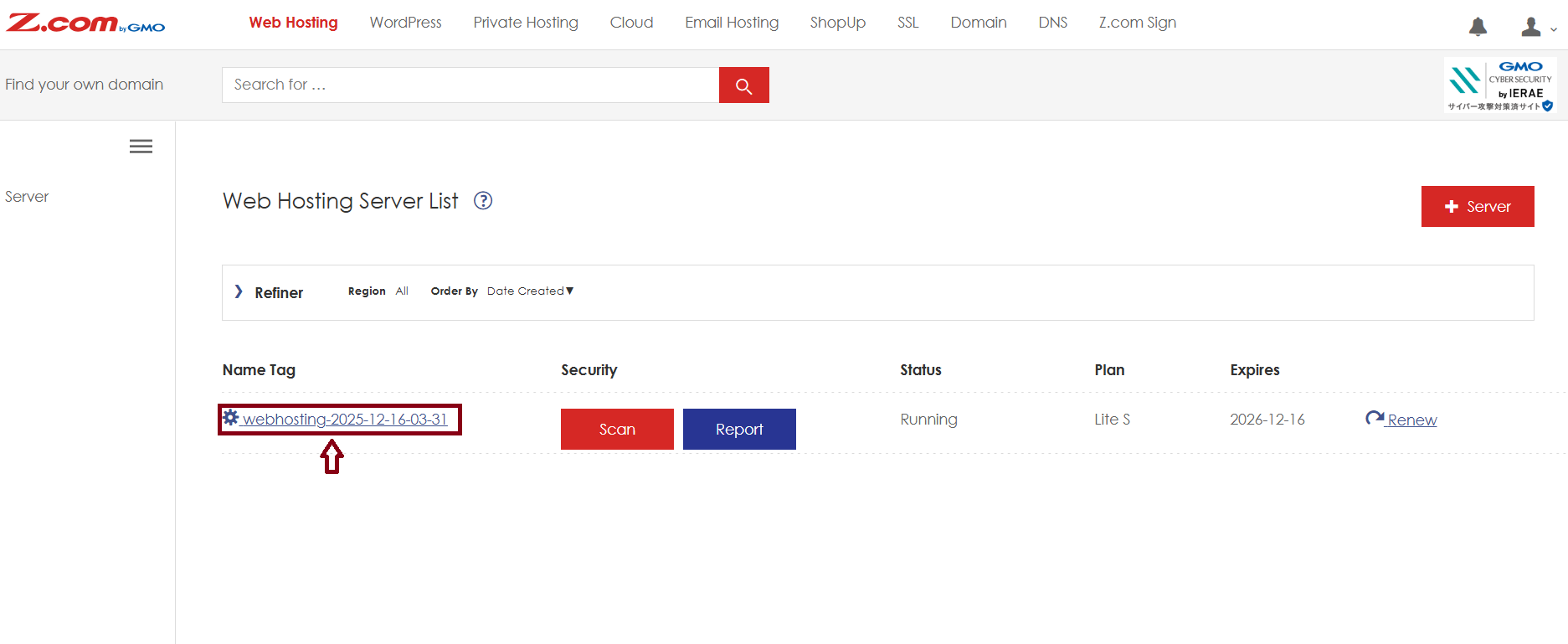
Click Login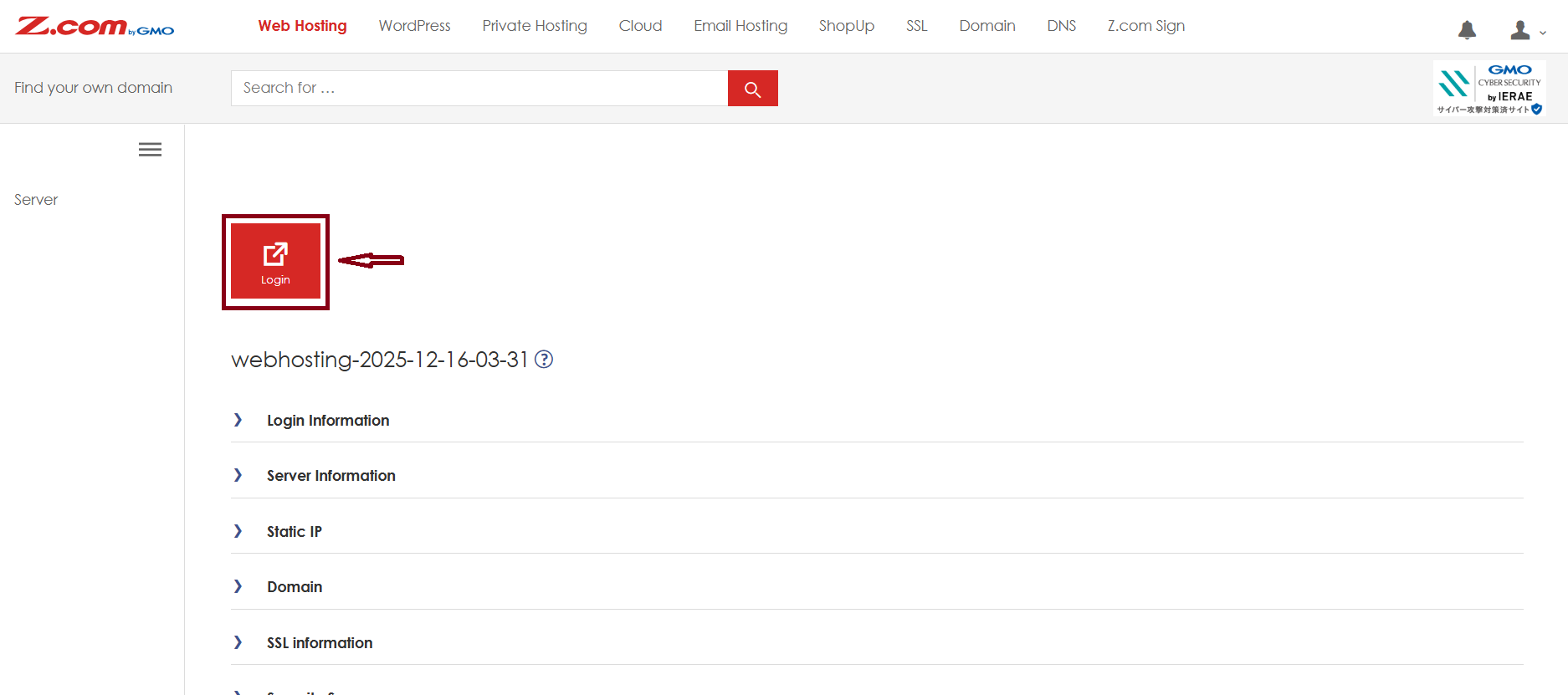
Step 3 : Click “SSL/TLS Certificates " 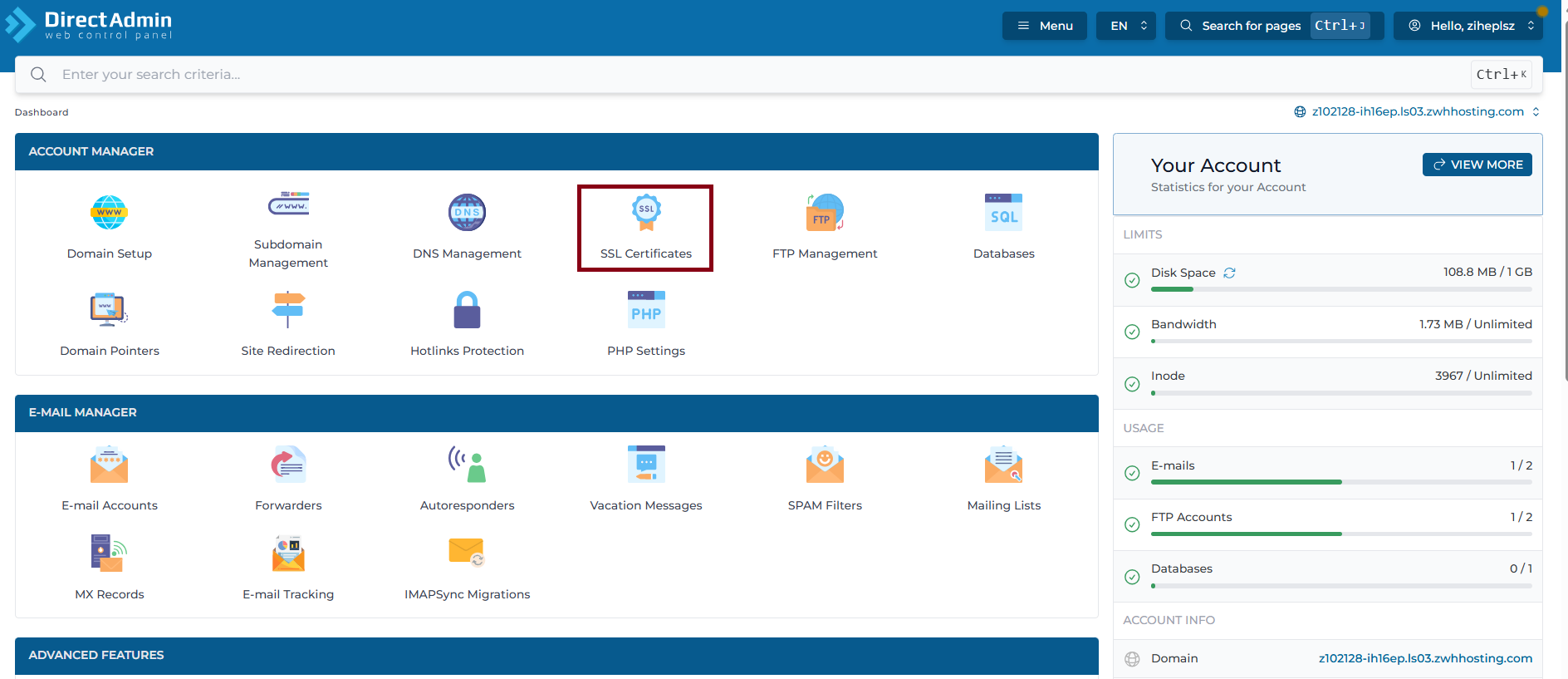
Click and Select your Domain
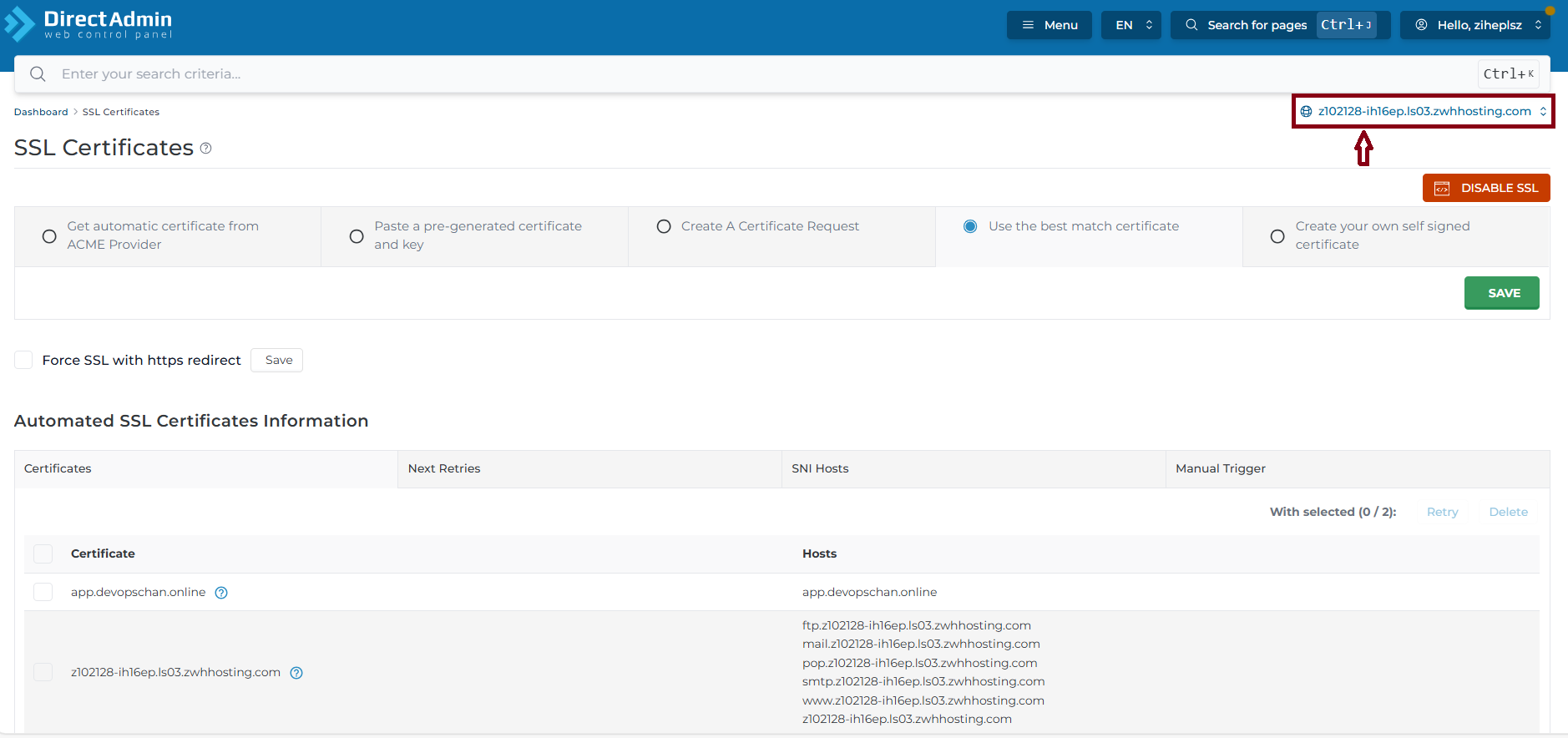
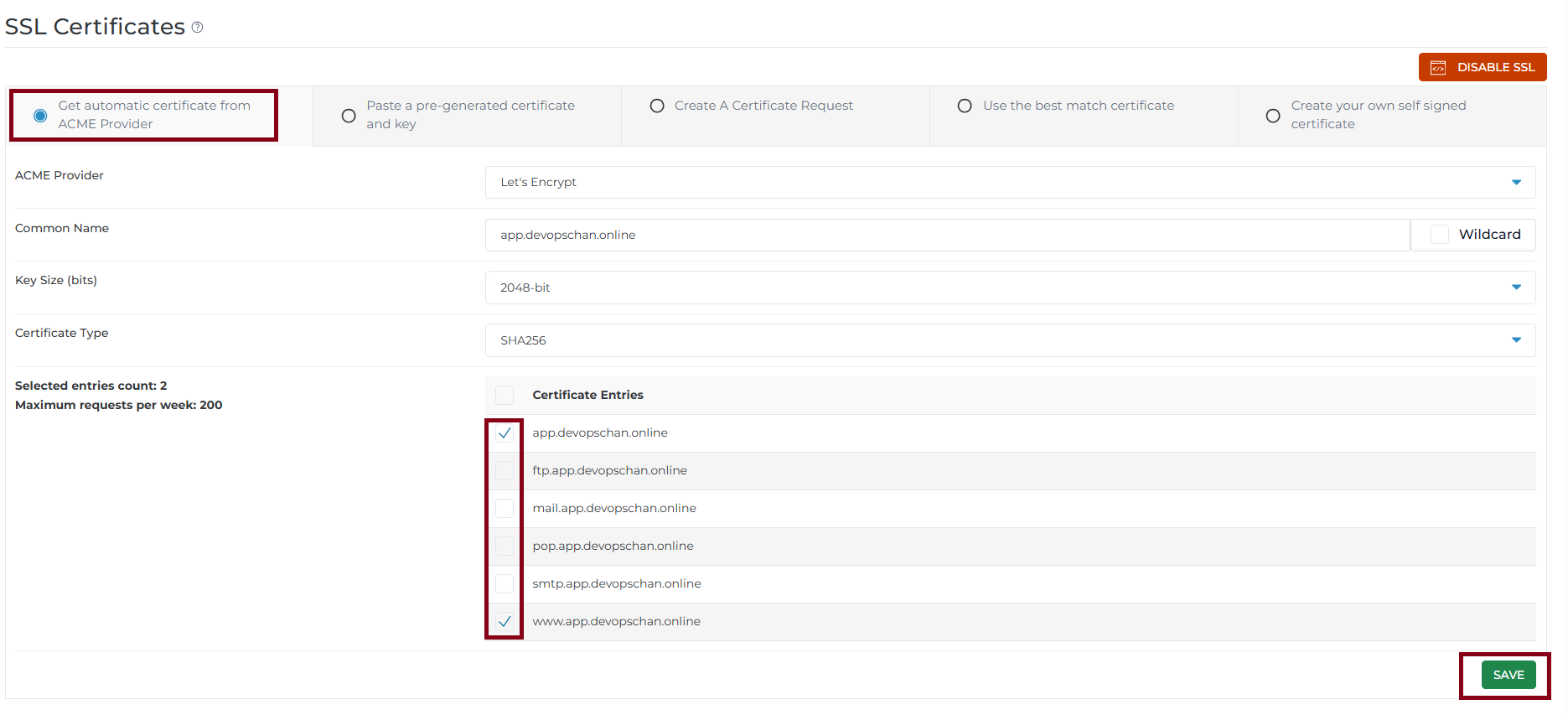
Step 4 : Configuring Let's Encrypt SSL
- Select " Get automatic certificate from ACME Provider "
- Select Certificate Entries for subdomain
- After select and then " SAVE "
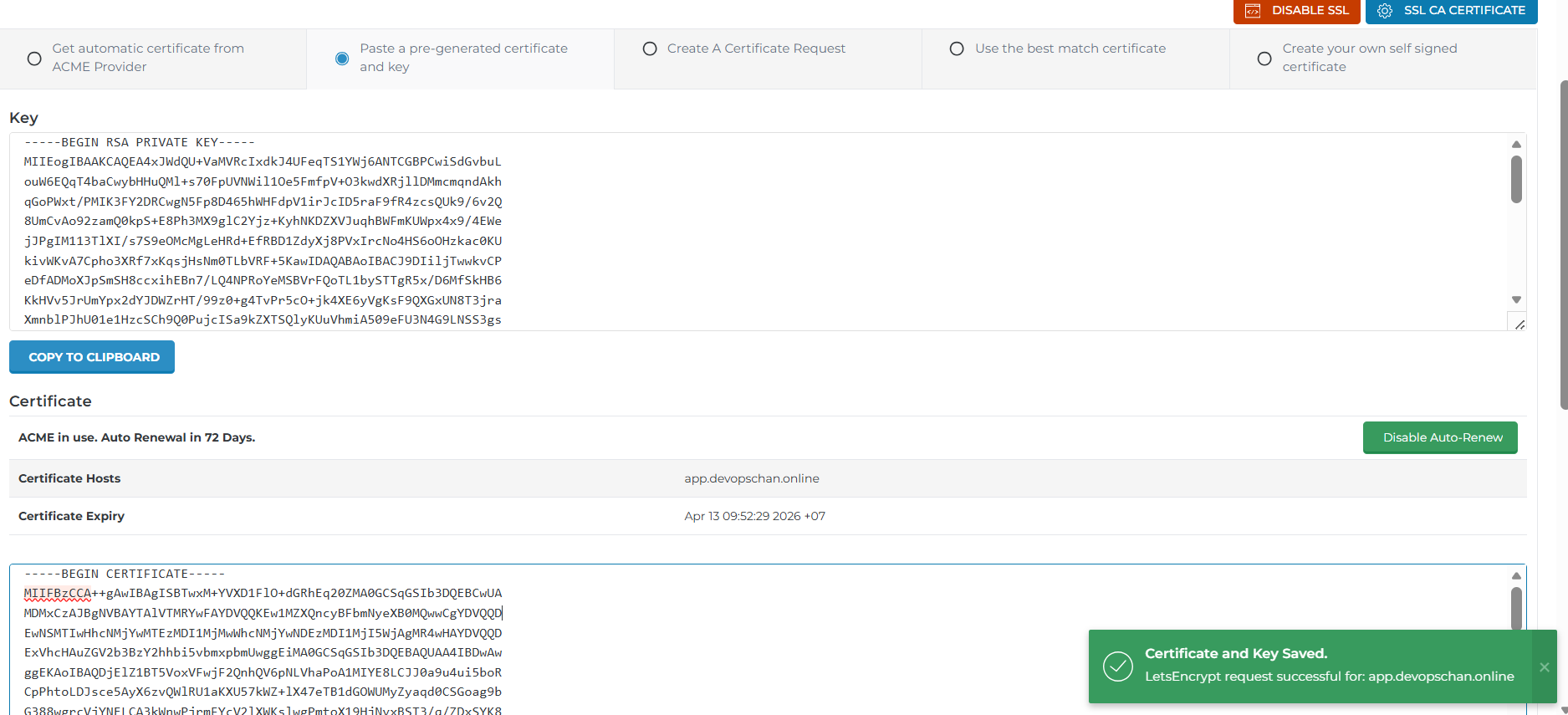
Certificate and Key Saved
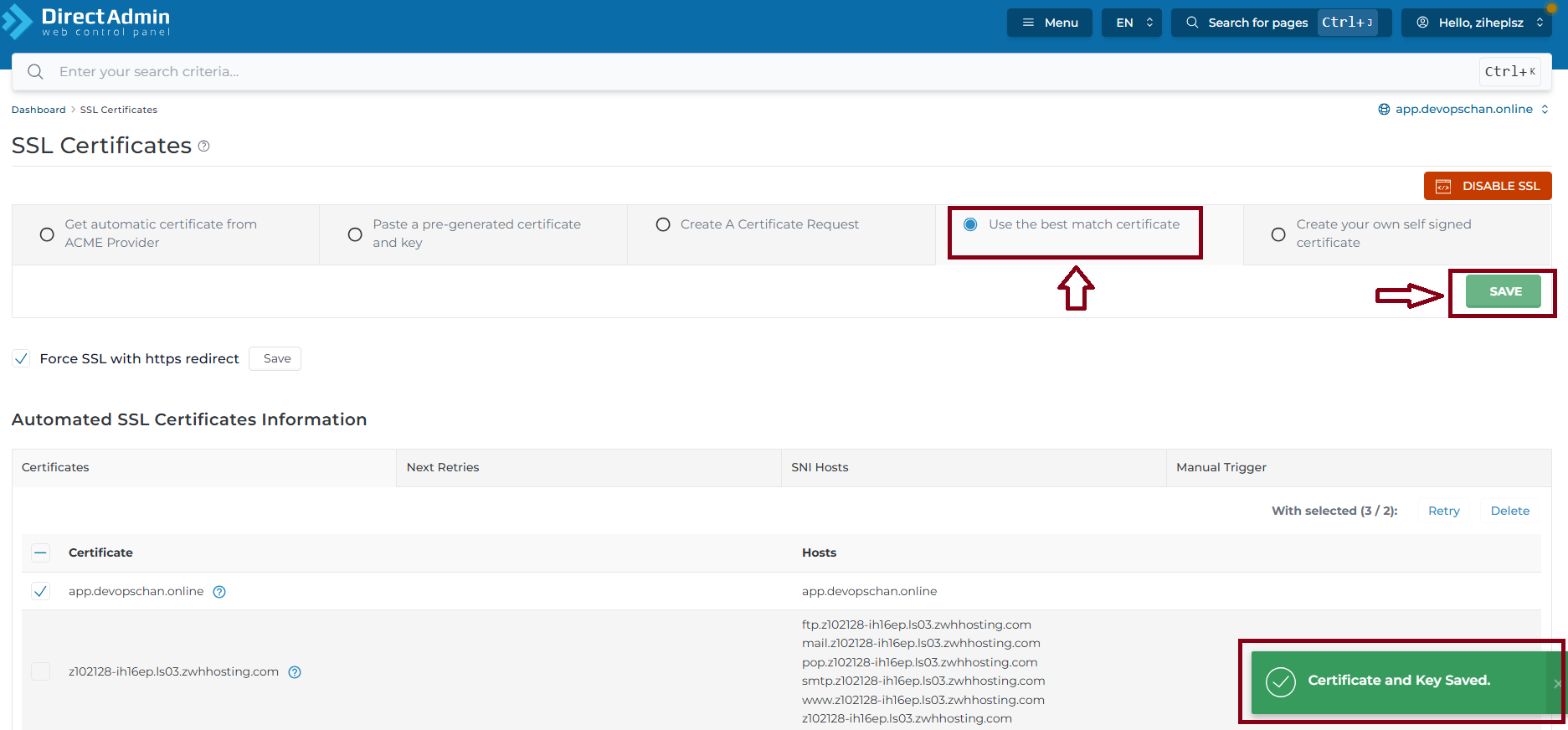
Step 5 : Select " Use the best match certificate "
And then " SAVE "
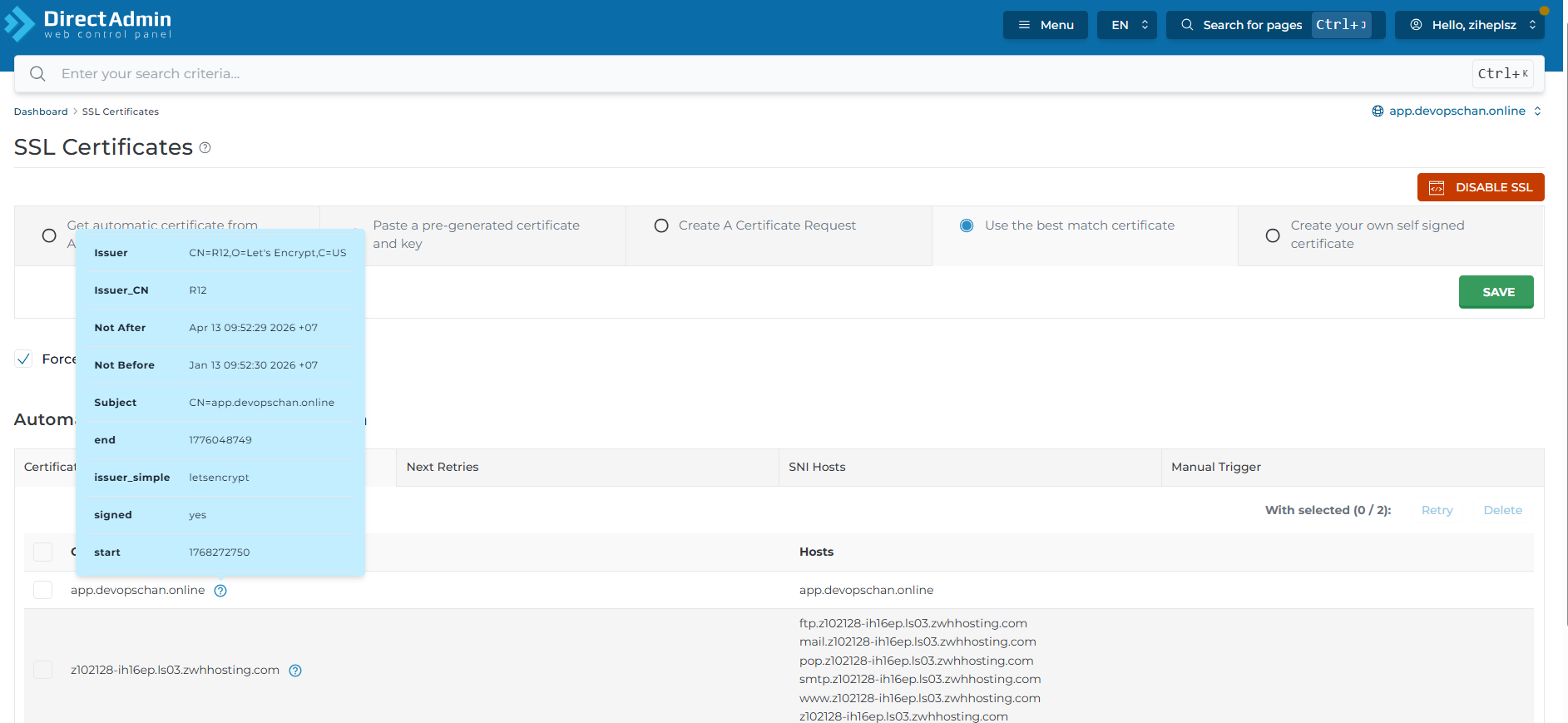
Check the Certificate Status
Now, the Let’s Encrypt SSL is ACTIVE.
Thank you !!!
Was this article helpful?
That’s Great!
Thank you for your feedback
Sorry! We couldn't be helpful
Thank you for your feedback
Feedback sent
We appreciate your effort and will try to fix the article