Changing/Editing the Domain Whois Information (Owner Information)
Step1. Login to z.com account, https://cloud.z.com/mm/signin/
Step2. Click the "Domain" menu
Step3. Select your domain that you want to edit/change the Whois information
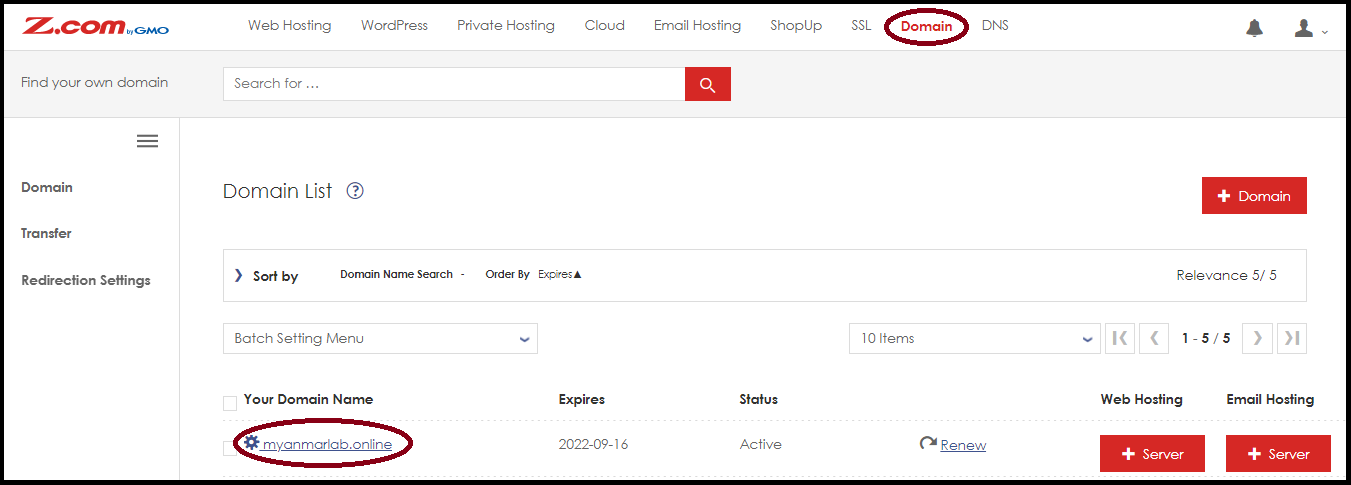
Step4. Click "Whois Information"
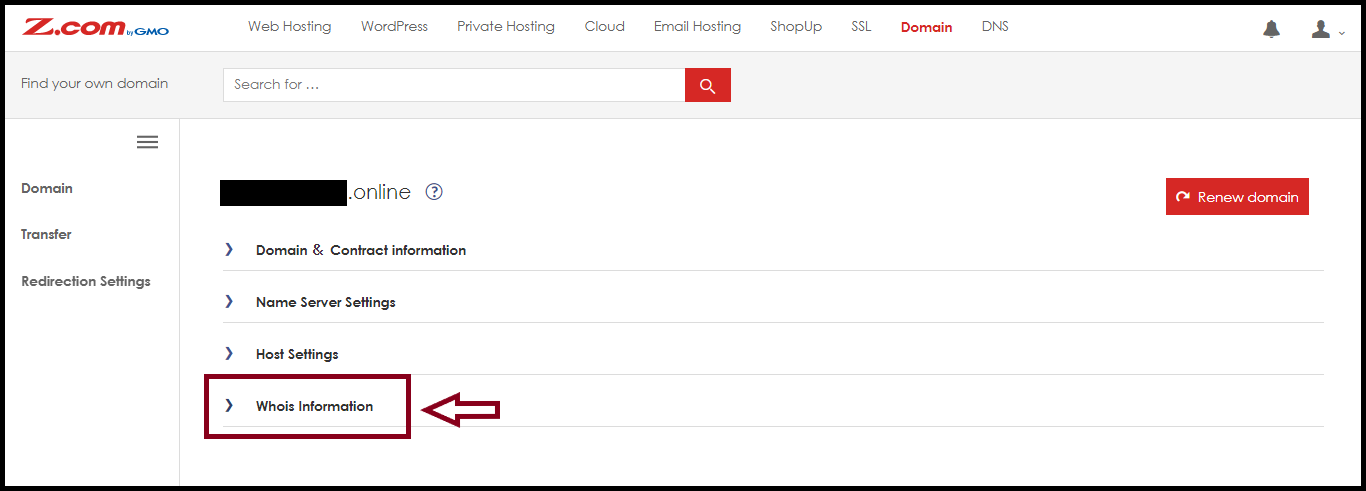
Please kindly change as the following steps.
(Admin > Accountant > Technician > Registrant)
Step4.1- "Admin Information": First, fill out all English language only. If you have already filled in the information, you can click the "Save" button.
Step4.2- "Accountant Information": Can copy data from Admin information easily (OR) can fill out all the information, and then click the "Save" button.
Step4.3- "Technician Information": Can copy data from Admin information easily (OR) can fill out all the information, and then click the "Save" button.
Step4.4- "Registrant Information": Can copy data from Admin information easily (OR) can fill out all the information, and then click the "Save" button.
***For the Whois information changing process, the information of Admin and Registrant should be the same email address, it will be easy to approve. *****For Registrant Information changing, it will be verified in the email by clicking the URL link. *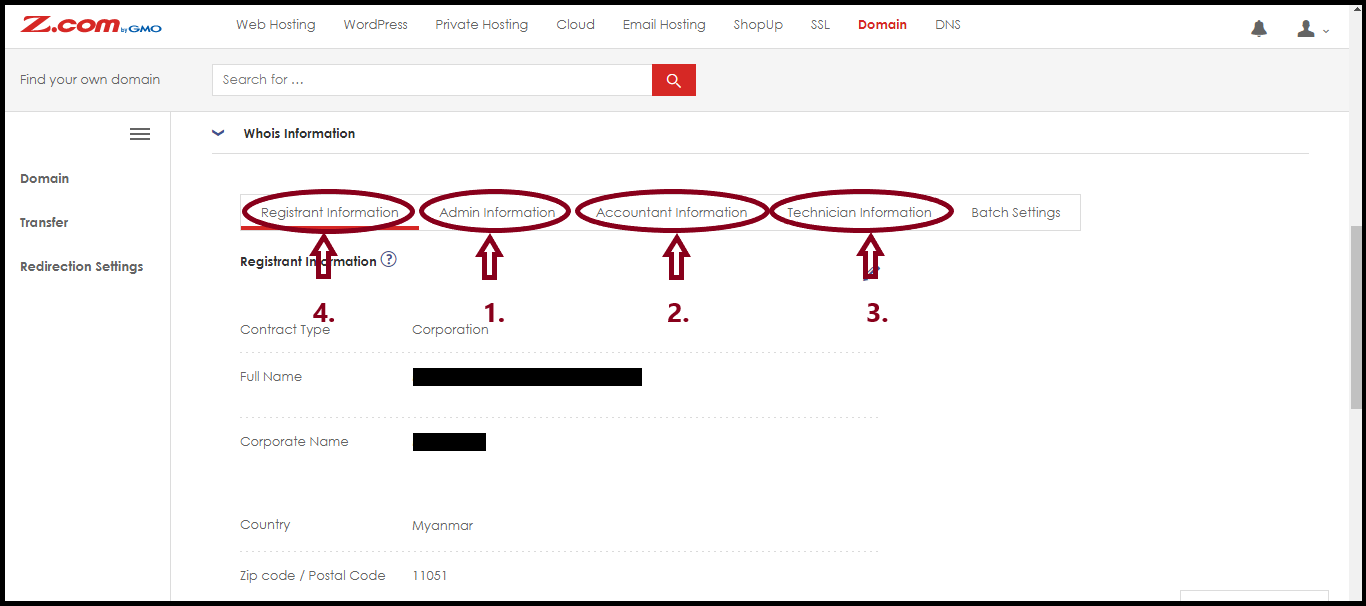
*** Now we will show you the changing Registrant Information.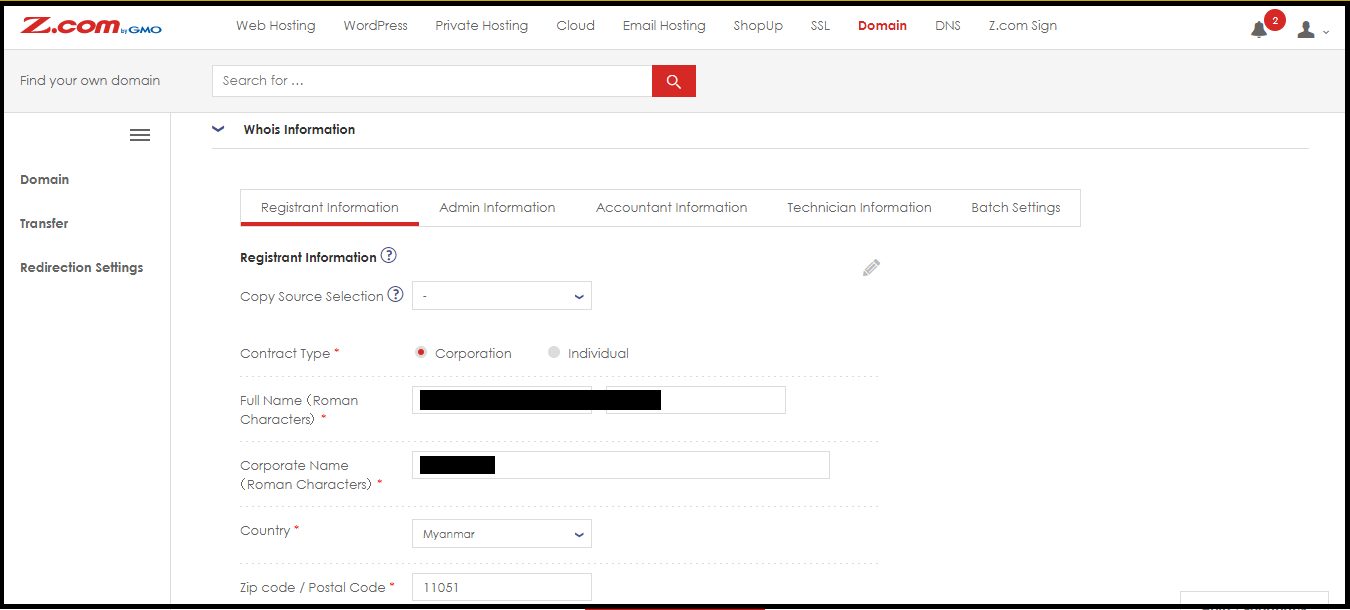
After you changed the Whois Information, please "Save"
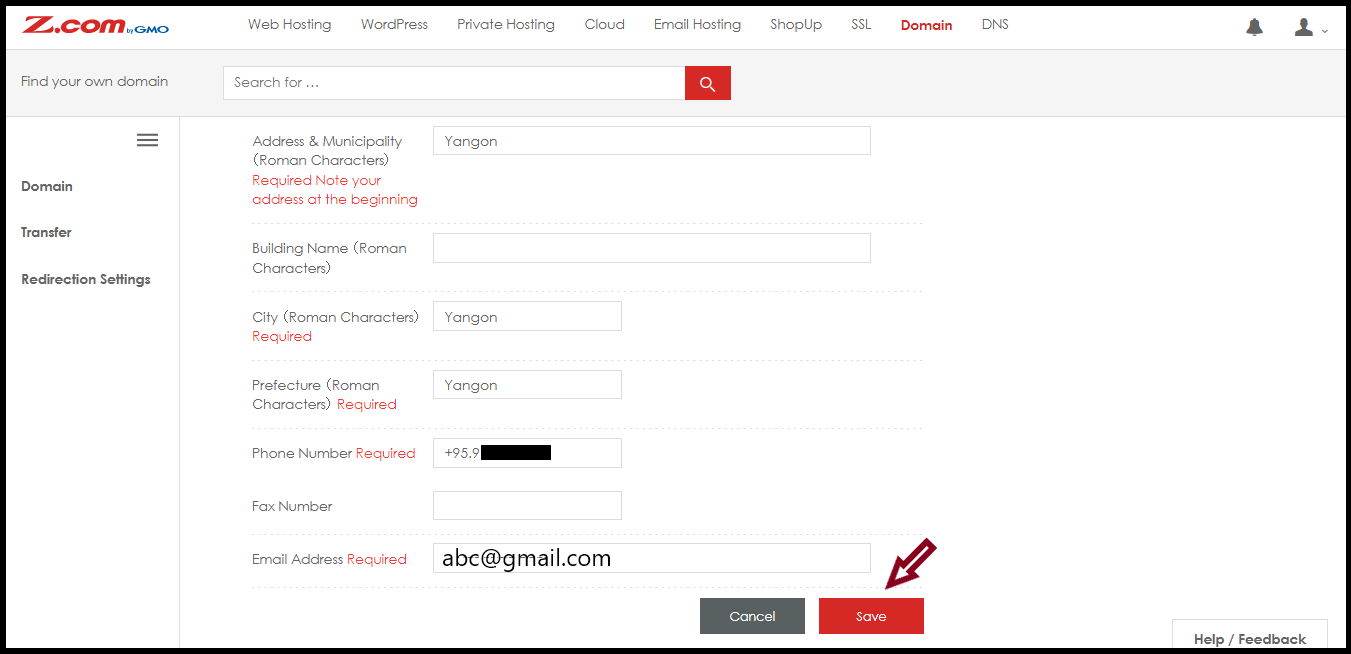
And then, you can select the email address and option to send a verification email.
Then Click "Save"
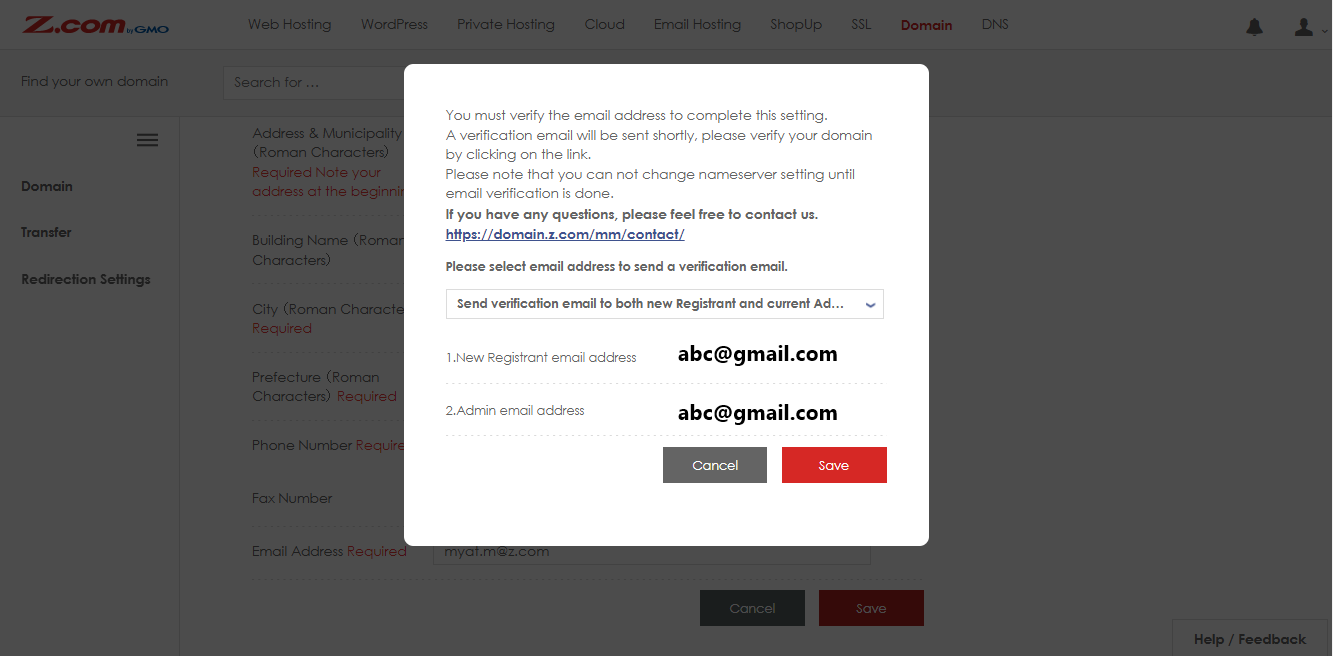
Recommended Option: Send verification email to both new Registrant and current AdminAfter clicking the two URLs in the email of the Admin’s email address and Registrant’s email address, the Whois information will update within 24 hours.Thank you!!!
Was this article helpful?
That’s Great!
Thank you for your feedback
Sorry! We couldn't be helpful
Thank you for your feedback
Feedback sent
We appreciate your effort and will try to fix the article